- Planning the allocation of PCIe lanes between GPUs, NVMe, network, and expansion cards avoids bottlenecks in advanced PCs.
- Combining NVMe over PCIe with caching systems and a well-configured network multiplies performance in NAS and hosting.
- The BIOS/UEFI allows you to fine-tune the CPU, RAM, integrated GPU, and power to balance performance, consumption, and stability.
- Choosing the right platform (AM5, LGA1851), network card (1G/10G) and PCIe slots extends the lifespan of the equipment.
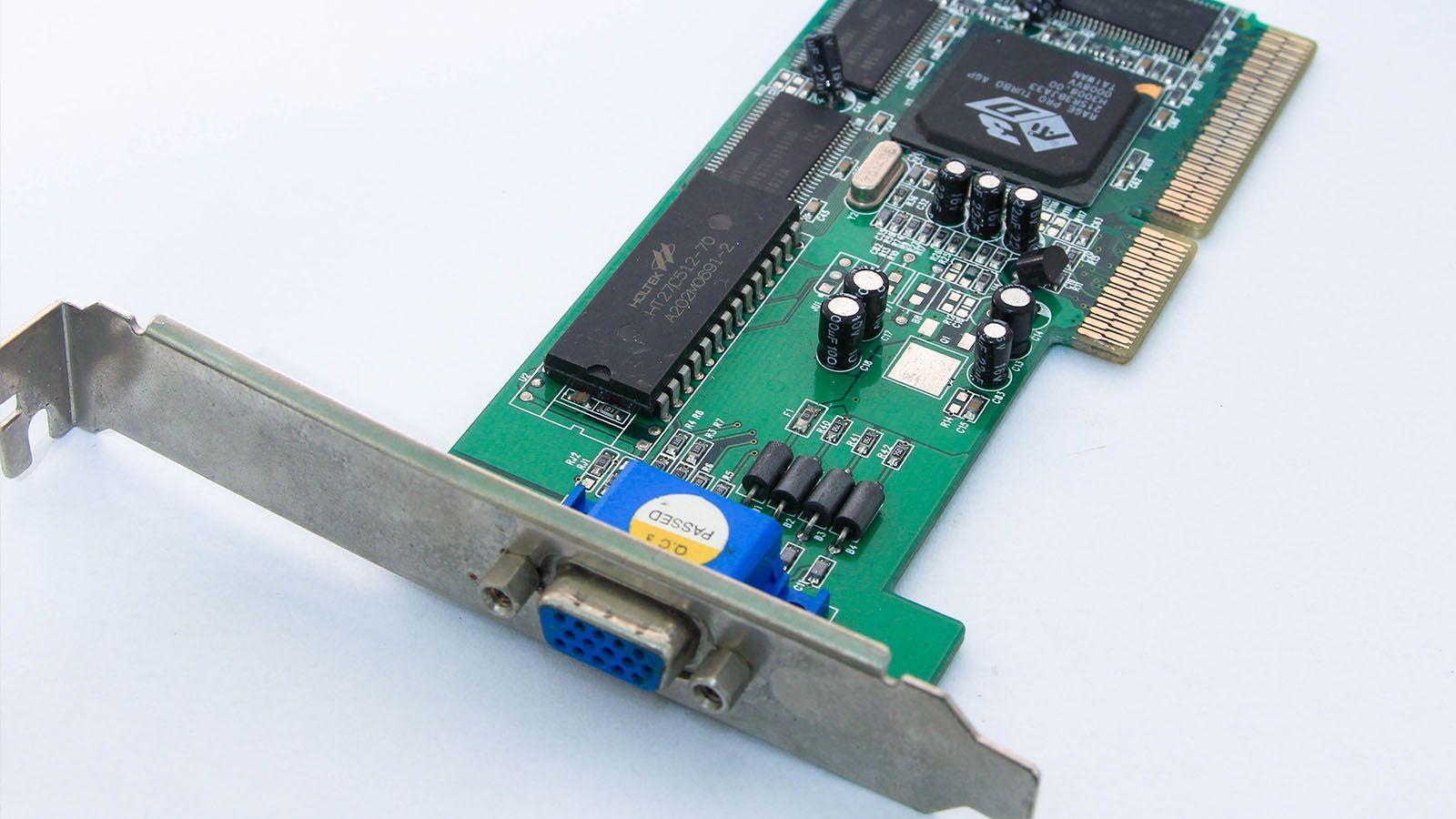
Building a home NAS or an advanced gaming PC these days involves much more than simply screwing parts together. Taking full advantage of all PCIe lanes, maximizing the M.2 NVMe ports, and fine-tuning the network to 1 Gbps or 10 Gbps makes all the difference between a standard system and a true high-performance machine, whether for gaming, virtualization, video editing, or a serious home lab.
The problem is that between divided PCIe x16 slots, M.2 sockets that steal lanes from the chipset, lane-hogging graphics cards, and 10G network cards, it's easy to get confused. If you also want NVMe RAID, multiple SATA HDDs, and a powerful GPU, "advanced PCIe optimization" requires a thorough understanding of how resources are allocated on the motherboard, how to configure them in the BIOS, and how to complement all of this with a finely tuned network.
What exactly is advanced PCIe optimization in a modern PC?
When we talk about "advanced PCIe optimization," we're not just referring to plugging in a GPU and calling it a day. It's about planning and balancing all PCI Express lanes, M.2 ports, SATA ports, and expansion cards so that nothing creates a bottleneck and each component has the bandwidth it truly needs.
On a modern platform, especially with the latest generation AMD Ryzen or Intel processors, the CPU offers a limited number of fast PCIe lanes (generally Gen3, Gen4, or Gen5) , depending on the CPU microarchitecture and performance . These lanes are distributed between the main x16 slot for the GPU, the M.2 NVMe sockets, and, depending on the motherboard, an additional slot. The remaining lanes are provided by the chipset, which also has its limits.
The key is deciding which devices deserve dedicated CPU power lines (GPUs, critical NVMe drives, 10GB graphics cards) and which can be handled through the chipset (sound cards, capture cards, extra USB devices, etc.). This is the foundation for stable, trouble-free performance in your home lab, NAS, or advanced gaming PC.
Real example: NAS/homelab with X470, 6 HDDs, 2 NVMe drives, GTX 1080 and 10G
A very typical example of advanced PCIe optimization is repurposing desktop hardware to build a NAS or homelab. Imagine a motherboard like an X470 for Ryzen (for example, the Fatal1ty X470 Gaming K4) plus an old gaming PC that you now want to convert into a server with unRAID, Docker and container optimization , a GPU for LLMs, and a 10GbE network.
A motherboard of this type typically has something like: 2 PCIe 3.0 x16 slots (one physical and electrical x16, the other sharing lanes and running at x8/x8), 4 PCIe 2.0 x1 slots, 6 SATA3 ports, and 2 M.2 sockets . One of the M.2 slots is usually PCIe Gen3 x4 (up to 32 Gb/s), the other more limited (Gen2 x2, around 10 Gb/s).
A typical NAS/homelab setup would include: 5-6 SATA hard drives for data, 2 NVMe drives in RAID 1 for the operating system and containers, a GTX 1080 dedicated to AI or transcoding, and a 10G SFP+ network card . This is where you need to carefully consider how to distribute the resources to avoid wasting any bandwidth.
With that configuration, it is possible to connect 6 SATA HDDs + 2 NVMe drives + a GPU + a 10GB graphics card , but not all at their maximum theoretical speed. The GPU and the 10GB card will compete for the x16 lanes, and the second M.2 slot has a physical limit of Gen2 x2. The trick is to accept which devices can be "capped" without impacting real-world use.
How are the PCIe lanes distributed on a typical X470 motherboard?
The Ryzen platforms of that generation work more or less like this: the CPU offers 16 PCIe lanes for the GPU, plus 4 for a primary M.2 drive and 4 for the chipset link . The chipset adds its own PCIe 2.0 lanes for x1 slots, extra SATA, USB, etc.
In an X470 gaming motherboard, the typical distribution is usually:
- PCIe1 x16 slot (primary): connected directly to the CPU, it works at x16 if it is alone, or at x8 if the second x16 slot is activated.
- PCIe4 x16 slot (secondary, often physical x8 or x16 but with fewer lanes): shares with the first one; when using it, both usually end up at x8/x8.
- PCIe 2.0 x1 slotsHanging from the chipset, perfect for sound cards, extra USB, small controllers, etc.
- Socket M.2_1: NVMe PCIe Gen3 x4 (direct to CPU) and, on some CPUs, also SATA mode.
- Socket M.2_2: NVMe PCIe Gen2 x2 and/or SATA, usually behind the chipset.
- 6 SATA3 portsThey combine direct lines from the chipset and, sometimes, shared lines with M.2 SATA.
This means that the GPU and the second x16 slot share the CPU's 16 PCIe lanes . If you use two x16 devices simultaneously, such as an RTX/GTX and an NVMe x16 card or a 10GB x8 card, they will almost certainly end up in x8/x8 mode. And, be aware, the primary M.2 slot also uses CPU lanes, so the motherboard has to carefully redistribute everything to avoid disrupting the design.
Normally, you won't have the option to set the first slot to x4 or x8 and the second to x16, as many users ask; the allocation is determined by the chipset and the motherboard's lanes. It's also usually not possible to have both slots at true x16 on an X470 motherboard, because there simply aren't enough PCIe lanes on the processor.
NVMe selection and distribution: M.2 vs PCIe cards
If you want a lot of NVMe (for example, to make the NAS "shockproof" and very fast), the usual thing is to combine the motherboard's M.2 sockets with a PCIe adapter card like a "Hyper M.2 x16" that supports 2-4 M.2 SSDs in a single x16 slot.
On X470 motherboards and similar, this approach has nuances:
- Primary M.2 (Gen3 x4 from CPU)Ideal for NVMe where you install the operating system, containers, and virtual machines that require minimal latency.
- Secondary M.2 (Gen2 x2 from the chipset): perfect for caches, fast but non-critical storage, or a RAID member that doesn't need maximum bandwidth.
- PCIe x16 card with NVMeThis only makes sense if the motherboard supports hardware RAID (x4/x4/x4/x4) or NVMe RAID. On many X470 motherboards, you won't get the full benefit of four simultaneous NVMe drives, or you'll have to use x8/x4/x4 modes, limiting other devices.
If you want two NVMe drives in RAID 1 for unRAID or ZFS, you can put one in the M.2 Gen3 x4 slot and the other in the M.2 Gen2 x2 slot . The array will be limited by the slower drive, but in RAID 1, the advantage isn't so much raw speed as it is redundancy and acceptable latency; for a home server, this is more than enough.
Another option is to use a PCIe x4 card with one or two NVMe drives for data , leaving the primary M.2 slot completely free for the system. This allows you, for example, to dedicate the secondary x16 slot to an NVMe adapter and the x1 slots or the secondary M.2 slot to other cards or auxiliary storage.
Support GPU, NVMe, and 10G network without killing bandwidth
One of the biggest headaches is fitting a GTX 1080/RTX 3070 Ti GPU with a 10GbE card, multiple NVMe drives, and the available PCIe slots without any performance issues. Here are some practical guidelines:
In most games and workloads, a modern GPU performs almost identically at PCIe 3.0 x16 as it does at x8 . The performance loss is typically a low single-digit percentage, practically imperceptible in everyday use. So, sacrificing GPU lanes is perfectly acceptable if you need to power an additional 10Gbps or NVMe drive.
In a compact N-Case PC with a vertically mounted GPU and riser cable, airflow must also be considered. Placing the NVMe or 10G card "above" the GPU to allow for better airflow is a good idea , provided the motherboard can electrically support it. Often, the cleanest way is:
- GPU in the first x16 slot (even if it goes to x8).
- 10G card or NVMe adapter in the second x16 slot (x8 electric).
- NVMe of the system in the M.2 main directly to the CPU.
- NVMe support or RAID in the Secondary M.2 or PCIe x4 card.
If you absolutely want the GPU to stay at x16, you'll have to forgo using the second x16 slot for larger cards and move the 10G to an x4 or x1 slot (if a version exists), or to an M.2 to PCIe adapter. However, in practice, for gaming and general use, an x8/x8 mode is usually the best compromise.
Regarding using an M.2 to PCIe Gen3 x4 adapter for the 10G card, the limitation is that not all M.2 slots are designed for "unusual" cards (many only support SSDs), and on older motherboards, the BIOS may not initialize a network card connected to an M.2 socket. It's much simpler to plug the 10G into a standard PCIe x4/x8 slot.
PCIe expansion beyond storage: capture cards, sound, and USB
Advanced PCIe optimization isn't just about NVMe and GPUs. Desktop computers have a significant advantage over laptops and consoles in that they can add almost any feature via expansion cards in seconds: connectivity, video capture, professional audio, and more.
Among the most common PCIe cards that don't usually require many lanes, so they can be installed in x1 slots without worry, are:
- PCIe video capture cardsFor streaming, recording gameplay, connecting cameras or consoles. They offer better quality and lower latency than many USB ports thanks to the greater bandwidth of the PCIe bus.
- Dedicated sound cardsThey provide extra audio inputs and outputs and better sound control for podcasting, home recording, or simply superior listening quality without relying on built-in audio.
- Cards to add USB-A and USB-C portsPerfect for systems where the front or rear expansion slots are insufficient. They utilize one or two PCIe lanes and free the chipset from so much device load.
- TV/DTT tuners: useful in environments without a good internet connection, they allow you to receive the antenna signal directly on the PC instead of using Smart TV.
In these cases, the impact on PCIe lane allocation is minimal . Almost all of these cards work without issue in x1 slots of the chipset and do not need to be connected directly to the CPU, so they do not affect the performance of the GPU or the main NVMe drives.
Another interesting category is PCIe cards for expanding storage with multiple M.2 SSDs . The bottleneck here is the PCIe version of your motherboard: on a platform with PCIe 3.0, an x4 card limits the overall bandwidth to around 4 GB/s, regardless of whether you install three SSDs with a combined theoretical bandwidth of 20 GB/s. The important thing is to be aware of this and only install SSDs in that adapter whose use won't saturate them all simultaneously.
Base platform: choosing CPU, motherboard, and chipset with future-proofing in mind
If you're building a high-end PC from scratch, whether for gaming or productivity, it's wise to consider the platform several years in advance. The choice of socket and chipset will determine everything from the number of available PCIe lanes to future CPU support and the type of memory or storage you'll be able to use.
Currently, AMD's AM5 platform is one of the most attractive for enthusiast PCs. Launched in 2022, the company has promised support for several years, so you can build a modern Ryzen 7 today and, in the future, upgrade to a more powerful CPU without changing your motherboard or RAM . Chipsets like the B650 offer a very interesting balance between performance and price, with PCIe 5.0 on at least one M.2 slot and 4.0 for GPUs and additional storage.
On the Intel side, the LGA1851 socket with the Z890 chipset also represents an advanced option for those who want to push overclocking limits and have PCIe 5.0 available for both GPUs and M.2 drives. However, Intel tends to shorten the lifespan of its sockets , so if you're interested in upgrading your CPU every few years, the balance might tip towards AMD.
In addition to PCIe lanes, you should also look at:
- VRM and cooling Regarding the motherboard: for powerful CPUs and potential overclocking, a good phase design and solid heat dissipation are key.
- Number of M.2 slots and its versions (PCIe 4.0/5.0, sharing with SATA, etc.).
- RAM support: maximum capacity, high DDR5 frequencies and stable EXPO/XMP profiles.
- Integrated network connectivity: Wi-Fi 6/6E, 2.5 GbE or even 10 GbE as standard, depending on needs.
A typical advanced configuration might revolve around a current Ryzen 7 (e.g., a 9700X) or an Intel Core Ultra 7 , accompanied by 32GB of fast DDR5 (6000MHz or more), a powerful GPU such as an RTX 50xx, a high-performance NVMe PCIe 4.0 x4, and ATX 3.1 power supplies with 12VHPWR connectors for newer cards.
In all scenarios, the idea is the same: reserve the fastest PCIe lanes for critical GPUs and NVMe drives, relegating the rest of the cards (sound, capture cards, additional network) to secondary slots or the chipset . This ensures you don't throttle performance where it matters most.
NVMe and caching: the key to performance in servers and hosting
In the world of professional hosting and web servers, advanced PCIe optimization is primarily manifested in the use of NVMe storage and sophisticated caching systems . NVMe (Non-Volatile Memory Express) is a protocol created specifically for SSDs that communicate directly via PCIe, overcoming the historical limitations of SATA.
Thanks to its design, NVMe allows for the parallel handling of multiple command queues with thousands of simultaneous requests , making it a perfect fit for applications like databases, high-traffic WordPress sites, online stores, and cloud services. An NVMe PCIe 4.0 x4 SSD can achieve speeds several times faster than a SATA SSD , with latencies approaching or below one millisecond.
For a modern hosting provider or data center, this translates to:
- Much higher I/O speedDisk accesses are much faster, loading times are reduced, and read/write operations are completed in less time.
- Lower access latency: data is obtained almost instantly, which is especially noticeable in intensive database queries.
- Greater responsiveness under load: more concurrent requests without storage becoming a bottleneck.
Adding multi-level caching (server, object, browser) to that makes a huge difference. Technologies like LiteSpeed Cache, Varnish, Redis, and Memcached store the most common responses and queries in memory or on fast disk, preventing the same data from being recalculated repeatedly.
Properly configured, an NVMe + caching environment can halve, or more, website loading times compared to solutions using SATA SSDs or, even worse, traditional HDDs. Furthermore, this performance improvement often translates into better SEO ranking, as search engines reward speed and stability.
Network and network cards: from 1 Gbps to 10 Gbps when properly configured
All the effort invested in storage and PCIe can be wasted if the network fails or is improperly configured. The network card determines the maximum speed you can achieve , both to the internet and within your local network—crucial for NAS, backups, network editing, or high-quality streaming.
Today, a Fast Ethernet card (100 Mbps) is clearly insufficient even for demanding home use. With fiber optic connections reaching 1 Gbps or even 10 Gbps, a Gigabit Ethernet card (10/100/1000) is required , which in practice offers up to 940 Mbps of actual throughput via the protocol headers.
Many modern computers have an integrated Gigabit Ethernet card, but it's not always properly configured or up-to-date . If your connection is stuck at 100 Mbps, three things could be happening: the card only supports Fast Ethernet, the cable/wiring is damaged, or the card is misconfigured in the operating system.
In Windows, for example, it's a good idea to check the network card's sync speed in the adapter properties. If it doesn't show 1 Gbps, you can go to the advanced driver options and force "Speed and Duplex" to 1.0 Gbps Full Duplex , provided both the router and the cable support it. A simple restart after the change can make the difference between "normal" browsing and truly taking advantage of your fiber optic connection.
For those setting up home labs or needing increased internal bandwidth, 10G (10 Gigabit Ethernet) cards are an increasingly affordable solution. Offering speeds of up to 10 Gbps, they are designed for data centers, high-performance NAS devices, or backbone networks and can use either copper or fiber. Within a local network, they allow for the transfer of large volumes of data, 4K/8K video, or virtual machines with performance far exceeding that of traditional gigabit connections.
Key factors for choosing and configuring a good network card
When deciding which network card to install in your computer, whether wired or Wi-Fi, there are several critical factors beyond simply "supports 1 Gbps or 10 Gbps." The choice of connection type, speed, physical interface, and even security support can completely change the experience.
To begin with, there are two large families:
- Internal PCIe cardsThey connect to a slot on the motherboard (x1, x4, etc.). They are semi-permanent and usually offer the best performance and stability, ideal for desktops and servers.
- USB adaptersThey plug and play, very practical in laptops or for adding Wi-Fi to a PC without opening the case, but with bandwidth limitations and, sometimes, stability limitations compared to PCIe.
Next, you need to look at:
- Connection typeEthernet for maximum stability and low latency, or Wi-Fi for mobility. For serious online gaming, demanding streaming, or NAS, a wired connection almost always wins.
- Maximum speed1 Gbps is the minimum recommended standard, but if you have 2.5G/10G infrastructure or plan to set one up, it's best to go directly to Multi-Gig or 10G cards.
- Physical interface (PCIe/USB)Make sure you have compatible free slots, and don't connect the 10G to a very limited port if you want to take full advantage of its speed.
- Security (on Wi-Fi): WPA2/WPA3 support and regular firmware updates to patch vulnerabilities.
Performance isn't just about nominal speed. A good network card reduces latency, improves connection stability, and handles peak loads better . On local networks, this translates to faster file transfers, uninterrupted streaming, and a better experience when gaming online or video conferencing.
Finally, it's essential to keep your drivers up to date and check your Windows power-saving options . Sometimes, an aggressive power plan or the "Allow the computer to turn off this device to save power" setting is precisely what's causing micro-cuts, slowdowns, or random disconnections.
Advanced BIOS settings for CPU, GPU, RAM, and PCIe
A significant part of advanced PCIe optimization involves the motherboard's BIOS/UEFI . This is where you can adjust parameters for the CPU, integrated GPU, memory, power limits, and, in many models, the behavior of the PCIe buses.
Many modern BIOSes include an advanced options menu with sections such as:
- Trusted Computing / fTPM: related to security and encryption.
- Power Configuration: ignition management, behavior after power failure and energy profiles.
- CPU ConfigurationCPU parameters, base frequencies, P states, etc.
- AMD CBS or similarOn AMD platforms, it groups settings for CPU, integrated GPU, RAM, PCIe, power consumption, etc.
- Hardware Monitor: control of fans, temperatures and thermal behavior.
- PCI Subsystems: specific PCIe connectivity options, slot prioritization, line branching if the motherboard supports it.
On systems with AMD processors, the AMD CBS menu is typically divided into subsections such as CPU, DF, UMC, NBIO, FCH, SMU, and SOC, each responsible for a specific aspect of the platform. For example, NBIO usually handles PCIe, GPU, and audio settings , while UMC and DF manage memory.
It's also common to be able to decide how much RAM is allocated to the integrated GPU from the BIOS . If your system doesn't have a dedicated GPU and you rely on the iGPU, allocating more memory (for example, 2-4 GB) can significantly improve graphics performance, provided you have enough overall RAM.
- iGPU Configuration > UMA Specified > UMA Frame Buffer Size > select quantity (e.g. 4 GB).
Regarding the CPU, some motherboards allow you to adjust the base frequency using Pstates or performance profiles . Increasing these values can boost FPS or render speed, but it also increases power consumption and temperature, so it's important to be aware of your processor's and cooling system's limitations.
RAM, for its part, usually allows for fine-tuning of frequency and timings . Enabling EXPO/XMP profiles or manually adjusting the speed to match what the CPU and memory modules support can significantly improve performance in integrated GPUs and memory-intensive applications. However, if you experience instability, crashes, or errors, it's wise to revert to Auto or a more conservative profile.
Energy management, remote power-on, and consumption profiles
Within the BIOS, you'll also find advanced power management options that affect not only power consumption but also the distribution of power between the CPU, GPU, and the rest of the system. On AMD platforms, the SMU section typically groups these power controls and thermal limits.
Among other parameters, you can find:
- System consumption limits: to define how much maximum power the CPU/APU can use.
- ECO modesLow-power profiles that reduce peak frequencies and voltages, ideal for office use, lightweight servers or 24/7 equipment.
- Performance / Power Saving ProfilesBIOS modes that prioritize maximum performance for gaming or efficiency and silence for everyday use.
The remote power-on section also has useful features, especially for homelabs:
- AC Failure / Auto Power ON: allows the device to turn on automatically when power is restored, useful if you want to control it with a smart plug.
- Wake on LAN (WOL): turn on the PC via the network by sending a "magic packet" from another device.
- Wake up RTC: automatic start at a specific time using the internal clock.
By carefully controlling these parameters, you can have an advanced server or PC that only starts up when needed, doesn't overconsume power, and keeps temperatures under control , all without sacrificing performance when it's really necessary.
Ultimately, optimizing PCIe, NVMe, CPU, RAM, and network is a balancing act: distributing the lanes well, taking advantage of what the motherboard offers by default, reinforcing it when necessary with expansion cards, and accompanying it with a BIOS and operating system configuration consistent with the actual use you're going to give the computer, whether as a NAS/homelab, as a workstation, or as a very serious gaming PC.
