- Technical differentiation between dead, blocked, and lazy pixels to apply the correct solution.
- Recovery methods using controlled physical pressure and chromatic refresh software.
- Risk analysis according to panel technology (IPS, VA, TN or OLED) to avoid permanent damage.
- Importance of reviewing the warranty and the right of withdrawal in online purchases.
Having a black or colored spot on your screen can be a real nightmare, especially if you're someone who can't stop staring at that tiny flaw while working or playing. If the warranty doesn't cover it, it's understandable that you might think your monitor is beyond repair, but before you give up hope, there are several DIY fixes that could save the day without costing you a penny.
The first thing to do is not to panic or start frantically pressing the screen, because you could make things worse and leave the panel in even more disrepair than before. In this article, we'll break down step by step how to identify the type of problem you're experiencing and what steps you can take to get your monitor looking pristine again, always keeping in mind the risks associated with each technology.

What exactly is happening on your screen?
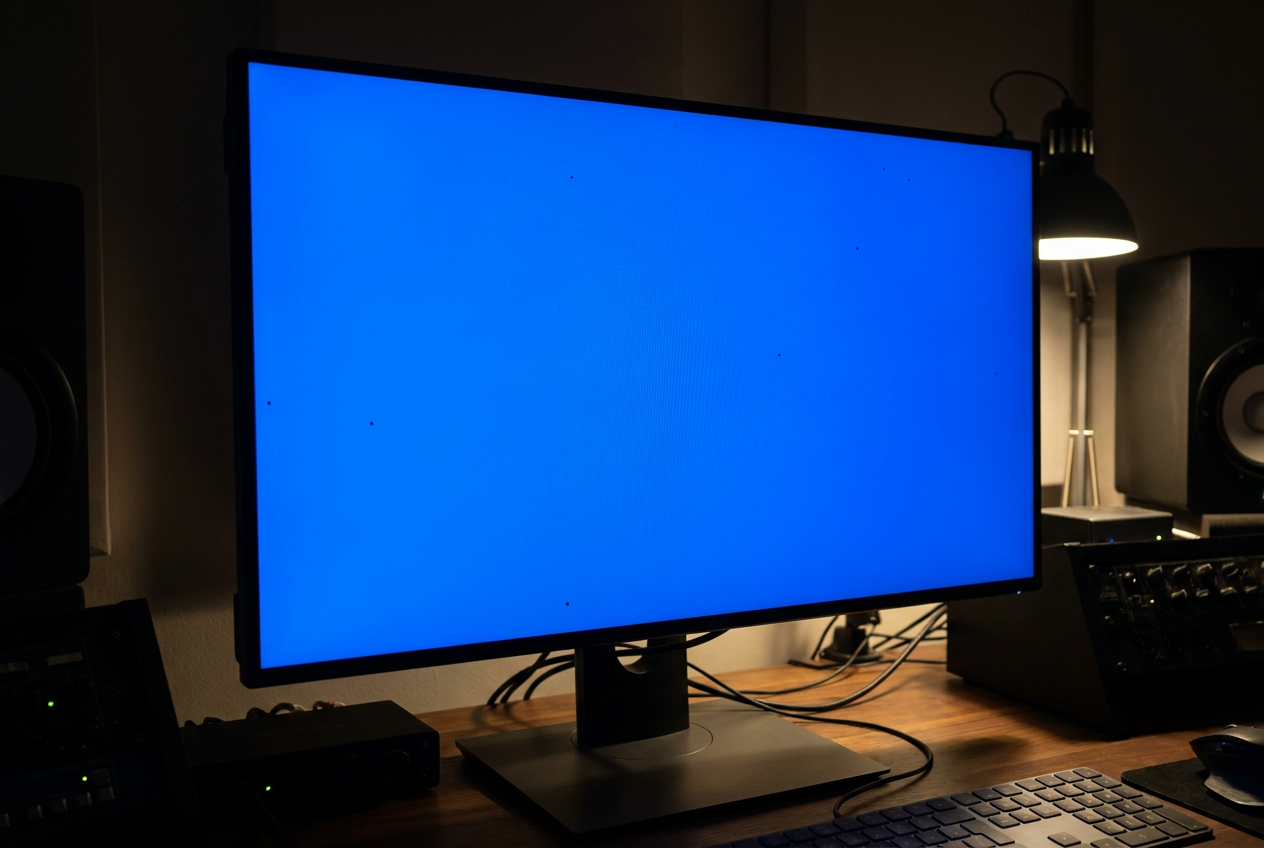
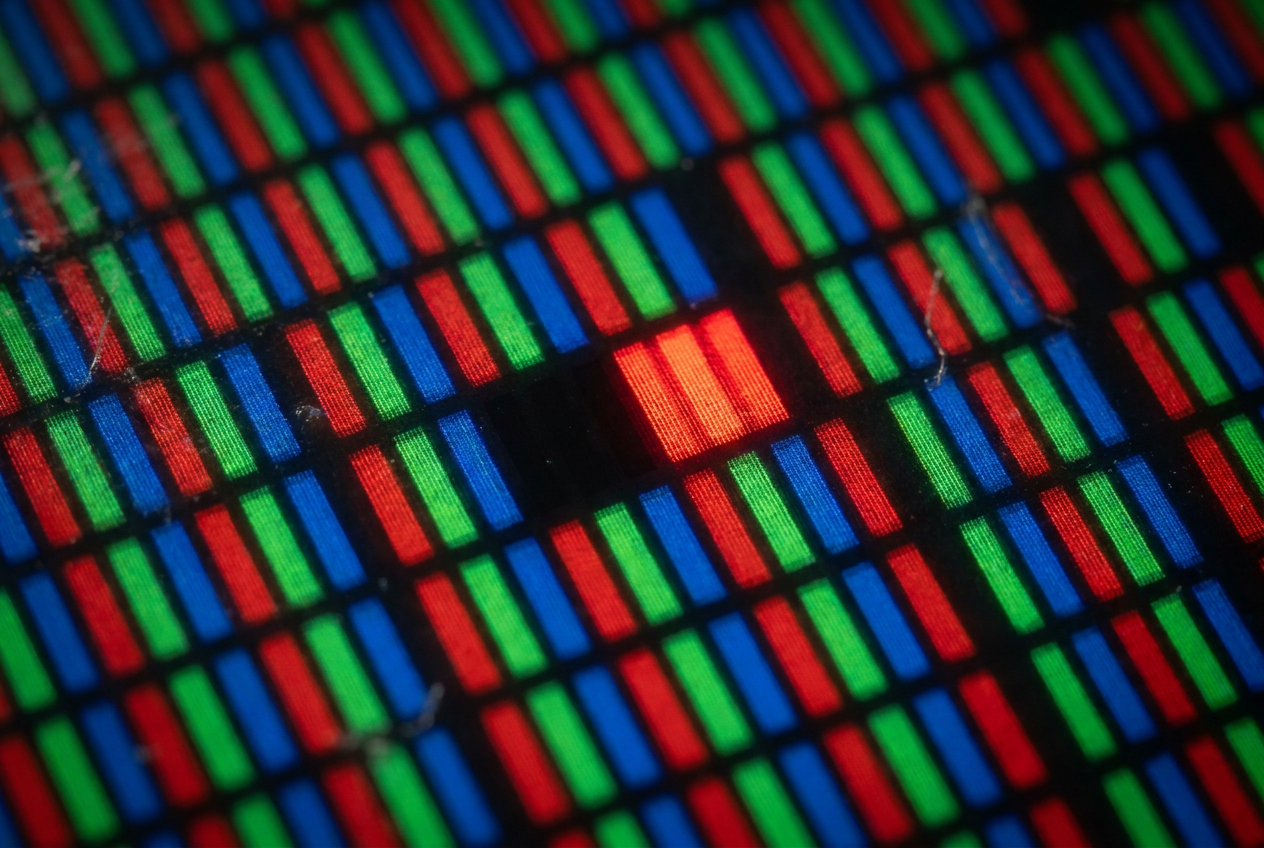
Not all defective pixels are the same, although we often call them all "dead pixels" for simplicity. In reality, there are three distinct types. The dead pixel is the most problematic; it usually appears black (or sometimes white) and doesn't react to anything, as it has completely stopped receiving power. Then there's the locked pixel , which is one that has become "stuck" on a primary color (red, green, or blue) and won't change even if the image requires it.
There are also so-called lazy pixels , which are those that aren't completely dead or blocked, but respond slowly or display a different brightness than the rest, creating an annoying visual inconsistency. To better understand this, a pixel is basically a set of three microscopic light bulbs; if one fails or gets stuck, the result is that discordant spot in the image that drives us crazy.
Common causes of these failures
Sometimes monitors come from the factory with defects, as it's almost inevitable that some panels will have a defect on the production line due to the high density of components . The higher the screen resolution, the greater the probability of a component failing, purely due to statistical factors. However, there are also external causes that we can avoid.
- Excessive pressure: Placing heavy objects on the monitor or Clean your PC monitor without damaging it pressing the panel too hard.
- Natural wear: Over time, electronic components can degrade.
- Physical impacts: An accidental bump can disconnect the internal circuitry of the pixel.
- Environmental factors: Sudden changes in temperature or extreme humidity levels.
- Manufacturing errors: Failures in the transistors or in the liquid crystal array.
How to detect and diagnose the problem
If you're unsure whether it's a dead pixel or just a speck of dust, it's best to use software tools. Websites like Dead Pixels Test fill the screen with solid colors (red, green, blue, white, and black). By doing this, you can carefully examine the surface and see if there are any spots that don't change color against the background.
A golden tip for those buying new or used monitors is to take a quick scan with your phone's camera using the zoom function as soon as you turn the monitor on. This will prove that the fault was already there and wasn't your fault, greatly simplifying the warranty claim process or exercising your right of withdrawal if you bought online.
Methods to try to revive a dead pixel
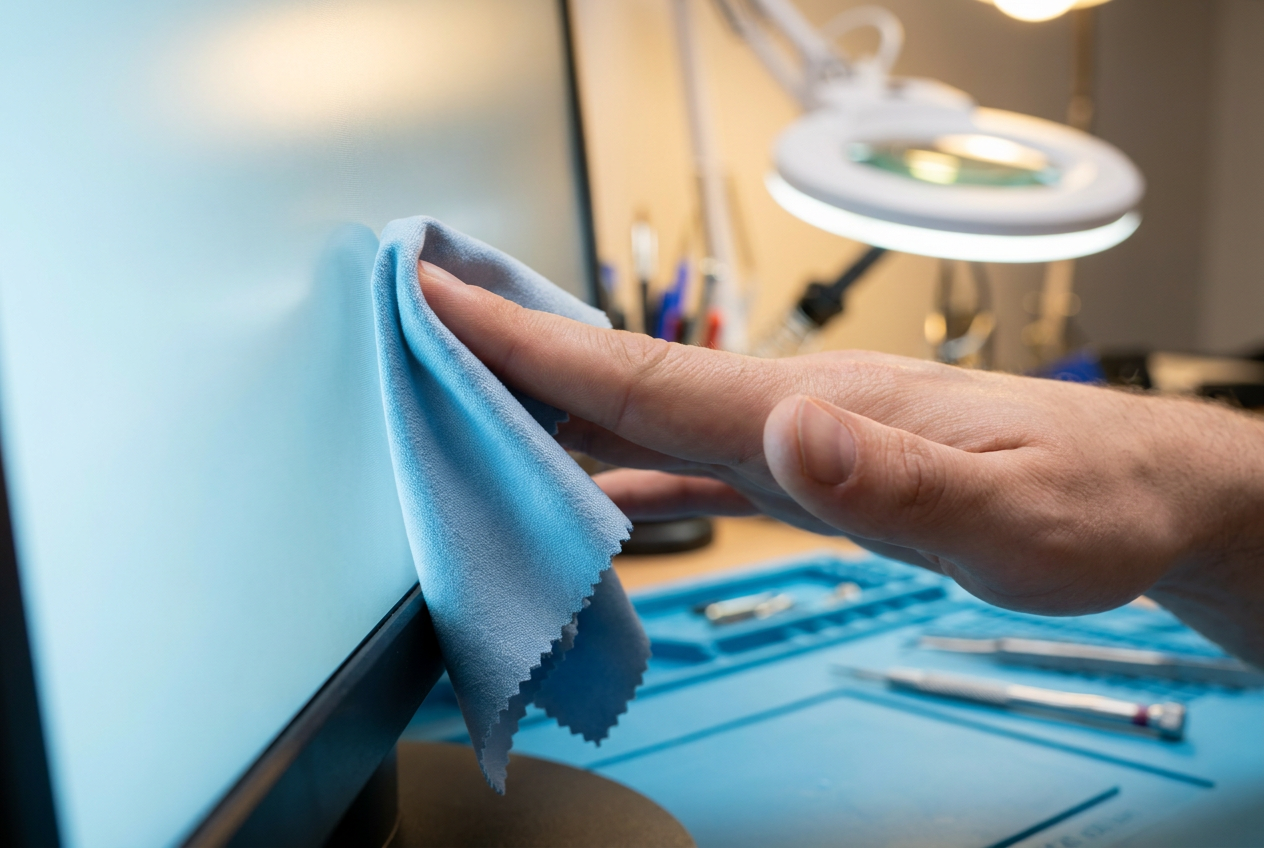
Let's be honest: dead pixels are usually irreversible because they represent a physical defect. However, if the problem is a poor electrical connection , there's a manual method that sometimes works on LCD screens. First, turn off the computer and the monitor completely. Then, with a soft microfiber cloth , apply light, localized pressure directly to the defective spot.
While still pressing down, turn on the monitor and the PC. Once the image has loaded, carefully remove the cloth. The goal is to force the liquid crystal to move and re-establish the electrical connection . It's vital not to press too hard, as you could scratch the anti-reflective coating or create more dead pixels around it.
Solutions for stuck pixels
These are much more optimistic, with a success rate close to 50%. Since the pixel does receive power but doesn't change color, the solution is to stress it using software . A very effective tool is JScreenFix, which generates a box of colors that flash at a very high speed (60 times per second).
For this to be effective, let your monitor cool down for a couple of hours before starting. Then, put the website in full-screen mode (F11) and hover the color box over the stuck pixel for at least 15 minutes, though ideally up to an hour . This forces the "light bulb" to change state rapidly, which often unsticks the stuck subpixel.
Considerations according to panel type
Not all screens react the same way to these tricks, and applying the wrong technique can be disastrous. TN panels are structurally more robust, but their dead pixels are often fatal. On IPS and VA panels , gentle pressure can work, although with VA panels you have to be extremely careful not to affect the uniformity of the light.
On the other hand, if you have an OLED monitor , completely avoid applying physical pressure. These panels don't use liquid crystal, but rather organic diodes; pressing on the screen could crush the diode structure and cause permanent and irreparable damage . For OLEDs, the only recommended option is to use the pixel cleaning or refresh functions already integrated into the monitor's menu.
If the dead pixel persists after trying all of these steps, it's most likely due to physical damage to the transistor. If the monitor is under warranty, check the manufacturer's policy, as some require a minimum number of dead pixels before accepting a panel replacement. If there's no warranty coverage, consider whether the spot's location is bothersome enough to warrant buying a new monitor, or if you can simply learn to ignore it over time.