- Always use quality microfiber cloths and mild liquids such as distilled water or screen-specific cleaners.
- Avoid harsh products (ammonia, bleach, multipurpose cleaners) and do not apply the liquid directly to the panel.
- Turn off and unplug the monitor before cleaning it and make gentle passes, without pressure and in one direction only.
- Maintain a cleaning routine and take care of your surroundings to reduce the accumulation of dust and fingerprints.
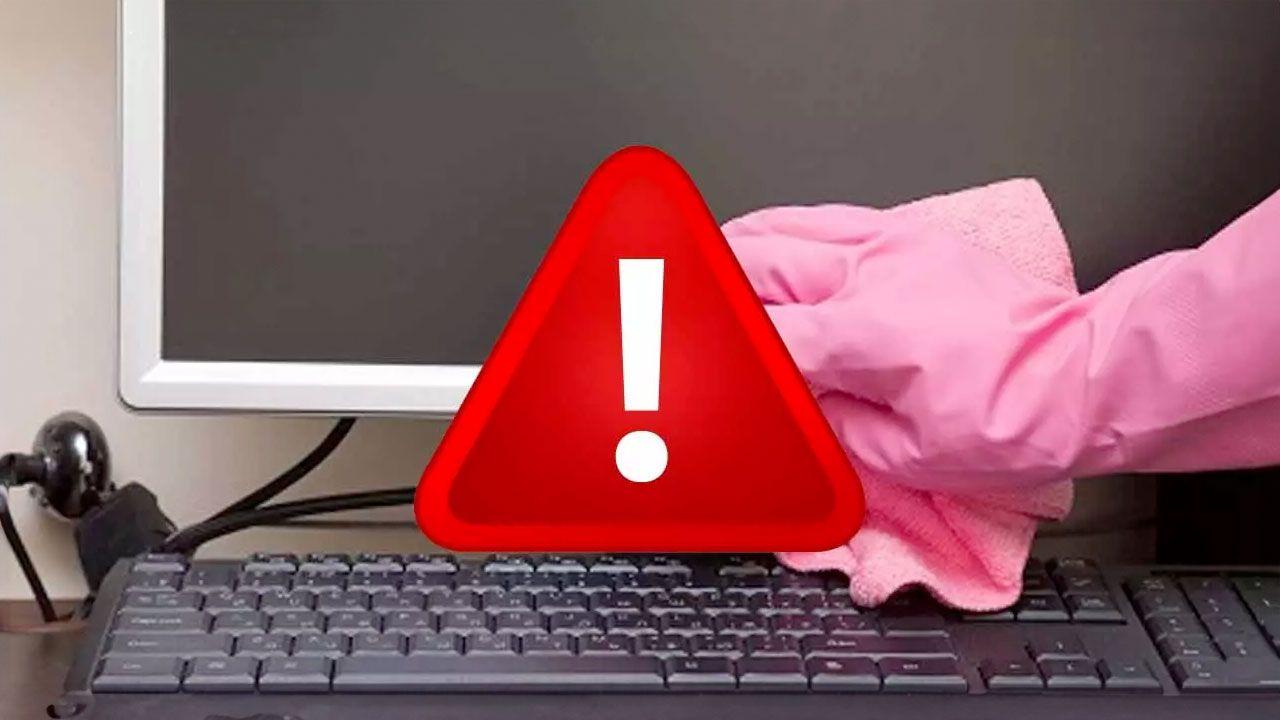
Every time you turn on your computer, your screen is bombarded with dust, fingerprints, grease, and airborne particles that gradually accumulate. While it may not always be noticeable at first glance, over time this affects the image's sharpness, colors, and even the monitor's lifespan.
Many people avoid cleaning their monitors for fear of damaging the panel, but if you follow a few clear guidelines and use the right products, you can make any screen look brand new in minutes, risk-free. In this article, you'll see what to use, what not to use, how to clean each type of screen, and what tricks help keep it clean for longer.
Recommended materials (and those you should avoid) for cleaning your PC monitor
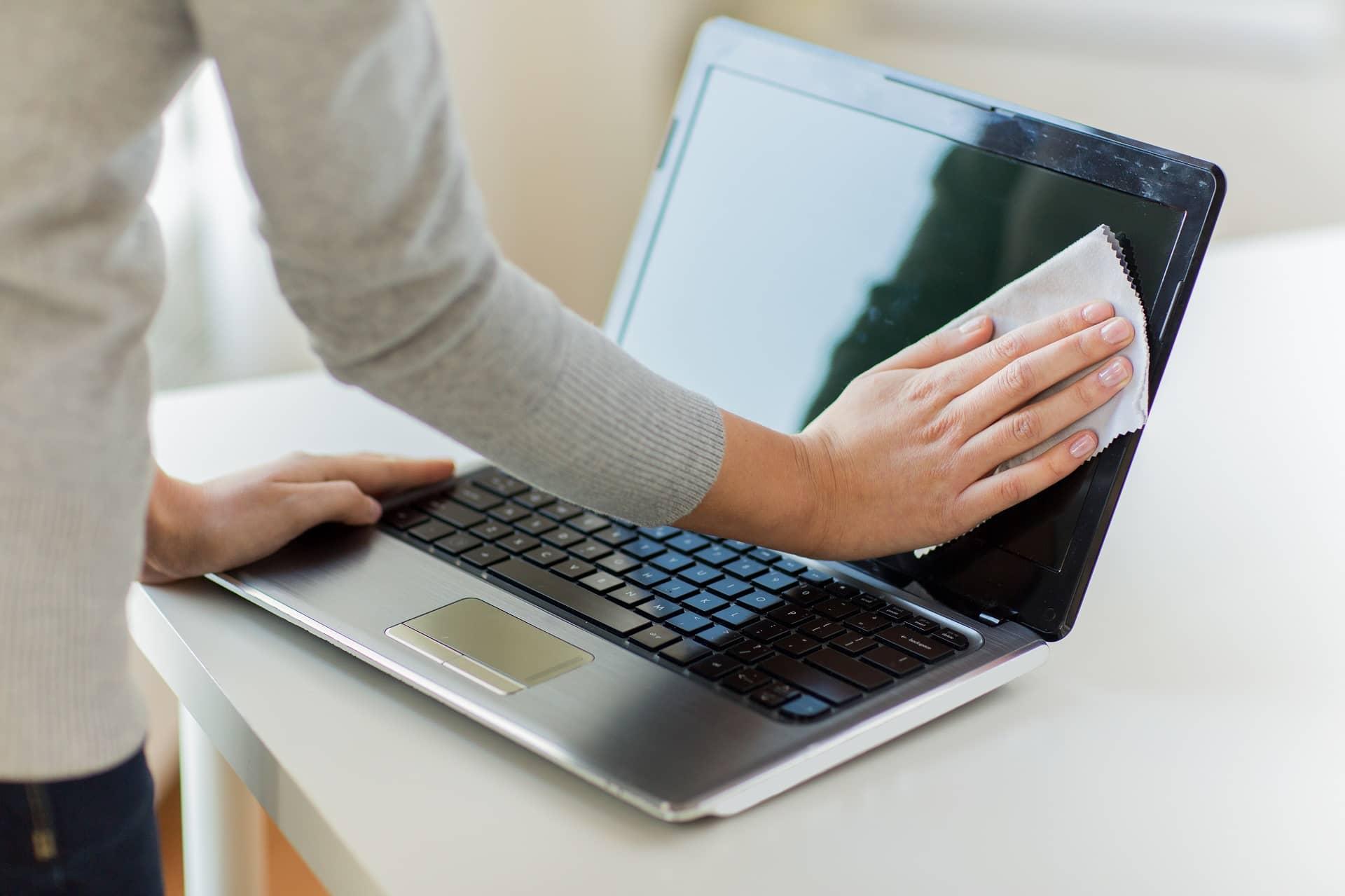
Before bringing anything near the screen, it's important to know which products are safe and which can damage the panel's coating. Not all screens are the same, but they do share certain limitations regarding chemicals, pressure, and humidity.
What you'll always need is at least one good-quality, lint-free microfiber cloth , and if possible, several: one for dusting, another for applying product, and a third for drying. Avoid kitchen paper, tissues, or old rags at all costs because they leave residue and can cause micro-scratches.
As for the cleaning solution, to be on the safe side, it's best to use distilled or purified water in a small spray bottle . It's mineral-free, so it won't leave white residue when it dries. You can use it alone or in combination with LCD/OLED screen cleaners recommended by the manufacturer.
There are also wipes specifically designed for glasses and screens that work quite well. They come pre-moistened with a mild solution that shouldn't damage anti-reflective coatings, although over time, repeated rubbing can leave fine marks . They're convenient for quick cleanups, but don't overuse them if you have an expensive or very delicate monitor.
In more professional settings, many people use car detailing glass cleaners like GOOD STUFF Glass Cleaner or CarPro Clarify. These products are designed for delicate surfaces, leaving glass spotless and streak-free , and can be used on monitors as well as windows in homes or cars. However, it's always best to apply them to a cloth, never directly to the screen.
On the downside, we need to be very clear: do not use ammonia, harsh glass cleaners, acetone, bleach, kitchen degreasers, or multi-purpose cleaners like Windex or similar products unless the manufacturer explicitly states that your screen is compatible with that type of product (which is very rare except for some monitors with thick outer glass). It's also not a good idea to use dish soap, makeup remover, or products containing hydrogen peroxide.
The real role of isopropyl alcohol in cleaning monitors
Isopropyl alcohol has gained a reputation as the magic bullet for anything electronic, but its use needs some clarification. Even at 90% or 99% concentrations, it's not intended as a general-purpose cleaner for screen surfaces , especially monitors with delicate anti-glare coatings.
Its main advantage is that it evaporates quickly and leaves no conductive residue, making it ideal for cleaning connectors, ports, contacts, and internal areas where persistent moisture is undesirable. It's also effective for removing localized adhesive residue or grease, always applied sparingly and to a cloth.
The problem with using isopropyl alcohol as if it were glass cleaner is that it doesn't lubricate the surface at all . If there's dust or even the smallest particles on the panel, the cloth is the one that drags all that dirt directly against the screen. Over time, this results in micro-scratches and a loss of the original finish.
Therefore, if you want to be cautious, reserve isopropyl alcohol for technical cleaning: video connectors, USB ports, frame edges, or internal areas of the PC . For the glass or the top layer of the panel, it's best to use mild, distilled-water-based liquids or screen cleaners specifically recommended by the manufacturer.
Which microfiber cloth to choose and why it matters so much
It may seem like a minor detail, but the choice of cleaning cloth is key. These days, manufacturers use complex coatings on top of the LCD/OLED panel: anti-reflective layers, color filters, and very thin transparent resins that are nothing like the thick "glass" of yesteryear.
For general dusting and light dirt removal, one of the safest options is microfiber with a waffle weave pattern (with small squares or a waffle-like texture). This pattern traps particles without the need to squeeze and cleans smooth surfaces like glass, screens, or mirrors effectively.
When dealing with more stubborn dirt or grease stains, it might be best to use a very soft, long-pile microfiber cloth with a generous blend of polyethylene and polyamide. These are the towels used in car detailing for glossy plastics and delicate lacquered surfaces, and they work wonderfully on screen for gently "stroking" the surface without scratching it.
What you should avoid are cheap, stiff microfiber cloths that become hard after a few washes. They tend to drag dirt around more than they trap it, and if you use them with accumulated dust, they act like microscopic sandpaper . A good clue: if you have areas of the car's "piano black" finish full of tiny scratches, many of them come from cleaning with the wrong cloth.
Remember that household dust is anything but innocent: it contains quartz particles, textile fibers, skin flakes, and soot . In other words, hard minerals mixed with fine debris. That's why it's so important that the cloth traps the dirt and doesn't push it against the screen's coating.
How to clean the monitor structure: base, back and frames
Before you tackle the panel itself, it's worth cleaning the casing. Always turn off the monitor and unplug it ; if it's a laptop, turn it off and remove the charger. This will also help it cool down, prevent accidental sparks, and make it easier to see any blemishes on the black screen.
Place the monitor on a stable surface where it won't fall over mid-task. If it's on an articulated arm or wall-mounted, work more carefully and use your other hand to hold it when cleaning back areas or high spots.
Start by removing dust from the base, back, and bezels with a dry microfiber cloth or a soft brush . The idea is to prevent loose particles from being tracked onto the panel. If you have compressed air, you can use it to blow out vents, slots, and connection ports.
Once the surface dust is removed, lightly dampen a section of the cloth (with distilled water or a mild cleaner) and gently wipe the base, arm, and back , being careful not to soak the plastic or seams . Never spray the product directly onto the monitor: if liquid gets into the gaps, you risk costly damage.
A simple trick is to always clean from top to bottom: if you clean the top edge first and then the sides, the dust will fall into areas you haven't cleaned yet . This way you avoid having to go over areas you've already cleaned.
Step-by-step guide to cleaning the screen of your monitor, laptop or TV
Once the frame and casing are under control, the critical moment arrives: the panel. If you follow a specific sequence, you can leave it spotless in five minutes without taking unnecessary risks.
1. Turn off the device and unplug it. On a laptop, in addition to turning it off, unplug the charger. It's not strictly necessary, but working with the device cool and de-energized is safer and allows you to see dust and stains much better when backlit.
2. Position yourself so that the light (preferably natural) hits the screen from the side. When you view the panel at an angle, fingerprints, splashes, and dust are much more noticeable.
3. Wipe the entire screen surface with a dry microfiber cloth using broad, gentle strokes, without pressing too hard. The goal here is to lift most of the loose dust before using any liquid, so it doesn't mix into a muddy film on the panel.
4. Dampen a small, clean area of the microfiber cloth with distilled water or a screen cleaner. Never spray directly onto the screen except in very extreme cases; it's best to spray it onto the cloth first and control how much you use.
5. With the cloth barely damp, clean the screen with even strokes in one direction only : from left to right, or from top to bottom. There's no need to press hard; let the product do its work. If a stain persists, try again with more gentle strokes instead of applying pressure.
6. If you notice localized dirt (a dried drop, a streak), you can fold the microfiber cloth and use a corner to work only on that area. In more stubborn cases, a tiny extra amount of product on that corner is usually enough to soften the rest.
7. Change the area of the cloth as you notice it getting damp or picking up dirt. The idea is to avoid redistributing the grime instead of removing it . For the final pass, always use a clean, slightly damp section.
8. Finally, wipe the entire surface with a clean, dry microfiber cloth to remove any small streaks or halos. This final "polishing" step is what leaves the screen looking brand new.
For laptops, take an extra precaution: never soak the cloth . The bottom bezel, hinge, and keyboard are very close to the screen, and any drips can easily seep into the system. If you also need to clean the keyboard, consult our keyboard cleaning guide.
Differences in cleaning LCD, OLED, and other types of panel screens
Most current monitors and laptops use LCD panels with LED or OLED backlighting, which behave similarly in terms of surface fragility, although some Apple products and certain monitors have a somewhat more robust outer glass layer.
For classic LCD/OLED screens (especially if the manufacturer highlights that they are "matte" or have an anti-reflective coating), you need to be more careful. The wisest approach is to stick to distilled water or a certified screen cleaner . Avoid ammonia or concentrated vinegar.
On screens with external glass, such as those found on mobile phones, or on some iMacs and MacBooks, the margin is slightly larger. Some manufacturers allow mild solutions of diluted white vinegar or slightly diluted alcohol , but always in small quantities and only with the approval of the manual for your specific model.
A basic step that many people skip is checking the monitor or laptop's specifications by looking up the model on the manufacturer's website. There, they usually indicate whether it's a standard LCD, if it has reinforced glass, if the coating is special, or even if they expressly prohibit the use of certain types of products.
As a quick rule: if you're unsure, treat it like a delicate LCD screen. It's better to be conservative and take an extra minute than to be a little more aggressive at the expense of damaging the anti-glare coating and shortening the monitor's lifespan.
Dos and Don'ts When Cleaning Your Computer Screen
Besides the products themselves, gestures matter a lot. A clean screen but one full of micro-cracks, dead pixels, or peeling coating is worse than one that's just slightly dirty . It's a good idea to be clear on a short list of rules.
Among the things you should do, it's essential to always turn off and unplug the monitor before touching it. It's also advisable to follow the manufacturer's cleaning guidelines, if available, and apply a very small amount of cleaning product directly to the cloth, never in large bursts.
Another good habit is to rest your free hand on the frame or base while cleaning, but without putting any weight on the screen. This stabilizes the monitor and prevents sudden movements that could result in it being bumped or dropped.
On the list of things not to do, besides using harsh products, is using paper towels, napkins, old t-shirts, or rough rags . They may feel soft to the touch, but at a microscopic level, they are a festival of stiff fibers that leave marks with repeated use.
Also, avoid making "pressing circles" as if you were polishing a car. These pressure-based movements concentrate the effort on small areas of the panel and can result in dead pixels, light bleed, or permanent internal smudges . Long, smooth strokes in a single direction are always better.
How often should you clean your PC monitor?
There's no universal frequency, but there are some reasonable guidelines. If you work or play daily, ideally you should give your screen a light dusting every one or two weeks , and a more thorough cleaning (with product) about once a month.
In dusty environments (older homes, nearby construction sites, pets with fine fur) or if you smoke near your PC, dirt accumulates more quickly, so you might find it helpful to clean the panel more often. The less grime you let build up , the less aggressive you'll need to be to remove it later.
If the screen is touch-sensitive—whether it's a 2-in-1 laptop, tablet, or interactive monitor—it makes sense to wipe it with a soft cloth almost daily , or at least several times a week. Finger grease accumulates quickly and, mixed with dust, forms a film that's unpleasant to remove if left to build up.
With screens that aren't used often (a second monitor you only turn on occasionally, or a TV in an office), you can space out maintenance, but never neglect them. Dust eventually gets into frames, vents, and connectors, and in the long run, this affects ventilation and the overall performance of the equipment.
Tips to keep your screen clean longer
Beyond cleaning, there are several simple habits that help your monitor last longer. The first, so obvious it's almost embarrassing to say, is to avoid touching the screen with your fingers unless it's a touchscreen . Skin always leaves oils, even if your hands are freshly washed.
If you have someone nearby who's always pointing at the screen, they'd be better off practicing on the frame. Every fingerprint attracts dust, and after just a few days, you'll have smudges that are much more visible than the rest of the screen.
Another good idea is to consider your surroundings. Try not to place your monitor right next to an open window, near the kitchen or bathroom , because the humidity and ambient dirt will cause dust to accumulate even more. And for eye health, it's best to avoid direct sunlight shining directly on the screen.
If you know you'll be leaving your monitor unused for weeks, consider covering it with a protective cover, a large clean bag, or even the same plastic it came in from the factory. Vacuum-sealing isn't necessary, but a simple cloth will prevent dust from settling directly on the panel and bezel.
Finally, if you're going to clean other things nearby (furniture, shelves, blinds) that create a lot of dust, be sure to cover the screen while you're cleaning. It's better to get ahead of the dust cloud than to have to deal with a thick layer of stuck-on particles later.
Filters, screen protectors and cases: are they worth it?
Today, the market is full of accessories designed to protect the screen and modify its characteristics. The best known are anti-glare, privacy, and blue light filters , which are placed as a film in front of the panel.
These filters act like a shield: dirt gets trapped inside them and doesn't touch the monitor's original surface. When they're badly worn or scratched, you just need to replace them. The problem is that good ones are usually expensive, and if you want an image without distortion or loss of sharpness, you have to go for higher-end models.
For screens that won't be used for extended periods (a spare monitor, a computer in a vacation home, etc.), it can be useful to use full covers that protect the entire monitor when it's turned off. These covers protect against both dust and minor accidental bumps.
In everyday life, putting on and taking off a screen protector every time you turn your PC on and off can be a bit of a hassle, but in specific contexts (workshops, warehouses, high-traffic rooms) it's a simple way to extend the life of the screen.
In any case, even with filters and covers, regular cleaning remains essential. No screen protector can replace the safe and periodic removal of dust and grease . But if you combine both, you minimize wear and tear on the original panel and avoid unpleasant surprises.
Caring for your monitor screen isn't rocket science, nor does it require spending a fortune on exotic products. With a couple of decent microfiber cloths, distilled water or a good dedicated screen cleaner, and a little common sense, you can keep your monitor, laptop, or TV crystal clear for years . The important thing is to prevent dirt buildup, avoid harsh chemicals, and not turn cleaning into a massaging session of slapping and squeezing the panel. If you do this, your eyes—and your wallet—will thank you.
