- Accurate diagnosis to distinguish between software failures and physical hardware problems.
- Use of isopropyl alcohol and compressed air to remove dirt from contacts.
- Application of conductive silver paint as a professional method for restoring electrical traces.
- Implementation of preventive maintenance routines to extend the life of the keyboard.
Dealing with a keyboard where some keys simply stop responding is a real headache that can ruin your productivity and drive you crazy at any moment. Whether you're using a budget laptop or a high-end machine, membrane keyboard malfunctions are more common than you might think, and thankfully, they don't always mean you have to throw your laptop away.
If you're willing to try it yourself, you'll see that understanding how these circuits work allows you to extend the lifespan of your device without having to spend a fortune on official repair services. Most of the time, the problem isn't serious: it's usually a combination of accumulated dirt , some natural wear and tear of the materials, or a minor physical mishap that can be fixed with a little patience and the right tools.

Diagnosis and preparation
Before you start disassembling anything, it's crucial to determine whether the problem is physical or software-related. A good first step is to rule out configuration errors or corrupted drivers, as differentiating between hardware and system failures will save you time and potential problems. Once you've confirmed that the key is physically dead, it's best to prepare a clean workspace and have basic tools on hand, such as precision screwdrivers, isopropyl alcohol, and compressed air.
Cleaning and maintenance techniques
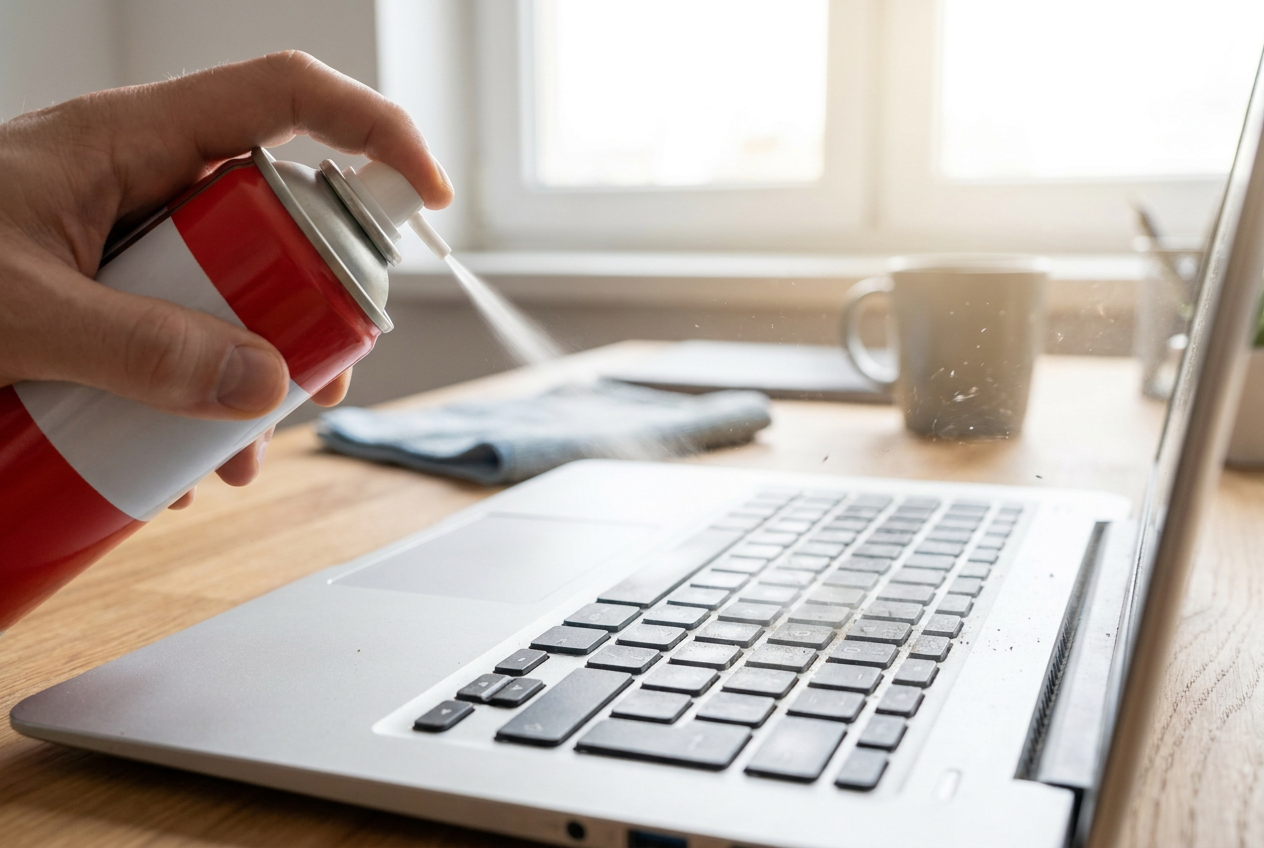
Many problems with uneven keystrokes are caused by crumbs or dust getting trapped under the key. Systematic cleaning, starting with compressed air and then carefully removing the keys , usually solves the problem. In the case of membrane keyboards, it's vital not to force the plastic parts, as the supports are delicate and could easily break, leaving the key loose.

Repair of electrical contacts
When cleaning isn't enough and the key still doesn't respond, the problem is usually in the conductive trace or the membrane's contact point. This is where the more technical part comes in. Some users resort to homemade solutions like pencil graphite mixed with nail polish or even aluminum foil, but these options are usually quite messy and don't last long.
The most professional and effective solution is to use conductive silver paint . Although it may seem like an unnecessary expense at first, it's a product that goes a long way and offers far superior resistance and durability compared to any DIY solution. To apply it, clean the area with 96% isopropyl alcohol , as it degreases the surface and evaporates quickly without leaving any residue that could damage the circuit.
- Identify the exact point where the membrane track is cut or worn.
- Clean the area meticulously to ensure the paint adheres properly.
- Apply the silver paint precisely on the damaged contact.
- Verify continuity before closing the device to avoid having to open it again.
Habits to avoid breakdowns
To avoid having to go through this process again, it's best to implement sustainable maintenance habits . Avoiding eating or drinking near your laptop is the golden rule, as liquids are the number one enemy of the keyboard membrane. Additionally, performing regular surface cleaning will prevent dirt from accumulating and damaging the keyboard's internal contacts.
Anyone with a little care can restore their keyboard to working order by following a logical process: diagnose the problem, clean it thoroughly, and, if necessary, rebuild the electrical contacts with appropriate materials. Ultimately, taking the time to learn these techniques not only saves you money but also gives you the satisfaction of repairing your own equipment and keeping it working for much longer.
