- Flickering is usually caused by outdated graphics drivers or incompatibilities in the monitor's refresh rate.
- Physical faults in HDMI/DisplayPort cables and dirt in the GPU's PCIe slot are common causes of unstable signal.
- In Windows, the Task Manager allows you to differentiate whether the error is from the driver or an incompatible application.

I'm sure it's happened to you: you're deep into work, enjoying a good series, or grinding on a video game, and suddenly the image starts acting strangely. That flickering effect , which in the technical world we call flickering, is one of those annoying things that drives you crazy because it feels like the screen is jerking and leaves your eyes strained in no time.
The good news is that, even if it seems like your computer has decided to retire prematurely, most of the time the problem is simpler than you think. It could be anything from a minor Windows configuration issue to a cable that's given up the ghost. In this article, we'll break down all the reasons why your monitor might be acting up and how you can fix it yourself without spending a fortune on a technician.

What exactly is flickering and why does it happen?
When we talk about flickering, we're referring to a rapid and irregular variation in brightness or image quality. It's not just any glitch; it's a problem that usually stems from a lack of communication between the graphics card and the monitor. This phenomenon is especially critical in shooters or competitive games, where even a small jump in the image can cause you to lose the game at the crucial moment.
The causes can be quite varied. Sometimes it's a hardware issue , but other times the culprit is software, poor refresh rate synchronization, or even external electrical interference affecting the video signal.

Common causes and how to fix flickering
Problems with drivers
It's very common for flickering to occur even when you're sitting still at the desktop. In these cases, the graphics card driver (whether integrated or dedicated) is most likely incorrectly installed or corrupted. Simply updating it from the control panel isn't enough; sometimes you have to completely reinstall it.
To fix this thoroughly, it's recommended to use a tool called Display Driver Uninstaller (DDU) . This software removes every last trace of old drivers to prevent conflicts. After cleaning the system, install the latest official version from the NVIDIA, AMD, or Intel website. If the problem arose right after a Windows update, trying to revert to the previous driver from Device Manager is usually the quickest solution for fixing issues in Windows 11.

The refresh rate or refresh frequency
If your monitor and graphics card don't communicate in the same way regarding hertz (Hz), the screen will start to flicker. For example, if your monitor is rated at 60 Hz but the system tries to send a different signal, the image will become unstable. To fix this, go to Advanced Display Settings in Windows and make sure the selected refresh rate is correct and supported by your computer.
Physical failures in cables and ports
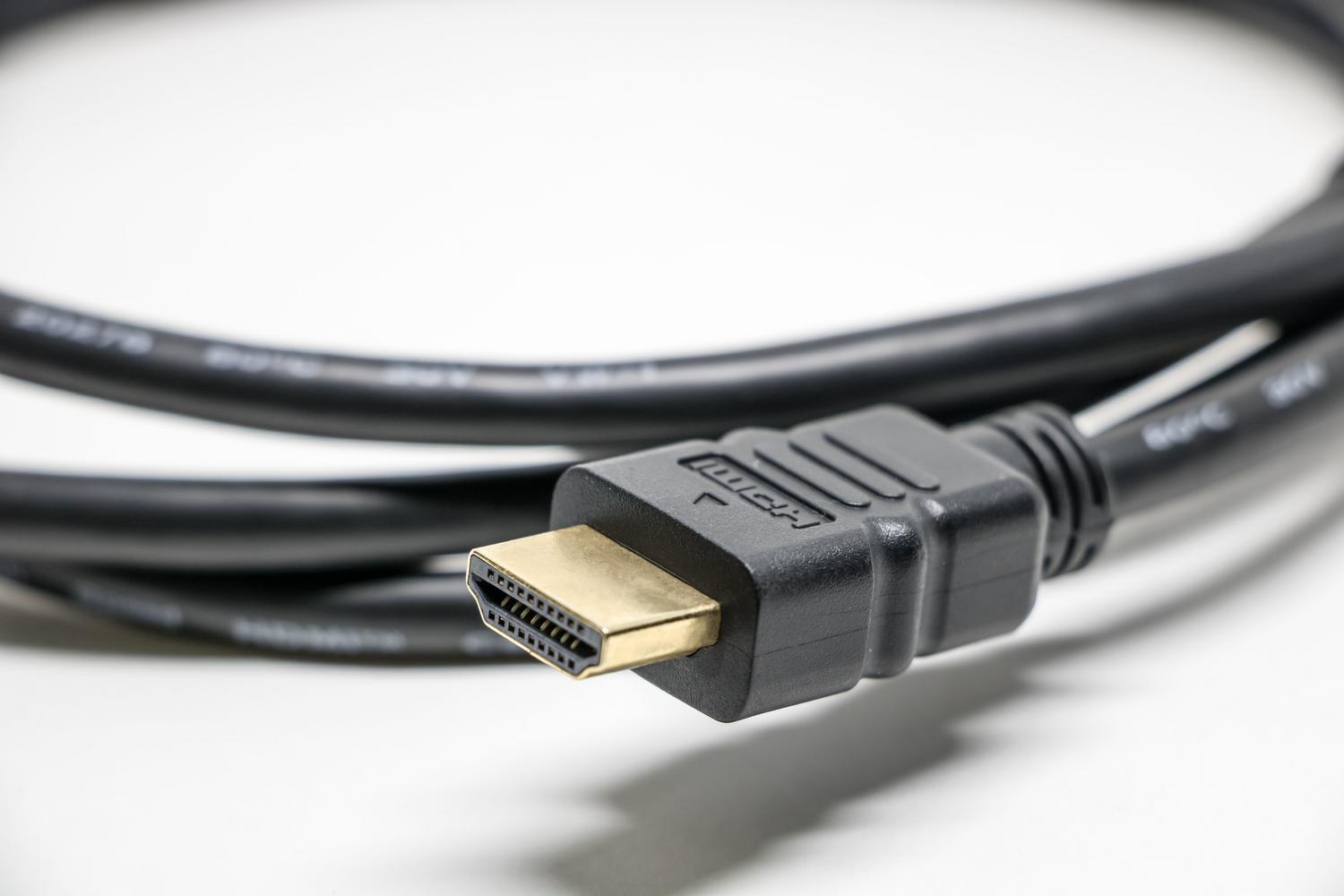
Sometimes the problem is as simple as a bent or poor-quality HDMI or DisplayPort cable . If you notice the flickering disappears when you move or reposition the cable, you've found the culprit. Additionally, inexpensive cables without good shielding can suffer from electromagnetic interference if they pass near a router or power supply.
Another critical issue is adapters. Using HDMI-to-VGA converters or similar devices often results in an unstable signal. Ideally, avoid adapters and use the monitor's native port, checking USB-C video compatibility if you're using this standard. Also, if the physical port is damaged from forcing the connection, the only solution is to replace the cable or, in the worst-case scenario, repair the port.

Hygiene and hardware assembly
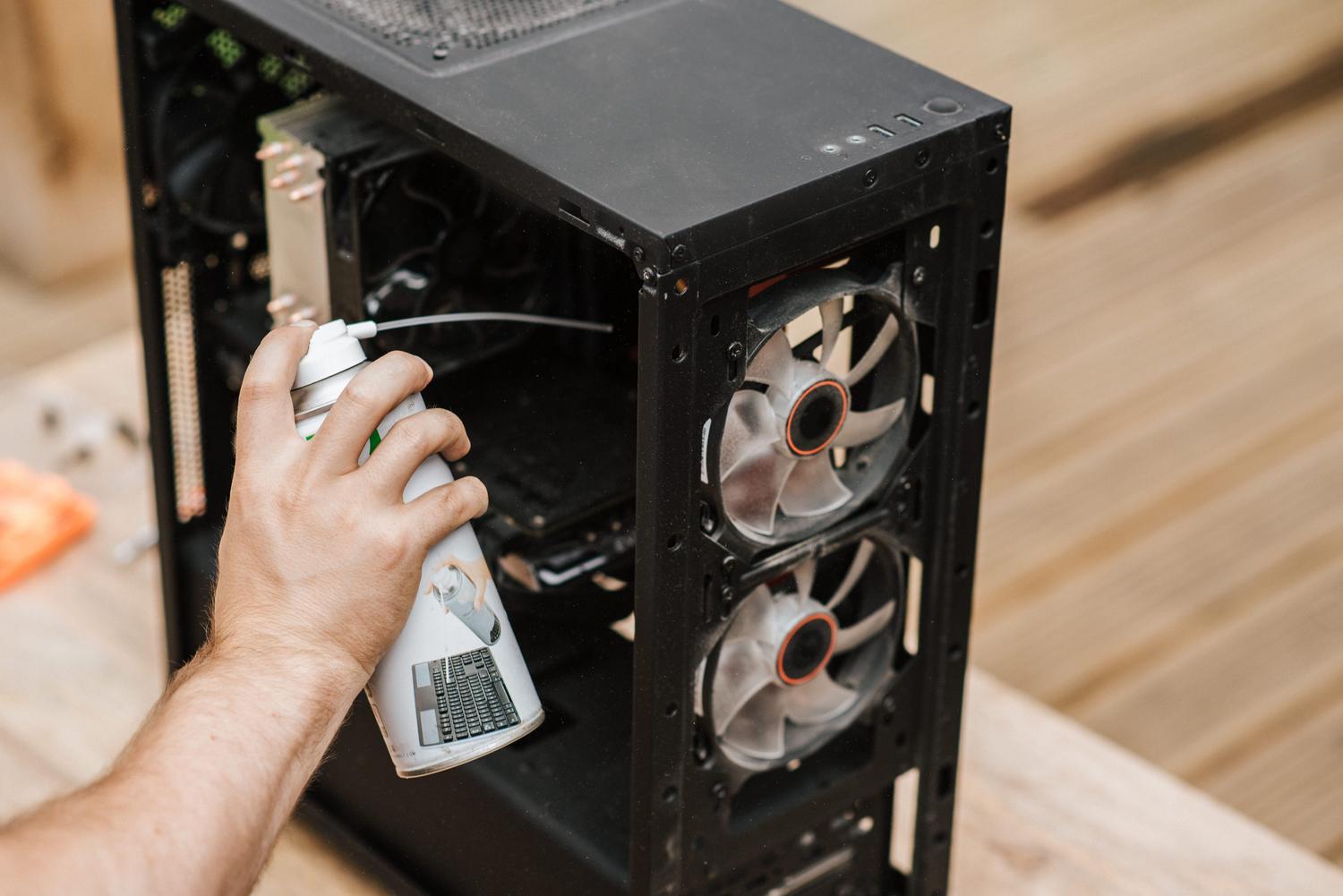
It's not the most common issue, but dust can wreak havoc. If the graphics card isn't properly seated in the PCIe slot or there are dirt particles on the contacts, the video signal can fail. The solution is to turn off the PC, remove the GPU, and perform an advanced PCIe diagnostic by cleaning the contacts with isopropyl alcohol or an eraser before carefully reinstalling it.
Specific cases: Laptops and Windows 11/10
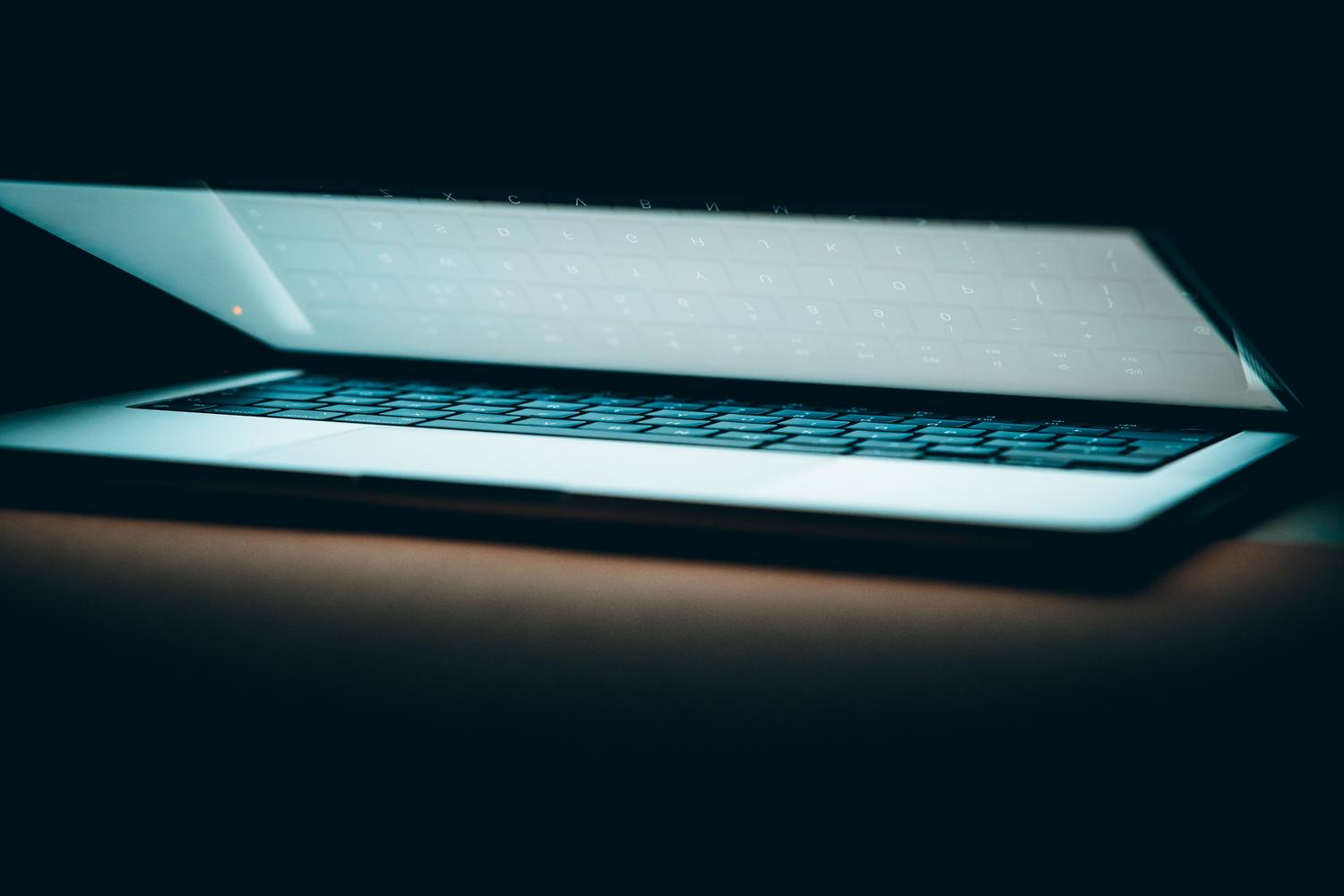
In laptops, the problem is more complicated because we can't easily replace the parts. A common cause is the flex cable , which connects the motherboard to the screen; opening and closing the lid can cause it to wear out. If the flickering changes when you move the screen, it's almost certain that the flex cable is faulty.
In Windows 10 and 11, a very useful diagnostic technique is to open Task Manager (Ctrl + Shift + Esc). If Task Manager is flashing along with everything else, the problem is with the graphics driver. But if Task Manager remains steady while everything else is flashing, then there's an incompatible application causing the conflict, and you should uninstall any recently installed programs.

Tips for maintaining a stable image
To prevent this from happening again, it's best to always use DisplayPort cables with gaming monitors, as they support higher refresh rates and are more stable than HDMI. It's also essential to enable technologies like NVIDIA G-Sync or AMD FreeSync , which synchronize the game's FPS with the monitor's refresh rate to eliminate stuttering and screen tearing.
Regarding maintenance, keeping your PC clean will prevent the GPU from overheating , which is another silent cause of visual instability. If none of this works and the problem persists even when connecting the monitor to another computer, the internal panel is likely damaged. In this case, it's advisable to check your warranty or RMA before considering buying a new one.
To resolve flickering, it's vital to first rule out software issues by updating drivers with DDU and checking the system refresh rate. If the problem is hardware-related, replacing the cables with high-quality ones and cleaning the graphics card contacts is usually sufficient. On laptops, a worn-out flex cable is the primary cause, while on Windows, checking if the Task Manager is flickering helps differentiate between a driver failure and an incompatible application.
