- Master Nano's most effective shortcuts for saving, exiting, and editing text from the terminal.
- Learn how to overcome typical permission errors and manage critical files safely.
- Discover advanced features like search, replace, copy, cut, and working on remote servers.
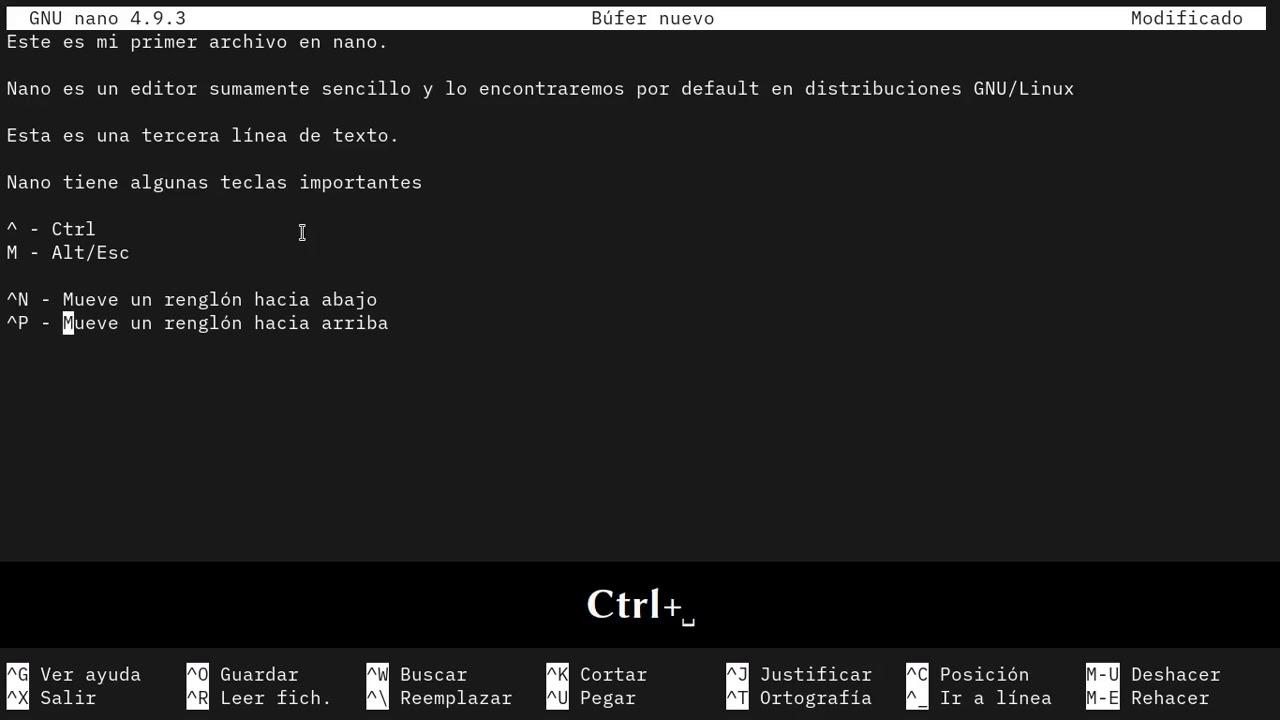
Have you ever been editing a file in the terminal and not known how to save your changes or exit without losing your work? Don't worry, you're not alone. The Nano editor is one of the most widely used in Linux and Unix environments precisely because of its ease of use for people new to the command line, but there are important details and tricks worth mastering to get the most out of it without complications or surprises.
In this article, you'll discover, explained step-by-step and clearly, everything you need to know to edit, save, and exit files in Nano, including essential shortcuts, advanced options, and solutions to common errors. If you want to become a true expert at taking full advantage of all the features Nano offers from the terminal, keep reading because you'll find key points that most tutorials overlook.
What is Nano and why is it so popular?
Nano is a text editor that runs on the Linux and Unix console, designed to meet the needs of those who want to edit files quickly and comfortably. Without the complications of tools like Vim or Emacs. Its popularity is based on an intuitive interface, clearly visible on-screen keyboard shortcuts, and key functions for managing configuration files, scripts, notes, or code without distractions.
It is included by default in the vast majority of Linux distributions (Ubuntu, Debian, CentOS, Fedora, among others) and more and more users prefer it even on remote servers or virtual machines, precisely because of its lightness and ease of use.
How to know if Nano is installed and how to install it
On most Linux systems, Nano usually comes pre-installed . To check, simply run the following command in the terminal:
nano --version
If you see information with the version number, you can use it. If it's not installed, you just need to use the appropriate package manager for your system.
- On Debian, Ubuntu or derivatives:
sudo apt-get install nano - On CentOS or RHEL:
sudo yum install nano - In systems with
dnf:sudo dnf install nano - On macOS, it's usually available by default, but if not:
brew install nano(requires Homebrew)
How to open files and start editing in Nano
To open an existing file or create a new one using Nano, just type in the terminal:
nano nombre_del_archivo.txt
If the file already exists, it will automatically open ready for editing. If the file doesn't exist, Nano will create it as soon as you save the changes.. You can also specify a full path, for example nano /etc/mi_config.cfg o nano ~/documentos/nota.txt.
Want to open a file and see on screen which line and column the cursor is on? Add the option -c:
nano -c nombre_del_archivo.txt
The Nano interface: how to navigate and view shortcuts
Nano stands out for always displaying a list of the most useful keyboard shortcuts at the bottom of the screen . These shortcuts are usually represented by the symbol ^ (which stands for Ctrl) next to a letter, such as ^O for Ctrl + O.
- Direction Arrows: To move through the text (up, down, left, right).
- Ctrl + F and Ctrl + B: Move forward or backward one position.
- Ctrl + P and Ctrl + N: Go up and down a line.
- Ctrl + Y and Ctrl + V: Move up or down a full page.
How to save changes in Nano
It's very easy to save what you've edited in Nano:
- Ctrl + O (WriteOut): Save the file with the original name or allow it to be changed. After pressing the combination, a line appears asking for the name (you can change it if you want to save as a new file) and then you just have to press Enter to confirm.
Another advantage of saving is that if you need to save in specific formats, you can use Alt+D for DOS or Alt+M for Mac. To create a backup, use Alt+B.
Are you editing a system file and getting a permissions error? If you receive the message "Access is denied," you most likely need superuser permissions. Close the file (Ctrl + X), choose No when it asks you if you want to save, and reopen it with sudo nano /ruta/del/archivo. If you don't want to lose your current changes, you can save a copy to your home folder and then move it with sudo mv.
How to exit Nano (with and without saving)
To exit Nano, the universal command is:
- Ctrl+X: It will ask you to confirm if you have made any changes. If you have not saved, it will ask if you want to save by pressing Y o N, and then the file name if you choose to save. If you haven't edited anything, it will exit directly.
Is there a shortcut to save and exit in one action? Currently, no. You must first save (Ctrl+O) and then exit (Ctrl+X) . To cancel any action or interrupt a command, use Ctrl+C.
Quick Edit: Copy, Cut, and Paste in Nano
Nano allows you to edit text with simple combinations:
- Ctrl+K: Cut a line or block.
- Alt+6: Copy the selected line or block.
- Ctrl + U: Paste at the cursor position.
- Alt + A: Marks where to start the selection to copy or cut a block.
For example, select with Alt + A , navigate with the arrow keys, and decide whether you want to cut ( Ctrl + K ) or copy ( Alt + 6 ). Paste with Ctrl + U when needed.
Find and replace text in Nano
Need to locate a specific word or phrase? Balance Ctrl + W, type the word or phrase and press Enter. To find the next match, repeat Ctrl + W or use Alt + W.
Do you want to replace text? Usa Ctrl + \ and follow the steps to enter the word to replace and its substitute, being able to choose to replace only the current one (Y) or all (A).
Most useful Nano commands and their functions
- Ctrl+G: Open Nano help.
- Ctrl+C: Cancels an action or displays the cursor position.
- Ctrl+U: Paste what you cut or copied.
- Ctrl+L: Redraws the screen.
- Ctrl+J: Justify the paragraph.
- CTRL+M: Inserts a line break.
- Ctrl + _: Jump to a specific line.
- Ctrl+X: Close Nano.
- Ctrl+R: Insert content from another file.
- Ctrl+W: Search for text.
- Ctrl + Y and Ctrl + V: Navigate between pages.
- Ctrl+T: Spelling check.
Case Studies: Editing Files in Nano
Nano is useful for editing everything from configuration files ( /etc/ssh/sshd_config ) to scripts, HTML pages, or quick notes . Simply open the file, modify what you need, save with Ctrl+O , and exit with Ctrl+X . For system files, run with administrator privileges ( sudo nano /path/to/file ) to avoid permission errors.
A trick: use the option -w to prevent Nano from automatically wrapping text in configuration files that don't support line breaks. To learn more about code editors and their configuration, you can check out our tutorial on What is Brackets IDE?.
Common mistakes and how to solve them
The most common error is 'Error writing: Access denied'. This indicates that you do not have permission to modify the file. The solution is to close it (Ctrl + X), indicate that you do not want to save it (N), and reopen it with sudo. If you want to keep the changes, save it to your home folder and move it with sudo mv.
Did you forget to save and accidentally exit? Nano will always ask for confirmation if you've made changes, allowing you to save (Y) or not (N).
This knowledge will allow you to edit, save, and exit with confidence, even in situations with restricted permissions or sensitive files, increasing your efficiency in terminal management without the need for complex tools.
