- Installing native apps using the Windows Subsystem for Android and the Amazon Appstore.
- Real-time mobile screen synchronization and mirroring via Mobile Link.
- Minimum hardware requirements such as 8GB of RAM and SSD disk for optimal performance.
- Using external emulators and installing APKs as alternatives to the official store.
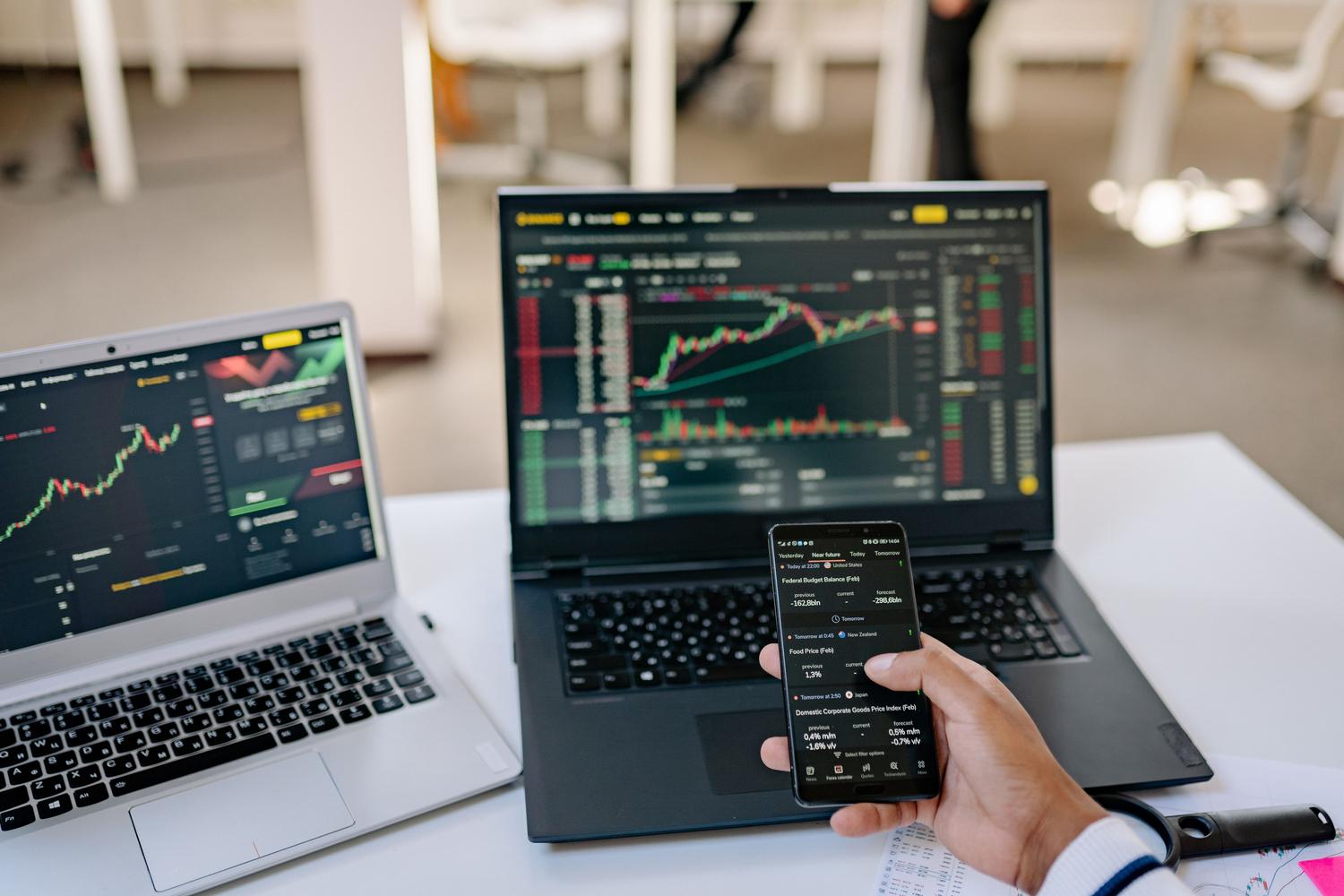
I'm sure it's happened to you: you're working on your computer and you get the urge to use that Android app you love so much, but you're too lazy to put down the mouse and grab your phone. Well, Windows 11 has come to the rescue, allowing us to run Android apps directly on our screen, integrating them almost as if they were native system programs.
The truth is, there are several ways to achieve this, depending on whether you want to install the application on your PC or simply control your smartphone remotely . From using the official Windows subsystem to full synchronization with your phone, you have several options to make your workflow much smoother and avoid constantly switching between devices.
Installing apps through the Amazon Appstore
One of the most direct ways is to use the Amazon Appstore , which acts as the official store for downloading these applications on Windows 11. To get started, first go to the Microsoft Store and search for the Amazon Appstore to install it. Once downloaded, opening it will guide you through a very simple setup process where you just need to click "Next" and, very importantly, restart your computer for everything to take effect.
When your PC restarts, the Windows Subsystem for Android (WSA) is automatically activated . This is the internal engine that allows mobile software to run on your PC. Once you've signed in with your Amazon account, you can browse the catalog and install any app you want. These will open in separate windows , allowing you to have several open at once and pin them to the taskbar or Start menu for quick access.
Technical requirements for everything to run smoothly
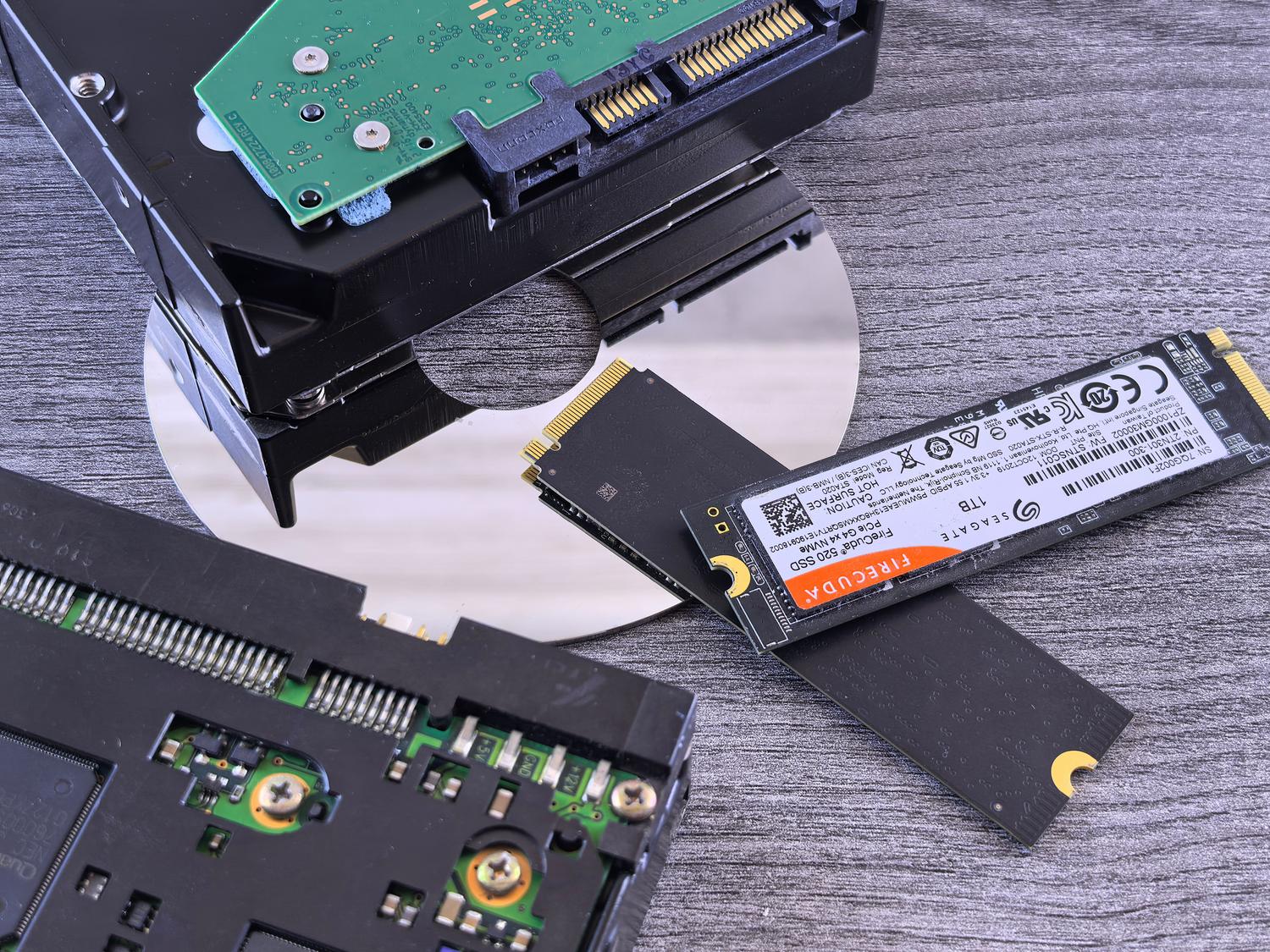
Not all computers can run these apps smoothly, as WSA is quite resource-intensive. To prevent your PC from freezing, at least 8 GB of RAM is recommended , though 16 GB would be ideal for lightning-fast performance. As for the processor, you'll need at least an 8th generation Intel Core i3, an AMD Ryzen 3000 series, or a Qualcomm Snapdragon 8c.
Another critical point is storage; a solid-state drive (SSD) is essential , as applications simply won't work if you use a mechanical hard drive (HDD). Additionally, you must ensure that the Virtual Machine Platform is enabled in Windows features and that your system is updated to the latest version available through Windows Update.
Full synchronization with the Mobile Link tool
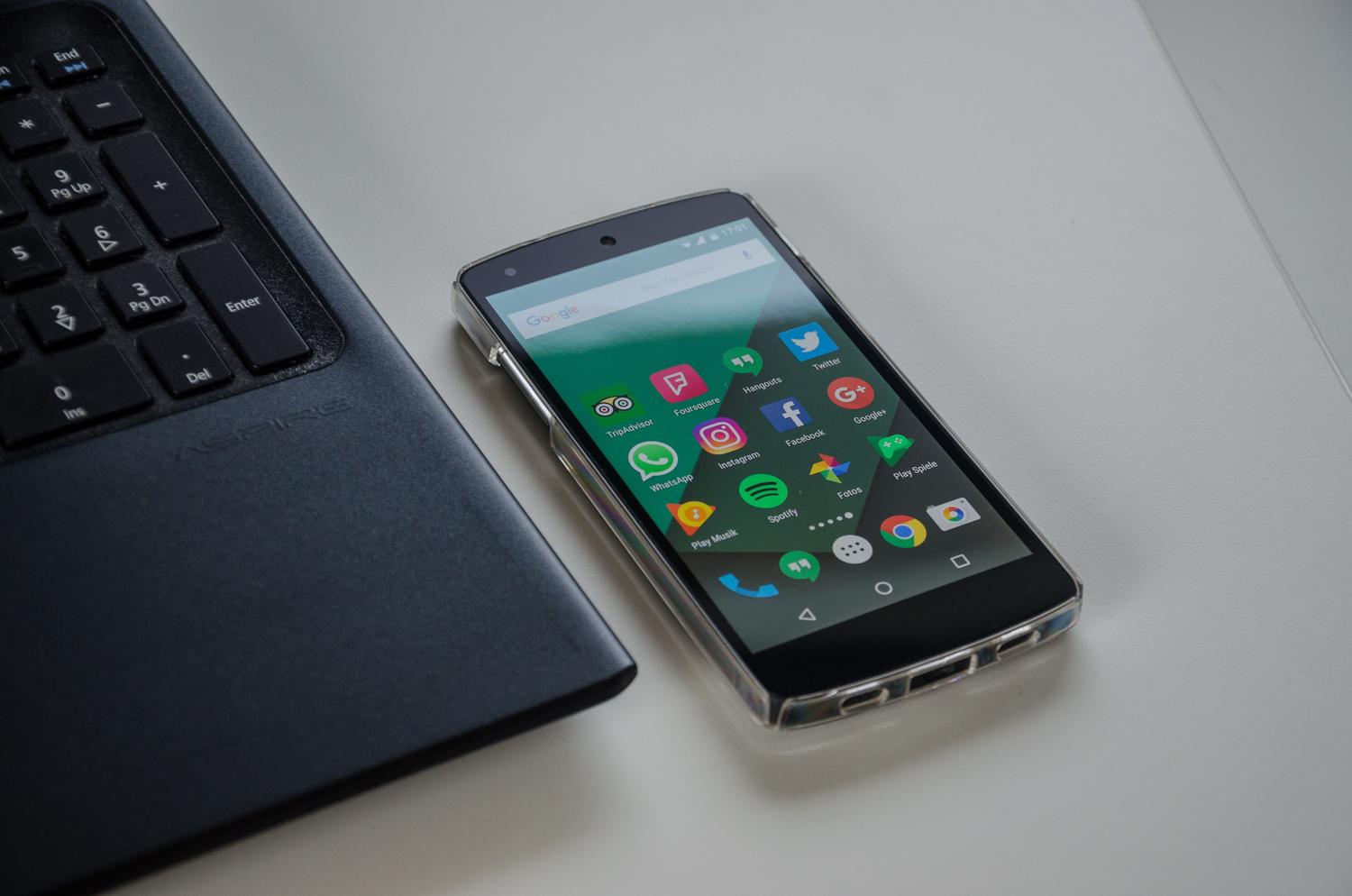
If you don't want to install apps on your PC but simply mirror what's happening on your phone, the crown jewel is Mobile Link . This tool lets you connect your Android device via Wi-Fi and Bluetooth to manage notifications, messages, and calls. Its most powerful feature is the ability to mirror your phone's screen , allowing you to interact with the apps installed on your device using your computer's keyboard and mouse.
To set this up, go to Windows settings, then to "Bluetooth & devices," and enable the mobile devices option. After scanning a QR code with your phone, you can access the apps section. This is great because you can open apps alongside your Windows programs, although keep in mind that the ability to open multiple apps simultaneously is usually reserved for specific devices like those from Samsung or HONOR.
Audio interaction and management
Using the mouse in an Android app is very intuitive: a click is equivalent to a tap, the right button goes back, and pressing and holding simulates a long press. If you have a PC with a touchscreen , the experience is even more natural. As for audio, if you're using a compatible Samsung device, you can stream your phone's audio directly to your computer's Bluetooth speakers or headphones by configuring the output in the Mobile Link settings menu.
Advanced alternatives and APK installation
Sometimes, an app we need isn't available on the Amazon Appstore. In those cases, more advanced users can manually install APK files using tools like WSA Pacman or ADB (Android Debug Bridge) commands. This allows them to bypass the limitations of the official store, although it's always important to download files from trusted sources to avoid security issues.
If your PC doesn't meet the minimum requirements or you're looking for full compatibility with the Google Play Store, the best option is still to use third-party emulators . Programs like BlueStacks, Nox Player, or LDPlayer are solid alternatives that allow you to run almost any Android app or game, regardless of the Windows version you're using.
We now have an ecosystem where we can integrate the Android world into our desktop, whether by installing the official subsystem with the Amazon store, synchronizing the mobile phone via Mobile Link to manage it remotely, or resorting to emulators and manual APKs when we seek total freedom, as long as our hardware has the necessary RAM and SSD to support it.