- The mobile-PC connection depends on the USB mode, MTP drivers, and system security permissions.
- Many problems can be fixed by changing the mode to "Transfer files" and using a suitable USB cable and port.
- On Windows, updating or reinstalling the USB and MTP drivers usually resolves the issue of the phone not appearing as a drive.
- macOS requires additional Android software and checking the security of accessories, especially on Apple Silicon.
The PC not detecting your phone is one of those glitches that almost everyone has experienced at some point: you connect the cable, the phone charges, but nothing appears on the computer or the option to transfer files doesn't show up. This can happen with modern phones like a Samsung S21 or S22 Ultra with Android 14 and One UI 6.1, with laptops recently updated to Windows 10, and even with computers that previously worked without problems.
The key to fixing this is understanding that several factors are involved in the connection: the phone's USB mode (charging only, MTP, etc.), the MTP and USB drivers on the PC, system permissions and security, cable quality, port status, and even other syncing programs that might interfere. We'll go over everything step by step and in detail, but using clear and straightforward language.
Why your PC doesn't detect your mobile phone: common causes
When you connect your phone to your computer, several elements come into play: the cable itself, the USB port, the operating system drivers, the connection mode chosen by Android or iOS, and the phone's security settings. Even a minor issue with one of these factors can cause the device to only charge or not appear at all in the file explorer.
On modern Android phones (like the Samsung S21 or S22 Ultra), it's very common for only fast charging mode to be activated by default, and the classic "Transfer files / Charge only / etc." menu doesn't appear. In these cases, tapping the notification only opens the battery section, without the MTP option, and the PC doesn't recognize the phone as storage.
On Windows computers , especially if you've upgraded from Windows 8.1 to Windows 10, it's also common for MTP or USB drivers to become "stuck" or misconfigured. The typical symptom is that in Device Manager you see something called "MTP" or "Portable Device" with problems, but the phone doesn't appear as a drive in "This PC".
We must not forget the physical aspect : charging-only cables that do not allow data transfer, dirty or damaged USB connectors, ports on the tower or laptop that no longer work properly, or even overly aggressive power saving that limits USB data transfer to save battery.
Check the USB connection mode on your mobile device.
The first thing to do is make sure your phone is using the correct connection mode. Android offers several USB modes, and if it's set to "Charge only," your computer will never recognize the phone as a storage device, even if the cable is perfect and your PC has all the latest drivers.
On many modern phones , a system notification related to USB appears when you connect the cable. If you pull down the notification bar, you should see a message like "Charging this device via USB," "USB for file transfer," or something similar. If you only see that it's charging and nothing else appears, there's usually an option within the settings.
Try these general steps on Android (the path may vary slightly depending on the brand and version, for example One UI 6.1 on Samsung):
- Connect your mobile to your PC with a good quality USB cable.
- Unlock the screen of the phone (if it is locked, sometimes it does not show data options).
- Pull down the notification bar and tap the "USB to charge" notification or similar.
- Select option “Transfer files”, “File Transfer”, “MTP” or “Media Management”.
Once MTP mode is activated , the phone should appear in Windows File Explorer (or Finder if you're using a Mac with additional tools) as if it were an external drive or USB flash drive. From there, you can easily copy and paste files in both directions.
If your phone doesn't display the USB menu and only shows "Fast Charging," taking you to the Battery section, the manufacturer may have hidden the USB options deeper within the settings. On Samsung phones with One UI, for example, you usually have to go to Settings > Connections > USB or Settings > Developer options > USB defaults to force "File transfer."
In some rare cases , the problem appears after a mobile software update. If the USB options were visible before and are no longer, it could be a bug in that version. It's worth checking if there's a pending One UI or Android update that fixes it, or even considering resetting the network/USB settings if the manufacturer allows it.
Cables, ports, and physical state of the connection
Although it might sound cliché , a huge number of mobile-to-PC connection problems stem from something as simple as an unsuitable USB cable or a physical port with poor contact. Not all cables are suitable for every purpose: some are only for charging, others have damaged data wires, and still others are of such poor quality that they constantly fail.
To rule out the cable , do the following:
- Try another USB cable that you know for sure is for data (for example, from another mobile phone that is recognized on your PC).
- If you have an original cable from the manufacturer, use it to check for differences.
- Avoid excessively long or very cheap cables, which tend to cause more problems; instead, consider use a USB-C hub.
It's also important to try different ports on your computer. If you're using a front USB port on the tower, try a rear port directly on the motherboard. On a laptop, try the different available ports (USB-A, USB-C, etc.). Sometimes only one port fails while the rest work perfectly, allowing you to identify if the problem lies with the PC itself.
Don't neglect the condition of your phone's USB-C port : with daily use, it fills with dust, lint from your pocket, or small particles that prevent the cable from fully inserting or making good contact. Simply blowing on it isn't usually enough; it's better to use compressed air or a soft-bristled brush (never metal objects) to carefully clean the phone's USB-C port.
Finally, check your phone's power-saving modes. Some models include options like "Disable USB data transfer in power-saving mode" or other ways to limit USB usage to extend battery life. If you have any aggressive power-saving profiles enabled, go to Settings > Battery or Settings > Power Management and disable any options that block wired data transfer.
Mobile phone unlocking and security permissions
Modern phones prioritize security , so even if the cable and drivers are working perfectly, if the phone is locked with a PIN, pattern, fingerprint, or facial recognition, the system can prevent access to the data from the computer. This is a measure designed so that, if your phone is stolen, no one can copy your files by connecting it to a PC.
Before connecting your mobile phone to your computer, make sure that:
- You have unlocked the screen and you're on the phone's main desktop.
- There is no pending authorization message such as "Allow access to device data" that you need to accept.
- On some Android devices, a pop-up box appears asking for permission to allow file transfer; if you accidentally close it or deny it, the PC will not see anything.
If you use an iPhone or iPad , when you connect it to a Mac or Windows PC, you'll usually see the message "Trust this computer?". Until you tap "Trust" and enter your passcode, the computer won't be able to access your photos or data, so it's vital to accept this prompt.
On Android , internal system permissions also play a role ; reviewing the security settings in mobile apps can help detect restrictions related to USB connections. If you use third-party security apps, antivirus software, or administrative tools, check that they aren't blocking MTP or ADB access by default.
Regarding Android File Transfer on Mac , if you're using it to connect an Android phone to macOS, go to Settings > Applications (or Apps & Notifications) and check that it has the necessary storage and file access permissions. If the application can't read the content, it won't display anything even if the USB connection is properly configured.
USB Debugging Mode: When it's useful and when it's not
USB debugging on Android is an advanced feature primarily intended for developers and for using ADB (Android Debug Bridge) commands. It allows the phone to communicate more directly with the computer, but it's not essential for simple file transfers on most current models.
On 99% of modern phones , you shouldn't need to enable USB debugging for your PC to recognize the device as MTP storage. However, in rare cases (older phones, custom ROMs, unusual driver issues), temporarily enabling debugging can help your computer better identify the phone.
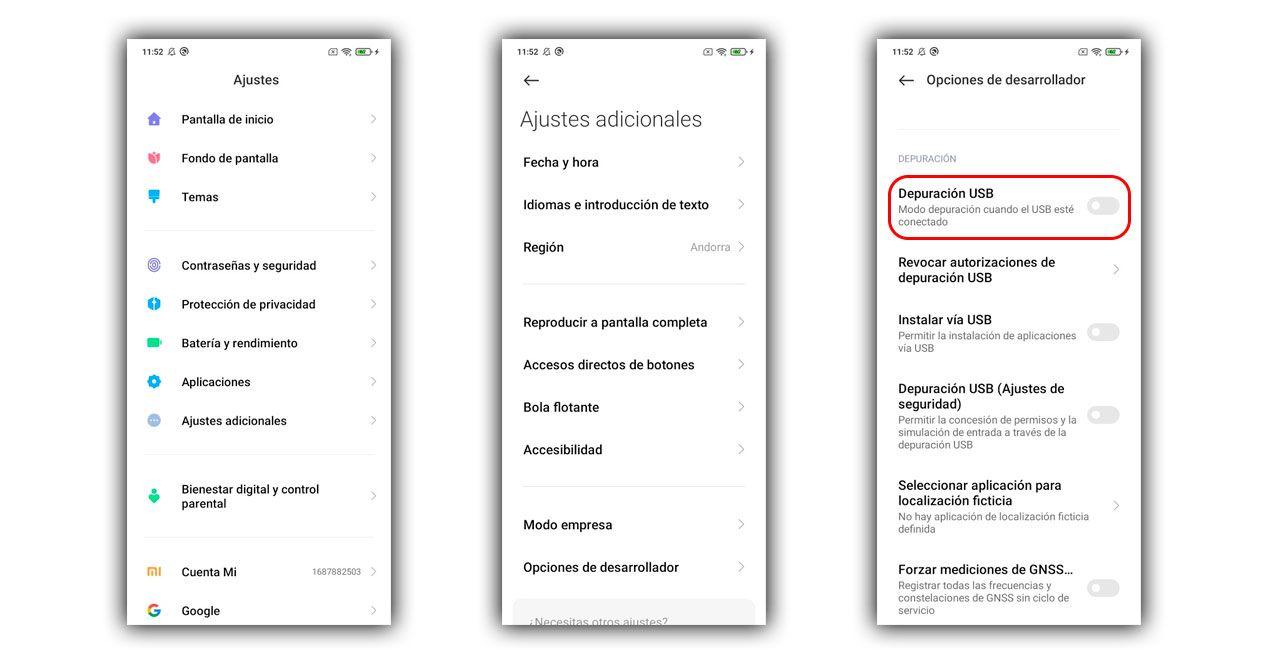
To enable USB debugging on Android:
- Go to Settings of the telephone.
- Sign in Phone Information or “About device”.
- Press several times (usually 7) on Build Number until the message appears that Developer Options have been activated.
- Go back and enter Developer Options, which usually appear at the end of the Settings menu.
- Find the section Wastewater Treatment and enable “USB Debugging”. Confirm the security warning.
After enabling USB debugging , restart your phone to avoid conflicts and reconnect it to your PC. Your computer may display a window asking you to authorize debugging from that computer; accept if you trust that PC. If the phone still doesn't appear as an MTP drive, the problem is likely with the drivers or Windows settings, not with Android itself.
It's important to remember that leaving USB debugging permanently enabled can pose a small security risk, especially if you connect your phone to public computers or third-party USB chargers. Ideally, you should only enable it while you need it for testing or troubleshooting, and then disable it.
MTP drivers and USB controllers in Windows
On Windows PCs , communication with an Android phone as a multimedia device relies on the Media Transfer Protocol (MTP). For it to work properly, the system needs to have the MTP drivers and the chipset's USB drivers installed and updated. Windows usually handles this automatically, but after a major upgrade (for example, from Windows 8.1 to Windows 10), it's not uncommon for something to break.
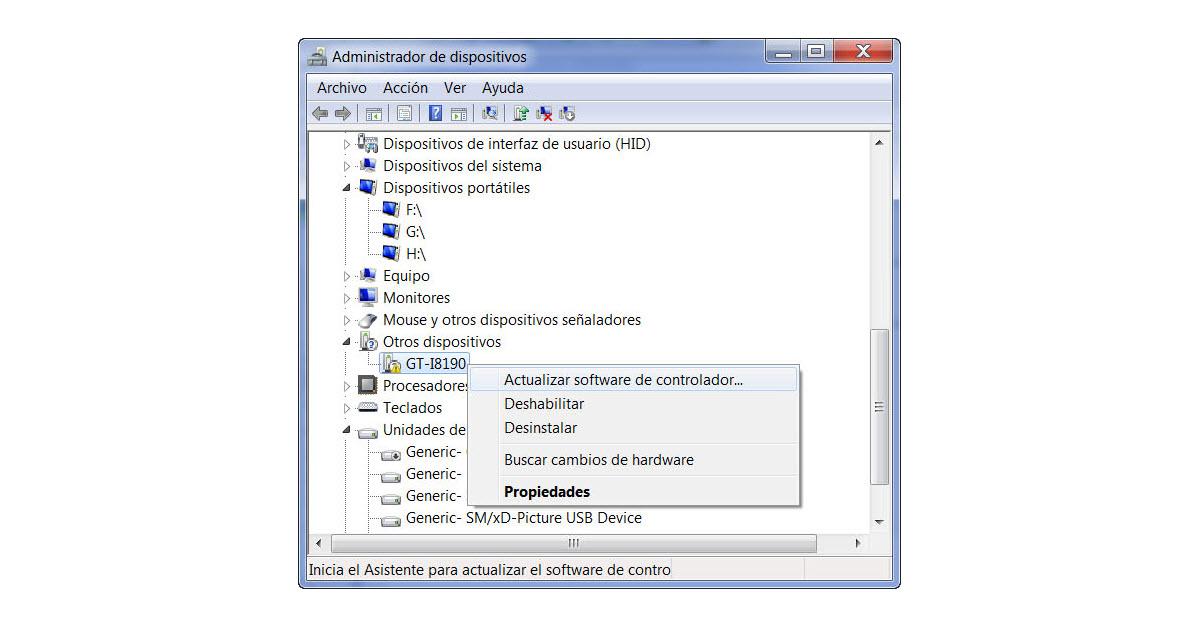
If your mobile device appears as "MTP" or "Portable Device" with a warning symbol in Device Manager, but not under "This PC," the problem is most likely with the driver. In this case, you can force Windows to install the standard MTP driver.
Steps to update the MTP driver in Windows:
- Connect your phone to the computer using the USB cable.
- Balance Windows + X and select Device administrator.
- Search the category Portable devices or “Other devices” and locate your mobile phone or the “MTP” entry.
- Right click on it and choose Update Driver.
- Choose "Search for drivers on my computer".
- Then click on “Choose from a list of drivers available on your computer".
- Choose “MTP USB Device” (or “USB Composite Device”, depending on what appears) and press Next.
This forces Windows to use its generic file transfer driver. If the installation completes successfully, disconnect your phone, restart your PC, and reconnect it. In many cases, your phone will then appear in File Explorer as it should.
If it still doesn't work , you should also check your motherboard's chipset drivers. Go to the website of your motherboard or laptop manufacturer (ASUS, MSI, Dell, HP, etc.), download the latest chipset and USB drivers , install them, and restart your computer. This may correct low-level conflicts that are preventing USB devices from working properly.
Completely reinstall the USB drivers
When the problem is deeper and Windows has accumulated errors in the USB subsystem, an effective solution is to uninstall all USB devices from Device Manager and let the system automatically reinstall them upon restart.
The procedure is as follows (do it carefully and with the mouse or keyboard connected so that you don't disconnect them in the middle of the process):
- Open the Device administrator (Win + X > Device Manager).
- Expand the section “Universal serial bus (USB) controllers”.
- Right-click on each entry in the list and select “Uninstall device”.
- Repeat the process with all listed USB devices (provided it is not a critical device for continuing to use the PC during the process).
- Restart your computer; Windows will automatically reinstall generic USB drivers at startup.
After restarting , reconnect your phone, wait a few seconds for Windows to detect the new device, and you'll see that, in many cases, the correct drivers are downloaded and installed. If you've also updated your chipset drivers, the chances of the problem being resolved are quite high.
On computers that have upgraded from Windows 8.1 to Windows 10 , this process is especially recommended. Some users report that their phone is recognized without issue on the hard drive with Windows 8.1, but not on the SSD with Windows 10. This usually confirms that the problem is neither the cable nor the phone, but rather how the new operating system has handled the USB and MTP drivers.
Conflicts with synchronization programs and other tools
Some mobile phone manufacturers offer their own applications for connecting the phone to the computer (such as synchronization suites, backups, etc.). While in theory they should make things easier, in practice they sometimes conflict with standard Android connection methods and cause more problems than they solve.
If you have any such tool installed (for example, Samsung, Huawei, or another manufacturer's own software) and you notice that since using it, your PC has stopped detecting your mobile phone properly, try the following:
- Uninstall the program synchronization is fully controlled from the applications panel.
- Restart your computer to ensure that no background services remain.
- Reconnect your mobile phone and let it Windows detects it as a standard device without that extra layer of software.
It's also a good idea to check if you have any installed drivers for older devices you no longer use, as these can cause conflicts. Removing those drivers and sticking with the generic Windows MTP drivers usually results in fewer problems in the long run.
In the case of Linux or ChromeOS systems , the connection to Android phones is usually quite direct and stable, provided you have MTP support and the corresponding FUSE driver installed. If something goes wrong, it's advisable to check that the mount point is correct and that the user has sufficient permissions to access the device.
Connect your mobile device to your Mac: Android and iPhone
Things are a little different on macOS . If you have an iPhone or iPad, it will usually appear directly in Finder (in versions from macOS Catalina onward) within the "Locations" section when you connect the device, or in iTunes if you're using an older version of the system. There you can manage backups, music, photos, and more.
When the problem is with an iPhone that doesn't appear, try:
- Go on your mobile to Settings > General > Transfer or Reset > Reset > Reset Location and Privacy.
- Connect it back to the Mac and Accept the message “Trust this computer?” by entering your code.
With Android phones on a Mac , the story is different: macOS doesn't natively mount Android devices as disks. To view the content, you need an intermediary program like Android File Transfer or alternative options like OpenMTP.
With Android File Transfer, the procedure is :
- Download the tool from the official website.
- Drag the app to the Applications folder on your Mac.
- Open Android File Transfer.
- Connect your Android phone to your Mac using a USB cable that supports data.
- On your mobile device, make sure it's set to File Transfer mode / MTP.
If everything is set up correctly , the contents of your phone should appear in the Android File Transfer window, and you should be able to drag and drop files just like in a regular file explorer. If nothing appears, check permissions, USB mode, and make sure the cable isn't just for charging.
Additionally, on Macs with Apple Silicon (M1, M2, etc. processors), there's a security setting related to USB accessories that might be blocking access to your phone. To check it:
- Opens System settings on your Mac.
- Sign in Privacy & Security.
- Look for the option “Allow accessories to connect”.
- Change it to “Always ask” or “Automatically when unlocked.”
To check if your Mac "sees" your phone even if it's not mounted, hold down the Option key, click the Apple menu, and go to "System Information." In the left column, select USB and see if your phone appears in the device tree. If it's listed but only charging, you're most likely missing the software layer (Android File Transfer/OpenMTP) or your phone is in charge-only mode.
Throughout these steps, you've seen that when a PC doesn't detect a mobile device, it's usually not due to a single, seemingly random cause, but rather a combination of USB mode, MTP drivers, security permissions, cables and physical ports, and even interfering extra programs. By checking each of these elements one by one, from the simplest (cable, port, unlocking) to the most technical (reinstalling USB drivers, updating chipset drivers, adjusting security in Windows or macOS), you should be able to get the phone to appear as a storage device again and transfer your files without relying on slow Bluetooth or SD cards, which many current models no longer include, or using alternatives like remote desktop connection.
