- Complete list of key shortcuts for Mail, Calendar and notification management in Outlook.
- Differences and similarities between classic Outlook, the new Outlook, and the Mail app.
- Calendar-specific shortcuts: views, date navigation, and meetings.
- Setting up shortcut styles and using Quick Actions to automate tasks.

Mastering Outlook keyboard shortcuts in Windows 11 is one of the fastest ways to save time every day. If you spend many hours dealing with emails, appointments, and meetings, you'll want a clear guide with the key combinations that truly make a difference, both in classic Outlook and the new Outlook, as well as in the Mail/Calendar app included with Windows.
Below you'll find a comprehensive, rewritten list of all the keyboard shortcuts cited in the sources : quick access to compose and reply, navigate folders, move through the calendar, manage reminders, share calendars, and much more. We've also included usage notes and version variations , as some shortcuts may change subtly between classic Outlook, the new Outlook for Windows, and the Mail app for Windows 10.

Essential shortcuts to get off to a strong start
These shortcuts are the ones you'll use most often on a daily basis to create, send, and navigate your inbox without touching your mouse.
- New message or event: Ctrl+N.
- Send an email: Ctrl+Enter.
- Reply: Ctrl+R.
- Answer everyone: Ctrl+Shift+R.
- Forward: Ctrl+F.
- Remove item: Delete (permanent deletion: Shift+Delete).
- Open a message in a new window: Shift+Enter.
- Go to Mail/Calendar/Contacts: Ctrl+1 / Ctrl+2 / Ctrl+3 (in some Contacts views it is Ctrl+4).
- View all shortcuts In the new Outlook: ? key.
Once you get used to it, each tap saves seconds . At the end of the day, that's time you can dedicate to more valuable tasks than clicking around the interface.
Writing and formatting: on-the-fly editing
When composing emails or notes, the new Outlook and classic Outlook share most of the universal editing shortcuts.
- Copy/Cut/Paste: Ctrl+C / Ctrl+X / Ctrl+V.
- Undo/Redo: Ctrl+Z / Ctrl+Y.
- Bold/Italic/Underline: Ctrl+B / Ctrl+I / Ctrl+U.
- Insert link: Ctrl+K.
- Increase/Decrease font size: Ctrl+Shift+> / Ctrl+Shift+<.
- Delete word on the left: Ctrl+Backspace (very useful for quick corrections).
In some compilations you'll see instructions like Ctrl+N for bold; remember that in Windows versions of Outlook, Ctrl+N usually creates a new item . If a combination does something "strange," check the exact version you're using.
Productivity in the inbox
With these shortcuts you'll move messages, apply statuses, and navigate conversations with maximum agility.
- Go to next/previous message: Ctrl+> / Ctrl+<.
- Mark as read/unread: Ctrl+Q / Ctrl+U (in some configurations, not read may also be Ctrl+S or O).
- Mark for follow-up or complete: Insert.
- Cancel search: Esc.
- Search in the mailbox: Ctrl+E (also F3 in several views).
- Update/Sync: Ctrl+M or F9.
If you work with many rules, folders, and categories, Ctrl+Y becomes essential: it's the shortcut to the "Go to Folder" box to jump in a second to where you need it.
Outlook integrates email, calendar, and contacts into a single interface. With the following shortcuts, switching between sections is instantaneous.
- Go to Mail/Calendar/Contacts/Tasks: Ctrl+1 / Ctrl+2 / Ctrl+3 / Ctrl+4.
- Go to Copilot (if available): Ctrl+3 in some configurations of the new Outlook.
- Open the folder panel: Ctrl+Y.
- Expand/Collapse sectionsRight arrow / Left arrow.
- Shifting the focus between regions (panels and ribbon): F6 or Tab; when composing, F6 or Alt takes you to the ribbon tabs.
Another very useful combination when reviewing dense views is Ctrl++ and Ctrl+- to zoom in or out, perfect if you want a wide view or to read comfortably.
Calendar in detail: create, view and navigate
The Calendar module has many specific shortcuts. Knowing them will allow you to change views, navigate through days, weeks, and months, and manage meetings and recurring appointments without losing track.
Create and manage appointments and meetings
- Create an appointment From Calendar view: Ctrl+N.
- Create an appointment From any view: Ctrl+Shift+A.
- New meeting notice: Ctrl+Shift+Q or Alt+H, M, R.
- Open “New items” To choose what to create: Alt+O, N, N.
- Resend appointment or meeting: Alt+H, F, W or Ctrl+F.
- Respond to all those summoned with a message: Ctrl+D (in some views) and access to Answer everyone with Ctrl+Shift+R.
If you already have an open appointment or meeting, you can set its frequency using Ctrl+G. Note: Ctrl+G can also be used to go to a date on the calendar; the context will make the difference.
Calendar views
- View 1 to 10 days: Alt+1 / Alt+2 / … / Alt+0 (10 days).
- Go to “Today”: Alt+H, O, D.
- daily view: Alt+O, 1, D, D or Ctrl+Alt+1.
- The next 7 days: Alt+H, X.
- Go to a specific date: Ctrl+G or Alt+H, L.
- Month View: Alt+= or Ctrl+Alt+4.
- Full Week View: Alt+− (minus sign) or Ctrl+Alt+3.
- Work Week Overview: Ctrl+Alt+2.
To move around the calendar with the keyboard: next/previous day with Ctrl+Right/Left Arrow; next/previous week with Alt+Down/Up Arrow; next/previous month with Alt+Page Down / Alt+Page Up; and jumps to the end or beginning of the week with Alt+Home / Alt+End.
- Previous/Next Quote: Ctrl+Comma (,) or Ctrl+Shift+Comma (,) / Ctrl+Period (.) or Ctrl+Shift+Period (.).
- Open the item When the reminder appears: Alt+O.
- Open the notifications window: Alt+V, M.
- Snooze reminder: Alt+S.
- Dismiss reminder: Alt+D.
To assign a sound to a notification : open File > Options > Advanced (Alt+F, T, A) and then press Alt+P. Use Tab to navigate to "Browse", confirm with Enter, and choose the sound file in the "Notification sound file" dialog box.
Share calendar, groups, and options
Outlook makes it easy to work with shared calendars and publish your schedule online. The following ribbon shortcuts speed up these tasks.
- View programming in horizontal design (compare calendars): Alt+H, S, V or Ctrl+Alt+5.
- Add shared calendars or create a new one: Alt+H, O, C.
- Create a calendar group or add department calendar: Alt+H, C, G.
- Send a calendar by email: Alt+H, E.
- Share calendar: Alt+H, S, C.
- Publish online calendar: Alt+H, P, O.
- Sharing permissions from a folder: Alt+H, F, P.
- Search contacts: Alt+O1, B, B.
- Open Address Book: Alt+H, A, B.
- Outlook Calendar Options: Alt+H, C, O.
If you notice that a selected item is not fully readable by your screen reader, you can activate Microsoft Active Accessibility Information (MSAA) with Alt+Ctrl+Shift+M to provide more detailed information to JAWS.
Scheduling from the meeting window
When creating a meeting, opening the Scheduling Assistant helps you coordinate schedules: use Alt+P to access the scheduler from the meeting window and view availability side-by-side.
Mail and Calendar Shortcuts for Windows 10
Although the focus is on Windows 11, many organizations still use the Windows 10 Mail/Calendar app , whose shortcuts remain useful and are largely retained in the new Outlook.
- Switch to Calendar/Mail: Ctrl+2 / Ctrl+1.
- Go to Inbox/Sent Inbox: Ctrl+Shift+I / Ctrl+Shift+O.
- Traveling between regions: F6 or Tab.
- Tape when writing: F6 or Alt.
- Zoom: Ctrl+Plus sign (+) or Ctrl+Minus sign (−).
- SearchPress Ctrl+E or F3 to bring the focus to the search box.
Working with messages
- Mark as read/unread: Ctrl+Q / Ctrl+S.
- Reply/Reply all/Forward: Ctrl+R / Ctrl+Shift+R / Ctrl+F.
- To provisionally accept an invitation: Alt+N.
- New message: Ctrl+N or Ctrl+Shift+M.
- Attach files: Alt+I.
- Spell check: F7 (also toggles cursor scanning while reading).
- Submit: Alt+S or Ctrl+Enter.
- Delete: Ctrl+D.
Other useful shortcuts
- Manually synchronize: Ctrl+M or F9.
- Mark/Unmark conversation: Ctrl+Shift+G.
- Delete conversation: Ctrl+D or Delete
- Archive conversation: Reverse.
For many users, working with an external keyboard increases productivity and improves accessibility compared to a touchscreen, especially if there are mobility or vision needs.
More classic Outlook combinations
These combinations are very popular in office and competitive exam environments, and remain valid in much of the Outlook ecosystem.
- Open received message: Ctrl+A.
- Mark as read/unread: Ctrl+Q / Ctrl+O.
- Create new item: Ctrl+U (in some lists it is used to toggle read/unread; may vary).
- Reply/Reply all/Forward: Ctrl+R / Ctrl+Shift+R / Ctrl+F.
- Search: F3.
- Synchronize: F9.
- New homework: Ctrl+Shift+T.
- New contact: Ctrl+Shift+C.
- New meeting request: Ctrl+Shift+Q.
- New note: Ctrl+Shift+N.
- New appointment: Ctrl+Shift+A.
- New message: Ctrl+Shift+M.
- New group of contacts: Ctrl+Shift+L.
- New folder: Ctrl+Shift+E.
- New search folder: Ctrl+Shift+P.
- Go to Mail/Calendar/Contacts: Ctrl+1 / Ctrl+2 / Ctrl+3.
- Go to another folder: Ctrl+Y.
- Inbox/Outbox: Ctrl+Shift+I / Ctrl+Shift+O.
Please note that some assignments may differ slightly depending on the version, language, or customization of your company's environment.
Activate or choose the shortcut style in the new Outlook
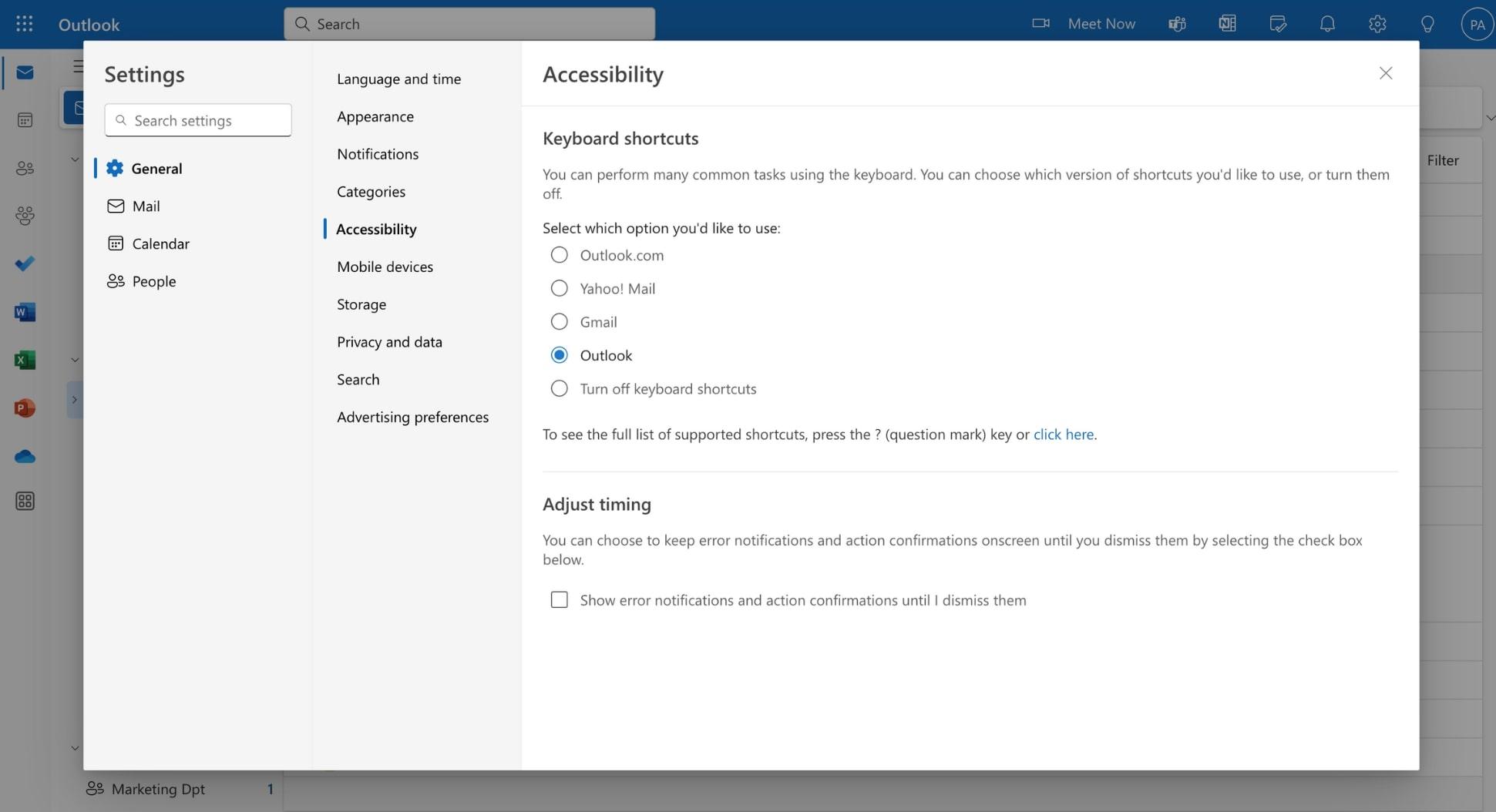
In the new Outlook, you can adjust the shortcut scheme (Outlook, Outlook.com, Gmail, Yahoo! Mail, etc.). If you've disabled shortcuts or want to change the style, go to Settings > General > Accessibility and choose your preferred option. Save the changes, and you're done.
- Available styles: Outlook.com, Yahoo! Mail, Outlook, gmail.
- To see the list of supported shortcuts on screen, press ? in the new Outlook or follow the link that appears in that section.
If you're coming from Gmail or another service, choosing the same scheme or checking the advantages of Outlook over Gmail smooths the learning curve without sacrificing the power of Outlook.
Quick Steps: Automate your workflow
Although Outlook doesn't allow you to customize all standard shortcuts, you have Quick Actions at your disposal to chain tasks together with a click or an assigned key (for example: mark as read and move to a folder).
Create your first Quick Action
- Open Outlook and go to the view E-mail > Home.
- In Quick Actions, choose Create new Quick Action.
- Assign a name and icon, then press OK.
- Select the action(s) to perform and, if you wish, assign a key.
Outlook comes with six predefined configurations (Move to, To manager, Mail to team, Done, Reply and delete...). You can edit them to suit your routine: change actions, shortcuts, or icons and save.
See the full list of shortcuts in Outlook
If you're unsure about a keyboard shortcut, you can access the built-in help: sign in , go to Settings > General > Accessibility, and open the list. In the new Outlook, pressing the question mark (?) opens a panel with shortcuts compatible with your version.
Quick block of frequently used shortcuts (email)
This block compiles combinations cited in various guides for very common tasks in Outlook for Windows.
- Create message: Ctrl+U or Ctrl+Shift+M.
- Open received message: Ctrl+A.
- Reply/Reply to all: Ctrl+R / Ctrl+Shift+R.
- Submit: Ctrl+Enter.
- Forward as attachment: Ctrl+Alt+O.
- Forward: Ctrl+F.
- Mark read/not read: Ctrl+Q / Ctrl+O.
- Mark as safe email: Ctrl+Alt+J.
- Open Address Book: Ctrl+Shift+B.
- Check names: Ctrl+Shift+K.
- Check for new messages: Ctrl+M or F9.
Remember that there may be overlaps between combinations (for example, Ctrl+G) and some shortcuts depend on the context (whether you are editing an appointment, whether you are in the calendar, whether you have focus on a specific panel, etc.).
Accessibility and specialized support
Microsoft offers the Accessibility Answer Desk service to users with specific needs , staffed by professionals trained in assistive technologies and providing support in multiple languages, including sign language. If you work in the public sector or for a business, you can contact the organizational channel to receive assistance tailored to your needs.
Mastering these keyboard shortcuts makes using Outlook and its calendar much smoother: create appointments instantly , switch between views without taking your hands off the keyboard, reply to multiple messages, or snooze reminders without missing a beat. If you alternate between classic Outlook, the new Outlook, and the Mail/Calendar app, keep the subtle differences in mind and choose the shortcut scheme that best suits your habits; after a few days, you'll notice how the minutes you save add up.