- Rainmeter, JaxCore, and BeWidgets allow you to fill the Windows 11 desktop with advanced widgets, far exceeding the system's native widget panel.
- StartAllBack, Start11, Explorer Patcher, Open-Shell or RetroBar bring back classic Start Menu and taskbar features and add new customization options.
- Windows 11's built-in options (backgrounds, themes, icons, sounds, lock screen, and PowerToys) complement third-party tools to achieve a fully customized desktop.
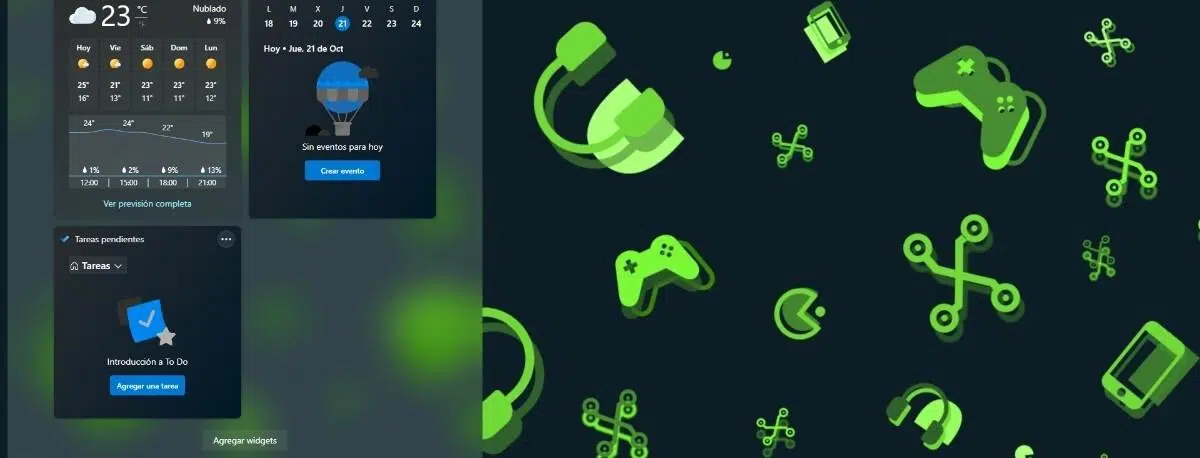
If you've upgraded from Windows 10 to Windows 11 and found the design change a bit of a "reality check," that's perfectly normal. The new centered taskbar, the simplified Start menu, the new context menus, and even the default wallpaper might make you feel a little out of place . The good news is that there are many ways to restore functionality and, in the process, take customization to a much higher level than Microsoft offers by default.
In this article, we'll explore everything the best free or free-version tools available for Windows 11 have to offer. You'll see alternatives to native widgets, ways to change the desktop's appearance, tricks for the Start menu and taskbar, and utilities to tweak even the File Explorer , combining what you can do without installing anything with the features offered by powerful programs like Rainmeter, JaxCore, BeWidgets, StartAllBack, Explorer Patcher, and others.
Widgets and desktop: free alternatives to Windows 11 widgets
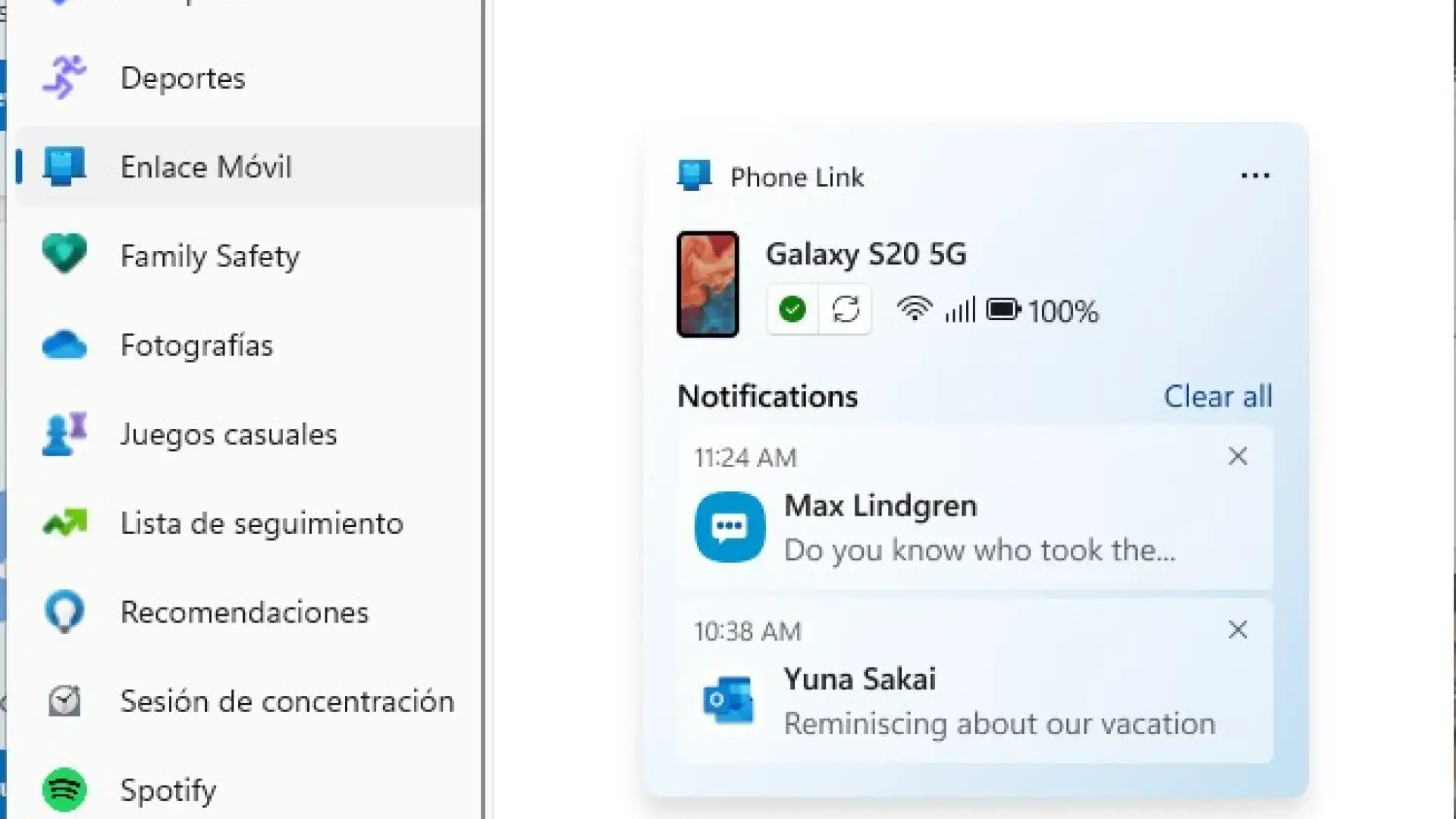
Windows 11's official widgets have returned after years of absence, but their sidebar leaves many users wanting more. If you want widgets floating directly on the desktop, with much more flexible designs and advanced features, you'll need to use third-party tools that make better use of screen space.
In Windows 11, you can enable native widgets from the taskbar. Simply right-click on the taskbar, go to "Taskbar settings," and enable the Widgets option . From the panel that opens, with the corresponding icon, you can add widgets such as Weather, Traffic, News, Stocks, Sports, and more.
Even so, these official widgets are confined to that side panel and can't be freely placed on the desktop. If you want something truly powerful for customizing your desktop with free widgets, combining Rainmeter with packs like JaxCore or alternatives like BeWidgets and ScreenStyler makes all the difference compared to what Microsoft offers.
Rainmeter: the foundation for a widget-filled desktop
Rainmeter is one of the essential veterans for Windows customization. It's an open-source application that allows you to place widgets (or "skins") on your desktop to display system information, weather, clocks, media players, calendars, shortcuts, and much more , all with very low resource consumption.
One of its biggest advantages is its huge community. You don't need to know how to program to use it, because there are countless pre-made skins and packs that you can download, apply, and modify to your liking . From minimalist designs to interfaces that look like they're straight out of science fiction, practically anything you can imagine exists or can be built with Rainmeter.
Rainmeter is also the technical foundation upon which more advanced projects like JaxCore are built. These extra layers simplify the installation of complex widgets and add user-friendly configuration panels, saving you from having to wrestle with text files or system paths to achieve a spectacular desktop.
If you don't want to create your own backgrounds or widgets from scratch, the community makes it easy. There are veritable "showcases" of skins where you'll find analog and digital clocks, CPU and RAM usage panels, network monitors, Spotify controls, app launchers, and much more, all ready to download and apply to Rainmeter.
JaxCore: Advanced Rainmeter modules for tuning Windows 11
JaxCore has earned a huge reputation among users looking to take their Windows 11 aesthetics to the next level. It's not just a pack of pretty widgets: it's a suite of advanced customization tools that leverages Rainmeter to modify clocks, volume controls, brightness, the Start menu, and more , without having to touch any code.
Its operation is based on modules that you can activate as needed. When you download JaxCore from its official website, you get a file that, when run, opens a console where you select the installation options . Usually, you just need to choose the recommended option (the first one, by typing "1" and pressing Enter) and follow the wizard.
Among the recommended modules are YourMixer, YourFlyouts, and ValliStart, which cover different aspects of the system. After installation, open the main JaxCore application and you'll see the tools you selected on the home screen, ready to be downloaded and configured one by one according to your preferences and the desktop style you want to achieve.
The best part is that everything is managed with clear graphical interfaces. You can choose which widgets you want, adjust their position, size, colors, and animations, change how the volume and brightness controls appear, customize an alternative start menu, and access features that would be impossible to alter natively without messing with the registry or complex scripts.
It's true that some widgets can occasionally cause errors or not be compatible with certain versions of Windows 11, especially when the system receives major updates. Even with these minor issues, JaxCore has become a go-to resource for those who want Windows 11 to feel as pleasant as its predecessor, or even more so , without sacrificing the system's new features.
BeWidgets and ScreenStyler: widgets and docks without complicating your life
If you're looking for something more straightforward and don't want to deal with all the power (and complexity) of Rainmeter, there are some very convenient alternatives. BeWidgets is a free app available in the Microsoft Store that lets you place custom widgets directly on your Windows 11 desktop , eliminating the need for the official sidebar.
With BeWidgets, you can add information blocks such as local weather, time, stock quotes, application shortcuts, or small panels with other useful data. Besides being able to customize some colors and styles, the biggest advantage is that these widgets float on your desktop, integrated into your workspace , instead of being hidden behind an icon in the taskbar.
Another interesting tool is ScreenStyler, currently in beta and completely free. Its focus is on allowing you to create a custom desktop, with a personalized wallpaper, widgets very similar to those on iOS for viewing weather, news, or calendar, and a macOS-style dock at the bottom for launching applications.
ScreenStyler also includes options to tweak the appearance of specific windows, such as the Steam window, allowing you to adjust colors and other details. The main drawback is that its interface is primarily in English, but with a little intuition, it's quite easy to create eye-catching designs that completely transform the look of your desktop.
One of the most controversial changes in Windows 11 has been the Start menu and taskbar. Fewer native options, the inability to move the taskbar to the sides, truncated context menus, and the removal of drag-and-drop functionality have led many users to miss the classic interface.
To regain control and add new features, there are several powerful tools available. Among the most notable are StartAllBack, Start11 (from Stardock), Open-Shell, Explorer Patcher, RetroBar, Taskbar Tweaker, and RoundedTB. These utilities allow you to recreate the Windows 7 or 10 Start Menu, move the taskbar, detach system icons, and restore the drag-and-drop functionality that Microsoft removed by default.
StartAllBack: recover the “feel” of Windows 7/10
StartAllBack is a preferred solution for those who want to customize the taskbar, Start menu, and Explorer in Windows 11. While not entirely free, it's generally considered one of the most comprehensive and accessible options for making the system look and function much like Windows 10 or even Windows 7.
Among its most interesting features is the return of drag and drop to the taskbar, something missing from Windows 11 by default. It also allows you to restore the full menus when you right-click, without the cut-offs of the original system context menu , which significantly speeds up daily work.
As for the Start menu, StartAllBack lets you choose designs inspired by Windows 11, Windows 10, or Windows 7, with different ways of displaying apps, shortcuts, and sections. The taskbar can be moved to the top, bottom, left, or right of the screen, restoring the flexibility lost when upgrading from Windows 10.
In addition, StartAllBack includes adjustments for File Explorer, such as restoring the classic search box and minor tweaks to the ribbon. Overall, it's a very complete suite that improves the overall usability of Windows 11 and complements other widget-focused programs like Rainmeter and BeWidgets perfectly .
Start11 is Stardock's offering for those nostalgic for the classic Start menu, but also for those who want highly granular control over the system's appearance. It allows you to choose from several Start menu styles: one inspired by Windows 7, a modern two-column style, a Windows 10 mode with tiles, and a more comprehensive Windows 11-specific style than the original.
This tool lets you adjust almost everything: menu colors, transparency levels, icon and text size, animations, and shortcuts. It also allows you to use a custom image as the home button and modify how right-clicking responds to various interface elements.
In its latest versions, it allows you to ungroup windows on the taskbar, a key feature for restoring the look and functionality of Windows 7 or even earlier versions. Although it's paid software, it has a trial version and for many users is one of the best add-ons for customizing the Windows 11 Start menu when the native options fall short.
Open-Shell, RetroBar and Explorer Patcher: very powerful free solutions
If you're looking for free alternatives to change the Start menu and taskbar, there are several extremely useful open-source projects. Open-Shell-Menu (a successor to Classic Shell) offers Start menus in the style of Windows XP, 7, 8, or 10, with many customization options, as well as a highly configurable ribbon toolbar for File Explorer.
In Windows 11, the Start button added by OpenShell can overlap the original system button and not function correctly. To fix this, many users combine OpenShell with Explorer Patcher, StartAllBack, or RetroBar to restore a taskbar similar to the one in Windows 10 , thus making everything work properly.
Explorer Patcher, on the other hand, focuses on customizing the taskbar and the Explorer window. It allows you to switch between a Windows 10 or 11 style taskbar, restore drag and drop functionality, return to full menus on right-clicks, customize the Alt-Tab window switcher with Windows 11, 10, or even NT styles, and separate the Wi-Fi and sound icons as in Windows 10.
In addition, Explorer Patcher offers the option to revert to the Windows 10 Explorer ribbon, bring back the Windows 7-style search box in File Explorer, and disable the rounded corners of Windows 11. This way, you can combine the best of each Windows generation: a more classic aesthetic while retaining the internal improvements of the current system.
RetroBar is another gem for nostalgics. It replaces the modern Windows taskbar with one that looks like Windows 95, 98, Me, 2000, or XP, bringing back small icons, flat backgrounds, and a completely retro look that many still find clearer and more functional than modern interfaces.
Fix drag and drop to taskbar in Windows 11
One of the most annoying omissions in early versions of Windows 11 was the inability to drag and drop files directly onto program icons pinned to the taskbar. The system simply wouldn't react, breaking a workflow that was fully integrated in previous versions of the operating system.
To address this, a free utility was developed specifically designed to restore this lost functionality. This tool, known generically as the "Windows 11 Drag and Drop to Taskbar Fix," emulates the classic behavior, allowing users to once again drop files onto taskbar icons to open them with the corresponding application.
Aside from this dedicated solution, programs like StartAllBack or Explorer Patcher also restore this functionality by returning the taskbar to a mode compatible with Windows 10 behavior. The advantage of these tools is that, in addition to restoring drag and drop, they offer a wide range of extra settings to customize the interface to your liking , killing several birds with one stone.
Extra features to enhance your desktop and daily experience
Beyond widgets and the Start menu, there are a good number of apps that make using Windows 11 on a daily basis more convenient and efficient. Some improve basic aspects like volume control, others add discreet system indicators, and still others correct questionable Microsoft decisions, such as their insistence on Edge.
For example, EarTrumpet is one of the best tools for managing volume per application. Instead of a simple master volume control, you get a modern mixer where you can adjust the individual volume of each program very intuitively —ideal if you only want to lower the volume of a game, browser, or a specific app.
ModernFlyouts replaces Windows' floating notifications for volume, brightness, and media controls with cleaner, more modern ones. Instead of the large, intrusive cards that appear on the side, you get discreet, customizable indicators that blend better with a tidy desktop.
If you're concerned about performance or your connection, tools like TrafficMonitor and Battery Mode are very useful. TrafficMonitor displays bandwidth, CPU, RAM, and other system data in real time, while Battery Mode lets you define performance profiles and adjust monitor brightness with much greater flexibility —especially helpful on laptops.
To tame the behavior of your default browser, you have MSEdgeRedirect, which redirects forced Microsoft Edge openings to your chosen browser. This way, you won't have to put up with certain parts of Windows or system links ignoring your default browser choice . And when it comes to productivity, PowerToys is practically essential.
PowerToys: “official” advanced features for Windows 11
Microsoft PowerToys is an advanced toolset maintained by Microsoft itself, designed for users who want to get the most out of their system. It can be downloaded from the Microsoft Store or GitHub and, once installed, allows you to activate only the modules you need , without overloading the system with features you won't use.
Among the PowerToys available in Windows, several stand out as particularly useful. Awake prevents the computer from going to sleep without needing to adjust power settings. The Color Picker lets you capture the exact color of any pixel on the screen, ideal for design, front-end development, or image editing , automatically generating its HEX, RGB, and other color codes.
FancyZones functions as an advanced window manager. You can define desktop zones with different layouts (grids, columns, tiles) and drag windows to those areas to organize them neatly , similar to productivity desktops in systems like macOS or Linux window managers.
Other interesting modules include the file explorer add-ons, which add a preview panel for formats like Markdown, PDF, and SVG, and the image resizing tool, which integrates a quick option for bulk resizing photos into the right-click context menu. The Keyboard Manager allows you to remap keys and shortcuts, while PowerRename adds a powerful bulk renamer for groups of files.
PowerToys Run, meanwhile, is a quick launcher similar to Spotlight on macOS: Alt + Space opens a small search box from which you can launch applications, search for files, or perform actions. Finally, Shortcut Guide displays a keyboard shortcut reference on screen when you hold down the Windows key for a few seconds —very useful for learning shortcuts without getting overwhelmed.
Native visual customization: backgrounds, themes, light/dark modes, and more
Before you start installing programs, it's worth knowing everything you can do using only Windows 11's built-in options. The system includes numerous appearance settings for wallpaper, colors, themes, lock screen, screensaver, icons, cursors, and sounds, allowing you to customize its look considerably from the factory default.
From Settings > Personalization, you can access the key sections. In the “Background” section, you can choose between a still image, a solid color, or a slideshow with several photos that rotate at set intervals. If you choose slideshows, you can define the folder to use and the change interval.
It's also possible to assign different backgrounds to each virtual desktop to differentiate work environments. Regarding the overall theme, in "Colors" you can choose between light mode, dark mode, or a custom mode where you select separate themes for Windows and applications, as well as accent colors and transparency settings.
The Start menu can be rearranged by dragging pinned apps and adding or removing programs from the All Apps view. In Settings > Personalization > Start, you can choose whether to show most used apps, recent items, and which folders appear next to the power button , such as settings shortcuts, documents, or pictures.
The taskbar, while limited in position (you can only align the Start menu to the center or left, but not move it to the sides without external tools), does offer alignment adjustments and visible buttons. For features like the classic context menu, tools such as "Windows 11 Classic Context Menu" come into play , bringing back the traditional right-click with more options.
Change icons, cursors, sounds, and lock screen
If you want to personalize your entire system, you can also change Windows icons, cursors, and sounds. Folder icons are modified from each folder's properties, in the "Personalize" tab, using the "Change Icon" button , where you can choose from the included icons or browse for downloaded .ico files.
Desktop shortcuts accept their own separate icons, and special system icons (Recycle Bin, This PC, etc.) are managed from Settings > Personalization > Themes > Desktop icon settings. You can even browse libraries like %systemroot%\system32\imageres.dll and shell32.dll to find classic Windows icons if you want to bring back that look.
The mouse pointer can be customized from Settings > Accessibility > Mouse pointer & touch input, where you can change the cursor style and size. To use downloaded cursor packs, you must access the mouse's advanced properties, go to the "Pointers" tab, and replace each of the different states (normal, busy, text, etc.) with .cur or .ani files stored in C:\Windows\Cursors.
System sounds are adjusted from the "Change system sounds" option, accessible by typing that in the Start menu. In the "Sounds" tab, you'll see a list of events (login, notifications, errors, etc.), and you can assign different sounds to them, either from the included sounds or your own .wav files . For more comprehensive sound packages, there are tools like SoundPackager, although this is a paid app.
The lock screen is also quite customizable. In Settings > Personalization > Lock screen, you can choose between displaying Windows Spotlight, a static image, or a photo slideshow , as well as which apps show information on the lock screen (calendar, email, weather, etc.) and how long it takes for the screen to turn off or the computer to go to sleep.
Full themes, screensavers, and drive letter changes
To change many aspects at once without complications, you can use Windows Themes. Within Personalization > Themes, you'll find several pre-installed packages that modify backgrounds, colors, sounds, and even cursors all at once . You can also save your own combination as a custom theme to recall whenever you want.
If that's not enough, the "Browse themes" option will take you to the Microsoft Store themes section, where you'll find both free and paid options created by the community and by Microsoft. Installing a theme from the Store will add it to your list, and you can switch between them in just a couple of clicks , adjusting any details you're not happy with afterward.
Classic screensavers still exist, though they're somewhat hidden. From the lock screen, at the very bottom, you'll find a link to "Screen saver." There you choose the type of screensaver, the timeout before it activates, and, depending on your selection, you can access additional specific settings , as well as a preview to see how it looks.
Finally, if you're meticulous about the order of your disks and partitions, the Disk Management tool lets you change the drive letter of each drive. Searching for "Create and format hard disk partitions" in the Start menu will open the console where, by right-clicking on a drive and selecting "Change Drive Letter and Paths," you can assign any letter you want . This is very helpful for maintaining a clear system when you have multiple disks or USB drives.
This arsenal of native options, advanced widgets like those from Rainmeter and JaxCore, launchers like ScreenStyler, widget centers like BeWidgets, and tools for reshaping the Start menu and taskbar (StartAllBack, Start11, Explorer Patcher, RetroBar, Open-Shell, Winaero Tweaker, Ultimate Windows Tweaker, ThisIsWin11, RoundedTB, Taskbar Tweaker, etc.), transforms Windows 11 from a "rigid" system into a kind of canvas where you can blend the best of various Windows generations, add modern features, and build a desktop that's truly yours , whether you want it minimalist and clean or prefer a control panel full of informative widgets and well-organized shortcuts.
