- An effective Wi-Fi diagnostic combines signal metrics, channel quality, SNR, retries, and 802.11 standards to assess the actual state of the network.
- Tools such as Windows reports, macOS Wireless Diagnostics, Wi-Fi analyzers, and iPerf allow you to separate Wi-Fi, wired network, and Internet problems.
- Upgrading outdated hardware and choosing less congested channels are the most effective actions to gain wireless speed and stability.
- Regular and well-documented testing helps detect progressive degradation and maintain consistent Wi-Fi performance over time.
These days, if your wireless connection goes down, digital life practically grinds to a halt: working from home, streaming series, online gaming, video calls… everything depends on a stable, fast, and well-configured Wi-Fi network . The problem is that when something fails, we often don't know where to start or what tools to use to see what's really going on.
The goal of this article is to help you understand in depth how to perform a good Wi-Fi diagnostic using professional and system tools , what metrics you should look at, what mistakes to avoid, and how to interpret the results to make decisions: changing the channel, moving the router, updating the hardware, or even detecting if the problem is not in the Wi-Fi but in the wired network or your Internet provider.
What is Wi-Fi diagnostics and why is it so important?
When we talk about Wi-Fi diagnostics, we're referring to a structured process for checking if a wireless network is performing as it should in terms of speed, coverage, stability, and security . It's not simply running a random speed test, but rather combining various tests and tools to get a true picture of what's happening.
This type of diagnostic allows you to detect problems before users complain : intermittent outages, unusual latency, dead zones, congested channels , outdated routers, or configuration errors. In professional environments, it's key to ensuring consistent service; at home, it prevents the classic "the Wi-Fi is terrible" without knowing why.
Furthermore, a good Wi-Fi analysis considers not only the wireless component but also the impact of the wired network, routers, IP and DNS networking issues , DHCP, and internet access itself . Wi-Fi is often blamed when the bottleneck is actually a faulty cable or an outdated, poorly configured router.
Key metrics in any Wi-Fi diagnostic

To know if your Wi-Fi is working well, it's not enough to just check if the signal strength bar is full. There are a number of performance parameters that any serious diagnostic tool will show you, and it's worth understanding them, even just the basics, so you can make informed decisions rather than blindly.
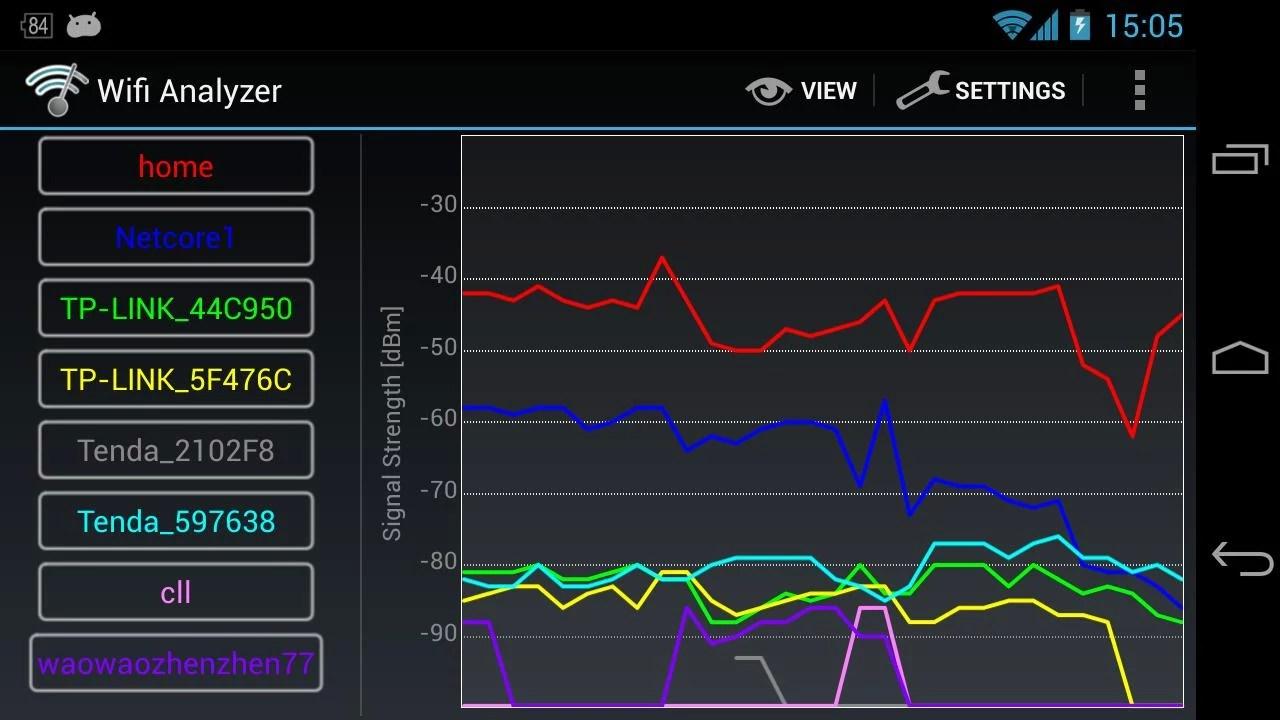
One of the first factors is the received signal strength , which is usually measured in dBm. For practical purposes, the closer to 0, the better, although in Wi-Fi, it's normal to see values between -30 dBm (very good signal) and around -80 dBm (already at the limit). A very weak signal results in dropped connections, slow speeds, and the need to resend packets.
Related to this is link quality, or SNR (Signal to Noise Ratio) , which measures the difference between the usable signal and the noise. You can have a relatively good signal, but if the channel is full of interference, the actual quality will be poor. Advanced tools like Wi-Fi analyzers or professional platforms display this metric as a value from 0 to 100, where a high SNR indicates a much cleaner connection.
It's also crucial to consider channel quality and interference levels . The more networks and devices sharing a frequency and channel, the more collisions, waiting times, and retries. Wi-Fi analyzers display graphs of 2,4 GHz and 5 GHz channels to visualize congestion and find available slots to move your network.
Another metric that shouldn't be overlooked is the packet retry or forwarding rate . If the access point has to resend many packets because it doesn't receive confirmation from the client, the channel becomes saturated and the effective bandwidth drops. This can be due to interference, excessive distance, poor AP placement, or even hardware failures.
Finally, you need to consider the Wi-Fi standard your devices use (802.11n, ac, ax, etc.) . Each new generation improves efficiency, speed, and interference management. Using older routers or access points (very basic Wi-Fi 4 or Wi-Fi 5) can slow down your entire network, even if your internet connection is fast.
Specific tools for diagnosing Wi-Fi networks
To perform even a minimally serious diagnosis, simply "looking at the Wi-Fi bar" isn't enough. These days, we have everything from utilities integrated into the operating system to highly advanced RF analysis suites. Ideally, you should combine several, adapting the tool to the type of problem you want to solve and the environment in which you work.
Wi-Fi analyzers type Acrylic Wi-Fi Analyzer
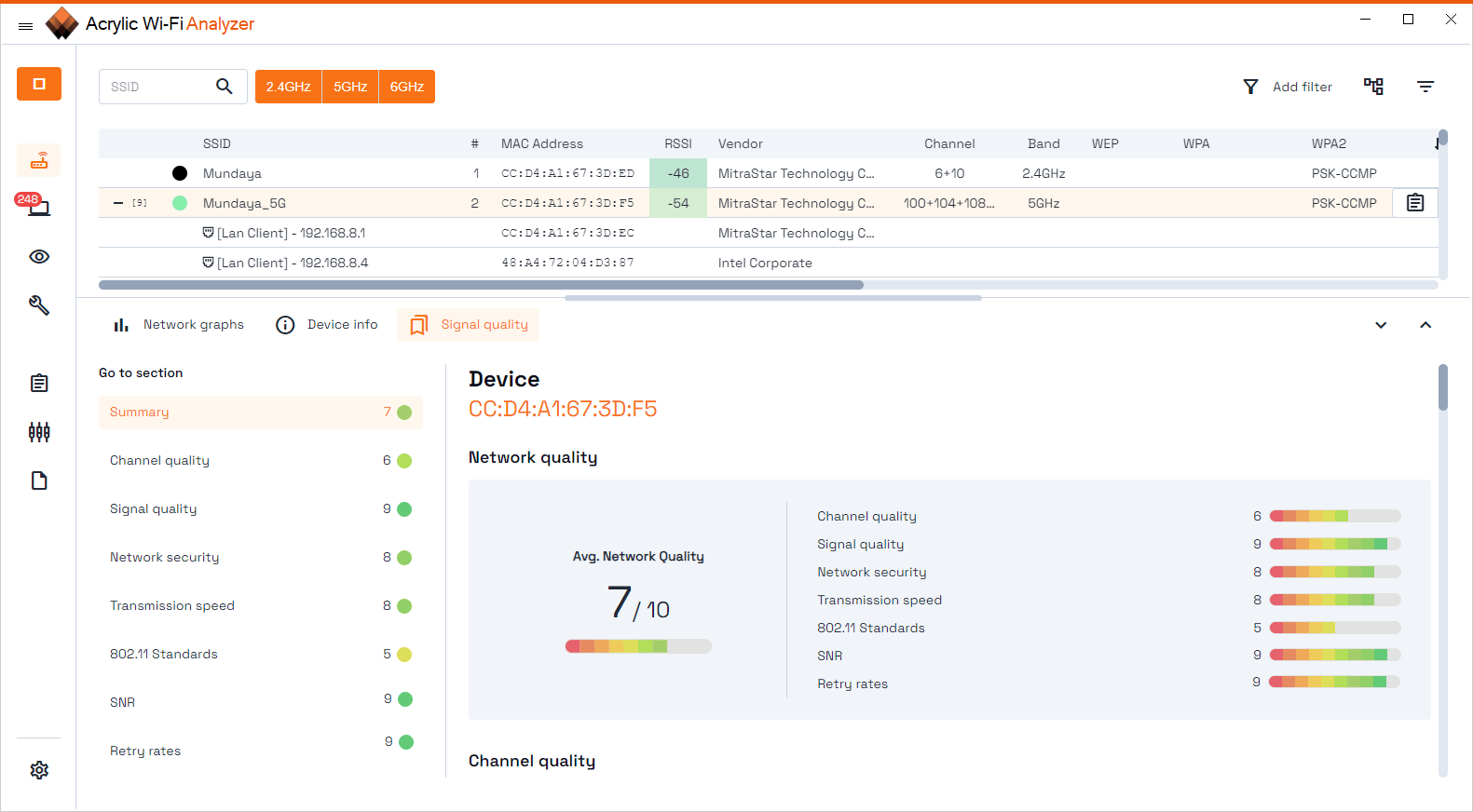
A Wi-Fi analyzer like Acrylic Wi-Fi Analyzer allows you to monitor nearby wireless networks in real time and analyze signal, channel, speed, security, and quality parameters in detail . It's a very practical tool for both home and small to medium-sized offices.
Among its Wi-Fi quality diagnostic functions, the following stand out:
- Channel qualityIt measures interference and network density per channel to help you choose the best available Wi-Fi channel and reduce collisions and packet loss.
- signal qualityAnalyze the network signal strength at each location; if the signal is weak, you'll know you need to improve coverage (relocate access points, add repeaters, or Powerline adapters).
- Wi-Fi SecurityReview the encryption type and configuration to reduce unauthorized access, which, in addition to being a risk, can degrade performance saturating the network without you knowing it.
- Theoretical and actual transmission speed: Shows the maximum speed your devices and access point support to see if you need to adjust settings or upgrade hardware.
- Wi-Fi Standard 802.11It indicates which standard each network uses (for example, 802.11ac or 802.11ax) and allows you to detect if you are still stuck with old technologies that penalize quality and speed.
- SNR (link quality)Calculate the signal-to-noise ratio to see if the problem is power or noise in the channel.
- Retry rate: alert when too many packets are being forwarded, which usually indicates interference, poor AP location, or hardware problems.
For these diagnostic functions to be complete, some metrics (such as SNR or forwarding rate at the detailed level) require Wi-Fi cards compatible with monitor mode , which is common in professional RF analysis.
Professional platforms like Ekahau
In large corporate environments (hospitals, universities, warehouses, multi-floor offices, etc.) high-level solutions such as Ekahau are used, designed to design, validate and optimize critical Wi-Fi networks from the project stage to daily operation.
Ekahau stands out for offering:
- Predictive design: allows you to plan the network on blueprints before installing anything, simulating coverage, capacity and channel usage.
- Site surveysReal-world measurements are collected by moving around the space using mobile apps (for example, on iPadOS) and dedicated hardware such as Ekahau Sidekick, which acts as high-precision RF sensor.
- Post-deployment analysisOnce the network is installed, the actual data is compared with the planned design to find coverage gaps, excess or lack of capacity, and interference problems.
- RF spectrum analysis: evaluates in detail signal quality, noise, interference and channel usage, detecting even non-Wi-Fi sources (microwaves, various wireless devices, etc.).
This platform, however, is not intended for home users or small offices without technical staff : it is expensive, requires training, and relies on specialized hardware. Its natural habitat is projects requiring highly accurate RF data and technically justifiable design decisions.
Mobile diagnostic applications: WiFiman and similar
If you need something quick and always available in your pocket, mobile apps like WiFiman (from Ubiquiti) are an interesting option for monitoring, analyzing, and diagnosing Wi-Fi networks from your smartphone.
Among its typical functions we find:
- List of all nearby Wi-Fi networks (SSIDs) with information on signal, band and security type.
- graphics of use of channels in 2,4 GHz and 5 GHz to quickly locate which channels are most congested.
- Scan the local network to discover all connected devices (including those hidden in plain sight) and see detailed data for each one.
- Integrated speed tests (upload and download tests) to the nearest server, useful for verifying connection performance.
- Function of Wi-Fi link analyzer, which shows how the signal strength on the device changes over time, even while you move.
These apps are usually free, ad-free, and compatible with any Wi-Fi infrastructure, regardless of the manufacturer . Keep in mind that on iOS, some features may be limited by system restrictions (for example, less access to detailed radio information).
Built-in Windows and macOS tools for diagnosing Wi-Fi
Without spending a penny and without installing anything, both Windows and macOS incorporate very powerful utilities to obtain diagnostic reports that, when properly interpreted, provide a lot of information about the behavior of the wireless network and general connectivity.
Wireless network report in Windows
Windows includes a little-known but very useful feature: the wireless network report generated with netsh . This tool creates an HTML file with a history of Wi-Fi events from the past few days, perfect for seeing when and how problems occurred and supplementing guides for troubleshooting Wi-Fi issues on your PC.
The procedure is simple:
- Open the search menu, type “Command Prompt”, right-click and choose “Run as administrator”.
- In the command window, type: netsh wlan show wlanreport and press Enter.
- Windows will generate an HTML report that you can open in your favorite browser.
That report includes:
- Wi-Fi Summary ChartThis displays the connection sessions for the last three days. A red circle marks errors; clicking on it shows exactly what happened.
- General information from the report: creation date and the range of days it covers.
- System information: computer name, manufacturer, model, BIOS version and date, operating system build, computer identifier and data about its connection (e.g., to MDM).
- User information of the session that generated the report.
- Complete list of network adapters, visible and hidden, with details such as name, PnP identifier, GUID, driver version and date, status indicators and issue number if any.
In addition, the report includes outputs from several network commands that are very useful for a thorough diagnosis:
- ipconfig / all: shows in detail the status of all adapters, IP and MAC addresses, DNS configuration, whether DHCP is enabled, etc.
- netsh wlan show all: provides a complete picture of the Wi-Fi adapter, capabilities, configured profiles (without showing keys) and networks detected at the time of the report.
- CertUtil -store -silent My (both at the machine and user level): lists current certificates, useful for environments where Wi-Fi authentication depends on certificates.
- Detailed Wi-Fi profile output stored, without exposing the passwords because they are encrypted.
The "Summary" section of the report contains valuable statistics: session successes and failures, reasons for disconnection, session duration, and a color-coded list of events. This helps you determine if the disconnections are due to weak signal, authentication errors, router problems, or issues with your device.
For each wireless session, the log displays the interface name, its GUID, the connection mode (manual, automatic with profile, etc.), the profile used, the SSID, the network type (infrastructure, ad hoc), the session duration, the reason for disconnection, and all associated events. It's a goldmine of information for identifying failure patterns.
Wireless Diagnostics on macOS
Mac also has an advanced tool called Wireless Diagnostics , designed to analyze your connection when you can connect to the router but have problems loading websites, using email, or streaming content.
When you run it, macOS analyzes the Wi-Fi environment and, when finished, displays a list of detected problems along with possible solutions and even best practice recommendations to improve the use of the wireless network.
In addition, it generates a compressed file with detailed system, network, and log information that can be very useful for an administrator, your internet provider's technical support, or an IT specialist. This file:
- It is saved in the path / var / tmp.
- It has a name that begins with “WirelessDiagnostics” and ends with “.tar.gz”.
- It can be easily located from Finder using the "Go to Folder" option and typing the corresponding path.
This information includes interface data, configurations, event logs, and other details that help identify intermittent outages, DHCP or DNS problems, interference, or router configuration errors.
Wi-Fi speed, latency, and performance tests
Perhaps the most popular part of any Wi-Fi diagnostic is the speed test. However, if done without a method, it only leads to confusion. It's important to understand exactly what's being measured and which tools to use to distinguish between internal network problems and internet connection issues.
How and with what to perform Wi-Fi speed tests
Wi-Fi speed tests are used to check if the wireless network and internet connection deliver the expected bandwidth consistently . When properly designed, they can be used to compare configuration changes, detect service degradation, and see if performance is stable over time.
Ideally, you should combine two types of test servers:
- External speed servers, such as Ookla's speedtest.net or Netflix's Fast.com, which measure end-to-end Internet performance.
- Internal test servers on the local network, using tools like iPerf, which only measure the performance of the internal network without depending on the quality of the ISP or external routes.
External tests take into account factors beyond your control (internet routing, ISP congestion, remote server performance), while with iPerf you can focus on your Wi-Fi and internal wired network . Typically, iPerf is installed as a server on a wired computer and the client is run from the Wi-Fi device.
Additionally, it's advisable to perform a wired speed test by connecting a laptop directly to the router or the switch closest to the access point and running the same tests. This will give you a wired baseline to compare with the Wi-Fi results . If you're no longer reaching your contracted speed via cable, the problem lies before you reach the Wi-Fi connection.
Latency and ping: what they really mean
The famous ping command has become almost the fetish metric for online gamers, but it's worth clarifying what it measures and what its limitations are, and understanding Wi-Fi latency.
ICMP is one of the lowest priority protocols on the network, so response times can be affected by the CPU load of the destination and by network traffic at that time . This means that a high ping doesn't always imply that all your applications have that same latency.
Another important point: a maximum ping of, for example, 27 ms means 0,027 seconds. A person's typical reaction time is around 200 ms (0,2 seconds) or more. In other words, the difference between 50 ms and 100 ms of ping is rarely the cause of losing a game , although it can be noticeable in very sensitive voice and video applications.
Rather than obsessing over a single number, it's better to look for patterns: latency spikes, large variations between packets, or clear increases coinciding with channel or provider network saturation. And again, comparing wired ping versus Wi-Fi ping is very useful to pinpoint the source of the problem.
Configure the tests correctly and avoid typical errors
For Wi-Fi test results to be meaningful, it's crucial to maintain consistency in methodology . Changing devices, adjusting channel widths, or varying transmission power between tests makes it impossible to compare data reliably.
A couple of basic rules:
- Always use the same client device for all tests, since each device has different capabilities (number of antennas, Wi-Fi standard, channel support, etc.).
- Don't change access point model In the middle of the comparisons, and if APs are being compared, they should have similar specifications (same Wi-Fi generation, same radio chains, etc.).
- Keep the environmental conditions: same channel, same bandwidth, similar transmission power, equivalent customer load and, where possible, identical level of interference.
- Record the results, times, and conditions of each test in order to draw conclusions and not rely on a single isolated measurement.
A very common mistake is focusing solely on download speed , neglecting upload speed. In a world of social media, streaming, and video calls, upload speed is just as important. If your tests show decent download speeds but poor upload speeds, you'll have trouble sending video, uploading large files, or sharing your screen.
How to improve the speed and stability of your Wi-Fi
A thorough diagnosis usually leads to the same conclusions: either the hardware is inadequate, the channel is congested, or the wired network is insufficient. Realistically, there are two main ways to improve the average speed of a Wi-Fi network.
Upgrading hardware: when the equipment becomes outdated
If your access points or router are outdated (for example, they only support 802.11 or 802.11ac without advanced features), they are quite likely to become a bottleneck, even if you have a good fiber optic plan . Modern Wi-Fi 6/6E and Wi-Fi 7 chips offer significant improvements in efficiency, multi-client management, and spectrum utilization.
Upgrading to current equipment usually provides:
- Improved interference management and lower latency.
- Greater capacity to handle many connected devices at once.
- Support for wider bands and channel widths (e.g., 6 GHz with much cleaner channels).
- More powerful processorscapable of handling strong encryption without significantly impacting speed.
The less appealing aspect is the cost: upgrading routers/access points and often client devices (mobile phones, laptops, etc.) has a financial impact, and always staying on the latest generation can be expensive. The sensible approach is to upgrade only when a diagnostic clearly shows that the current hardware is reaching its limit.
Choose a Wi-Fi channel with low congestion
The other major advantage is finding less congested channels. In many home networks, routers are locked to two groups of 5 GHz channels that are heavily used by the entire neighborhood, while the 6 GHz band, where it is available, remains relatively unobstructed.
In business environments, networks are typically designed with capacity in mind rather than peak speed , using all available channels but with narrower bandwidths, which helps reduce shared channel interference. At home, the opposite is true: few channels, very wide, and crowded with competing neighbors.
Wi-Fi analyzers show how many networks overlap on each channel. When you see dozens of SSIDs stacked in the same frequency range, it quickly becomes clear where the congestion, unstable pings, and slow speeds during peak hours are coming from.
By relocating your network to a cleaner channel , you can often improve both speed and latency without changing your router or internet provider. In fact, reducing the number of access points and clients sharing the channel is often the most effective way to lower ping and stabilize performance.
Impact of Wi-Fi security on performance
Encryption is not optional: it should never be an excuse to leave a network open. It's true that the type of security affects speed, because each frame must be encrypted and decrypted at both ends, which consumes CPU and Wi-Fi chipset resources, but nowadays a good router supports strong encryption without drastically reducing speed.
To make very precise comparisons, some professionals set up a temporary network without encryption and conduct controlled tests, taking into account some basic precautions:
- Isolate it from the rest of the traffic, both wired and wireless.
- Enable it only for the time strictly necessary for testing.
- Disable services like DHCP if they are not needed, to prevent unauthorized devices from accessing the network.
Outside of these laboratory scenarios, it is advisable to always use modern security protocols (for example WPA2-AES or WPA3) and accept the small performance impact as a reasonable price to pay for having a protected network.
When and how often should you test your Wi-Fi?
Wi-Fi diagnostics shouldn't be done only when "something breaks." Regular testing is very useful for detecting gradual degradation , changes in channel saturation (for example, if neighbors add more networks), or problems that only appear at certain times.
In corporate networks, there are even AI-based service assurance solutions that continuously monitor Wi-Fi behavior and send alerts when performance drops below normal, before users even open support tickets. This allows for rapid response, correlation of events, and near real-time network adjustments.
In a home or small office environment, it's sufficient to perform speed tests, channel analysis, and basic checks periodically, and whenever you change routers or internet providers, or add many new devices. Keeping a brief record of these tests helps you see if the network is improving, worsening, or if there are congestion patterns depending on the time of day.
With all of the above in mind, it's clear that properly diagnosing a Wi-Fi network goes far beyond simply looking at a signal bar or running a random speed test. It requires combining system tools (like the Windows Wireless Network Report or macOS Wireless Diagnostics), dedicated analyzers (such as Acrylic or WiFiman), internal and external performance tests, and, above all, understanding metrics like signal strength, SNR, channel quality, retry rate, client load, and the status of the wired network . Armed with this information, it's much easier to pinpoint whether the problem lies in a congested channel, an outdated router, a misconfigured security setup, the cabling, or even your internet service provider, and apply the appropriate solution instead of trying things blindly.