- Mastering basic keyboard shortcuts (copy, paste, undo, save) speeds up any daily task in Windows.
- The Windows key centralizes key shortcuts for opening system tools, managing windows, and creating virtual desktops.
- Programs like Word, Excel, and browsers add their own shortcuts that are repeated in exams and competitive examinations.
- Gradually learning the most used shortcuts improves your productivity, reduces mouse usage, and makes it easier to work long hours in front of the PC.
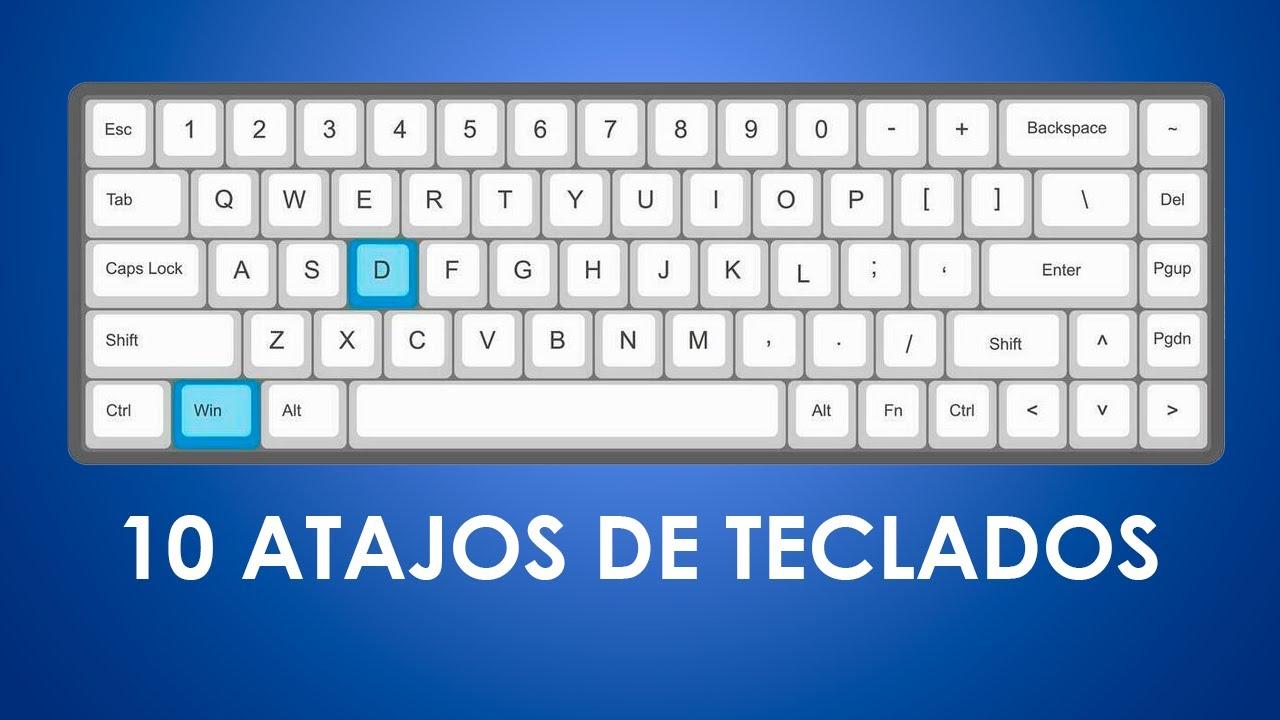
If you spend many hours in front of the computer, learning keyboard shortcuts in Windows is one of those tricks that makes all the difference: you work faster, you move through the system like a fish in water, and you almost forget about the mouse.
While it might seem like something only techies or advanced users can do, the truth is that with a few well-learned keyboard shortcuts, you can copy, paste, manage windows, switch programs, take screenshots, or even control the operating system without taking your hand off the keyboard. Let's take a look, in an organized way, at all the important Windows shortcuts (including Windows 10 and Windows 11), the most commonly used ones in programs like Word and Excel, and also those that often appear on exams.
What is a keyboard shortcut or command and why use it
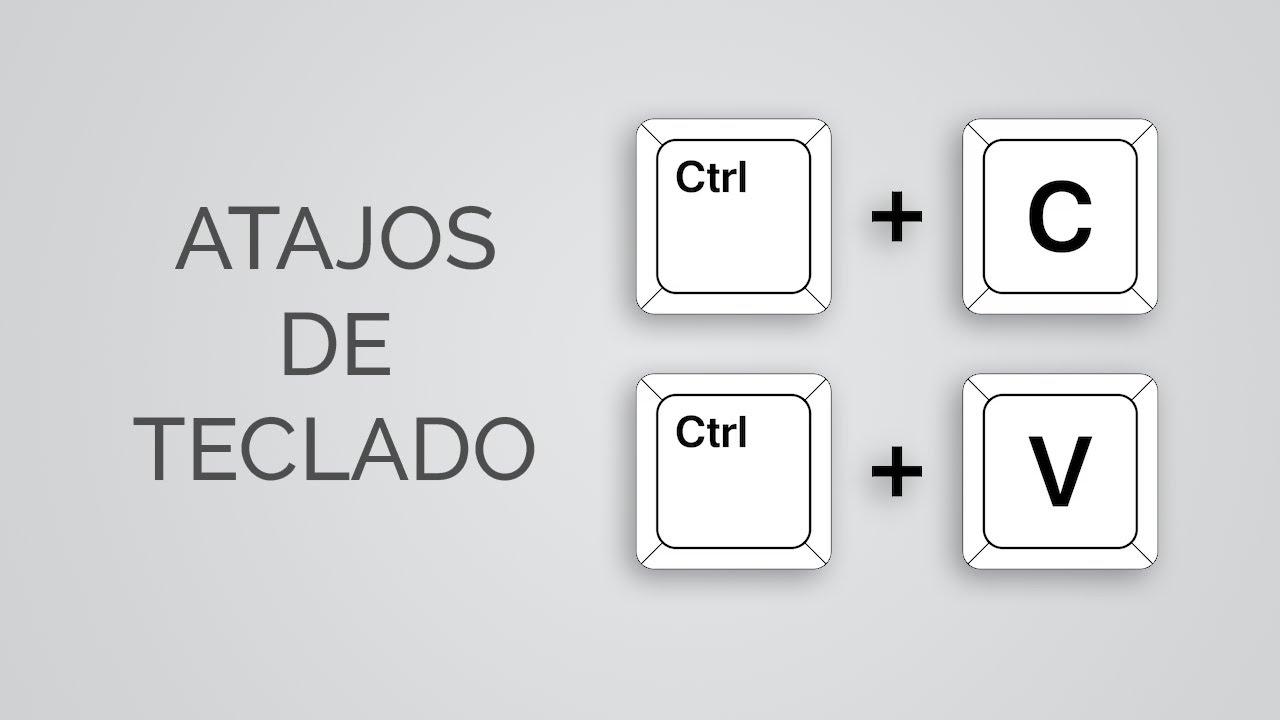
A keyboard shortcut or command is a sequence of one or more keys that launches a specific function of the operating system or a program, without having to click through menus. For example, pressing Ctrl + C copies, and Ctrl + V pastes, both in Windows and in many applications.
The beauty of it is that these commands are usually standard across programs and versions of Windows . So, what you learn in a word processor also works in a web browser or File Explorer. In professional settings, in studies, and especially in competitive exams, mastering these shortcuts isn't optional: it dictates the pace at which you can work.
There's no mystery behind how it works: Windows is always "listening" for keyboard input, and when it detects a specific combination (like Windows + E ), it triggers the associated action (in this case, opening File Explorer). That's why it's so important not to confuse modifier keys (Ctrl, Alt, Shift, Windows key) and to get used to using them fluently.
The most frequently used keys in Windows shortcuts are always the same: Ctrl, Alt, Alt Gr, Shift, Windows, Tab, and the function keys F1-F12 . If you place your left hand in the lower left corner of the keyboard (where many of these keys are grouped), you'll be halfway there.
Universal editing shortcuts and basic actions
These are the shortcuts you'll use most often, whether in Windows, Word, web browsers, or other programs. It's a good idea to memorize them because they'll save you dozens of clicks every day.
- Ctrl + C: Copy the selected text, file, or item.
- Ctrl + X: Cut the selected element.
- Ctrl + V: Paste the contents of the clipboard.
- Ctrl + Z: Undo the last action performed.
- Ctrl + Y: Redo the action you just undid.
- Ctrl + A / Ctrl + E (according to the program in Spanish): Select all content.
- Ctrl + S / Ctrl + G: Save the current document.
- Ctrl + O / Ctrl + A: Open file or document.
- Ctrl + P: Print the current document or page.
- Ctrl + F / Ctrl + B: Search for text or object within the document.
- Ctrl + W / Ctrl + F4Close the active window or document.
- Alt + F4: Close the active application or open the Windows shutdown dialog if there are no windows.
- F1Open the program's help, if available.
- I: Cancel an action or exit a dialog box.
In many workplaces and in competitive exams you will see that they emphasize this block a lot because they are the core shortcuts : you will repeat copy, paste, save and undo hundreds of times in any work session.
System shortcuts in Windows using Ctrl, Alt, Shift and function keys
Beyond basic editing, Windows has system control shortcuts that allow you to switch applications, manage windows, or even take action when something crashes.
- Ctrl + Esc: Open the Start menu (similar to pressing the Windows key).
- Alt + TabSwitch between open windows or applications.
- Ctrl + Alt + Delete: Open the security screen (lock, log out, change user, Task Manager, etc.).
- Ctrl + Shift + Esc: Open the Task Manager directly.
- Alt + Enter: View properties of the selected file or shortcut.
- Shift + Del: Delete a file without going through the Recycle Bin.
- F2: Change the name of a file or folder.
- F3: Search for files or folders (in File Explorer).
- F5: Update the content of the active window.
- F10: Activate the menu bar of many classic applications.
When something freezes, remember that Ctrl + Shift + Esc directly opens the Task Manager, and that with Alt + F4 you can quickly close an unresponsive window without having to reach for the mouse.
Windows key shortcuts: mastering the operating system
The Windows logo key is at the heart of many modern shortcuts, especially in Windows 10 and Windows 11. Combined with other keys, it can be used to open system tools, manage virtual desktops, and organize windows.
Basic shortcuts with the Windows key
- Windows: Open or close the Start menu.
- Windows+AIn Windows 10, it opens the Action Center; in Windows 11, it opens part of the quick settings.
- Windows + D: Show or hide the desktop (minimizes or restores all windows).
- Windows + E: Open File Explorer.
- Windows + IOpen the Settings app.
- Windows + L: Lock the device or switch users.
- Windows + ROpen the “Run” window.
- Windows + S o Windows + Q: Open the Windows search engine (in some versions it is integrated with Cortana).
- Windows + X: Open the quick access menu (tools such as Disk Management, Command Prompt, Device Manager…).
- Windows + U: Open the Accessibility section in Settings.
- Windows+W: Open Widgets (Windows 11) or Notes/Settings sidebar in earlier versions.
Window and desk organization
- Windows + Up Arrow: Maximize the active window.
- Windows + Down Arrow: Restore or minimize the active window.
- Windows + Left Arrow: Anchor the window to the left half of the screen.
- Windows + Right Arrow: Anchor the window to the right half of the screen.
- Windows + Start: Minimize all windows except the active one.
- Windows + CODE: Minimize all windows.
- Windows + Shift + M: Restore the windows that had been minimized.
- Windows + Shift + Up ArrowExtend the window to the top and bottom without changing the width.
- Windows + Shift + Left/Right Arrow: Move the window to the left or right monitor in multi-monitor setups.
- Windows + Tab: Open Task View (see windows and virtual desktops).
With the arrival of virtual desktops, Microsoft added specific shortcuts: Windows + Ctrl + D creates a new desktop, Windows + Ctrl + Left/Right Arrow moves between them, and Windows + Ctrl + F4 closes the current desktop.
Shortcuts for screenshot, clipboard, and magnifying glass
- Print Screen: Capture the entire screen to the clipboard.
- Windows + Print ScreenCapture the entire screen and save it as a file in the "Images > Screenshots" folder.
- Windows + Shift + S: Open the cropping tool to select a part of the screen (it is copied to the clipboard).
- Windows + Shift + R (in recent versions with the new Snipping Tool): Select an area to record video of the screen, which is saved as an MP4 file.
- Windows + V: Open clipboard history (you must first activate it in Settings > System > Clipboard).
- Windows + Plus sign (+)Activate the magnifying glass and zoom in.
- Windows + Minus sign (-): Zoom out with the magnifying glass.
- Windows + Esc: Close the magnifying glass.
If you want to take clipboard management to the next level, you can enable clipboard history to keep multiple recent copies. Then, Windows + V becomes a "super paste": you choose which of the latest copies you want to paste, while Ctrl + V continues to paste the last copied item.
Shortcuts for audio, microphone, date, and emojis
- Windows + Alt + V: Open the sound output page in the quick settings (output device, spatial sound, volume mixer).
- Windows + Alt + K: Mute or unmute the microphone in compatible applications.
- Windows + Alt + D: Show or hide the date and time panel on the desktop.
- Windows +. o Windows +;: Open the panel of emojis, symbols and kaomojis.
- Windows +, (comma): Temporarily show the desktop while holding down the keys.
The emoji panel has become very popular because it allows you to insert emojis, special symbols, and emoticons into any text field, without relying on the app. It's very useful for chats, social media, or even quick notes.
Advanced shortcuts for Windows 10 and Windows 11 (including Windows 8)
In addition to the classic shortcuts, there is a collection of shortcuts designed for more specific system functions, including some inherited from Windows 8 that are still useful in Windows 10 and 11.
Game bar, widgets, dictation, and other extras
- Windows + G: Open the Game Bar for captures, recordings, and game performance.
- Windows + Alt + G: Start recording the screen (via Game Bar) in some games and applications.
- Windows+Alt+R: Stop an ongoing recording.
- Windows+H: Open voice dictation or voice typing (depending on the version).
- Windows+K: Open the Connect panel to project to wireless displays.
- Windows + P: Open projection options on another monitor (PC only, Duplicate, Extend, Second screen only).
- Windows+W: Open the Widgets panel (Windows 11) or some tools in Windows 10.
- Windows + C: Open Microsoft Copilot or search, depending on availability and settings.
- Windows+Z: Show Snap Layouts in Windows 11 to arrange windows in grids.
Accessibility and safety shortcuts
- Windows + Ctrl + EnterOpen Windows Narrator.
- Windows + Ctrl + C: Activate or deactivate color filters (if they are configured).
- Ctrl + Alt + D: Open the docked magnifier (in some versions).
- Alt + Shift + Print ScreenActivate high contrast.
- Win + Ctrl + Shift + B: Restart the graphics driver if the screen goes black or freezes.
- Num Lock Held for 5 seconds: Activate toggle keys.
- Alt + Shift + Num Lock: Activate mouse keys (move the pointer with the numeric keypad).
On touch devices or convertible devices, you'll also find shortcuts and accessibility options , such as Windows + O to lock the screen orientation, which is very convenient if you don't want your view to rotate every time you move the device.
Windows File Explorer-specific shortcuts
If you frequently work with folders, documents, and downloads, mastering Explorer shortcuts will save you a lot of time when managing files.
- Windows + EOpen a new Explorer window.
- Ctrl + N: Open another Explorer window from the current one.
- Ctrl + WClose the active Explorer window.
- Ctrl + Shift + N: Create a new folder.
- Alt + P: Show or hide the preview panel.
- Alt + Right ArrowGo to the next folder.
- Alt + Left Arrow: Return to the previous folder.
- Alt + Up Arrow: Move up one level in the folder hierarchy.
- Ctrl+Shift+E: Show the folder tree with subfolders.
- Ctrl + D: Move a file or folder to the Recycle Bin.
Within Explorer, Tab and Shift + Tab allow you to jump between areas (folder pane, file list, address bar, search box), so you can navigate almost without touching the mouse.
- Ctrl + NOpen a new browser window.
- Ctrl + T: Open a new tab.
- Ctrl + Shift + N: Open a new window in incognito mode.
- Ctrl + W o Ctrl + F4: Close the current tab.
- Ctrl + Shift + W o Alt + F4Close the browser window.
- Ctrl + 9: Go directly to the last tab.
- Ctrl + Tab o Ctrl + Page Down: Go to the next tab.
- Ctrl + Shift + Tab o Ctrl + Page Up: Return to the previous tab.
- Alt + Left Arrow: Return to the previous page of the history.
- Alt + Right ArrowGo to the next page of the history.
- Ctrl + Shift + B: Show or hide the bookmarks bar.
- Ctrl + O: Open a local file in the browser.
These commands, combined with the general copy, paste, and search commands, make the browser a much more agile tool for studying, working, or preparing documentation.
Essential keyboard shortcuts in Word
Word has its own keyboard shortcuts; some are the same as general Windows shortcuts, while others are specific to text formatting. Many exam and competitive examination questions revolve around this topic.
- Ctrl + N: Apply bold to the selected text.
- Ctrl + K: Apply italics.
- Ctrl + S: Underline the selected text.
- Ctrl + UIn some distributions, it opens a new blank document (it depends on the language and version).
- Ctrl + E: Select all text (in certain Spanish versions).
- Ctrl + G: Open the save options.
- Ctrl + B: Search in the document.
- Ctrl + L: Open the Replace dialog box.
- Ctrl + J: Justify the text to the left and right.
- CTRL+Q: Align the text to the left.
- Ctrl + D: Align the text to the right (according to the layout).
- Ctrl + T: Center the paragraph.
- Ctrl + R: Close the current document.
- Ctrl + Y: Redo the last change.
- Ctrl + Z: Undo the last change.
It's a good idea to check the font combinations in your specific version of Word, because in some Spanish versions, certain letters are swapped (for example, B in "buscar , " G in "guardar ," etc.). However, bold, italics, and underline are usually consistent across versions.
Main keyboard shortcuts in Excel
Excel also has a very extensive list of keyboard shortcuts. To avoid turning this into an encyclopedia, we'll focus on the ones most frequently used in course materials and exams.
- Ctrl + A: Show the Open dialog box (in some versions, select all).
- Ctrl + B: Show the Search dialog box.
- Ctrl + C: Copy the selected cells.
- Ctrl + D: Fill down or copy formula down.
- Ctrl + E: Select all cells in the current sheet.
- Ctrl + G: Show the Go To dialog box.
- Ctrl + J: Copy the formula down over the selected range (in some versions).
- Ctrl + K: Apply italics to selected text.
- Ctrl + L: Show the Replace dialog box.
- Ctrl + N: Apply bold.
- Ctrl + P: Show the Print dialog box.
- Ctrl + R: Close the workbook.
- Ctrl + S: Underline the selected text.
- Ctrl + T: Open the Create Table dialog box.
- Ctrl + UNew workbook.
- Ctrl + V: Paste content.
- Ctrl + X: Cut the selected cells.
- Ctrl + Y: To redo an action.
- Ctrl + Z: Undo.
- Ctrl + 1: Open the Format Cells dialog box.
- Ctrl + 2: Apply bold.
- Ctrl + 3: Apply italics.
- Ctrl + 4: Underline.
- Ctrl + 5: Apply or remove strikethrough.
- Ctrl + 6: Show or hide objects on the sheet.
- Ctrl + 8: Show schematic symbols.
- Ctrl + 9: Hide selected rows.
- Ctrl + 0: Hide selected columns.
Numerical shortcuts (Ctrl + 1, Ctrl + 2, etc.) are very useful for quickly formatting content without having to go to the ribbon tabs, something that costs time in practical exams.
Keyboard shortcuts in Windows for competitive exams (Windows 10 and Windows 11)
If you're preparing for competitive exams for administrative assistant, administrative officer, or similar positions, in addition to everything mentioned above, you'll often be asked for very specific lists of Windows keyboard shortcuts. Many examination boards focus on Windows 10, but most are still valid in Windows 11.
Classic block for competitive examinations
- Ctrl + C, Ctrl + X, Ctrl + V, Ctrl + Z, Ctrl + YCopy, cut, paste, undo and redo (already seen, but they always come in).
- Ctrl + A / Ctrl + E: Select all.
- Ctrl + S / Ctrl + G: Keep.
- Ctrl + P: To print.
- Alt + Tab: Switch between open programs.
- Alt + F4: Close program.
- Windows + EOpen the Explorer.
- Windows + R: Execute.
- Windows + L: Block equipment.
- Windows + CODE: Minimize all windows.
- Windows + D: Show desktop.
- Windows + Print Screen: Screenshot to file.
- Windows + Shift + SScreen clipping.
- Windows + TabTask view.
- Ctrl + Shift + EscTask Manager.
Many course materials complete the list with more specific shortcuts such as Win + V (clipboard history), Win + I (Settings), Win + X (quick access menu) or Win + Ctrl + Shift + B (restart the graphics driver), as they are very representative of Windows 10/11.
How to type the at symbol (@) on different keyboards
A common question, especially regarding laptops and international keyboards, is how to type the at symbol (@). On a Spanish Windows keyboard, the most common way is Alt Gr + 2 or Alt Gr + Q , depending on the specific layout and the key markings.
- Classic Spanish PC keyboard: AltGr + 2 (if @ is above the 2).
- Many laptops in Spanish: Alt Gr + Q (if @ is above the Q).
- With numeric keypad: Ctrl+Alt+2 o Alt + 64 (using the numeric keypad).
- English (US) keyboard: Shift + 2.
- English keyboard (United Kingdom): Shift + ' (apostrophe).
If you still can't get it to work, you can always type "@" in a search engine, copy the symbol and paste it where you need it , but ideally you should get used to the shortcut in your distribution.
Key keys for understanding and combining shortcuts
To fully master shortcuts in Windows, you should familiarize yourself with the modifier and special keys on your physical keyboard:
- Ctrl: Usually in the bottom left and right corners. Used in most standard combinations.
- Caps LOCK: To the left of the alphabet block, it blocks capital letters.
- Windows keyIt is usually located to the left of the space bar, between Ctrl and Alt.
- AltNext to the space bar. Not to be confused with Alt Gr.
- Alt GrTo the right of the space bar. Used to type special characters such as @, #, etc.
- F1-F12Function keys at the top, frequently used for system and program shortcuts.
- Tab: Use two opposite arrows, on the left side of the keyboard, to move between fields or elements.
When you combine these keys with letters, numbers, or arrow keys, Windows interprets it as a "shortcut." With some practice, you'll start to notice your hands getting used to the shortcuts on their own , and you'll look at the keyboard less and less.
Mastering keyboard shortcuts in Windows isn't about memorizing them all from day one, but about gradually incorporating the ones that best suit your workflow: start with copy, paste, undo, switching windows, and opening Explorer; continue with screenshots, virtual desktops, and the quick access menu; and, if you're preparing for competitive exams or work extensively with Office, add the specific shortcuts for Word and Excel. With that small initial effort, your workflow will be faster, more comfortable, and, above all, much more professional.
