- XMP and EXPO profiles allow RAM to operate at the frequency and latencies advertised by the manufacturer, exceeding standard JEDEC limits.
- XMP is the technology optimized for Intel platforms, while EXPO is the open standard designed specifically for modern AMD Ryzen processors.
- Activation of these profiles is done through the BIOS/UEFI, automatically adjusting the voltage and timings to ensure system stability.

You've probably experienced this: you spend a lot of money on a RAM kit that promises blazing-fast speeds, but when you build your PC and check the Task Manager, you realize the frequency is much lower than what the box advertises. It's not that you've been ripped off; it's just that by default, almost all RAM modules boot with JEDEC settings, which are essentially the most conservative and safest values to ensure the computer will turn on, regardless of your motherboard.
To solve this and avoid sacrificing performance, there are automatic overclocking profiles like XMP or EXPO. Essentially, they're like a "performance shortcut" that the RAM manufacturer has already encoded in a small chip called an SPD. Instead of driving yourself crazy manually tweaking voltages and latencies, which is a dangerous path if you're inexperienced, you simply tell your BIOS to load that profile, and voila, your system will start flying.
What exactly are XMP and AMD EXPO?
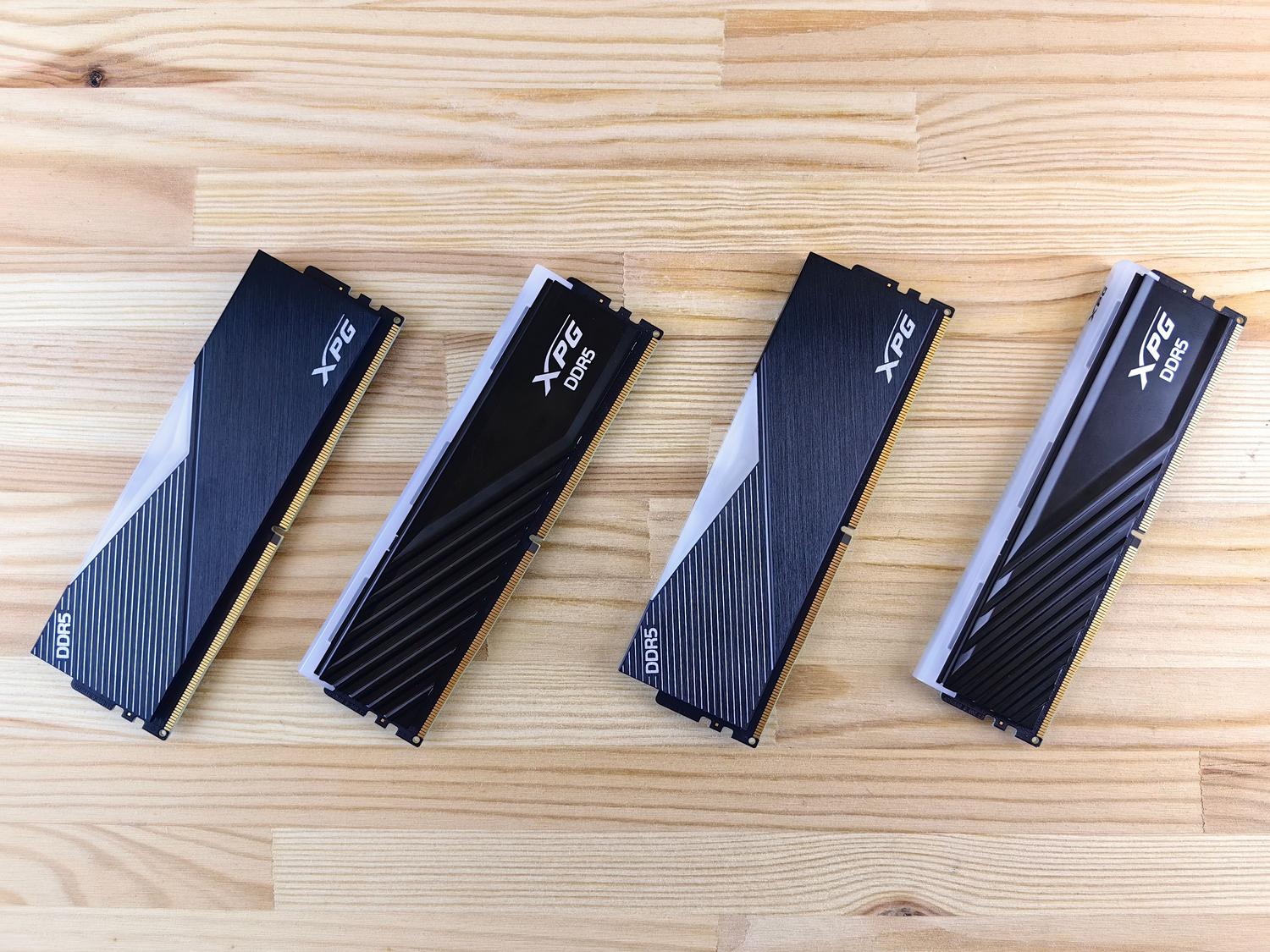
XMP, or Extreme Memory Profile, was the pioneer and is Intel's own technology. Its function is simple: it allows RAM modules to operate at frequencies higher than the standard. Over time, it has evolved, from version 2.0 in DDR4 to XMP 3.0 in DDR5 , which is a true powerhouse, allowing up to five different profiles, some of which can be customized by advanced users.
On the other hand, AMD released EXPO (Extended Profiles for Overclocking) for its latest platforms, especially for Ryzen 7000 series and beyond. Unlike Intel's, EXPO is an open and free standard , making it easier for memory manufacturers to integrate it. While Intel sometimes prioritizes very high raw frequencies, AMD typically optimizes EXPO for tighter latencies, something Ryzen processors greatly benefit from for increased FPS in games.
It's important to mention that there are intermediate names. On ASUS motherboards for AMD, you might see terms like DOCP or EOCP , which are basically translations of XMP profiles to work on AMD systems. The same applies to MSI's A-XMP. Ultimately, they all aim for the same thing: to prevent your RAM from running at a snail's pace.
Before you enter the BIOS: Security checklist
Before you touch anything, make sure you're not going to create a problem. First, check the Qualified Vendor List (QVL) for your motherboard; this is a list where the manufacturer explicitly states which memory modules they have tested and are 100% compatible. If your kit is on that list, you can proceed with confidence.
It's also vital that you've installed the modules in the correct slots. On most motherboards with four slots, to enable Dual Channel and ensure stable XMP, you must use slots A2 and B2 (usually the second and fourth slots counting from the CPU). If you install them in the wrong slots, the system will likely become unstable, or the PC might not even boot after activating the profile.
Don't forget to update your BIOS. Especially with DDR5, which is still somewhat temperamental, firmware updates often bring critical memory stability and compatibility improvements that can be the difference between your PC working and constantly crashing with blue screens.
Step-by-step guide to activating maximum speed
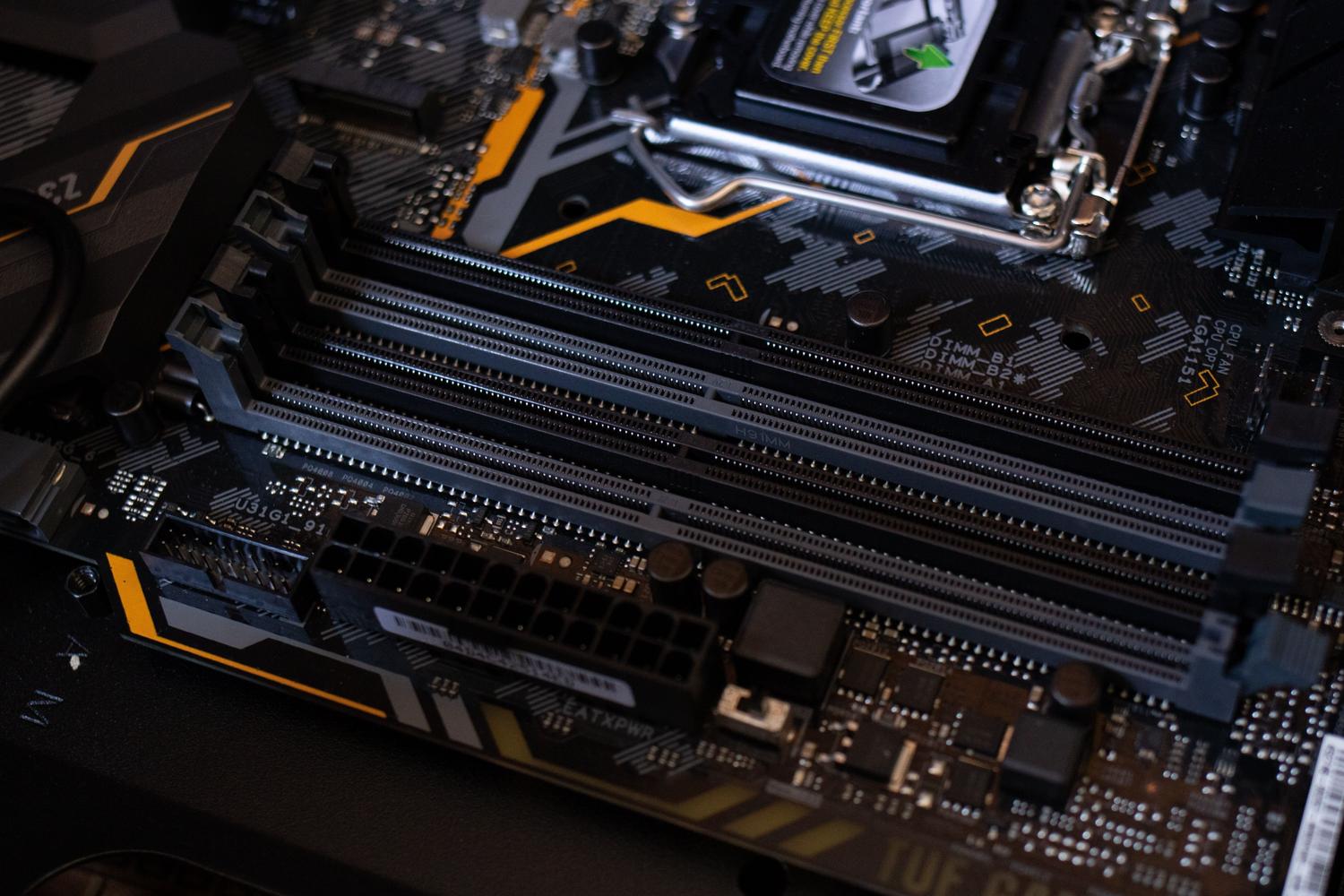
Although each brand (ASUS, MSI, Gigabyte, ASRock) has its own interface, the logic is the same for all. The general process would be as follows:
- Enter the BIOS/UEFI: Restart your computer and repeatedly press the access key (usually Delete, F2, or F10) before Windows loads.
- Look for the configuration mode: Many motherboards have an "EZ Mode" where XMP/EXPO appears as a giant button. If you don't see it, press F7 to enter the mode. Advanced mode.
- Locate the Overclocking menu: Look for sections called AI Tweaker, OC, MIT, or DRAM Configuration. There you'll find an option called "AI Overclock Tuner" or something similar.
- Select the profile: Change the value of "Disabled" or "Auto" to XMP I, EXPO I or DOCPProfile 1 is usually the most balanced and the one recommended by the manufacturer.
- Save and restart: Press F10 to save changes and exit.
Note this: the first boot after enabling XMP may take longer than usual. This is called "Memory Training ," where the motherboard tests the voltages to ensure everything is stable. Don't panic or turn off your PC if it takes a couple of minutes to display an image.
What to do if your PC won't start or becomes unstable?
If, after activating the profile, your computer enters a restart loop or displays no image, don't panic. Most likely, your CPU's memory controller can't handle that speed. The quickest solution is to clear the CMOS , either by pressing a button on the back of the motherboard or by shorting the "Clear CMOS" pins on the motherboard with a screwdriver to reset it to factory settings.
If you want to try again, try selecting Profile 2, which is usually a bit more conservative. You can also try manually lowering the frequency by one step (for example, from 6000MHz to 5600MHz) while keeping the profile active. If it still fails, check that you're not mixing modules from different brands or kits, as that's a recipe for disaster in terms of stability.
How to check that everything has been done correctly
Once you're in Windows, don't just assume the PC turns on. You need to verify its actual speed. The easiest way is to open Task Manager , go to the Performance tab, and click on Memory. There, in the bottom right corner, you'll see the current speed in MHz.
For those who want more detail, I recommend using CPU-Z . In the "Memory" tab, you'll see the frequency. Keep in mind that, since it's DDR (Double Data Rate), the value shown by CPU-Z is half the effective speed. For example, if your RAM is 6000MHz, CPU-Z will show approximately 3000MHz, which is perfectly normal.
Taking full advantage of your RAM's speed is crucial for eliminating bottlenecks, especially in video editing, rendering, or CPU-intensive games. By enabling XMP or EXPO, you move from a generic configuration to professional optimization specifically designed for your hardware, ensuring that every euro invested in your components translates into tangible performance gains in your daily use.