- Google Maps allows you to share your real-time location by selecting a specific time limit or even manually disabling it.
- On iPhone, you can choose permanent family sharing or send one-off bookmarks via Messages and the Find My app.
- There are advanced security features such as Apple Reporting or Security Review to manage privacy in critical situations.
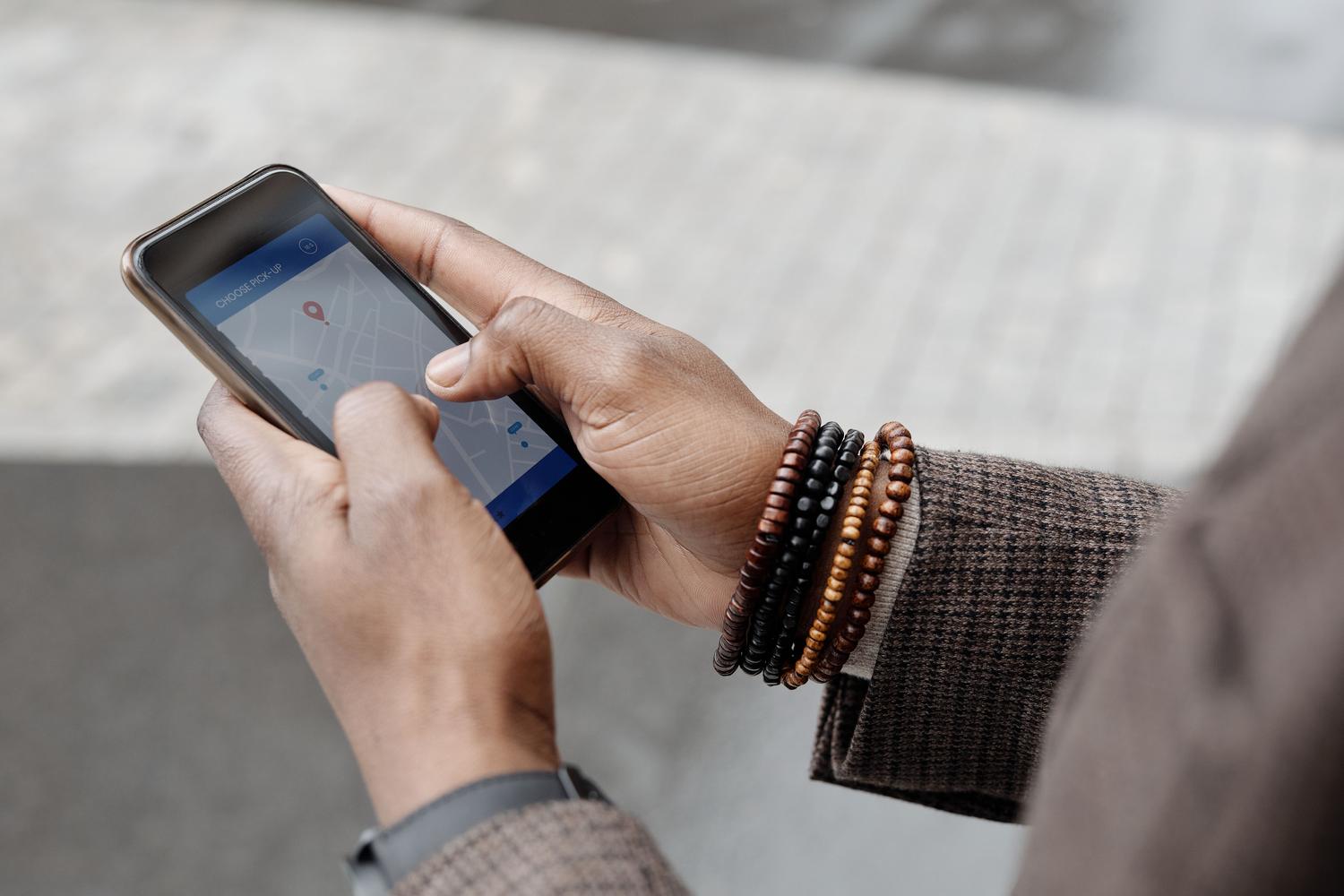
These days, knowing the whereabouts of our loved ones is incredibly easy and takes a huge weight off our shoulders. In the past, to find someone, we had to trust that they would maintain their usual routines, let us know in advance, or simply keep an eye on them. But now, with a couple of taps on our phones, we have the answer. A simple WhatsApp message or a map setting is all it takes for a friend, partner, or the kids to tell us exactly where they are, which is ideal for avoiding unnecessary worries.
There are plenty of reasons to use these tools, from letting people know you're approaching a new city to coordinating dinner with colleagues so no one gets lost. The most important thing is that, regardless of age, someone always feels more at ease knowing you're safe and in a specific place. That said, it's wise to use common sense and limit access to your location to only people you completely trust, since sharing your position with everyone can become a privacy issue if you're not careful.
How to manage your location on Android using Google Maps
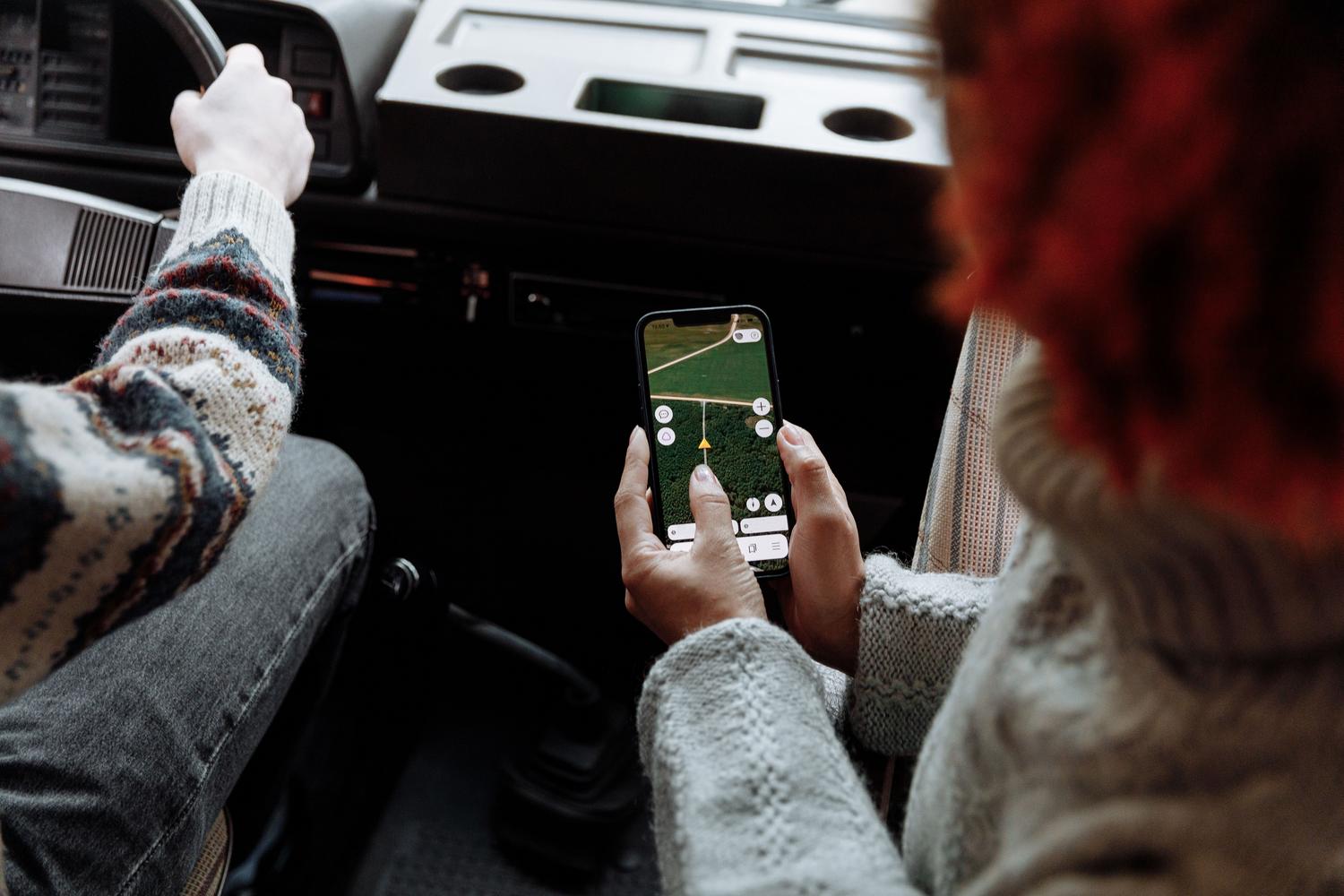
If you use the Google ecosystem, you have a couple of powerful options: Family Link, which is more focused on parental controls so parents can monitor their children, and Google Maps, which is the most versatile tool for sharing your location with any contact. To get started with Google Maps, first open the app on your device and tap on your profile picture or your account icon.
Once inside, make sure you're logged in and look for the option called "Share location." There, you'll need to choose how long you want others to be able to see your location. You can leave it active until you manually turn it off, or set a time limit of 1 hour , 12 hours, or a full day. After deciding on the time, select the person from your contacts with whom you want to share your location.
Depending on the situation, the other person will receive a direct notification in their Maps app, or the system will ask you to send them a link via email. It's crucial that, the first time you do this, you grant the location and notification permissions requested by the system so that real-time tracking works. Once activated, the other person will be able to see your name, your photo, your exact location, your remaining battery percentage, and whether your phone is charging, as well as receive alerts when you arrive at or leave a location.
If at any point you want to stop sharing your location, simply return to the location sharing menu and tap "Stop ." You can also manage these permissions in your Google account settings. Remember that you can share your location with multiple contacts at once, either individually or by selecting an entire group.
Sharing your position in the Apple (iPhone) ecosystem
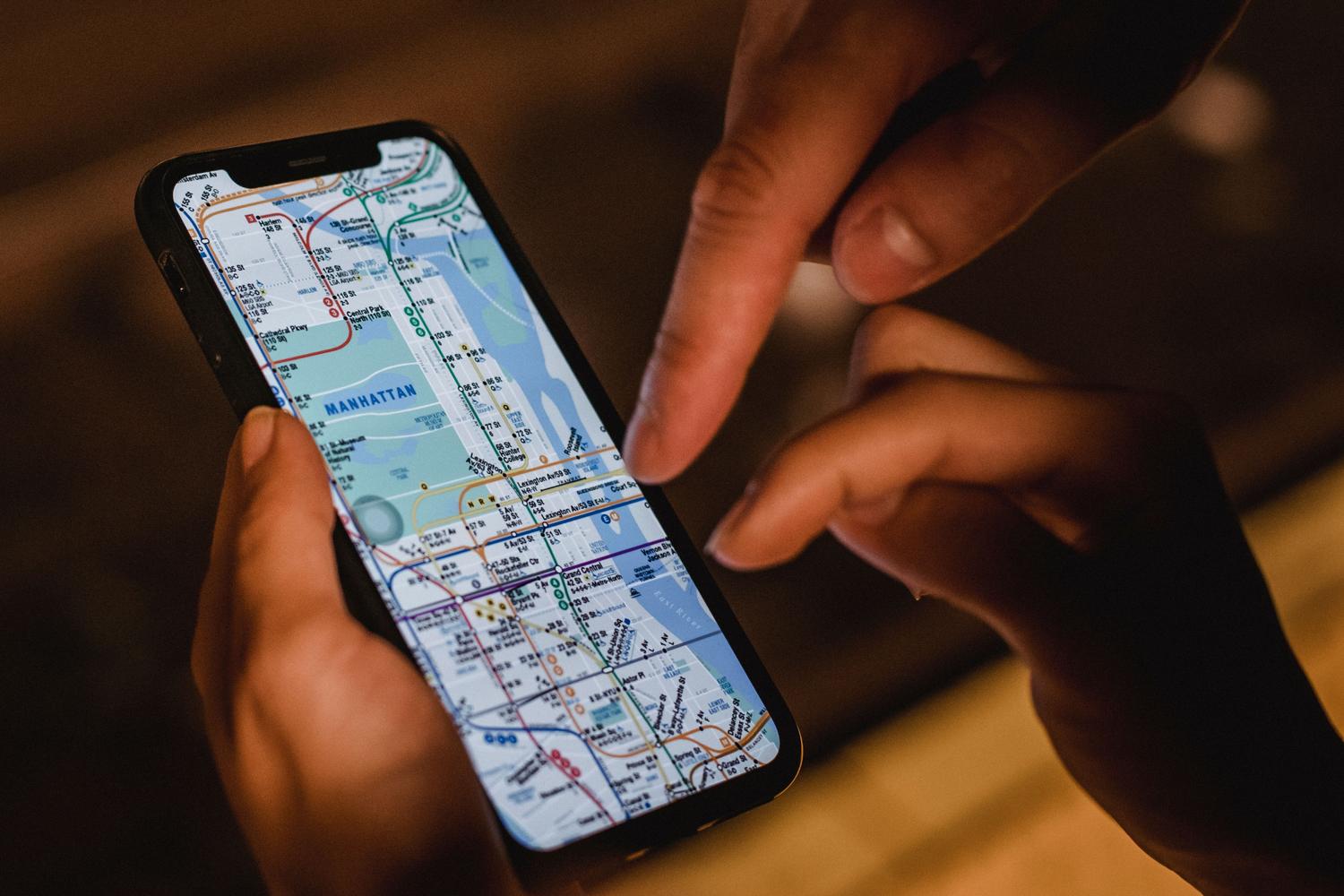
iPhone users have a highly integrated system based on their Apple ID. The first way to do this is through Family Sharing; by enabling the "Family Sharing" option in your profile settings, you can automatically share subscriptions and your location with all invited members. This allows anyone in the group to ask the Find My app where anyone else is at any time.
If you prefer something more occasional or for people who aren't family, the Find My app is the key. From the People tab, you can invite a specific contact and choose whether you want to share your location for an hour, all day, or indefinitely. The recipient must accept the invitation to start following you on the map from their own Apple device or via the web.
Apple also offers lighter options in the Messages app. You can send a "snapshot," which is basically a photo of your exact location, but it doesn't allow you to be tracked as you move. To do this, simply go to a conversation, tap the "More" button, choose location, and send the marker . It's a great option if you just want to say "I'm here" without compromising your privacy for the rest of the day.
For those on the road, there's a feature to share your estimated time of arrival in Maps. This shares your live location and the entire route as you navigate. Additionally, there's a safety feature called "Report," which doesn't constantly share your location but only alerts a trusted contact and sends your current position if there's an unexpected delay in your trip and you don't respond to alerts.
Privacy controls and external tools
On both iOS and Android, security is paramount. On iPhone, for example, there's the "Security Checkup," a tool designed to quickly cut off the flow of information if you feel your personal safety is at risk. From here, you can manage which apps and which people have access to your location data in bulk.
On the other hand, there are third-party applications like "Location Share," which rely on mutual consent. These apps allow real-time updates and send notifications when a friend or family member changes location. The important thing with these external tools is to verify that they only request strictly necessary permissions, such as location and notifications, and that they don't function as spyware apps , but rather as family support tools.
Having control over who sees us and for how long is essential for enjoying these features without worry. Whether using native Google and Apple tools or specialized apps, the key is knowing how to configure exposure times and manage system permissions so that GPS works accurately without draining your phone's battery.