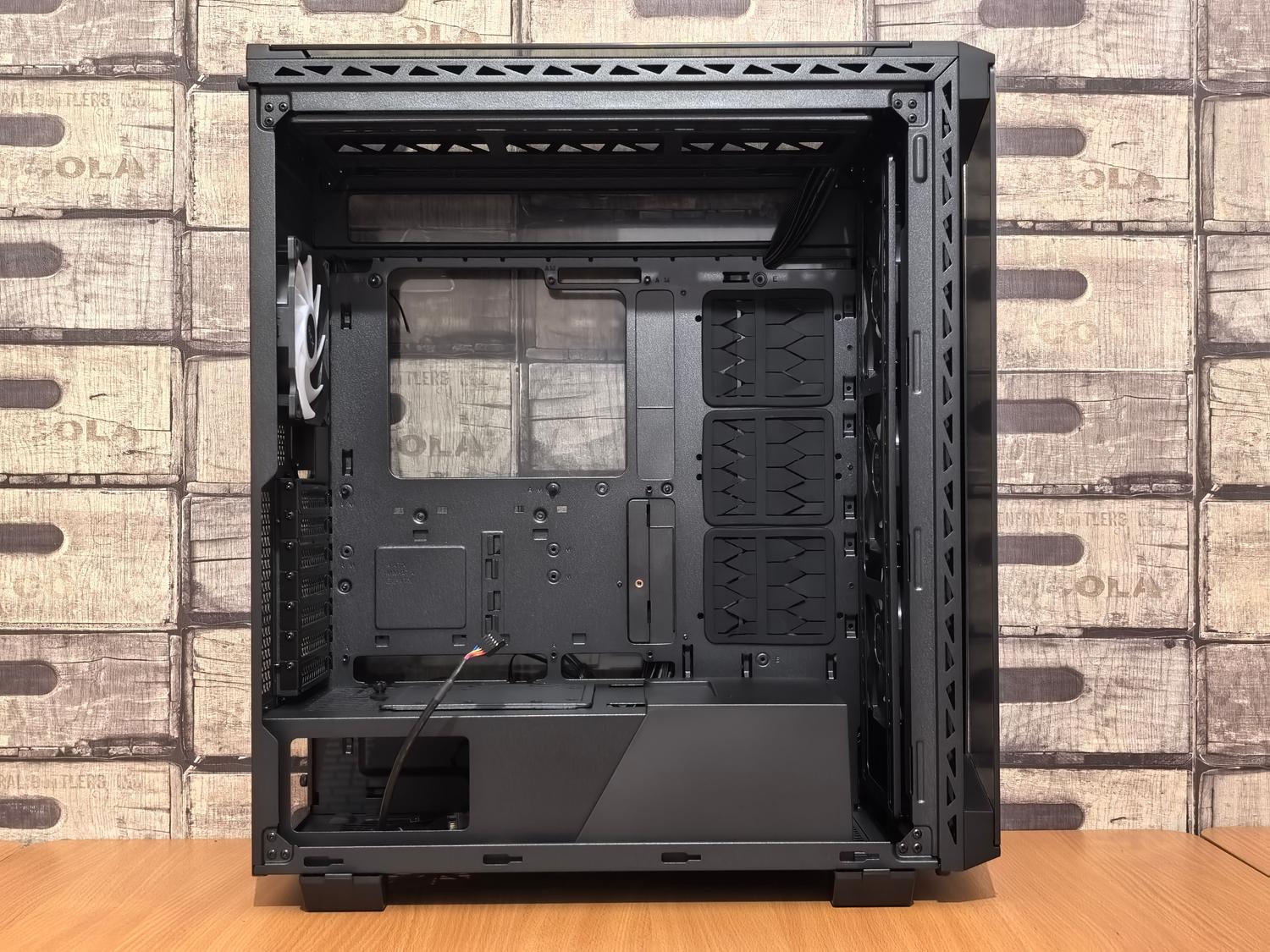
Do you have an old tower gathering dust that you no longer use for gaming or work? Well, don't throw it away, because you can get the most out of your old PCs by turning them into the brain of your home network . Setting up your own firewall with OPNsense is fantastic, as it allows you to leave behind the basic routers that internet providers force upon us, which tend to overload when you push them a little or overheat in the summer, leaving you stranded at the worst possible moment.
The idea here is to leverage the power of a PC processor, which is vastly superior to that of a commercial router, to manage traffic, filter content, and segment your network . You don't need to be a networking expert to get started, although you do need to be somewhat handy with configuration and understand that power consumption will be slightly higher than that of a small device, but the control you gain over your security is simply on another level.

The hardware needed to build your home router
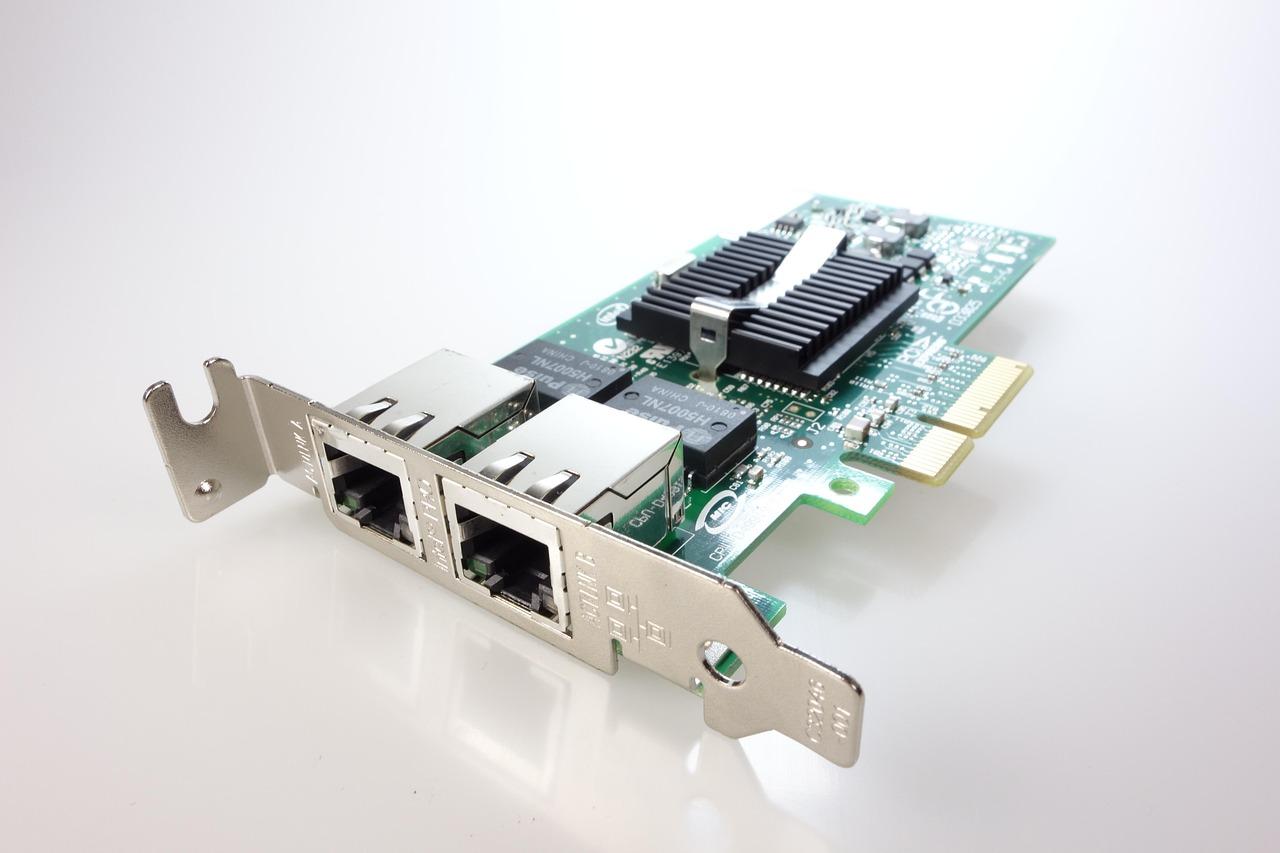
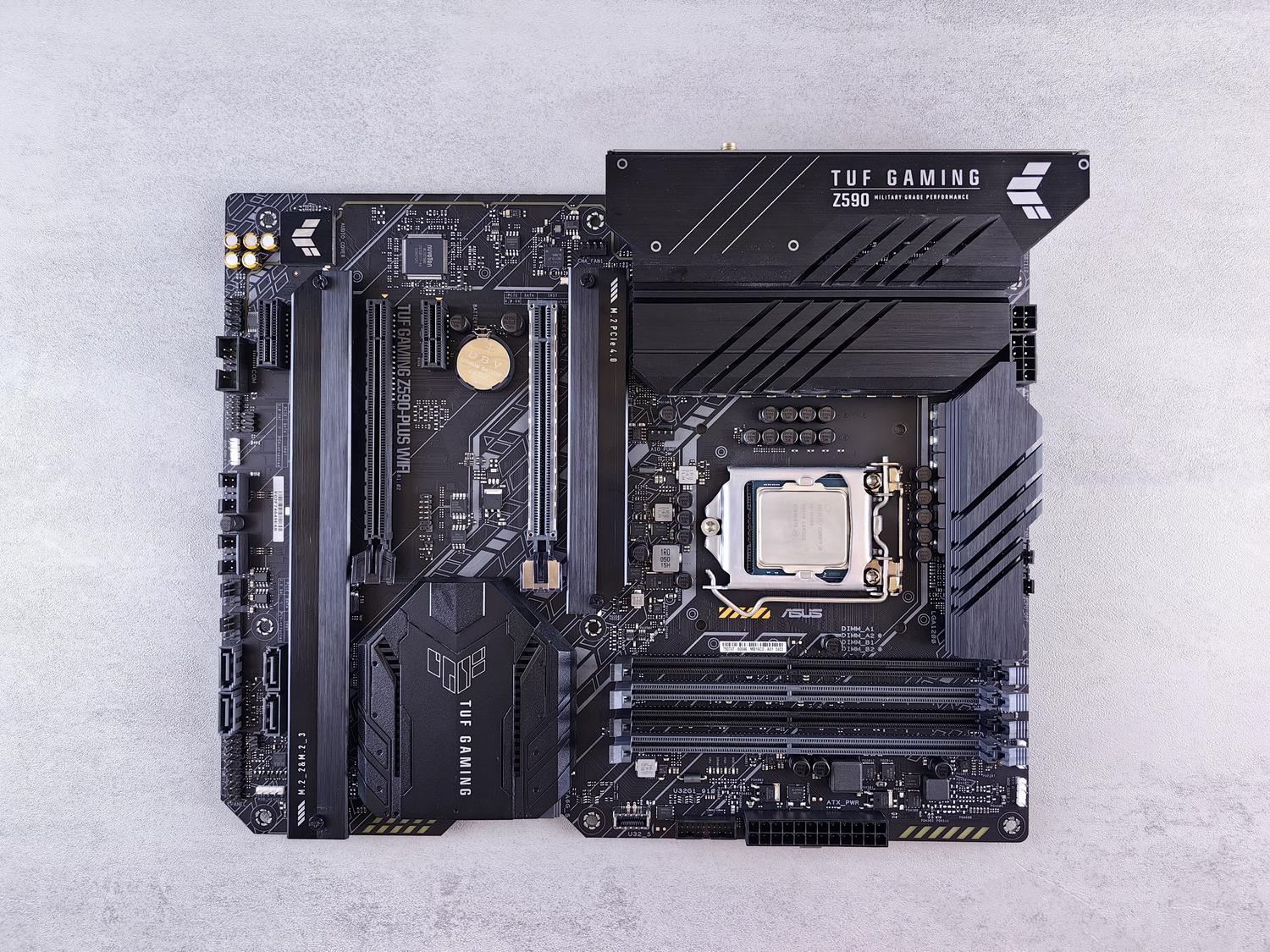
For this to work perfectly, not just any computer will do. Ideally, you need a desktop tower with free PCI Express slots on the motherboard. Forget about laptops or mini PCs, as we need to connect physical network cards. For internet access, a high-speed network card (preferably 10 Gbps) that supports current fiber optic connections is highly recommended.
The critical point is the Ethernet ports. A router needs at least two interfaces: one for the WAN (the one that connects to the ISP's modem) and another for the LAN (the one that distributes internet to your home). If you want to connect several devices via cable without complications, it's best to install a network card with multiple ports (for example, a 4-port Gigabit card). This prevents the processor from becoming overloaded handling each packet and ensures there are no bottlenecks in your connection.
As for the internal components, you don't need to spend a fortune. An Intel i3 processor, or even an older dual-core one, is more than enough. The important thing is that the power consumption is low (a moderate TDP) because the computer will be on 24/7. With 4 GB of RAM and a small SSD for the operating system, you'll have more than enough. A trick to save power and reduce noise is to lower the CPU speed in the BIOS and, if possible, do without the dedicated graphics card and use the integrated one instead.

System installation and deployment
OPNsense is based on FreeBSD, so we won't be using Windows. To install it, you'll need a USB drive formatted in FAT32 containing the system image (choose the VGA version so you can see what you're doing on the screen). A crucial detail is to disable Secure Boot in the BIOS, as FreeBSD sometimes doesn't work well with this option, and make sure the USB drive is the first boot device.
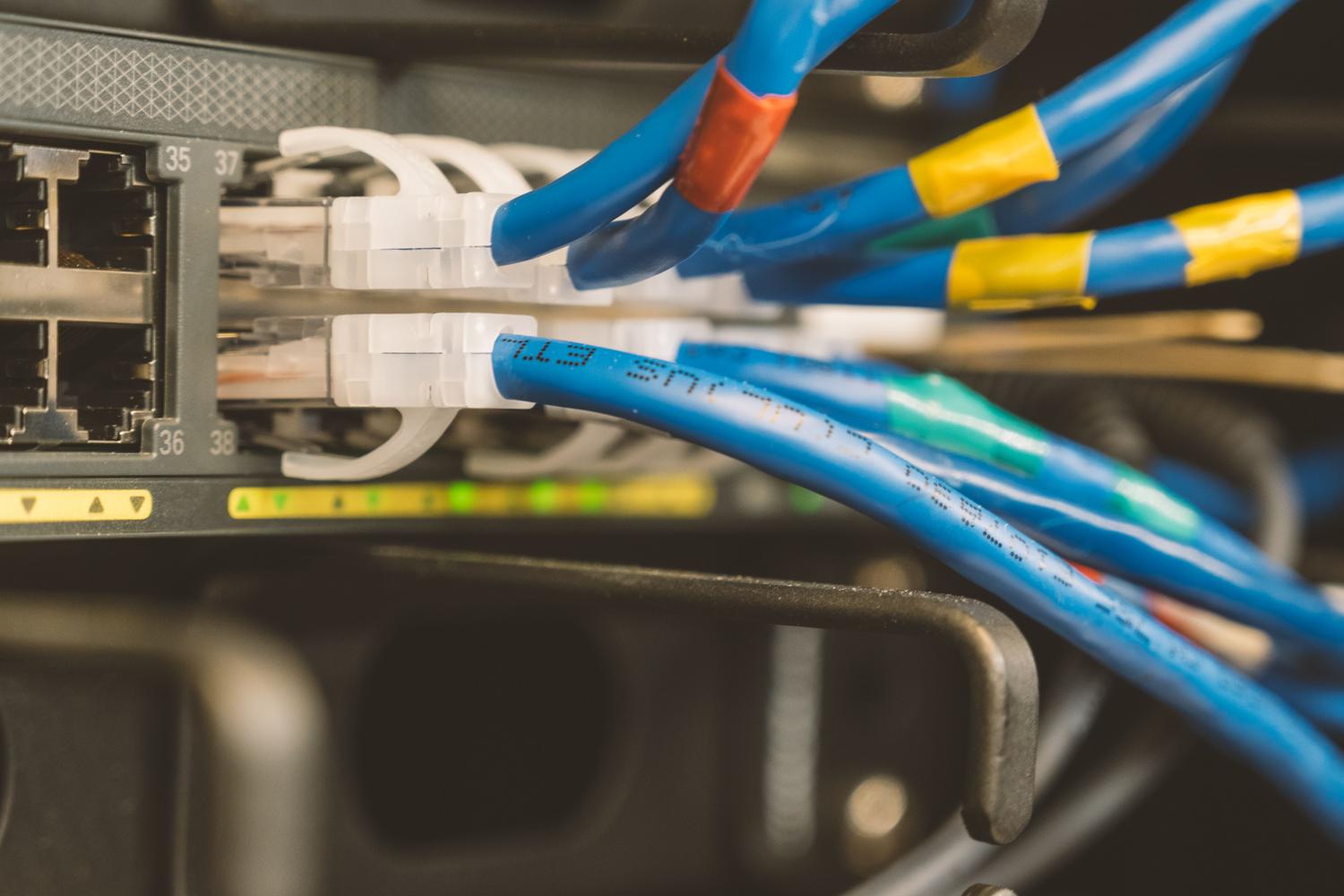
During installation, the system will ask you to create a password for the root user; choose a strong one that you won't forget. Once installed, the PC will restart and you'll enter a text-mode menu. This is where you need to assign the network interfaces . To avoid confusion, connect a cable to each port and see which one is active on the screen; this will tell you exactly which is your WAN and which is your LAN. Normally, the WAN will automatically receive an IP address via DHCP from your ISP's router, while the LAN will have the default IP address, which is usually 192.168.1.1.
Virtualization: OPNsense on Proxmox or KVM
If you have a more powerful server, you don't need to dedicate an entire PC just to the firewall. You can use virtualization with Proxmox or KVM. In Proxmox, for example, you can create logical interfaces and bridges to manage traffic. This is very useful if you want to segment your network without needing multiple physical network cards, since you can use the 802.1Q standard to create VLANs (virtual networks).
In a virtualized environment, you can configure a management (Mgt) network to communicate with the firewall without passing through the user network. This is vital for security, as it allows you to restrict system administration access to only your trusted team, preventing any unsuspecting user on your Wi-Fi from accessing the router's control panel.

The problem of Wi-Fi and segmentation
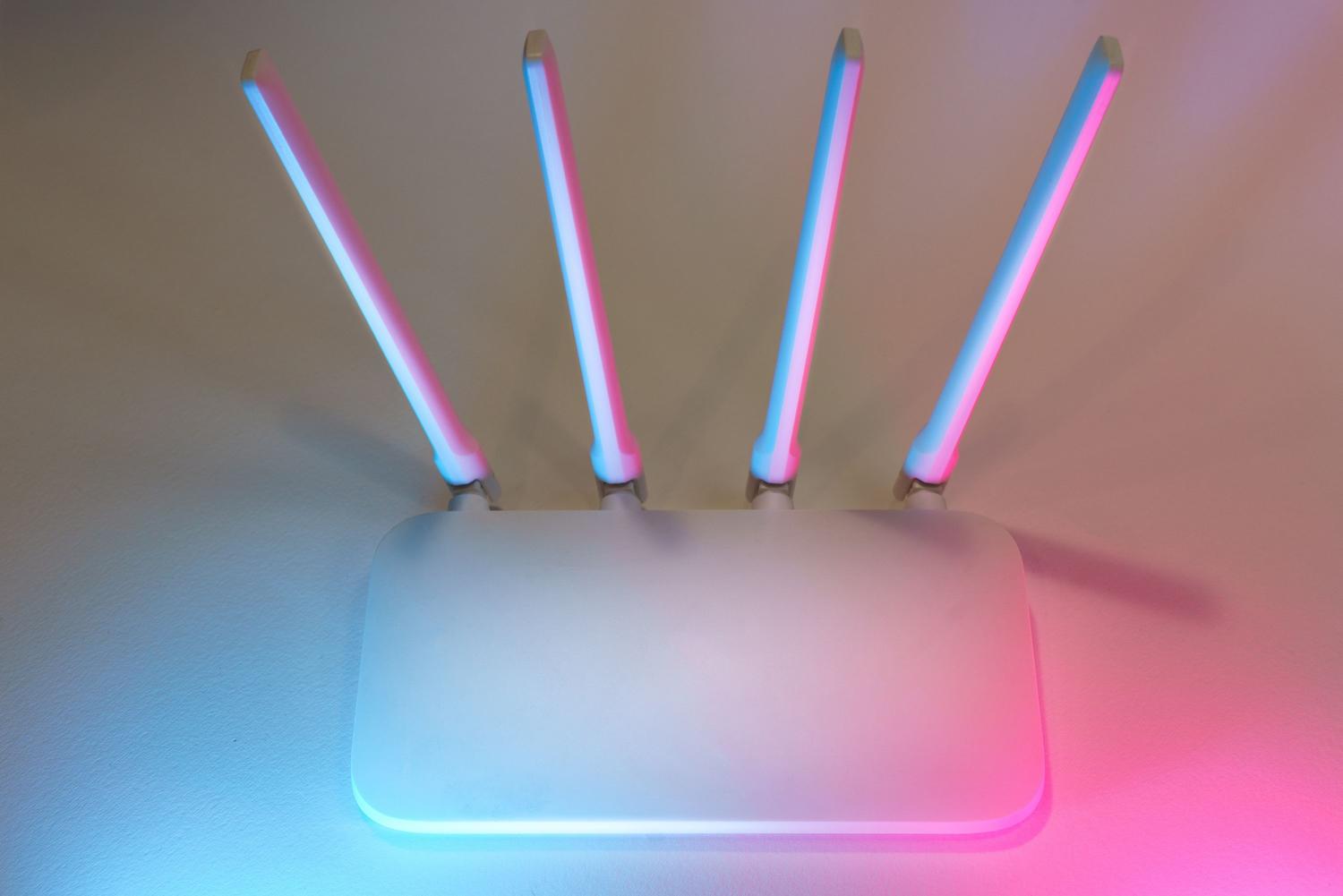
Here's the catch: OPNsense doesn't work well with the drivers of commercially available Wi-Fi cards. Therefore, the best solution is to use an external Access Point (AP) . You can repurpose an old router by configuring it in "AP mode" or disabling its DHCP server so it only acts as a wireless bridge. Connect this AP to one of the LAN ports on your PC/router, and you're all set.
If you want to go a step further, you can use a managed switch to create isolated networks. For example, you can dedicate VLAN 50 exclusively to guest Wi-Fi or IoT devices, completely separating it from your work network (VLAN 10). In OPNsense, you'll need to configure the DHCP server (such as Kea) for each subnet and create specific firewall rules that allow traffic to the WAN but block communication between the Wi-Fi network and your personal files, applying homelab hardening with VLANs.
Final configuration and fine-tuning
Once the system boots up, you no longer need a screen or keyboard on your PC. Everything is managed through a web browser by entering the LAN IP address. The first step is to configure Outbound NAT (masking) so that devices on your internal network can access the internet using your WAN's public IP address. If you notice that clients have IP addresses but can't browse the internet, check that the DNS (Outbound) server has the access lists configured to listen for requests from all your subnets.
Remember that, by default, OPNsense blocks all traffic on new interfaces. You'll need to go to the rules section and create a pass rule to allow traffic from your LAN to reach the WAN. If your ISP is very restrictive and uses the original router's MAC address for something else, you can clone the MAC address in OPNsense to trick the system into assigning you a connection.
Setting up this system gives you complete control over who enters and leaves your network, allows you to manage bandwidth so no one hogs the connection downloading games, and, most importantly, helps you learn how the internet actually works in your home. While the power consumption is slightly higher than a plastic router, the processing power and security provided by dedicated hardware more than compensate for the small increase in your electricity bill.
