- The USB-C port is just the shape of the connector, while the ability to transmit video depends on the internal protocol such as DP Alt Mode or Thunderbolt.
- For the connection to work, both the computer port and the cable used must be compatible with screen signal transfer.
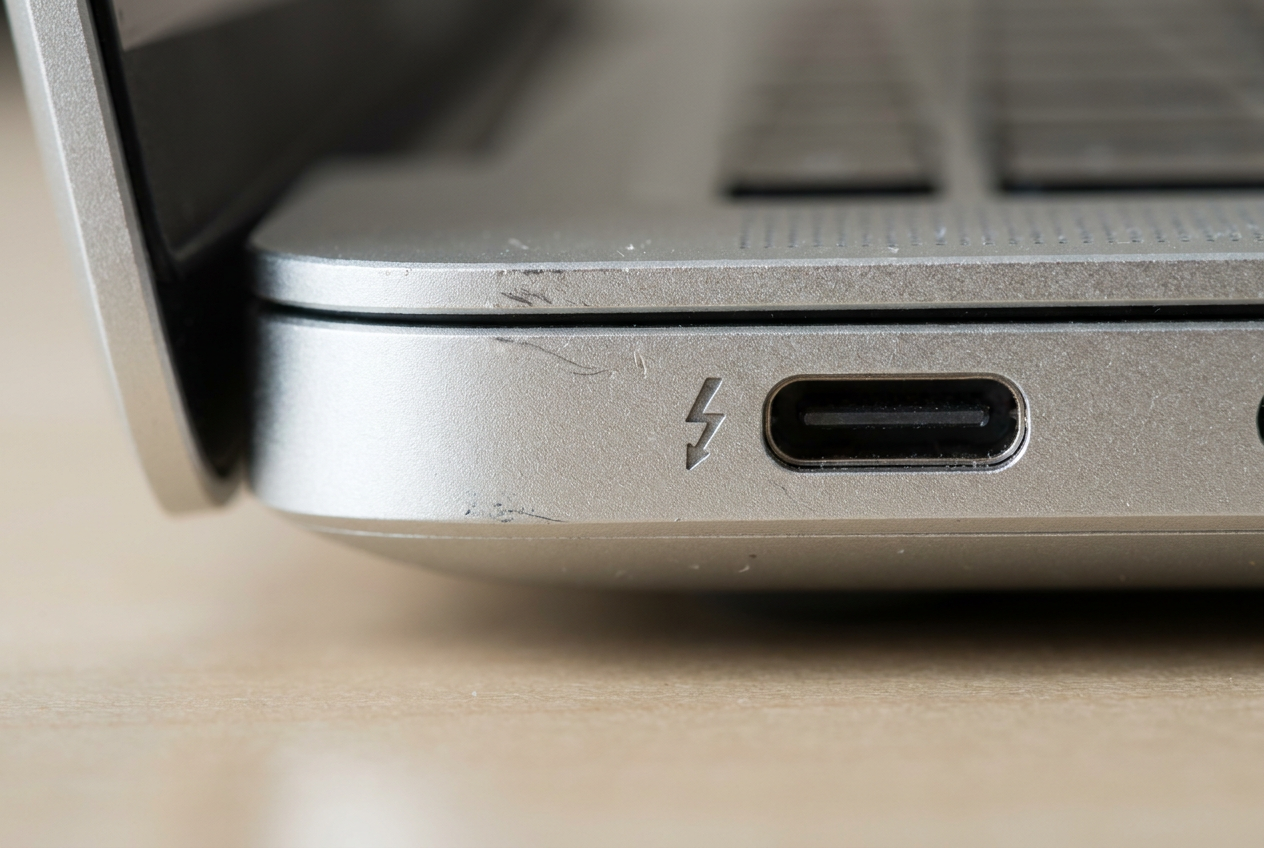
- There are visual cues on the hardware, such as lightning bolt icons or monitors, that make it easier to identify video compatibility.
You've probably experienced this: you buy a really cool monitor with a USB-C connection, plug it into your laptop thinking it'll be a piece of cake, and to your surprise, the screen stays black while the computer only charges. It's a frustrating situation because, at first glance, all USB-C connectors look the same, but the reality is that there's a world of difference between what you see on the outside and what's happening inside the hardware.
The problem is that USB-C is simply the "shape" of the plug, a physical interface designed to be reversible and compact. However, the ability to transmit video is not a standard feature of all ports; it depends on the protocols the manufacturer has chosen to implement on your motherboard, making the search for compatibility a bit of a technical maze.
The difference between interface and protocol
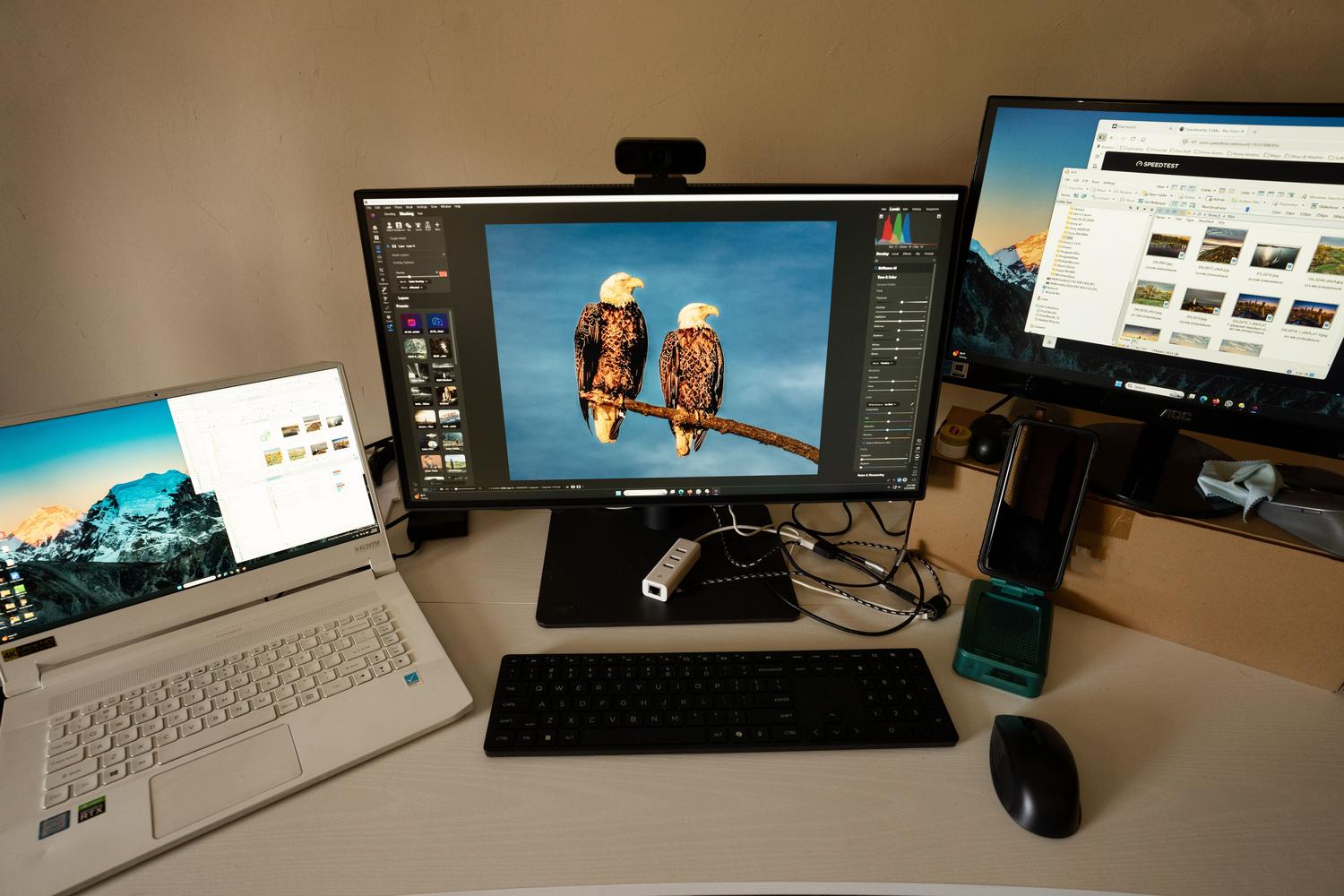
To avoid confusion, the first thing to understand is that USB Type-C is just the name of the connector. Very different things can travel through that same little hole: from simple low-speed data to high-definition video signals. Protocols are the rules that define what the port can do; for example, USB 2.0 is very basic, while USB 4 or Thunderbolt are veritable data superhighways.
When it comes to monitors, the key is DisplayPort Alternate Mode (DP Alt Mode) . This technology allows the pins of the USB-C connector to act as a DisplayPort video output, sending the signal directly to the monitor without needing to convert it into data. If your laptop doesn't support this alternate mode, even if the monitor is compatible, you won't see a single pixel on the screen.
How to identify if your port is compatible
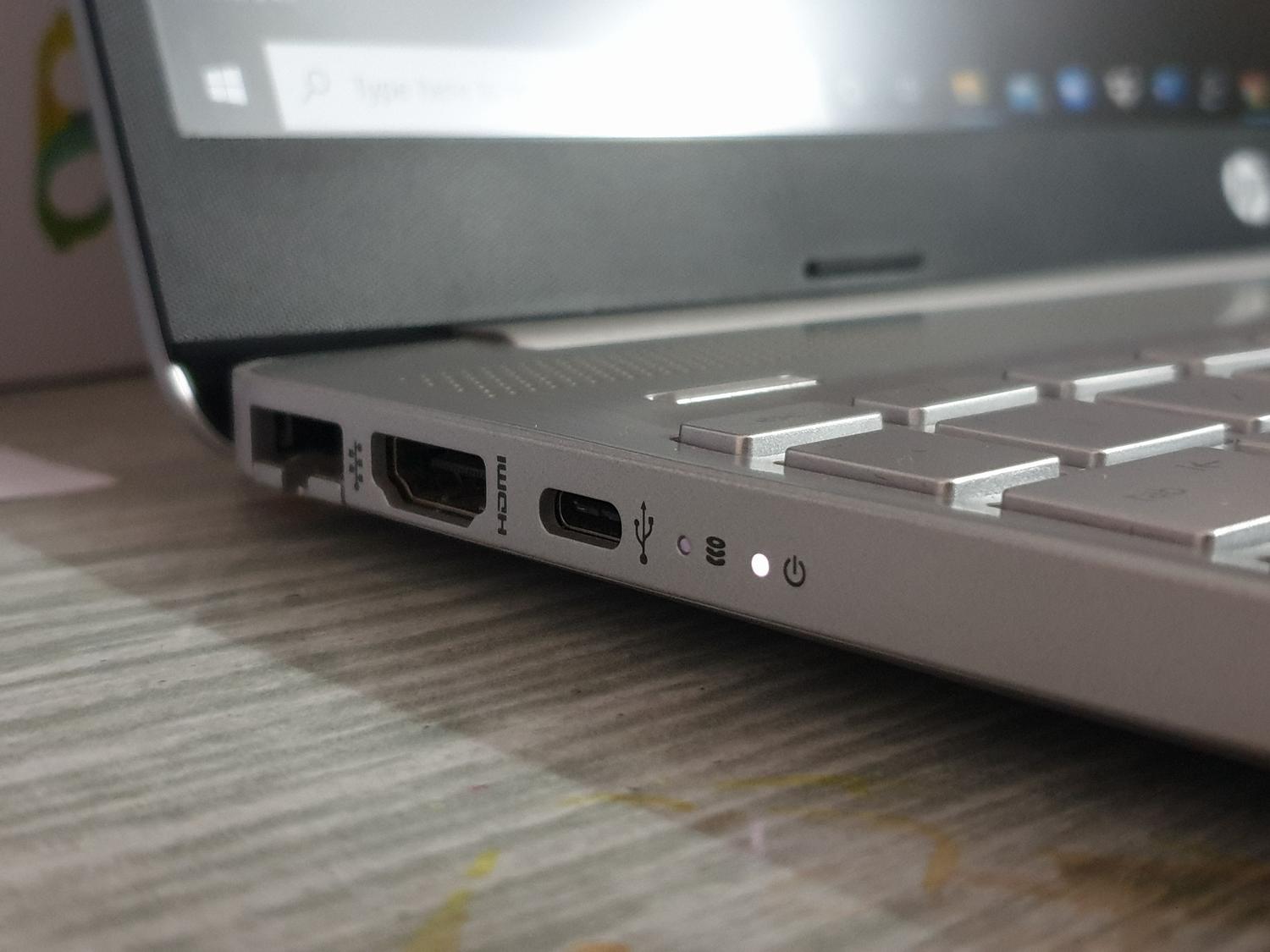
You don't need to be an engineer to figure it out, as there are several clues that pave the way. The quickest way is to look at the logo printed next to the port . If you see a small lightning bolt, it means it's a Thunderbolt port (which always supports video). If you see an icon that looks like a small screen or the letters DP, you're good to go and connect your external monitor.
If there are no icons, don't give up. The most reliable approach is to consult the manufacturer's official specifications or user manual. You should specifically look for terms like "USB-C with DP Alt Mode support" or "Thunderbolt 3/4." Be wary of descriptions that only mention "USB 3.2 Gen 1," as this indicates file transfer speed but doesn't guarantee video output.
The critical role of cable: not all cables work
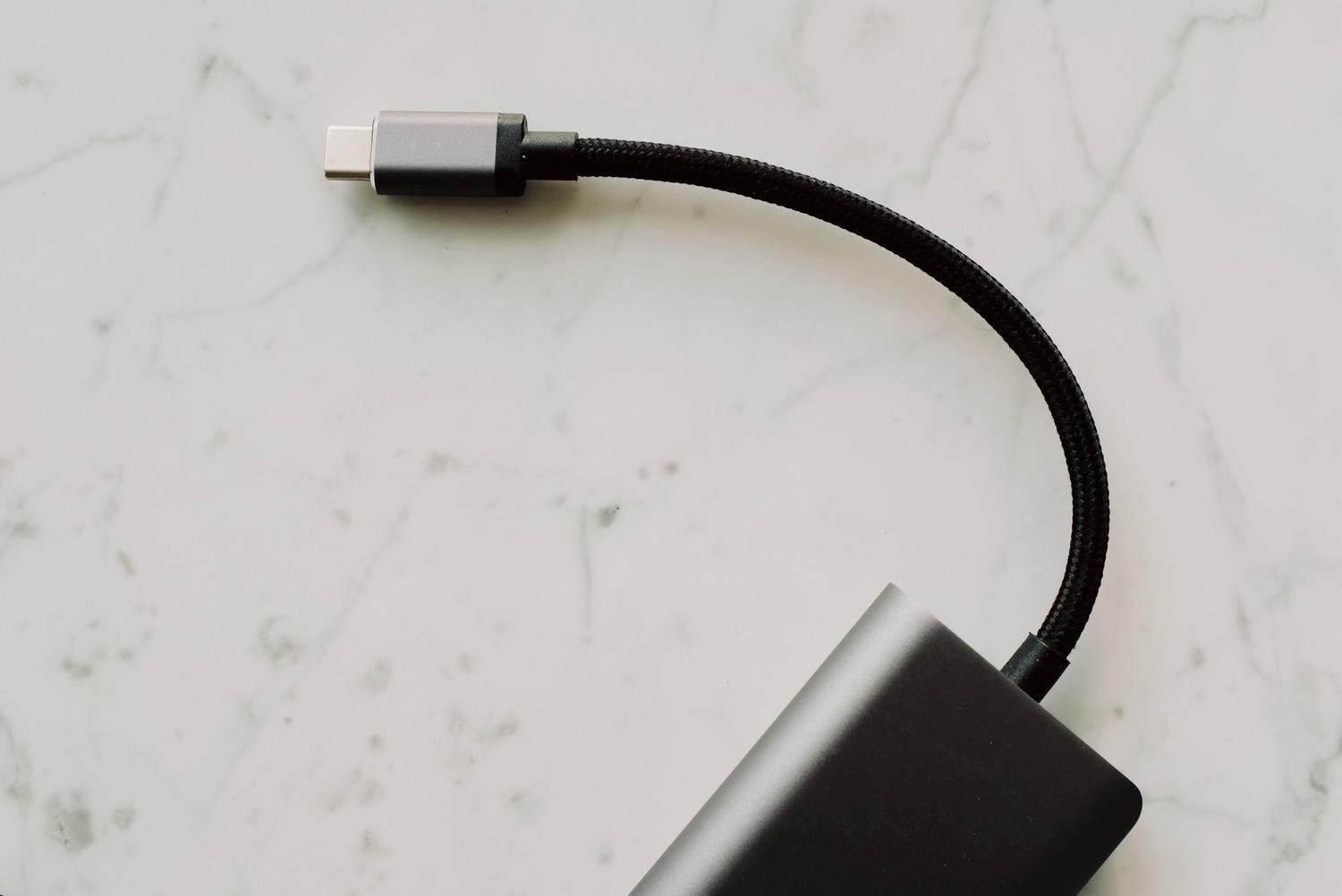
This is where many people go wrong. Sometimes the laptop is compatible and the monitor is too, but the cable is the culprit. Many cables that come with mobile phones or cheap headphones are only for charging and basic data (USB 2.0), and lack the internal wires needed to carry video signals. Using an unsuitable cable will cause the monitor to charge but not display an image.
To be on the safe side, you need a cable that meets three requirements: it must support speeds of at least USB 3.0 (now called USB 3.2 Gen 1), it must be compatible with DisplayPort Alternate Mode , and it should ideally support 100W charging. If the cable has the Thunderbolt logo, you can rest assured that it meets all the necessary specifications for video and power.
Alternatives when the port is not native
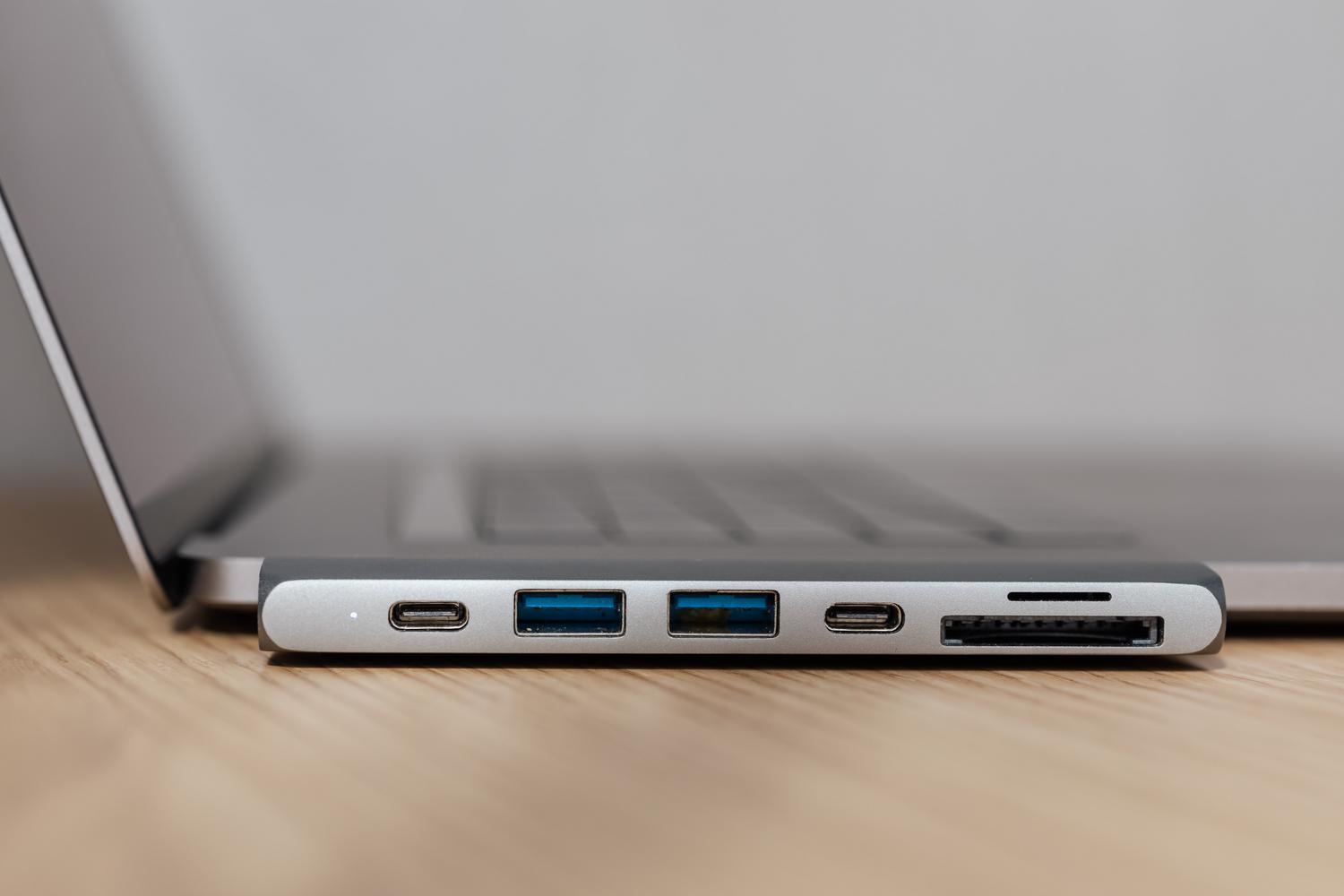
What if you discover that your USB-C port is only for data? All is not lost. There's a technology called DisplayLink . Unlike DP Alt Mode, which sends the video signal directly, DisplayLink uses a controller (a chip) that compresses the video signal and sends it as if it were regular data.
For this to work, you typically need a specific adapter or hub that indicates it uses DisplayLink, and, very importantly, you need to install the corresponding drivers on your operating system. It's an excellent solution for adding extra monitors to laptops with limited display capabilities, although it may offer slightly lower performance than a native connection for very demanding tasks such as professional gaming.
Possible problems and quick fixes
If you believe everything is compatible but it still doesn't work, try restarting your computer with the monitor connected. Sometimes, Universal Serial Bus drivers can cause problems, and uninstalling the root hubs from Windows Device Manager so they reinstall automatically might resolve the issue. It's also advisable to try draining any residual power by turning off your PC and holding the power button for about 30 seconds.
To ensure a stable connection, it is recommended that the laptop monitor be connected to its own power source , as drawing power and video simultaneously from the laptop can overload some less powerful USB-C ports, causing flickering or the system to fail to detect the external display.
For a monitor to work via USB-C, three factors must be present: a port on the computer that supports DP Alt Mode or Thunderbolt , a certified video cable, and a compatible monitor. If any of these components are missing, the connection will not be established, forcing us to use DisplayLink adapters or carefully check the hardware specifications to avoid incorrect purchases.