- Comprehensive management of the file system through the creation, movement and deletion of directories and documents.
- User permission management and real-time process control to optimize team performance.
- Use of network tools and packet management to keep the system updated and connected.
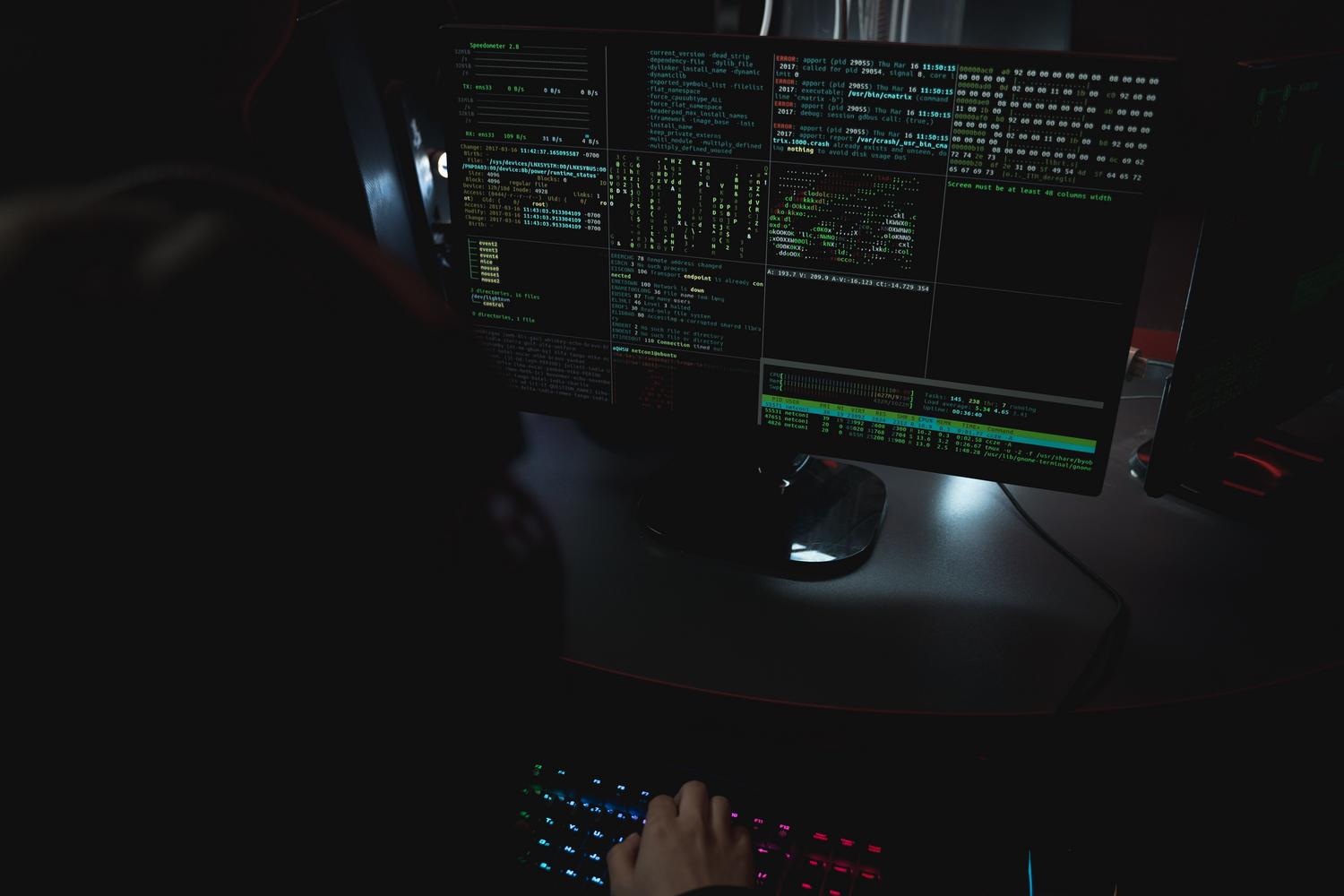
If you've encountered Linux for the first time, it might be because you watched a YouTube video or because you've embarked on the adventure of setting up your own server. At first, facing that black screen with white text can be a bit intimidating, but the reality is that the command line is a powerful tool that gives you complete control over your computer, something that graphical interfaces simply can't offer.
Mastering the terminal isn't just for movie hackers; it's a fundamental skill for any developer or system administrator. Instead of endless clicking, you can automate complex tasks with a single line of text , saving you incredible time and allowing you to solve problems at their root without any fuss. Let's break down everything you need to know to stop feeling like a tourist and start navigating like a pro.

The first thing is to know where you are and how to navigate. The `pwd` (print working directory) command is your personal GPS; if you get lost among folders, run it and you'll see the exact path to your location. To take a look at what's around you, use `ls` (list) . If you want to see hidden files (those that start with a dot), add the `-a` option, and if you're looking for details like size or permissions, `ls -la` is the winning combination.
To jump from one folder to another, the command is `cd` (change directory) . You can go to a specific path or use the `cd ..` trick to move up one level in the directory hierarchy. If you want to quickly return to your home folder, simply type `cd ~` . When you need to create a new workspace, `mkdir` (make directory) is used to create that new folder; if you need to create several nested folders at once, the `-p` option will make things much easier.

File and Content Manipulation
When it comes to quickly creating empty files, `touch` is the ideal tool . To move a file or rename it, we use `mv` (move) , which essentially acts as a digital freight. If you prefer to keep the original and create a duplicate, the command is `cp` (copy) , remembering that to copy entire folders you must add the `-r` option to make it a recursive process. You can expand your knowledge with this complete guide to file management commands.
Deleting is the part where you need to tread carefully, since there's no recycle bin in the terminal. The `rm` (remove) command deletes files, while `rmdir` is used for empty folders . If the folder contains files, you'll have to use `rm -rf` , but be very careful because this action is irreversible and you could delete critical system files if you don't double-check the path.

To read the contents of a document without opening an editor, we have several options. `cat` displays the entire content on the screen, which is great for short files. If the file is quite long, it's better to use `less`, which allows you to navigate page by page and search for text within the document. On the other hand, `tail -f` is pure gold for programmers , as it allows you to observe in real time how log files are updated.
Permission and User Control
Linux is very strict about security. Every file has an owner and specific read, write, and execute permissions. You can analyze these permissions with `ls -l` . To modify them, you use `chmod` (change mode) . You can use letters (like `u+x` to give the user execute permissions) or numbers; for example, the well-known `chmod 755` is standard for directories that should be readable by everyone but editable only by the owner.
If you need to change the owner of a file, the command is `chown` (change owner) . Often, when you install a web server, you'll need to use `chown -R www-data:www-data` so the server can read your website files. To run tasks that require elevated privileges, we use `sudo` (superuser do) , which allows us to act as the system administrator temporarily.

Process and Performance Management
Sometimes a program freezes or consumes all the RAM. To see what's happening, `top` offers a dynamic view of processes, although `htop` is a much more visual and convenient alternative if you can install it. If you identify a problematic process, note its PID (process identifier) and use `kill -9` to force its immediate termination.
To manage disk space, `df -h` shows you the overall partition usage in a human-readable format. If you want to know exactly which folder is consuming all the storage, `du -sh` is the command to summarize the size of a specific directory.
Networks, Packages and Extra Tools

In the realm of networking, ping is used to check if a server is responding , while traceroute allows us to see the path packets take to reach their destination. If you want to delve deeper, you can learn how to ping in Linux to diagnose connections. To view your network configuration, you can use `ip` or the classic `ifconfig` command . If you need to download a file directly from the web to your server, `wget` is the most versatile tool.

Software management varies depending on the distribution. On Debian or Ubuntu, apt is king, using `sudo apt update` to refresh the list and `sudo apt install` to add programs. On CentOS or RHEL, yum or dnf are used . To compress files and save space, tar is the preferred option , allowing us to package and compress entire directories into a single .tar.gz file.
For those seeking efficiency, there are aliases, which allow you to create custom shortcuts for long commands. Additionally, the use of pipes (|) allows you to chain commands ; for example, you can list files, filter out .txt files with grep, and then count them with wc -l, creating a very powerful pipeline optimization in Linux .
Mastering these tools transforms how you interact with technology, taking you from a passive user to someone with complete control of the system. From basic navigation and permissions management to process and network administration, these instructions form the foundation of any professional Unix-based environment. The key is consistent practice and not being afraid to explore the terminal, always exercising caution with bulk deletion commands.
