- Windows 11's God Mode is a special folder that centralizes hundreds of advanced system settings into a single interface organized by categories.
- Activating it only requires creating a folder or shortcut with a specific identifier, without additional installations or dangerous modifications.
- GodMode provides quick access to tools for security, networking, power management, user accounts, backups, and system customization.
- It is safe and reversible: simply delete the folder or shortcut to disable it, leaving Windows 11 functioning intact.
If you use Windows 11 daily, you'll probably be happy with the typical options of Control panel and the Settings appBut the system hides much more powerful tools designed for those who want to go a step further in Windows tricks to master your PCOne of the most curious and useful is the famous Windows 11 God Mode, a hidden function that concentrates virtually all advanced system settings into a single window.
This feature is not new; it has been present for years in different versions of Windows (and there are derivatives of the concept in Linux, such as God mode in Linux), but it remains largely unknown to many. Activating it is as simple as creating a special folder with a very specific name, and in return, you get a panel full of shortcuts to settings of Security, network, power, user accounts, backups, and much moreLet's take a look at exactly what it is, how to activate it, what you can do with it, and also how to deactivate it if you no longer need it.
What is God Mode in Windows 11 and what is it used for?
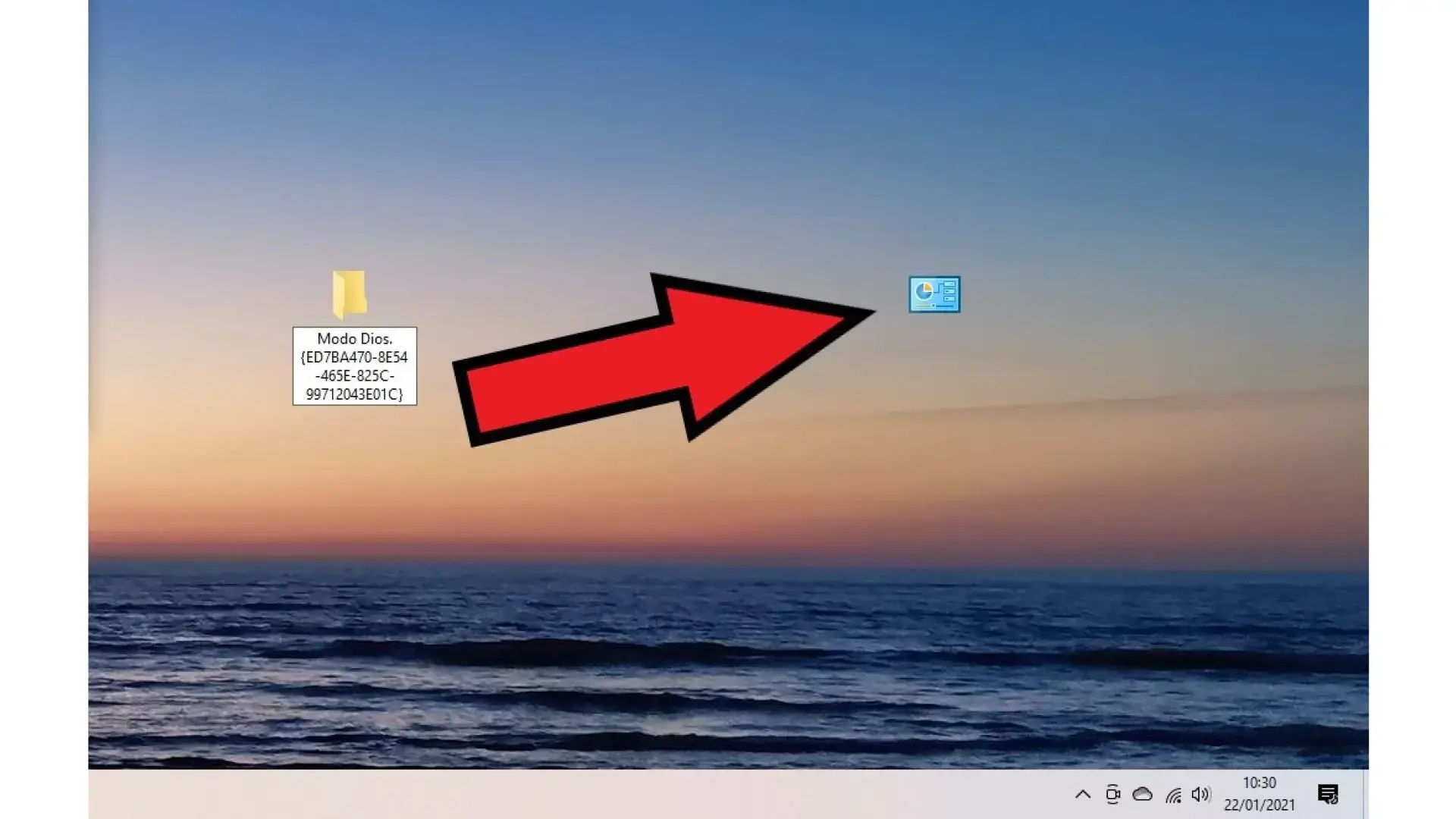
What is known as God Mode in Windows 11 It's not a secret mode where the PC becomes indestructible or anything like that; it's actually a special folder that acts as a mega control panelWithin it are grouped, in the form of links, hundreds of tools and advanced operating system settings.
Essentially, God Mode brings together in a single interface everything that is normally spread across the app of Settings, the classic Control Panel, and other internal menusThis way, instead of jumping from section to section trying to remember where everything was, you can navigate through a list structured by categories and open the option you want with a couple of clicks.
This function is primarily intended for advanced users, technicians, or people who dedicate time to fine-tuning the behavior of Windows 11However, any curious user can take advantage of it. From here, you can directly access hardware settings, power management, user administration, network options, system customization, security, backups, and much more.
It's worth keeping in mind that, although the name sounds exaggerated, what you have in front of you is simply a A very complete list of shortcuts It modifies existing system settings. It doesn't add magic functions or unlock dangerous features on its own. The risk, if any, lies in changing options we're not familiar with, just like when tinkering with any advanced settings menu.
Another important detail is that the content of God Mode may vary slightly depending on the Windows 11 version and hardware of your computer. That is, not all computers will see exactly the same entries: some are added or removed as updates are installed or certain components change.
How to enable God Mode in Windows 11 step by step
Activating God Mode in Windows 11 is so simple it almost seems like a trick: you don't need to install anything, you don't need to touch the Registry or run any strange commands. It all comes down to creating a folder with a very specific name that contains an internal Windows identifier.
The first thing is to choose where you want to have this folder. Many people put it in the desk to always have it at handHowever, you can also create it in any other location in File Explorer if that's more convenient or organized for you. The location doesn't affect its functionality.
Once you've decided on the location, right-click on an empty area and select New → FolderA typical "New folder" will be created, ready to be renamed. This initial step is identical to creating any other folder in Windows.
The key point comes now: you have to rename that folder exactly with the following text, respecting letters, numbers, periods, and curly braces so that the system recognizes it as special and converts it into the famous folder of Windows 11 God Mode:
GodMode.{ED7BA470-8E54-465E-825C-99712043E01C}
When you press the key Enter To confirm the new name, you'll see that the icon may change to resemble the classic Control Panel, and in some cases, the folder name will be invisible or blank. This is all normal and means that Windows has correctly interpreted the internal identifier that is part of the name.
From that moment on, every time you double-click on that folder, a window very similar to File Explorer will open, but instead of documents you'll see a huge list of configuration options organized by categoriesThat's God Mode in action, ready for you to use as the system's command center.
Categories and options you'll find within God Mode
When you open the GodMode folder, you'll see a screen full of items, often more than 200 shortcuts to tools and settingsAlthough the number may go up or down slightly depending on your Windows 11 installation. To avoid confusion, everything is structured into thematic groups that make it easier to find what you're looking for.
One of the regular sections is the one dedicated to Credential manager and user accounts in WindowsFrom there you can manage saved passwords, network credentials, certificates and different aspects of the profiles that use the computer, which is especially useful if you share a computer or work with different users.
Categories related to the accessibility optionsThese features are designed for people with visual, hearing, or mobility impairments. From God Mode, you can directly access settings such as the narrator, magnifier, text size, high contrast, and on-screen keyboard configuration.
Another important group is focused on the management of hardware and devicesHere you can quickly open sections to view printers and scanners, mouse, keyboard, Bluetooth devices, storage, advanced storage spaces, or the famous Device Manager, without having to search for them in hidden menus.
The configuration of energy and battery It also has its own section within God Mode. You'll find links to customize power plans, adjust what the computer does when you close the lid, configure the power button behavior, or fine-tune sleep and hibernation options—crucial if you use a laptop.
In the security and maintenance section, access points appear to Windows Defender Firewall, file history, backup and restore already tools of advanced RAM memory diagnostics and troubleshooting. All of this allows you to react quickly to failures, check the overall system status, or restore files to previous versions if something goes wrong.
There is no shortage of categories geared towards the personalization and regionThis panel includes links to change the language, regional settings, installed fonts, date and time, desktop appearance, and various interface details. From here, you can personalize Windows 11 without having to navigate through multiple screens of options.
All in all, what you have before you when you open God Mode is a gigantic compendium of functions related to both the daily user experience, including safety and performance of the system. It is, in practice, a complete map of the configurable inner workings of Windows 11 accessible in a couple of clicks.
Requirements, security and potential risks of God Mode
Something that should be clarified from the beginning is that God Mode is a native Windows function integrated by MicrosoftOriginally designed for developers, administrators, and advanced users, this is not a homebrew hack or a strange modification, so activating it is completely safe for your computer.
In most home computers, the main user already has administrator permissionThese are the privileges needed to take advantage of many of the advanced settings. Without this level of privilege, you can open the GodMode folder, but some tools will require credentials or prevent you from changing certain parameters.
To check your account type, you can go to the section of Settings → Accounts and check the information under your profile name. If you're listed as an administrator, you shouldn't have any problems. However, in company or educational settings, it's common to find restrictions that limit access to certain settings.
Regarding risks, the greatest danger isn't God Mode itself, but rather how you use the options it displays. As with any advanced control panel, if you start modifying settings without fully understanding what you're doing, you can cause strange behavior, performance issues, or connection problems in the system. That's why it's recommended to exercise caution. only change what you know or research beforehand..
If you're still worried, you can always combine using God Mode with creating system restore points or regular backups. This will give you a safety net in case an aggressive modification doesn't go as planned and you want to revert to a previous state. previous state of Windows 11 without complicating your life too much.
How to open, use, and navigate the options in God Mode
Once activated, using God Mode is as easy as opening any other folder. Simply do double-click on the GodMode icon and wait for the full list of categories and items to load. Visually, it looks quite similar to a traditional File Explorer window.
The different categories appear grouped together, and within each one you'll find clearly described links. If, for example, you enter the group dedicated to the network optionsYou will see options to view the connection status, change sharing settings, set up a new network, or check installed adapters.
To open any of these shortcuts, simply double-click on it, just as you would open a document or folder. In many cases, what opens is the corresponding panel within the Control Panel or Settingsbut saving you several intermediate clicks and manual searches.
If the length of the list overwhelms you, you can use the search bar located in the upper right corner of the window, which works just like in any other instance of Explorer. Type a keyword related to what you want to configure, and the system will instantly filter the options. God mode that fits with the term.
Another useful trick is to drag frequently used options from God Mode to the desktop or any other folder to create custom shortcutsThis way you won't have to enter GodMode every time for common actions like opening File History, adjusting the power plan, or launching a specific tool.
Other special modes and similar access points in Windows 11
Although the GodMode folder is the most well-known, Windows 11 allows you to create others. special access using internal identifiersThis is similar to how we created God Mode. In this way, you can generate shortcuts focused on specific areas of the system, creating a kind of custom "thematic panels."
An interesting variation involves creating a shortcut instead of a folderThis allows you to change the icon and name more freely without losing functionality. Instead of typing the name with GodMode and the identifier, you point the shortcut to a special path in File Explorer.
To do this, you create a new shortcut on the desktop and, when the Windows wizard asks you which location you want to open, you enter a path like this: shell del explorador:::{ED7BA470-8E54-465E-825C-99712043E01C}With that, the system will understand that it should open the same God Mode interface, but through a simple shortcut icon.
Then you can give that shortcut any name you want and, if you wish, change the icon from the Properties → Change iconThis is useful if you want to integrate the tool into its own toolbar or visually differentiate it from other standard system folders.
Beyond the classic GodMode, there are other identifiers and special configurations for more specific admin panels, so by combining these tricks, it's possible to set up a kind of custom control center with a focus on security, network administration, storage management, or other areas that particularly interest you.
How to disable or remove God Mode in Windows 11
If at any point you decide you no longer want God Mode on your system, getting rid of it is as simple as delete any other folders or shortcutsThere is no need to uninstall anything or revert any major changes to the operating system.
If you created the GodMode folder on your desktop, simply right-click on it and press Delete or drag it to the Recycle Bin. The same applies if you chose the shortcut that points to the internal God Mode identifier; deleting it removes the way to access that panel, but Windows 11 continues to function normally.
In case you've taken the experiment further and, tinkering from God Mode, have modified settings that are causing you problems, you can always resort to the system restore optionsWith a previous restore point or a backup using File History, you'll have the ability to go back and undo problematic changes.
Remember that you also have the integrated search function available in the Start menu. By pressing the key Windows on the keyboard and typing the name of the tool that you need (for example, "Control Panel" or "Firewall"), you can access a good part of the functions without depending on GodMode, although it will take a little longer in some cases.
In any case, God Mode doesn't leave any permanent trace on the system, so you can activate it, try it out, use it for a while, and if it doesn't quite convince you, Eliminate it without fear.Knowing that Windows 11 will continue to behave as usual.
Windows 11's so-called God Mode is actually a very practical way to concentrate all the advanced tools and settings that the system has been incorporating for years into a single window, allowing you to save time when configuring, optimizing, or troubleshooting your PC. If you use it wisely, combined with backups and knowing exactly what you're changing, it becomes a perfect ally for maintaining your system. A computer that's fine-tuned, secure, and adapted to your way of working without having to navigate through endless menus scattered throughout the system.
Table of Contents
- What is God Mode in Windows 11 and what is it used for?
- How to enable God Mode in Windows 11 step by step
- Categories and options you'll find within God Mode
- Requirements, security and potential risks of God Mode
- How to open, use, and navigate the options in God Mode
- Other special modes and similar access points in Windows 11
- How to disable or remove God Mode in Windows 11