- MSR partition is vital for GPT disks and ensures their efficient management in Windows.
- It does not contain user files or allow direct storage, but it is essential for future system operations.
- Deleting the MSR partition may cause serious errors in partition management and future reinstallations.
When managing disks in Windows and encountering the mysterious Microsoft Reserved Partition , better known as MSR, it's natural to wonder what it's for, whether it's truly important, and if we can safely delete or modify it. If this term sounds familiar because you're installing Windows or configuring new disks, this article is designed to answer all your questions, explaining in detail its function, how it's created, what happens if it disappears, and how to proceed in each situation. Below, you'll find a complete, clear, and thoroughly updated guide on the MSR partition in Windows.
Before you rush into your partitions or panic over the error messages that often appear when managing GPT and MBR disks, it's important to understand the actual purpose of the MSR partition, the risks involved in deleting it, and why, in most cases, you should leave it alone. Learn everything you need to know about this essential part of your system, along with practical tips and how to act if an accident forces you to restore it, always with a safe and simple approach.
What is MSR partition in Windows?
The Microsoft Reserved Partition (MSR ) is a small space that Windows reserves on hard drives using the GPT (GUID Partition Table) partitioning scheme. Its main function is to reserve space for internal operating system tasks , not storing user-accessible data or essential boot files (those are stored in the EFI partition). This partition, although usually invisible to the user, is key for partition management and allows future expansions or changes to the disk without requiring a complete reorganization.
In simple terms, the MSR partition acts as a "save space" for future system needs, ensuring that Windows can operate and reorganize partitions efficiently if necessary. It is typically between 16 MB and 128 MB in size, depending on the disk capacity.
- On GPT disks smaller than 16 GB: MSR takes up 32 MB.
- On GPT disks larger than 16 GB: MSR takes up 128 MB.
When you initialize a new disk in GPT format and install Windows, the installer automatically creates the MSR partition, right after the EFI partition (which is responsible for storing the UEFI boot files). If the disk is only used for storage, the first visible partition will be the MSR partition, since the EFI partition is not created in that case.
What is the MSR partition used for?
The primary function of the MSR partition is to reserve space for system operations, especially those related to advanced partition management and internal data structures. Although it doesn't store specific files and isn't accessible through Windows Explorer, it's essential for:
- Allow the creation of future protected or system-reserved partitions.
- Avoid space conflicts when creating or modifying partitions with Windows tools.
- Facilitate expansions or changes to disk layout without having to delete and recreate other partitions.
While the MSR partition doesn't contain user data or critical boot files, it's essential for the disk to function optimally under Windows . The operating system manages this space as it sees fit, and since it's hidden and has no visible format, the user can't use it directly, nor is it possible (or recommended) to assign it a drive letter.

What is the difference between MSR and EFI partition?
On disks using the GPT partition scheme, in addition to the MSR, there is usually also an EFI (Extensible Firmware Interface) partition. Confusion between the two is common, but it's important to understand the following:
- The EFI partition stores the UEFI firmware and boot files, necessary to start the operating system.
- The MSR partition simply reserves space for future system operations, without saving any important files or being necessary to boot Windows.
In short, if the EFI partition is deleted or corrupted, Windows won't boot. Losing the MSR partition can cause partition management issues and sometimes prevent Windows from being reinstalled or upgraded, but it doesn't always prevent immediate booting.
When and how is the MSR partition created?
Windows automatically creates the MSR partition during installation on a GPT disk. If you connect a secondary GPT disk to your computer and it doesn't already have an MSR partition, it can be created automatically when you initialize it using Disk Management or DiskPart . You don't need to create it manually in most cases.
Only when performing an advanced custom installation or an unattended deployment of Windows might you need to create it yourself using tools like DiskPart or specific XML commands for automatic configurations. However, this is uncommon and creating it manually is not recommended unless explicitly suggested in Microsoft's official documentation.
How to create an MSR partition manually
If you're sure you need an MSR partition on a new GPT disk and you're going to create it manually, you can do so by following these steps from the command prompt (cmd) as an administrator:
- Open the Start menu and search for "cmd." Right-click and select "Run as administrator."
- Write diskpart and press Enter to open the DiskPart utility.
- Select the appropriate disk with the command select disk n (where n is the number of your disk).
- To create the MSR partition, run: create partition msr size=128 (size may vary depending on the disc).
Remember that this process will destroy any previous data if you don't select the disk correctly, so be extremely careful and make backups before proceeding. If in doubt, it's best to let Windows manage the MSR automatically.
Can the MSR partition be deleted?
Technically, it is possible to delete the Microsoft reserved partition (for example, using advanced disk management tools). However, it is strongly advised against doing so , as it can lead to partition management errors and even prevent future system installations or updates. In some cases, boot errors may occur if other dependent partitions are affected.
If you need to free up space and are considering deleting the MSR partition, be aware that its size is very small (a maximum of 128 MB on modern disks), so the risk outweighs the minimal benefit . If you accidentally delete the MSR partition and your system continues to function, be careful to avoid problems when modifying partitions in the future.
What to do if you delete the MSR partition by mistake
Accidentally deleting the MSR partition can, in some scenarios, cause boot errors and the inability to add, move, or extend other partitions. If after deleting the MSR you find that the system won't boot properly, you can try one of the following:
- Restore MSR using third-party tools specialized in partition recovery (for example, solutions like Tenorshare 4DDiG or Wondershare Recoverit).
- Reinstall Windows so that the installer automatically creates the necessary partitions (including MSR and EFI).
- Try creating the MSR manually from a recovery environment using DiskPart, although this may not be sufficient if other critical files are missing.
There are utilities like Wondershare Recoverit and Tenorshare 4DDiG that allow you to analyze the disk, find deleted partitions, and attempt to restore them in a few steps, with assistance:
- Download and install the specialized tool.
- Select the system disk and run the scan.
- Check which files and partitions can be recovered.
- Restore what is necessary and check if the system boots again.
If recovery is not possible this way, the safest method is to reinstall Windows, making sure to create the partition table from scratch in GPT format so that the system itself creates all the required partitions.
How to move MSR partition to another hard drive?
Moving the MSR partition isn't a common or easy practice, but there are situations where it might be necessary (for example, if you mount a second disk or change the primary system disk). To do this, it's recommended:
- Use the Windows Disk Manager to create a new MSR partition on the new disk.
- Copy the necessary data (normally there is no visible content in MSR, but there is in the EFI partition if you also want to move the boot).
- Remove the drive letter from the new MSR, if you had assigned it to make it visible.
- Test booting the system from the target disk, and if everything works, delete the old MSR.
- In case of boot failure, repair the startup with Windows installation media.
Please note that in many cases, cloning the entire disk is preferable if you are replacing the primary system, as manually managing reserved partitions can cause difficult-to-fix errors.
Differences between MBR and GPT disks in relation to the MSR partition
The MSR partition only exists on GPT disks . On traditional MBR disks, Windows creates only the system reserved partition, which acts as a functional equivalent in that environment. If you try to create an MSR on an MBR disk, you will receive error messages indicating that it is not supported.
GPT disks:
- They include EFI partition (if it is for the system) followed by the MSR.
- They allow more primary partitions (up to 128) and much larger disk sizes.
- Require UEFI boot mode enabled.
MBR disks:
- Does not include MSR or EFI (except in special configurations).
- Limited to 4 primary partitions (or 3 primary + 1 extended).
- Traditional boot (Legacy BIOS).
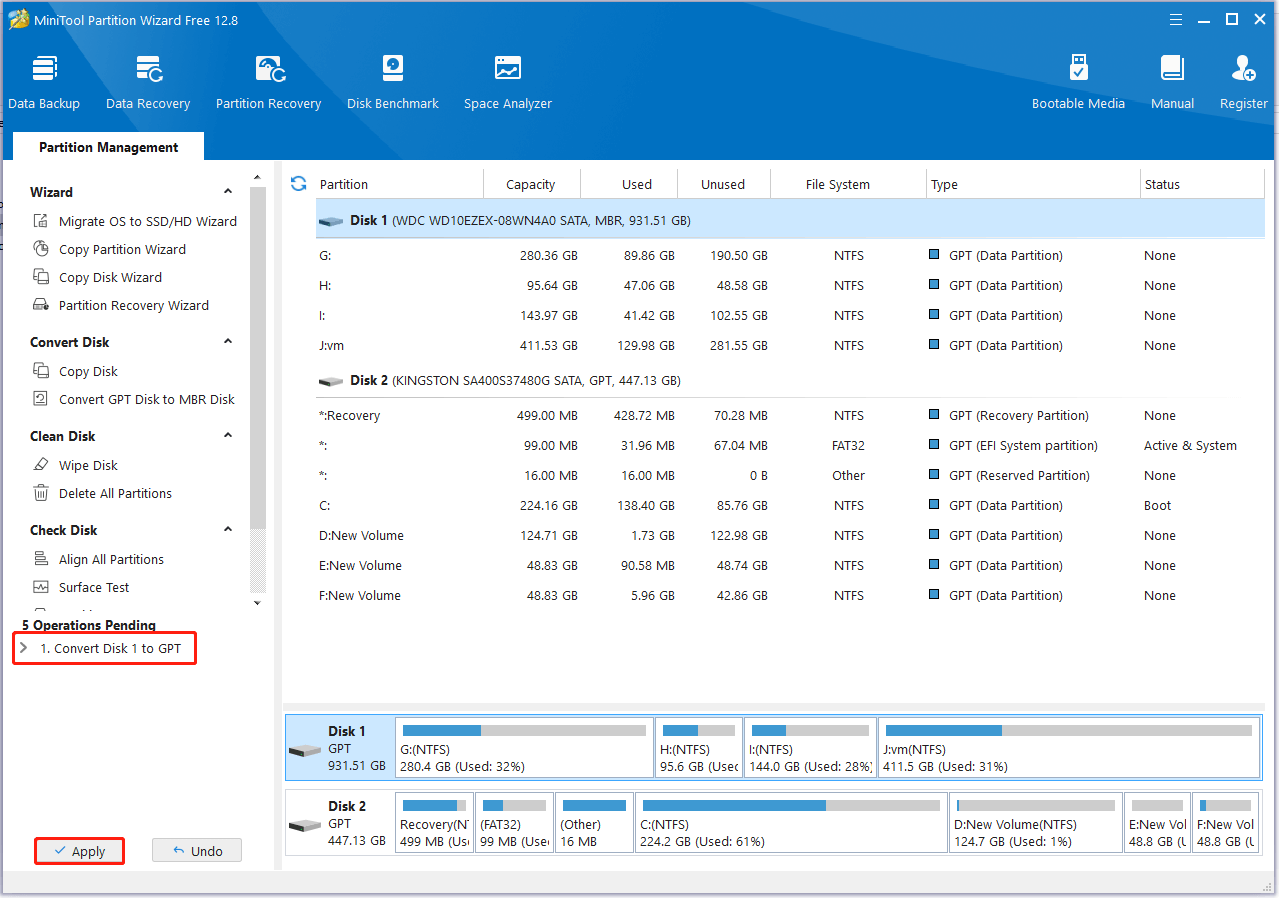
If your computer encounters errors when trying to create MSR or EFI partitions on an MBR disk, the solution is to convert the disk to GPT. Tools like AOMEI Partition Assistant can perform this conversion without data loss. It's crucial to verify that your system supports UEFI booting before making the change.
Advanced Configuration: Create MSR Partitions Using Scripts and XML
In professional environments or automated Windows deployments, creating the MSR partition can be done through scripting, using the DiskPart command, or XML configurations for unattended installations. The command would be:
create partition msr size=nwhere n is the size in MB.
Multiple partitions, including the MSR, EFI, Recovery, and the main Windows partition, can also be defined using XML blocks so that they appear in the exact order and size desired during the installation process. This is useful for corporate computers or mass installations.
Some important parameters when using DiskPart:
- size=n: partition size in MB.
- offset=n: offset in KB where the partition will start.
- noerr: ignores errors and continues processing the script.
Common Error: "MSR and EFI partitions are only supported on GPT disks"
If you receive an error message stating that MSR and EFI partitions are only compatible with GPT disks , it's most likely because you're trying to create these partitions on an MBR-formatted disk. Remember that they are only valid on GPT disks, so you must convert the disk if you need to use these features.
To convert an MBR disk to GPT without losing data:
- Back up all important content.
- Use tools like AOMEI Partition Assistant to convert the disk without formatting.
- Please confirm that your motherboard supports UEFI mode before starting the conversion.

Frequently Asked Questions about MSR Partitioning
Does the MSR partition store important data?
No, the MSR does not contain essential files or user documents . Its function is to reserve space for future system operations. If you try to access it from the file explorer, it will not be visible or usable.
What happens if I delete the MSR?
In most cases, Windows will still boot (unlike an EFI partition), but you could run into serious problems when trying to modify partitions or reinstall the operating system . It's best not to touch it.
Can I change the size of the MSR?
Altering its size is not recommended . The benefit of modifying it is minimal and it can cause internal Windows errors. Let the system manage the size according to the disk.
Is an MSR partition always created on GPT disks?
Virtually always, unless the disk is used exclusively for storage and has never been initialized by Windows or equivalent tools. On disks intended for the system, Windows creates it automatically.