- Configure icons, system elements, and taskbar behavior to suit your workflow.
- Customize the appearance with colors, transparency, alignment, and size, using both native settings and PowerToys.
- Take advantage of shortcuts like drag and drop, quick audio switching, or showing the desktop to boost productivity.
- Fix taskbar errors by restarting Explorer, updating Windows, or resetting settings when necessary.
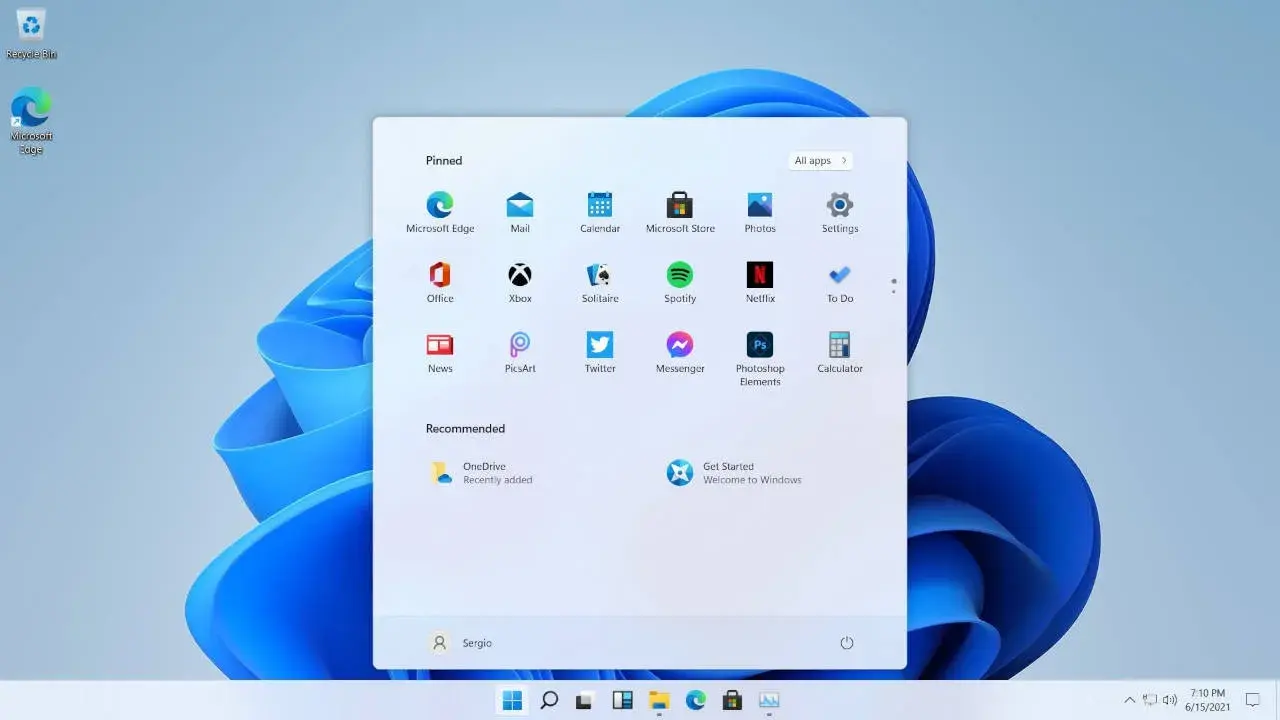
If you use Windows 11 every day, the taskbar can become your best friend... or just a decoration. What makes the difference is knowing how to exploit all its tricks.From pinning apps and changing their size, to moving, hiding, or even making them transparent without installing strange programs.
The good news is that most settings are already in the system and can be configured in just a few clicks. You just need to know where each option is and how to combine them. So that the taskbar adapts to the way you work, play, or study. We'll look, step by step, at all the possibilities that have appeared with Windows 11 (and a few solutions when something breaks).
Customize taskbar icons and shortcuts
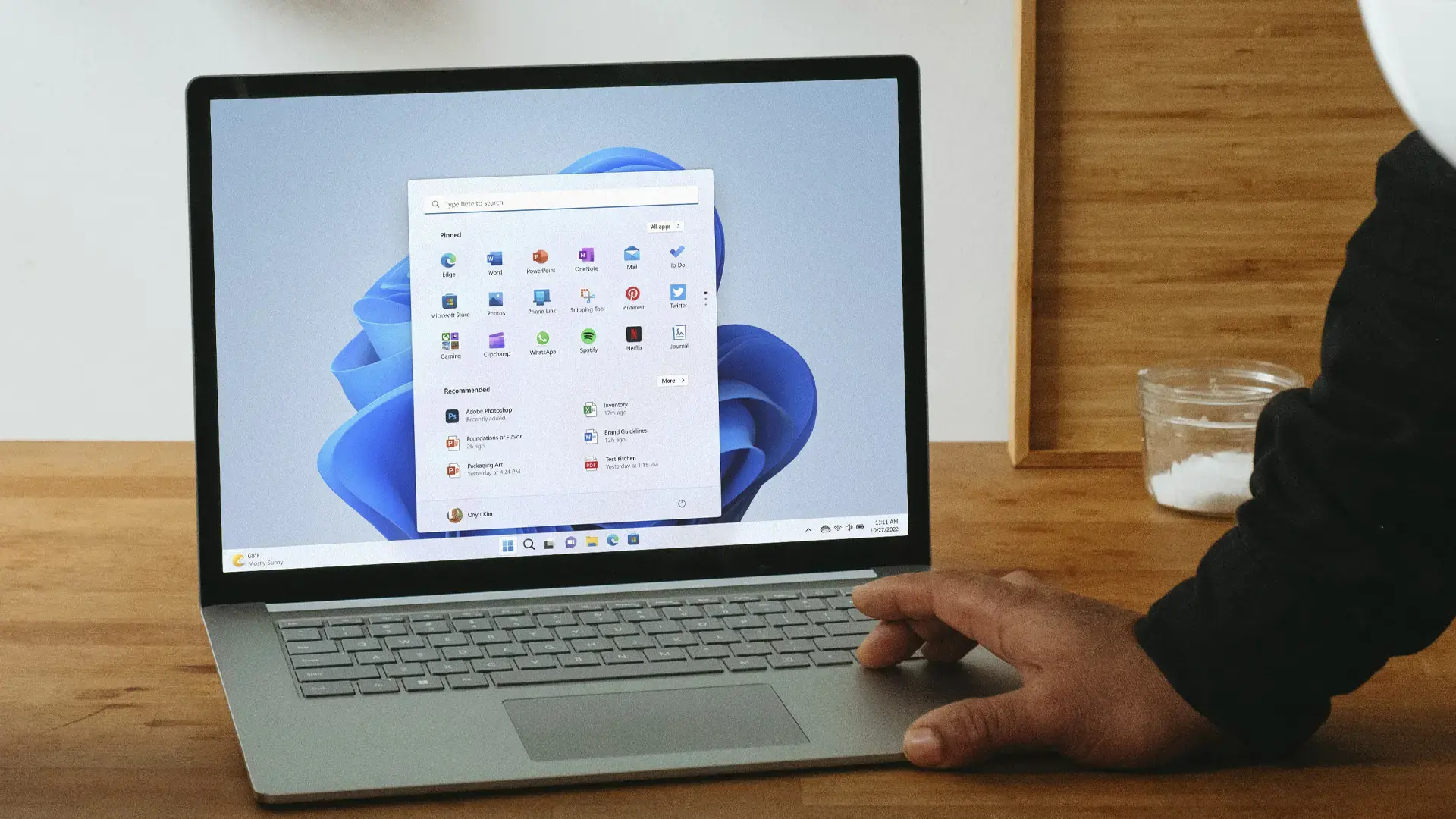
Out of the box, Windows 11 displays a series of icons in the taskbar that you may not need at all. The first step to making it useful is to keep only what you actually use. and place each application where it suits you best.
To pin an application that's already open, simply right-click on its icon in the bar and choose "Pin to taskbar"From that moment on, the icon will remain fixed even when you close the program, so you always have it at hand.
Another quick way to pin an app is to use Windows Search. In the search box on the taskbar, type the app's name, right-click on the result, and choose Pin. "Pin to taskbar"It's very practical for adding tools that you don't currently have open.
If you no longer use a pinned app, there's no point in it continuing to take up space. Right-click on its icon and select “Unpin from taskbar”This way you'll keep the bar clean and focused on what you actually use in your day-to-day life.
The order of the icons also matters. You can rearrange them simply by dragging each icon with your mouse to the desired position. There are no limits: move your most frequently used apps to the center or to the side. so you can always find them at a glance.
System elements: search engine, task view, widgets, and weather
In addition to applications, Windows 11 includes some system elements in the taskbar, such as the search button, Task View, Widgets, and the weather panel. All these components can be activated or hidden as you wish. from settings.
Right-click on an empty area of the bar and choose "Taskbar Settings"In the "Taskbar Items" section, you'll see switches to show or hide things like Search, Task View, Widgets, Chat (Teams), and similar items.
If you don't use, for example, the Teams chat that Microsoft includes by default, you can uncheck the corresponding option. Disabling these shortcuts reduces visual clutter and frees up more space for your apps., something especially useful on small or portable screens.
With the latest updates, the Widgets section also integrates weather information into the taskbar. You'll see an icon with the temperature and a brief weather description. This small climate panel appears at a glance without needing to open anythingand you can keep it or remove it from the same Widgets settings.
Change the alignment and position of the taskbar
One of the most controversial changes in Windows 11 was moving the icons to the center of the taskbar, macOS-style, and keeping it fixed at the bottom of the screen. While not everything can be changed natively, you do have several interesting options. The first key adjustment is the alignment of the icons..
Go to "Taskbar settings" (right-click on the taskbar) and enter "Taskbar behaviors". There you will see an option called «Taskbar alignment»Open the menu and choose "Left" if you prefer to return to the classic Windows style, with the Start button and the rest of the icons on the left side.
For many users of previous versions, moving the icons to the left makes everything feel more familiar. If you're coming from Windows 10, you'll probably find it more comfortable to switch back to this layout., without losing the other visual features of Windows 11.
Regarding the position of the taskbar itself (bottom, top, or sides), Windows 11 officially only allows it to be at the bottom. However, There's a trick to putting it on top. through the Windows Registry. It is an advanced method and carries some risk.If you've never touched the Register, you'd better think twice.
The procedure involves opening the Registry Editor, locating the appropriate key associated with the taskbar, and modifying a value that changes its vertical position. After restarting Windows Explorer, the taskbar moves to the top. However, any errors in the Registry can cause system failures.Therefore, it is advisable to make a backup beforehand and follow the exact instructions in a specialized guide.
Automatically hide the taskbar
If you work on a laptop or a small screen, every pixel counts. In those cases, it can be very useful for the taskbar to disappear when you don't need it. Windows 11 includes a native option for this. automatically hide the taskbar and that it only appears when the mouse moves close to its area.
To activate it, open "Taskbar settings", go to "Taskbar behaviors" and check the box "Automatically hide the taskbar"From that moment on, the bar will hide when not in use and will appear when you move the pointer to the bottom edge of the screen.
This behavior gives you more vertical space for windows, ideal for browsing, working with documents, or editing photos. When you move the mouse away from the bar, it will hide itself again after a second., keeping the desk clear.
In that same behaviors section, you can also adjust other options, such as showing the bar on all screens if you use multiple monitors, or displaying the unread message counter on certain icons. If you're looking for maximum visual clarity, you can disable these counters to avoid constant distractions.
Remember that sometimes the taskbar isn't "failing," it's simply hidden. If you think it's disappeared, move your mouse to the bottom of the screen or press the Windows key. If it appears, it means that automatic hiding was active. and you can disable it from the same behaviors menu.
Change the color and appearance of the taskbar
Beyond functionality, aesthetics also matter. Windows 11 allows you to customize the appearance of the taskbar without installing external programs, by playing with colors, light/dark modes, and transparency effects. It all starts with the Personalization menu of the System.
Open Start and go to Settings > Personalization > ColorsInside, you'll find the option to choose an "accent color," which is the tone that Windows uses to highlight elements such as the active window, selected buttons, or, if you want, the taskbar and Start menu itself.
To apply that color to the bar, make sure to check the box. "Show accent color on Start and taskbar"If you do not select this option, the color will only be applied to some system details, but the bar will retain its default appearance.
In addition to the predefined colors that Windows displays, you can expand "View Colors" and choose from a wider palette. This allows you to adjust the bar to your liking, matching it with your wallpaper or theme. (light or dark) so that the whole looks more coherent.
You can also apply transparency to the taskbar to better integrate it with the background. From the same color menu, the transparency effect will allow the taskbar to subtly reveal the desktop, giving it a more modern look. Our recommendation is that you think about the design as a whole.: bar color, wallpaper, light/dark mode… this way you'll avoid a bar that's too flashy or the background losing its prominence.
PowerToys and transparent taskbar
If you want to take your appearance a step further, Microsoft offers the suite power toysAvailable in the Microsoft Store, this app includes additional features designed for advanced users. Among them are options to further fine-tune the visual behavior of Windows, including the taskbar. What's interesting about PowerToys is that it's an official tool, maintained by Microsoft and the community, not an app of dubious origin.
With certain PowerToys modules you can achieve, for example, improved transparency effects or extra behaviors without having to resort to third-party applications downloaded from unknown websites. It's a surefire way to get a more eye-catching or minimalist taskbarwhile maintaining system stability.
Adjust window size, grouping, and behavior
In Windows 10, it was very easy to change the height of the taskbar by dragging its border. In Windows 11, that direct option has disappeared, but it's still possible to modify the size through the Registry. Once again, we are facing an advanced adjustment with some risk.So it's best to be careful.
The idea is to edit a specific Registry key to indicate whether you want a larger or smaller taskbar than usual. After applying the change and restarting Windows Explorer, you'll see a taskbar with larger (or more compact) icons. It's useful if you have vision problems or if you like to see more things at once., although it is not an official setting in the graphical interface.
Another interesting feature relates to the grouping of windows from the same application. By default, Windows 11 groups windows under a single icon. When you hover your mouse over it, you see thumbnails of each window. If you often work with many windows of the same app, this can sometimes be inconvenient.Consult tips on multitasking in Windows to optimize this workflow.
There's a shortcut that can save you time: hold down the key Ctrl While clicking the application icon in the taskbar, Windows will directly open the last active window of that program, without having to select from all the previews.
Regarding the feature that shows the desktop at once, you can enable what Windows calls "Peek." Go to "Taskbar settings," then "Taskbar behaviors," and select the option. "Select the far corner of the taskbar to show the desktop"From there, clicking on the far right of the bar will minimize all windows and you'll see a clean desktop.
Useful shortcuts: drag and drop, audio devices, and more
One of the features that was missing in the early versions of Windows 11 and that Microsoft later recovered was the ability to drag and drop files to the taskbar icons. Now you can use this convenient gesture again to quickly open documents in the application you want.
It's easy to use: drag a file from Windows Explorer to the corresponding app icon in the taskbar. Hold for a second and the application will launch or display its window, allowing you to drop the file inside to open it. It's a very efficient way to work with images, documents, or projects without having to look for the "Open" option in each program.
Another very handy trick involves switching audio devices. If you have headphones, external speakers, or monitors connected, switching between them from the bar is very quick. Click on the volume icon and, next to the slider, click the icon with a small arrow. You will see a list of all available output devices to select in two clicks.
This way, you can switch from your laptop speakers to Bluetooth headphones or a soundbar without going into advanced control panels. It's a perfect shortcut for those who alternate between gaming, work, and video calls. several times a day.
Remember that the taskbar also shows, via a line below the icon, which applications are running. The currently active icon is usually highlighted with the Windows accent color, allowing you to instantly identify which window is in the foreground.
Remove annoying icons like Microsoft Teams (Chat)
With Windows 11, Microsoft has strongly promoted certain applications like Teams, integrating them directly into the taskbar under the "Chat" icon. If you don't use Teams, this shortcut might be unnecessary. and take up space that you could use for other things.
To remove it, place the mouse on any empty area of the taskbar, right-click, and enter "Taskbar Settings"Inside, look for the section where items like Search, Task View, Widgets, and Chat appear, and uncheck the Chat box.
The option will disappear from the bar and won't bother you again, although you can always reactivate it later if you decide to use Teams. This same panel allows you to decide which system icons you want to have visible from the start..
Troubleshooting when the taskbar isn't working
Although it's not common, the taskbar can sometimes freeze, become unresponsive, or simply disappear. Because it's integrated with Windows Explorer, problems in one affect the other. Fortunately, there are several simple tests you can do before taking drastic measures..
The first logical step is to restart your computer. Many minor errors are corrected by restarting Windows, especially if they occurred after an update or a temporary failure. If the bar returns to normal after the restart, you don't need to do anything else..
If it still fails, try restarting Windows Explorer only. Press Ctrl + Mayusculas + Escape to open the Task Manager And, if necessary, click "More details" to see the full list of processes. On the "Processes" tab, scroll down to "Windows Processes," select "Windows Explorer," and click the "Restart" button.
For a few seconds you will see the desktop and bar flicker or disappear, and then reload. This soft reset of the graphical environment usually fixes bar freezes. without needing to restart the entire system.
Another possibility is that the problem stems from a pending configuration or update. Go to "Settings > Windows Update" and check for updates. Microsoft often fixes errors in the Start bar and menu with cumulative patches.Therefore, it's advisable to keep the system up to date and review how optimize Windows 11 if the PC is slow.
From the advanced options in Windows Update, you can also check the "Optional updates," which sometimes include new device drivers. If a faulty driver is causing the conflict, updating it from there may fix the taskbar issue.
If none of these options work, make sure you are using an account with administrator privileges. Some repairs or resets require elevated privilegesAnd if your user doesn't have them, Windows may prevent certain maintenance actions.
In the worst-case scenario, when nothing works and the taskbar remains unresponsive, the problem may be more serious. In this extreme situation, the solution involves resetting Windows 11 to its factory settings, either preserving or losing your files depending on the method you choose. It's a drastic measure, but it usually solves the most serious problems. related to the system shell.
By combining these settings, shortcuts, and tricks, the Windows 11 taskbar can go from being a simple icon container to a very powerful tool for saving time and convenience: from pinning and arranging your key applications, controlling notifications and audio, to fully customizing the appearance with colors, transparency, and position. With a little patience to adjust every detail to your liking, your daily experience with Windows becomes much smoother, more personalized, and more efficient..
Table of Contents
- Customize taskbar icons and shortcuts
- System elements: search engine, task view, widgets, and weather
- Change the alignment and position of the taskbar
- Automatically hide the taskbar
- Change the color and appearance of the taskbar
- PowerToys and transparent taskbar
- Adjust window size, grouping, and behavior
- Useful shortcuts: drag and drop, audio devices, and more
- Remove annoying icons like Microsoft Teams (Chat)
- Troubleshooting when the taskbar isn't working