- Checking Apple Watch compatibility and iOS, battery, and Wi-Fi prerequisites is key before updating.
- watchOS updates can be installed automatically at night, manually from the iPhone, or from the watch itself.
- watchOS 10, 11 and 26 add major improvements in design, health, sports, translation and smart widgets.
- Frequent updates ensure new features and enhance the security and reliability of your Apple Watch.
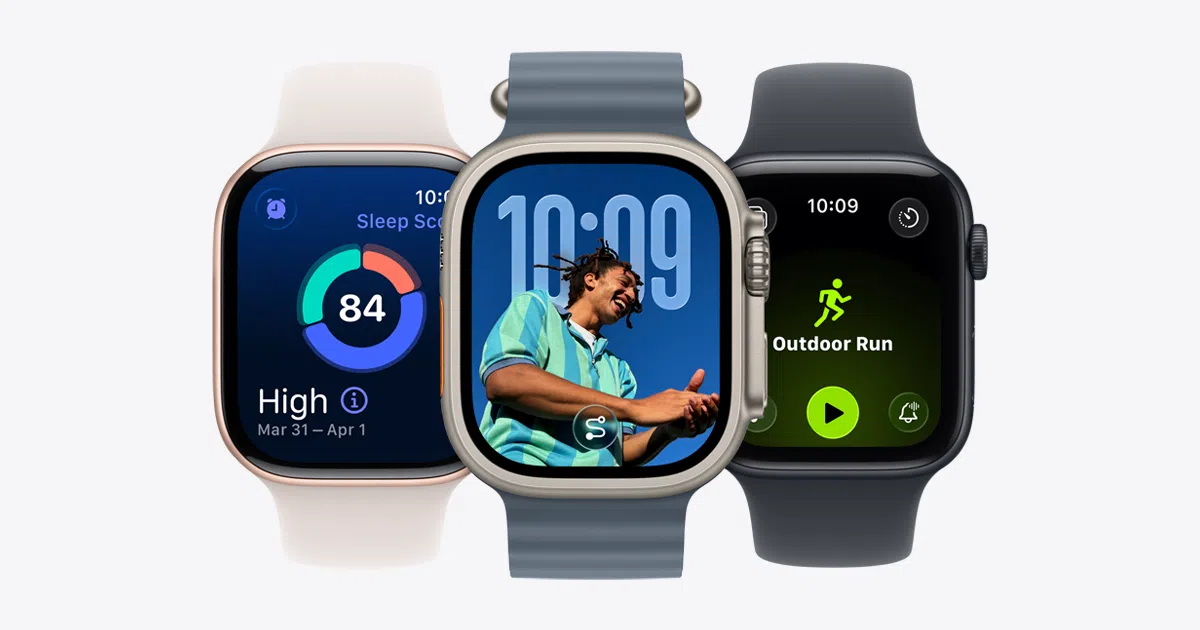
If you own an Apple Watch, sooner or later you'll encounter the dreaded "update available" notification . The good news is that, if you understand the process and what each watchOS version brings, updating goes from being a hassle to a valuable improvement for your daily life, especially in health, fitness, and security.
Over the past few years, Apple has been refining the Apple Watch system, making watchOS 10, watchOS 11, and the new watchOS 26 significant leaps forward. In this article, we'll review which models are compatible, how to update step by step, what to do if the update fails , and all the important new features that have arrived: from smarter watch faces and widgets to advanced health features like sleep apnea notifications and the upcoming integration of Apple Intelligence into the watch.
Apple Watch models compatible with the latest updates
Before updating, check if your watch is among the models compatible with the latest versions of watchOS. Apple has confirmed that watchOS 26 is compatible with the most recent Apple Watches , with the following models receiving primary support:
-
Apple Watch SE (2nd generation) and later
-
Apple Watch Series 6 and later
-
Apple Watch Ultra and later (including newer generations of Ultra)
If your watch isn't on this list, it won't be completely unusable, but it will remain on the latest version of watchOS compatible with its hardware . In Settings > General > Software Update, you'll always see the latest version available for your model, even if it's not the newest on the market.
It's important to keep in mind that when an Apple Watch becomes incompatible with a new major version, it usually stops receiving new features , although in some cases Apple may release occasional security patches to fix serious bugs.
Prerequisites before updating your Apple Watch
To prevent the update from taking forever or failing mid-process, proper preparation is essential. Apple recommends considering several points before starting the watchOS download on your watch.
First, make sure your iPhone is updated to the latest version of iOS . Many watchOS versions require a minimum iOS version; if your phone is outdated, the watch won't even let you begin the installation.
Second, check your watch's battery level. Your Apple Watch must have at least 50% charge and be connected to its official charger throughout the process. If you don't meet these conditions, the update will either not start or will be interrupted.
It's also essential that your paired iPhone is connected to a stable Wi-Fi network . watchOS updates can be quite large, and downloading them over cellular data or an unstable connection is a recipe for errors.
In short, before pressing any buttons, confirm these three points: iPhone is up to date, Apple Watch has sufficient battery and is plugged in , and iPhone is connected to a good Wi-Fi network. This will save you a lot of trouble and unnecessary waiting.
How to update your Apple Watch automatically or manually
Once you meet all the requirements, you have two main ways to install watchOS updates: taking advantage of the automatic nightly update or doing it manually from your iPhone or directly from the watch (if you have a relatively recent version of watchOS).
Update your Apple Watch automatically at night
The easiest option is to let the system handle the process. When a new version is available, your Apple Watch will send you an update notification . From there, you can select the "Update tonight" option.
After accepting on your watch, you need to go to your iPhone and confirm that you want the installation to happen overnight . From there, you just need to leave your Apple Watch and iPhone charging, near each other and connected to Wi-Fi for the entire time. In the morning, you'll find your watch already running the new version of watchOS.
Update your Apple Watch manually from your iPhone
If you prefer to control the exact moment the update is installed, you can do so from the Apple Watch app on your iPhone by following these steps:
-
On your iPhone, open the Apple Watch app and go to the “My Watch” tab.
-
Tap on General > Software Update.
-
If a new version is available, tap Download. You may be prompted for your iPhone passcode or Apple Watch passcode ; enter them when prompted.
-
When the installation begins, wait for the progress wheel or circle to appear on the watch screen . The process can take anywhere from a few minutes to about an hour, depending on the size of the update and your internet connection.
Throughout the entire installation process, the Apple Watch must remain connected to the charger and within range of the iPhone. Additionally, it's a good idea not to restart your phone or close the Apple Watch app while the progress bar is still moving.
Update your Apple Watch directly from the watch
If your Apple Watch already has watchOS 6 or a later version installed, you can also install many updates without using your iPhone . In this case, the process is done directly from your wrist.
-
Check that the watch is connected to a Wi-Fi network.
-
On your Apple Watch, open the Settings app.
-
Go to General > Software Update.
-
If the system detects an available version, tap Install and follow the on-screen instructions.
Here too, it's essential to have your Apple Watch with sufficient battery and plugged into its charger. Even if you're not using your iPhone to launch the update, the process is still delicate and shouldn't be interrupted at any point.
What to do if the Apple Watch update fails
Sometimes, no matter how well you prepare everything, the update fails. You might see a "Unable to install update" message , the progress wheel might freeze, or the download might simply never start.
In these situations, there are a number of steps that Apple recommends following to try to solve the problem without going crazy:
-
Check that the Apple Watch is properly placed on the charger and that the cable or base is working correctly.
-
Restart your Apple Watch by pressing and holding the side button and the digital crown until you see the Apple logo, then release.
-
Also restart the paired iPhone to rule out communication failures between the two devices.
-
Try updating the watch again using either the automatic or manual method from the Apple Watch app.
If after all this the update still doesn't start, you can try a slightly more aggressive solution: delete the update file downloaded from the Apple Watch app on your iPhone and start over:
-
On your iPhone, open the Apple Watch app.
-
Go to General > Storage.
-
Locate the watchOS update file and delete it.
-
Go back to the Software Update section and try downloading the file again to repeat the installation.
In some cases, the problem stems from insufficient storage space on the watch or conflicts with beta profiles. If you see warnings that you need to free up storage or are enrolled in a beta program, you'll need to clean up your watch or remove those profiles before proceeding.
Beta profiles on iPhone and Apple Watch: why and how to delete them
If you previously joined Apple's beta program to test early versions of iOS or watchOS, you might now want to return to the "stable" channel to install the next major update without complications.
As long as you have an active beta profile, both your iPhone and Apple Watch may continue to offer beta versions, and sometimes even prevent you from upgrading to the next official version of the system. The solution is to delete these profiles from both devices.
On the Apple Watch, the beta profile is managed from the Apple Watch app on the iPhone:
-
Open the Apple Watch app on your iPhone and go to the “My Watch” tab.
-
Go to General > Profiles and select the beta profile you want to delete.
-
Tap on Delete profile and enter your iPhone passcode if prompted.
Something similar happens on the iPhone itself:
-
Open Settings and go to General > Profile and Device Management.
-
Select the beta profile you have installed and click on Delete profile.
-
Enter your iPhone passcode if prompted to confirm the changes.
Once you've removed the beta profiles from both devices, restart your iPhone and Apple Watch. Then, check for iOS and watchOS updates again: you should now see the latest public version available for your devices without the beta program restrictions.
The importance of keeping iOS and watchOS up to date
Beyond the cool new features, there's a compelling reason to update whenever possible: security patches . Apple frequently releases small updates to watchOS that, while they don't change the interface or add new features, close vulnerabilities and fix annoying bugs.
Many release notes emphasize that the update includes significant security improvements and is recommended for all users. If you're concerned about the privacy of your health data, payments made through your watch, or remote access to your device, you shouldn't put off installing these updates.
Additionally, some iOS versions require the paired Apple Watch to also be running a minimum version of watchOS . In these cases, if you don't update your watch, you may find that the Activity app, workout data, or health syncing stops working correctly between your iPhone and Apple Watch.
Apple maintains a dedicated page for reviewing the security content of each software update. If you want to delve deeper into what's being fixed in each update, you can check the company's official support site , where the patches included in each version are detailed.
watchOS 10: Visual changes and new user experiences
watchOS 10 represented one of the biggest visual leaps since the launch of the Apple Watch. This version revamped the look of virtually all system apps, introduced new ways to navigate , and placed the smart widgets at the heart of the experience.
The apps were redesigned to better utilize the rounded corners and the entire screen surface, with wider and more legible interfaces. Basic navigation now relies more on the digital crown and side button: rotating the crown from any watch face brought up the smart cluster, while a tap on the side button opened the control center.
The way you switch between apps also changed. A single tap on the Digital Crown displayed the app grid, and a double tap showed recently used apps . This small adjustment made multitasking on the watch much smoother.
As for watch faces, watchOS 10 brought eye-catching new features such as the Snoopy watch face , with more than one hundred different animations that react to the time of day, the weather or your activity, and the Palette watch face, which represents the passage of time by playing with superimposed layers of color.
Physical activity was also greatly enhanced: cycling workouts gained support for external Bluetooth sensors (power meters, speed, cadence), with specific views of power, power zones, and speed. On the iPhone, all this information could be viewed as a live activity, ideal if you had your phone mounted on the handlebars.
Other areas that received a good overhaul were Activity, with more details about your rings and comprehensive weekly summaries; the hiking and outdoor app with improvements to Compass and Maps (waypoints, topographic maps, hiking routes); and weather, which gained contextual visual effects and more key data at a glance.
watchOS 10 also focused on mental well-being by including a new experience in the Mindfulness app, where you could log your mood , note factors that affect you, and receive reminders to reflect on how you feel throughout the day.
watchOS 11: Advanced health, smarter fitness, and new watch faces
With watchOS 11, Apple took another step forward in its approach to health and fitness. This version brought features designed to offer a more complete view of your physical condition and to adapt activity goals to your daily life.
One of the major new features was Vital Signs , a dashboard that aggregates nighttime health metrics such as respiratory rate, heart rate, wrist temperature, blood oxygen level, and sleep duration. The system classifies each value as typical or atypical based on your usual pattern, highlighting those that deviate from the norm in pink.
If two or more metrics fall outside your reference range, Apple Watch can send notifications of relevant changes and help you check what's been happening in your lifestyle (workouts, sleep, stress, etc.) on those specific days.
In the Fitness & Training section, watchOS 11 introduced Exercise Load , which combines the intensity and duration of workouts to assess their long-term impact. After completing popular cardio activities (running, cycling, swimming, hiking, and more), the system automatically calculates an effort rating.
The result is categorized into four levels (Light, Moderate, Intense, or "Full Throttle"), and you can adjust that rating to better reflect how you felt. More metrics have also been added for sports like soccer and American football, along with route maps for outdoor rowing and cross-country skiing, and personalized pool swimming workouts with sets, rest periods, and detailed views of your current interval.
The Activity app finally added the ability to customize ring goals by day of the week , as well as temporarily pause rings (for a day, a week, a month, or longer) without losing your award streaks. The iPhone Fitness app also became more flexible, allowing you to rearrange the Summary tab with the metrics that matter most to you, such as distance, steps, or running power.
watchOS 11 also marked a significant leap forward in translation and communication capabilities. The Translate app was launched on the watch, with up to 20 languages available. You can dictate phrases to see and hear their translation, quickly access the translator from the smart group when traveling to a country with a different language, and even download language packs for offline use on certain Apple Watch models.
The Tides app launched as a standalone application, offering detailed data for over 115.000 beaches and 5.000 surf spots worldwide. With it, you can view high and low tides, tide height and direction , search for nearby beaches on a map, and add complications to the watch face to have this information right on your wrist.
The smart widget group became more proactive, showing suggestions based on the time, your location, or your sleep routine, and introducing live activities and interaction directly from the widgets . This allows you to check the progress of an event or control an app without having to fully open it.
In terms of watch faces, watchOS 11 introduced options such as the Dynamic Photos watch face , which intelligently selects images of people, pets, cities, or nature to fit perfectly in watch face format; the Flow watch face with dynamic typography that fills up as the seconds pass; and the Reflections watch face, which plays with light in metallic rays that change when you move your wrist.
Time customization options were also expanded with support for multiple languages and Indian scripts on various popular watch faces. This was further enhanced with new health notifications, such as alerts for potential sleep apnea after analyzing nighttime breathing patterns for 30 days on models like the Apple Watch Series 9 and Apple Watch Ultra 2.
Additional features included arrival alerts (which can be launched from Messages or Workout to automatically notify your contacts when you finish a trip or workout), downloaded hiking routes in Maps for offline use , an improved Wallet app, more controls in the Controller app, the double-tap gesture to scroll through lists and apps, and pregnancy-specific health options integrated with the iPhone Health app.
watchOS 26: New Liquid Glass design and Apple Intelligence in the Apple Watch
watchOS 26 is the most visually groundbreaking evolution since the watch's inception. Apple has introduced a new design language, called Liquid Glass , which shares its identity with the rest of the operating systems (inspired by visionOS) and features translucent surfaces and glass-like effects.
With this redesign, icons, menus, widgets, and apps adopt a floating glass panel look that reveals the background while maintaining the familiar clarity. The goal is to modernize the interface while preserving the recognizable essence of the Apple Watch we've known for years.
Another key feature of watchOS 26 is the integration of Apple Intelligence into the Fitness app . Through the Workout Buddy feature, the system acts as a small motivational assistant, congratulating you when you complete workout rings, commenting on your distance, and providing visual summaries of your workouts so you can quickly understand what you've accomplished. While it doesn't currently design complete routines, it greatly enhances motivation and tracking.
The Workouts app features a redesigned interface, with new quick access buttons to favorite functions and improved integration with Apple Music . Now you can have playlists prepared for each type of activity, and the system can suggest music based on your habits and tastes using artificial intelligence.
The classic Photos watch face also gets an update with Liquid Glass. In watchOS 26, the way photos are framed and positioned has been improved so they occupy more of the screen without detracting from the time, resulting in a more immersive and aesthetically pleasing experience.
The widget stacks, which debuted in watchOS 10, have been adapted to the new design and, above all, have become more proactive . The system improves the suggestion algorithm to show you the widget you need most at any given moment, whether it's the weather, a workout app, your upcoming appointments, or any other relevant information based on your context.
In addition, Apple has opened a dedicated API so that third-party developers can add their quick settings to the Control Center . This means that in the same panel where you currently find Wi-Fi, the flashlight, or the battery, you'll be able to see shortcuts to external apps, toggles, and other quick actions that aren't currently available.
Ten years after the launch of the first Apple Watch, watchOS 26 finally includes a full version of the Notes app on the watch. This app is fully synced with the rest of your Apple devices, allowing you to easily read notes from your wrist and create new ones using voice dictation, all with a simple interface similar to other native apps.
The Messages app is also getting an update with a cleaner design and, most importantly, new features for iMessage. These include automatic translation of chats when you're speaking with someone in another language, as well as the option to set custom chat backgrounds to add a unique touch to your conversations.
As for gestures, the Apple Watch Series 9, Series 10, and Apple Watch Ultra 2 receive new wrist gestures that allow you to dismiss, manage, or delete incoming notifications without touching the screen. These are simple movements, such as rotating your wrist forward or backward, and can be reviewed and customized in Settings.
watchOS 26 also introduces a hypertension notification feature that, although unveiled alongside the Apple Watch Series 11 and Ultra 3, is available for Series 9 and later models by leveraging the existing heart rate sensor. The system analyzes your measurements for approximately 30 days to detect patterns consistent with potential hypertension and, if it finds any indications, sends an alert urging you to consult a healthcare professional.
Interestingly, Apple has decided to unify the numbering of its operating systems, so instead of continuing with watchOS 12, it has jumped directly to watchOS 26 , in parallel with iOS 26, macOS 26, etc. The number refers to the year in which the system will be most prevalent (2026), even though it will be officially launched in 2025.
Taken together, all these watchOS versions demonstrate how the Apple Watch has evolved from a simple smartwatch into a central hub for health, fitness, communication, and security . Keeping your watch updated, checking your model's compatibility, and carefully following the installation process allows you to take full advantage of new features like advanced workout metrics, health alerts, and the redesigned Liquid Glass, with the added peace of mind of always having the latest stability and security improvements on your wrist.
