- Undervolting allows you to reduce temperature and energy consumption without necessarily sacrificing performance.
- Stability is the critical factor, requiring thorough testing to avoid restarts or blue screens.
- There are various methods for applying this technique, from manual BIOS adjustments to automatic optimization tools.
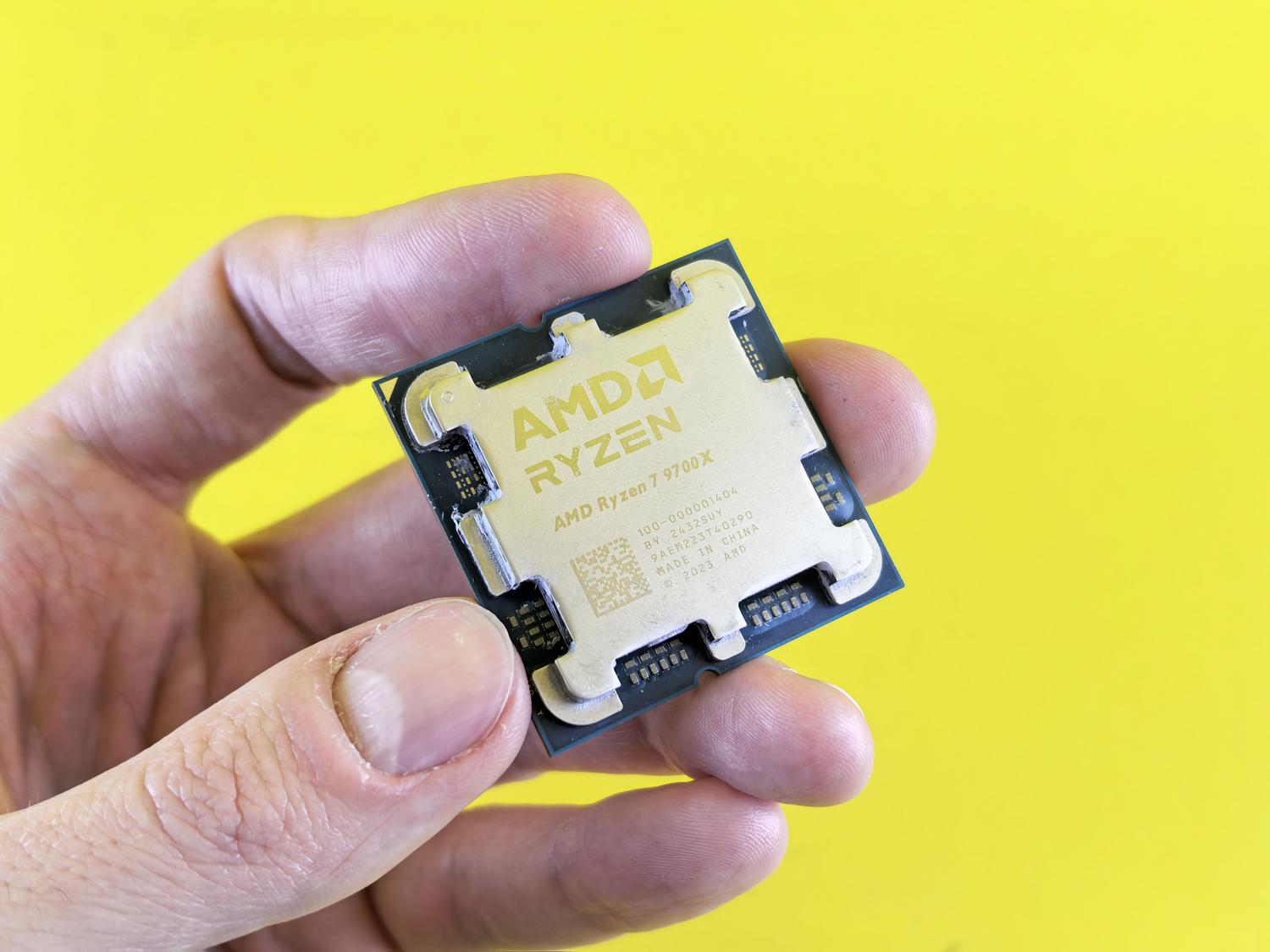
If you own an AMD Ryzen processor, you've probably noticed that these chips tend to be quite power-hungry, especially under heavy load. This architecture typically applies more aggressive voltages than its competitors, which means the CPU temperature rises dramatically during demanding tasks, causing the fans to sound like a jet engine.
To solve this, there's undervolting, a technique that involves reducing the operating voltage to make the processor more efficient. The idea isn't to simply reduce power, but to find the sweet spot where the chip performs at its best while consuming the least amount of power, thus avoiding the dreaded thermal throttling that slows down your PC when it gets too hot.
What exactly is undervolting?
Basically, undervolting is lowering the electrical voltage supplied to the CPU or GPU. Since power consumption increases exponentially with higher voltage, reducing it causes the chip to generate significantly less heat . This is a boon for those using laptops or cases with poor ventilation, as it allows for maintaining high frequencies for longer periods without the system having to self-limit to avoid overheating.
Be careful, it's not all smooth sailing. If you lower the voltage too much, the processor won't have enough "fuel" to maintain its clock speed, and the system will become unstable. This manifests as sudden program crashes , PC freezes, or the dreaded Blue Screen of Death (BSOD). Therefore, this process requires patience and must be done step by step.

Key concepts: Vdroop and LLC
When we talk about voltages, there's a phenomenon called Vdroop, which is the voltage drop that occurs when the processor goes from idle to full load. To measure it accurately, you'd need a multimeter, but for the average user, it's enough to know that the nominal voltage isn't the actual voltage under stress. To compensate for this, motherboards include Load Line Calibration (LLC), which attempts to stabilize this drop.
It is essential to correctly configure the LLC in the BIOS according to your motherboard brand (ASUS, ASRock, MSI, etc.), as an incorrect configuration can cause stress tests to fail even if the voltage appears correct. Making the adjustment from the BIOS or UEFI is always preferable to using software within Windows, as it is much more precise and stable.
Methods for performing an undervolt on AMD
Adjustment via Offset in BIOS
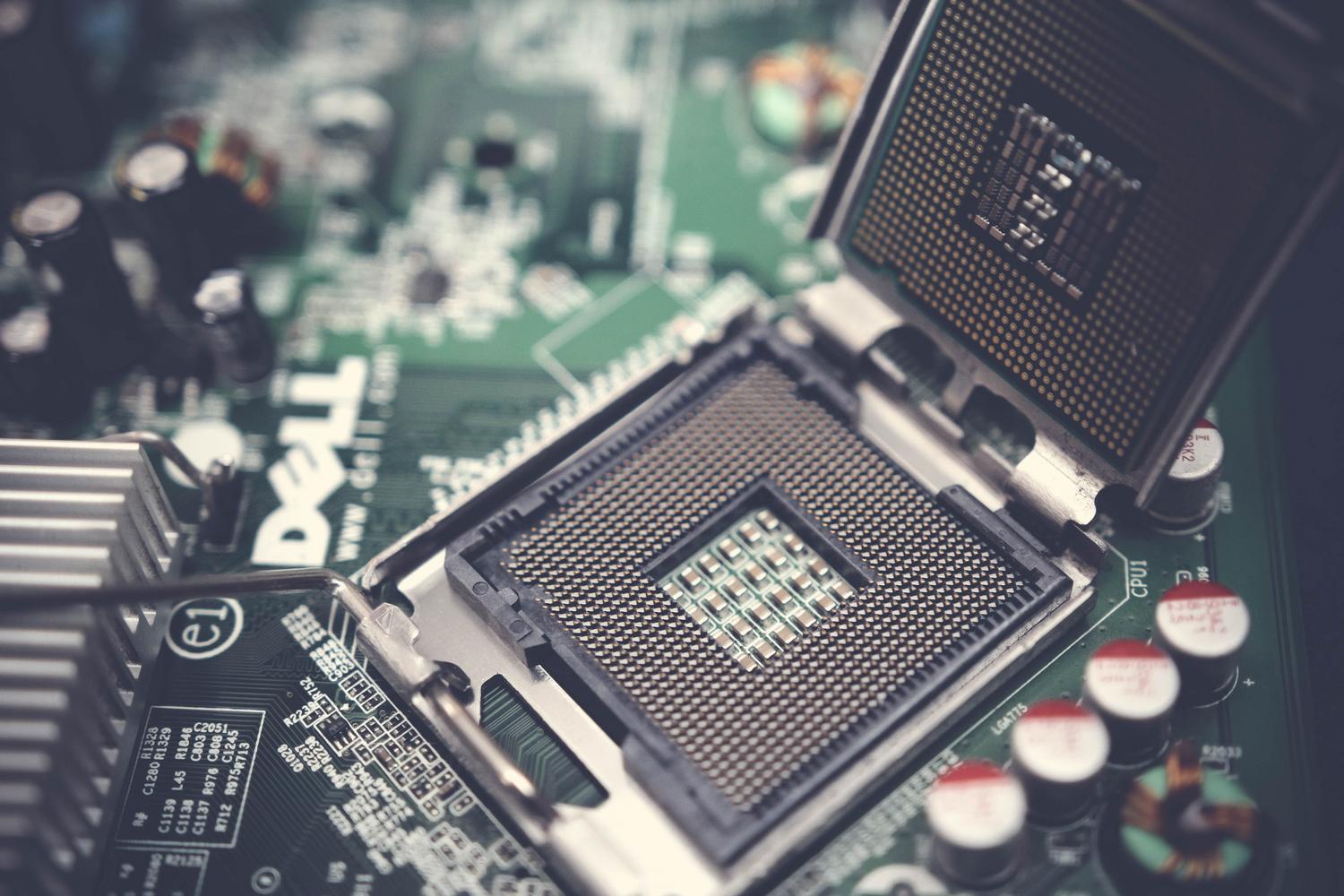
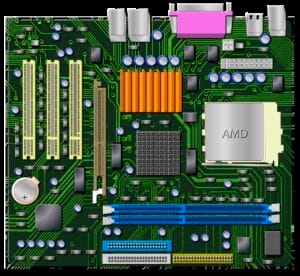
The most common way is to enter the UEFI and look for the CPU voltage (such as VDDCR CPU). Instead of setting a fixed value (Manual), which would leave the processor running at full power even when idle, the best approach is to use Offset mode . This mode allows you to tell the motherboard: "Use the automatic voltage, but subtract X millivolts."
It's best to start with small reductions, for example, 40mV, and test for stability. If the PC can handle it, you can lower it a little more. To verify that everything is working correctly, it's recommended to use programs like Realbench, AIDA64, or Cinebench , running them for several hours to ensure there are no errors.
Advanced optimization with PBO and Curve Optimizer
In the more recent series, such as the 5000 and 7000 series, AMD offers Precision Boost Overdrive (PBO). Within this menu, the crown jewel is the Curve Optimizer . Here you can undervolt per core (Per Core) or all cores at once (All Cores), applying negative values (such as -30) to reduce the voltage.
To fine-tune this without going crazy, you can use tools like CoreCycler. This software tests each core individually; if one fails, you know that specific core needs a little more voltage than the others . This way, you can adjust each core until they all pass the test, achieving a dramatic drop in temperatures (sometimes by as much as 10°C) without sacrificing gaming performance.

Use of automated software such as ClockTuner
For those who don't want to mess with the BIOS, there are tools like ClockTuner for Ryzen. This program automatically analyzes the CPU, performs stress tests, and determines the best voltage and frequency parameters. It's especially useful for the 3000 series, as it almost automatically solves the overvoltage problem.
While very convenient, it's important to note that some versions are beta and may have compatibility issues with certain motherboard brands. However, it allows you to create profiles that load when Windows starts, ensuring the CPU operates at constant frequencies and low temperatures , even improving FPS in some games by preventing thermal spikes.
How can you tell if the process has been a success?
The first sign is obvious: temperatures are dropping. You can monitor your PC's temperature with HWiNFO64 or CPU-Z while running a demanding task. If you were reaching 90°C before and are now staying around 80°C with the same frequency, you're on the right track. But the real test is actual, daily use.
Don't rely solely on a 5-minute benchmark. Play your usual games, edit video, or browse the web with a thousand tabs open. If the PC doesn't restart and no strange errors appear, you've found the stable point. If you notice the system crashing, simply go back into the BIOS and slightly increase the voltage until the errors disappear.

Alternatives to undervolting
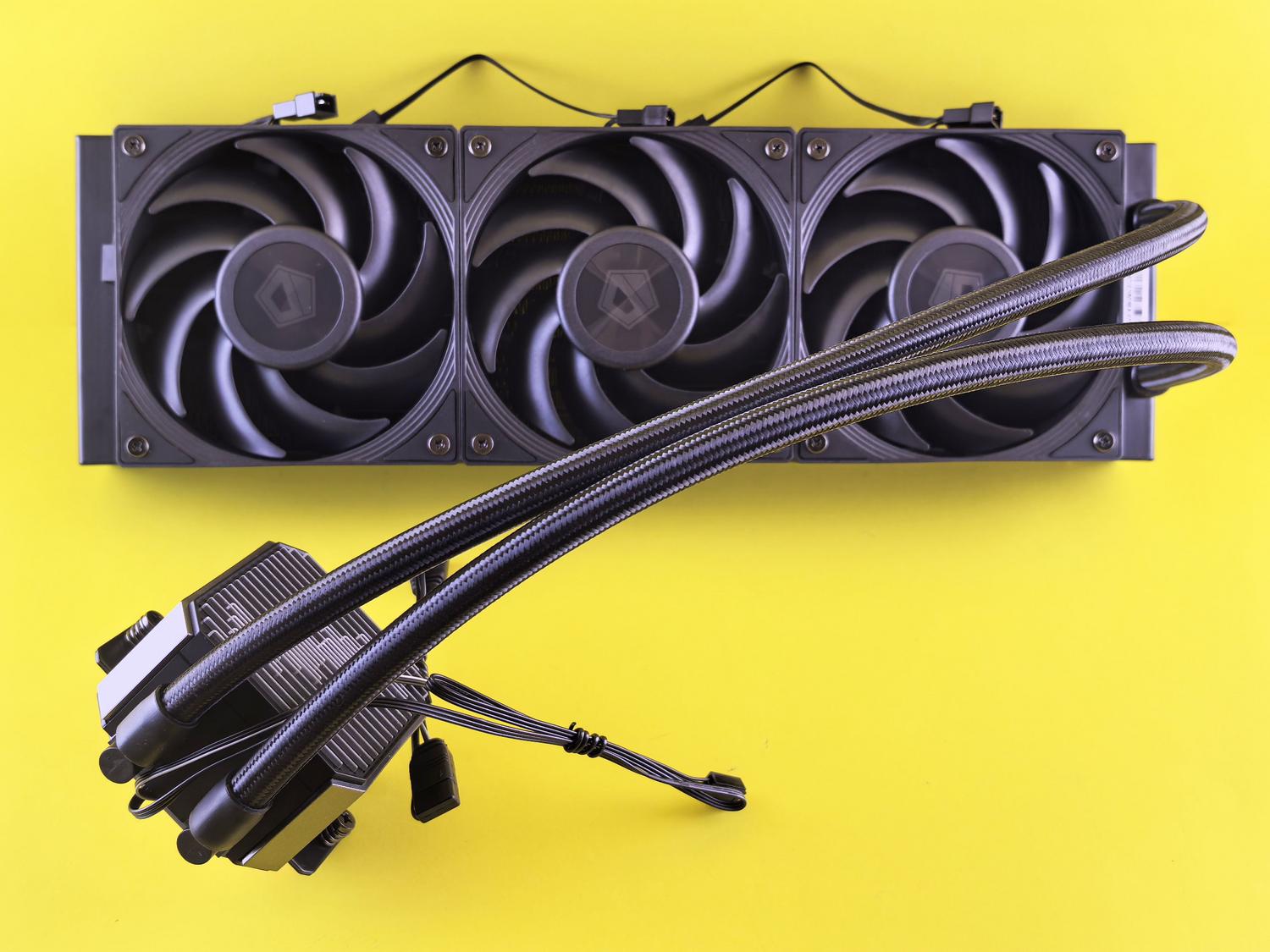
If you're afraid to adjust voltages or your PC is too unstable, there are other ways to reduce heat. Sometimes the problem isn't the voltage, but rather an insufficient heatsink or poor case airflow. Replacing the stock fan with a higher-quality one or adding case fans can be more effective and safer than any software adjustment.
Undervolting is an excellent way to extend the lifespan of your hardware and enjoy a quieter, cooler system, provided it's done carefully and patiently. Ultimately, it's about balancing stability, temperature, and power , where the goal is to optimize the silicon to work as efficiently as possible without compromising system reliability.
