- Setting up users, advanced mode, security, and organization by areas, labels, and zones unlocks many hidden features in Home Assistant.
- The intelligent use of integrations, assistants, automations, scenes, scripts, and plans allows for the creation of a very powerful and flexible home automation system.
- Add-ons, voice assistants, NFC tags and people management enable a comprehensive ecosystem of control and presence.
- The combination of Home Assistant with ESPHome and DIY projects takes the integration of "dumb" devices to a truly intelligent level.
If you've been tinkering with Home Assistant for a while, you probably already know the basics, but there are tons of hidden features and advanced options that often go unnoticed and make all the difference between a standard setup and a professional-level home automation system. Many of them are tucked away in less obvious menus, lesser-known integrations, or require combining several tools.
Throughout this article, we will calmly and with real-world examples explore all the potential that isn't immediately apparent : from how to intelligently organize users and security, to powerful automations, creative use of labels and zones, tricks with add-ons, advanced control panels, and even a DIY project to turn your "dumb" air conditioner into a truly intelligent device with ESPHome.
Invisible but key first steps in Home Assistant
The first thing we often overlook is that a good setup saves a lot of headaches later. The Home Assistant side panel is your command center , from where you can access all the important sections: User Settings, System Settings, Devices, Automations, Control Panels, and more. While it might seem obvious, taking some time to explore each section, tapping and experimenting without fear, is the best way to discover hidden features.
Home Assistant is designed so you learn by "getting your hands dirty": exploring each section, reading the official documentation, and experimenting with different options are all part of the process. Many features that seem advanced are actually just a couple of clicks away, but if you never explore those menus, you'll miss out on them forever.
User settings and the hidden potential of advanced mode
One of the most underrated sections is User Settings, accessible by clicking on your photo in the bottom left of the side panel. Here you can configure language, date and time format, time zone, and other small details that greatly improve the user experience, especially if there are multiple users at home.
The hidden gem is the Advanced Mode switch . Activating it for your administrator account unlocks additional options throughout the interface: more configuration parameters, system sections, and extra possibilities for automations and scripts. Ideally, follow this best practice: create at least two user accounts , one administrator (with Advanced Mode enabled) and another for more limited daily use by the rest of the family.
Further down, within the user settings, you'll find options specific to the device or client you're using: browser, mobile, tablet, etc. Here you can change the appearance, the order of the side panel, or hide elements you don't want to see. This is a very useful trick if you have, for example, a tablet mounted on a wall: you can leave only the control panels visible and hide everything else so no one touches things they shouldn't.
In the security section, in addition to changing your password, you'll see a list of devices you've logged into. From here, you can revoke old or suspicious access and, most importantly, enable two-step authentication (MSA). It's a crucial feature, but many people don't even look at it.
Multi-factor authentication adds an extra layer of security: in addition to your username and password, you'll need to enter a temporary code generated by an authenticator app like Google Authenticator, Authy, Microsoft Authenticator, or even iCloud Keychain. The process is simple: scan the QR code displayed by Home Assistant and enter the code that appears in the app; from then on, you'll need this one-time code every time you log in.
General settings and Home Assistant Cloud: what seems like a paid feature but isn't.
When you go to the System Settings menu , you enter the area where the platform is truly configured . Many people are overwhelmed by so many options, but understanding the basics of each section gives you access to features you previously thought impossible.
One of the sections that generates the most questions is Home Assistant Cloud . This is where the paid subscription from Nabu Casa, the company behind the project, appears. Although Home Assistant is free, this service adds convenience for things you could do manually but with effort: secure remote access without opening ports or struggling with router settings , simplified integration with Google Assistant and Alexa, and more.
The interesting thing is that all these features can be achieved manually and for free, but they require advanced knowledge of networks, certificates, and external configuration . Nabu Casa's cloud service, at around €7,5 per month, takes care of everything for you without any headaches and also funds the project's development, so it's not a bad idea if you want something stable and with quick integration with commercial voice assistants.
Integrations, devices, entities, and helpers: the hidden ecosystem
The true heart of your setup lies within Devices and Services . Here you'll see all the integrations that Home Assistant automatically detects on your network (light bulbs, plugs, hubs, TVs, speakers, online services, etc.) and those you've already configured manually.
The catalog is enormous, with thousands of integrations available . Many are configured through the graphical interface, but others appear with a square and arrow icon, indicating they require configuration via YAML. Developers are gradually migrating everything to the interface, but for now, there are still some "special" integrations that are managed through code.
A curious example is the integration of working days (for example, for Spain). You can search for it in "Add integration," configure it, and an entity will automatically be created that tells you whether today is a working day or not. This might seem trivial, but it opens the door to very sophisticated automations : alarms that only trigger on working days, heating in low mode only on weekends, and so on.
Each integration can generate one or more devices, and these devices, in turn, expose entities (sensors, switches, lights, climate controls, etc.). In the Devices and Entities sections, you can navigate and see in detail what each integration offers , its values, and the possible actions.
The Helpers section is another goldmine that almost no one fully exploits . Here you can create virtual entities that don't correspond to any physical device, but which serve to improve automation: virtual switches, counters, numeric inputs, lists, etc. For example, a "toggle" helper acts as a simple switch, even though it doesn't directly control anything. You can then use it as a condition or trigger in an automation, or as a master switch to group functions.
Automations, scenes, scripts and plans: where the magic happens
The Automations and Scenes section is probably the most powerful part of Home Assistant . Here you define everything that "happens automatically" without you having to touch a button.
An automation is basically: when X (trigger) happens and Y (condition) is met, do Z (action) . Triggers can be the time, a change in a device's state, your location, a sensor value, an event, etc. Conditions are used to refine when something runs (only at night, only on weekdays, only if you're home, etc.), and actions can be one or more: turn on lights, change scenes, send notifications, play a message on a speaker, call a script, etc.
A typical example might be: “At 7:00 AM, if it's a weekday, send a message to a speaker reminding you to get up .” It seems simple, but by combining various triggers, nested conditions, and action lists, you can create truly complex and powerful automations.
Scenes are like taking a snapshot of the state of several entities , allowing you to restore it later with a single click or as part of an automation. Imagine a scene called "Watch TV" that turns off the main living room lights, turns on the ambient lighting at a low intensity, turns on the TV, and opens Netflix. This scene can be triggered from the menu, a button on a control panel, or any automation.
Scripts are predefined sequences of actions . They're similar to automations, but without a trigger: their function is to execute a list of steps when you decide to call them. They're ideal for more advanced processes with waits, internal conditions, and complex flows. They're considered more advanced and have their own learning curve.
Finally, Blueprints are automations or "template" scripts with configurable fields . The beauty of it is that someone in the community creates a generic blueprint (for example, "turn on light with motion detector only at night"), and you simply fill in the blanks: which motion sensor to use, which light, what times, etc. They are a fantastic way to leverage complex automations without having to design them from scratch.
Areas, labels and zones: smart organization and presence
One of the keys to scaling well is to organize your installation intelligently using areas, labels, and zones . This is not only for mental clarity, but also because it allows for easier automation and maintenance later on.
Areas are used to group entities by rooms or zones in your home : living room, kitchen, master bedroom, patio, garage, etc. When you add a device or entity, you can assign it to an area, allowing you to later use that grouping in automations or dashboards. For example, you can turn all the lights in a zone on or off at once.
Tags are a cross-cutting classification system . You can tag devices, entities, automations, and other objects not by location, but by function or type: Energy, Lighting, Heating, Sensors, WiFi, Bluetooth, Cloud, etc. Everyone can organize themselves in their own way, but when used effectively, tags help you quickly find everything related to a specific topic.
Zones represent physical locations outside your home that Home Assistant can understand : your office, school, a relative's house, the gym, etc. They are primarily used in conjunction with tracking devices (such as your mobile phone) to know when you arrive at or leave a specific location.
Thanks to zones, you can create automations like: “When I arrive in the office zone, change the status to 'working' and adjust notifications ,” or “If I leave the home zone and no one else is inside, turn off the lights and lower the blinds.” It’s one of those features that goes unnoticed until you try it.
Add-ons: Home Assistant OS's hidden app store
If you use the Home Assistant Operating System (the full version installed, for example, on a Raspberry Pi or virtual machine) , you'll see a dedicated Add-ons section. This section doesn't appear in lighter installations.
Plugins are additional applications that run as separate containers within your installation, with a user interface layer that makes them very easy to install, configure, and update. Think of it as a small "app store": you can have MQTT servers, proxies, file managers, camera recorders, additional dashboards, and more.
Although many plugins are later integrated into Home Assistant as just another feature (to view data, trigger actions, etc.), it's important to remember that they are separate services . You could set up those same containers on another server and they would work the same; the advantage of the plugin system is that everything is more integrated and manageable from the same interface.
Most of these add-ons include their own link in the side panel, giving you direct access to their internal interface . It's an incredible resource for building a complete ecosystem on a single device: Home Assistant, additional automation server, storage, advanced dashboards, and much more.
Dashboards: the visible face of your automations
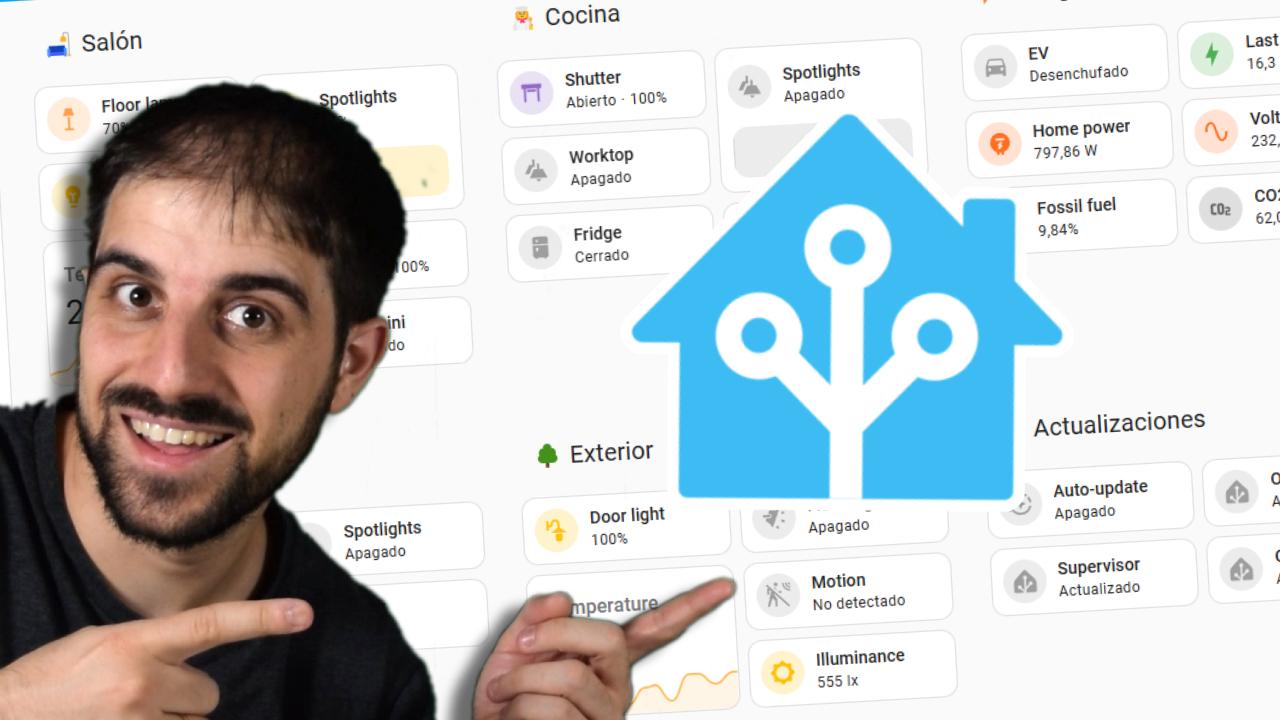
Dashboards are the primary way to visually interact with Home Assistant . From the side menu, you can access a default dashboard, which the system automatically generates with the entities it detects, but the real power lies in creating your own custom dashboards.
Each panel is made up of cards that display information or allow you to take actions : buttons, graphics, climate controls, lists of entities, maps, cameras, etc. You can have a general panel for everyday use, a specific one for lighting, another for energy, one per floor, or even a "guest mode" panel with limited functions.
In addition, there are specialized panels such as the energy panel , which allows you to monitor consumption, solar generation, batteries, and other energy parameters of the home, or the map panel, which displays the location of tracked people and devices. These specialized panels are a semi-hidden feature that, once configured, provides a wealth of information at a glance.
The best way to learn is to create a new board, add some cards, and experiment with different layouts. It's easy to break something visually, but you can always delete and start again. And if you're feeling adventurous, you can configure different boards for different users or devices, so each person sees only what they need.
Voice assistants and integration with external services
In the Voice Assistants section, you can connect your Home Assistant to various voice recognition and control services . Home Assistant is developing its own local assistant, which is evolving rapidly, with the goal of not relying on external cloud services to understand and execute commands.
In addition to its own assistant, it's possible to integrate Alexa, Google Assistant, and other commercial systems . If you use a Nabu Casa subscription, setup is almost automatic: a couple of clicks, you choose which entities to expose, and you're done. Without the subscription, it's still possible, but it requires a more technical and somewhat more laborious manual configuration, which usually involves certificates, DNS, etc.
The advantage of this integration is enormous: you can control your lights, blinds, scenes, and automations from smart speakers , TVs, mobile phones, or watches, using natural voice commands. And, in many cases, you can combine Home Assistant scenes with your own voice assistant routines to create powerful hybrid workflows.
NFC tags and QR codes: super cheap physical triggers
The Tags section in Home Assistant lets you register both NFC tags and QR codes so that scanning them triggers actions or scenes. It's one of those underutilized features that's incredibly cheap to set up.
You can buy NFC stickers for very little money and stick them in strategic places: next to the front door, by the bed, in the car, on the living room table, etc. When you pass your phone (or any compatible device) over the sticker, Home Assistant receives the event and can trigger an automation: run a scene, turn on a group of lights, open a door, change a mode, etc.
You can also use QR codes, which are read with your phone's camera. It's less convenient than NFC, but just as functional. The possibilities are endless: "movie mode" tags next to the sofa, a secret tag to open the storage room door, tags to register the presence of people without their phones, and countless other ideas.
People, users, and real-world presence tracking
The People section is where you explicitly define who you want Home Assistant to take into account : family, friends, even pets. It's important to understand the difference between "user" and "person," because this is where one of the most useful hidden features lies.
A user is someone who logs into Home Assistant with a username and password , has permissions, can view dashboards, access settings (depending on their privileges), etc. A "person," on the other hand, is a logical entity that can have an associated photo and one or more tracking devices (such as a mobile phone with the Home Assistant app, a GPS tracker, etc.), and may or may not be linked to a user.
This allows for interesting scenarios. You could have, for example, a "Dog" person with a GPS tracker on its collar to know its location at all times, see its position on the map, and trigger automations based on that position, without a user logging in (obviously, your dog isn't going to access Home Assistant).
You can also have the opposite scenario: a tablet on the wall with a specific user account to control the house, which isn't associated with any person because you don't need their location or photo. You just want a session with the necessary permissions so that anyone can use it safely.
With people and their tracking devices properly configured, you can create real-time presence automations: if everyone has left home, turn everything off; if someone returns, turn on welcome lights ; if the children have left school, send a notification, etc. It's a key component for truly smart home automation.
"About" section and System: diagnostics and hidden maintenance
The "About" section isn't just a pretty screen with the logo ; it displays information about your installation type, the Home Assistant Core version, Supervisor, operating system (if applicable), and links to important project resources. It's very useful for quickly checking if you're up to date or for asking the community for help with accurate information.
The System section houses many of the often overlooked maintenance tools . In the General section, you can change the server name, location, altitude, country, and other settings that affect all users and some functionalities, such as sunrise/sunset detection and local weather.
In Updates, you'll see if you have new versions available for the operating system, Home Assistant Core, add-ons, integrations, etc. You don't need to check it every day because the system usually displays notifications when there's something relevant, but it's a good place to check the status of your installation, especially before making any important changes.
The Repairs section groups alerts about detected problems : old configurations, outdated integrations, failing entities… It is a very valuable checkpoint if something stops working: it gives you concrete clues about what to check.
In Logs, you have access to the warning and error logs generated by Home Assistant and its components. When an integration is behaving strangely, this is the first place you should look to find error messages that can help you identify the cause.
The Backups section is critical and often overlooked . It lists all the backups you've created, with options to download, restore, or delete them. It's highly recommended to create and download a backup before any major configuration changes or significant updates. If something goes wrong, you can always revert to the previous state in minutes.
In Analytics, you can choose whether to share anonymous data about your installation with the development team. This data helps improve the project, prioritize features, and detect errors in real-world environments, without compromising your privacy.
The Network section is where you can adjust connectivity parameters : the name other devices will use to see your server, the network adapter to use, and the internal and external URLs. This section is especially important when you want to configure remote access manually. Here you can also change the IPv4/IPv6 settings and, very importantly, assign a static IP address to Home Assistant . If you leave the IP address set to automatic, it can change, and your integrations might suddenly stop finding the server.
In Storage, you'll see how much free space you have left and you can add network storage for backups, camera recordings, media files, etc. It's an elegant way to avoid filling up your SD card or main hard drive.
Finally, the Hardware section displays the resources the server is using : CPU, memory, temperature, etc. If you're running Home Assistant OS in a virtual machine, you'll only see data for the VM here, not the entire host machine. This is a good way to identify bottlenecks and assess whether you need more processing power.
Advanced DIY project: converting an air conditioner into a “smart” one with ESPHome
Beyond what the interface offers, one of Home Assistant's most powerful features is its ability to integrate with DIY projects using ESPHome and inexpensive microcontrollers like the ESP8266. A very illustrative example is transforming a conventional air conditioner into a fully integrated smart device.
The idea is to use a small module (for example, a Wemos D1 Mini based on the ESP8266 ) and a transistor to "inject" infrared commands directly into the air conditioner's internal receiver. First, an IR receiver is used to capture the codes from the original remote (turn on, turn off, raise/lower temperature, change modes, etc.), and then the ESP8266 is wired to the air conditioner's IR receiver so that you can send those same codes via cable.
Instead of sending IR signals out into the air from outside, you're simulating the remote control internally . To power the microcontroller, you can take 5V and ground from the air conditioning unit itself, eliminating the need for an external power supply. Everything is physically integrated within the unit.
Once wired, ESPHome is configured so that the ESP8266 exposes virtual buttons to Home Assistant, each associated with one of the IR codes you previously captured. From the Home Assistant interface, you can turn the device on and off, change modes, or adjust the temperature as if it were a native device, without needing the physical remote.
The final touch is adding a generic thermostat to Home Assistant that uses those buttons to control the air conditioner. This transforms your unit from a simple "dumb" air conditioner with a remote control into a fully integrated smart climate control system: you can automate it based on schedules, occupancy, temperature measured by external sensors, energy consumption, weekdays, and more.
These kinds of projects demonstrate the extent to which Home Assistant's hidden functionalities aren't just in the menus, but also in its combination with open hardware and software like ESPHome . The only limit is your imagination and how much you're willing to experiment.
This entire exploration of the less obvious sections, the advanced security and organization options, the intensive use of automations, scenes, virtual helpers, voice assistants, smart tags, and DIY projects with ESPHome reveals that Home Assistant is much more than just a panel for turning on lights ; when you scratch the surface, it becomes an incredibly flexible home automation platform that allows you to have a truly smart home, adapted to your lifestyle and with almost absolute control over every detail.
