- Early identification of visual artifacts and elevated temperatures is crucial to prevent a GPU failure from damaging the motherboard or RAM.
- It is essential to distinguish whether the problem lies in the physical hardware, such as VRAM, or in software conflicts related to drivers.
- Preventive maintenance, which includes dust removal and thermal paste replacement, significantly extends the component's lifespan.
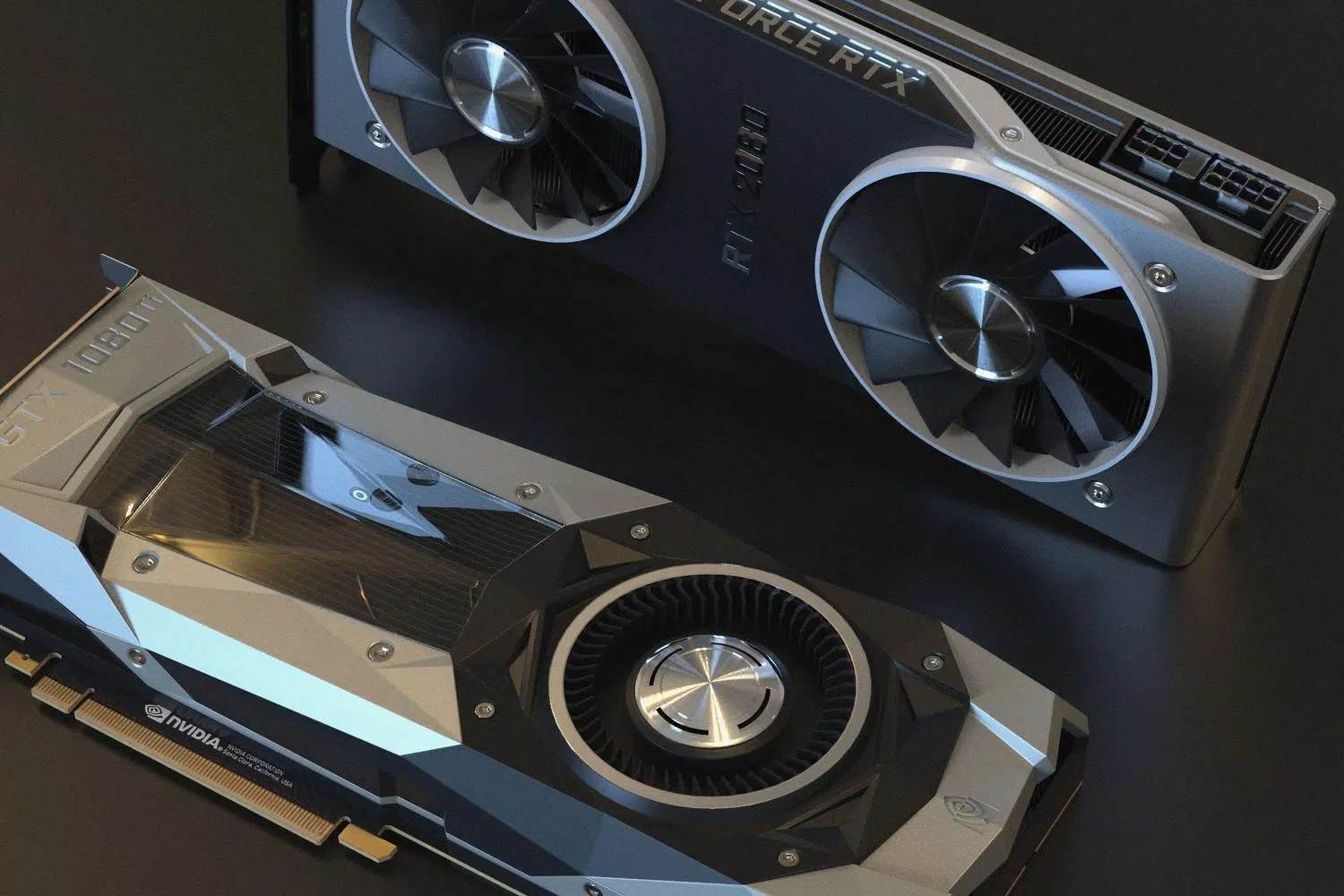
Having your computer struggle right in the middle of an intense game or while you're working on a demanding render is a nightmare anyone would rather avoid. The graphics processing unit (GPU) is essentially the engine that powers everything visual on your computer, but like any piece of hardware, it doesn't last forever and can start showing signs of failing. Recognizing these warnings early not only saves you from the shock of a sudden shutdown, but it can also save you money by preventing the problem from spreading to other sensitive components.
Sometimes, what seems like a catastrophic breakdown is simply a software problem that can be fixed with a couple of clicks, but other times we're dealing with real physical damage . To avoid going crazy trying things blindly, the best approach is to follow a logical process of elimination. In this article, we'll break down each symptom, from annoying colored pixels to strange fan noises, so you know exactly what steps to take and when it's time to use your warranty or seek a specialized technician.

Clear signs that your GPU is failing
When a graphics card starts to falter, it's rarely subtle. One of the most obvious symptoms is screen artifacts , which appear as lines, colored dots, or bizarre geometric shapes that shouldn't be there. If these errors appear even before Windows boots up, it's very likely that the VRAM is damaged . Conversely, if they only appear when running demanding games, it could be a temperature issue.
Another common warning sign is a blue screen of death (BSOD) or a complete system crash where the image freezes and the audio loops endlessly. Errors like VIDEO_TDR_FAILURE usually indicate that the display driver has stopped responding. Likewise, if you notice a sharp drop in FPS in games that previously ran smoothly, your GPU might be throttling , meaning it's reducing its power to prevent overheating.
How to differentiate a software failure from a physical one
Before panicking and thinking you need to buy a new graphics card, you should determine whether the problem lies with the hardware or the drivers. A good rule of thumb is to note when the error occurred: if the problems started right after updating Windows or the driver , it's most likely a software conflict. In these cases, using tools like DDU (Display Driver Uninstaller) to remove all traces of old drivers and perform a clean installation is usually the best solution.

On the other hand, there are signs that point directly to the hardware. If the PC shuts down on its own when the GPU reaches maximum load, there may be an electrical or thermal problem . If you notice that the dedicated graphics card performs worse than the CPU's integrated graphics, or if the errors disappear when using the integrated graphics, you have almost irrefutable proof that the dedicated GPU is faulty . It's also crucial to check if the computer emits error beeps upon startup, which would indicate a component recognition failure.
The dangers of overheating and cooling
Heat is the number one enemy of electronics. A graphics card that reaches temperatures above 80-85 degrees Celsius under load is in the danger zone. If you notice the fans making a metallic noise, vibrating, or running at full speed even during simple tasks, the cooling system may be clogged with dust or the fan bearing may have failed.
When thermal paste dries out, it loses its ability to transfer heat from the chip to the heatsink, causing the GPU to overheat quickly. This doesn't just affect the card; the residual heat can damage the motherboard or nearby RAM modules. To monitor this, we recommend using software like MSI Afterburner, GPU-Z, or HWinfo , or even exploring a comprehensive guide to undervolting graphics cards , which allows you to see real-time thermal spikes and detect performance drops for safety reasons.
Critical errors when installing the graphics card
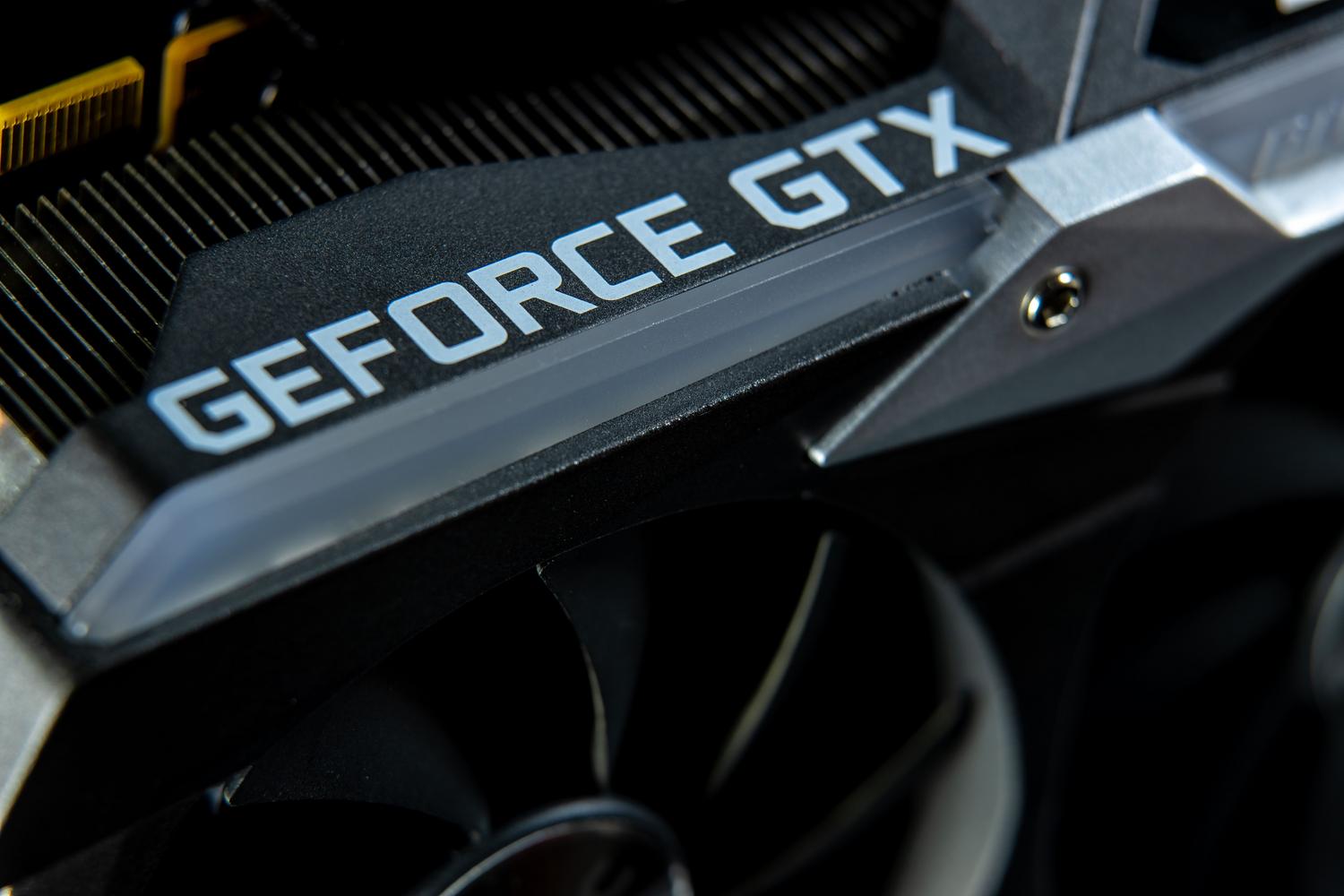
Not all failures are due to use; some occur due to improper installation. A very common mistake is ignoring the weight of modern GPUs, which are large and heavy. If the card is suspended without additional physical support , the weight can bend the PCB and cause the VRAM solder joints to loosen or the PCIe slot to suffer structural damage. Using a simple bracket at the opposite end is a minimal investment that prevents costly disasters.

Power supply is another critical point. A serious problem occurs when using dual power cables (a single cable splitting into two connectors) to power high-end graphics cards. This can cause the wiring to overheat and, in the worst-case scenario, burn out the connectors due to excessive amperage. The safest approach is to use individual cables from the power supply to each GPU connector, ensuring that power flows safely.
Quick diagnostic guide and solutions
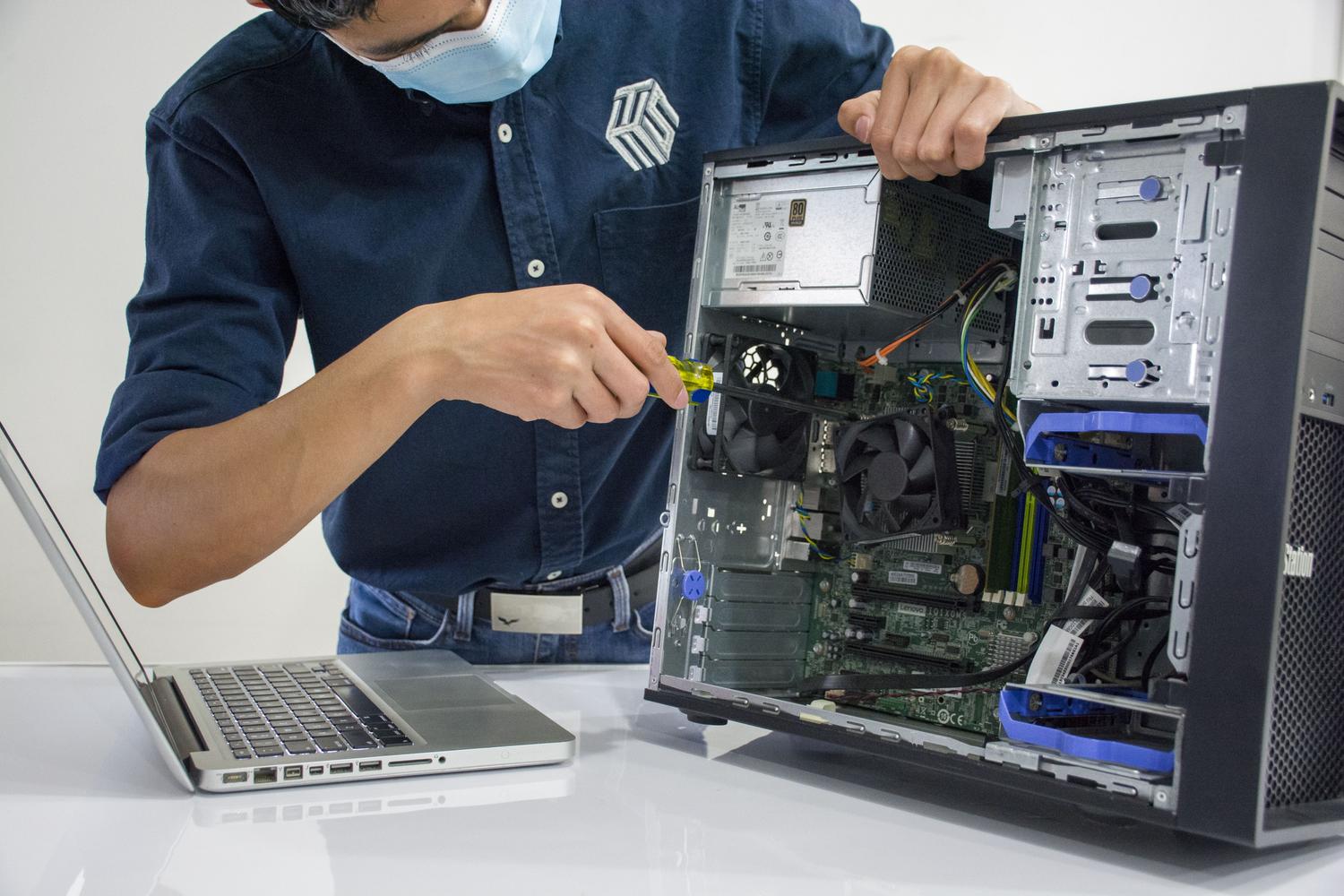
If you suspect something is wrong, you can follow this troubleshooting process: First, reinstall the drivers from the manufacturer's official website. Second, clean any accumulated dust with compressed air and, if you have experience, replace the thermal paste . Third, check that the card is properly seated in the PCIe slot and that the power cables are fully inserted.
If the problems persist, try the card in another computer. If it works fine there, the problem lies with your Windows installation or power supply. If it still fails, you might need a professional technician to perform a BGA reballing , which involves resoldering the GPU chip to the motherboard. However, if the card is old and the internal chip is dead, the best course of action is to replace it with a new one , as complex repairs are often superficial and short-lived.
Maintaining a cleaning routine every six months, monitoring temperatures, and avoiding forced overclocking without adequate cooling are the best ways to prevent your GPU from failing prematurely. Paying attention to even slight flickering or unusual noises allows you to take action before your system becomes completely unusable, ensuring your hardware performs at its best for many more years without unexpected problems.
