- The official minimum requirement is 4 GB, although 8 GB represents the basic standard for smooth use.
- For advanced tasks, gaming, or professional design, between 16 GB and 64 GB are recommended depending on the workload.
- The choice of memory should take into account hardware compatibility, such as the type of DDR and whether the modules are soldered.
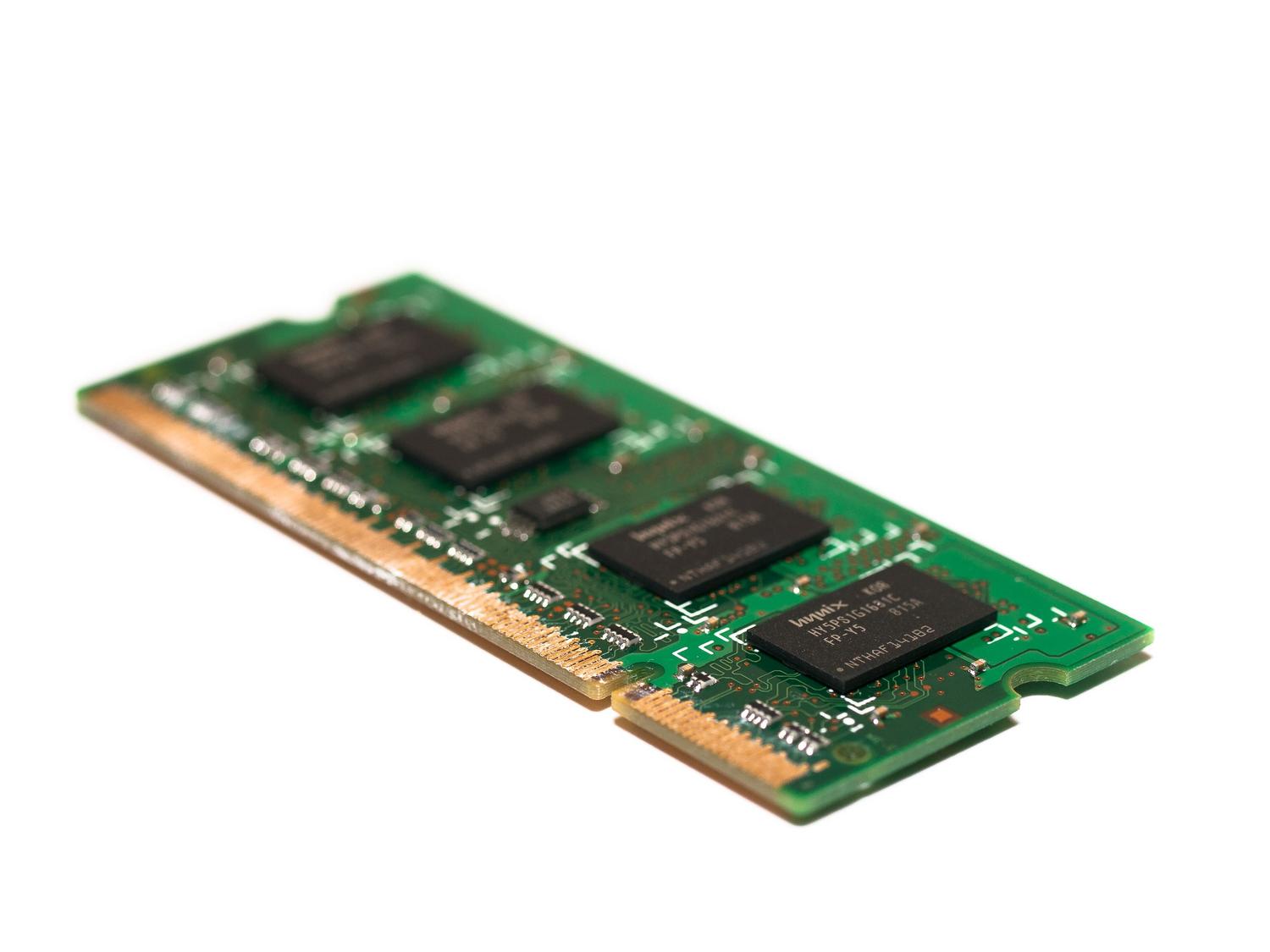
I'm sure it's happened to you: you want to upgrade your computer or buy a new one, and you wonder if your current memory will be enough for Windows 11 to run smoothly , or if you'll end up struggling with your PC because everything takes forever to load. And rightly so, since RAM management and its purpose are at the heart of the speed of any modern operating system.
In this article, we'll take an in-depth look at how much workspace your computer actually needs. We won't just rely on what the Microsoft manual says; we'll get down to brass tacks and explain what happens in real-world use, depending on whether you're someone who has fifty tabs open in Chrome or someone looking to set up a professional video editing workstation.

Official requirements versus user reality

If we look at Microsoft's technical specifications, they'll tell us that the minimum requirement is 4 GB of RAM . However, let's be realistic: just because the system boots up doesn't mean it will run well. Having 4 GB is like trying to cook dinner for ten people in a tiny kitchen; you can do it, but you'll be constantly moving things around to make room, which in computing translates to slowness and lag.
The operating system itself consumes a considerable portion of those resources to maintain the kernel, basic services, and the new visual interface. Therefore, even if your PC doesn't display any errors during installation, you'll notice that multitasking is very limited and that the computer constantly accesses the page file on the disk, slowing down any simple operation.

The sweet spot: 8 GB and 16 GB
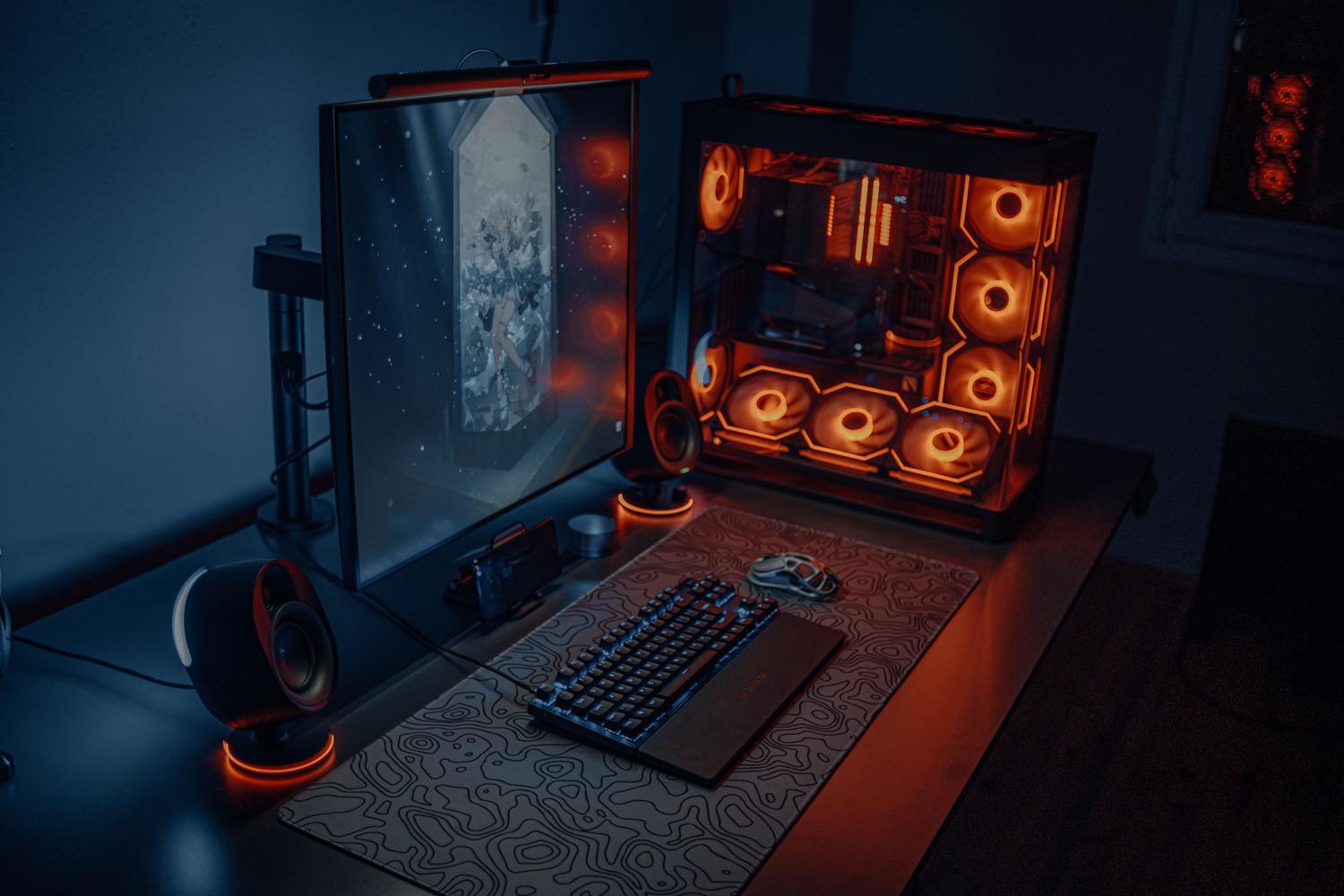
For most of us, 8 GB of RAM is the standard . It's just enough for your PC to run smoothly if your routine involves browsing the web, using the Office suite, streaming TV shows, or making video calls on Teams or Zoom. It's a balanced configuration where the system doesn't get bogged down, although if you start opening too many resource-intensive programs at once, you might find that the memory isn't enough.
If you want to go a step further and forget about performance issues, 16 GB is the smart choice . With this capacity, your computer will breathe. You can have Spotify, Discord, a RAM-optimized Google Chrome browser , and a Word document open simultaneously without your PC noticing. Furthermore, it's a worthwhile investment for the future, as software tends to become increasingly demanding over time.

Heavy workloads: Gaming and Creativity
When we enter the realm of modern video games, the story changes. Current AAA titles, such as Cyberpunk 2077 or Starfield, devour memory to load textures and open worlds. Although 16 GB is usually sufficient for most users, the most demanding are already upgrading to 32 GB to avoid stuttering and ensure the system doesn't suffer while other apps are running in the background.
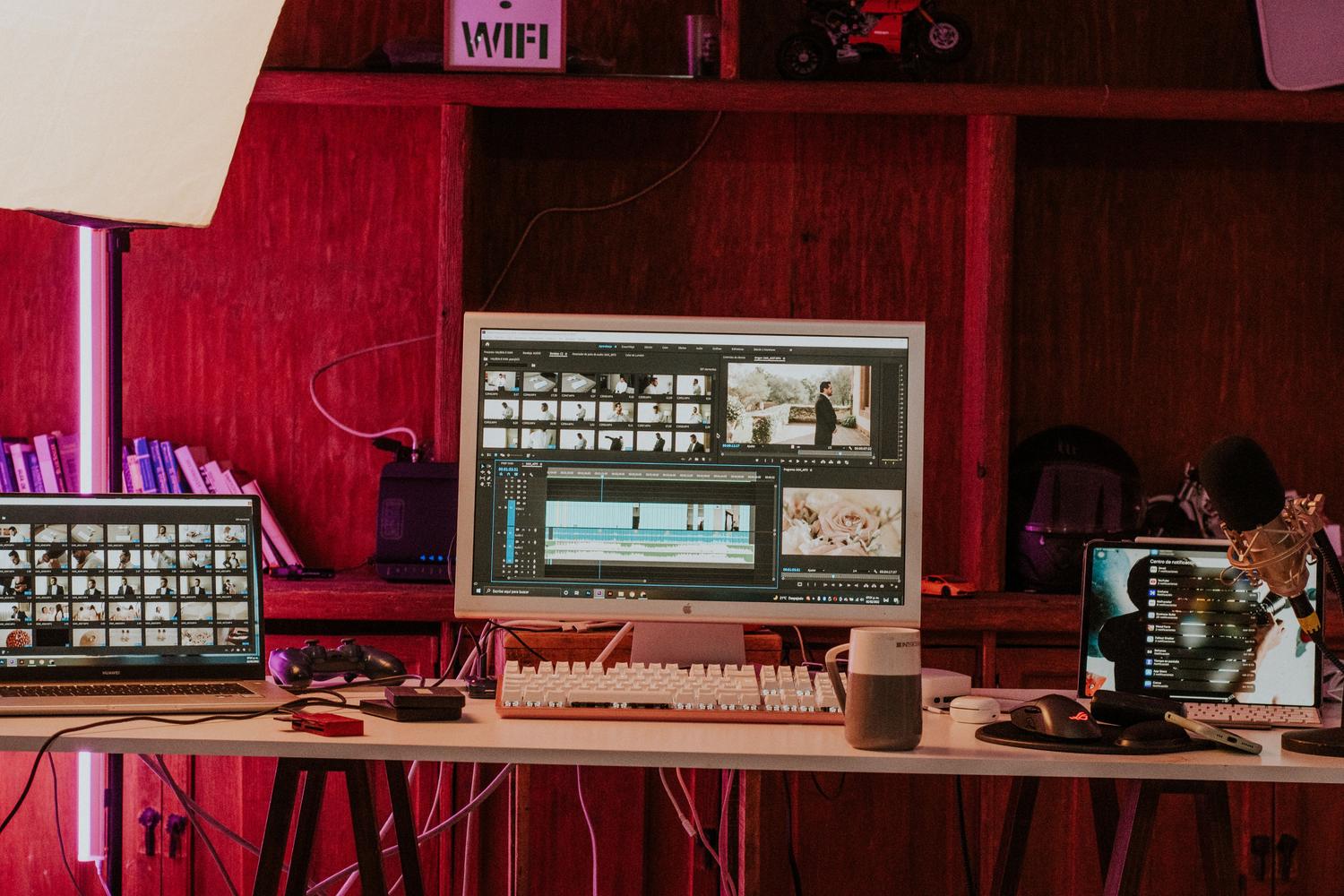
In professional settings, RAM is the most critical resource. A video editor working in 4K or a 3D designer using Blender can't afford to be underpowered. For these professionals, 32 GB is the starting point , though it can reach 64 GB or even 128 GB in complex rendering workflows or audio production with massive sample libraries. In these cases, RAM prevents bottlenecks from halting productivity.

Business environments and virtualization
Offices don't just use Excel. They often run resource-intensive antivirus programs, endpoint security software, and management tools that silently consume resources. For a business professional managing large databases or using virtual machines , 16 GB quickly becomes insufficient. Each VM requires its own memory allocation, so 32 GB or more is recommended to maintain the stability of both the host and guest systems.
How to find out what RAM your computer supports and upgrade it
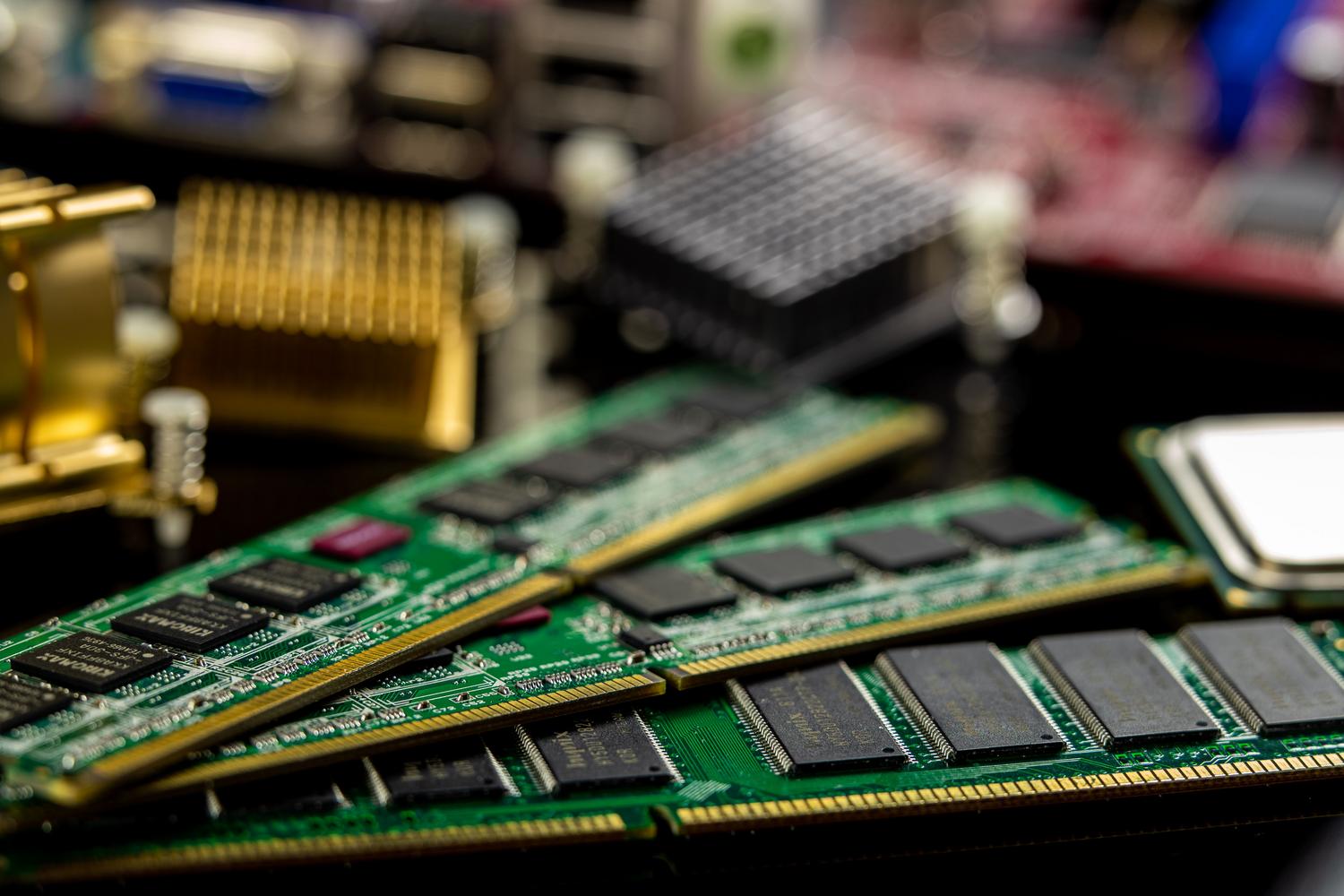
Before buying new memory modules, it's vital to avoid mistakes. Not all motherboards are the same, and different form factors exist. Desktop computers use DIMM modules , while laptops use SO-DIMM . Furthermore, you must check whether your system uses DDR4 or DDR5 memory , as they are not physically compatible; attempting to force a module into the wrong slot could damage the motherboard.
A very important feature in modern laptops is LPDDR memory, which is usually soldered to the motherboard . If your laptop has this design, unfortunately, you won't be able to upgrade the RAM, so choosing the correct capacity when purchasing the device is crucial. To check your current status, you can use Task Manager in the Performance tab or external tools like CPU-Z to see the speed and available slots.

Comparison: Windows 11 versus Windows 10
Many wonder if Windows 11 is more demanding than its predecessor. The answer is yes, because it includes visual and security improvements , such as Virtualization-Based Security (VBS), which consume more resources. While Windows 10 could run smoothly on very modest machines, Windows 11 is more demanding on hardware to deliver a smooth experience.
However, it's not all about memory consumption. Microsoft has optimized standby memory management and improved data compression. This means that, although the system uses more RAM, it does so more intelligently, quickly freeing up space when a priority application needs it and making better use of NVMe SSDs for virtual memory.
Detailed technical requirements for installation
For Windows 11 to function correctly, RAM alone isn't enough. The system requires a 1 GHz or faster dual-core processor, at least 64 GB of storage, and the TPM 2.0 module . It also needs UEFI firmware with Secure Boot capability and a graphics card compatible with DirectX 12. If you plan to run it in a virtual machine, the requirements are similar: at least 4 GB of RAM and two virtual processors.
To keep your system running smoothly, it's recommended to close unnecessary processes that start with your computer and periodically clean the RAM contacts if there are any physical issues. If you notice that your PC is still slow despite having enough memory, the problem may lie with the processor or the disk speed , and not necessarily with the amount of installed RAM.
Having the right amount of RAM is the difference between a computer that's an efficient tool and one that's a source of stress. While 4 GB is the technical limit for booting, 8 GB is the minimum for basic use, and 16 GB is the ideal option for most, scaling up to 32 GB or more for professionals and gamers, always keeping in mind the physical compatibility and DDR type of the hardware.

Table of Contents
- 1 Official requirements versus user reality
- 2 The sweet spot: 8 GB and 16 GB
- 3 Heavy workloads: Gaming and Creativity
- 4 Business environments and virtualization
- 5 How to find out what RAM your computer supports and upgrade it
- 6 Comparison: Windows 11 versus Windows 10
- 7 Detailed technical requirements for installation