- Linux manages resources much more efficiently than Windows, allowing outdated hardware to run smoothly again.
- Choosing the desktop environment (XFCE, LXQt or MATE) is crucial to adapting RAM consumption to the computer's capabilities.
- There are specialized distributions such as AntiX, WattOS or Linux Lite that allow you to run secure operating systems on machines with very little memory.
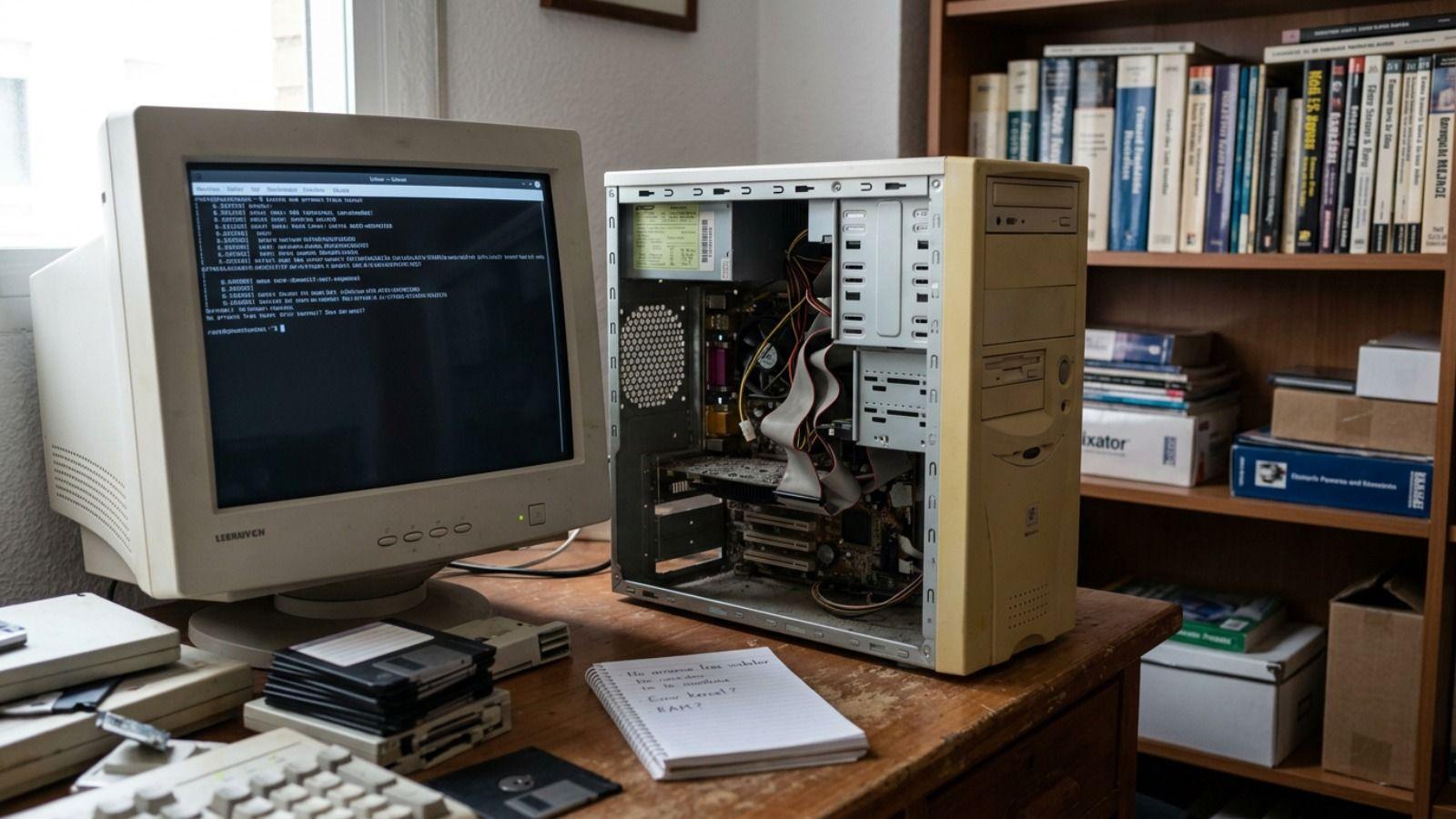
If you have an old computer gathering dust in a drawer or a laptop that takes forever to boot up, don't rush to throw it away. Often the problem isn't that the hardware is dead, but that modern operating systems like Windows 10 or 11 are resource hogs that stifle older components. The solution is to switch gears and switch to GNU/Linux, a system capable of making fifteen-year-old machines fly again.
Switching from a resource-intensive system to a simpler and more secure Linux distribution isn't just about speed, but also about security and functionality . Installing up-to-date software prevents your computer from becoming an easy target for viruses and malware, which is critical for unsupported versions of Windows. With a little patience and the right distro, you can transform that "dinosaur" into a useful tool for browsing, studying, or even managing a home server without spending a penny on new hardware.
Why is Linux the salvation for old hardware?
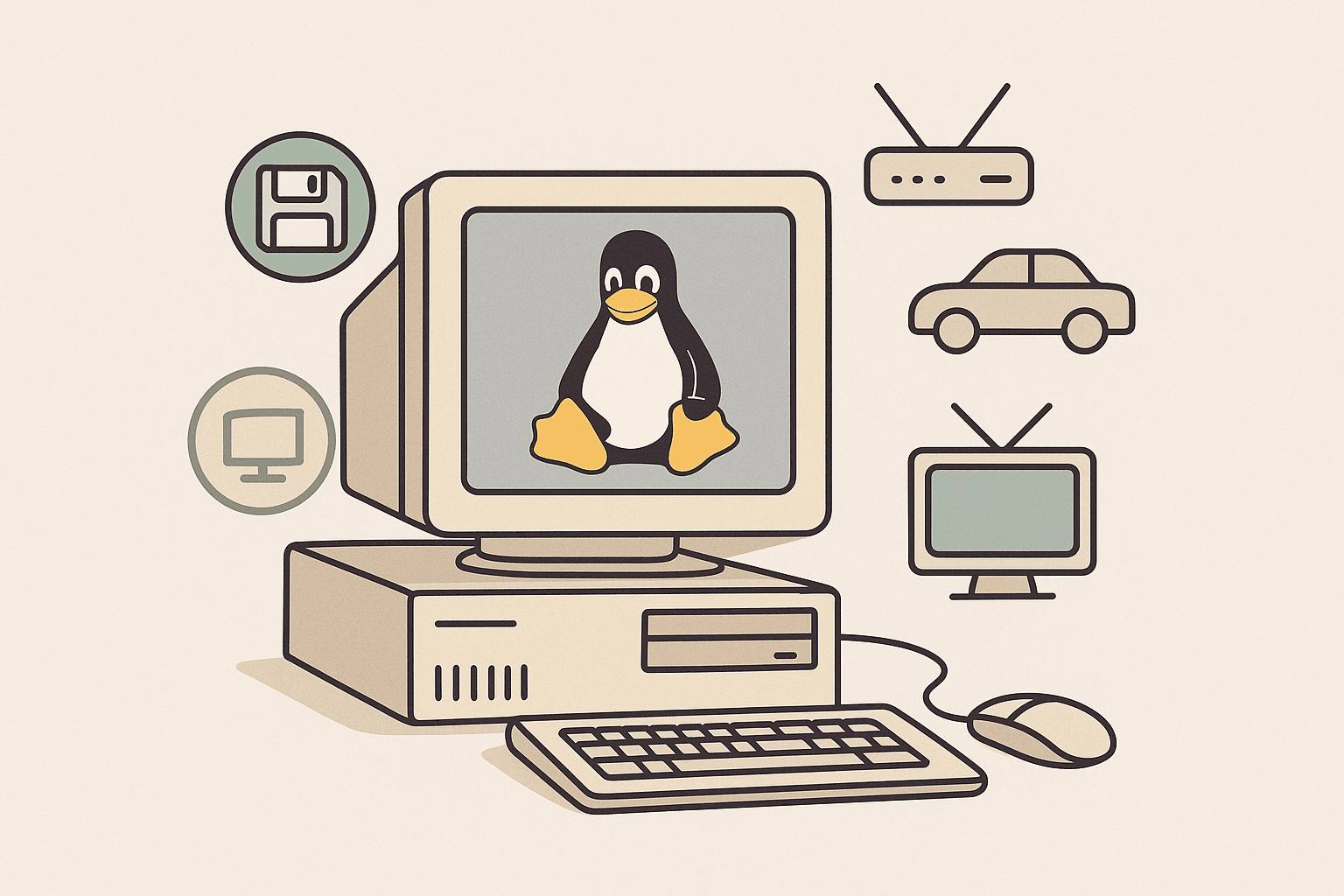
Unlike Microsoft systems, Linux doesn't need to run a huge number of background processes to function. This means that RAM consumption is drastically lower and the processor isn't overloaded with invisible tasks. While Windows might require 4 GB or 8 GB to run decently, some distributions are perfectly fine with just 1 GB or even less.
Another key point is modularity. In Linux, the desktop is like a Lego brick that you can rearrange. You're not forced to use an interface full of visual effects; you can opt for lightweight graphical environments like XFCE, LXQt, or MATE, which maintain the classic Windows aesthetic but consume a fraction of the resources. There are even more extreme options like Openbox for truly ancient machines.
Furthermore, the Linux kernel includes a huge number of built-in drivers . This means that your old Wi-Fi card or sound chip will most likely work right away without you having to struggle with complicated driver installations. By loading only the necessary modules, the system remains responsive and prevents the hard drive from experiencing constant read and write operations.

The best distributions for each "potato" level
Not all lightweight Linux distributions are created equal. If your computer is around 8 to 12 years old and has at least 2 GB of RAM, Linux Mint XFCE is the ideal balanced option, as it's very intuitive for those coming from Windows. On the other hand, if you're looking for something based on the robustness of Ubuntu but faster, Xubuntu is a safe bet.
For more critical cases, where RAM is very limited, Lubuntu (based on LXQt) is a marvel, running surprisingly well on very old laptops. If you want a seamless visual transition, Zorin OS Lite offers a beautiful and familiar interface reminiscent of Windows XP or 7, without slowing down your computer.
When we're talking about extreme hardware, like machines with only 512 MB of RAM or very old processors, we should look to AntiX or MX Linux . These options can boot even without graphics acceleration and are capable of performing miracles. There's also WattOS , a gem based on LXDE that requires only 192 MB of RAM and 700 MB of disk space, making it the ultimate lifesaver for seemingly unrecoverable systems.

How to perform the installation step by step
The first step is to choose the ISO image of the distribution that best suits your needs and download it from its official website. It's vital to know whether your processor is 32-bit or 64-bit ; if you're unsure because your PC is very old, the 32-bit version is usually compatible with everything. Once you have the file, you'll need a tool to create the bootable USB drive, such as Rufus or Etcher.
The process with Rufus is simple: connect the USB drive, select the ISO file, and click "Start." Once ready, insert the USB drive into your old laptop and restart. Here's the trick: you must repeatedly press the boot selector key (usually F12, F2, F10, or ESC, depending on the brand) to tell the computer to boot from the USB drive and not the hard drive.
Most lightweight Linux distributions let you try the system in Live mode without installing anything. If you like how it runs, open the desktop installer. The best course of action in these cases is to choose the option to erase the entire disk for a clean installation, removing all traces of Windows and configuring your username and password. Once finished, restart and you'll have a fresh, new computer.
Extra tips to get the most out of your performance
While Linux can work wonders, hardware has physical limitations. If you want your laptop to truly fly, the best investment is replacing the old mechanical hard drive with an inexpensive SSD . Even the cheapest model, costing around €20, will dramatically improve boot speed and application responsiveness.
Another bottleneck is the web browser. We sometimes blame the system, but Firefox or Chrome can hog the CPU just by opening a couple of tabs. To combat this, you can try ultra-lightweight browsers like Pale Moon, Midori, or Falkon, which manage memory much better on computers with limited RAM.
Depending on your needs, you can use this PC for various purposes: from an office computer with LibreOffice to turning it into a personal media server using Plex or Jellyfin, or even a safe environment for children to learn to program in Python without the risk of breaking the main computer at home.
Owning an old computer doesn't mean it has to end up in an electronics dump. Thanks to the flexibility of environments like XFCE or LXQt and the efficiency of optimized kernels, it's possible to restore the usefulness of any laptop with a clean Linux installation, optimizing the browser and, if possible, upgrading storage to ensure a smooth and secure experience for many more years.
