- Downloading programs only from trusted sources drastically reduces the risk of malware.
- Checking the Windows version and architecture (32/64 bits) prevents installation errors.
- Microsoft Store and Software Center provide a more controlled and secure environment for installing apps.
- A good antivirus and carefully reviewing each installation wizard are key to keeping your PC protected.
Installing software on a Windows PC seems simple, but doing it incorrectly can lead to viruses, performance issues, or system failures. That's why it's worth taking a moment to understand the process and follow clear guidelines to ensure everything works as it should and your computer remains secure.
In this guide, I'll explain how to download and install programs on your computer from various sources: reliable websites, the Microsoft Store, physical media like DVDs, and corporate tools such as Software Center. You'll also find tips on choosing the correct program version (32-bit or 64-bit, appropriate Windows version) and what to do if something goes wrong during installation.
Basic concepts before installing software on your PC
Before you start installing applications willy-nilly , it's a good idea to understand some basic concepts that will make all the difference between a clean installation and a headache. Many problems arise from downloading programs from just anywhere or from not paying attention to the minimum requirements.
The first thing to understand is that not all download sources are the same . Windows allows you to install software from the web, the Microsoft Store, a disc, or even specific corporate tools. Each method has its advantages, risks, and recommended usage.
It's also crucial to check compatibility with your version of Windows : installing something on Windows 10 is not the same as installing it on Windows 8 or Windows 7, and many programs offer different versions for 32-bit and 64-bit systems. If you choose the wrong version, at the very least the installer will give you an error, and in the worst-case scenario, the program will malfunction, and sometimes conflicts will arise between software and drivers.
Finally, keep in mind that installation files usually come in specific formats such as .exe, .msi, .zip, or .iso. Depending on the file type, the procedure for running and installing the software varies slightly, so it's helpful to know what each one is and how to handle it.
Choose a reliable source for downloading programs
The golden rule when installing software on your PC is to download it only from trusted sources. It's tempting to click the first link that appears in a search engine, but that greatly increases the chances of ending up with malware, adware, or unwanted applications.
Whenever possible, prioritize the official website of the developer or provider . For example, if you want to install a browser, an office suite, or antivirus software, look for the company's official website and find the download button there; and, if you're unsure, consult lists of essential programs for Windows.
In addition to official websites, you can also use trusted and widely used download platforms , such as the Microsoft Store, Steam (for video games), or repositories like CNET. These platforms typically review the programs they offer, reducing the risk of malware being included.
On the other hand, it's best to avoid unknown download sites, shortened links from dubious sources, or pages that force you to install strange download managers. These are often riddled with misleading advertising and may try to sneak in toolbars, unwanted extensions, or even viruses.
Another good practice is to always check that the website uses a secure connection (https) , that the site name makes sense (without strange letter changes), and that the download isn't hidden among dozens of fake buttons. If something seems suspicious, close the page and look for another source.
Check the Windows version and system architecture
Before clicking the download button, make sure the program you're about to install is compatible with your specific version of Windows and your system architecture (32-bit or 64-bit). Many installers offer several different downloads, and choosing the wrong one is a common mistake.
To see which version of Windows you have, go to Settings > System > About on your PC. There you'll see information such as the Windows edition (Windows 10, Windows 8, etc.), the version, and very importantly, the system type: 32-bit or 64-bit.
Once you know this information, look on the download website for the option that corresponds to your computer. If your system is 64-bit , it's usually best to download the 64-bit version, which makes better use of your computer's memory and resources. On 32-bit systems, however, you should always choose the 32-bit version.
Some programs offer a single installer that automatically detects the architecture, but many others have separate downloads for each type . Carefully review the description next to the link to avoid confusion and unnecessary errors during installation.
Also keep in mind that some older programs may be designed for previous versions of Windows. If you see that they only mention Windows 7 or Windows 8 , check if the developer indicates compatibility with newer versions or if there's a specific edition for Windows 10.
Common installation file formats
When you download a program for Windows , it usually arrives in one of several common formats. Knowing what each one is helps you understand what to do with the file and detect anything unusual.
The most common format is .exe . This is an executable file that, when double-clicked, directly launches the installation wizard. It's the format you'll see in most classic desktop programs.
Another widely used format is .msi , which is also a Windows-specific installation package. In practice, it works similarly: you double-click and the installer opens, although internally it's managed somewhat differently than .exe files.
Sometimes programs are downloaded as compressed .zip files . In this case, you will first need to decompress the contents (for example, using Windows Explorer or a tool like WinRAR or 7-Zip) and, once the files are extracted, locate the .exe or .msi file that corresponds to the installer.
Finally, you might encounter .iso disk images . These files behave like a copy of a CD or DVD. To use them, you can mount them in Windows (by right-clicking and choosing "Mount") and, once mounted as another drive, run the installer from there, just as if you had inserted a physical disc into your computer.
The most common way to obtain software is through a web browser: Chrome, Firefox, Edge, or a similar one. The basic procedure is simple, but there are a few details worth paying attention to in order to keep your PC protected.
Once you're on the trusted website from which you want to download the program, look for the official download link or button . Clicking it will start the download in your browser, and you'll usually see a progress bar or indicator at the top or bottom of the window.
At this point, many browsers will ask if you want to Save or Save As . If you choose Save, the file will be automatically downloaded to your user's Downloads folder. If you prefer Save As, you can manually select the location, such as your Desktop or a specific folder you use for installers.
During the process, your antivirus software, such as Windows Defender or another security solution , will most likely scan the file in real time. This usually happens automatically and transparently, although it may sometimes display a warning if it detects something suspicious or if the file comes from an unknown publisher.
If your antivirus software flags the file as dangerous, don't proceed with the installation without doing some research. Verify that the website you downloaded it from is indeed the official one, look for reviews of the program, and if you have any doubts, delete the file and find a safe alternative.
Install apps from the Microsoft Store
The Microsoft Store is the most controlled and straightforward way to install applications on Windows, especially Windows 10. All programs listed there have passed security filters, so the risk of malware is much lower than downloading individual executables from any website.
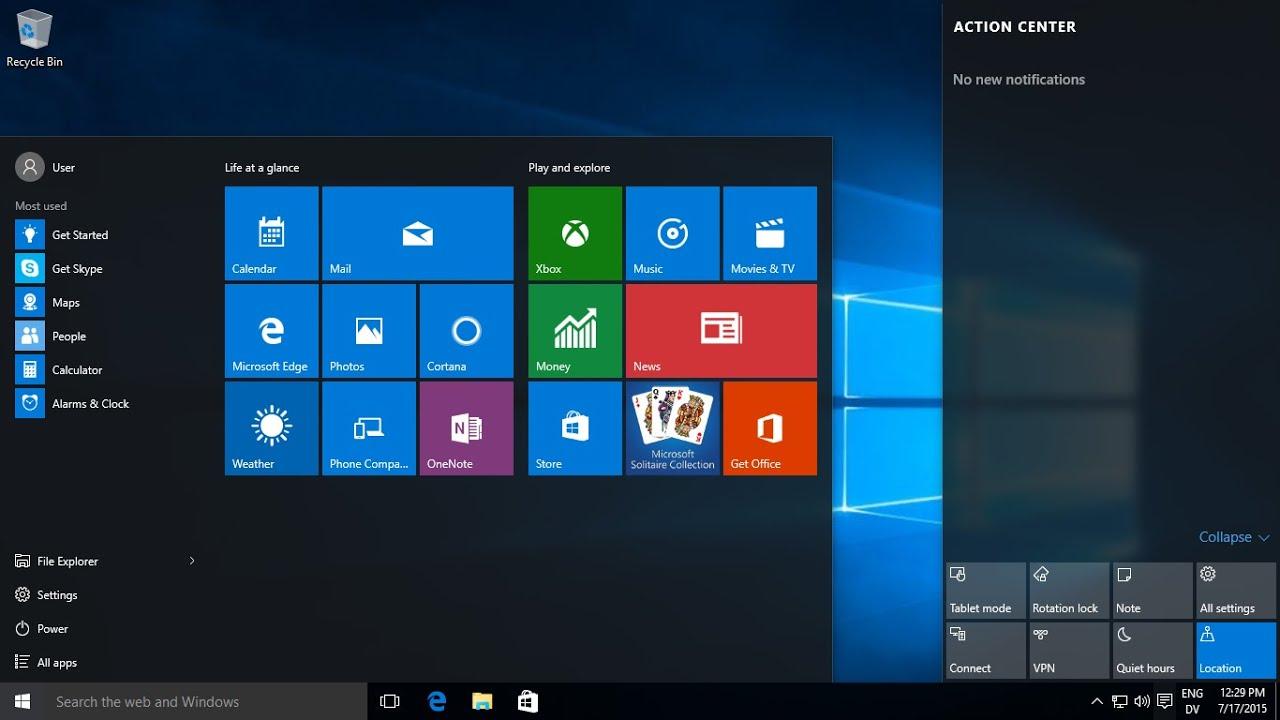
To open the store, you can click the Windows Start button and search for "Microsoft Store" in the list of applications, or click the store icon, which is usually located in the taskbar. Either way, you'll get there.
Once inside, you'll see a search bar at the top: type the name of the app you're interested in and start the search. Selecting the correct result will take you to the app's page, where you can view a description, screenshots, ratings, and system requirements.
If everything matches your needs, click the Get, Install, or similar button . Windows will automatically download and install the app, so you don't have to worry about download managers, installation paths, or complicated wizards.
Apps installed from the Microsoft Store are updated very conveniently: the store itself manages updates when they are available, so you'll always have the latest version without having to worry about downloading new installers.
Installing programs from a disk in Windows
Although physical media is becoming less common , some people still install software from DVDs or CDs, especially in professional environments or with older programs. The process is similar to using an ISO image, but with physical media.
The first step is to insert the disc into your PC's optical drive . If your system is set to autoplay, a window may open asking if you want to run the installer or explore the disc's contents.
If nothing appears, open Windows File Explorer and locate your CD/DVD drive. Once there, you'll usually see a file named "setup.exe", "install.exe", or something similar. Double-click this file to launch the program's installation wizard.
From here, you just need to follow the wizard's steps , accepting the license terms, choosing the installation path if allowed, and waiting for the process to finish. Depending on the software, this installation can take anywhere from a few seconds to several minutes.
If the disc is badly scratched or the optical drive is faulty, you might encounter read errors during installation. In that case, it's best to check if a downloadable version is available from the vendor's website , as it will be faster and less prone to physical errors.
Install corporate software with Software Center (Windows 10)
Many companies and organizations do not allow individual users to install any program they choose from the internet. Instead, they use centralized tools like Software Center to provide a catalog of applications approved by the IT department.
If your PC is managed by an organization like this, you may have Software Center installed on your computer . To open it, click the Windows icon in the taskbar or press the Windows key on your keyboard, scroll to the letter S in the list of programs, and select "Software Center."
When you enter Software Center, you'll see a tab called "Available Software" (or "Software disponible" depending on the language) that contains all the programs your company has made available to you. Simply choose the one you need and click the Install button.
During installation, you can go to the "Installation Status" tab to see the progress. When it finishes successfully, the status will change to "Installed" and the program will appear in the installed software tab.
If the installation fails for any reason and you see a "Failed" or "Error" status, it's best to contact support or your IT department . They can review the installation logs, check permissions, and resolve the issue without you having to experiment on your own.
Security and best practices when installing programs
Beyond following the technical installation steps , it's crucial to adopt a series of best practices to protect your computer and data. Installing software on a PC always carries some risk, so it's best to minimize it as much as possible.
The first thing is to always keep an active and up-to-date antivirus program , whether it's Windows Defender or any other trusted solution. These programs usually scan downloaded files automatically and detect many attempts to infect your computer.
During installation, pay close attention to the wizard's screens. Avoid accepting pre-selected options that add toolbars, browser extensions, or other unnecessary programs. If you see any checked boxes that mention "extras," uncheck them without hesitation. If you need to clean up any remaining files later, see how to uninstall programs and clean your PC.
Another important recommendation is to avoid running installers from unknown sources that arrive via email, messaging, or automatic downloads. If you don't know where a file came from, the sensible thing to do is delete it and, if you really need that program, find it yourself on its official website.
Finally, get into the habit of regularly updating your installed software . Many vulnerabilities are fixed through updates, and keeping older versions without security patches can leave you vulnerable to attacks without you even realizing it.
What to do if the software installation fails
Even if you follow all the steps correctly , sometimes an installation can fail: connection drops during download, corrupted files, lack of permissions, or conflicts with other programs. The important thing is knowing how to react without making the situation worse.
If the problem occurs during download, try downloading the file again from the official source or consult guides on software installation issues in Windows . Sometimes a temporary network outage or a server problem can corrupt the file and prevent the installer from working.
When you encounter an error while running the installer, check if you have administrator privileges on your system . Many programs require elevated privileges to copy files to specific folders or make changes to the Windows registry.
On corporate systems managed with Software Center, if the installation status appears as "Failed" or does not complete successfully, the best course of action is to contact your organization's support service to review policies, permissions, and potential blocks.
In more complicated cases, it is advisable to consult the developer's official help website , where they usually offer specific solutions for particular errors, patches, or alternative versions of the installer that correct known problems.
If you internalize these guidelines and apply them every time you need a new program, installing software on your PC will cease to be a risk and will become a routine, controlled, and much safer process, whether you use direct downloads, the Microsoft Store, physical discs, or corporate tools like Software Center.
