- There are multiple ways to manage documents using USB, memory cards, or direct wireless connectivity.
- Mobile devices have become the control center, allowing you to digitize and print wirelessly.
- Integration with cloud services allows files to be moved between the scanner and digital storage autonomously.
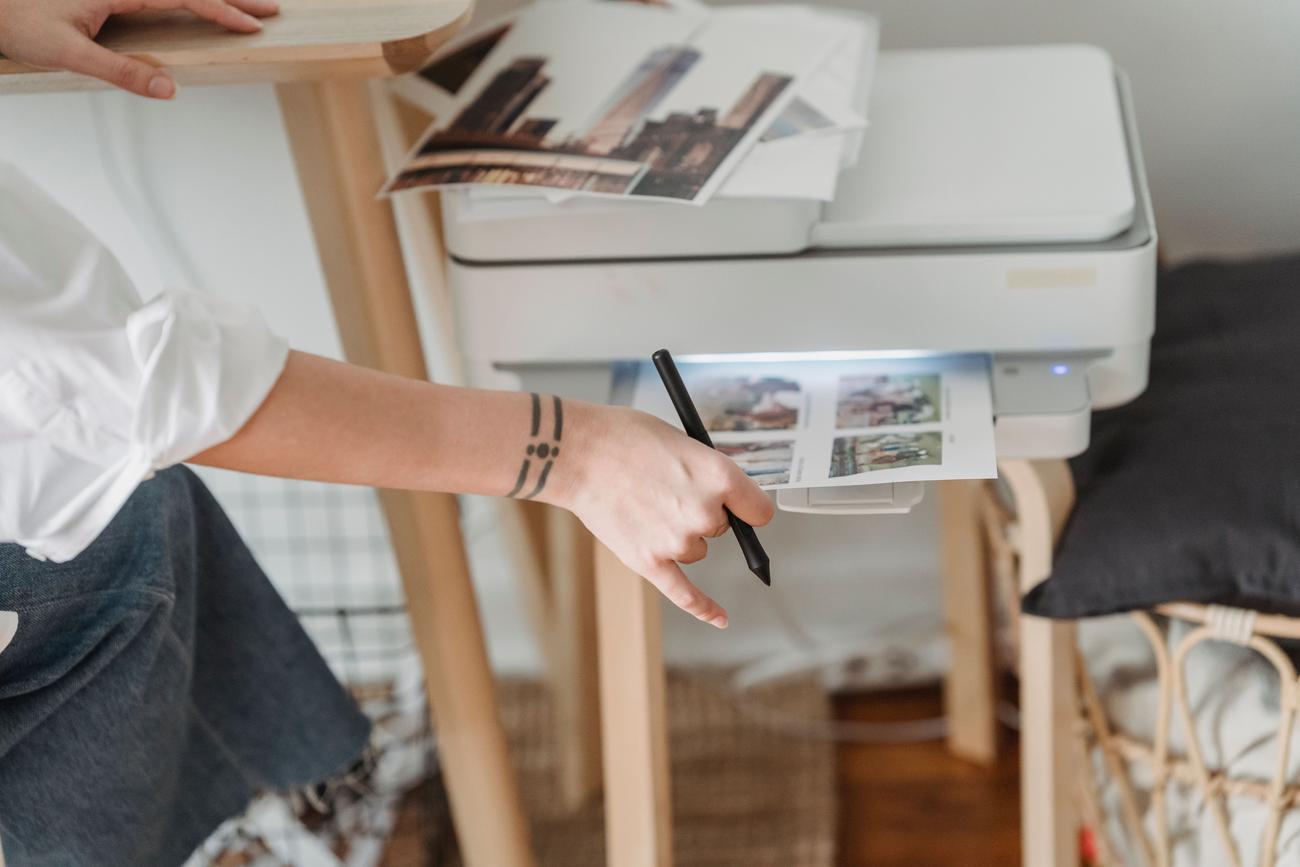
Today, many people think that printing a document or scanning a printout requires a laptop. However, the reality is that relying on a PC is a thing of the past , as technology has advanced so much that we can manage the entire workflow from the palm of our hand or using simple physical devices.
Whether you're too lazy to wait for your computer to boot up or you simply don't have one at home, there are some very clever and straightforward alternatives to make the most of your multifunction device. From using external storage to the magic of Wi-Fi Direct, we're going to break down all the ways to forget about cables and large screens.

Printing using external physical media
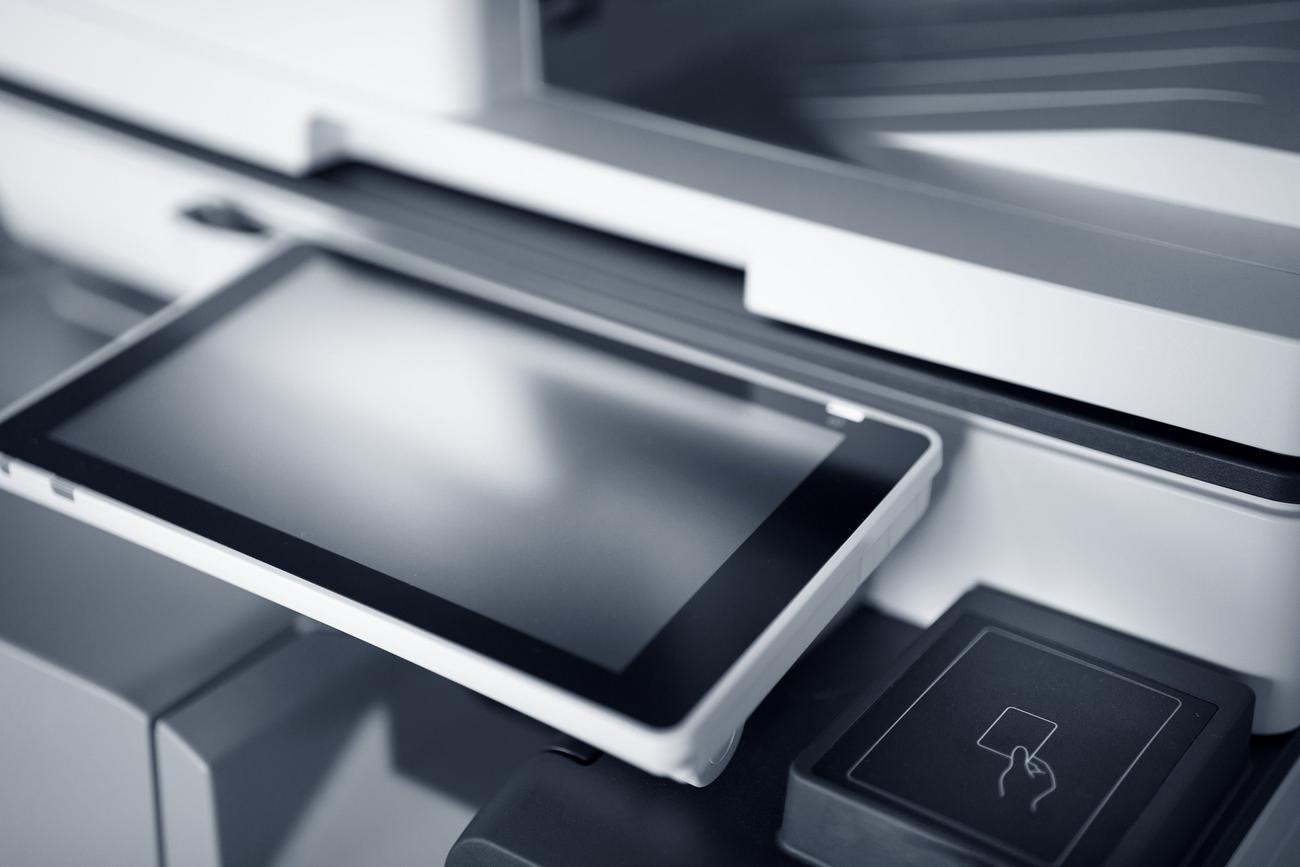
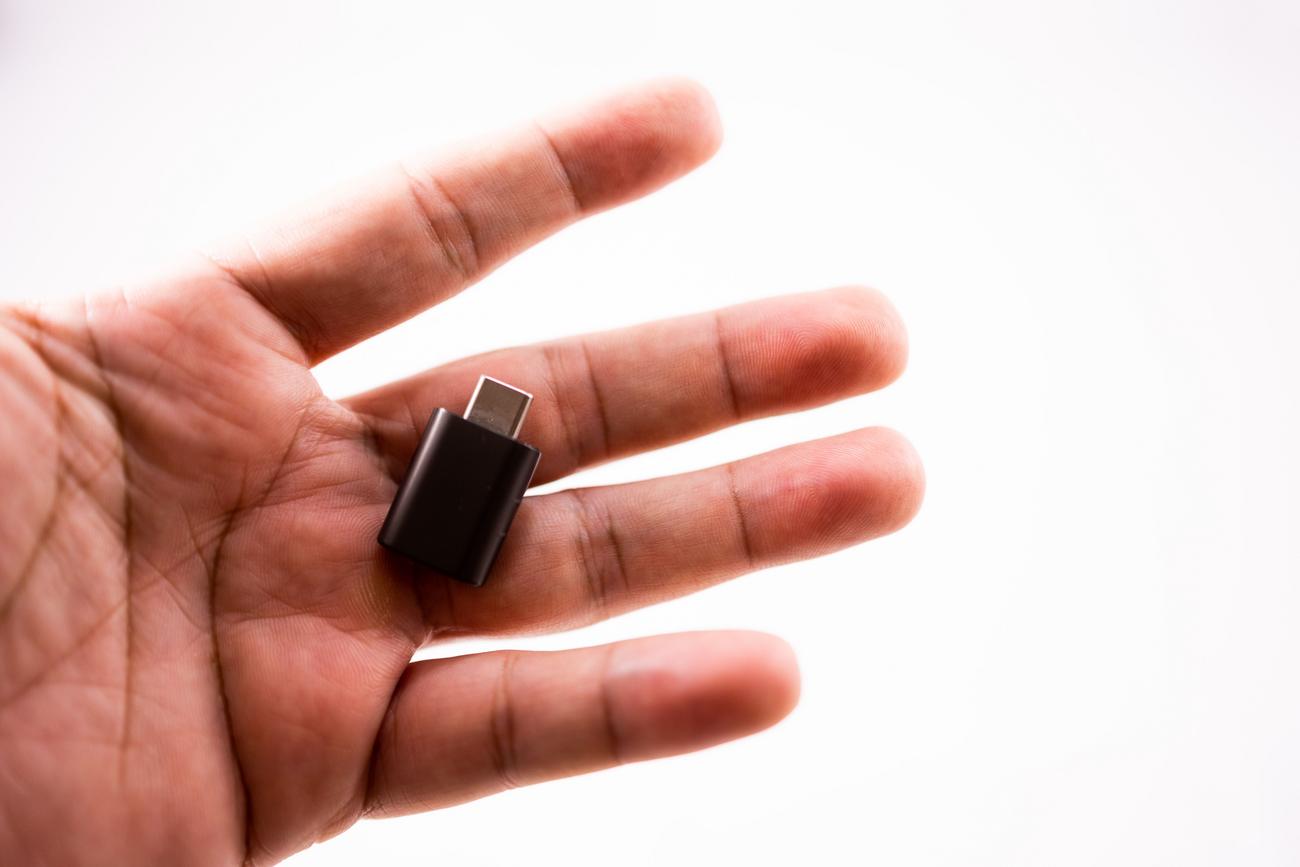
For those who prefer not to deal with complicated digital settings, some printers have dedicated slots that make things easier. For example, printing from USB ports allows you to insert a flash drive with files in PDF, JPG, or TIFF format and print them directly from the printer's control panel.
Similarly, some models support memory card insertion . Simply insert the compatible card, browse the files on the printer's screen, and adjust the print settings before pressing the start button—ideal for printing photos without any hassle.
The smartphone as a command center
Mobile phones have become the go-to tool for avoiding computers. In most cases, if the phone and printer share the same Wi-Fi network , the operating system will automatically detect the device. On Android, for example, simply open the document and select the print option from the settings menu.
If you don't have a router, WiFi Direct technology is a lifesaver , as it creates a direct wireless connection between your phone and printer. There are also other options like NFC , which allows you to pair both devices simply by bringing them close together, eliminating any tedious setup process.

Digitization and scanning without using a PC
Scanning is essentially transferring something from the physical world to the digital realm. While traditionally you would send it to a folder on your computer, now you can scan directly to your mobile phone . Using the manufacturer's official app (such as HP Smart or Brother iPrint&Scan), the digitized document appears on your smartphone screen so you can crop, rotate, or edit it.
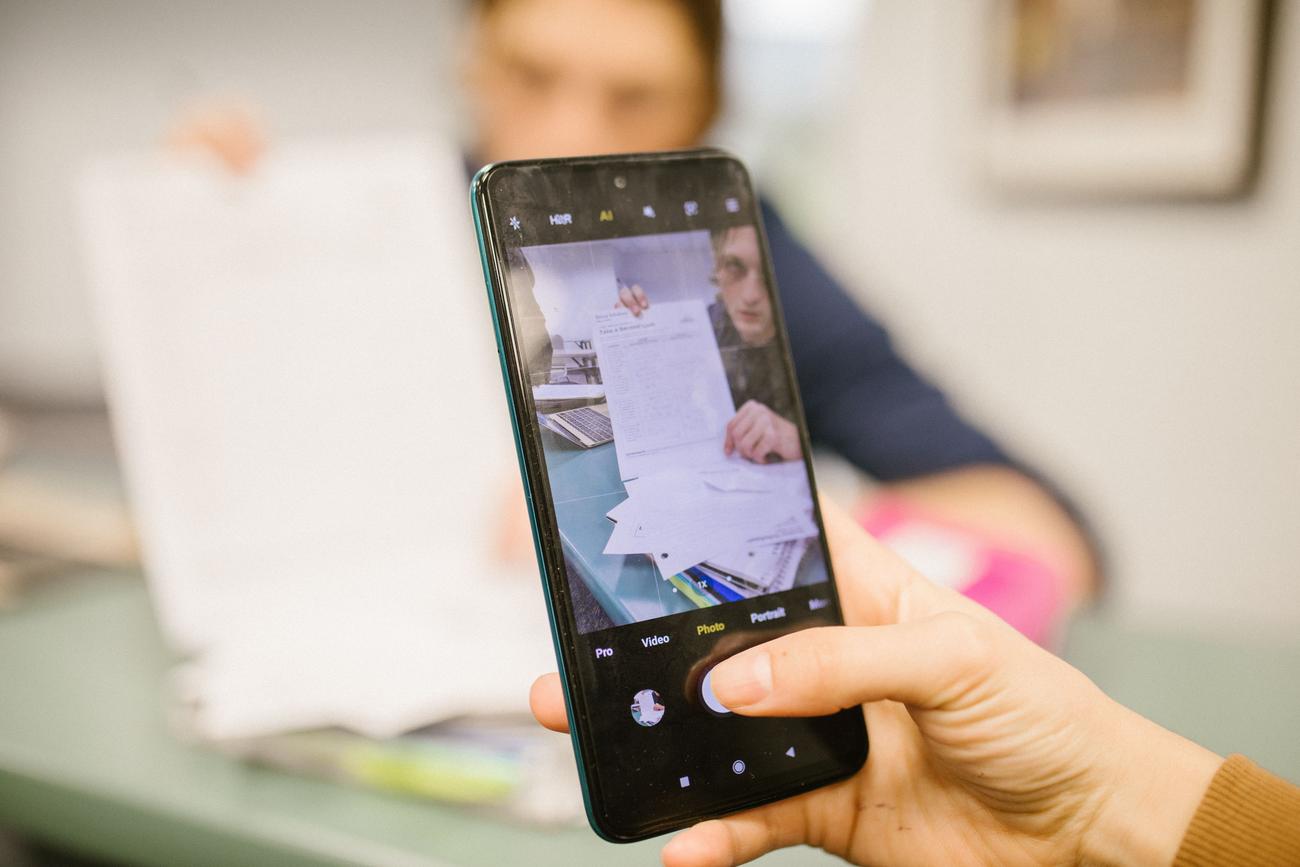
One disruptive option is to use your mobile phone's camera as a scanner . Some modern phones automatically detect the edges of the paper and correct the perspective, generating a clean PDF without needing to place the paper on the printer's glass, which is extremely useful for quick contracts.
Brand-specific tools
Each manufacturer has its own "recipe" for making this easier. In Brother 's case , they offer apps like Mobile Connect that even allow you to monitor ink levels remotely. On the other hand, HP generally requires an account to unlock all the features of its apps, although there are alternative software options if you don't want to register.
If you use Epson or Canon equipment , they have their own utilities (such as Epson Scan or IJ Scan Utility) which, although usually installed on a PC, allow you to configure the equipment so that the physical "Scan" button on the printer acts more autonomously if it has been previously linked.

The cloud: the invisible bridge
Cloud printing is probably the most modern option. It allows the printer to connect to services like Google Drive, Dropbox, or OneDrive . This way, you can upload a file to the cloud from anywhere and, once home, have the printer download and print it without any computer involvement.
The same applies to scanning: you can configure your multifunction printer to send the scanned document directly to a folder in the cloud . This is a boon for those who work remotely and need to organize their paperwork without the cumbersome step of transferring files via cables.
Tips for advanced scanning
If you need to digitize double-sided documents and your scanner doesn't have automatic duplexing, don't give up. You can do it manually by scanning each side separately and then combining the images into a single PDF using a mobile editing app.
For the best quality, remember that you can adjust the resolution (DPI) from the mobile app. A higher resolution will produce a sharper result, although the process will be a bit slower and the final file size will be larger, so it's best to choose depending on whether it's an artistic photo or simple text.
The versatility of today's devices allows anyone, regardless of their technical skills, to manage their documents. Whether through mobile apps, USB drives, or the cloud , the computer is no longer the bottleneck for printing or scanning, simplifying our daily tasks with wireless and direct solutions.
