- PCIe is backward compatible and actual performance depends on the generation and number of active lanes.
- In gaming, upgrading from PCIe 3.0/4.0 to 5.0 barely changes the FPS if the GPU is working at x16.
- In NVMe SSDs, PCIe 4.0 and 5.0 do double speeds and improve heavy data flows.
- Check your slots with CPU-Z and the manual: many physical x16 slots are electrically x8.
If you're wondering which PCIe version is best for a gaming PC , or how to determine the actual generation of your slots, you've come to the right place. Here, we break down, in detail and without unnecessary fluff, what each generation offers, how the lanes affect performance, and what impact all of this has on gaming, video editing, or working with AI.
In addition to clarifying the theory, we'll explore reliable methods for identifying the version/generation of your PCIe slots using tools like CPU-Z and your motherboard's manual. Along the way, we'll debunk some myths: for example, the idea that switching to PCIe 5.0 magically boosts FPS, when in practice the improvement in gaming is usually minimal if you maintain full x16 configuration.
What is PCIe and why does it matter in a gaming PC?
PCI Express (PCIe) is the high-speed interface that connects GPUs, NVMe SSDs, and other expansion cards to the motherboard. Each new generation (3.0, 4.0, 5.0…) doubles the bandwidth per lane compared to the previous one and maintains backward compatibility: you can mix devices and slots from different generations, and everything will operate at the speed of the slowest version on that connection.
For gaming, the priority is usually to install the graphics card in the first x16 slot (the top one) on the motherboard, which is typically the one wired to full x16 and connected directly to the CPU. The other slots may be connected to the chipset or share resources with SATA ports and M.2 slots.
PCIe generations and real bandwidth: 3.0 vs 4.0 vs 5.0
As you move from PCIe 3.0 to 4.0 and then 5.0, the bandwidth per lane doubles. In practical terms for NVMe x4 SSDs, this translates to approximately 3,5–4 GB/s on PCIe 3.0 , up to 7–8 GB/s on PCIe 4.0 , and peaks of 14–16 GB/s on PCIe 5.0 . This is where the significant differences become apparent when moving large files, rendering 8K video, or working with heavy datasets.
With GPUs, the story changes. In games, even with very powerful graphics cards, the performance difference between PCIe 3.0 x16, 4.0 x16, and 5.0 x16 is usually small (approximately 2–6% in tested scenarios with all lanes available). In other words, if your graphics card has 16 free lanes, upgrading from 4.0 to 5.0 won't double your FPS.
The difference is more noticeable when you limit the number of lanes. If, due to configuration or a lack of lanes, you're operating at x8 or x4 , the impact depends on the generation: on PCIe 3.0 x4 you can see drops of around 10% under intensive loads, especially in professional or AI tasks. For gaming, 4.0 x8 or 5.0 x8 is still reasonably sufficient.
Therefore, when choosing a platform, it's worth considering the whole package: a fast NVMe PCIe 4.0 SSD might be much more beneficial for accelerating workflows than obsessing over upgrading the PCIe version of the graphics slot when you're already working at x16.
Slot types: x1, x4, x8, x16 and what they are used for
Motherboards combine PCIe slots of varying lengths. The x1 slot is the shortest and is suitable for light expansions: sound cards, network cards, extra ports, or capture cards that don't require high bandwidth. With PCIe 4.0/5.0, even a modern x1 slot offers ample headroom for moderately demanding tasks.
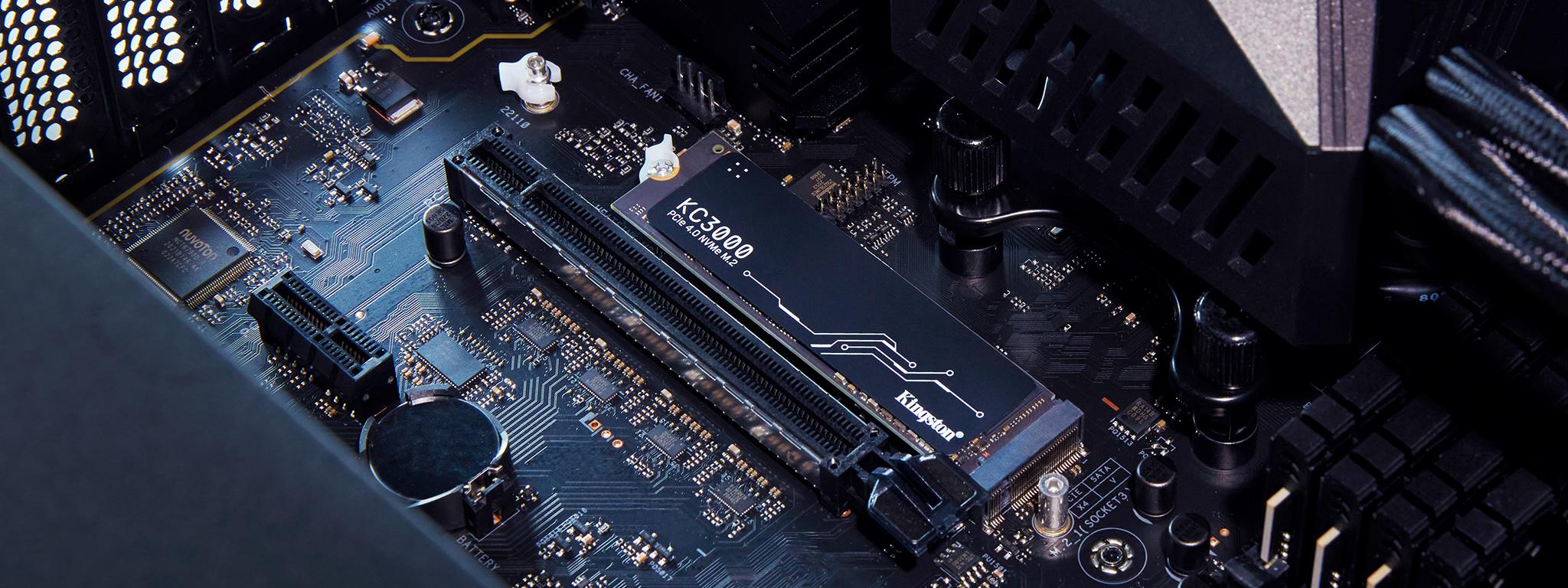
The x4 slot is the "hidden gem" of many motherboards. It's used for RAID controllers, high-bandwidth network cards, more serious capture cards, or M.2/NVMe adapters. In fact, NVMe drives internally use four PCIe lanes, even though they physically come in M.2 form factor.
Starting with x8, you open the door to more demanding devices, including some graphics cards that, in older generations, might be somewhat more restricted without 4.0/5.0. On current platforms, x8 offers very solid performance for many enthusiast hardware.
The queen, of course, is the x16 slot , which is preferred for graphics cards and server-level network or storage expansion cards. Be aware of the difference between "physical x16" and "electrical x16": many motherboards include a second x16 slot that, electrically, is only x8 or less.
PCIe lanes, connection to CPU or chipset and how they are distributed
The number of PCIe lanes your CPU exposes is limited: in terms of power consumption, it's common to have 16 for the GPU and 4 for the primary SSD; the remaining devices rely on the chipset and share resources. On HEDT or server platforms (Threadripper Pro, EPYC, Xeon), you can have 64 or more lanes, allowing multiple GPUs and several x16 cards to operate with fewer limitations.
Whether a slot is wired to the CPU or the chipset matters. The first x16 slot is usually wired to the CPU and performs at its best. Secondary slots, SATA ports, and M.2 slots can share lanes. Filling all the M.2 slots on a motherboard can reduce a PCIe slot to x8, or even disable some SATA ports.
It's very common for the first slot to operate at x16 with a single GPU, but for both to switch to x8/x8 when a second card is installed (for example, in the third slot) . The performance loss in gaming is minimal with PCIe 4.0/5.0, but it's worth knowing if you run workloads that transfer a lot of data between the CPU, RAM, and GPU.
Also remember the "mechanical vs. electrical" distinction: a x16 slot might be wired to x8. Before adding hardware, it's a good idea to check your motherboard's documentation to see what each slot provides, because the physical length can be misleading.
How to find out the version/generation of your PCIe slots
Windows doesn't natively display a clear list like "this slot is PCIe 4.0 x16, that one is PCIe 3.0 x4…". However, there are two reliable ways to find out: use CPU-Z and consult your motherboard's official specifications (website and PDF manual).
Quick method: Install or run CPU-Z in portable mode, go to the "Mainboard" tab, and check "Bus Specs" to see which PCIe version your motherboard is using. Under "Graphics Interface," you'll find the version your GPU is currently using. This usually refers to the first slot (the one for the primary graphics card), so for detailed information on all slots, it's best to consult the manual.
To find the exact model of your motherboard if you're unsure, open "System Information" in Windows (type its name in the Start menu and press Enter) and note down "System Manufacturer" and "System Model". With that information, go to the official product page: there you'll see the PCIe slot table , which slots share bandwidth with which, and under what configurations the modes change.
Real-world examples you'll find in manuals: On an MSI MEG X570 Unify motherboard, a single GPU in the first slot operates as PCIe 4.0 x16 , but if you install two GPUs (slots 1 and 3), both become PCIe 4.0 x8/x8 . On a Gigabyte Aorus X670E, the first slot may advertise PCIe 5.0 x16, although the generation and effective bandwidth depend on the installed CPU and whether you populate any additional M.2 slots.
Compatibility, myths and buying advice
The entire PCIe ecosystem is backward compatible . A 4.0 graphics card will work without issue on a 3.0 motherboard, and vice versa; it will run at the lower speed of the pair. For gaming at x16, the difference between 3.0, 4.0, and 5.0 is usually small, so don't worry too much about bottlenecks if your CPU and GPU are adequate for your resolution and settings.
Who should really pay attention to the version? Those who work with 4K/8K video projects, AI, or data science, or who set up workstations with multiple high-end NVMe SSDs. In those cases, PCIe 4.0 and even 5.0 storage make a tangible difference in copy times and heavy loads.
If you're building a PC today, a motherboard with PCIe 4.0 will cover virtually all your current needs. Upgrading to PCIe 5.0 makes sense as a future-proofing option if you're already using the latest SSDs for very demanding workflows, or if you want headroom for future generations of GPUs and storage, knowing that real-world improvements in gaming are currently limited.
Is PCIe 3.0 out of the question? Not necessarily if you already have it and play games: with a free x16 slot, you'll still get strong performance. But if you're going to buy a new motherboard, opting for PCIe 4.0 (or 5.0) is the sensible thing to do to avoid falling behind as you upgrade your peripherals and storage.
Typical cases and scenarios: what you can expect
– If you switch to a PCIe 4.0 GPU on a PCIe 3.0 motherboard, you'll play fine; the card will negotiate at 3.0 x16, and you'll see a very small FPS difference in most titles. The key takeaway is that compatibility is guaranteed, and the actual impact usually doesn't justify changing your motherboard just for the bus speed.
– Filling several M.2 slots reduces the second x16 slot to x8: with PCIe 4.0/5.0, the effect is marginal for gaming . For intensive computing and transfer tasks, you might notice a slight difference, but you'll still be able to use it if your workloads aren't extreme.
– NVMe SSD: Upgrading from 3.0 x4 to 4.0 x4 doubles sequential speeds and alleviates typical bottlenecks during editing and heavy loading. With 5.0 x4, you'll be flying, although today the jump is most noticeable in very demanding workflows. In games, loading times aren't dramatically reduced by the interface alone, because other bottlenecks come into play.
– Mixed versions: This is fine. Ideally, you should align your motherboard, GPU, and main SSD to the highest available version, but it's not mandatory. The system automatically negotiates to the lowest compatible speed for each link.
Hardware selection: examples and best practices
If you're aiming for high performance, PCIe 4.0 already offers a fantastic balance of price and performance. There are SSDs that reach around 7.000 MB/s (models like the Samsung 980 Pro or WD Black SN850X are well-known examples), and modern GPUs (RTX 3000/4000 or RX 6000/7000) handle 4.0 with ease. PCIe 5.0 in SSDs doubles the performance ceiling again, but it requires good cooling and only makes sense if your workflow truly benefits from it.
On motherboards, chipsets like B550/X570 (AMD) or Z690/Z790 (Intel) have brought PCIe 4.0 to the masses, while newer platforms open the door to PCIe 5.0 in the first GPU slot and/or select M.2 slots. Even so, always check the fine print: which lanes go to the CPU, which ones are dependent on the chipset, and what gets disabled when all the slots are filled.
A practical tip: prioritize CPU, GPU, RAM, and cooling, and choose a motherboard with a PCIe version that matches your actual usage for the next 2-3 years. It's better to have good memory and a solid 4.0 SSD than to force 5.0 where you won't notice any difference. Leave the door open for future upgrades without paying for unnecessary marketing .
If you're intrigued by a common scenario: a graphics card like the GeForce RTX 3060 Ti (PCIe 4.0) on an MSI B450 motherboard will negotiate at PCIe 3.0 and work perfectly; in games, the drop to x16 is minimal, and you don't need to change your motherboard just for that reason if the rest of your system is compatible.
FAQ: Quick questions about PCIe that you should answer
What exactly is PCIe and why is it so relevant?
It's the standard that connects high-performance components to the motherboard. It defines the maximum bandwidth for GPUs, SSDs, and expansion cards; its generation and the number of lanes determine the available bandwidth.
Are all versions compatible with each other?
Yes. PCIe is backward compatible and "negotiates" to the slowest version on each link. You can mix and match without worry, although if the link is downgraded in generation or lanes, the effective bandwidth will also decrease.
Is it worth buying PCIe 5.0 now?
It depends on your usage. If you move huge files, edit 8K, work with AI, or want to extend the life of your platform for several years, then it makes sense. For pure gaming , PCIe 4.0 is more than enough, and the jump to 5.0 offers little improvement in FPS today.
Do all my components need to be the same version?
No. The system works with whatever is available, and each link adjusts to the compatible version and lanes. Ideally, the motherboard, GPU, and main SSD should be aligned, but it's not required for everything to perform well.
Which slot is best for my GPU?
The top x16 slot (the one closest to the CPU) is usually the correct one. Check the manual to see if it's an electrical x16 slot. Many secondary x16 slots are actually electrical x8 slots.
What is the difference between a mechanical slot and an electrical slot?
The mechanical aspect is the physical length (x1, x4, x8, x16). The electrical aspect is the number of actually connected lanes. A slot with a length of x16 can only have 8 active lanes.
How do M.2 slots and SATA ports affect PCIe?
On many motherboards, populating all M.2 slots or using certain SATA ports can cause some PCIe slots to lose lanes or become disabled. The compatibility matrix in the manual explains this in detail.
Does PCIe Gen 4 accelerate NVMe SSDs?
Of course. PCIe 3.0 x4 was already starting to bottleneck some leading NVMe drives; with 4.0 x4 you double the performance ceiling and avoid bottlenecks in large transfers . With 5.0 x4 you take it a step further.
What form factors do NVMe PCIe SSDs use?
In consumer applications, M.2 2280 is the most common. AIC (card) and U.2 are also available; the latter is common in business environments due to its compatibility with server boards.
Does "non-Express" PCI still exist?
Yes, on older motherboards. It's not compatible with PCIe and its performance is significantly lower; it's practically obsolete in modern systems.
I don't want to mount the GPU directly in the slot, is there an alternative?
You can use a quality PCIe riser that respects the required bandwidth and allows vertical mounting or other locations, ensuring good ventilation.
If I had to choose one takeaway: for gaming, the key is a well-powered GPU running at x16 and a capable NVMe SSD. The PCIe generation has less of an impact on FPS than the CPU, the GPU itself, or the graphics settings, while for storage-intensive tasks, PCIe 4.0 (and 5.0 in extreme scenarios) can make a real difference. Choose the PCIe version based on your actual usage, confirm the number of lanes in each slot in the manual, and make sure you don't overload the platform with more devices than it can comfortably handle.
