- A faulty power supply can cause anything from random power outages to blue screens, strange noises, or a burning smell.
- Voltage spikes, excessive heat, age, and lack of power are the most common causes of PSU failure.
- The paperclip method helps to check if the power supply starts, but a technician can measure its actual stability under load.
- Choosing a quality power supply, protecting it with a UPS or power strip, and keeping it clean and well-ventilated greatly extends its lifespan.
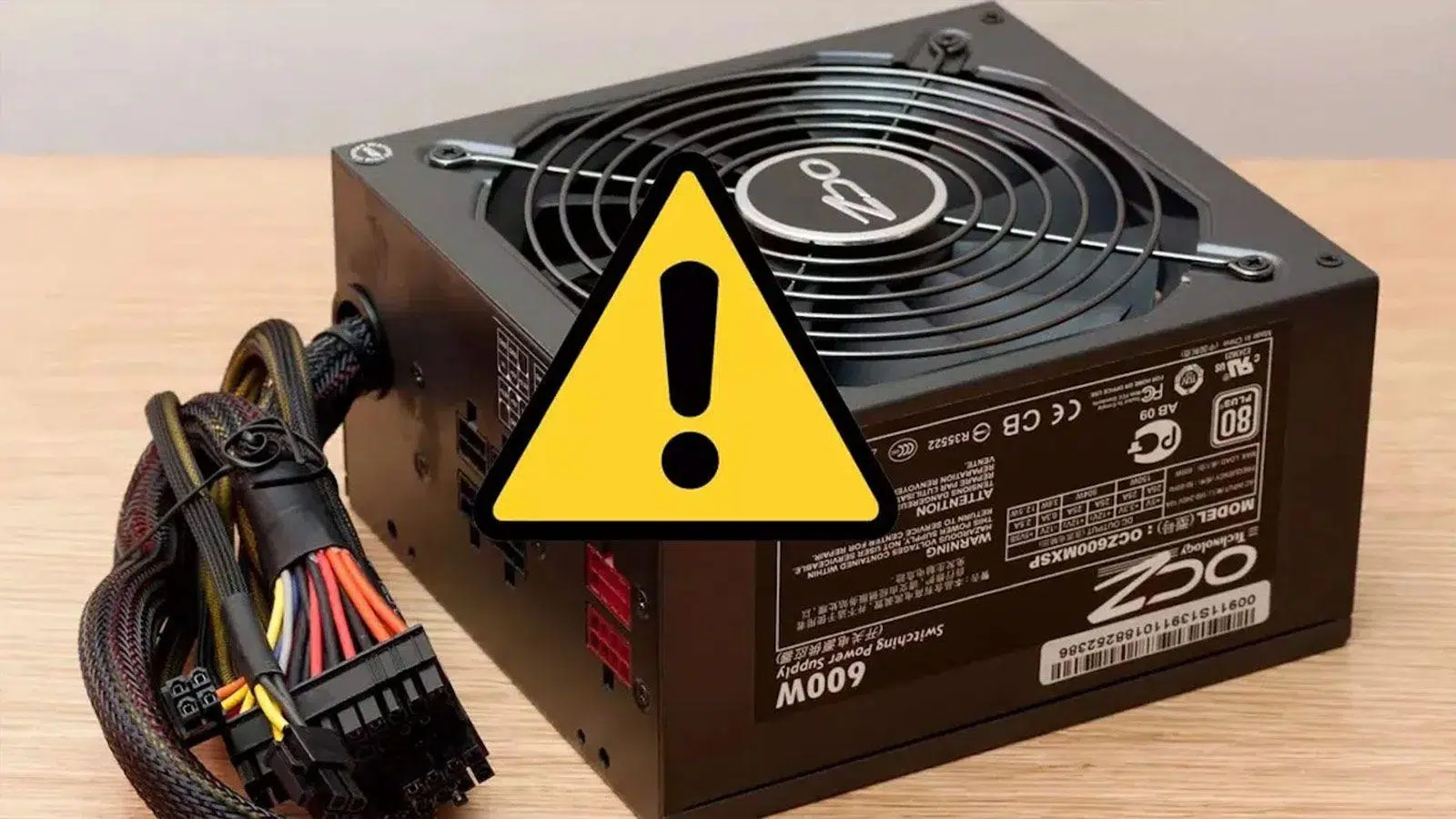
When a computer starts acting strangely—shutting down on its own, not turning on, or smelling like something is burning—we almost always look at the graphics card, RAM, or processor, but we rarely consider the power supply as the source of the problem . However, it's the component through which all the computer's power flows, and if it fails, it can damage the rest of the components.
Before panicking, it's helpful to understand how a power supply unit (PSU) behaves when something is wrong, what symptoms to watch for, and how to safely check if the power supply is failing . We'll also look at why they fail, how to extend their lifespan, and when it's best to leave the computer turned off and call a technician.

Why a power supply might fail
A power supply is not eternal, no matter how good the brand is or how many years of warranty it offers; over time, wear and tear, voltage spikes, or temperature problems arise that can cause the power supply to start behaving unstably or simply stop working.
One of the most important factors is the age of the power supply and the internal wear of its components . Capacitors, MOSFETs, and other electronic elements lose capacitance over the years, especially if the power supply has operated for many hours near its power limit or in a very hot environment.
Electrical interference and the quality of your home or office's electrical wiring also have a significant impact . Unstable power grids, large motors connected to the same circuit, or outdated wiring can generate electrical noise that forces the power supply unit (PSU) to activate its protection systems and, in the long run, damage its internal components.
The dreaded voltage spikes and surges are probably the most common cause of failure . Although modern power supplies include protection against overvoltage, short circuits, and other issues, they are not infallible, especially when the voltage surge is very strong or the electrical installation is faulty. In these situations, part of the internal circuitry can be damaged.
Heat is another silent enemy . If the tower has poor ventilation, is placed against the wall, the dust filter is completely clogged, or the power supply fan fails, the internal temperature of the PSU will skyrocket. Working for many months under these conditions drastically reduces its lifespan and increases the risk of sudden failures.
Finally, there's a cause that's often overlooked: using a power supply with insufficient wattage for the installed hardware . If you install a demanding graphics card or upgrade the processor without checking the PSU, you might be forcing it to run at full capacity. This not only generates more heat but also subjects the internal components to constant stress, accelerating their degradation.
Clear symptoms that the power supply is failing
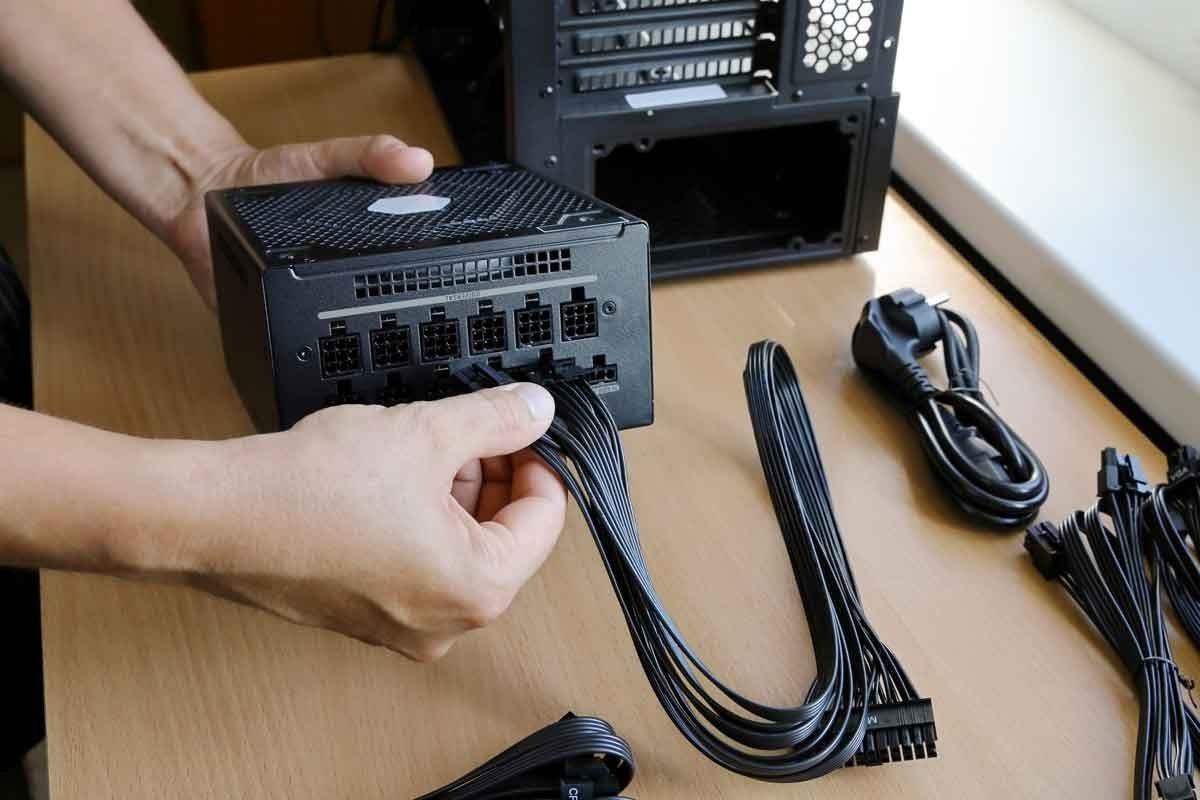
Detecting a faulty power supply isn't always as obvious as the PC not turning on; often it manifests as intermittent failures that seem to originate from other components. Therefore, it's helpful to know the most common symptoms to connect certain unusual behaviors with a potential problem in the PSU.
The PC does not turn on or does absolutely nothing.
One of the most obvious symptoms is that, when you press the power button, the computer shows no signs of life: no lights, no fans, no sounds . Before blaming the power supply, you should perform a couple of basic checks.
The first thing to check is that the power cord is properly connected and the outlet is working . It seems obvious, but a faulty power strip or a switched-off power strip can easily confuse anyone. Try the cord in another device or a different outlet to rule out an external problem.
If that's okay, check the power switch on the back of the power supply and the power button on the case . On some cases, the front power button might be broken or disconnected from the motherboard. If you have some technical knowledge, you can briefly short the power pins on the motherboard (where the button connects) to see if the problem is with the button or if the power supply is actually unresponsive.
When the PC remains unresponsive even with the jumper on the motherboard and the power supply switch on, it's almost certain that the PSU has failed completely . In this scenario, the realistic solution is usually to replace it, as repair is rarely cost-effective for a home user.
The computer shuts down or restarts for no apparent reason
One of the most frequent symptoms of an unstable power supply is that the computer suddenly shuts down or restarts randomly , sometimes as soon as you start a game or when running a demanding task, other times even on the desktop without doing anything special.
This behavior may be due to the power supply being unable to deliver sufficient continuous power when the system demands it, especially when the graphics card and processor are both power-hungry. It's also possible that the PSU's protection circuitry has been damaged by a power surge and is now cutting off the power in response to any anomaly.
However, it's important to remember that sudden shutdowns can also be caused by excessive processor temperatures . If the CPU overheats because the thermal paste is dry or the heatsink is clogged with dust, the system itself will initiate a shutdown to prevent further damage. Therefore, it's crucial to check temperatures with monitoring software before assuming the power supply is the sole culprit.
If the processor cooling is in good condition, the thermal paste is relatively new, and the system fans are clean, the focus shifts back to the power supply unit (PSU). In this scenario, an old, low-quality, or undersized power supply is a very strong candidate for causing random restarts and shutdowns.
Blue screens of death (BSOD) and graphics-related crashes
The infamous Windows Blue Screen of Death (BSOD) is often associated with driver or RAM failures, but it can also be a sign that the power supply is delivering dirty or unstable power . This is especially suspicious when the errors appear when launching a game or a demanding graphics application.
At these times, the graphics card requires more voltage and amperage on the +12V rails, and if the power supply cannot provide that power stably, the GPU or the motherboard itself may generate fatal errors that result in a BSOD (Blue Screen of Death). The error message sometimes refers to the video driver or the graphics card itself.
If, after formatting the system, updating drivers, and checking the RAM, the blue screens continue to appear precisely when the graphics card is under heavy load, there are two clear suspects: the GPU itself or the power supply . A useful test is to install the graphics card in another PC with a known quality power supply; if it works flawlessly there, then the original PSU is likely the culprit. If you don't know which GPU you have, see how to find out which graphics card you have.
Unexpected game and large application crashes
Another less dramatic, but very typical, symptom is that demanding games or programs close on their own without displaying clear messages . You're playing peacefully and, suddenly, the desktop crashes. Or you're working with editing software and, without warning, it closes.
When the power supply doesn't filter the current properly or can't maintain a stable supply under high loads , small spikes or drops can cause erratic behavior in the graphics card or processor. Instead of shutting down the entire system, the failure results in partial crashes, brief black screens, or application closures.
If your power supply has plenty of wattage on paper, but you're experiencing frequent game crashes during peak load, the problem might not be the total wattage, but rather the internal quality and electrical stability . This is a very common issue with cheap or OEM power supplies that promise high wattage but lack quality components.
Strange noises from the power supply fan
When the power supply fan starts making metallic noises, squeaks, or knocks as if something were rubbing against the blades , it's a sign that the bearings are nearing the end of their life or that there is excessive dirt buildup.
These noises may not mean the power supply's electrical circuitry is damaged yet, but they do indicate that the cooling system isn't working properly . If the fan fails completely, the PSU will overheat and eventually fail prematurely, often with a scare in the form of power outages or even a burning smell.
Sometimes a thorough cleaning, removing lint and coarse dust, is enough to get the fan running smoothly and quietly again. But if the noise is clearly coming from the bearings and doesn't go away, it's advisable to replace the fan or even the power supply if you're inexperienced or the warranty is still valid.
Smell of burning, sparks or smoke: fountain on the verge of collapse
The clearest and most dangerous symptom is noticing a burning smell coming from the tower, hearing a small clicking sound, or even seeing smoke . At this point, there's no doubt: something serious has gone wrong inside, usually a blown capacitor or a major problem with the surge protection system.
If, while using your PC, you hear a "pop," the computer suddenly shuts down, and you immediately smell burning electricity, the safest thing to do is unplug the computer from the power outlet immediately . Do not try to turn it back on or disassemble the power supply if you are not sure what you are doing, as some components may retain an electrical charge.
Often, when you open the PSU (something not recommended unless you're a technician), you'll see swollen capacitors, oxides, or traces of dried liquid . This confirms that the power supply has reached the end of its lifespan and must be replaced urgently, because using it in that condition can damage other components or pose a fire risk.
Another worrying indicator is the appearance of very irregular coil whine noises , with beeps that rise and fall in intensity every few seconds, accompanied by system instability. Along with bulging capacitors, these sounds are a sign of advanced internal degradation.
The PC starts up, but shuts down after a few seconds
There are cases where, when the power button is pressed, the computer turns on fans and lights for a few seconds and then shuts down by itself . Sometimes it gets stuck in a boot loop without ever loading the operating system.
This behavior could be due to either an unstable power supply or faulty connections . Therefore, before blaming the PSU entirely, it's worth checking that the 24-pin ATX connector, the CPU EPS cable, and the graphics card's PCIe connectors are firmly seated on the motherboard and components. If you're unsure how to identify them, consult our guide on how to view your PC components.
If everything is properly connected and the problem persists, the power supply may be detecting an internal fault or overload and cutting off power as a safety measure . Many modern motherboards have diagnostic LEDs that can indicate CPU, RAM, or GPU errors; if these light up just before the system shuts down, it's worth ruling out those components. But if there are no clear warnings, the power supply is again the prime suspect.
How to check if your power supply is failing: the paperclip method and safety
Besides looking at the symptoms, you can perform a basic test to check if the power supply is at least capable of starting up and powering its own lines . The most popular method is the well-known "clip jumper" on ATX power supplies, which should be done carefully.
The first step is to turn off the power supply's rear switch or unplug the power cord . For safety, never work on the power supply while it's plugged in and you're handling the main power connector. If you want to be extra thorough, you can also discharge any residual power by pressing the PC's power button for a few seconds with the power cord disconnected.
Next, it's recommended to disconnect all the power supply cables that go to the motherboard, graphics card, and other components . If you're unsure which cables to use, consult your computer. This isn't mandatory, but it helps prevent any component from receiving unstable voltage during the test and allows you to focus on the PSU's performance on its own.
With the power supply off, locate the 20/24-pin ATX connector . On this wiring harness, there will be a single green wire (PS_ON) and several black wires (COM or ground). The paperclip method involves bridging the pin of the green wire with any of the adjacent black pins.
To do this, use a well-insulated metal clip or a piece of stiff wire . Place the ends on the corresponding pins, making sure they don't touch any other contacts. Once the jumper is in place, connect the power cable and turn on the power supply's rear switch.
If everything is set up correctly, the PSU fan should start spinning . In some semi-passive power supplies, the fan only activates under a certain load, so the blades might not move even when the power supply is on; in these models, you can usually hear a slight whirring sound, or you can check with a multimeter for voltage at the Molex or SATA connectors.
When, after correctly bridging the connections, the power supply shows no signs of life (no fan, no noise, no voltage at the outputs), it's normal to assume the PSU is faulty and needs replacing . However, this test only confirms whether the power supply "starts" or not; a power supply can turn on but remain unstable under load and cause the problems described earlier.
If you're not comfortable handling connectors or aren't sure you're doing it correctly, the wisest course of action is to take your device to a specialized repair service . They can measure the voltages with the appropriate tools, test the power supply unit (PSU) under different load levels, and accurately confirm whether the power supply is the problem.
How to prevent your power supply from breaking down prematurely
There's no magic formula to make a power supply last forever, but there are best practices that greatly help extend its lifespan and reduce the chances of failure . Ultimately, we're talking about a critical component that deserves more care than others.
Choosing the right power (and not always going for the bare minimum)
When buying a power supply unit (PSU), it's vital to accurately calculate your system's total power consumption and allow a reasonable safety margin . If your configuration draws around 450W at maximum load, there's no point in installing a 500W PSU, as it will be operating near its limit almost constantly.
Ideally, you should choose a power supply with slightly more wattage than recommended for your CPU and GPU , especially if you plan on future upgrades. Operating within a moderate load zone improves efficiency, reduces internal temperature, and significantly extends the lifespan of your components.
Avoid OEM sources and opt for reliable brands
Cheap OEM power supplies, often found in many pre-built PCs, may seem like a bargain, but they typically use low-quality components and very basic protections . This results in more electrical noise, less stability, and a higher probability of premature failure.
Although they may cost a bit more, it's much better to opt for well-known brands with good technical reviews and, if possible, several years of warranty (some manufacturers offer up to 10 years). Keep in mind that efficiency certifications (80 Plus, Bronze, Gold, etc.) are a good indicator, but they don't guarantee quality on their own; it's advisable to look at in-depth analyses.
Protect the power source from power surges and outages
If your area experiences frequent power outages, thunderstorms, or voltage fluctuations, it's highly recommended to use some form of additional protection for your power supply and the rest of your equipment . Two common options are UPS systems and surge protectors.
An uninterruptible power supply (UPS) not only gives you a few extra minutes of power in case of an outage, but it also filters voltage spikes and dips, delivering a much more stable current to your PC. Ideally, you should use an in-line or mid-range/high-end UPS, although the price increases with the power you need.
If you're on a tight budget, you should at least have a surge protector . These power strips have an internal mechanism that cuts off the power when they detect a dangerous spike, preventing it from reaching the power supply and other computer components.
Keep the source clean and well refrigerated
Dust is the number one enemy of any PC, and the power supply is no exception. To extend its lifespan, it's important to perform regular cleanings to prevent dust from accumulating on the fan and ventilation grilles . With a soft brush and a blower or air compressor, you can remove most visible dirt without needing to open the PSU.
Unless you have electronics expertise and the warranty has already expired, it's best not to open the power supply casing . Besides voiding any remaining warranty, you could damage sensitive internal components or expose yourself to residual electrical charge.
It's also crucial to ensure proper ventilation of the computer case and the correct placement of the power supply . Don't place it against a wall that obstructs airflow, use dust filters in the intake area, and make sure there's adequate airflow throughout the chassis.
A healthy, high-quality power supply is the foundation of any stable PC ; understanding its symptoms, knowing how to check it, and giving it a minimum of care with good ventilation, cleaning, and electrical protection can save you a lot of trouble, data loss, and even having to replace expensive components prematurely.