- The cluster size is the smallest unit of storage that determines space efficiency and disk performance.
- A small value saves space by avoiding waste on tiny files, while a large one speeds up the reading of large files.
- The default 4 KB setting is the most balanced for most NTFS SSD users.

I'm sure that at some point, when formatting a new hard drive or USB flash drive, you've come across an option called allocation unit that leaves you a bit confused. It's simply the cluster size, a setting that, although it may seem like a minor technicality, can make all the difference between your storage being lightning fast or, conversely, wasting gigabytes of space without you even realizing it.
To understand it simply, think of a cluster as the smallest container where the operating system can store a piece of information. If the file is smaller than the container, the system still stores it, but the remaining space in that block is unused, creating a difference between the actual size of the file and the space it occupies on the disk.
What exactly is cluster size?
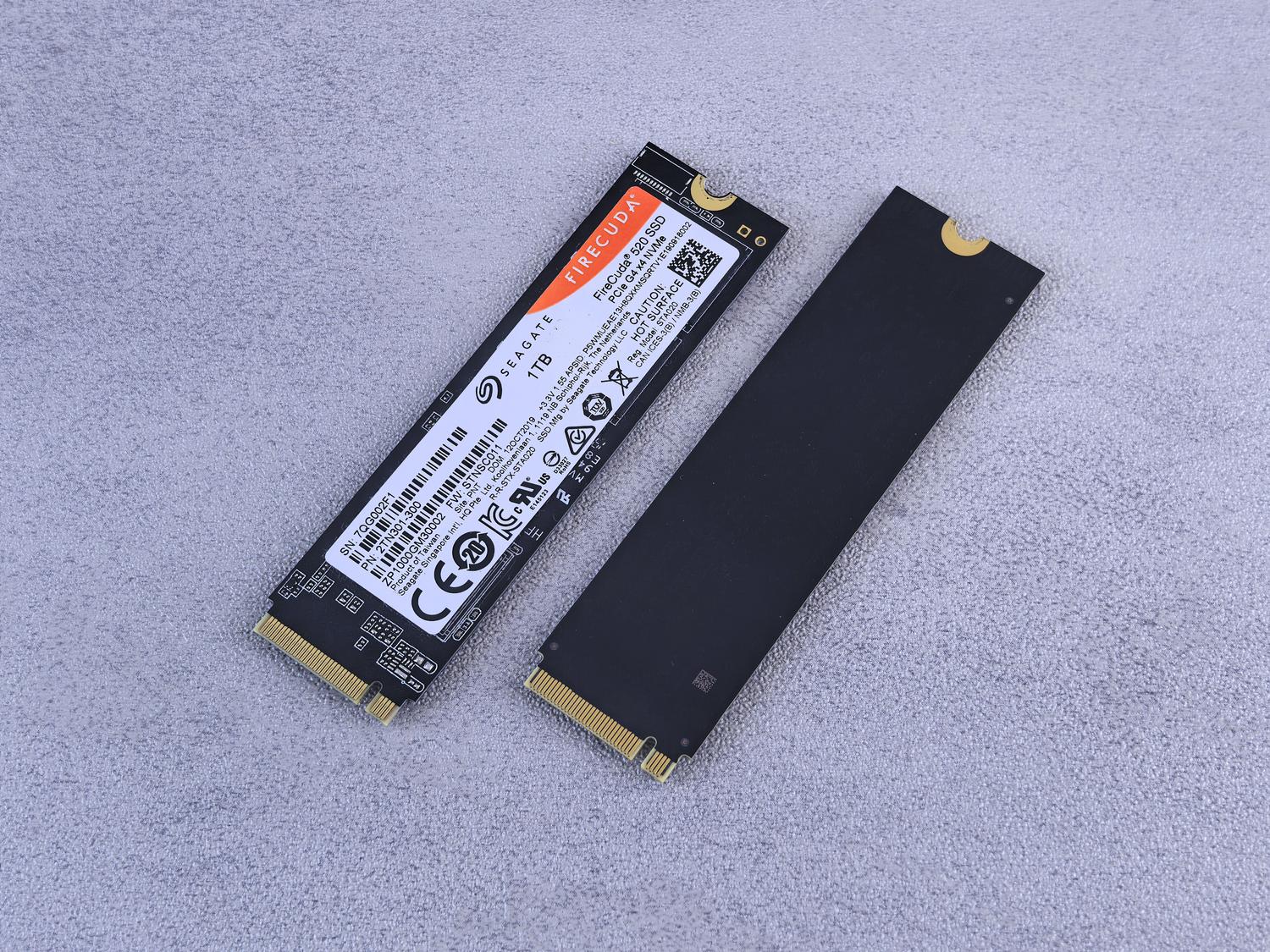
A cluster is essentially a group of contiguous sectors on the physical drive. The file system (whether NTFS, FAT32, or exFAT) organizes data based on this size. If you have a 4 KB cluster and save a text file that's only 1 KB, the system will automatically allocate 4 KB , leaving 3 KB empty that no one else can use. It's like trying to fit an apple into a rectangular container; even though the apple is small, the container takes up the same amount of space in the refrigerator.
In mechanical hard drives (HDDs), this was critical due to physical fragmentation, but in SSDs, even though reading is electronic and ultrafast, managing NAND flash memory blocks remains fundamental. An incorrectly chosen block size can cause the drive to overwork or accelerate cell wear due to an excessive number of write operations.
When is it advisable to change the default size?
The general rule is that, unless you're an advanced user, it's best to leave it at the default value . Windows typically allocates 4 KB for most internal drives, which is a great middle ground. However, there are specific situations where tweaking this setting makes sense:
- Giant file storage: If you use the SSD exclusively for storing 4K movies, large video files, or huge databases, increasing the cluster size to 8 KB, 16 KB, or even 64 KB may improve transfer speedbecause the system has to manage fewer blocks to read the same file.
- Many tiny files: If the disk is going to contain thousands of text documents or very small configuration files, a small cluster will prevent the waste of space be massive.
- Optimization based on hardware: Some users use tools like ATTO Disk Benchmark to see at what block size their SSD reaches the peak performance and adjust the allocation unit accordingly.
Relationship between the file system and the cluster

The format you choose limits the size options available to you. NTFS is the standard for Windows due to its versatility and speed, allowing for a wide range of clusters. On the other hand, FAT32 is more limited but offers excellent compatibility with older devices and consoles, although its size management is more rigid.
If you need the drive to be readable on both Mac and Windows, exFAT is the ideal option . It's important to remember that cluster size affects fragmentation; although SSDs don't require defragmentation like HDDs, an extremely small cluster size can cause a file to be spread across too many blocks , slightly impacting efficiency.
Methods for modifying the allocation unit size
It's important to understand that changing the cluster size using native Windows tools will format the drive . This means you will lose absolutely all your data, so creating an external backup is mandatory.
Via Disk Management and File Explorer
This is the most direct way. Right-click on the partition and select Format ; you'll see the "Allocation unit size" dropdown menu. Simply choose the desired value (for example, 64 KB for large files) and confirm the process. You can also do this from Disk Management by creating a new volume from scratch and specifying the size in the wizard.
Use of specialized software
Third-party tools like EaseUS Partition Master, IM-Magic Partition Resizer, and Acronis Disk Director promise to simplify the process. Some of these utilities allow you to resize the cluster more intuitively or, in some specific cases, offer methods to avoid a full format through cloning and subsequent adjustment, although backing up your data is always recommended.
Check the current size using CMD
If you're curious about your current disk configuration, you don't need to install anything. Just open the Command Prompt (CMD) run the command as administrator fsutil fsinfo ntfsinfo X: (replacing the X with the letter of your drive). Look for the line that says Bytes per clusterIf it reads 4096, it means you are using the 4 KB standard.
Special cases: Azure and Virtual Machines

In cloud environments like Azure, management is different. Here, we're not just talking about clusters, but also about managed disk types (Premium, Standard, and Ultra SSDs). It's possible to migrate between these types to improve performance, but it requires restarting the virtual machine. To switch to a Premium v2 SSD , for example, the disk must have a logical sector size of 512 bytes, and features like host caching and bursting must be disabled before performing the conversion.
Choosing the allocation size is a constant balancing act between space utilization and data access speed. While the 4 KB standard is unbeatable for general use, those handling massive volumes of multimedia data can gain efficiency with larger blocks, always keeping in mind that any manual changes in Windows require erasing the drive. The key is to analyze what types of files predominate on the disk and, if in doubt, rely on the system's automatic configuration to avoid unnecessary complications.