- Flickering is usually caused by software errors, external interference, or critical hardware failures such as swollen batteries.
- There are built-in diagnostic tools and system settings that allow you to mitigate the problem without resorting to technical support.
- Cleaning the proximity sensor and managing the refresh rate are fundamental steps to stabilize the display image.
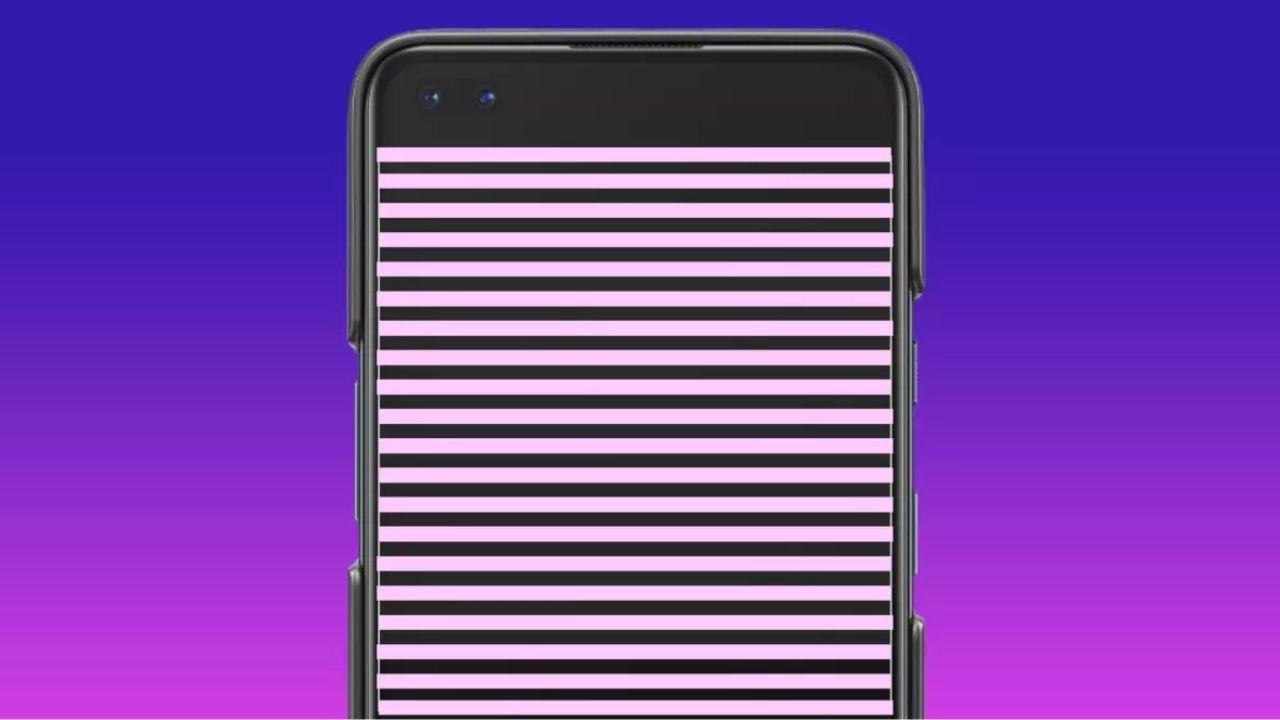
Seeing your smartphone screen start flickering can be quite alarming, as your first thought is that the device has died or that it's going to cost an arm and a leg to repair. However, the reality is that in most cases, you don't need to rush to a repair shop , as there are plenty of tricks you can try from the comfort of your couch to eliminate those annoying lines or visual flickers.
This phenomenon, technically known as flickering , is usually the result of a problem with the operating system's handling of information. While there can sometimes be a physical issue with the panel, most of the time it's a fixable error. To avoid panicking, it's best to rule out possibilities one by one, analyzing whether the problem is external, software-related, or, in the worst-case scenario, hardware-related.
Preliminary steps to rule out serious damage
Before you start adjusting your phone's internal settings, it's essential to check that the glass and panel aren't physically damaged, as this could obstruct visibility. To be sure about the actual condition of your screen, it's best to run a hardware test . If you have a Samsung device, you can use the secret code *#0# in the phone app to run the manufacturer's official tests.
For those who don't use Samsung, there are apps like Display Test that analyze sharpness, colors, and detect dead pixels or damaged areas . If the test comes back clean, the problem is likely something much simpler to fix than a cracked screen.

Another key point is to check the accessories. Sometimes, flickering occurs due to excessive pressure from the case or interference caused by metallic elements inside the casing. I recommend removing any cases, stickers, or screen protectors that might be obstructing the sensors or generating static electricity. It's even advisable to move the phone away from other powerful electronic devices to rule out electromagnetic interference.
Don't forget to take a close look at the corners of the device. Even if you don't see an obvious crack, a hard knock or a drop could have loosened an internal connector. Also, if the phone has recently gotten wet, the moisture might be causing short circuits, which manifest as constant flickering on the display.
Hygiene and physical condition of the device
It might seem trivial, but accumulated dirt can wreak havoc. The proximity sensor , in particular, can be affected if covered in dust or grease, confusing the system and causing erratic screen brightness. To fix this, the best solution is to use a clean microfiber cloth and carefully remove any traces of dirt, making sure the case is off during the process.
There's a much more serious symptom you should watch out for: if you notice the phone's body is slightly bent or the battery is swollen , turn the device off immediately. When lithium batteries degrade, they generate gases that push against the internal components, pressing on the panel and causing the screen to flicker. This is extremely dangerous as it could lead to a fire or explosion if the battery ruptures.
On the other hand, there are curious cases where the problem only appears when the battery level is very low . Some models, when the battery drops below 5%, have difficulty supplying the necessary power to all the panel's functions, which generates this vibration effect. If you notice it only happens at the end of the day, the solution is simply to charge your phone on time.

Software settings to eliminate flickering
If the problem persists after cleaning and checking the hardware, it's time to delve into the settings menus. Many modern Android devices include DC Dimming technology , which optimizes brightness management to prevent flickering. You can find this option in Settings > Display and try enabling or disabling it to see which setting works best for your screen.
Automatic brightness can also be the culprit. Sometimes, the phone's GPU gets overloaded trying to process both ambient light and the image simultaneously, causing streaks or jumps in the image. Try disabling automatic brightness and adjusting the light intensity manually; this often reduces the load on the processor and stabilizes the image.
For more advanced users, there are options in the developer menu that can help. First, you need to activate this menu by tapping seven times on the build number in the device information. Once inside, look for the hardware rendering acceleration section and disable the "Show GPU updates" and "Show hardware layer updates" options, as they might be interfering with the screen refresh rate.
Sometimes, a simple system restart is the magic cure for temporary errors. If restarting doesn't work, try letting the battery drain completely until the phone shuts down on its own; this helps eliminate static electricity that has built up in the circuits, which is sometimes the cause of flickering.
Problems with apps and the camera
If you suspect a poorly optimized app is causing the problem, the best thing to do is start your smartphone in safe mode . If the screen stops flickering in this mode, it means the problem is being caused by a third-party application. In that case, you'll have to uninstall the most recently installed apps one by one until you find the culprit.
Don't despair if you don't find an immediate solution; sometimes the problem is specific to a particular model, and the manufacturer is already working on it. Keep an eye out for system updates , as software patches often fix these types of display bugs. Don't hesitate to contact your manufacturer's technical support so they can expedite the release of a solution.
If the flickering only occurs when you're using the camera, it's probably not a problem with your phone, but a physical effect called frequency interference . This happens under LED or fluorescent lights that aren't always bright. To reduce it, go into your camera's video settings and enable anti-banding mode or lower the frame rate. The best solution in these cases is to always use natural lighting.
If none of this has worked, it's very likely that the camera app is corrupted or there are conflicts between apps that use the sensor. Try installing an alternative camera app from the official store. If the problem persists, it's a clear sign that the touchscreen hardware has failed and you need professional help.
When all DIY solutions have failed, the wisest course of action is to contact an authorized repair service . A professional will be able to diagnose whether the display connector has come loose or if the entire panel needs replacing. If the device is still under warranty and shows no signs of damage or moisture, the repair will be completely free of charge.
To fix a flickering mobile phone screen, it's essential to troubleshoot from the simplest solutions, like removing the case or cleaning the proximity sensor, to more complex settings such as DC Dimming or Safe Mode. If the problem persists after restarting and updating the software, or if you notice the battery is swollen, it's best to take the device to a certified technician to avoid further damage and restore the original image quality.
