- A Wi-Fi QR code encodes the network name, security type, and password into a standard format that mobile phones understand when they scan it.
- Tools like QiFi or dedicated apps allow you to generate these codes locally and securely, without sending your credentials to external servers.
- Sharing the network via QR codes simplifies access in homes, businesses, tourist accommodations, hospitals, and public offices, preventing errors and improving the experience.
- For the QR code to always work, it is essential to keep the SSID, encryption, and key data updated when they are changed on the router.
If you're tired of spelling out your WiFi password every time someone comes to your house, or sticking it on a piece of paper behind your business counter, it's time to modernize: WiFi QR codes allow you to connect to the network simply by scanning with your mobile phone, without typing a single character.
This system is fast, convenient, and much more secure than sharing your password with everyone. With a single QR code, you can allow visitors, clients, or patients to connect to your network without explicitly seeing the password, and without you having to provide technical support every five minutes.
What is a Wi-Fi QR code and how does it work?
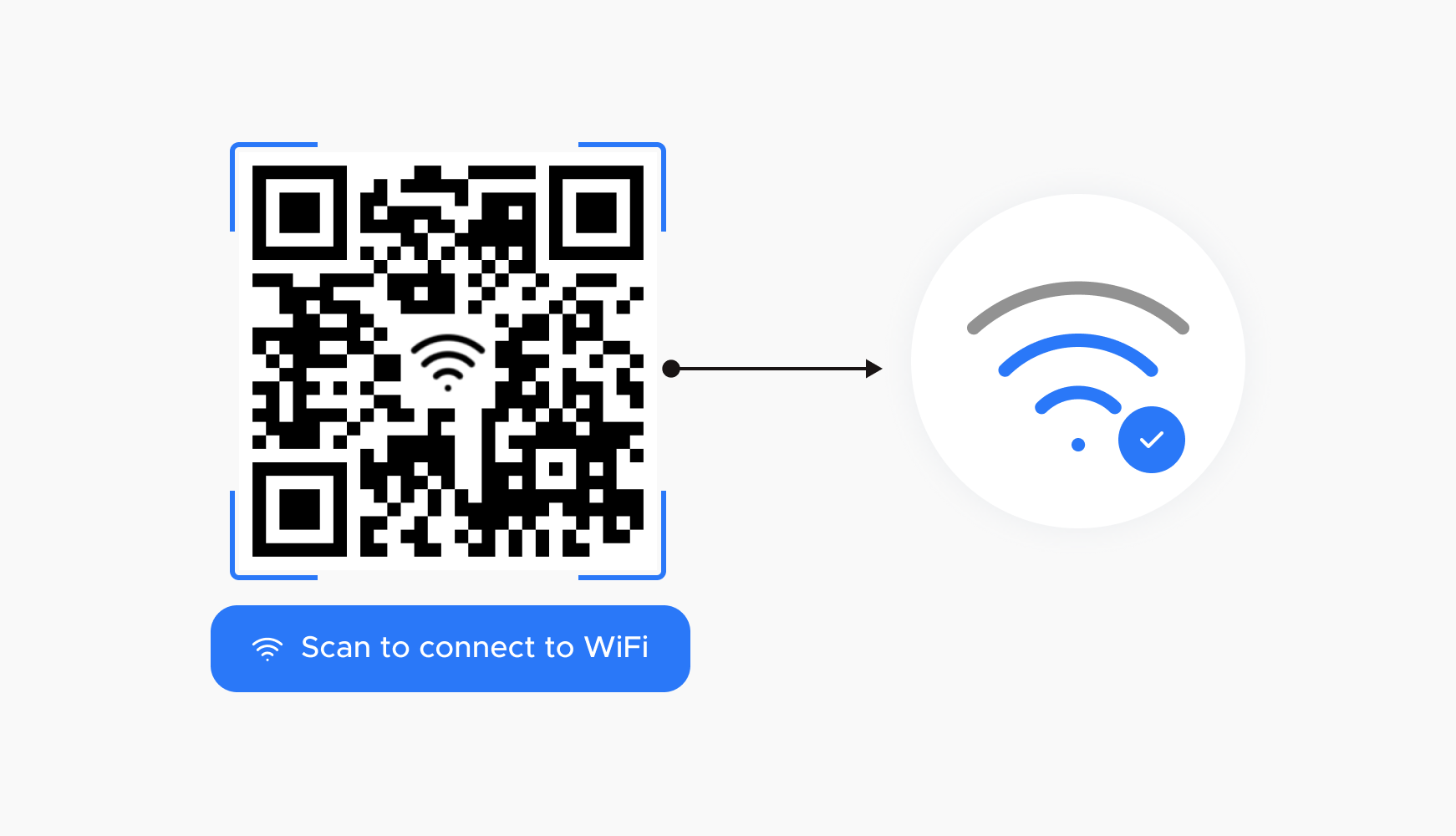
A Wi-Fi QR code is essentially a two-dimensional barcode that stores your wireless network's information in a format that mobile phones can interpret. When scanned, the phone recognizes it as a Wi-Fi network and offers to connect automatically using that information.
The information is stored following a standard format that most readers usually understand: a special text string that begins with WIFI: and includes security type, network name, password and whether the network is hidden or not.
A typical example of a string would be something like this: WIFI:T:WPA;S:MyNetworkName;P:ThisIsMyPassword;; . You don't need to memorize this structure, but it's helpful to understand what each part means in case you ever want to generate it manually or check for errors.
What data exactly does a Wi-Fi QR code store?
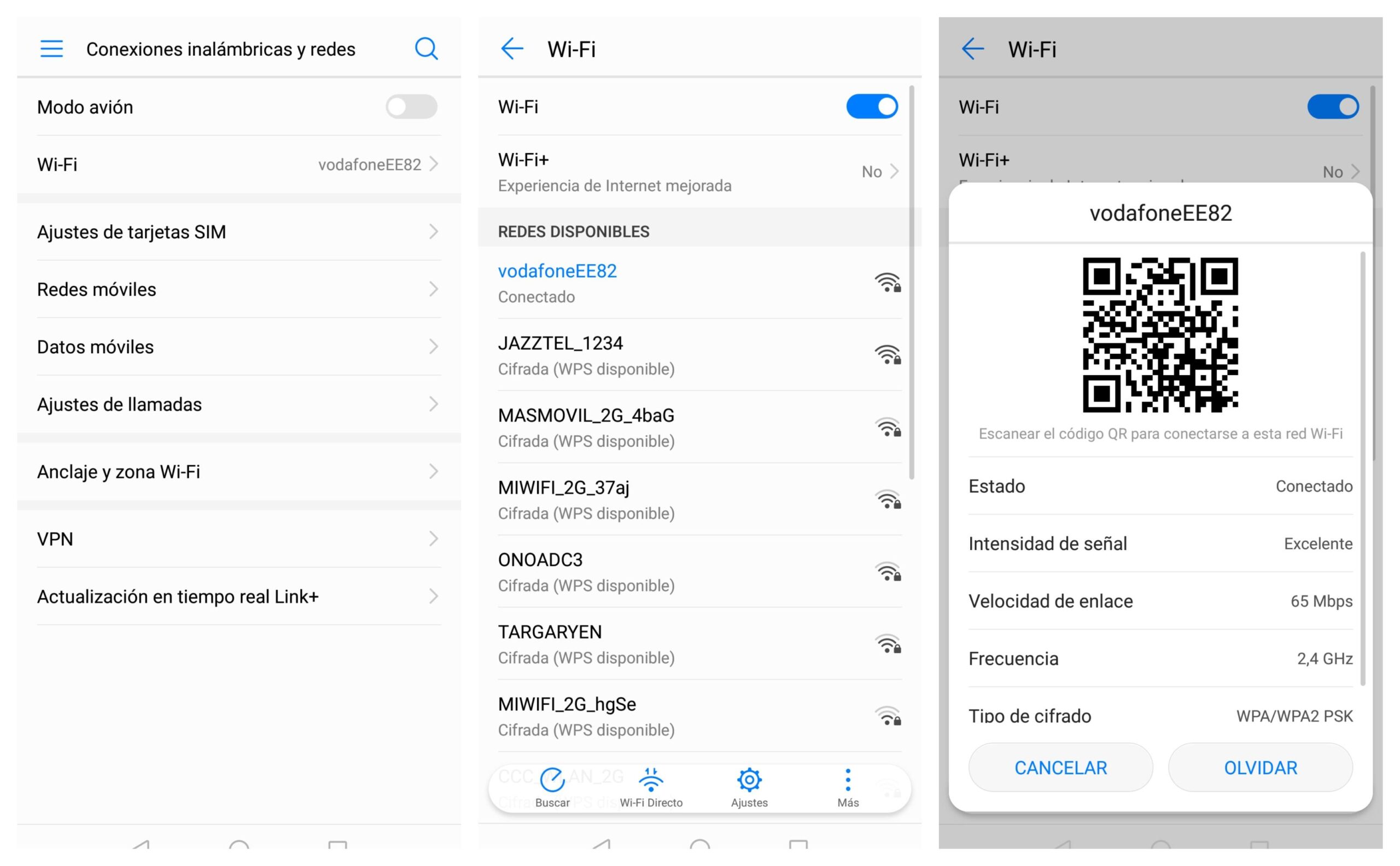
Hidden within the QR code is a string of text containing several key parameters that define how to connect to your network . Although they can appear in any order, they must be configured correctly for everything to work.
The most important parameters that a Wi-Fi QR code can contain are the following, always using the WIFI prefix at the beginning:
| Parameter | Example | Description |
| T | WPA | Authentication type; it can be WEP or WPA, or leave it blank if the network is open and has no password. |
| S | MyNetworkName | SSID or WiFi network nameIt is mandatory; without this information, there is no way to identify which network to connect to. |
| P | ThisIsMyPassword | WiFi network passwordIt can be empty if the parameter T indicates that there is no encryption. |
| H | true | Indicates if SSID is hiddenIt is optional; it is set to true when the network name is not shown in the list of available networks. |
In practice, as long as you respect the basic information (security type, username, and password), the QR code will be recognized without problem by most mobile phones . The order of the parameters is not critical, as long as they are spelled correctly and the string ends with a double semicolon (;;).
Many online generators use this format: WIFI:S:;T:<WPA|WEP|>;P:;; . You replace this with the network name, the encryption type (WPA/WEP or blank if there is no security), and the key. This string is then converted into a QR code, which is what you will ultimately print or display on screen.
How to connect to a Wi-Fi network by scanning a QR code
Scanning a Wi-Fi QR code is very simple, and on most current mobile phones, you don't need to install any special app . The general process is similar on Android and iOS, although it may vary slightly depending on the model.
To check if the code works, open your phone's camera app or built-in QR code reader , point it at the code, and wait a couple of seconds. If everything is working correctly, a notification or pop-up window will appear on your screen inviting you to connect to the corresponding Wi-Fi network.
If you don't see any messages, check your phone's settings to see if the QR code scanning option is enabled for the camera. Many manufacturers include it, but it may be disabled or hidden in an advanced features menu.
If your phone doesn't detect QR codes with its built-in camera, you can download a dedicated QR code reader app from the app store. There are many free options that automatically recognize Wi-Fi QR codes and take you to the connection screen.
Once the code is read correctly, the phone automatically fills in the network name and password , and you only need to confirm the connection by tapping the "Connect" button or similar, without having to type a single character of the key.
Advantages of sharing your WiFi with a QR code
Using a Wi-Fi QR code to share your connection has benefits both at home and in all types of businesses and public spaces . It's not just about convenience; it also helps project a professional image and reduce connection errors.
At home with friends and family
When guests come over, the classic "give me the Wi-Fi password" moment is a must. You have to say which network it is, spell out a very long password, and even then, someone always gets it wrong . With a Wi-Fi QR code, you simply show the code (on a sticker, a piece of paper, or on the screen) and each person can scan it with their phone.
This way, everyone connects on the first try , and you stop acting as impromptu tech support. Plus, you don't need to say the password out loud or write it down on a piece of paper that might end up lying around.
Tourist apartments, Airbnbs and rentals
If you manage tourist accommodation, offering Wi-Fi, and having a guest Wi-Fi network , is practically mandatory, but explaining the password to each guest is a hassle . A Wi-Fi QR code printed on a sign or in the welcome folder allows any guest to connect in seconds by scanning it with their mobile phone.
This makes the guest experience much smoother: they don't have to search for the password on papers or on the back of the router , and you reduce messages and calls asking "what was the password?". It's a detail that earns points in the ratings.
Restaurants, bars and cafes
In many restaurants and bars, one of the most frequently asked questions is for the Wi-Fi password. Instead of staff having to repeat the password all day, you can place Wi-Fi QR codes on tables, the bar, or a visible sign . Customers simply scan them to connect.
This saves staff time, prevents errors when writing down passwords, and improves the customer experience , allowing them to quickly connect to the internet while waiting for their order or working from the premises.
Public bodies and customer service offices
In government offices and public services, long queues and waiting times are common. Offering free Wi-Fi via a QR code can make that time much more bearable , allowing people to browse the internet, conduct online transactions, or simply pass the time.
By placing the Wi-Fi QR code in the waiting area, users can connect without having to ask for the password or bothering staff with questions about the network. It's a small improvement that gives the institution a more modern and approachable image .
Hospitals, clinics and health centers
Hospital and clinic waiting rooms are often places where time seems to drag and, frequently, there's a degree of stress. Having Wi-Fi accessible via a QR code helps patients and their companions relax and unwind while they wait.
Placing the QR code on walls, counters, or tables allows everyone to connect without interrupting healthcare staff , who are often pressed for time. Furthermore, by eliminating the need to dictate the password, it prevents it from circulating uncontrollably.
Tourism, parking and public spaces
In tourist spots, public parking lots, or meeting areas, offering Wi-Fi with a QR code is a real plus. Visitors can consult maps, search for information, share photos, or work on the go simply by scanning the code.
Placing these codes on information posts, benches, or panels makes the network much more accessible and turns public spaces into more connected and attractive places for both tourists and residents.
How to create a QR code for your WiFi with QiFi
One of the easiest ways to generate a QR code for your network is by using QiFi, a web application designed specifically for creating Wi-Fi QR codes . You don't need to install anything: it's used directly from your browser.
The first step is to go to the QiFi website. Once there, you'll see a form with several fields: SSID, Encryption, and Key . These are the fields you need to fill in so the website can build the WiFi string and transform it into the corresponding QR code.
In the SSID field , you'll need to enter the name of your Wi-Fi network, exactly as it appears when you search for available networks on your mobile phone or computer. It's important to respect uppercase and lowercase letters and spaces so that it matches the actual name precisely.
In the Encryption section, you must select the type of encryption or security your network uses. These days, WPA/WPA2 is the most common, so you usually won't need to change anything in that dropdown menu unless you're certain you're using a different system.
Finally, in the Key field , enter your WiFi password. This information will allow the QR code to automatically enter the password on the guest's mobile device , eliminating the need for anyone to type it in.
Once you've completed everything, click the "Generate!" button . In a matter of seconds, the website will generate a QR code with your network information. Then, you can click "Export!" to download the code image in PNG format and save, print, or share it as you wish.
This image is what you'll show your friends or display in your business so that anyone can scan it and connect to the network automatically and securely.
Security and privacy when generating Wi-Fi QR codes
When it comes to sharing your Wi-Fi connection, security is a natural concern. With QiFi, the website is designed so that the data you enter isn't sent to any remote server . The entire QR code generation process takes place directly in your browser.
This means that the SSID, encryption type, and password are not stored or saved on the page . They are simply used on your device to create the text string of the type WIFI:S:;T:<WPA|WEP|>;P:;; and from there, the QR code is constructed.
If you still prefer to have complete control, the code structure is published in repositories like GitHub , where you can review how it works internally. You could even copy the generated string and paste it into any other generic QR code generator you trust.
In the case of specific mobile applications, such as some "QR Code Wi-Fi Share" apps, the information is usually processed locally on the device itself . In many cases, they explicitly state that they do not collect or share your network data and that everything remains on your mobile device.
These types of apps allow you to create QR codes for Wi-Fi, as well as for text and links , save your codes for later use, and share them with others. Some offer very affordable paid plans to remove ads, although the QR code creation functionality is usually free.
How to read and verify a QR code with online tools
If you want to ensure that the QR code you've generated contains exactly what it should, you can use an online QR reader to decode the image in your browser . These tools allow you to upload a photo of the QR code and view the text behind it.
Online QR code readers typically work in three main ways: via webcam, image upload, or by pasting a QR code from the clipboard . The process is quite intuitive and requires no additional installation.
If you choose the option to read with the camera, you'll need to tap the "Use camera" button , grant the browser permissions, and select the camera you want to use. If your device has multiple cameras (for example, front and rear on a mobile phone), the rear camera is usually better because it focuses better at close range.
Then, simply center the code in the image. When the reader recognizes the QR code, it will display the content on the screen. If it's a URL, you'll usually have buttons to copy the link or open it directly in a new tab.
You can also read a code by uploading an image using the "Upload file" button or by dragging the QR code photo to the designated area. Again, the reader will decode the data and display the full text. This allows you to verify that the Wi-Fi string contains the correct SSID, the appropriate encryption, and the password is entered correctly.
Connect to WiFi using the router's QR code
To use it, simply open your phone's camera or a QR code reader app and point it at the sticker's code. In a few seconds, your device should detect that it's a Wi-Fi connection and display a message asking you to confirm your connection to the router's network.
The process usually consists of three very simple steps: first, you focus on the code; then, you accept the connection notification that appears; and finally, the mobile establishes the connection to the network without asking you for the password , since it is encoded within the QR code.
This option is very useful when you've just gotten a new router or when you have guests and don't want to be dictating the password around the house. However, if you change the network name or password in the router settings, the QR code on the sticker will no longer match the new information.
Where to find your WiFi details if you don't remember them
To generate your own Wi-Fi QR code, you need to know three things: your network name, the encryption type, and the password . If you don't remember any of these details, you can easily retrieve them from your router.
Open a web browser on a device connected to the router and type 192.168.1.1 or 192.168.0.1 into the address bar , which are the most common addresses to access the device's configuration panel.
When the login screen opens, enter your administrator username and password. If you haven't changed them and the technician didn't give them to you, they're usually printed on a sticker on the router itself , along with the access IP address and sometimes the SSID and Wi-Fi password.
Within the control panel, look for a section related to WiFi, WLAN, or Interface . There you should find the SSID (your network name) and the type of security it uses (for example, WPA2-PSK). These are the two pieces of information you will need to enter into the QR code generator.
The password is usually found in that same section or in another section related to wireless security. It may be directly visible or hidden behind asterisks, depending on the router model. In any case, the password is also usually printed on a label on the device , at least the one that comes pre-installed from the factory.
If you ever decide to change the network name or password, remember that you will need to update or regenerate your Wi-Fi QR code with the new information for it to continue working correctly.
This entire Wi-Fi QR code system allows you to share internet access conveniently, quickly, and quite securely, avoiding errors when writing down passwords, improving the experience of your guests or customers, and reducing the time you spend explaining the same thing every time someone asks to connect to your network.

Table of Contents
- 1 What is a Wi-Fi QR code and how does it work?
- 2 What data exactly does a Wi-Fi QR code store?
- 3 How to connect to a Wi-Fi network by scanning a QR code
- 4 Advantages of sharing your WiFi with a QR code
- 5 How to create a QR code for your WiFi with QiFi
- 6 Security and privacy when generating Wi-Fi QR codes
- 7 How to read and verify a QR code with online tools
- 8 Connect to WiFi using the router's QR code
- 9 Where to find your WiFi details if you don't remember them