- The Task Manager centralizes control of system processes, services, and resources in all modern versions of Windows.
- Each tab (Processes, Performance, Startup, Users, Details, and Services) offers specific information to diagnose problems and optimize performance.
- Advanced features such as analyzing wait chains, creating memory dumps, and managing startup allow you to resolve locks and speed up boot times.
- Using Task Manager shortcuts, views, and menus correctly makes this tool an essential resource for both home and professional computers.
If you use Windows daily, the Task Manager is one of those tools you should master.It's not just for "killing" programs that have frozen: it also lets you monitor computer performance, control what runs at startup, and even investigate if something unusual is consuming resources in the background.
Throughout this article you will see What exactly is the Windows Task Manager, how to open it in all possible ways, and how to get the most out of each of its tabsYou'll see basic functions and some more advanced options designed to diagnose problems, both on a home PC and on work computers or Windows servers.
What is the Windows Task Manager and what is it used for?
The Task Manager is a application integrated into all modern versions of Windows (from Windows XP onwards, including Windows 8, 10, 11 and Windows Server). It does not require installation, cannot be uninstalled, and is part of the operating system itself.
Its main function is to offer real-time information about programs, processes, and services that are runningIn addition, it shows the use of hardware resources: CPU, RAM, disk, network, GPU and even approximate energy consumption.
In practice it is used for Three big things: monitoring performance, closing problematic processes, and managing application startupBut if you dig a little deeper, it's also useful for analyzing wait chains (why a process is blocked), generating memory dumps for technical support, managing system services, or comparing resource consumption between users on the same computer or comparing it with Process Explorer.
Internally, the Task Manager It draws on various data sources and internal Windows APIsAlthough the interface varies slightly depending on the version (it is not the same in Windows 8 as in Windows 11, for example), the basic information comes from the same system counters and kernel services.
How to open Task Manager in Windows
One of the advantages of this tool is that You can launch it in many different waysThis is very useful when the system is slow or part of the interface is not responding well.
The most commonly used method in modern equipment is Right-click on the Windows taskbar and choose “Task Manager”It's fast, easy to remember, and works on the vast majority of client versions.
You can also use keyboard shortcuts; see our Windows keyboard shortcuts guideIn Windows 10 and Windows 11, the combination Ctrl + Shift + Esc directly opens the Task Manager without going through any intermediate screens. It's recommended to save it because it works even when the Desktop is choppy.
Another classic is the combination Ctrl + Alt + DeleteIn Windows NT, 2000, Vista, 7, 8, 10, 11, and Windows Server versions, this command displays a security screen with several options, including access to Task Manager. In Windows XP, this combination could directly open Task Manager or the Welcome screen, depending on the configuration.
If you prefer to go straight to the point via command line or shortcut, the executable is called taskmgr.exe is located in C:\Windows\System32You can run it from the Run dialog box (Win + R), or from the Start menu by typing taskmgr, from PowerShell, from the Command Prompt, or by creating a shortcut on the Desktop.
Compact view and detailed view: two ways to use it
In modern versions of Windows, the Task Manager offers Two display modes: compact and detailedWhen first opened on some systems, it only displays a very simple list of running applications and a button to "End task".
This compact mode is designed for users who only need quickly close a program that has frozenIf you want to see all the advanced information, just click on “More details” in the lower left corner. The manager expands and all tabs and columns appear.
You can return to simple mode at any time by selecting “Fewer details”It's useful when all you want to do is check which visible applications are open without being distracted by background processes.
Processes tab: applications, background processes, and resource consumption
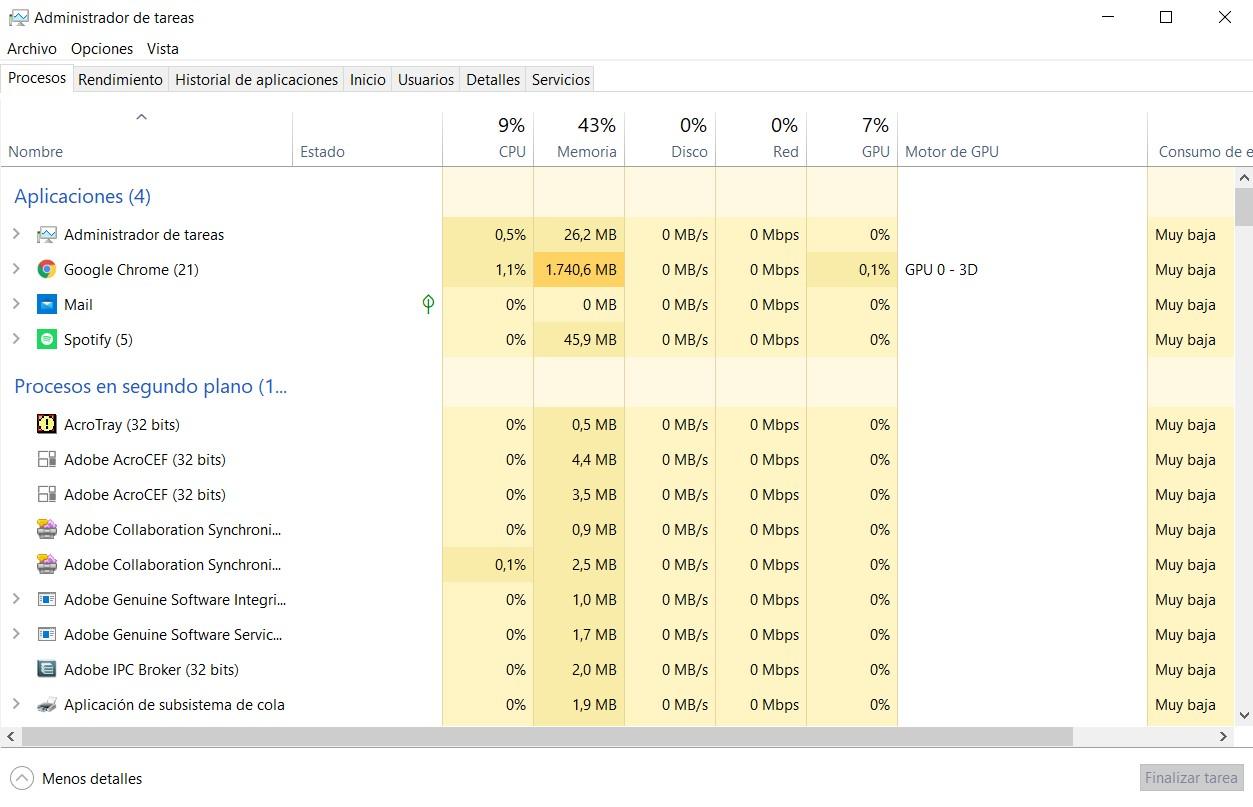
The eyelash Processes is the main “control window” To find out what's happening on your PC. Here you'll find a list, by section, of open applications and background processes along with their resource consumption.
For each element, columns are displayed as follows: Name, Status, CPU, Memory, Disk, Network, GPU, GPU Engine, Power Consumption, and Power Consumption TrendEach one offers key data:
- CPU: percentage of processor usage that the process is currently consuming.
- Conference proceedings: amount of RAM used by that task.
- Disc: read/write speed that the process is performing on the drive.
- Red: Network traffic associated with the process, ideal for seeing which program is saturating your connection.
- GPU and GPU Engine: use of the graphics card and the specific engine (3D graphics, video, etc.).
- Energy consumption: estimation of the impact of that process on the system's energy use.
From here you can Identify at a glance which program is using up the CPU or RAMIf the computer is running very slowly and you see a process spiked to 90% CPU usage, you've already identified the culprit.
Right-clicking on any process opens a menu with several actions: Expand (to view grouped processes from the same application), End task, Change resource values, Go to details, Open file location, Search online, and PropertiesThese options allow you to both close processes and investigate exactly what they are and where they are installed.
The option “Search online” launches a search in your default browser using the process name.This is ideal when you see something strange you don't recognize and want to know if it's legitimate or potentially dangerous. "Open file location" takes you to the executable file on your disk, which can help you remove unwanted software.
Performance tab: monitor CPU, memory, disk, network, and GPU
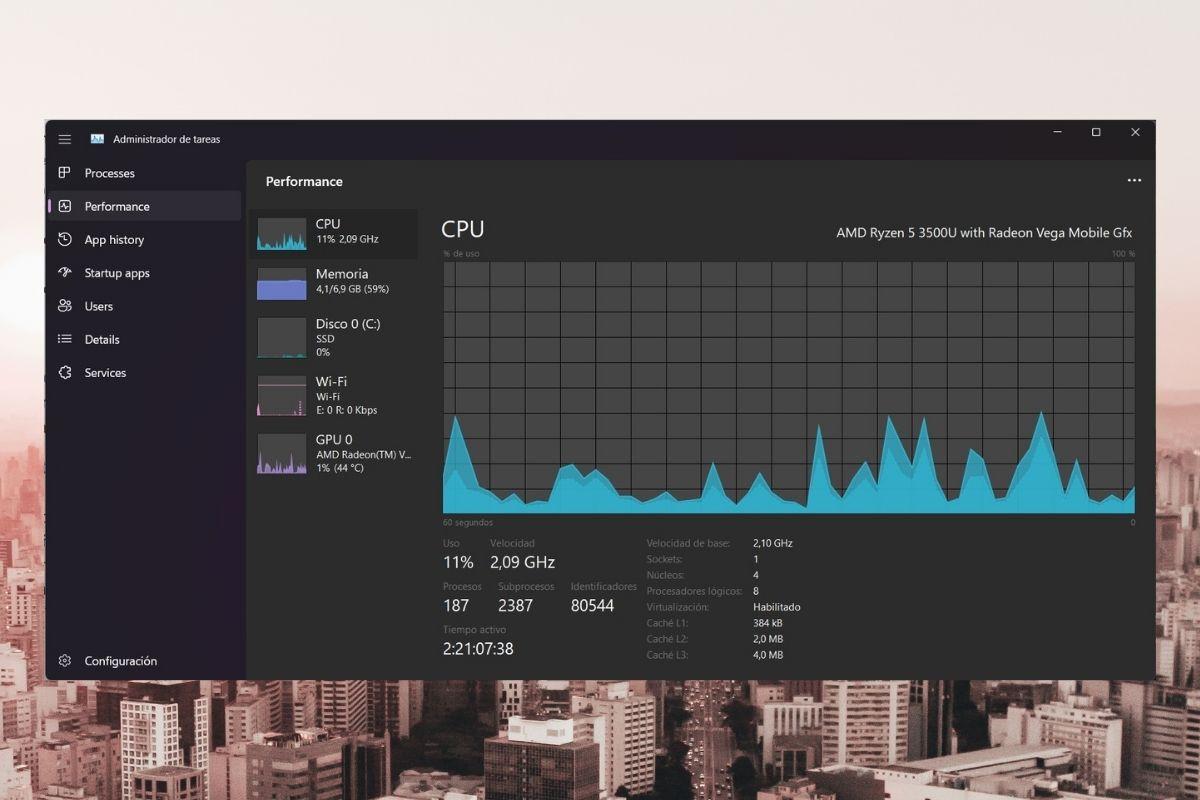
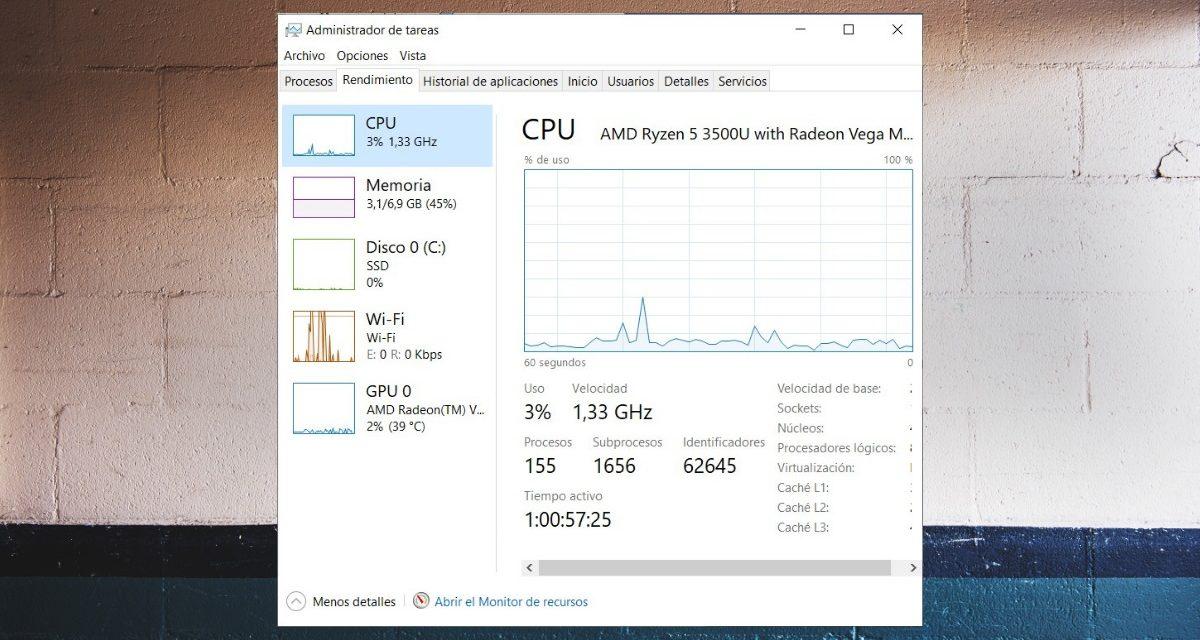
The eyelash Performance displays real-time graphs of the main system componentsIt's the best way to find out if your computer's bottleneck is in the CPU, RAM, disk, or network connection.
In the CPU section you will see the total processor load and its current frequencyIn addition to the number of active processes, threads, and identifiers, if your processor has multiple cores and logical threads, you can change the view to show a graph for each logical processor, allowing you to see whether the load is distributed or concentrated.
The Task Manager even allows distinguish between user CPU time and kernel CPU timeIf you right-click on the CPU graph and select "Show kernel times," the graph will be colored in two shades, differentiating the work of the Windows kernel from that performed by user applications. This is useful for determining whether the load is coming from drivers/system or user programs.
The Memory section shows How much RAM is in use, how much is free, how much is cached, and other technical dataOn systems with limited memory, this tab helps justify upgrades when usage remains consistently high.
The Disk, Network, and GPU sections teach activity charts and specific detailsDrive type (HDD or SSD), transfer speed, network adapter usage, link speed, graphics card usage, GPU temperature (on some models), and more. For more detailed information on drives and partitions, see the disk management in Windows.
If you want a cleaner view to have in a corner, you can right-click on any chart and activate “Summary view”The Task Manager shrinks and shows only the real-time usage panels, without the process list.
App history: which apps have consumed resources
In versions like Windows 8 and Windows 10 there is a tab Application history, designed primarily for Windows Store applications, although it can provide a general idea of historical usage.
Here you will see which applications you have had open during a certain period and what resources they have consumedespecially in terms of CPU and network usage. It's a quick way to see which apps are running excessively in the background even when they're closed.
If you want to delete the trace of that history, the Task Manager itself allows you to do so. clear usage dataSimply go to the App History tab and tap the button to clear your usage history. From that point on, the statistics will start from zero.
Startup tab: control of programs that load with Windows
One of the most effective ways to speed up a PC is check what runs at startup. The eyelash Home The Task Manager contains the list of applications configured to start with Windows.
In addition to the name of each program, its state (enabled or disabled) and its impact on startup (low, medium, high). This way you can easily detect those assistants, updaters, and small utilities that sneak in at startup and slow everything down without providing anything critical.
To disable an application from starting automatically, simply Right-click on it and choose “Disable”The program will remain installed and can be used normally, but it will no longer launch processes every time you turn on your computer.
If, on the other hand, you want a tool to always start (for example, a corporate VPN or a synchronization utility), simply leave it running. Enabled in this tab.
Users tab: consumption per user session
On shared computers, especially in office or classroom environments, the tab Users can see who is consuming whatThe user sessions that have logged into the computer are listed along with the processes associated with each one.
This is very useful when Your work computer is running slowly and you want to know if it's because of your session or someone else's. that left something open in the background. From this tab you can expand each user to see their applications and processes and, if you have permissions, close sessions or end specific tasks.
Details tab: advanced process view
The eyelash Details is the advanced view designed for experienced users and administratorsUnlike “Processes”, which groups and presents information in a more user-friendly way, “Details” offers a flat list of all processes with very specific data.
Here you can see, in addition to the name of the process, the PID (process identifier), the user under which it runs, the status, resource consumption, and additional descriptionsThis is the tab you jump to when you need to work with very specific processes or cross-reference information with external tools.
If you right-click on the column headers you can customize what data is displayedFor example, it is common to add the "Threads" column to see how many threads of execution a given process is using, which is key when analyzing heavy applications.
From the context menu of a process you can set priorities, change CPU affinity, terminate the process, or terminate the process tree Complete. These options allow, for example, reducing the priority of a task that is hogging the CPU without having to close it.
The Task Manager also offers the option to create a memory dump file of a processThis function generates a file with the internal state of the process at that moment, which can be sent to technical support or analyzed with specialized tools to diagnose complex failures.
Services tab: advanced control of system services
The last tab, Services, lists all services registered in the system with information such as the name, the process identifier (if it is running), a brief description and its status (started or stopped).
The format is very similar to that of the classic services console (services.msc), but integrated into the Task Manager itself. From here you can Start, stop, or restart servicesas well as using the "Go to process" option to locate which process is associated with a specific service.
Some services can be grouped or display information about restrictions and returned parameters, which helps to to better understand the relationship between services and system processesFor diagnostic tasks on Windows servers or critical workstations, this tab is especially valuable.
How to use Task Manager to troubleshoot problems
Beyond looking at numbers, the Task Manager is a practical tool for diagnosing and resolving incidents of everyday life. These are some real situations where it makes a difference.
Check CPU load and locate bottlenecks
If you notice that your computer is "stuttering", the first thing to do is usually Open the Performance tab and review the CPU graph.If it stays consistently close to 100%, something is pushing the processor to its limits.
On systems with multiple logical processors, you can right-click on the graph and change the view to “Logic processors” To see the individual usage of each core. For example, on a machine with eight logical processors, a constant load of 12,5% might be equivalent to one core working at 100% (100 / 8 = 12,5). This reference helps to better interpret the percentages.
If you also activate the kernel timingsYou'll be able to see what portion of that load comes from Windows and its drivers and what portion from user applications. If most of it is kernel-related, there might be a malfunctioning driver or service; if it's user-related, you'll need to check the Processes tab to see who's using the CPU.
Force the closure of suspended processes
It's quite common for an application to appear to close, but I left a process hanging in the background that continues to consume resourcesIn those cases, going to the Processes tab, locating the app and using "End task" is usually the quickest solution.
If there are multiple processes associated with that application, you can Expand the group (using the side arrow) and only finish the one causing problems.In extreme cases, from the Details tab you have the option to "End process tree", which terminates the selected process and all those that depend on it.
Analyze waiting chains when a process is unresponsive.
There are situations where a process appears as “Running” but It does not respond correctly because it is waiting for another process or resourceThe Task Manager can help you thanks to its queue analysis feature.
To use it, go to the Details tab, select a running process, right-click, and choose “Analyze queuing”If the process is not blocked by others, you will see a message indicating that it is running normally.
If there is a dependency, a tree will appear with all the processes that this thread of execution depends onIn some cases, by selecting one or more of these processes and clicking "End Process" you can break the lock and recover the main application (although it should be used with caution, as you could close critical components).
Detect resource-intensive or suspicious software running in the background
When your computer is slow and you don't have any "large" applications open, it usually means that Some background process is consuming resourcesThe combination of the Processes tab and the CPU/memory consumption column is key to uncovering the truth.
Once the problematic process has been identified, the next step is find out exactly what it isThis is where the "Search online" and "Open file location" options in the context menu come into play. If the search points to legitimate software (antivirus, cloud backup tool, etc.), you can adjust its settings. If it appears to be something unknown or malicious, you can remove spyware, disable it from startup or run a more in-depth security scan.
Restart Windows Explorer without restarting the PC
Another little-known feature is that you can access it directly from the administrator panel. Restart Windows Explorer when the taskbar or desktop freezesSimply locate “Windows Explorer” (or “Windows Explorer” depending on the language) in the list of processes, right-click and choose “Restart”.
If the Explorer has disappeared completely, you can also go to the menu File > Run new task, to write explorer.exe and press Enter to reload it without restarting the entire system.
File, Options, and View menus: extra settings from the Manager
At the top of the Task Manager you will find three menus that add useful functions: File, Options, and View.
From Archive can start a new task (launch a program, open a document, run a command) or exit the task manager itself. The new task function is especially useful when the Start menu or taskbar is unresponsive.
En Options You can configure, among other things, that the Task Manager window always remain visible in the foregroundIt can be set to automatically minimize when opened or to hide in the notification area next to the clock. These are practical settings if you want it constantly monitoring the system while you work.
Finally, the menu Eyeglasses allow Force data updates manually and adjust the frequency with which information is refreshedReducing the update speed can be useful on machines with very limited resources, since the administrator itself consumes some CPU to collect and display data.
Taken together, the Windows Task Manager becomes a A Swiss Army knife for understanding what your computer is doing at any given momentOptimize startup, locate bottlenecks, control services, and, when necessary, kill rogue processes without having to restart. Mastering it makes the difference between going in blind when your PC freezes and having a reliable tool to regain control in just a few clicks.
Table of Contents
- What is the Windows Task Manager and what is it used for?
- How to open Task Manager in Windows
- Compact view and detailed view: two ways to use it
- Processes tab: applications, background processes, and resource consumption
- Performance tab: monitor CPU, memory, disk, network, and GPU
- App history: which apps have consumed resources
- Startup tab: control of programs that load with Windows
- Users tab: consumption per user session
- Details tab: advanced process view
- Services tab: advanced control of system services
- How to use Task Manager to troubleshoot problems
- File, Options, and View menus: extra settings from the Manager