- Reducing boot time involves controlling programs and services that start with Windows and removing unnecessary bloatware.
- Features such as fast startup, registry tweaks, and disk optimization help shave seconds off startup time.
- Updating drivers, checking for malware, and adjusting visual effects improves both system startup and overall system smoothness.
- The biggest speed boost comes from migrating Windows to an SSD and adjusting the BIOS/UEFI for a more direct boot.
When a Windows PC takes forever to turn on, the feeling that the computer is broken is inevitable. Slow startup is not only frustrating, it also reduces productivity and makes using the equipment a chore.The good news is that in most cases you don't need to be a technician or spend a fortune to significantly improve Windows startup time.
Over the years, with each update, installed program, and service left running in the background, Windows is "getting heavier" and adding seconds to the startup time.In this comprehensive guide, you'll see, step by step, how to identify what's slowing down your computer, which system settings you should tweak, and when it's worth modifying the hardware. All with clear explanations, real-world tips and tricks, and warnings about what you can safely disable and what's best left untouched.
Why is Windows starting up slower and slower?
Before you start disabling things like crazy, it's a good idea to understand what's going on under the hood. Over time, startup programs, background services, registry remnants, and even malware accumulate.And all of that has to be loaded every time you turn on your PC.
Many programs, upon installation, activate modules that start with Windows without asking: game clients, chat apps, cloud sync, printer utilities, RGB, heavy-duty editors, or photo managersYou don't see them on screen, but they're hogging RAM and CPU from the very first second.
We also need to take into account the following services: Acronis-type backups, remote access such as AnyDesk, or telemetry and monitoring tools They start system processes that you don't see on the desktop, but which add time to the boot process and load on the processor.
What's more, Newer versions of Windows bring more and more features and integrated applications. (OneDrive, Teams, UWP apps, assistants, "smart" notifications…) that start by default, even if you never use them.
And as, an old mechanical hard drive, outdated drivers, or a possible virus They can finish the play and turn the start into a wait of several minutes until the system responds with some fluidity.
Measure startup time and locate bottlenecks
If you want to know if your changes are working, the ideal thing to do is to measure. There are very simple utilities like Startup Timer that time how long it takes for your Windows to become operational and what elements contribute most to that delay.
The process is as simple as running the tool, restarting, and viewing the result. It's not uncommon to find equipment that takes more than two minutes to be "ready".especially if they have been used for years as the main work or play machine and no one has done a serious cleaning.
The first round of optimization should focus on the most obvious things: unnecessary startup programs and servicesIt's the most noticeable with the least risk, and it's done using tools integrated into Windows.
Control which programs start with Windows
The first place to tinker without fear is the Task Manager. From there you can view and disable almost all the software that starts automatically with the system. without touching critical processes.
To open it, you have several options: Ctrl + Shift + Esc, right-click on the Start button and select “Task Manager”, or Ctrl + Alt + Delete and choose the corresponding option. If you see the simple version, tap on "More details".
Once expanded, go to the "Home" tab. There you will find the list of Win32 applications configured to start with Windows, their status (Enabled/Disabled) and their impact on startup. (low, medium, high).
The idea is simple: Anything that is not strictly necessary when turning on the PC can be disabledFor example, things like the following are often left over:
- Heavy editing clients (Adobe Creative Cloud, Photoshop, Lightroom, etc.).
- Messaging and chat apps (Skype, Slack, Messenger…).
- Game launchers (Steam, Epic, Origin, Ubisoft Connect, GOG...).
- Non-core cloud customers (Dropbox, Google Drive, pCloud, Amazon Drive, etc.).
- Torrent clientswhich are often configured to continue downloads upon startup.
- Apple Utilities (iTunes, iCloud) if you don't use them daily.
To disable any entry, Right-click on the program and select "Disable"It doesn't uninstall, it just stops starting with Windows; when you want to use it, you open it manually.
Remember: Do not touch antivirus software, graphics drivers, critical hardware utilities, or Windows components that you are unsure about.If you don't recognize something, it's best to leave it as is or investigate it first.
Manage startup services and msconfig
In addition to visible applications, Many programs load services that run in the background without a window.These can also slow down startup even if you don't see anything in the taskbar.
To manage all of this at once, you can use the system configuration tool:
- Balance Windows + R, writes msconfig and confirm.
- Go to the tab "Services".
- Check the box "Hide all Microsoft services" to avoid messing things up with critical aspects of the system.
- With the clean list, Remove non-essential program services in your daily use.
That way you can get rid of it. Unnecessary backup suite services, printer utilities, capture tools, RGB programs, or updaters that sneak in at the start.
In the "Boot" tab of msconfig (or by redirecting to Task Manager in recent versions) you will also find the setting "No GUI Boot"If you check it, Windows removes the graphical startup animation, saving a few secondsIt's not a revolution, but added to the rest, it makes a difference.
Keep in mind that ideally it would be Review each program to see what you actually use and uninstall what you don't need.But as a quick experiment, disabling third-party services and startup applications gives a nice speed boost with little effort.
Windows Fast Startup
To activate it (if you don't already have it):
- Open the Control Panel > Hardware and Sound > Power Options.
- Click on «Choose what the power buttons do».
- Press on "Change settings currently unavailable" if the options below appear in gray.
- Check the box "Enable fast startup (recommended)" and save the changes.
Thus, Turning the PC off and on will be fasterNote: If you choose "Restart" instead of "Shut down," Windows will perform a full boot, without Fast Startup. It's also a good idea to occasionally perform a normal restart to clear the session and prevent lingering problems.
Suspend and hibernate as speed shortcuts
If you usually use your PC several times a day, It may be more practical to leave it in sleep or hibernation mode than to turn it off completely.It doesn't fix the underlying problem, but it drastically reduces the time until you have it up and running.
In mode Lay offThe device reduces power consumption to a minimum but keeps your session in RAM. It resumes almost instantly with just a mouse movement or a keyboard touch.Ideal if you're going to leave your computer unused for a while.
In mode HibernateThe system saves the contents of RAM to the disk and shuts down the computer. When you turn it on, it restores everything exactly as you left it.Although it usually takes a little longer than the suspension, but less than a complete cold start.
Yes, Abusing the suspension indefinitely without restarting eventually takes its tollThe memory doesn't clear, processes accumulate, and sooner or later you'll notice everything is running slower. Use it as a convenient shortcut, but not as a substitute for restarting occasionally.
Background applications and processes
Another classic source of slowness is applications running in the background. Windows 10 and 11 come with a good collection of UWP apps that stay active just to show you notifications or updates that you often don't even care about..
To stop feeding so many useless processes:
- Opens Settings > Apps > Home and check which universal apps and regular programs start with the system.
- Deactivate the ones you don't want running all the time. Alongside each one, you'll also see the impact on the start-up..
- In versions that allow it, enter Settings > Privacy > Background Apps and disable the ones you don't need to be constantly active.
In addition to gaining startup speed, You will reduce RAM, CPU, and, in laptops, battery consumption.This adjustment is especially recommended for modest equipment.
Remove bloatware and UWP apps you don't use
Many PCs come pre-installed with manufacturer bloatware, antivirus tests, junk games, and a thousand utilities you'll never use. All of that takes up space, sometimes sneaks onto the home screen, and is often updated in the background..
To clean properly:
- Opens Settings > Apps > Apps & features.
- Check the complete list of installed software (Win32 and UWP).
- Uninstall ruthlessly everything you don't use or don't even remember openingunless you suspect it might be a critical issue with your hardware.
Some native Windows apps cannot be deleted using the normal method because They are tied to system services and Microsoft protects them to avoid compromising stabilityIn those cases, at most you can disable them from starting up and hide their notifications.
If you want to go deeper, there are tools like Bloatware Removal Tool or advanced third-party uninstallers. Use them wisely: The less leftover software on the computer, the lighter the startup will be. and the system will respond better overall.
Advanced registry settings for startup delay
Windows, by design, applies a delay when running some programs at startup, in order to distribute the load. We can modify that behavior in the register and set the delay to zero.so that the system starts more directly.
It's an adjustment for users with minimal care: Doing anything unusual in the registry can cause errors or instability.So first of all, export a copy (File > Export in regedit, selecting “Everything”).
The basic steps are:
- Balance Windows + R, writes regedit and confirm.
- Navigate to HKEY_LOCAL_MACHINE \ SOFTWARE \ Microsoft \ Windows \ CurrentVersion \ Explorer \ Serialize.
- If the key serialize It doesn't exist, create it with New> Password.
- Inside, it creates a DWORD value (32 bits) called StartupDelayInMSec.
- Give it value 0.
With this change, The system will reduce the artificial delay before launching certain startup applications.This can shave off a good few seconds on some systems. After applying the modification, restart to check the results.
Update graphics drivers and system
It might sound strange, but Corrupted or outdated graphics card drivers can even affect boot times.From eternal black screens to locks right after entering the password.
To bring order:
- Right-click on the button Home and enters Device administrator.
- Look for the section Display adaptersRight-click on your graph and choose Update Driver.
- You can also go directly to your manufacturer's website (NVIDIA, AMD, Intel) and download the latest stable version.
In addition, it is advisable to review Windows Update from Settings > Update & Security > Windows Update to install performance patches and optional updates such as non-critical drivers. A system that starts up and runs better every day usually gets up to speed and works better. than one with years of overdue patches.
Check for viruses or malware
If your PC has suddenly become slow when starting up, Do not rule out a malware infectionThere are malicious codes that hook into startup to run every time you turn on your computer, and that can crash everything.
Run a full scan, not just a quick one, with your usual antivirus or with Windows Defender if you don't have another one. It instructs me to check all drives and, if possible, also run an offline scan. to hunt difficult threats.
If you find something and delete it, Measure the startup time again and see if it improves.Often, simply cleaning the system of junk files and viruses restores a significant portion of the lost speed.
Optimize disk: defragment HDD and free up space
The type and condition of the drive where Windows is installed greatly influences the boot process. In mechanical hard disk drives (HDDs), file fragmentation causes the read/write head to jump from one place to another to read scattered data., something that significantly penalizes speed.
If your system unit is a classic HDD:
- Open the File Browser and go to “This Team.”
- Right-click on the system disk (usually C:) and enter Properties.
- In the Tools, click on Optimize.
- Select the disc and press Optimize to start the defragmentation.
The process can take quite a while depending on the size and level of fragmentation, but It usually improves read speed and, by extension, Windows startup timeYou can also schedule automatic optimization.
Important: If your main drive is an SSD, do not defragWindows already applies its own TRIM optimization when necessary, and forcing defragmentation only consumes write cycles and can shorten the lifespan of the drive.
Another key point is free space. Windows needs gigabytes of space to use virtual memory and properly manage temporary filesIf the disk is almost full, both boot time and overall performance plummet.
To gain space:
- Remove programs you don't use.
- Move large photos, videos, and games to a secondary drive, external or cloud storage.
- Use the Disk cleaning or the Windows Disk Cleanup tool to remove temporary files.
Replace your hard drive with an SSD
If your computer still uses a mechanical hard drive as its main unit, you're losing a lot of performance. Moving Windows to an SSD is probably the most noticeable change in day-to-day use, especially during startup..
In many cases, You can go from starts of almost a minute to barely 10 seconds, or even less.without changing any other settings. These days there are very inexpensive 240-256 GB SATA SSDs that are more than enough for your system and your usual programs.
The basic operation would be:
- Physically install the SSD (same SATA connector and power supply as a desktop HDD or a laptop drive bay).
- Clone the old disk to the new one using tools such as Macrium Reflect, or take advantage of it to install Windows from scratch and start fresh.
- Configure the SSD in the BIOS/UEFI as first boot device.
If your motherboard and computer support it, An NVMe SSD will further increase speeds.However, to notice the improvement in boot time, a SATA drive is more than enough. You can reuse the old HDD as a secondary drive for data or backups.
Configure BIOS/UEFI firmware for faster boot times
Windows booting does not begin until the BIOS or UEFI has completed its checks. If the firmware spends 20 or 30 seconds running tests you don't need, you're wasting time even before the Windows logo appears..
Modern motherboards with UEFI usually have an option called Fast Boot or Quick StartWhen activated, the system It omits certain memory and device tests that are redundant in a stable system..
The steps, in general, are:
- Restart and enter the BIOS / UEFI (Del key, F2, F10… it depends on the manufacturer).
- Look in the advanced options for the function Fast Boot and activate it.
- Take the opportunity to review the boot order and first put the disk or SSD where Windows is installed.
Keep in mind that if the computer ever starts giving strange errors when starting up, You may need to temporarily disable Fast Boot or reset the UEFI to see what's wrong. But on a normal PC, this just gives you a few "free" seconds of boot time.
If you have multiple operating systems installed or have reinstalled Windows without formatting, you may You'll see a menu that lets you choose a system for a few seconds.That delay can also be adjusted.
To reduce or eliminate that time:
- Right click on Home and enters System.
- On the right side, tap on System information (if applicable) and then in Advanced System Settings.
- In the AdvancedWithin "Startup and recovery", click on Configuration.
- Adjust the time of "Show the list of operating systems" (minimum 3 seconds) or uncheck the option if you don't need to see that menu.
With this, Windows won't stay on that screen any longer than necessary. and will switch to the default system sooner.
System settings: appearance, notifications, and Cortana
In teams with limited resources, appearance also matters. Animations, transparencies, and visual effects consume RAM and CPUAnd although they don't drastically affect the startup, they do help make everything feel smoother as soon as you enter the desktop.
You can trim effects from:
- Control Panel > System > Advanced system settings.
- Eyelash Advanced, section Unlimitedbutton Configuration.
- Brand “Tune for best performance” or customize by removing animations and transparencies.
It's also a good idea Disable Windows "tips" and notifications that analyze the system in the background. From Settings > System > Notifications You can uncheck welcome messages, tips and tricks that don't add anything and do consume resources.
As for Cortana, Microsoft's old voice assistant, It is already discontinued in many home versionsIf it still appears and you don't use it, disable its execution on startup from its own app's settings to save some load.
Finally, if you are the only user of the desktop PC and local security is not a concern, You can configure Windows to log in directly without asking for a password. using netplwiz And by removing the requirement to enter a username and password at startup. Fewer steps, less time, although with the expected loss of security.
Manage user accounts and system resources
Having multiple local or Microsoft accounts on the same machine is useful in shared environments, but Each profile takes up space, adds configurations, and can influence the initial load.If there are users that are no longer used, you can delete them from here. Settings > Accounts (being an administrator).
Additionally, you might be interested in reviewing software such as OneDrive or other sync clients. If you don't use them, Disable them from startup or even block their use from the Local Group Policy Editor (gpedit.msc in editions that include it) to prevent them from being linked at startup and every session.
On older computers, any process that consumes a chunk of CPU or several hundred MB of RAM from the start is noticeable. The cleaner the startup, the more space the system will have to load what you actually need. as soon as you turn it on.
Third-party tools to speed up startup
If you don't feel like going menu by menu, or you want finer control without diving into a thousand windows, There are utilities designed specifically to manage startup and optimize certain performance parameters.
Some of the best known are:
- Autorun organizer: very focused on the Windows startup, It displays all programs and services that run at startup, and allows you to disable, remove, or delay their execution. and provides statistics on how much time they add to startup. You can even apply delays so that resource-intensive programs don't all open at once.
- Ashampoo WinOptimizer: maintenance suite with multiple modules, including "StartUp Tuner"which makes it easy to clean startup applications, remove leftover files, adjust performance options, and make the system lighter.
- Advanced SystemCare (IObit): General optimization package that includes a function of "Optimize startup". Analyzes services and processes, recommends what to disable and incorporates real-time improvements, although it usually resides in the background to give you advice.
- Glarysoft Startup Manager, Argente Autorun, Starter: specialized tools for boot lists, They measure the impact of each input, and allow processes to be activated/deactivated and delayed. and in some cases they show scheduled tasks and services along with recommendations.
Use them as support, knowing that None of them do anything beyond what can already be done from WindowsAvoid miracle "accelerators" that promise to double the speed with one click and be wary of any program that messes with the registry without explaining what it changes.
Also speed up Windows shutdown
Having a good start is great, but If you spend half a minute staring at the "Shutting down..." screen when you turn off the computer, the feeling of sluggishness returns.There are settings to shorten that time without having to unplug the PC.
A quick way is to create a shortcut with an immediate shutdown command:
- Right-click on the desktop > New> Shortcut.
- In the location field, type: % windir% \ System32 \ shutdown.exe / s / t 0.
- Give it a name (for example, "Quick Shutdown").
By double-clicking, The system will shut down without any additional waiting.Use it when you know you don't have any unsaved documents, because it doesn't ask.
Another source of delays are the Automatic UpdatesWindows sometimes installs patches right after you shut down, which lengthens the process. You can temporarily disable automatic updates from the service settings. Windows Update (services.msc) or pause updates from the settings themselves. However, Don't leave the system indefinitely without updates for security reasons..
There are also minor tweaks to the registry that make Windows Automatically close hung applications or reduce service timeouts when shutting down, such as:
- Create string value AutoEndTask = 1 en HKEY_USERS \ .DEFAULT \ Control Panel \ Desktop to force the closure of programs.
- Adjust value WaitToKillServiceTimeout en HKEY_LOCAL_MACHINE \ SYSTEM \ CurrentControlSet \ Control to a smaller number (in milliseconds) so that Don't waste time waiting for services that don't respond..
And of course, Manually close resource-intensive applications before shutting down.You help the system, avoid losing unsaved work, and shorten shutdown time without any tricks.
By combining startup program cleanup, service control, intelligent use of Fast Startup, bloatware removal, visual effects tuning, optimization or replacement of the hard drive with an SSD, and, when necessary, a good format and clean reinstall, a PC that seemed destined to boot with difficulty can be turned on again in a matter of seconds and run much more smoothly, extending its useful life without having to rush out for a new computer.
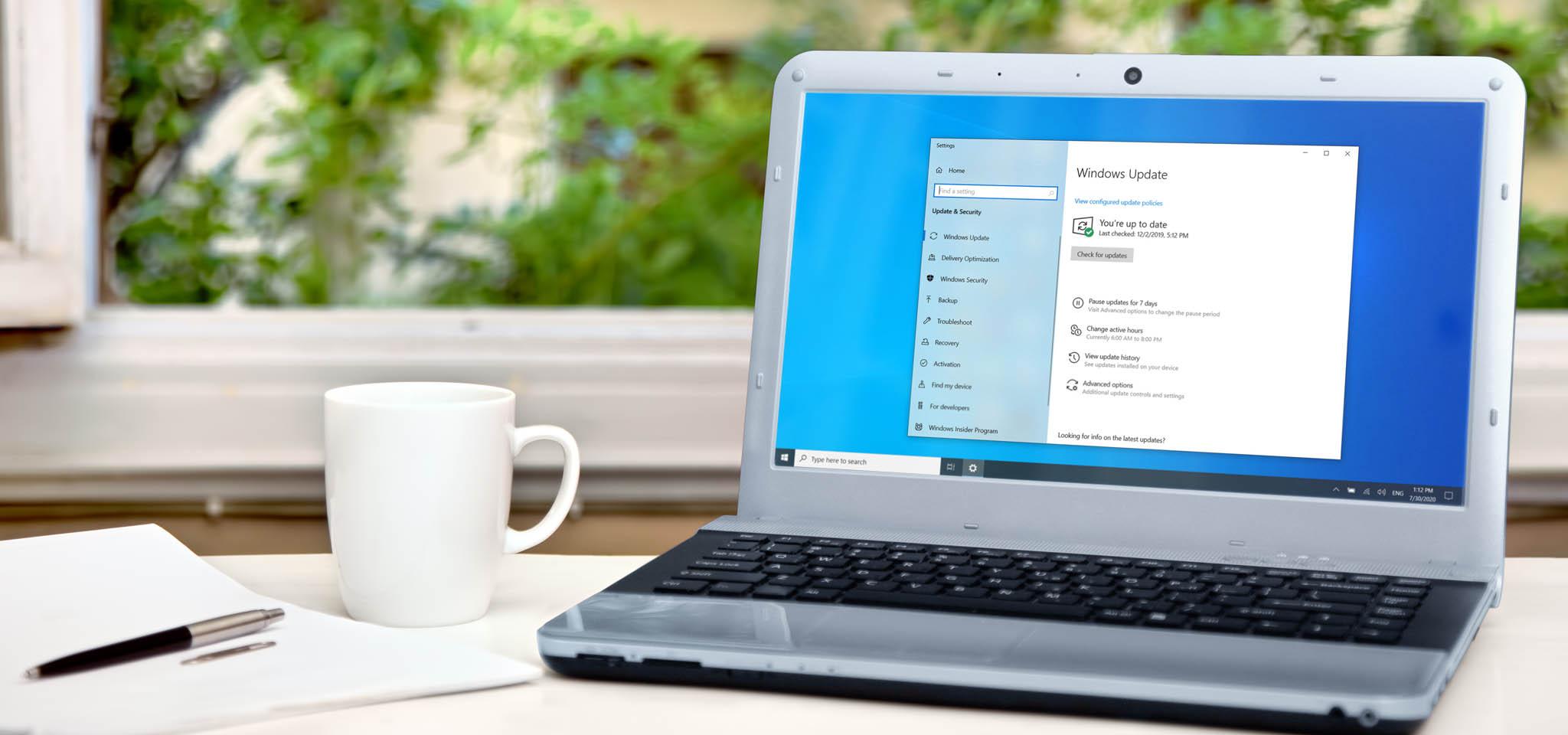
Table of Contents
- Why is Windows starting up slower and slower?
- Measure startup time and locate bottlenecks
- Control which programs start with Windows
- Manage startup services and msconfig
- Windows Fast Startup
- Suspend and hibernate as speed shortcuts
- Background applications and processes
- Remove bloatware and UWP apps you don't use
- Advanced registry settings for startup delay
- Update graphics drivers and system
- Check for viruses or malware
- Optimize disk: defragment HDD and free up space
- Replace your hard drive with an SSD
- Configure BIOS/UEFI firmware for faster boot times
- Reduce boot menu time
- System settings: appearance, notifications, and Cortana
- Manage user accounts and system resources
- Third-party tools to speed up startup
- Also speed up Windows shutdown