- There are native methods in Windows, Mac and some mobile brands to project the screen without installing additional apps.
- Third-party applications allow you to mirror and control your mobile phone from your PC via Wi-Fi or USB, with varying qualities and latencies.
- Wired connections (HDMI or USB) offer greater stability and less latency than Wi-Fi, although they usually require compatible adapters.
- The most common problems when mirroring your screen are due to the network, faulty cables, or incompatibilities, and are usually resolved by checking basic settings.
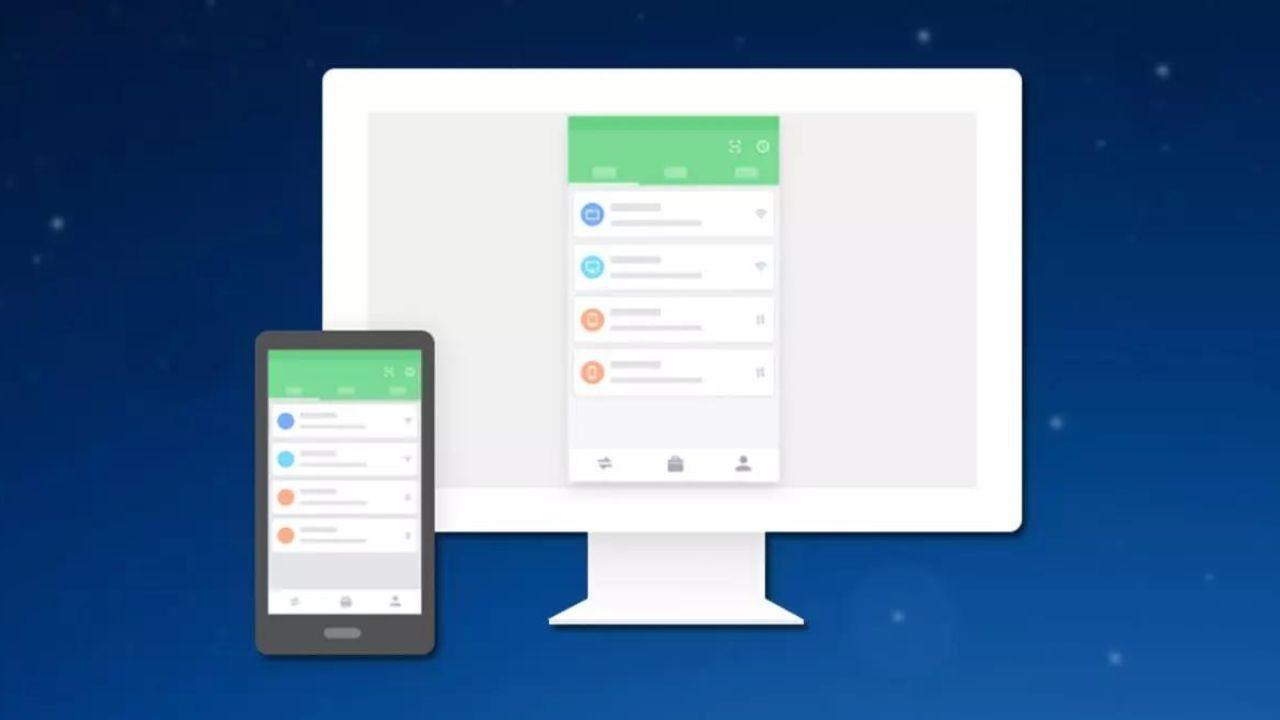
if you ever wanted View your mobile screen on your computer Whether you're looking to enjoy videos, games, presentations, or simply use your phone with a mouse and keyboard, you've come to the right place. These days, there are so many options that it's easy to get lost among apps, cables, Windows settings, AirPlay, Chromecast, and brand-specific solutions.
In this guide you will find All the important ways to project or mirror your mobile phone on your PCThis includes native Windows and Mac methods, third-party applications, Wi-Fi and wired connections, tips and tricks specific to your smartphone brand, and a final section on common problems and how to solve them. The idea is to give you a wide range of options to choose from, so you can find the one that best suits your needs.
How to use Windows to project your mobile phone without installing anything
If you have a computer with Windows 10 or Windows 11The system itself includes tools to receive the image from your Android mobile as if the PC were a Smart TV or a Chromecast, without the need to download additional programs.
The function is based on the wireless projectionThis feature allows you to mirror your mobile screen to your PC via Wi-Fi. It's very convenient for occasional use, although it's not the smoothest option if you want to play games or stream for extended periods at high quality.
Enable projection on this computer in Windows
Most Windows PCs come with wireless projection built-in. disabled by defaultSo the first step is to enable it in the system settings so that the computer is visible from your mobile.
Enter the Windows settings and open “System > Projection on this PC”On that screen, you'll see that the option is usually set to "Always Off." Change the setting to "Available everywhere on secure networks" so that your PC can be shown as a projection destination.
It's important that you only leave it in Available on trusted networks, such as your home or office Wi-Fi, to prevent strangers from trying to connect from the same network.
From this same screen, you can add an extra layer of security to prevent unauthorized access to your PC. Activate the option to Protect the projection with a PIN code and decide if you want that code to be requested every time a device tries to project or only the first time it connects.
Also check that the switch that indicates that the equipment is detectableIf the PC is not visible, the mobile will not show it in the list of devices to send the screen to and it will seem to you that "it doesn't work", when in reality it is a simple setting.
Open the Wireless Projection app in Windows
Once you have done the above, your PC is ready to Any compatible Android mobile phone sends its screenAs soon as the connection is established, the application that manages everything opens automatically, although you can also launch it beforehand to see if the equipment is ready.
The app is called “Wireless projection” (or “Connect” in some versions) and it's available from the Start menu. When you open it, you'll see the name of your PC—which is what will appear on your phone when you search for devices—and a message indicating whether it's waiting for connections.
If you press Ctrl+S Within the app, you access a small settings panel where you can allow or block access for recently connected devices. It's not a screen with a thousand options, but it gives you some control over who's projecting.
Cast your Android screen to your PC (like a Chromecast)
With your PC ready, the following steps are done from your mobile device. On most Android phones, you'll see an option called “Project”, “Broadcast”, “Transmit”, “Cast” or “Duplicate screen”, usually in the quick settings or in the display/connections menu.
Activate that function with your mobile phone connected to the same Wi-Fi network as the PCThe phone will scan for compatible devices and, if everything is set up correctly, your computer will appear as a projection destination, just like a Smart TV or a Chromecast.
When you select your PC, Android will display a notification indicating that it will record and stream your screen contentConfirm the message and, if you set up PIN protection on Windows, you will need to enter the code shown on the computer to finish linking both devices.
In a few seconds you should see the your mobile screen within the Wireless Projection app On Windows, the window works best in landscape mode, so it's usually a good idea to rotate your phone to landscape if you're going to watch videos or play games.
Another advantage of this method is that you can Use the PC mouse and keyboard to control the mobile deviceMany classic Windows shortcuts, such as Alt + Tab, are translated to Android and allow you to switch between open apps quite conveniently.
However, if you plan to mirror your screen regularly and need maximum smoothness, this wireless option might fall short: there's some lag, and it's not as stable as dedicated solutions like scrcpy. But for occasionally viewing your phone on a larger screen without installing anything, it's a very handy option.
View your mobile screen on your computer using apps
Beyond what Windows and Mac offer by default, there are Many apps for projecting and even controlling your mobile phone from your PCvia both Wi-Fi and USB. Some allow you to only see what's happening on the phone, while others offer full remote control. An interesting alternative for Linux users is Deskreen on Linux, which facilitates screen mirroring over the network.
AirDroid and AirMirror
One of the oldest solutions is AirDroid, which started as a tool to manage the mobile phone from the browser or from a desktop app, and which now includes screen mirroring and touch remote control functions.
To use it, install the AirDroid app on your mobile device (Android or iOS) and download the desktop client from the official websiteCreate an account or log in if you already have one, and use the same details on both your phone and PC to link them.
Within the desktop program you will find a function to “Screen Mirroring”When activated, the mobile phone will send the image to the computer via Wi-Fi, provided both are connected to the same wireless network.
Performance depends heavily on the quality and stability of the Wi-Fi networkIf you have good fiber optic internet and a decent router, you'll be able to watch apps, videos, and even play certain games without too many interruptions; if the signal is weak, you'll notice lag and buffering.
Related to AirDroid is AirMirrorAirMirror is an application designed to take control of your mobile phone from another screen, including a PC. Its use is similar: you install AirMirror, scan a QR code or link accounts, and activate the screen sharing option.
ApowerMirror, LetsView, Mobizen, Spacedesk and other alternatives
Along with AirDroid, you have other very popular apps like ApowerMirrorIt works with both Android and iPhone and is available for PC and Mac. It allows screen mirroring via Wi-Fi or cable, and in many cases It also offers mouse and keyboard control..
The process is simple: download the program for your operating system, install the app on your phone, run both, and choose whether to connect via USB or Wi-Fi. If both devices are on the same wireless network, simply press the screen mirroring button on your phone.
Another free tool is Lets Viewwhich works very similarly to the previous ones. Once installed on PC and mobile, you can link devices using a PIN code or a QR code, and then tap “Connect to Wi-Fi > Reorient” in the app to start the mobile phone broadcasting towards the computer.
If none of these options convince you, or if the ratings in the app stores don't inspire confidence, you can try with MobizenAlso known as a screen recording app, it allows you to view your phone's content on your PC and record videos, and has a specific version for some Samsung models.
Less well known, but very powerful, is spacedeskwhich functions more like a multi-monitor remote desktop. Basically, it turns your mobile phone or tablet into a secondary screen for your PC, and can also be used for... share, enlarge or mirror the screen via Wi-Fi, USB, or LAN. The app itself includes step-by-step instructions for configure two monitors.
Vysor and the USB connection
If you prefer to use a cable instead of Wi-Fi because you are looking for less latency and more stabilityOne well-known option is Vysor, which focuses on displaying the Android screen on the PC via USB.
The first step is to install Vysor on your Android phone and download the computer program from its official website. Then you need to activate it. USB debugging in developer options from the phone and connect it to the PC with a data cable.
When you open Vysor on your computer and mobile device, the program will detect your device and you'll see a "View" button. Clicking it will display the phone screen in a desktop windowThe free version has quality limitations and some ads, but it's sufficient for many uses.
Scrcpy: open source, very fast, and for advanced users
Among the free tools, one of the most highly rated by advanced users is scrcpy, an open-source project compatible with Windows, macOS and Linux that allows you to project and control Android phones with very little latency.
Its great advantage is that You don't need to install anything on your phone.All you need to do is enable USB debugging and connect your phone to your computer via cable. Scrcpy runs from the command prompt on your PC, and when launched, a window opens displaying the device's screen.
The program uses the ADB protocol to capture the image and send mouse and keyboard commands, so the experience is very smooth, even in games. Furthermore, it allows record screen video, take quick screenshots and it even works with phones whose touchscreen is broken.
Native Mac and iPhone screen mirroring options
If you operate within the Apple ecosystem, the brand offers proprietary methods for mirroring the iPhone or iPad screen on other Apple devicesespecially through AirPlay, which has been integrated into iOS for years.
The downside is that these solutions are practically exclusive to Mac and Apple TV, so you won't be able to take advantage of them directly on a Windows PC, except by using third-party apps that emulate an AirPlay receiver.
Mirror iPhone to Mac with AirPlay
Any iPhone with iOS 4.2 or later It includes AirPlay as standard, Apple's technology for sending video, audio, and screen mirroring to other compatible devices. This means that even older models usually work well.
In the case of a Mac, you need a relatively recent computer with macOS compatible with AirPlay as the receiver. When both devices share the same Wi-Fi network, the iPhone can see the Mac as the mirroring destination.
The process is very simple: swipe in from the top right corner of the iPhone to open the Control center, tap the “Duplicate screen” icon (two overlapping rectangles) and select your Mac from the list of available devices.
It is possible that a code on the computer screenSimply insert it into your iPhone to complete the connection, and from then on, everything you do on your phone will be displayed on your Mac screen in real time.
When you want to stop sharing, return to Control Center, go to “Screen Mirroring” and tap the option to stop duplicationIt's ideal for showing photos, videos, or apps in meetings without pulling cables.
AirPlay on Apple TVs and other devices
If you're looking to view your iPhone on a large screen like a TV or monitor with a receiver, AirPlay is also integrated into many devices. Smart TVs from 2019 onwards from brands like LG, Samsung, or Sonyas well as on Apple TV and some recent Fire TV models (not all sticks).
The method is the same as with a Mac: from the iPhone's Control Center, choose Screen Mirroring and select the TV or Apple TV. As long as the phone and the device are in the same Wi‑Fi networkEverything should go smoothly.
If you also have other Apple devices, such as a iPad or MacBook compatible with macOS Monterey or laterYou can also use them as a display for your iPhone. The list includes devices such as the 2018 and later MacBook Air and Pro, the 2019 iMac, the 2020 Mac mini, and the 2019 Mac Pro.
And if you're not comfortable with AirPlay or your device isn't compatible, there's always QuickTime with a wired connection: connect your iPhone to your Mac with a Lightning or USB-C cable, open QuickTime, select "New Video Recording," and choose the iPhone as a source to view your screen on the computer.
Project your mobile phone onto a PC or monitor using cables
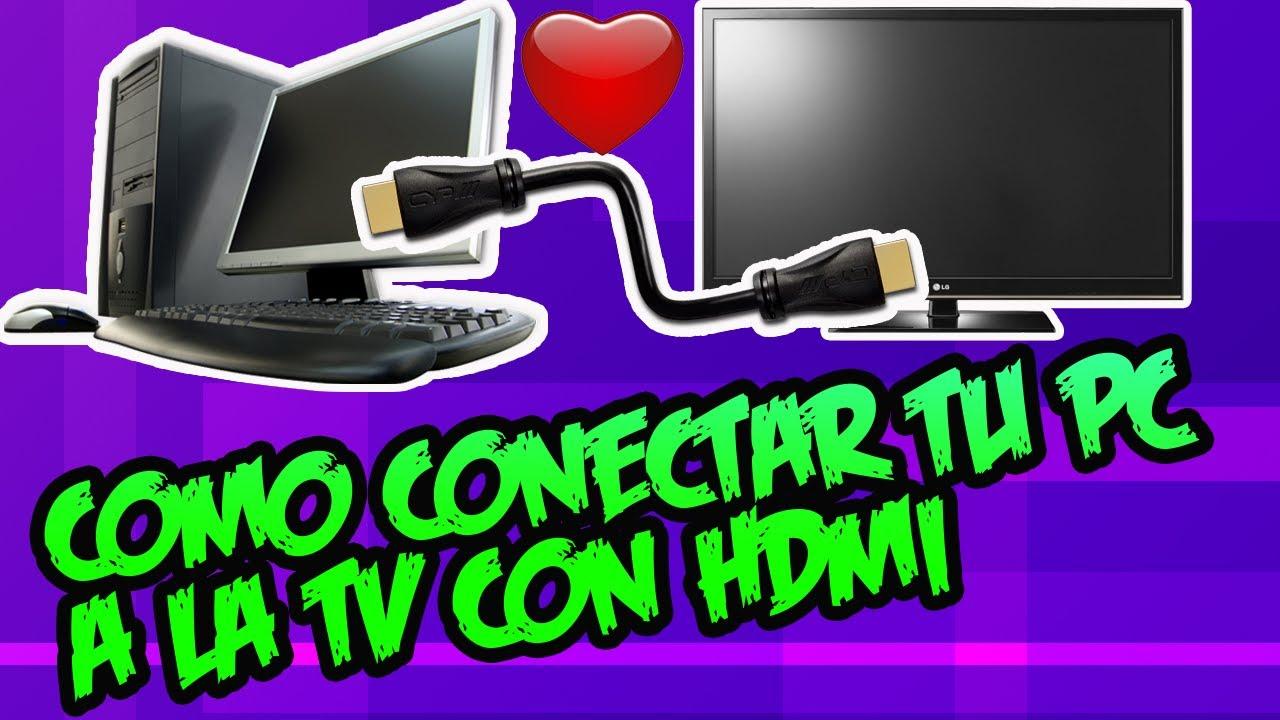
If you prefer to avoid Wi-Fi because you don't want interruptions, delays, or to depend on network quality, the most reliable way to view your mobile phone on a large screen remains the wireThere are two main paths here: HDMI adapters and USB-based solutions.
With HDMI, you essentially turn your phone into a kind of "mini PC" that sends video directly to your monitor or TV. With USB, on the other hand, you need a specific app on your computer, but you have more remote control and recording options.
HDMI adapter for Android and iPhone
To connect your mobile phone via HDMI, you need a specific adapter that converts the phone's port into a video outputOn iPhones, it's usually an official or compatible Lightning to HDMI adapter, while on Android it's usually USB-C or micro USB to HDMI.
It is best to use an adapter plus a standard HDMI cable Instead of an all-in-one cable. This way you can use HDMI cables you already have at home and, if one breaks, you only need to replace the cable, not the adapter.
Some Android phones also support MHL or DisplayPort Alt Mode via USB‑Cwhich allow you to output video directly through the USB-C port. In these cases, you can use a USB-C to HDMI cable or adapter compatible with these technologies to have a stable image at 60 fps.
It works simply: you connect the adapter to your phone, plug the HDMI cable into the adapter and the screen, and in a few seconds You'll see everything you do on your phone on the monitor.You don't need to install anything on your phone or TV, and latency is virtually nonexistent; if you have audio or detection problems, consult HDMI audio problems.
However, with this method you won't be able to use the Use the computer mouse and keyboard to operate the mobile phone (except in specific solutions like Samsung DeX or similar desktop modes). It's more of a large "clone" of the mobile screen than a complete remote control.
Which cable or adapter to choose (and which to avoid)
If you want a high-quality result for cloud gaming, video calls, or live presentations, choosing the right cable is worthwhile. Ideally, it should be a USB-C to HDMI with “Alt Mode” support and these key features:
- HDMI 2.0 or 2.1 certification to ensure 4K at 60 Hz and a competent audio return channel.
- Marked “USB-C DP1.4” on the cable or adapter, indicating that the mobile's port can send video via DisplayPort, which is essential for modes like Samsung DeX, EMUI Desktop, or Motorola's Ready For.
- Maximum length of 1,8 metersbecause from 2 meters onwards it is much more common to experience interference, ghosting or signal loss.
- Chipsets such as VL102 or ANX7530 recorded in the head, which are responsible for negotiating the signal and preventing black screens when changing applications or resolution.
- Avoid the cheap chain adapters USB-C to USB-A to HDMI type, because they usually limit the signal to 720p, add noticeable latency and can overheat the phone's port.
- If your mobile only offers USB 2.0It's often better to use an externally powered active MHL hub: you'll lose some sharpness, but you'll gain a lot of smoothness and stability.
View your mobile screen using USB and desktop apps
Beyond Vysor and scrcpy, there are other tools that allow View your phone's screen on your PC via USBThe idea is similar: you activate USB debugging, connect the data cable, and let the program take care of the rest.
This type of wired connection is perfect when you want avoid any Wi-Fi coverage problems or when the network is overloaded. Furthermore, if the phone's screen is damaged, touch-based solutions are no longer effective, whereas with USB you can still recover data.
The downside is that, in many wired duplication apps, if the phone is not rooted or does not have certain options enabled, You will only be able to see the screen, but not control the phone from the PC.In those cases, if you need total control, you have to resort to tools like scrcpy or pay for advanced versions.
Brand-specific apps and features for screen sharing
In addition to general solutions, many manufacturers have created their own tools for connecting the mobile to the PC and share screen, files, or even offer a full desktop mode.
If you take advantage of what your brand already offers, you'll typically have a more polished integration, with less configuration and a more stable experience, especially on relatively new devices.
Screen sharing on Xiaomi (MIUI)
On Xiaomi phones with MIUI, the screen mirroring option is usually integrated into the system settings, typically in the connections section.
To use it, go to Settings and go to “Connections and sharing”Inside, you should find a section with names like "Screen Mirroring," "Cast," or "Screen Mirroring." Accessing this section allows you to search for compatible devices, such as TVs, monitors, or PCs with receiver software.
Once you have chosen the destination screen, you will follow the instructions that appear on the mobile phone to complete the connection and you will be able to mirror or share your smartphone screen quite directly.
Samsung DeX: Your Galaxy turned into a PC
In the Samsung world, one of the most complete solutions is Samsung DeX, a mode that transforms your Galaxy into something very similar to a desktop computer, with windows, taskbar and mouse and keyboard support.
With DeX you can work with multiple apps at once, edit documents, manage files in the cloud and enjoy multimedia content on a large screen. It's also compatible with common applications like Microsoft Office, Google Chrome, and even some Adobe tools.
Using it with a PC is simple: download the Samsung DeX app for Windows or Mac, install it on your computer, and connect your phone to the same Wi-Fi network or via cable. On your phone, you'll see the option to Launch Samsung DeX and project onto the device.
Once connected, you'll see a DeX desktop interface on the monitor, from which you can navigate the entire mobile system with a mouse and keyboardOpen apps in windows, drag and drop files, and much more.
DeX is compatible with a long list of Galaxy models, from the S8 series onwards, including the current Note, Fold, Flip and S23/S24, as long as the computer runs Windows 10 or macOS 10.13 or higher.
PC Connect on OPPO and realme
OPPO and realme manufacturers have their own tool called PC Connect, designed to wirelessly synchronize mobile and computer and offer features such as screen mirroring and file management.
It is usually accessed from the mobile quick access panelBy activating PC Connect with your phone and PC on the same Wi-Fi network, you can mirror your smartphone's content on the monitor and use your mouse and keyboard to move files, reply to messages, or perform quick actions.
It's a relatively recent feature, which started appearing in models with Android 12 or laterSo it's not present in all OPPO and Realme phones, especially the older or more basic ones.
At Huawei, integration is primarily achieved through Huawei Share and the PC Manager appWith these tools you can share images, videos and documents, as well as control some mobile functions from your computer screen.
For it to work, the phone must have enabled Wi‑Fi, Bluetooth and NFCThen, from the quick access panel, turn on Huawei Share. On the PC, also activate Wi-Fi and Bluetooth and install PC Manager.
With both devices unlocked and close together, the PC may detect the mobile and allow Pair it by tapping the phone on the laptop's NFC area. (on compatible devices). From there, you'll be able to share your screen and content in a fairly integrated way.
Google Pixel and receiver apps like Reflector
Interestingly, despite having almost pure Android, many users of Google Pixel They're not sure how to mirror their computer screen. The most common solution is to use screen mirroring apps on the PC, such as Reflector or similar.
The typical usage flow would be to download and install Reflector on Windows or Mac computerMake sure your Pixel and PC are on the same Wi-Fi network, open Reflector, and then expand the Pixel's quick settings to tap the "Cast" or "Emit" button.
Your phone will display a list of available screens, and your computer should appear among them, identified by the name you configured in Reflector. Once you select it, You'll see the Pixel's screen in a floating window. on the desk without too many complications.
And what about other brands?
Most manufacturers include some form of share screen or send contentWhether through Google Cast, Miracast, or proprietary apps. If your brand doesn't have a system as sophisticated as DeX or Huawei Share, you can always use the third-party apps mentioned earlier.
If you can't find a clear option in your phone's settings, search for terms like “Broadcast”, “Duplicate screen”, “Cast” or “Screen mirroring”And if in doubt, consult the phone's manual or user forums for that brand, where they usually detail the compatible methods.
Chromecast and other HDMI devices for screen mirroring
Another very popular solution, especially for TVs and monitors with HDMI, is to use a Chromecast or other similar stickAlthough we usually associate it with watching Netflix or YouTube on TV, it can also be used to mirror your mobile phone screen.
On Android, many devices offer a "Cast screen" option within the Google Home app or in the quick settings. With both your phone and Chromecast connected to the same device, you can use this feature. Wi‑Fi networkSimply select the stick as the destination and everything you see on your mobile will appear on your TV.
The good thing about this method is that there are also solutions for iPhone, whether with Chromecast or with AirPlay compatible sticksIn addition, some TVs have Google Cast or similar technologies built in, so you don't even need the external stick.
Even other HDMI devices from lesser-known brands can work similarly, as long as they allow receiving cast or mirroring content and are correctly configured on the same wireless network.
If you see strange colors or a negative image when you turn on your Chromecast, it's usually enough to... restart the device or the television itself.It's also a good idea to check the monitor's image settings to make sure there isn't an unusual mode active.
Microsoft Phone Link and Phone Display
On many PCs running Windows 10 and 11, Microsoft integrates the app Mobile Link (Phone Link)which allows you to connect your mobile phone to your computer to view notifications, messages, calls and, in some cases, even the full screen of your phone.
The function of Phone screen Phone Link lets you interact with Android apps from your PC, provided you meet certain hardware requirements and have a compatible mobile phone, such as certain Galaxy, Surface Duo, OnePlus, OPPO, realme or HONOR models.
Requirements and compatible devices
To use Phone Screen you need a PC with Windows 10 October 2018 (version 1809) or laterIdeally, it should be updated to the latest version available. It should also have a DirectX 11 compatible GPU.
Additionally, your Android device must be compatible and have Link to pre-installed Windows or available. Supported models include many Samsung Galaxy phones (S9, S10, S20, S21, S22, S23, S24, Note9, Note10, Note20, Fold, Z Flip…), Surface Duo, HONOR Magic4 Pro and Magic6, several OnePlus series, OPPO Find and Reno, realme, ROG Phone 8 and vivo X Fold3 Pro, among others.
The mobile phone and the PC must be connected to the same Wi‑Fi networkOn your computer, open Mobile Link, go to the Phone Display tab, and follow the setup wizard, granting permissions when prompted so that it can display and control the device's content.
How to interact with your mobile phone screen from your PC
Once configured, you can use mouse, touchpad, keyboard, and even the PC's touchscreen (if it has it) to open apps, write messages, scroll and navigate the mobile as if you had it in your hand.
The basic equivalencies are simple: a A normal click is equivalent to a tap On the screen, right-clicking usually goes back, holding down opens context menus, and dragging while holding selects text or moves items.
Some apps and games don't respond well to the mouse or keyboard because they're designed for touch gestures on the phone's screen. In those cases, if your PC has a touchscreen, you can interact with the phone's screen using your fingers.
To write in different languages from the PC, the Android controls language and keyboard layout. in the physical keyboard section, not the PC's language settings. You can change it from the device settings or using shortcuts like Shift + Space if you have multiple languages configured.
Black screen and privacy
Phone Link offers an option for turn off or “hide” the physical screen of the mobile phone While connected to your PC, the screen will be hidden from view on your phone, preventing what's displayed on the desktop from being visible on your phone. This helps save battery power and protects your privacy if other people are nearby.
If you want to disable that black screen, go to the Mobile Link settings on your computer and, within the Phone Display section, uncheck the option that refers to Hide the device screen while connectedYou can change this setting whenever you want.
Common problems when mirroring the screen and how to solve them
As with almost everything related to technology, when trying project your mobile phone onto your PC or TV Errors can occur. Sometimes they are configuration errors, other times Wi-Fi network issues, or simply inadequate cables.
Often, restarting your device fixes more than you might think, but it's helpful to know the common problems so you can get to the root cause instead of going crazy trying a hundred options at once.
Wireless connection failures
If you're using Wi-Fi and the projection isn't working, keeps cutting out, or your PC doesn't even appear in the list, the first thing to do is Check that both devices are on the same wireless networkIt's very common to have the PC connected by cable and the mobile phone using mobile data or a second guest network.
If you've already checked the network and it's still failing, something in the configuration might not be fully completed. In that case, the most sensible thing to do is usually... delete the connection and start the process from scratchDeactivate projection, restart your mobile device and PC, reactivate the services, and repeat the steps carefully.
It's also possible that the network is saturated or has interferenceespecially on the 2,4 GHz band. If your router and devices allow it, try using the 5 GHz band, which is usually cleaner and offers better streaming performance.
Problems with the USB port or cable
In USB cable connections, if the computer does not recognize the mobile phone or the image does not appear, the problem is most likely with the own cable or in the portNot all charging cables are suitable for data transmission, and many deteriorate over time.
Try another good quality cable with data transfer capacityAnd if possible, connect it to a different USB port on your PC. If the phone was already having charging problems, the phone's port might be damaged and need repair.
If the problem only occurs when connecting it to the computer but it charges fine when plugged in, the problem is likely to be specifically the PC's USB cable or connectorIn that case, changing the cable or trying another port is usually the quick solution.
Video cable incompatibilities and limitations
Not all video adapters and cables are created equal. Many problems with black screens, low resolution, or lack of signal are due to... incompatibilities between the mobile phone and the HDMI/USB-C cable used.
Before you go crazy, check the technical specifications of your phone To find out if it supports MHL, DisplayPort Alt Mode, or other video output standards, check the manufacturer's official website or the manual.
It's also a good idea to take a stroll around specialized forums or communities for your mobile phone modelwhere other users may have documented which adapters work well and which don't, preventing you from buying products that then don't work with your device.
Strange colors or poorly calibrated image
If the mirrored screen is visible with negative, saturated, or very unusual colorsThe problem could be with the television or monitor, or with the way the connection was made.
First, check how the TV channels or other HDMI inputs look. If everything looks bad, the most likely cause is the image settings of the television itselfand that you have to adjust brightness, contrast, color mode or reset the factory settings.
If it only looks bad when you connect your phone, check the devices and accessories involvedThe problem could be the HDMI adapter, the cable, the port you're using, the picture mode of that particular input, etc. A simple change of HDMI port or cable might fix it.
In the case of Chromecast and similar sticks, sometimes the problem of negative colors appears when turning on the device. Usually, this is sufficient. Restart your Chromecast or turn the screen off and on again so that everything can return to normal.
With all these options on the table, you have a huge range of ways to project your mobile screen onto your PC or any large screenNative Windows, Mac, and AirPlay functions, HDMI adapters, Wi-Fi and USB apps, and brand-specific solutions like DeX, Huawei Share, or PC Connect are all available. Choosing one or the other will depend on whether you prioritize wireless convenience, wired performance, or complete remote control of your phone, but with a good understanding of each method, you're unlikely to be without a way to view your phone on a larger screen when you need to.
Table of Contents
- How to use Windows to project your mobile phone without installing anything
- View your mobile screen on your computer using apps
- Native Mac and iPhone screen mirroring options
- Project your mobile phone onto a PC or monitor using cables
- Brand-specific apps and features for screen sharing
- Chromecast and other HDMI devices for screen mirroring
- Microsoft Phone Link and Phone Display
- Common problems when mirroring the screen and how to solve them