- Software and driver conflicts often cause crashes, device errors, and blue screens, especially when they affect kernel-mode drivers.
- Windows includes powerful tools such as Driver Verifier, Device Manager, and troubleshooters to detect and fix corrupt or incompatible drivers.
- Combining good practices (official updates, clean boot, antivirus/firewall control) and manufacturer utilities drastically reduces driver failures.
- In extreme cases, cloning drivers from a healthy computer or reinstalling the system from a recovery drive guarantees the recovery of a stable and conflict-free environment.
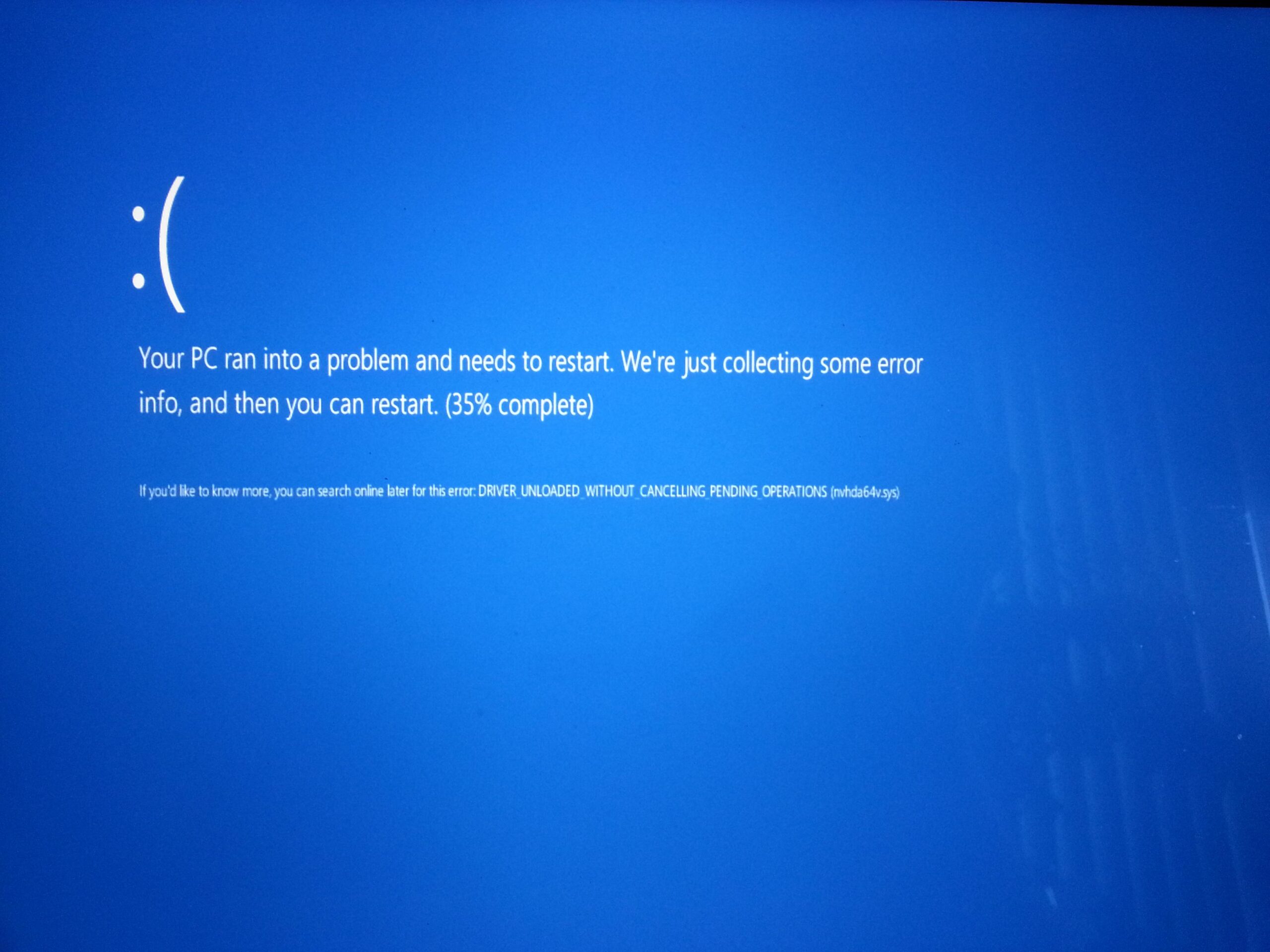
When Windows starts to malfunction, crash, display blue screens, or programs stop opening for no apparent reason, the cause is often... conflicts between software and driversIt's not always easy to diagnose, but by understanding how drivers work and what tools the system offers, most problems can be solved without taking the PC to a repair shop, for example by performing a driver backup in Windows.
In the following lines you will see, in considerable detail, What types of drivers are there in Windows, what errors do they usually cause, how are they detected, and what actual methods work? To fix them: from built-in utilities like Driver Verifier to more practical tricks like cloning drivers from a healthy computer, performing a clean boot, or dealing with rogue printers and meddlesome antivirus software.
What are drivers and why do they cause so many problems?
A driver is the bridge that allows Windows to communicate with the hardware and certain logical devices, and when that bridge fails, problems arise. performance errors, crashes, and incompatibilitiesTherefore, before you start touching anything, it's a good idea to understand what types of drivers exist in Windows and what role each one plays in system stability.
In Windows we can basically distinguish two main families: the kernel mode drivers and the controllers in user mode. Each has its risks and symptoms when something goes wrong.
Kernel-mode drivers operate at the deepest level of the system, with direct access to the hardware: graphics card, sound card, network card, disk controllers, etc. For more advanced diagnostics, it's helpful to consult guides from Advanced PCIe diagnosisThese controllers participate in the management of I/O, memory, processes, security, and Plug and Playand are usually organized in layers: top level (interface with applications), middle level (device classes, for example the disk controller) and bottom level (direct access to the physical device).
If a kernel-mode driver is poorly written, outdated, or corrupted, it will typically cause serious crashes, blue screens, and unexpected restartsThat's precisely why the Driver Checker tool examines them closely: any suspicious behavior results in an error check (blue screen) so you can debug it.
User-mode drivers, on the other hand, run within the application context and don't interfere as much with the system's inner workings. They typically offer a interface between Win32 programs and kernel drivers (or with other system components), as is the case with many printer drivers, input devices, or certain layers of audio and video software.
When a user-mode driver crashes, it usually causes a specific application to crash or a peripheral device to stop working, but without bringing down the entire Windows system. Even so, They can cause conflicts with other applications or driver suites if they are not well maintained or if versions are mixed carelessly.
Typical driver problems in Windows and their causes
Most driver "mysteries" tend to fit into a few fairly repetitive patterns: Outdated or incompatible drivers, interference with antivirus or firewalls, software that overwrites other drivers, malware, and conflicts with Windows updates themselves.
One of the star flaws are the outdated drivers or drivers that are not compatible with your version of WindowsSymptoms such as devices ceasing to function after a system update, poor performance, or missing features (for example, audio problems after upgrading to Windows 11) can appear here. Windows offers its compatibility troubleshooter for these issues, allowing you to install drivers designed for earlier versions in compatibility mode.
Another source of headaches are the drivers that Windows Update itself decides to update on its ownIt's especially tricky with graphics cards: you manually install the latest AMD Adrenalin driver, Windows sneaks in another GPU driver via Windows Update, and you end up with errors, black screens, monitors that aren't detected, or games that stop starting.
It is also very common for the Windows firewall or antivirus software to block communication from certain drivers, especially in network printers, special USB devices, or remote management toolsIf you don't try temporarily disabling these security layers, it's easy to panic thinking the hardware is broken.
In the software realm, more than one driver has become unusable after installing a program that alters the printing chain, manipulates audio, or creates virtual devices (PDF printers, virtual sound drivers, etc.). These types of applications can modify or damage existing driver files and trigger strange conflicts.
Finally, we mustn't forget malware: an infection can corrupt system files and drivers, causing anything from network failures to a disk becoming undetectable or a printer "disappearing." In such cases, a thorough system cleanup and Reinstall the affected drivers after the analysis It is usually mandatory.
How to diagnose driver conflicts with Driver Verifier
Since the Windows 2000 era, Windows has included a very powerful tool designed primarily for developers and advanced administrators: the Driver VerifierIt is responsible for testing kernel-mode drivers to uncover programming errors, improper memory access, or dangerous usage patterns that can crash the system.
To use it, simply run Run Verifier.exe with administrator privileges and restart your computerYou can launch it without parameters to open the graphical interface (Driver Verifier Manager) or with modifiers from a CMD console, applying different configurations with the so-called “marks” or flags.
Among the standard options are several automatic checks that are always run on the verified drivers: IRQL controls, spinlock usage validation, memory allocation and release verification in the correct IRQLs, detection of memory accesses after freeing it, verification that a controller does not unload while it has pending operations, etc.
The option of Special Pool It causes the driver's memory requests to be allocated from a specially monitored area to detect buffer overflows, under-execution, and accesses to already freed memory. If corruption is present, the probability of its detection increases significantly.
The brand of Force IRQL verification It puts the driver under pressure by invalidating pageable code and applying memory pressure. If the driver attempts to access paged memory in an inappropriate IRQL or with a lock in place, the system detects it immediately.
With the Pool Tracking It monitors whether the controller leaves memory unreleased when unloading, which helps to locate chronic memory leaks that can degrade long-term performance.
La I/O verification (and its improved version) requires that the IRPs used by the driver be assigned from a special group, thoroughly checking how it handles IoCallDriver, IoCompleteRequest, and IoFreeIrp calls. Any abuse or inconsistency is triggered by a bug check 0xC9 (DRIVER_VERIFIER_IOMANAGER_VIOLATION).
Other relevant options are the interlock detection (watch for mutexes, spinlocks, and fast mutual exclusions to see if the code can be locked), the DMA verification (good use of buffers and DMA adapters), security checks (avoid references to user-mode addresses from the kernel) and the DDI compliance rules (DDI Compliance Checking), which verifies that the driver respects the kernel interfaces using the VerifierExt.sys library.
When Driver Verifier detects a violation, the standard procedure is to force a Blue screen with codes such as 0xC1, 0xC4, 0xC6, 0xC9, 0xD6 or 0xE6With a debugger connected, the command !analyze -v It usually identifies the responsible driver, and extensions such as !verifier, !deadlock, !iovirp o !ruleinfo They allow you to delve deeper into statistics and broken rules; to see how to address these errors in detail, consult the guide. BSOD analysis and kernel dump.
Additionally, from the Verifier GUI you can see the status of each controller (charged, discharged, never charged)which brands are active, global fault counters, and, if you have enabled Special Group, receive warnings if less than 95% of the allocations go into that pool, indicating that you are checking too many drivers for the available RAM.
Configure and use Verifier.exe from the command line
If you prefer a more scriptable approach, Verifier can also be configured from CMD using a series of modifiers. The key is to understand that Each option is encoded as a bit within a hexadecimal value that you pass to the parameter /flags.
For example, some standard flags are: 0x00000001 (Special Group), 0x00000002 (Force IRQL), 0x00000008 (Pool Tracking), 0x00000010 (I/O Verification), 0x00000020 (Interlock Detection), 0x00000080 (DMA Check), 0x00000100 (Security Checks), 0x00000800 (Miscellaneous Checks), and 0x00020000 (DDI Compliance). There are more flags available for simulate low resources, register IRPs, or force pending IRPs..
To enable, for example, only Special Group, I/O verification, and miscellaneous checks, you would use something like this: verifier.exe /flags 0x811If you want to activate the entire standard set, you can choose verifier.exe /standard or by its equivalent in flags, verifier.exe /flags 0x209BB.
After choosing the brands, you must indicate which drivers will be checkedThere you have two paths: target specific drivers with verifier.exe /driver driver1.sys driver2.sys or sweep the entire system with verifier.exe /allLogically, the more aggressive you are (especially with Special Group and low resource simulation) the more you will notice the impact on performance.
There is also a way volatileDesigned for hot-swapping, allowing you to change flags or add verified drivers without restarting: verifier.exe /volatile /flags 0xVALUE /adddriver MiDriver.sysThis state lasts until you modify it again or restart the machine.
To check at any time how the Checker is configured or what statistics it keeps, you have two key commands: verifier /query (current status and counters) and verifier /querysettings (active configuration stored in the Registry).
Once you have finished the tests, it is important reset the settings for the equipment to return to normal operation. Just one verifier.exe /reset and a subsequent restart to disable all checks.
Practical solutions to common driver problems
Beyond pure debugging tools, in their day-to-day work most users encounter Very specific problems: outdated drivers, incompatibilities after updates, unresponsive printers, graphics cards that clash with Windows Update, or laptops that go crazy when using automatic driver update programs..
A basic starting point is to ensure that Windows is reasonably up to date. Many modern printers, Bluetooth devices, and other recent hardware rely on it. updated components of the system itselfFrom Settings > Update & Security > Windows Update you can check for updates, install them and, if you want, adjust active hours to avoid unexpected restarts.
If a driver doesn't quite fit your version of Windows, you can resort to compatibility troubleshooterRight-click on the driver installer, select "Troubleshoot compatibility", choose "Troubleshooter", check boxes such as "Worked in previous versions of Windows, but now it won't install or run" or "Requires additional permissions", and let the wizard test different compatibility modes.
When the problem is located in a specific device, the necessary step is to Device Manager (devmgmt.msc)From there you can automatically update the driver software, completely uninstall it (by checking "Delete the driver software for this device" if applicable) and let Windows reinstall a clean driver upon restart, or manually install one from your disk.
In many cases, especially with common hardware, it works very well to use Microsoft generic driversIn Device Manager itself, by choosing “Update driver” > “Browse my computer for driver software” > “Let me pick from a list of available drivers on my computer” and checking “Show compatible hardware”, you can select a stable generic driver that usually avoids conflicts with less polished custom versions.
If the problem stems from another program interfering where it shouldn't have (very common with PDF suites, print managers, or software that creates virtual devices), the sensible strategy is First, uninstall that suspicious program, and clean up any remaining files if possible, following the guides provided. uninstall programs and clean your PC and then reinstall the official drivers
Conflicts between Windows Update and GPU, audio, and other drivers
A fairly common case of software and driver conflict is the one that occurs with modern graphics cards in Windows 10 and 11You install the latest AMD Adrenalin package or the NVIDIA driver from their website, everything starts up fine, and then after a while or after several restarts, the problems begin: the screen goes blackOne of the monitors stops being detected, or Steam won't open games because "there is no compatible driver."
The most common explanation is that Windows Update has decided to update the GPU driver on its own, installing a different version than the one in the AMD/NVIDIA package. That mix It can break components of the management software (Adrenalin, GeForce Experience) or leave the system in an inconsistent state..
To minimize these conflicts, many users opt for two steps: using DDU (Display Driver Uninstaller) in safe mode to completely clean up remnants of previous drivers and then install the desired official driver by temporarily disconnecting internet access or blocking Windows from automatically updating hardware drivers.
Something similar happens with certain audio drivers after major Windows 10/11 updates. You might encounter microphones that sound distortedDevices that stop appearing or mixes of manufacturer drivers with the generic Windows version. In these cases, if updating from the manufacturer's website doesn't work, a very effective technique is to export the drivers from a computer of the same model that is working correctly.
With DISM you can, on the "healthy" endpoint, execute DISM /online /export-driver /destination:D:\ModeloPortatil to remove all installed drivers. Then, on the problematic computer, import with pnputil /add-driver "D:\ModeloPortatil\*.inf" /subdirs /install. This way, You clone exactly the set of drivers that you know works.without relying on manual searches.
Printers: the eternal classic of driver conflicts
If there's one device especially prone to clashing with Windows, it's the printerFrom installations that never finish to the mythical message "the printer driver is not available", to print queues that get stuck forever.
In simple scenarios, the ideal solution is to connect the printer to the PC with an internet connection and let Windows Update handle it. automatically search, download, and install driversIf it's a USB-connected printer, often nothing more is needed. If it uses Wi-Fi, you'll usually need the manufacturer's utility (HP, Canon, Epson, Brother, etc.) to connect it to your network.
When the printer is already installed but stops printing and jobs get stuck in the queue indefinitely, a very effective trick is manually purge the print queueThis is done from a CMD with administrator privileges by first running net stop spooler to stop the spooler service, internally emptying the jobs, and then net start spooler to start it up clean again.
If the problem is purely with the drivers, you can reinstall them from Device Manager: in "Print queues" locate your printer, right-click, "Uninstall device" (also removing the software if that option is offered) and restart your PC so that Windows can search again for a compatible driver from Windows Update.
In some cases, especially with older or very basic models, it works better to use the generic Microsoft printer driverBack in Device Manager, select "Update driver", choose manual installation and then "Let me pick from a list of available drivers on my computer", checking the corresponding generic driver.
When the printer is network-connected and there's no way to get it to respond, it's worth checking that neither the Neither Windows Firewall nor antivirus software is blocking the IP address or portsFrom Settings > Update & Security > Windows Security > Firewall & network protection, you can review rules, open necessary ports, or run a quick test by temporarily disabling protection to see if that's the bottleneck.
Clean boot, hidden drivers, and malware
When you suspect a conflict between drivers and other software, but can't identify it, perform a Windows clean boot This is a fairly effective strategy for isolating the problem. In this mode, the system starts with only the bare minimum of essential services and drivers, and without any third-party startup programs.
To configure it, launch msconfig.msc (Win + R keys), in “Services” check “Hide all Microsoft services” and click “Disable all”. Then, in the “Startup” tab, open Task Manager and disable all startup items, preferably noting on a piece of paper what had been activated so that it can then be restored in an orderly fashion.
After applying the changes and restarting, Windows will boot into clean mode. If you can install or reinstall the drivers without errors in this environment, it's most likely that some third-party service or program was interferingThen you can gradually reactivate elements until you find the culprit.
Another helpful tip is to show the hidden drivers in Device ManagerIn the "View" menu, you can enable "Show hidden devices" and you'll see hardware and drivers that don't normally appear, many of them pre-installed by the computer manufacturer. It's common that An old or duplicate driver may be causing conflictsBy making it visible, you can update, disable, or uninstall it as needed.
If you suspect malware is involved because the drivers appear corrupted for no clear reason, you need to use your antivirus software. You can use the one you have installed or use [another antivirus program/tool]. Windows built-in protection (Windows Security)Press Win + S to search for "Virus & threat protection" (or simply "virus") and run a "Quick scan" or a full scan. Once the system is clean, reinstall the problematic drivers from the official source.
Driver updates: Windows Update, manufacturers, and external tools
To keep software and driver conflicts at bay, it's key to keep your hardware reasonably up-to-date, but without going overboard. On most computers, Windows Update and the official tools from each manufacturer. They cover virtually all needs.
Simply type "updates" into Windows Search to access "Check for updates." Clicking "Check for updates" will locate new driver versions released through Windows Update, including drivers that may not have been downloaded when you first installed your PC.
In the case of graphics processors and chipsets, many manufacturers offer specific utilitiesIntel has a free driver update tool that detects and suggests the appropriate packages; if you prefer to do it manually, you can go to the Intel website, download the corresponding driver and, from Device Manager, in "Sound, video and game controllers" or the relevant section, use "Update driver" pointing to the folder where you extracted the package.
With AMD it's similar: you go to their website, choose your product type, model and operating system and Download the Windows driver packageFor NVIDIA cards, their download portal allows you to refine your search by GPU type, series, specific product, operating system, download type, and language, with separate sections for older drivers and beta versions.
Beyond official resources, there are third-party tools designed to make life easier, but they should be used with caution. Programs like Snappy Driver Installer (with a portable Lite version) allows you to scan a PC offline from a USB drive and apply batch driver updates from a huge database; however, you must always download it from its legitimate website, because modified versions loaded with malware are circulating.
Other utilities such as Drive Talent They offer very limited free versions and paid Pro editions that scan your computer, locate outdated drivers, and automatically download/install them. They work well, but before paying for one of these tools, it's usually worth exhausting official options. Avoid mixing too many driver sources on the same team.
There are also niche utilities, such as Driver Store ExplorerThis tool analyzes the Windows driver repository, detects duplicates, allows you to remove old or problematic drivers, and generates detailed listings. It's open source (available on GitHub) and can be configured in multiple languages. Its classic interface is highly customizable and makes it easy, for example, to see which specific device is associated with each driver.
Serious driver errors and when to reinstall or format
In environments like Surface devices, mixing official drivers with third-party updaters like Driver Booster can be a recipe for disaster. It's relatively common for errors to appear after using these utilities. fans always running at full speed, screen freezes, or erratic behavior because they have installed versions that are not supported for that model; it is advisable to check the PC component health if you notice any abnormal physical signs.
For such devices, Microsoft support itself recommends the following: Do not use third-party tools to update driversInstead, rely on the Surface app, Windows automatic updates, or the Surface Diagnostic Toolkit. If the damage is already done, you can try to recover the situation by downloading the complete MSI file of drivers and firmware for your specific model from the Microsoft website and installing it manually.
If even that doesn't restore stability, it's very possible that the intervention of an external updater has left the firmware or system in a corrupted state. In that scenario, the cleanest and safest course of action is usually to Reinstall Windows from a recovery USB driveThis completely remakes the device image, including original firmware and drivers.
The process, broadly speaking, involves using another Windows PC to go to the "Download Surface recovery image" page, logging in with your Microsoft account, downloading the image for your model, preparing a USB drive formatted as FAT32, extracting the image to it, and then, on the affected Surface, Boot from that recovery drive by holding down volume down while turning onFrom the recovery environment, choose "Troubleshoot" > "Recover from a drive", agree to erase everything, and let the system reprovision.
Outside of the Surface ecosystem, if after trying driver reinstalls, malware removal, clean boot, and other solutions the device continues to experience constant driver-related crashes, it may be time to consider other solutions. a clean Windows installation or go to a technical serviceIf the PC is under warranty, the manufacturer may even manually reconfigure the drivers or replace faulty hardware at no cost.
Ultimately, and especially when dealing with complex printing problems in professional environments or driver conflicts that impact the business, having a 24/7 remote or on-site IT maintenance service It can save a lot of time wasted in front of the screen trying out combinations blindly.
Knowing this whole range of tools, from Driver Verifier and Device Manager to driver exporters, Windows troubleshooters, and official utilities from each manufacturer, allows you to tackle the conflicts between software and drivers with a head and methodminimizing trial and error and reducing the likelihood of ending up formatting out of desperation when many issues could be resolved from home with a few well-thought-out steps.
Table of Contents
- What are drivers and why do they cause so many problems?
- Typical driver problems in Windows and their causes
- How to diagnose driver conflicts with Driver Verifier
- Configure and use Verifier.exe from the command line
- Practical solutions to common driver problems
- Conflicts between Windows Update and GPU, audio, and other drivers
- Printers: the eternal classic of driver conflicts
- Clean boot, hidden drivers, and malware
- Driver updates: Windows Update, manufacturers, and external tools
- Serious driver errors and when to reinstall or format