- The Shift key, also called Caps Lock, is a key modifier key for capital letters, symbols, and shortcuts.
- It is duplicated on almost all keyboards: one on the left and one on the right to make it easier to use.
- It allows you to type specific capital letters, access special characters, and select text or files.
- In Windows, Mac, and many video games, it activates shortcuts and advanced actions that improve productivity and control.
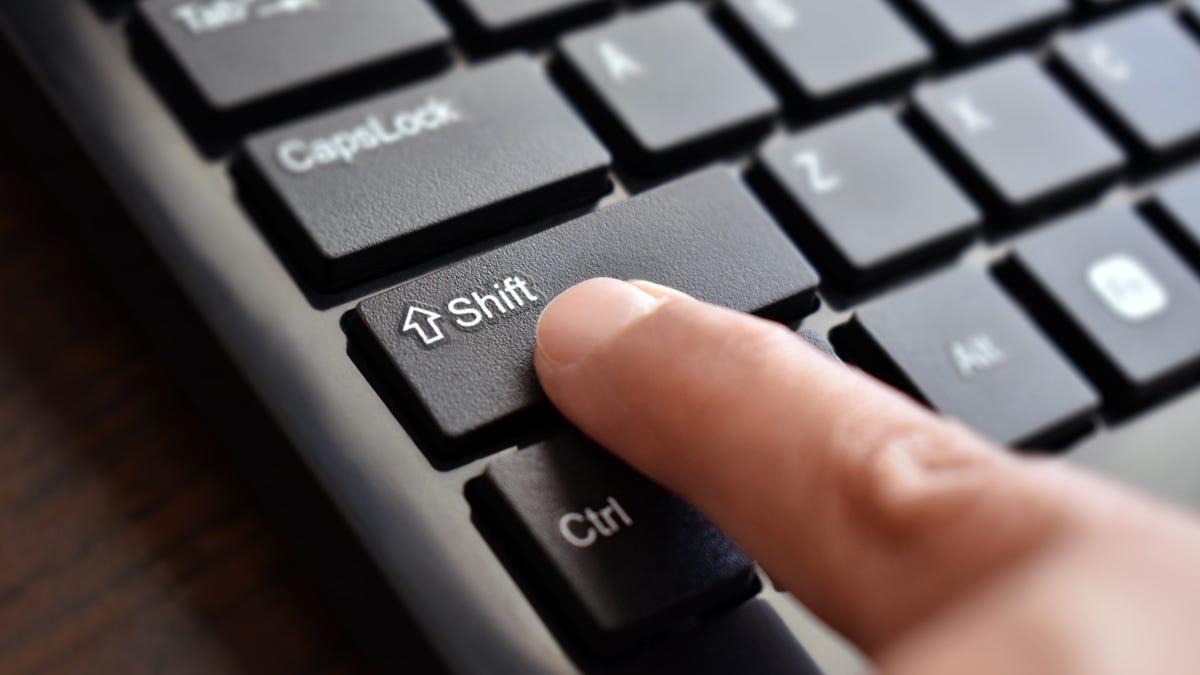
If you've ever been told "press Shift" and didn't know where to look on the keyboard, you're not alone.In computing we take a lot of things for granted, and one of them is that everyone knows the Shift or Caps Lock key, when in reality it is one of the great unknowns for beginner users.
The Shift key is much more than just "the capital letter key"It's used for writing large letters, extracting unusual symbols, selecting text and files, and using shortcuts in both Windows and Mac, as well as in many programs and games. Let's take a closer look at it, with clear examples and no unnecessary technical jargon.
What exactly is the Shift key?
The Shift key is a modifier key on the keyboard, also called the caps lock key.It is considered a modifier key because by itself it does not type anything or move the cursor, but it changes the behavior of other keys when you hold it down at the same time.
Its main function is to allow you to write capital letters precisely.In other words, you normally type in lowercase, and when you want a single letter in capital letters (for example, at the beginning of a sentence or when writing a proper noun), you hold down Shift and press the letter. When you release it, everything remains in lowercase as normal.
On most keyboards it may appear as “Shift” or as “Capsule”...and even just with an upward-pointing arrow icon (⇧ or ↑). The exact design doesn't matter: if you see that upward-pointing arrow, you're looking at the Shift key.
It is important not to confuse Shift with the Caps Lock key.Caps Lock activates a mode where all letters are typed in uppercase until you press it again. Shift, on the other hand, only maintains uppercase while you hold it down. These are two different ways of working with uppercase letters.
Where is the Shift key on the keyboard?
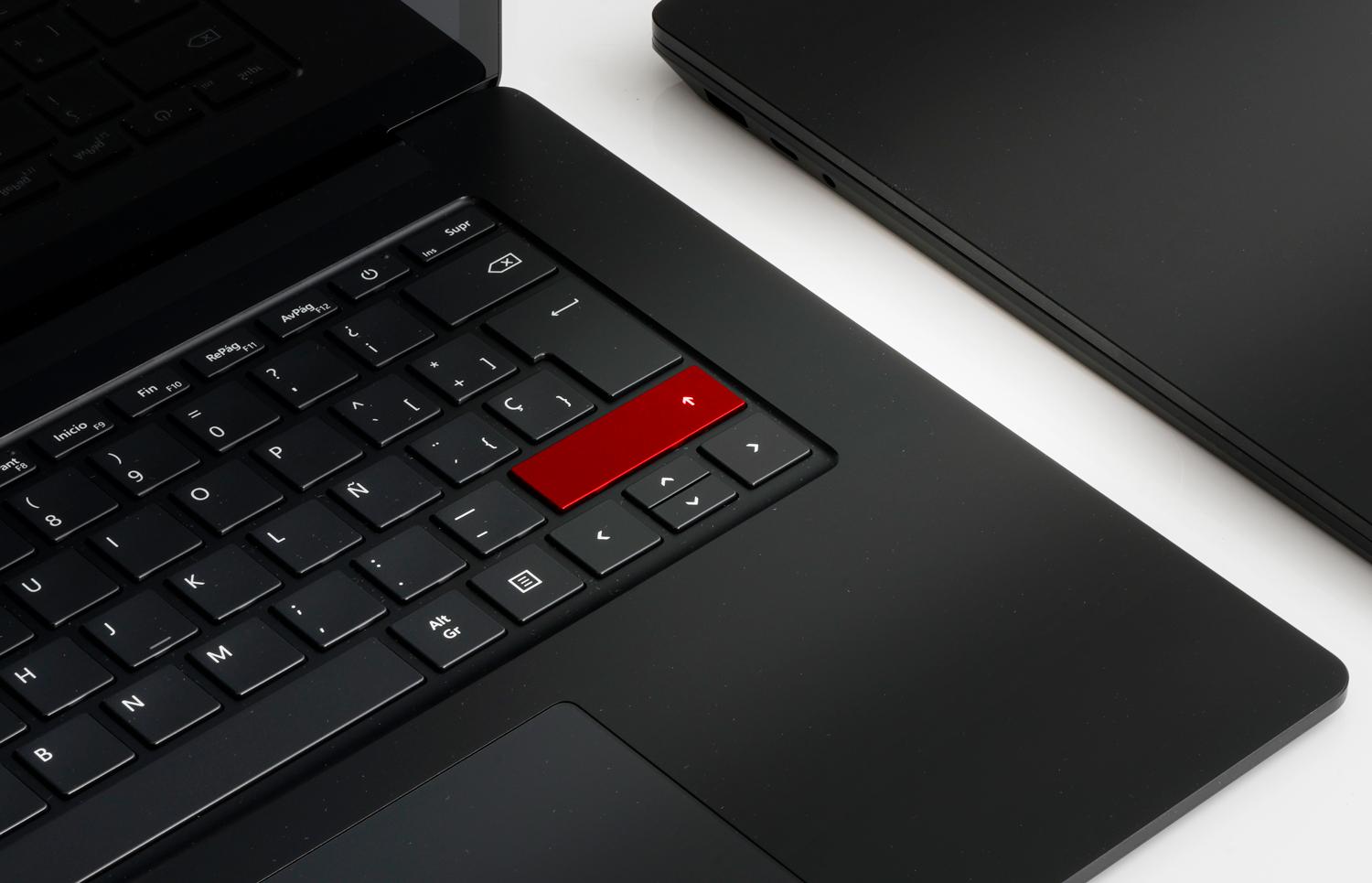
A standard keyboard has two Shift keys: one on the left and one on the right.This is done so that you can use it comfortably with either hand depending on the key you are going to press.
- Left Shift: It is located in the lower left part of the keyboard, usually between Ctrl (Control) and Caps Lock, or just below the latter key.
- Right Shift: It is on the right side, below the Enter key and to the right of the key with the hyphen (-) or some punctuation marks.
If you look at your keyboard from bottom to top, it usually occupies the ends of the second row counting from the bottomIn many models, the right Shift key is slightly wider than the left one to make it easier to press accurately while typing quickly.
On laptops the position is the same, although the key may be slightly smaller due to space constraints. If you work with multiple computers, you can learn to control multiple computers with a single keyboard and mouseIn any case, you will always have a Shift key on each side of the alphabetic keyboard, whether on Windows, Mac, or most Linux keyboards.
Mac keyboards also have two Shift keysThey are usually located just above the Fn key and below Caps Lock on the left side, and in the lower right corner below the Enter key. The upward arrow icon and the word "Shift" easily identify them.
How to use the Shift key step by step
The basic use of the Shift key is always the same: hold it down while pressing another key.There's no need to juggle; the trick is in the order:
- Hold down Shift first with one of your fingers (usually the pinky).
- Without releasing Shift, press the other key (letter, number, symbol key, arrow, etc.).
- release both keys when the character appears or the action is performed.
It really only takes Shift being pressed a few milliseconds before the other keyPerfect synchronization isn't necessary, but if you press the letter before Shift, it will either appear in lowercase or perform the normal action of that key.
You can use the left Shift key for the letters on the left side and the right Shift key for those on the right side.That's the "correct" idea for typing with all your fingers, although in practice people use it however they find most comfortable, and that's perfectly fine.
What is the Shift key used for: main uses
The beauty of the Shift key is that it multiplies what you can do with the keyboard and help Improve productivity in Windows 11Let's review its most important functions, from the basic to the most advanced.
1. Write capital letters correctly
This is the classic use of the Shift key: to type a capital letter without changing the entire text to uppercase.For example, at the beginning of a sentence or when you write proper nouns like Spain, Maria, or Juan.
Practical example with the Spanish keyboard:
- press and hold Shift.
- While holding it down, press the key a.
- The screen will display A instead of a.
As soon as you release Shift, the rest of the letters revert to lowercase.That's why it's ideal for typing quickly: just use the capital letter, drop it, and keep going as if nothing happened.
If Caps Lock is enabled, Shift temporarily reverses the effectIn other words, if you're typing everything in uppercase with Caps Lock and you hold Shift, the letters you press in the meantime will come out in lowercase.
2. Enter special characters and symbols from the keyboard
Another fundamental use of the Shift key is to access the symbols that appear above some characters, especially in the number row.On the Spanish keyboard, each number usually has at least one extra symbol at the top of the key.
Typical examples with Spanish distribution:
- Shift + 1 → exclamation mark !
- Shift + 2 → depending on the keyboard it can be « o @ (on many Spanish laptops, Shift + 2 type the at symbol @).
- Shift + 3 → symbol # o ·, depending on the model.
- Shift + 8 → opening parenthesis (.
- Shift + 9 → closing parenthesis ).
It doesn't just affect the numbersMany punctuation keys also have a symbol above them: for example, the question mark key or the hyphen key often have several symbols. Holding down Shift is how you access the "above" function.
In short, any symbol you see printed on top of a key usually depends on Shift.When you don't know how to type a specific symbol, try holding down Shift and pressing the keys that display it in print.
3. Select text and files with precision
Shift is also a great ally for selecting text or groups of files without having to drag the mouse.It is much more accurate and is usually faster.
To select text using the arrow keys:
- Place the cursor where you want to begin the selection.
- hold down Shift.
- Press the arrows left, right, up or down to expand the selection.
In long documents, this allows you to select entire paragraphs without straining your wrist with the mouse.It is especially useful in word processors or code editors.
To select multiple files in the file explorer (Windows, macOS, etc.):
- Click on the first file in the list.
- hold down Shift.
- Click on the last file you want to include.
Everything between the first and the last will be automatically selectedIt's perfect for handling large groups of photos, documents, or folders without going file by file.
4. Keyboard shortcuts that use the Shift key
Many keyboard shortcuts combine Shift with other command keys such as Ctrl, Alt, or the Windows keyThis gives you quick access to actions that you would otherwise have to search for through menus.
Shift shortcuts in Windows
In Windows, combining Shift with other keys unlocks very useful functions. to work faster:
- Shift + letter: write that letter in uppercase.
- Shift + number (top row): type the symbol from the top of the key, such as !, @, #, etc.
- Shift + key with symbol: displays the alternative symbol “above” (e.g., parentheses or braces depending on the keyboard).
- Shift + Tab: changes the focus to the previous element (for example, goes back in form fields or program tabs like Chrome).
- Windows + Shift + S: Opens the screen snipping tool to capture an area.
- Shift + F10: opens the context menu of the selected item (equivalent to right-clicking the mouse).
- Shift + Insert: pastes the contents of the clipboard into many text editors, as if you used Ctrl + V.
- Ctrl + Shift + Esc: Opens Task Manager directly.
- Ctrl + Shift + N: creates a new folder in File Explorer.
- Shift + Delete: deletes a file without sending it to the recycle bin (deletes it directly).
Browsers like Chrome, Edge, and Firefox also rely on Shift for very convenient shortcuts.:
- Ctrl + Shift + N: Opens a new window in incognito or private mode.
- Ctrl + Shift + T: recovers the last tab you closed.
- Ctrl + Shift + B: Shows or hides the bookmarks bar.
- Ctrl + Shift + Del: opens the window to clear browsing history and other data.
- Ctrl + Shift + Tab: switch to the left tab.
- Ctrl + Shift + D: saves all open tabs as bookmarks.
Shift shortcuts in File Explorer
In Windows, the Shift key combination with the mouse or other Explorer keys gives you a lot of control over files.:
- Shift + left mouse click: selects all files between the first and second clicks.
- Shift + arrow keys: expands the selection up, down, left or right.
- Shift + right mouse click: opens an expanded context menu with additional options.
- Ctrl+Shift+E: expands the folder tree in the navigation pane.
- Ctrl + Shift + N: creates a new folder.
- Shift + Delete: permanently deletes the selected file or folder, without going to the recycle bin.
Main Shift shortcuts on Mac
On macOS, the Shift key also participates in many shortcuts, usually combined with Command (⌘)Some commonly used ones are:
- Shift + Command + C: opens the “Computer” window.
- Shift + Command + D: Opens the Desktop folder.
- Shift + Command + F: opens the recent items view.
- Shift + Command + I: Opens iCloud Drive.
- Shift + Command + K: opens the Network window.
- Shift + Command + N: creates a new folder in the Finder.
- Shift + Command + O: Open the Documents folder.
- Shift + Command + R: opens the AirDrop window.
Caps Lock, difference from Shift and how they are related
Caps Lock and Shift look similar, but their behavior is very different.It's worth being clear about this, because it's easy to accidentally press Caps Lock and have everything typed in capital letters without knowing what's happening.
Caps LOCK:
- Activate a permanent caps lock mode until you press it again.
- He usually indicates his status with a LED on on the keyboard.
- On many keyboards it is represented by an upward-pointing arrow with a straight base or a small padlock.
Shift:
- Only apply capital letters while you hold them down.
- It does not have its own status light.
- It also works for symbols, shortcuts, and selections, not just large letters.
On AZERTY (French) keyboards, the Caps Lock + Shift combination becomes even more important.because it allows you to write long sequences of numbers or capital letters without having to hold down Shift continuously.
If you ever notice that everything is written in capital letters and you don't know why, it's most likely because you've accidentally activated Caps Lock.You just need to press it again to deactivate it and restore normal Shift behavior.
Additional Shift functions with the mouse and other keys
In addition to classic shortcuts, Shift is often used as a "multi-select key" in combination with the mouse.If you need to change button behaviors, there are apps for that. remap the middle mouse buttonThis occurs in both operating systems and many programs.
Common examples:
- In an email client, Shift + click In two messages, it usually selects all the emails between them.
- In spreadsheets, Shift + click over cells expands the rectangular selection between the initial and final cells.
- In photo editors, Shift It can be used to add precisely aligned shapes or elements.
In some advanced programs, Shift can also activate additional modes.This includes actions such as inverting a selection, forcing the proportions of a figure when resizing it, or restricting movements to specific axes. It depends on the software, but the general idea is that Shift "modifies" the usual behavior.
The Shift key in video games
In the world of video games, Shift is one of the most used keys on the keyboardDevelopers take advantage of it precisely because it is very accessible and because there are two, one on each side.
Some typical uses of Shift in PC games:
- Run or sprintIn shooters and first-person games, holding Shift while moving makes your character run instead of walk.
- Stealth mode or crouchIn stealth or shooting games, it can be used to crouch or take cover behind obstacles.
- Activate special abilitiesIn RPGs, MOBAs, or strategy games, Shift can be assigned to skills, queued orders, or quick actions.
- Precision mode: In some games, it reduces the sensitivity of the mouse or movement for better aiming.
- Select groupsIn real-time strategy games, combined with clicks, it is used to select multiple units or add them to a group.
One curious detail is that the two Shift keys have different internal codes.So a game can distinguish between left and right and give them different functions if the developer wants.
What happens if I hold down Shift for a long time?
From the operating system's point of view, holding down Shift for a long time does not activate any secret functionIt will simply continue to apply uppercase letters, uppercase symbols, or extended selection as long as you hold it down.
The only thing to keep in mind is accessibility.On some systems, holding down certain modifier keys or repeatedly pressing them can activate accessibility features like "Sticky Keys" or "Sticky Keys." The system will usually notify you with a pop-up window asking if you want to enable them.
A brief history and origin of the Shift key
The Shift key didn't originate with computers, but with mechanical typewriters.It literally comes from the idea of "shifting" the internal mechanism to change character.
In early typewriters, each key activated a metal bar with two engraved characters.There was one typebar at the bottom (normal) and another at the top (alternate). When the typist pressed Shift, the set of metal typebars was lifted or moved, so that pressing a key printed the character at the top.
This allowed more symbols to be written without increasing the number of physical keys.Generally, the "top" of the bar contained the uppercase letters or special characters, while the bottom contained the lowercase versions.
Over time, typewriters evolved and incorporated smoother, more automatic mechanisms. to make that shift. But the logic remained, and when computer keyboards arrived, the same concept was inherited: a key that temporarily changes the output of others.
That legacy explains why we still use Shift today to switch between lowercase, uppercase, and alternate symbols.even though there are no longer metal bars to move, but circuits and code interpreting each keystroke.
The Shift key is one of the great silent protagonists of the keyboardAlthough it's often assumed that "everyone knows about it," truly understanding where it is, how to use it, and what combinations it offers makes a huge difference when it comes to typing faster, working with files, browsing the internet, or even playing games more comfortably. Once you've mastered it, it's incredibly difficult to go back and not take advantage of it in your daily computer use.

Table of Contents
- What exactly is the Shift key?
- Where is the Shift key on the keyboard?
- How to use the Shift key step by step
- What is the Shift key used for: main uses
- Caps Lock, difference from Shift and how they are related
- Additional Shift functions with the mouse and other keys
- The Shift key in video games
- What happens if I hold down Shift for a long time?
- A brief history and origin of the Shift key