- Linux Mint positions itself as the most user-friendly alternative for Windows users thanks to its classic interface and stability based on Ubuntu LTS.
- The transition process allows you to choose between replacing the current system or keeping both systems using a dual boot configuration.
- The distribution offers three desktop environments (Cinnamon, MATE and XFCE) adaptable to the power of the user's hardware.
If you feel your computer has become a burden due to unexpected restarts, excessive RAM usage, or those Windows updates that arrive at the worst possible time, it might be time to revamp your system. Switching to Linux Mint isn't just a matter of technological ideology; it's a practical way to regain speed and complete control over your machine without complicating your life.
The best part is that you don't need to be a computer expert or struggle with complicated code to get started. Mint was specifically designed to make those coming from proprietary environments feel right at home , offering an intuitive experience that minimizes learning time and maximizes productivity from the very first minute.
What exactly is Linux Mint and why is it the ideal choice?
Basically, we're talking about an Ubuntu-based distribution, developed by Clément Lefebvre and a very dedicated team. Their philosophy is clear: the system should work right out of the box , without the user having to struggle with basic configuration after installation. While Ubuntu has taken more adventurous paths with its GNOME environment, Mint has preferred to maintain a classic and familiar style , with its start menu and bottom taskbar, making the transition from Windows virtually painless.
Among its strengths are the stability inherited from Ubuntu's LTS versions and the inclusion of proprietary multimedia codecs and fonts , thus avoiding the tedious process of searching for drivers online. It also includes powerful tools such as Timeshift , which allows you to back up the system state to revert to a previous state if you make a mistake, and an update manager that categorizes packages according to their risk level.

Choose your flavor: Cinnamon, MATE or XFCE
Not all needs are the same, that's why Mint offers three editions depending on the power of your computer and your visual preferences:
- Cinnamon: It is the jewel in the crown, the most modern and recommended for those looking for a polished aesthetic similar to Windows.
- MATE: A balanced option, lighter than Cinnamon but maintaining functionality.
- XFCE: The perfect choice for revive old computers or prioritize the low resource consumption.
Roadmap for a smooth migration
Before taking the plunge, it's essential to make some preparations to avoid unpleasant surprises. The first and most crucial step is to create a thorough backup of your photos, documents, and personal files on an external drive or the cloud; although Linux can read Windows partitions, it's better to be safe than sorry. It's also a good idea to check the compatibility of your hardware , especially if you have very specific printers or unusual Wi-Fi cards.

Preparation of the installation medium
To begin, you should go to the official Linux Mint website and download the ISO image of your chosen edition. To avoid corrupted files, it's recommended to verify the SHA256 checksum . Once you have the ISO, you'll need a USB drive of at least 4GB. If you're using Windows, Rufus is the standard tool (configuring GPT and UEFI), although installing Linux on a USB drive with balenaEtcher is an extremely simple cross-platform alternative where you just have to click "Flash".
The step-by-step installation process
When you boot your PC from the USB drive, you'll enter Live mode , which lets you try Linux without installing it on your hard drive. Once you're ready, open the installation icon and follow these steps:
- Language and keyboard: Select Spanish and check that the letter ñ and opening punctuation marks work correctly.
- Additional software: It is vital to tick the box install multimedia codecs so that videos and music work smoothly.
- Disk strategy: Here are three paths. You can erase everything To leave Mint as the sole owner, choose the installation alongside Windows (the famous dual boot) or use the "Something else" option to manage partitions manually if you are an advanced user.
- User and time zone: Configure your city and create your account. Recommended. encrypt the personal folder if you use a laptop for security reasons.
Post-installation configuration and optimization
Once your computer has restarted, don't just stick with the default drivers. First, run the System Update Manager to update your system. Then, go to the Driver Manager to install the proprietary drivers from NVIDIA or Broadcom, ensuring your graphics card and Wi-Fi perform at their best.
Don't forget to set up Timeshift immediately; scheduling daily snapshots is the best safety net you can have. For software, Mint's Software Manager is a goldmine where you'll find Steam, Spotify, VLC, or GIMP without any hassle. If you feel like using the terminal, a simple `sudo apt install` will let you add any package quickly.
Common questions: Dual Boot and distro switching
Many people wonder if it's possible to install Windows after already having Linux Mint. The answer is yes, it is possible , although most tutorials explain it the other way around. It requires managing disk space and combining them on the same PC , reinstalling the boot manager, but it's not strictly necessary to format everything from scratch if done carefully.
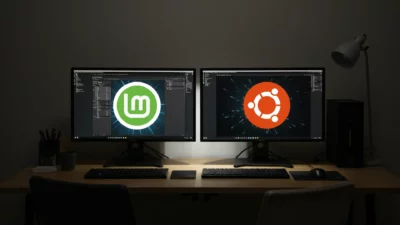
On the other hand, if you already have Mint but want to try Ubuntu (for example, to have a more recent version of GNOME), you should know that although they share a common base, there's no magic button to switch between them while preserving your exact desktop settings. The cleanest and safest approach is to back up your data and perform a fresh installation of Ubuntu.
Switching from a closed system to an open one like Linux Mint is a decision that breathes new life into any computer, eliminating the burden of background processes and bloatware. With an unpretentious interface, built-in backup tools, and a huge community, the path to digital freedom is easier than ever, allowing you to choose between a complete wipe or a harmonious coexistence through dual booting.
