- Combining monitoring apps with system settings allows you to significantly reduce battery consumption on Android.
- Controlling wakelocks, bloatware, and unnecessary connections is key to getting your phone into deep sleep mode and reducing its background resource consumption.
- Taking care of your battery's health involves avoiding heat, extreme charging, and updating both Android and apps with power consumption issues.
- Cleaning up storage and checking the hardware status helps maintain performance and, in turn, improve the overall battery life of the device.
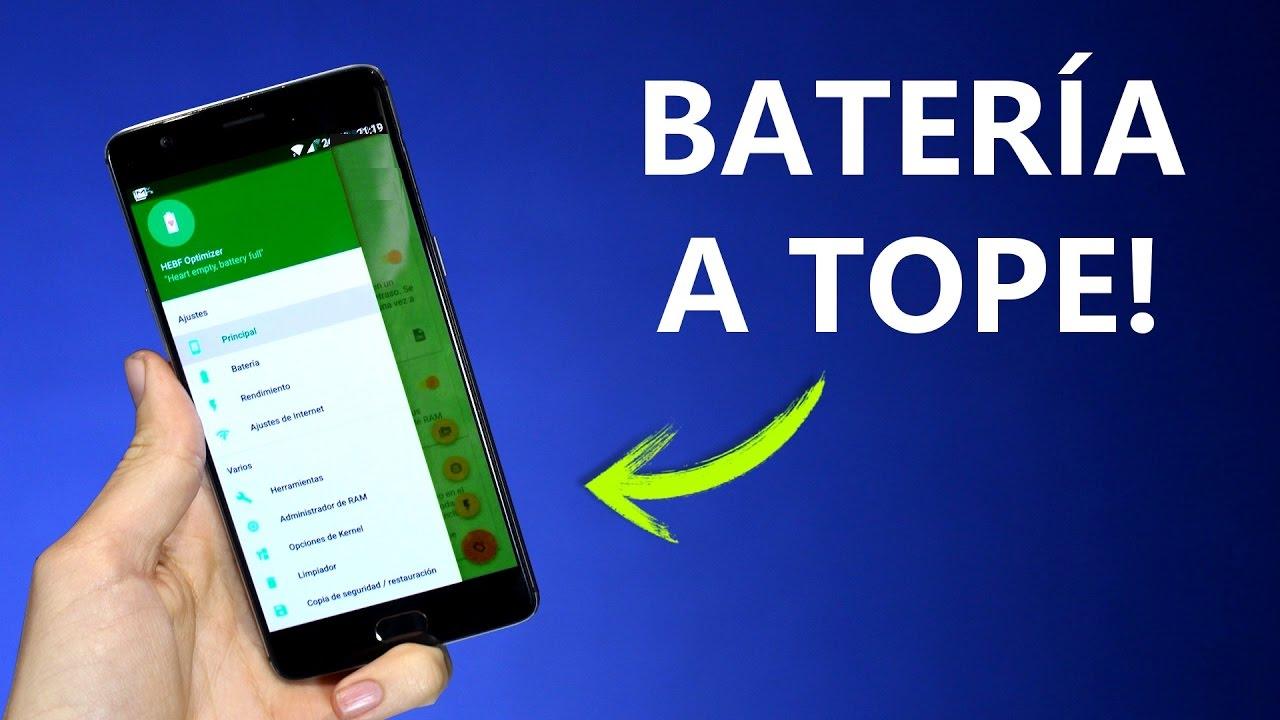
If you have an Android phone and notice that the battery life isn't what it used to be, you're not alone. The combination of poorly optimized apps, high brightness, always-on connections, and an already worn-out battery It can prevent you from making it to the end of the day even if you hardly use your phone.
The good news is that today we have many options: from advanced tools to measure and understand consumption, to system adjustments and small tricks that make a difference. With a few well-chosen apps and by changing four habitsYou can extend both the daily battery life and the overall battery life of your Android device.
Why your Android battery is lasting less and less
Before you start installing apps willy-nilly, it's a good idea to understand what's going on. Each battery has a limited lifespan in charge cyclesOver the years it loses capacity and can no longer store the same mAh as when the phone was new.
Besides age, Frequent full loads at 100% and always let it drop below 10%. They accelerate wear and tear. Heat is also lethal: if the device overheats frequently, the battery degrades much faster even if you're not using it at that moment.
On the other hand, the Android system itself tries to estimate how much battery each app uses, but It uses predefined manufacturer profiles that often do not reflect reality.This means that the standard battery panel doesn't always reflect the actual power consumption of your apps.
Added to all this are the apps that keep working in the background, the processes that prevent the mobile from entering deep sleep, and the connections that remain active unnecessarily. The sum of small, constant power drains can deplete the battery even with the screen off..
AccuBattery and other apps to measure and understand actual consumption
One of the most powerful tools to find out what's happening with your battery is AccuBattery. This application does not simply show the remaining percentageInstead, it measures actual usage based on data from the device's own charging controller.
Instead of relying on generic profiles, AccuBattery Calculate the actual battery capacity in mAh Based on charge and discharge cycles, you can see, for example, if your battery only retains 70% of its original capacity and understand why it no longer lasts a full day.
The app combines this data with information about which application is in the foreground to show Actual consumption per app, both in use and at restThis way you discover which apps are truly battery hogs and which ones barely impact battery life.
Another key feature of AccuBattery is its wear monitoring with each charge. The app It tells you how much "damage" the battery suffers in each charging session. It also allows you to set alarms to disconnect the charger before it reaches 100%, which is highly recommended if you want to extend the battery's lifespan.
Among its key features, you will find: remaining charging time, usage estimates with screen on or offIt also displays the percentage of time spent in deep sleep and provides a persistent notification with real-time statistics. The Pro version adds dark themes (ideal for AMOLED panels), a complete history of past sessions, and removes ads.
Apps to monitor health, temperature and hardware status
AccuBattery isn't the only option if you want to monitor your battery in detail. There are other tools that, while they don't always directly manage power consumption, They give you valuable information about the device's health, temperature, and overall performance..
One of these is the “Battery Life & Health” app. This type of application focuses on provide a quick overview of battery status with a single tap: current charge level, temperature, voltage, technology used and, in some cases, the ability to "calibrate" the battery status in the system.
Although calibration doesn't physically regenerate the battery, it can help Android Readjust the load percentages and readings correctly.This is useful when you see sudden battery drops or abrupt shutdowns with high percentages.
There are also apps like Electron, designed specifically to care for battery health. With Electron you can Set up smart alarms to prevent your mobile phone from exceeding recommended charging levelsFor example, stopping around 80-90%, or warning you when it drops below dangerous margins like 20% or 15%.
With this strategy, you avoid the extremes that most damage lithium batteries: constant 100% full charges and deep discharges until almost shutting downIn addition, Electron displays detailed health, temperature, and estimated time information, becoming a kind of "medical monitor" for your battery.
Device information tools to prevent overheating
Another way to optimize and extend battery life is to know what's happening with the rest of the hardware. Apps like Castro, InWare, or Device Info can help. They offer real-time dashboards showing the status of the CPU, RAM, sensors, and, of course, the battery..
Castro, for example, lets you see battery temperature and current RAM or CPU usageIt even includes widgets so you can have this data on your home screen without having to constantly open the app.
InWare does something similar but with a very polished interface, in the style of Material Design. It shows the SoC your phone uses, the resources you're consuming, RAM data, and other components.It's ideal if you want to understand whether the power consumption problem stems from overuse of the processor or from poorly managed processes.
Device Info, for its part, goes a step further and becomes almost a complete diagnostic tool. It doesn't just show you the storage capacity used, the Android version, or the sensors installedbut it also allows you to run specific tests to check the status of different parts of the device.
With all this information at hand, it's easier to make decisions: Avoid heavy gaming when the temperature is high, close apps that abuse the CPU or detect if a specific version of Android is causing excessive resource consumption problems.
How to adjust Android to use less battery without strange apps
Beyond installing third-party tools, the Android system itself offers a good range of settings to reduce power consumption. Some are very obvious, but others are often overlooked and make a significant difference in daily use.
First, check your display settings. Reduce the automatic shut-off time and lower the brightness a couple of notches. This can mean extra hours of battery life if you tend to spend a lot of time looking at your phone. If your device allows it, activate automatic brightness so the system adapts to the ambient light.
It's also worth checking elements such as keyboard vibration and sounds. Each vibration involves a small expenditure of energy.And although it may seem insignificant, at the end of the day it makes a difference, especially if you write a lot.
Another key point is to limit apps that consume too much data in the background. You can do this in your Android settings. restrict background activity of the most resource-intensive apps or even uninstall them if you hardly ever use them.
Don't forget to activate features like "Smart Battery" or adaptive power management modes if your phone includes them. These options analyze your usage habits and automatically adjust which apps can run in the background.preventing unnecessary processes from draining the battery.
Finally, consider enabling dark mode if your phone has an AMOLED screen. On these panels, Each black pixel is literally turned off and consumes no power.Therefore, a well-implemented dark mode can result in significant savings.
Battery saving mode and power profiles on Android and Samsung
When you see the percentage plummeting, the most effective thing to do is to use the system's battery saver mode. On stock Android, you can activate it from Settings > Battery > Battery saver, and Schedule when it turns on or let it activate automatically when it drops below a certain percentage.
When activated, this mode Limit or disable background activity, activate dark mode, and reduce animations and effects.It can also restrict some connections and delay notifications from unimportant apps.
On Samsung Galaxy phones, in addition to the classic power saving mode, you have more advanced power profiles. You can access them from the battery settings. reduce the maximum CPU speedlower the brightness and disable features like Always On Display to squeeze out even more minutes of autonomy.
The practical difference between a high-performance mode and a power-saving profile on some Galaxy devices can reach up to 50% of battery consumed in the same usage time. If you prioritize autonomy over raw power, it's worth maintaining a moderate or power-saving profile most of the time..
The key is to adjust these modes to your usage style: you can configure them to only come into play when you really need them, or keep them permanently active if your battery is already quite worn out.
Control wakelocks and background processes that drain battery
One of the biggest enemies of the battery are the so-called wakelocks, mechanisms that They prevent the phone from entering deep sleep when the screen is off.If an app gets too clever and keeps the device constantly awake, power consumption skyrockets even if you think it's "idle".
Tools like WakeLock Detector Lite can help you Identify which apps are blocking deep sleep modeThis app requires a little setup using a computer, but once it's ready it will show you which programs keep your phone awake and for how long.
In many cases, surprises like the Google app, email clients, or system services appear at the top of the list. Reinstall the conflicting application, change the synchronization frequency, or disable unnecessary features. It usually drastically reduces wakelocks.
Another very useful step is to combat bloatware, that is, all those manufacturer or carrier apps that you don't use at all. You can do this from the application settings. Disable or uninstall anything you don't need.especially news services, proprietary stores, or duplicate utilities.
On some Samsung phones, for example, you have "Device Maintenance" options that allow Put apps into constant sleep mode so they barely consume any resources in the background.Taking advantage of these tools is a lifesaver if you want your phone to truly rest when you turn off the screen.
Built-in battery managers and power-saving tools
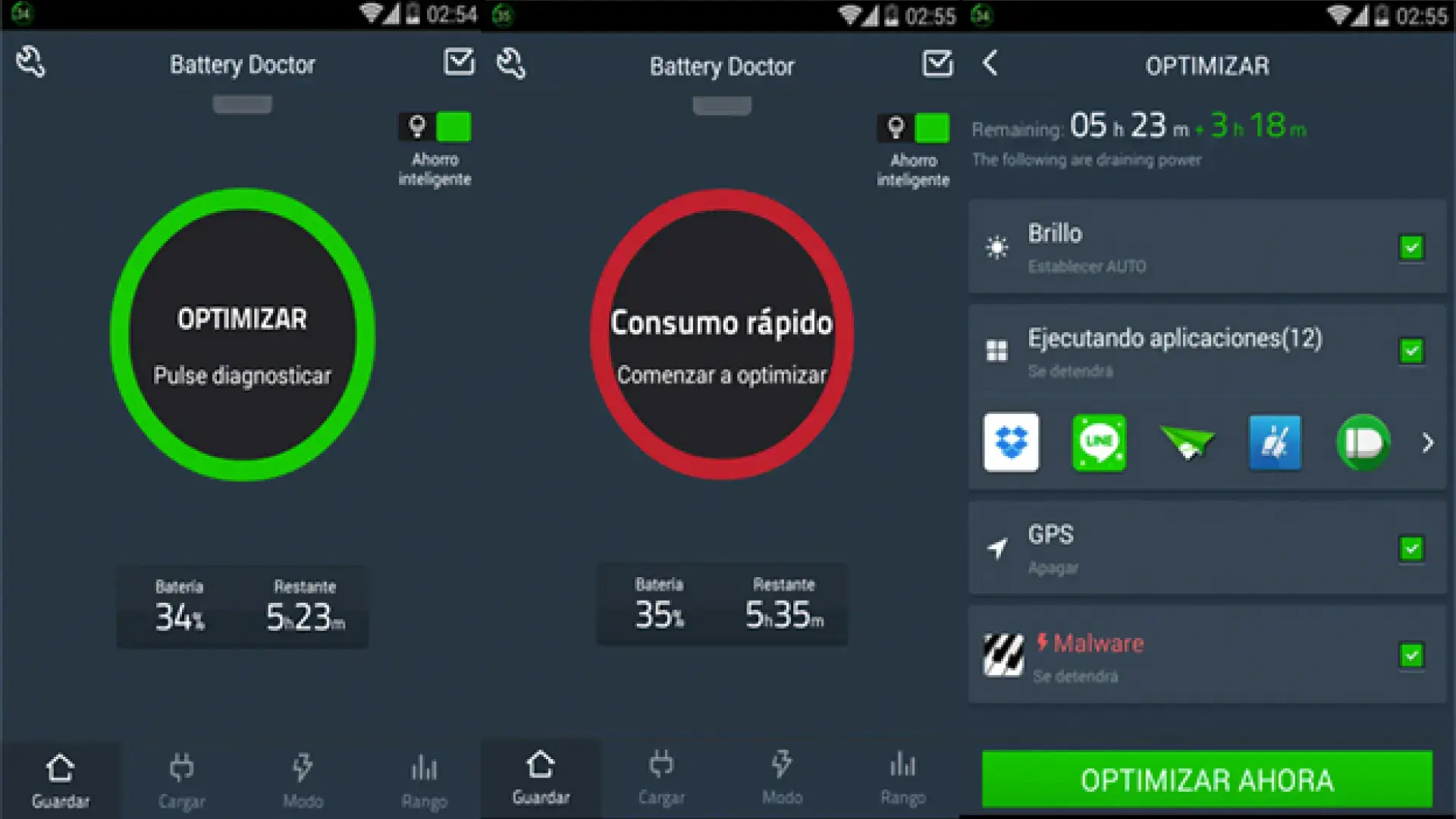
In addition to the power saving modes built into Android, there are apps specifically designed to squeeze a little more battery life out of your system, such as Battery Doctor (Battery Saver). This app combines remaining time calculation functions with process cleanup tools.
One of its features is a guided “three-stage” loading process which, according to the developers, It can help to slightly improve battery performanceWhile there are no miracles, it can recalibrate the system readings and make the percentage more stable.
The most interesting thing is its process manager: Battery Doctor lets you abruptly close background applications that are consuming resources without your knowledgeThis way, if you usually have many apps open, you can significantly reduce unnecessary resource consumption.
Another useful feature is that the app tells you How long would the battery last when performing specific activities?such as playing a particular game or watching YouTube videos continuously. This helps you plan better and know when it's best to conserve battery power.
Even so, it's wise to use these kinds of tools wisely. Constantly killing processes can cause some apps to restart repeatedly. using more energy when starting up again than if they are left at restIdeally, we should focus on those that truly abuse the system and leave alone those that Android itself already manages well.
Connections, brightness, and simple tricks that make a big difference
No matter how much you optimize with apps, if you have all your connections active all day, your battery will suffer, and if you also suffer Connection issues Consumption may worsen. Bluetooth, NFC, GPS, Wi-Fi and mobile data add up to constant consumptionespecially if the mobile phone is constantly searching for networks or devices.
A basic but effective trick: if you don't regularly use NFC for payments or pairing, Deactivate it completely, because on many phones its impact on battery life is significant.Bluetooth consumes less power, but if you don't have any devices connected, you can also turn it off to save a little more.
When you're in a place with good Wi-Fi coverage, it's a good idea Connect to that network and minimize your mobile data usageMobile radio consumes more power, especially if the signal is poor and the phone is straining the connection.
If you're going to spend some time without coverage or without needing a connection (for example, on the subway or while traveling), airplane mode is your ally. Enabling it prevents the phone from constantly searching for signals and networks., which drastically reduces consumption in those situations.
As for uses that drain bandwidth like crazy: prolonged browsing, videos, games with powerful graphics, music streaming, or sharing internet via hotspot. Limit these activities when your battery is low. Doing them only when you're plugged in can be the difference between making it to the end of the day or not.
Save battery by avoiding overloading and optimizing the screen
The battery suffers not only from screen-on time, but also from what you demand of the phone in the meantime. Using the camera a lot, recording video, playing highly interactive games, or editing heavy content It increases the use of CPU, GPU and sensors, and therefore power consumption.
If the device is already poorly ventilated or exposed to direct sunlight, the heat increases and the battery degrades faster. It's best to avoid intense sessions when you notice that the phone is already very hot. and let it rest for a few minutes.
Another interesting strategy is to reduce power consumption on the screen itself. In addition to brightness, there are apps like Pixel Filter that... They allow you to turn off a percentage of the panel's pixels. to consume less energy without significantly compromising sharpness in many models.
When properly configured, these solutions can provide extra autonomy, especially on devices with large screens and high resolution. They don't replace good overall consumption management, but they are an interesting complement. if you want to squeeze every mAh out of it.
In any case, the best advice is to combine all of this with reasonable use of resource-intensive apps: limit gaming time when you're short on screen brightness, avoid long periods of watching videos with maximum brightness, and, if possible, rely on wired or low-power Bluetooth headphones instead of using speakers at very high volume.
Updating Android, checking apps, and when to consider a reset
If, despite all the adjustments, you still notice abnormal consumption, the problem may be in the system itself or in a specific app. The first thing to do is check if there are any Android updates available. from Settings > System > Software Update.
Manufacturers often release patches that fix power consumption issues, so keeping your system up to date is essential. You should also Check for app updates on Google Playespecially those that touch the camera, system, or Google services.
In some cases, a specific version of an app may have a bug that triggers wakelocks or CPU usage. Update or, if necessary, uninstall and reinstall the app It usually solves these problems without the need for drastic measures.
If nothing works and the battery drains in just a few hours without a clear explanation, it might be time to consider a factory reset. However, it's important to understand that this step... erase all data, apps, and settings from your phoneSo before doing so, it's advisable to make a full backup to your Google account or a computer.
After the reset, it's a good idea Install the applications gradually...checking battery behavior in between. That way, if a problem reappears right after installing a certain app, you'll have identified the culprit without going crazy.
Clean and manage storage to improve performance and consumption
Although it may seem that storage has no direct relationship with the battery, A mobile phone with almost full memory tends to run slower and use more energyThe system has to work harder to read and write data, and apps may behave erratically.
Tools like Files by Google are ideal for keeping storage under control. They analyze the device's contents looking for Duplicate files, very large videos, old downloads, and junk generated by appsmaking cleaning easier with just a few touches.
Another veteran is SD Maid, a well-known Android app that focuses on Remove leftover files from uninstalled applications, orphaned caches, and unnecessary filesIts free version is already quite powerful, and the Pro version adds more advanced features for demanding users.
Even so, it's advisable to use these types of cleaners with caution, because they often focus on clearing cache or closing background apps. In many cases, caching helps apps run faster and use less data because they don't have to download everything every time.So deleting it without thinking isn't always the best idea.
If you want a simple and effective strategy to free up space, you can follow three basic steps: first, Sort the apps by size in settings and uninstall the ones that take up a lot of space and that you don't use.Second, go to the gallery and delete or move to a computer the videos you no longer need to have locally; and third, clean up the content of the heaviest chats and groups from WhatsApp, which often take up several gigabytes without you realizing it.
When to contact the manufacturer or consider changing the battery
There comes a point where, no matter how much optimization you do, physics takes over. If your phone's battery only retains a small percentage of its original capacity, It's normal that it doesn't last until the end of the day even if you take the best care of it..
In those cases, and especially if the device suddenly shuts down with high battery percentages, swells slightly, or overheats while charging, the wisest course of action is contact the official technical service or manufacturer's support.They can diagnose whether the battery is damaged and whether a replacement is worthwhile.
If your phone still has a removable battery or is easy to open at a professional service center, replacing it may be possible. literally bring the device back to life and extend its use for several more years. If that's not feasible or the cost is approaching that of a new model, it might be time to consider changing your device.
Meanwhile, implement everything mentioned—apps like AccuBattery or Electron, wakelock and bloatware management, brightness and connection adjustments, power-saving modes, storage cleaning, and keeping your system up to date— It will allow you to get the most out of your Android's remaining battery and prevent it from degrading too much.making the mobile phone usable for much longer.

Table of Contents
- Why your Android battery is lasting less and less
- AccuBattery and other apps to measure and understand actual consumption
- Apps to monitor health, temperature and hardware status
- Device information tools to prevent overheating
- How to adjust Android to use less battery without strange apps
- Battery saving mode and power profiles on Android and Samsung
- Control wakelocks and background processes that drain battery
- Built-in battery managers and power-saving tools
- Connections, brightness, and simple tricks that make a big difference
- Save battery by avoiding overloading and optimizing the screen
- Updating Android, checking apps, and when to consider a reset
- Clean and manage storage to improve performance and consumption
- When to contact the manufacturer or consider changing the battery