- Measuring SSD performance involves analyzing sequential and random speeds, IOPS, and latency for real-world use.
- Tools like CrystalDiskMark, AS SSD, and ATTO allow you to compare speed and detect bottlenecks or incorrect configurations.
- SMART utilities such as CrystalDiskInfo or Hard Disk Sentinel reveal wear (TBW), health, and impending failures of the drive.
- Combining benchmarks, health monitoring, and good backups is key to avoiding data loss and knowing when to replace your SSD.
SSDs have become the storage standard in virtually every modern PC, but that doesn't mean we can forget about their performance and health. If you want to know how an SSD works internally and why it affects performance, this knowledge will help you better interpret the tests.
Measuring the performance of an SSD and monitoring its health isn't just for experts: with a few free tools, some system commands, and a bit of common sense, anyone can check if their drive is performing as the manufacturer promises, if it's starting to fail, or if it urgently needs replacing. This guide compiles and reorganizes all the key information from the best specialized websites so you have everything in a single article, explained in Spanish (Spain) and with a very practical approach. It also includes tips for optimizing your SSD's performance in Windows.
Why it's important to analyze your SSD's performance
There are many reasons to want to check the performance of an SSD beyond simple curiosity. The first usually arises when we buy a new drive: we want to make sure it actually reaches the speeds advertised by the manufacturer and that there are no compatibility issues with the motherboard, the PCIe port, or the cabling in the case of SATA drives.
Another common reason is to diagnose slowdowns that we notice over time: the system takes longer to boot, games load more slowly, file copies take forever, or certain applications start freezing. A well-executed benchmark can reveal whether the bottleneck is in the storage drive or if the problem originates from the RAM, CPU, drivers, or other components. If you detect a slow SSD in Windows 11 , this guide will help you with common causes and solutions.
It's also key for monitoring drive degradation . SSDs have a limited number of write cycles (measured in TBW, Terabytes Written). By measuring performance and checking SMART attributes, we can determine if wear is affecting speeds or if we're approaching the end of the drive's practical lifespan—essential information for backing up data before it's too late. For more detailed diagnostics and health information, you can consult guides on troubleshooting SSDs and HDDs.
Finally, it helps detect low-quality models , especially cheap DRAM-less drives or units from unreliable brands that promise a lot on the box but then crash as soon as the cache fills up. If you've been sold a "cheap but excellent" SSD, a couple of tests can tell you if you've been ripped off.
Performance basics: sequential, random, IOPS, and latency
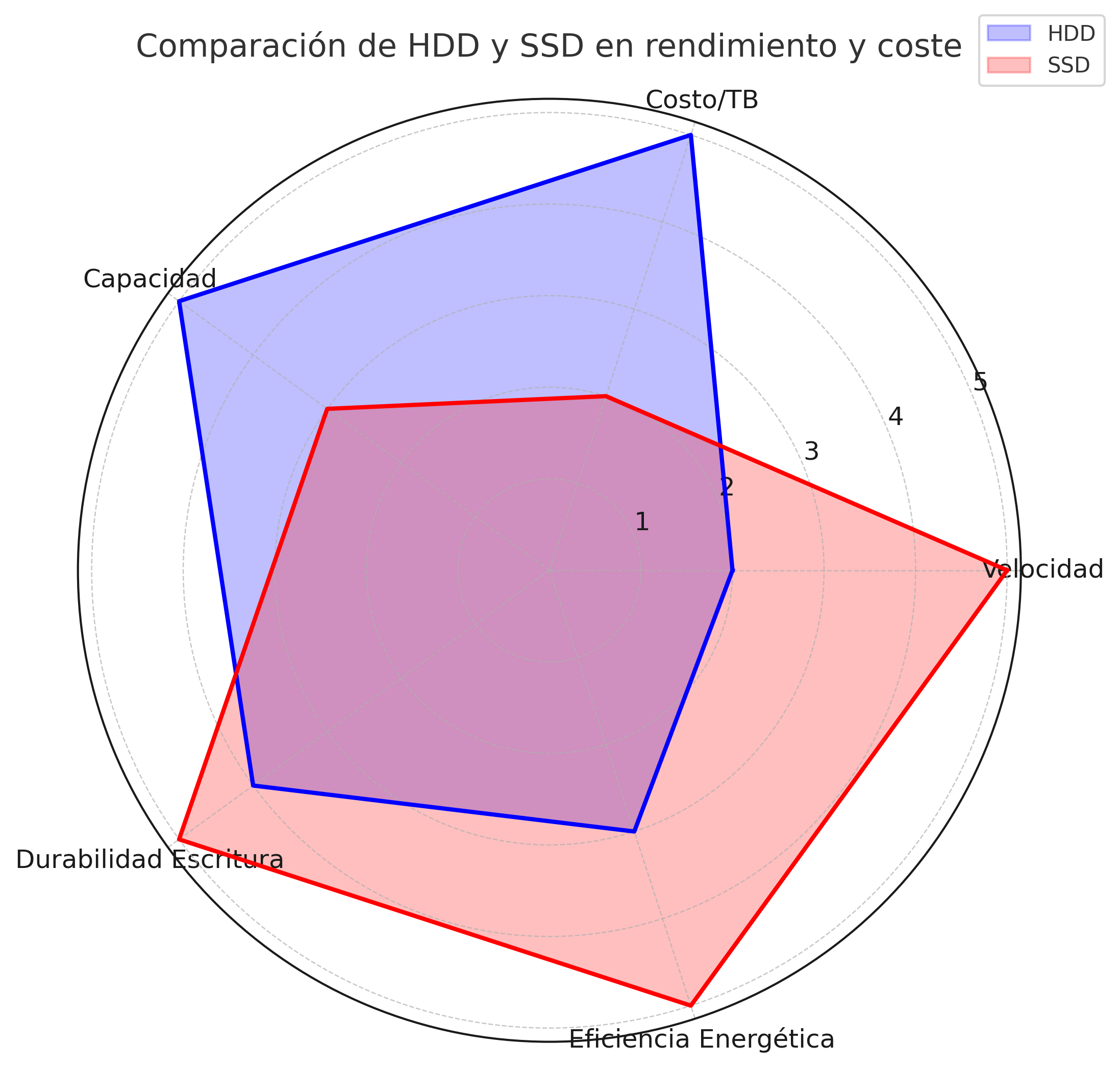
Before you start running benchmarks like crazy , it's important to understand what each test is measuring, because the "nice" speed shown on the box is not the same as real-world performance in everyday use.
Sequential speed : measures the reading and writing of large, contiguous files (videos, large images, copies of large files). These are the figures usually advertised by manufacturers, typically in MB/s or GB/s. They tend to be the highest numbers and the least representative of typical operating system usage.
4K random access speed : This measures access to very small blocks (4 KB) spread across the entire disk. This pattern is much closer to what happens when you boot Windows, open programs, or when the system is constantly reading and writing small files. It is usually expressed in MB/s or IOPS (input/output operations per second) and is a much better indicator of the computer's actual speed.
4K tests with multiple threads/queues (4K-64Thrd, QD32, Q8T1, etc.) : These simulate many simultaneous requests, typical of servers or heavy workloads. They help us see how the drive scales when the system pushes it to its limits.
Latency or access times : these indicate how long it takes the drive to respond to a read or write request. They are measured in microseconds (µs) or milliseconds (ms). The lower the latency, the better. Some benchmarks, such as Anvil or AS SSD, display these times and help identify drives that, despite having a good peak speed, are slow in random access.
Differences between SATA, NVMe PCIe 3.0, 4.0 and 5.0 SSDs
The type of interface greatly limits the maximum performance you'll see in a benchmark, no matter how good your SSD is:
SATA SSDs (2,5″ or M.2 SATA) : These use the SATA III interface, with a practical ceiling of around 550-600 MB/s for sequential read and write speeds. If you see significantly less, there may be a problem with the SATA mode, cabling, or port.
NVMe PCIe 3.0 SSDs : mounted in M.2 slots on PCI Express 3.0 lanes, they typically achieve sequential speeds in the range of 2.500-3.500 MB/s. Latency and IOPS are significantly improved compared to SATA.
NVMe PCIe 4.0 SSDs : These offer double the bandwidth compared to PCIe 3.0. It's not uncommon to see drives achieving sequential read speeds of around 5.000-7.000 MB/s. To take full advantage of these speeds, your motherboard and M.2 slot must actually support PCIe 4.0.
NVMe PCIe 5.0 SSDs : These are the most modern and can easily exceed 10 GB/s sequential speeds. To properly test them, specialized test equipment with the latest generation chipsets and PCIe 5.0 support is used, along with very careful cooling because these drives generate a lot of heat. For example, models like the Micron 4600 NVMe PCIe Gen5 illustrate the extreme performance figures of this generation.
If the SSD version is higher than the motherboard version (for example, a PCIe 5.0 SSD on a PCIe 4.0 motherboard), performance will be limited by the motherboard, and you'll never reach the manufacturer's advertised performance figures. However, if the motherboard supports a higher version than the SSD, you won't have a bottleneck on that front.
CrystalDiskMark: the standard for measuring SSD and HDD speed
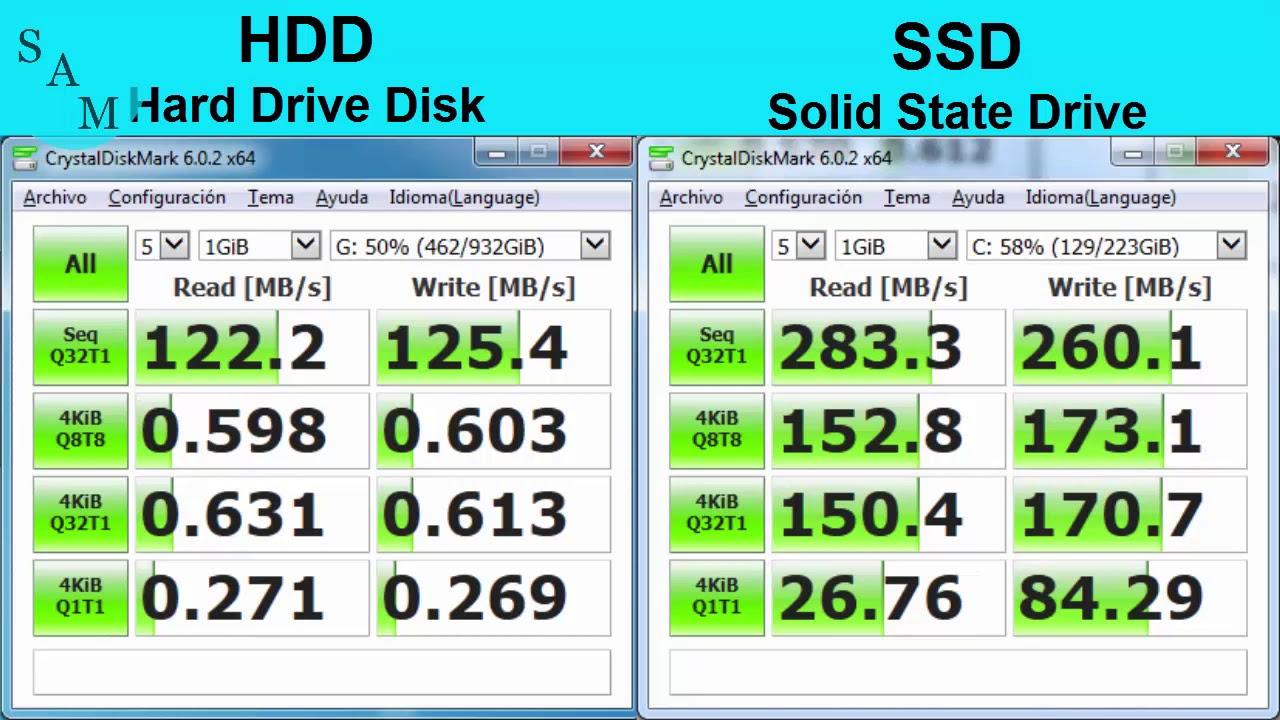
CrystalDiskMark is the most popular benchmark for checking read and write speeds on both SSDs and mechanical hard drives. It's free, very lightweight, and used by many specialized media outlets in their reviews.
Download and installation : You can download it from the official CrystalMark developer website. The installer is simple: accept the license, choose the folder, decide if you want a shortcut, and you're done. There's also a portable version if you prefer not to install anything.
Basic interface : When you open it, you'll see a panel with four rows of tests and two main columns (read and write). At the top, you have several drop-down menus for configuration:
- Number of passes (1-9): by default it usually comes in at 5. The more passes, the more consistent the result but the longer it takes.
- Test sizeFrom 64 MiB to 64 GiB, measured in MiB/GiB according to ISO/IEC 80000-1 (base 2). For a quick check, 1-4 GiB is usually sufficient.
- Drive or folder to testYou can choose any system disk or even a specific directory, useful for testing external disks, memory cards, etc.
- Result unit: MB/s, GB/s, IOPS or µs, depending on what you prefer to see.
How to perform a standard quick test : If you only want a quick reference, select the correct drive and click the green "All" button. The program will automatically run the four types of read and write tests with standard parameters.
Interpretation of the four rows of tests (typical names):
- SEQ1M Q8T1: Sequential read/write of 1 MiB blocks with an 8-thread queue and 1 thread. It's the "pretty" sequential speed test, the one that most closely resembles the manufacturer's specifications.
- SEQ1M Q1T1: sequential with a 1-step queue, something more realistic for home use.
- RND4K Q32T16 / Q32T1: random accesses to 4 KB blocks with different queue depths, very representative of operating system usage.
- RND4K Q1T1: random access with one queue and one thread, a good indicator of the SSD's base agility.
Advanced options and profiles : In the top menus, you can change the test data type (random, all zeros, all ones), which can help you see how an SSD performs with compressible or incompressible data. The "Profile" menu offers different pre-configured profiles (peak performance, mixed tests, demo, etc.), very useful if you don't want to get bogged down in fine-tuning.
Customization and tips : If you're unsure what you're changing, it's best to leave the default options or use "Default" to restore them. And, very importantly, avoid copying large files or running antivirus software while performing the tests, as this will skew the results.
Other benchmark tools to measure your SSD
While CrystalDiskMark is often considered the benchmark , there are many other free applications that offer additional data or complementary approaches. Ideally, you should combine them for a thorough analysis.
AS SSD benchmark
AS SSD Benchmark is another classic SSD testing tool that focuses on read/write performance without using system caching. It performs sequential and random 4K tests, both single-threaded and multi-threaded, and ultimately assigns an overall read score, a write score, and a combined score.
It includes file copy tests that simulate three scenarios: many small files, large files, and a mixed scenario. This gives you an idea of how the drive performs when copying real-world content. It also features a specific test with incompressible data, which helps detect drives that artificially inflate results with compression.
Another interesting point is the performance graph, which shows the unit's stability during the test. If you see very strong fluctuations, it could indicate temperature issues, cache saturation, or erratic behavior under load.
ACT Disk Benchmark
ATTO Disk Benchmark takes a different approach : its main strength is that it displays read and write performance based on the block size used. It allows testing from tiny 512-byte blocks up to 8 MB transfers, with varying test lengths.
This is especially useful for SSDs because one of their weaknesses, compared to marketing figures, is often handling very small files. With ATTO, you can clearly see at what block size the SSD starts performing at maximum speed and how it behaves with small transfer sizes.
Although it stopped being updated years ago , the latest version still works perfectly on modern systems and is an excellent complementary tool to CrystalDiskMark for getting a more complete picture of performance.
Anvil's Storage Utilities
Anvil Storage Benchmark combines several types of measurements : sequential and random speeds, IOPS, and access times. The result is a very comprehensive report that, in addition to showing speed figures, clearly indicates the drive's ability to handle many small operations per second.
It's very useful if you're interested in the fine details of latency and behavior under different request queues, beyond the typical MB/s figure. For enthusiasts and for comparing similar SSD models, it's a highly recommended tool.
Other general benchmarking tools
There are more comprehensive suites that include storage tests along with CPU, GPU, and RAM tests, such as Novabench. These types of programs give you a complete overview of your system and allow you to compare results before and after changing hardware or adjusting settings.
Novabench, for example, is cross-platform (Windows, macOS and Linux) and although it has paid options, the free version is sufficient to measure basic SSD performance within a set of PC benchmarks.
Specific health and TBW tools: CrystalDiskInfo and others
Measuring speed isn't enough to know if an SSD is working properly . You also need to check its health, wear and tear, and any internal errors. That's where tools that read the drive's SMART attributes come in.
CrystalDiskInfo: Health, TBW, and SMART Attributes
CrystalDiskInfo is the perfect complement to CrystalDiskMark . While the latter measures performance, the former tells you about the disk's internal condition. It's free, lightweight, and also available in a portable version.
When you open it you will see detailed information about the drive : brand, model, capacity, firmware, serial number, current temperature, number of hours powered on, number of power-ups, interface used (SATA or NVMe), SATA mode (I, II, III) or PCIe version/width and even data such as the total data written, that is, the actual TBW of the drive.
The TBW parameter is key : it indicates how many terabytes have been written to the drive over its lifetime. By comparing it to the TBW guaranteed by the manufacturer (usually found in the specifications), you can estimate how much wear and tear the SSD has experienced. If your drive has, for example, a 600 TBW warranty and you've only used 10-20 TBW, the wear shouldn't be a cause for concern yet.
The SMART attributes section displays a list of parameters
- Read and write error rate.
- Reassigned or pending sectors.
- Ignition cycle counter.
- Percentage of remaining useful life or “health” calculated by the manufacturer.
- Maximum recorded temperatures, among many others.
CrystalDiskInfo uses different colors to indicate the overall health of the drive (Good, Caution, Bad). If any important attribute falls outside its normal range, you'll see it immediately. It generally works well for SSDs, although keep in mind that, being electronic devices, they can sometimes fail without warning (the infamous "sudden death"), so backups remain essential.
Hard Disk Sentinel, SSD Life, and other solutions
Hard Disk Sentinel is another powerful tool designed to continuously monitor the health of SSDs and HDDs. It reads SMART data, assesses health, displays temperature, allows you to run surface tests, and in the full version, can even attempt to correct certain minor problems.
Its free version has limitations , but it's usually sufficient for checking overall health and receiving early warnings. It also allows email alerts if health falls below a certain threshold or significant errors are detected.
SSD Life focuses almost exclusively on solid-state drives . Its main purpose is to estimate remaining lifespan, displaying status, operating hours, and basic read/write statistics. It's very practical if you just want to know "how much time is left" on your SSD without getting bogged down in too many technical details.
GSmartControl and similar open-source tools allow you to access and run advanced SMART tests (short, long, and in-depth). They are more technical and somewhat less user-friendly for novice users, but very accurate at detecting latent faults that are not yet noticeable in daily use.
Windows commands to check disks: CHKDSK and WMIC
Windows includes console utilities that allow you to check the logical integrity of the file system and read the general state of the disk without installing anything.
CHKDSK (Check Disk) scans the drive for file system errors and bad sectors. Running it as administrator from the Command Prompt, you can launch, for example:
chkdsk C: / f / r / x
Where: /f attempts to correct file system errors, /r scans for bad sectors and attempts to recover data, and /x forces the drive to be unmounted beforehand. On modern NTFS drives, you can also use `chkdsk /scan` for a quick check without restarting, although on the system drive it will often prompt you to schedule the check for the next boot.
WMIC allows you to query the system for the basic SMART status of the disks. Open CMD as administrator and run:
WMIC
diskdrive get status
You'll get a very simplified status . If everything is okay, you'll see "OK". If something like "Pred Fail" or another message appears, it means the disk's firmware has detected serious problems with one of its internal parameters, and you should start backing up your data and consider replacing it.
Measure SSD speed using the operating system itself
If you don't want to install anything from third parties , both Windows and Linux offer commands to perform small read and write tests, although they are less user-friendly than graphics benchmarks.
Windows: WinSAT
WinSAT is a built-in tool that, among other things, allows you to measure disk performance. To test a drive (for example, C:), open CMD as administrator and run:
winsat disk -ran -write -drive C
The command will perform random access tests and display a series of speed results. It's not as convenient or detailed as CrystalDiskMark, but it serves as a quick reference if you don't want to install additional software.
Linux: dd commands and cache clearing
In Linux, it's very common to measure disk performance with the `dd` command, although it should be used carefully to avoid accidentally overwriting data. An example of a write test would be:
dd if=/dev/zero of=/tmp/tempfile bs=1M count=1024 conv=fdatasync
This creates a 1 GB file in /tmp and, upon completion, displays the average write speed. To measure read speed more realistically, it's advisable to flush the disk cache first with:
sudo /sbin/sysctl -w vm.drop_caches=3
and then run :
dd if=/tmp/tempfile of=/dev/null bs=1M count=1024
This will give you an approximate read speed . It's not as comprehensive as a graphics benchmark, but it provides a clear idea of whether the drive is performing well or significantly below expectations.
Quick manual check: stopwatch and file copy
If you don't trust the tools or don't want to overthink it , you can always resort to the "old school" method: take a large file and measure how long it takes to copy.
For example, copy a 1GB file within the same SSD (from one folder to another) with the fewest possible background processes. Using a stopwatch, if it takes about 10 seconds, you're moving at around 100 MB/s; if it takes 2 seconds, you're around 500 MB/s, and so on. It's a rough method, but it allows you to immediately detect if your drive is performing significantly below its potential.
However, this system only tells you the approximate read/write speed in a very specific scenario. It doesn't provide information on TBW, SMART status, or degradation. It's useful for a one-off check, not for health monitoring.
Manufacturer apps: Samsung Magician, SeaTools, and others
Almost all reputable manufacturers include their own utility for monitoring and optimizing their SSDs. Typical examples are Samsung Magician, Seagate SeaTools, Intel SSD Toolbox (discontinued but still used on older systems), Crucial Storage Executive, etc.
These tools have several advantages over generic benchmarks:
- They are optimized for their own SSD models.
- They can read proprietary SMART parameters more accurately.
- They include firmware update functions.
- They often offer over-provisioning options, TRIM optimization, secure erasing, and guided diagnostics.
In many cases, these tools only work with drives from the manufacturer itself , but there are also utilities like SeaTools that support drives from other brands. In any case, if your SSD is from a well-known manufacturer, it's highly recommended to install their official application and use it in conjunction with tools like CrystalDiskMark and CrystalDiskInfo.
How to interpret results and detect performance problems
Once you have benchmark and health data , it's time to draw conclusions. It's not just about looking at the highest number, but about fitting all the pieces together.
Speeds significantly lower than promised may indicate:
- PCIe SSD connected to a limited slot (e.g., PCIe 4.0 in a 3.0 slot).
- NVMe drive running in PCIe x2 mode instead of x4.
- Poor quality SATA cables or slower secondary controller SATA ports.
- SATA mode configured in BIOS to IDE or rare RAID instead of AHCI.
- Cheap DRAM-less SSDs that crash when the cache fills up.
Correct sequential results but very poor random performance usually point to cheap units without DRAM, poorly polished firmware, or a very full and logically fragmented SSD (outside of over-provisioning margin).
Sudden drops in performance during the test , or tests that are not completed, may be a sign of:
- SSD overheating (throttling).
- NAND memory blocks that are already damaged or in the process of being removed.
- SSD controller with problems or faulty firmware.
Severe SMART errors or a "Pred Fail" status are the ultimate red flag: the drive may continue to function for weeks or years… or it may fail tomorrow. At that point, the most sensible thing to do is:
- Back up all the data that matters to you as soon as possible.
- Seriously consider replacing the unit.
- Use the warranty if it is still within the warranty period and the attributes match a premature failure.
Signs in everyday life that your SSD or HDD is damaged
You don't have to wait for a benchmark to give you a bad number ; often the PC's own behavior tells us that something is wrong with the storage.
Typical signs that the hard drive is nearing the end of its life include:
- Programs that close for no apparent reason, especially during intensive read/write operations.
- Error messages related to corrupt or unsaveable files.
- In mechanical HDDs, strange noises, clicks or buzzing sounds coming from the drive.
- Blue screens in Windows with codes related to disk or file system failures.
- Noticeable increase in access time when opening folders, searching for files, or launching games.
- Spontaneous disappearance or corruption of files that no one has deleted.
- Abnormally high temperatures in the area where the SSD or HDD is located; learn how View and control the temperature of your SSD.
- The system occasionally stops detecting the unit when starting up.
If you see one or more of these symptoms , it's time to run a good suite of tests: CrystalDiskInfo for health, CHKDSK for file system, CrystalDiskMark or AS SSD for performance, and of course, back up your data before experimenting too much.
What to do if your SSD is degraded or close to failure
When a SMART tool or benchmark clearly indicates a faulty drive , there's no point in playing Russian roulette with your data. There's a fairly straightforward course of action.
First, save what's important : immediately back up everything you don't want to lose. If the system is still stable, you can clone the drive to a new SSD using cloning software. If it's already experiencing many errors, the safest course of action is to manually copy only documents, photos, projects, and other essential files, starting with the most critical ones. If you need advanced options, consult guides on data recovery for NVMe SSDs and other flash drives.
Second, replace the drive : new mid-range SSDs offer more than enough performance for most users and cost much less than they did a few years ago. It's not worth pushing a drive that has already shown clear signs of serious physical or logical failure to its limits.
Third, reconfigure and re-benchmark : Once the new SSD is installed, install a clean operating system or restore your clone, make sure the BIOS/UEFI has the correct mode enabled (AHCI for SATA, PCIe appropriate for NVMe), install drivers and run CrystalDiskMark again to verify that you now reach the expected figures.
Finally, get into the habit of checking your disk health from time to time with CrystalDiskInfo or a similar tool—don't become obsessive, but don't neglect it for years either. A couple of annual checks and regular backups will help you avoid serious problems.
In short, understanding how to measure and monitor your SSD's performance —combining benchmarks like CrystalDiskMark, AS SSD, or ATTO with health utilities such as CrystalDiskInfo, Hard Disk Sentinel, or the manufacturer's official apps, and using system commands when necessary—allows you to know if your drive is performing as advertised, detect dangerous degradation early, and make informed decisions about when to replace it. This keeps your PC running fast and, more importantly, your data safe. To understand the differences between formats, you can also read SSD vs. NVMe: Real Differences.