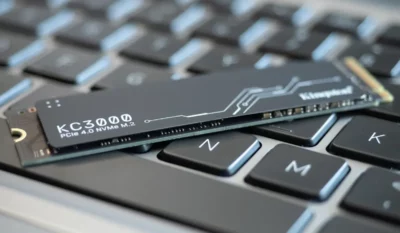
- SSDs use NAND flash memory with no moving parts, drastically reducing latency compared to mechanical hard drives.
- Writing and erasing are done by entire blocks, which necessitates the use of TRIM, garbage collection, and wear leveling.
- Interfaces such as PCIe and NVMe allow for much higher speeds than SATA, especially in random read and write operations.
- Although flash memory has finite write cycles, modern SSDs offer high durability and warranties of up to 5–10 years.
If you have a computer that's starting to feel a bit sluggish, one of the most significant improvements you can make is replacing your hard drive with an SSD . The speed boost is so dramatic that many people say the PC is "reborn." But to get the most out of it, it's essential to understand how an SSD actually works internally and how it differs from a traditional hard drive.
Beyond the speed figures provided by manufacturers, there's a lot of interesting technical information: types of flash memory, how data is written and erased, their lifespan limits, and why, with the same capacity, an SSD is still more expensive than an HDD . We're going to break all this down calmly, in layman's terms, but without sacrificing technical rigor.
Memory architecture in a computer
Before we delve into SSDs, it's helpful to review how a typical PC's memory is organized: processor cache, RAM, and mass storage . Each level is larger, slower, and cheaper than the one before it.
The processor's cache memory is tiny but incredibly fast. It's integrated into the CPU itself, and its electrical paths are very short, so it can access data in nanoseconds. This brutal speed comes at the cost of size: the cache is so small that it's constantly being overwritten with the most frequently used data.
Right after that comes RAM, random access memory where the system stores the code and data of running programs. It's much larger than the cache, but somewhat slower. Even so, it's still very fast memory and loses its contents when you turn off the computer because it's volatile.
At the bottom of the list is the mass storage unit: hard drive or SSD. This is where everything you want to keep lives: operating system, programs, games, documents, photos, videos, etc. It's much larger than RAM, but also several orders of magnitude slower.
The speed difference is so significant that storage becomes the biggest bottleneck in a PC. Even with plenty of RAM and a powerful processor, the system can only load or save data at the speed the hard drive allows. That's where solid-state drives (SSDs) and their ability to drastically reduce loading times come into play.
What is an SSD and how does it differ from a hard drive?
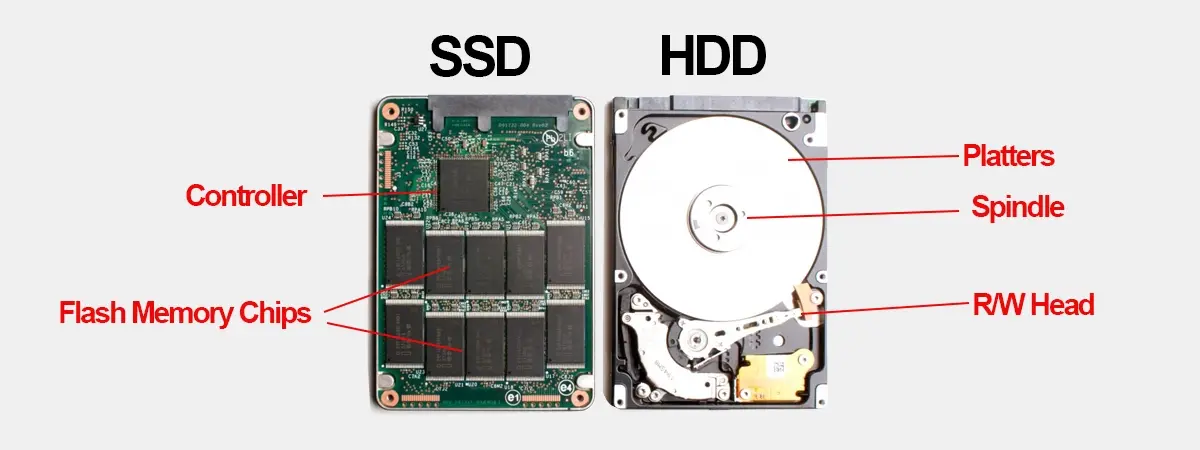
A solid-state drive (SSD) has the same purpose as a traditional hard drive: to store data long-term . The difference lies in how it does it. While an HDD uses spinning magnetic platters and mechanical read/write heads, an SSD relies on flash memory chips with no moving parts.
If you disassemble an HDD, you'll see a stack of metal disks (platters) spinning at high speed and an arm with read/write heads moving across them. To read or write data, the arm has to move to the correct track , and the platter must rotate until the appropriate sector is positioned under the head. All of this takes time: we're talking milliseconds.
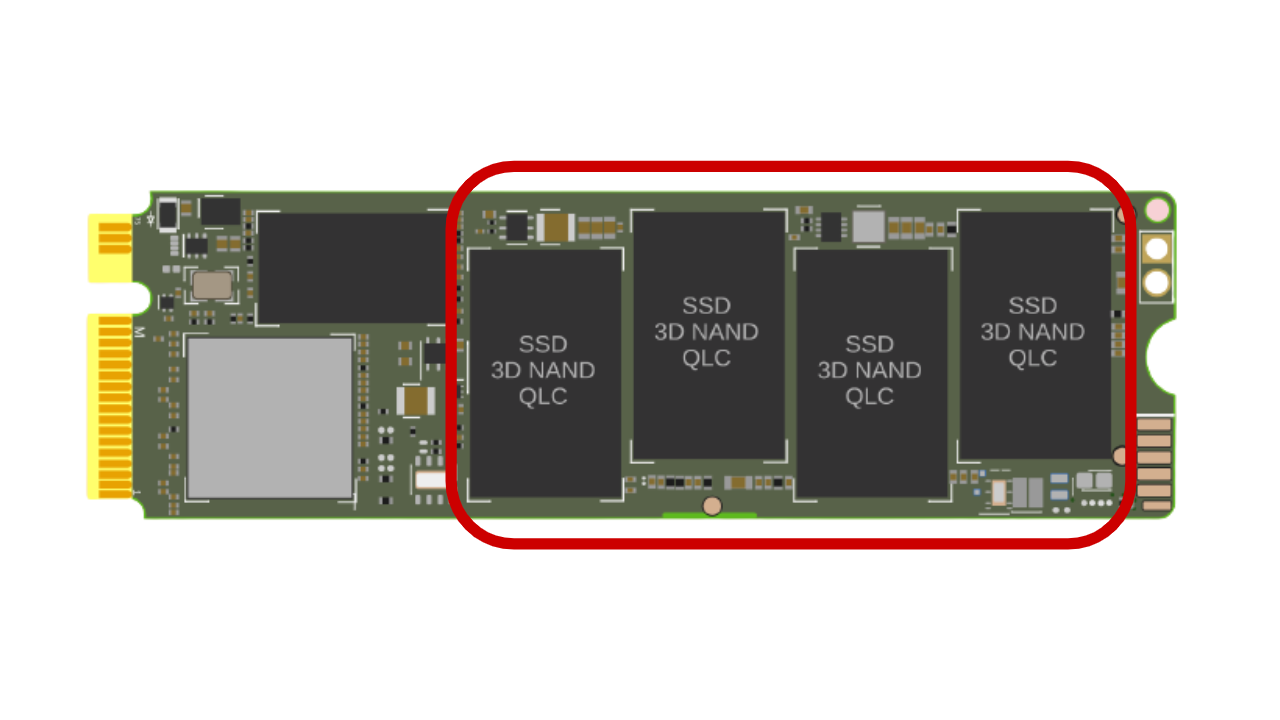
In an SSD, the concept changes completely. Instead of platters and heads, you find NAND flash memory chips organized into cells, pages, and blocks. There are no moving parts: data is stored and read using electrical charges in semiconductors . Because it doesn't rely on mechanical movement, access times drop to microseconds or less.
The flash memory used in modern SSDs is non-volatile, meaning it retains information even when power is removed . It's similar in concept to RAM (addresses, cells, data buses), but designed to prevent data loss when the computer is turned off or even during a sudden power outage.
How is an SSD organized internally?
Internally, an SSD is organized into several levels of granularity. Data is stored in individual cells, which are grouped into pages, and these in turn into blocks. This structure is key to understanding why writing and erasing work so uniquely in flash memory.
- CellThe cell is the smallest unit of storage. In a cell, one or more bits are represented by different levels of electrical charge.
- PageA unit is a set of many cells. It is usually 4 KB, 8 KB or similar in size, and is the smallest unit that the SSD can read or write to.
- BlockA block is a collection of many pages. Deletion is always done at the block level, not page by page.
When you save new data, the SSD controller writes to empty pages within the available blocks. The important detail is that flash memory cannot directly overwrite a page that has already been written to ; it must first erase the entire block to which it belongs.
This means that if you want to modify a few kilobytes in an already used page, the drive can't just change that portion. It has to copy all the valid pages to another block, erase the entire block, and then write the updated data to a new block . This mechanism is the basis for several internal processes, such as garbage collection and wear leveling.
Main parts of an SSD and the role of the controller
In addition to NAND memory chips, a modern SSD integrates several key components that work together to allow the system to see the drive as a "normal" disk:
- ControllerIt's like the "brain" of the drive. It manages the translation of logical addresses to physical addresses, coordinates reads and writes, monitors wear, and handles garbage collection and the TRIM command.
- Cache memory (DRAM or pseudo-cache)Many SSDs include a small DRAM chip that temporarily stores mapping tables and recent data. Some cheaper drives use part of the NAND itself as a cache (e.g., simulated SLC cache).
- InterfaceThis refers to the connector and protocol through which the SSD communicates with the rest of the system. Examples include SATA, PCIe, NVMe, etc.
- Overprovisioning: physical memory area that the user does not see. It serves as a reserve for replace damaged cells and to be able to move data internally without it filling up to 100%.
The controller does a tremendous job: it decides where to place each piece of data, distributes writes among the different chips to improve performance, monitors which blocks are degrading, and relies on complex wear-leveling and error-correction algorithms to extend the unit's lifespan.
Read speed on an SSD vs. an HDD
When the operating system requests to read a file, the path that the data follows is very different in a mechanical disk and in an SSD, even though from the outside everything may seem the same.
In a hard disk drive (HDD), the read request reaches the I/O controller, which tells the read/write head which track and sector to access. The arm moves, the platter spins, and when the sector passes under the head, it reads the magnetic field variations and translates them into bits. The time lost moving the arm and waiting for the platter to spin is called seek and spin latency.
An SSD has no arm or platter. When the system wants to read, the drive's controller consults its internal mapping table (which translates logical addresses into physical page and block locations) and instructs the NAND chips to read the corresponding cells . All of this happens purely electronically, without any mechanical waiting.
If the memory block in question is internally marked as inactive or with many invalid pages, the SSD can trigger internal garbage collection processes: it copies useful pages to another block and frees up the old block for future writes, all while trying to minimize the impact on performance.
Write and erase process on an SSD
Writing to a hard disk drive (HDD) is relatively simple: the read/write head moves to a free sector and changes the magnetic polarity of the bits according to the content to be recorded. The same sector can be reused a thousand times, provided the magnetic surface remains in good condition.
On an SSD, however, writing involves dealing with the restriction that you can't overwrite an individual page without first erasing the entire block . That's why when you change a file, the SSD typically:
- Copy the valid data from the affected block to a new available block.
- Integrate the changes you want to save into that block.
- Mark the old block as invalid to delete it later.
To perform these operations, the drive reserves some additional physical space that you don't see. This hidden space allows it to temporarily move and duplicate data while performing internal maintenance, without you noticing a significant performance drop with each small write.
As we mentioned, deletion is always performed in blocks. The controller groups blocks with many pages marked as invalid and, when it's efficient, deletes them to put them back into circulation as free blocks. All of this is closely linked to the TRIM command, which we'll discuss in a moment.
TRIM, garbage collection and wear leveling
To prevent an SSD from losing performance after a few months of use, the operating system and the controller have to work together using several techniques.
The TRIM command allows the operating system to inform the SSD which blocks no longer contain valid data (for example, after deleting a file). This allows the drive to mark those pages as free internally, and when it's time to perform garbage collection, it will know exactly what can be safely erased.
Garbage collection is the process by which the SSD reorganizes data: it groups valid pages that are scattered, copies them to cleaner blocks, and leaves entire blocks ready to be erased. This operation can run in the background when the drive is idle, so it doesn't significantly affect the user.
On the other hand, there's wear leveling . Each NAND flash memory cell can only withstand a finite number of write and erase cycles. If the same areas were always written to, those cells would fail prematurely. To prevent this, the controller distributes writes across the memory, attempting to ensure that all cells are used more or less evenly.
Thanks to the combination of TRIM, garbage collection, and wear leveling, a modern SSD can withstand really high write volumes before it starts to fail, even if the user has no idea that all of this is happening behind the scenes.
Types of NAND memory and SSD durability
Flash memory is classified according to how many bits each cell stores: more bits per cell means greater capacity in the same physical space, but also more delicate and less resistant to write cycles.
- SLC (Single-Level Cell)1 bit per cell. Very fast and durable, but expensive. Virtually disappeared from the consumer market.
- MLC (Multi-Level Cell)2 bits per cell. A good balance between performance and endurance, now almost exclusively reserved for professional environments.
- TLC (Triple-Level Cell)3 bits per cell. This is the most common type in current consumer SSDs, as it allows for large capacities at a good price.
- QLC (Quad-Level Cell)4 bits per cell. This allows for even greater density, but further reduces lifespan and sustained performance.
The more charge levels the cell has to distinguish, the finer the voltage control needs to be and the more susceptible it is to electrical wear . Even so, manufacturers compensate for this disadvantage with better controllers, error correction algorithms (ECC), generous overprovisioning, and fairly long warranties.
These days, it's not uncommon to see consumer SSDs with 5-year warranties and professional models with up to 10 years. Independent endurance tests have shown that many drives easily exceed the TBW (terabytes written) values promised by the manufacturer, even withstanding several petabytes of writes in some cases; that's why it's useful to know how to read a drive's health and anticipate problems.
Interfaces and formats: SATA, mSATA, M.2, PCIe and NVMe
Besides the type of memory, the connection interface makes a huge difference in the performance you can expect from an SSD. It's not the same to rely on a bus designed for mechanical hard drives as it is to directly utilize the motherboard's PCI Express lanes.
SATA SSDs (including mSATA and 2,5-inch form factors) were the first to become popular. They were designed as a direct replacement for 2,5-inch hard drives, using the same SATA III interface, which greatly facilitated their adoption: it was literally a matter of removing the HDD and installing the SSD. The problem is that SATA is limited to around 550 MB/s effective speed, so these drives are already near the limit of what the standard allows.
To go even further came SSDs connected via PCI Express and the NVMe (Non-Volatile Memory Express) protocol. Form factors like M.2 or U.2 allow the use of multiple PCIe lanes, achieving sequential read speeds of over 3000 MB/s in relatively affordable models, and significantly higher speeds in top-of-the-line models.
NVMe SSDs are also notable for their low latency and ability to handle many I/O queues in parallel, making them ideal for intensive workloads such as gaming, video editing, virtual machines, or demanding professional applications. For this reason, many models come with heat sinks as standard, to prevent thermal throttling under heavy load.
At a physical level, SSDs can be internal (mounted inside the PC, connected to the motherboard via SATA, M.2, or PCIe) or external, using enclosures with USB 3.x, eSATA, or Thunderbolt interfaces. The latter function similarly to traditional external hard drives, but with clear advantages in speed, shock resistance, and portability.
Advantages and disadvantages of SSDs versus HDDs
Switching from a mechanical hard drive to an SSD has a good number of advantages that are already well known, but also some nuances that should be clear in order to choose well.
In terms of performance, the SSD is in a completely different league: operating system boot times plummet, games and programs open much faster, and the computer responds significantly more quickly. A typical SATA SSD can copy files at over 500 MB/s, while an HDD ranges between 30 and 150 MB/s. And in random read/write speeds, which is what matters most in everyday use, the difference is simply staggering.
It also benefits from lower power consumption and noise levels. With no moving parts, an SSD consumes less energy, generates less heat, and is completely silent. This is a welcome feature in laptops (longer battery life and less fan running at full speed) and in desktop computers where a cool and quiet PC is essential.
In terms of physical durability, SSDs have a clear advantage: if you drop a laptop with an HDD while it's running, the read/write head can scratch the platter and you'll lose your data. Since SSDs have no moving parts, they withstand shocks and vibrations much better, which is crucial for devices that are frequently transported.
Where do SSDs fall short? Primarily in two areas: cost per gigabyte and theoretical endurance for unlimited writes. The price per GB of an SSD is still higher than that of an HDD, although the difference has narrowed considerably: we're talking about approximately $0,08-$0,10/GB for SSDs versus $0,03-$0,06/GB for mechanical hard drives, depending on the model and capacity.
Regarding lifespan, flash memory has a finite number of write cycles. With each erase and rewrite, the electrical resistance of the cells increases slightly, requiring more voltage for programming. Eventually, the cell can no longer be safely written to and is considered worn out. However, with current technologies and typical home user usage, reaching that limit is extremely difficult ; you're more likely to upgrade your PC before exhausting your SSD.
Data reliability and recovery
It is possible to recover damaged or deleted information from both HDDs and SSDs, but the process is very different and, in practice, SSDs are much more complicated to handle at an advanced recovery level.
On a mechanical hard drive, as long as the magnetic surface of the platters is more or less intact, specialized laboratories can disassemble the drive, repair or replace the read/write heads, and read the data directly from the platters. The way HDDs write and erase data means that many remnants of old files remain for quite some time, facilitating forensic analysis.
On an SSD, the use of TRIM, garbage collection, and wear leveling means that data marked as deleted is overwritten and reorganized internally. This makes reconstructing a file after a certain time extremely difficult; it often requires specialized equipment and very low-level access to the controller and NAND chips , and even then, there are no guarantees.
In any case, neither HDDs nor SSDs are immune to data corruption: power outages, faulty firmware, human error, malware… That's why the only sensible strategy is to maintain regular backups and redundancy (for example, with RAID systems or cloud backups), instead of blindly relying on the primary drive.
Ultimately, SSDs have become the de facto standard for primary storage thanks to their speed, quiet operation, and physical durability, while mechanical hard drives still make sense as a "cheap storage" for storing many terabytes of data. Understanding how an SSD works internally helps you better appreciate its advantages, acknowledge its real limitations, and make more informed decisions when it's time to upgrade your PC or build a new system.