- All HDDs and SSDs wear out over time; monitoring SMART and symptoms such as slowness, errors, and crashes helps detect early failures.
- Tools such as CHKDSK, CrystalDiskInfo, Hard Disk Sentinel and the manufacturer's software allow you to evaluate health, temperature and performance.
- In the event of SMART errors or "Pred Fail" warnings, it is a priority to back up and migrate the data to a new drive as soon as possible.
- Good ventilation practices, stable power supply, active TRIM, free space, and regular backups extend the life of the disk.
If your computer starts running sluggishly, freezes for no reason, or Windows takes forever to boot, your storage drive is likely crying out for help. Whether it's a mechanical hard drive, SSD, or NVMe drive, detecting problems early and knowing how to diagnose them properly can mean the difference between saving your data and losing it forever.
Solid-state drives (SSDs) have replaced traditional hard disk drives (HDDs), but that doesn't mean they're eternal. SSDs wear out, can fail silently , and, to top it all off, data recovery is more complex than with mechanical hard drives. Therefore, it's important to understand the symptoms that indicate a problem, what tools to use to analyze their health, and what steps to take to maximize their lifespan.
HDD vs SSD: Why they all eventually fail
The first thing to understand is that no storage device is immortal . Mechanical hard drives (HDDs) use magnetic platters and a read/write head that physically moves to read and write data; over time, this mechanical part wears out. SSDs and NVMe drives, on the other hand, store information in NAND flash memory cells, with no moving parts, but each cell has a limited number of write cycles.
In an HDD, failure usually stems from physical problems: damaged heads, misaligned platters, impacts, or vibrations . In an SSD, it's common for the cells to begin degrading after many write operations, or for the controller, firmware, or power supply to malfunction. In both cases, the symptoms can start out almost imperceptible… until one day the drive disappears or won't boot.
The good news is that this wear and tear usually takes years to become noticeable. Lifespan depends heavily on usage : an office PC doesn't experience the same wear and tear as a 4K video editing system, a server, or a gaming PC that constantly installs and deletes games.
Therefore, it's not a matter of being obsessed with the idea that your SSD is going to die, but rather of accepting that very clear symptoms usually appear before the final failure and that it is advisable to periodically monitor its status with diagnostic tools.
TBW, MTBF and lifespan: how to interpret the “resistance” of an SSD
When you buy an SSD, the manufacturer usually provides two key pieces of information: TBW and MTBF. TBW (Terabytes Written) indicates how many terabytes can be written to the drive before the probability of failure starts to increase significantly . It's not an exact figure, but it serves as a reference for durability.
The MTBF (Mean Time Between Failures) indicates, in operating hours, the theoretical reliability of the device. These figures are usually in the hundreds of thousands or even millions of hours , calculated in highly controlled laboratory environments, so they can vary considerably in real-world use.
In HDDs, mechanical durability is generally high, but physical failures—such as broken heads or platters that stop spinning properly—are relatively common. In SSDs, the critical factor is the wear of the NAND cells and the behavior of the controller . Furthermore, the operating environment (such as temperature) (voltage spikes, shocks, ventilation, etc.) has a significant impact on the actual lifespan of the drive.
Main causes of SSD and NVMe failure
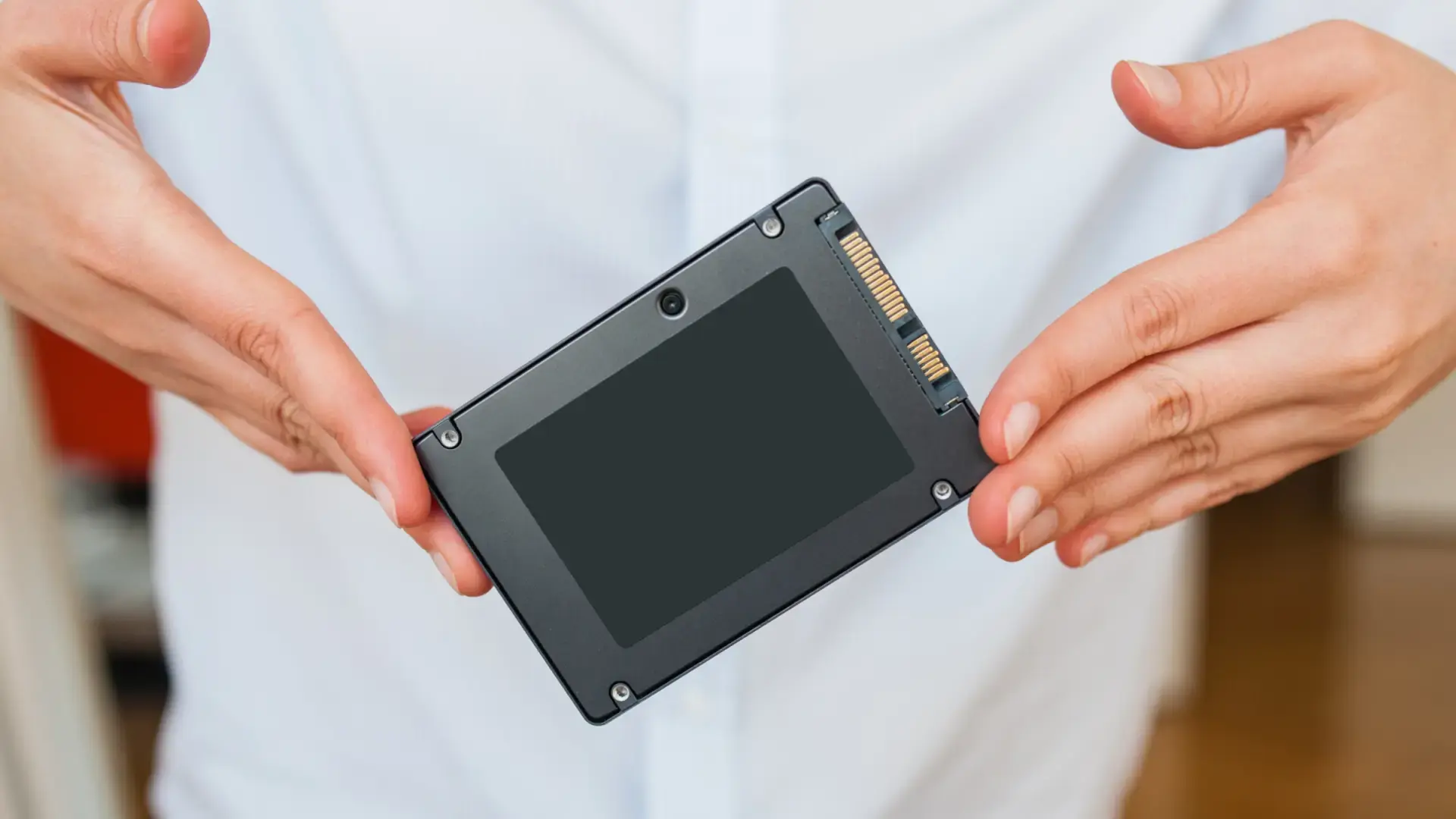
In repair and data recovery workshops, the same causes are repeated time and again. In short, the most common issues with SSDs and NVMe drives are:
Natural cell wear : Each NAND cell can only withstand a finite number of writes. Once this limit is exceeded, the controller begins to reallocate blocks, read/write errors occur, and in many models, the drive eventually enters protection mode.
Overheating : NVMe drives, in particular, can reach very high temperatures, especially in laptops or desktops with poor ventilation. Excessive heat accelerates chip degradation and can lead to sudden failures if the critical threshold is exceeded for an extended period.
Power outages and voltage spikes : sudden power cuts, accidental disconnections, or low-quality power supplies can corrupt the firmware, damage the controller, or cause data corruption at the logical level.
Manufacturing defects or low-quality components : In very inexpensive ranges or problematic models, it is relatively common to see above-average failure rates. In these cases, the lifespan can be much shorter than the theoretical one, even without "misuse."
Clear signs that your HDD or SSD is starting to fail
Before a unit completely "dies," it usually leaves traces. These are the most common signs you should pay attention to:
Extreme slowness and random crashes : the system takes a very long time to start up, open programs or access certain folders; even the Task Manager becomes sluggish and shows the drive at 100% usage without a clear responsible process (simply showing "System") — if you notice this, it is advisable to optimize Windows when the PC is slow and check the disk status.
Errors when copying, saving or opening files : messages such as "cannot read from disk" or "cannot write to drive" are typical of bad sectors or damaged NAND blocks, both in HDD and SSD.
Files that become corrupted on their own or disappear : documents that are saved empty, videos that suddenly stop playing, damaged photos, or folders that lose content without you deleting anything clearly point to problems with the drive.
Recurring Blue Screens of Death (BSODs) : An isolated BSOD can be anything, but if errors such as DISK_STRUCTURE_CORRUPTION , CRITICAL_PROCESS_DIED , or other disk I/O-related errors are repeated, the storage status needs to be examined very closely.
The drive disappears from the BIOS or takes a long time to be detected : if when you turn on the PC the BIOS sometimes does not see the disk, or Windows starts only after several attempts, it is possible that the SSD or HDD is on its last legs or that there is a serious connection or power problem.
Strange noises in HDD : rhythmic clicking sounds (the classic "click"), irregular buzzing sounds, or platters that start and stop continuously are almost always a symptom of imminent mechanical failure in a traditional hard drive.
Abnormally high temperatures : noticing excessive heat in the area where the unit is mounted, or seeing temperatures close to or above the recommended limits on diagnostic tools, is another worrying sign.
SMART indicators: the “black box” of your hard drive
All modern HDDs and SSDs feature SMART (Self-Monitoring, Analysis and Reporting Technology), an internal monitoring system that records operating hours, read/write errors, reallocated blocks, and many other parameters . Diagnostic tools read this data and present it in an understandable way; to better understand its context, review the health of your PC components.
In Windows, the most basic command is:
wmic diskdrive get status
If everything is working correctly, it will display “OK”. If “Predicted Fail” or another message appears, the system has detected that the SMART values indicate a likely failure in the short or medium term. “Predicted Fail” is a serious warning that it's time to back up your data and consider replacing the drive.
A more detailed analysis can be achieved with specific programs that display parameters such as Reallocated Sectors Count, Uncorrectable Error Count, Wear Leveling Count, Media Wearout Indicator, etc. When any of these are highlighted in yellow or red, it should be taken very seriously.
Windows tools for diagnosing and repairing logical errors
Before resorting to third-party software, Windows includes several useful utilities to locate and, in some cases, repair logical (not physical) errors on the drive:
CHKDSK : This is the classic disk checking tool. It allows you to scan for bad sectors, check the file system, and correct basic errors. It is run from the Command Prompt with administrator privileges.
Common usage examples:
chkdsk C: /f /r /x – analyzes drive C:, automatically repairs errors (/f), looks for bad sectors and tries to recover data (/r) and unmounts the drive if necessary (/x).
chkdsk /scan – performs a faster online scan, very useful when you notice suspicious behavior and want a check without restarting.
SFC and DISM : If the problem is corrupted operating system files, the sfc /scannow command (System File Checker) and the DISM tools can locate and replace damaged Windows files, although they don't fix physical disk failures. If you need guides on how to repair a damaged external hard drive , there are specialized resources that guide you step by step.
Specialized software to check the health of your HDD or SSD
Beyond Windows utilities, there's a good collection of programs—both free and paid—that let you see at a glance the health status, temperature, usage hours, and many other relevant data points . Some also include performance testing functions and simple stress tests.
CrystalDiskInfo
It's probably the most popular tool for checking SMART data on Windows. Its main advantage is that it's free, lightweight, and very easy to use . It displays a clear summary with the health status (Good, Caution, Bad), temperature, operating hours, number of power-ons, data read and written, firmware version, serial number, and a long list of technical attributes.
In addition, it allows you to configure alerts, change the update interval, and choose different visual interfaces. For most users, it's enough to monitor that the health status is "Good" and that no attributes appear in yellow or red.
SSDFresh
For those who want something simpler and more user-friendly, SSDFresh offers a very clear interface designed for non-technical users. It directly displays the overall health of the SSD, including temperature, usage hours, and the amount of data read and written . It also includes an optimization section with various options to adjust Windows and reduce wear and tear on the drive.
It doesn't display as much technical data as some other programs, but in return, it's much easier to understand. It's ideal for the average user who just wants to know if their SSD is working properly and apply some performance and lifespan improvements without any hassle.
SSDLife Pro
This tool is highly focused on SSDs and providing a clear indicator of remaining lifespan . It can detect over-provisioning issues (the extra cells the manufacturer reserves for wear leveling) that other utilities miss. If it detects that these cells are depleted, it will display high-risk warnings and recommend replacing the drive as soon as possible.
It has a trial version and a paid version, as well as a portable edition that can be carried on a USB drive to test different machines without installing anything.
HWiNFO and AIDA64 Extreme
These aren't disk-specific programs, but rather comprehensive hardware information suites . They allow you to view everything from the exact model of each component to real-time temperatures, voltages, sensor readings, and, of course, SMART information for HDDs and SSDs.
HWiNFO is free and very powerful, although it can be overwhelming at first. AIDA64 Extreme, on the other hand, is a paid program (with a 30-day trial) and focuses on providing clear reports and stability tests. In both cases, it's possible to see warning temperatures, critical temperatures, and how long the drive has been above those thresholds —very useful information for identifying cooling problems.
Hard Disk Sentinel
It's one of the most comprehensive monitoring programs on the market, and it particularly excels with SSDs. In addition to displaying health status, performance, temperature, and SMART values , it includes features for:
Perform in-depth performance tests to see if the disk speed degrades over time.
Detect and in some cases repair basic errors at the surface level or file system.
Send email alerts for any concerning changes in the monitored values.
The free version has limitations, but for a one-off diagnosis it's usually more than enough. For continuous professional monitoring, the paid version is worthwhile.
Intel Memory and Storage Tool and manufacturer software
Although Intel no longer manufactures consumer SSDs, its Intel Memory and Storage Tool remains useful, not only for its own drives but also as a basic information viewer for many others. For its own models, it offers more advanced options , such as firmware updates or specific tests.
Similarly, almost all major manufacturers have their own official utility for managing and diagnosing their hard drives:
- Samsung Magician: very complete, allows you to view health, performance, apply optimization profiles, update firmware and run tests.
- WD Dashboard / SanDisk Dashboard: monitors temperature, usage, general status and allows managing specific functions of the brand's units.
- Crucial Storage Executive: displays SMART, allows running diagnostics and performing secure erases.
- Kingston SSD Manager y ADATA SSD ToolboxThey offer status, usage level, firmware updates, and maintenance utilities.
- SeaTools (Seagate)Although it's from Seagate, it works with almost any unit, offering surface tests and quick diagnostics.
Whenever possible, it is recommended to use the manufacturer's official software to obtain the most accurate information possible and apply firmware updates safely.
HD Tune, GSmartControl, SSD-Z and other utilities
HD Tune lets you view disk health (with SMART), measure read/write speeds, and perform error scans at various levels of detail. Its Pro version is paid, but very comprehensive for analyzing both HDDs and SSDs.
GSmartControl , an open-source, cross-platform application, offers granular access to SMART data and allows users to run short, long, or in-depth tests. It is ideal for advanced users who want fine-tuned control without paying for licenses.
In all these cases, the pattern is the same: if the SMART status is green and there are no errors or reassigned sectors, you can rest relatively easy. If warnings appear, it's time to take action.
How to run a performance test to detect hidden problems
Another way to uncover potential errors is to subject the drive to an intensive performance test. Tools like CrystalDiskMark, AS SSD Benchmark, or ATTO write and read files of varying sizes and patterns to see the drive's actual response speed.
If the SSD or HDD is healthy, the speeds should be quite close to the theoretical specifications (taking into account the drive type, interface, etc.). If the figures are absurdly low or the test crashes with errors, something is wrong.
On an SSD, it can indicate severe cell wear or controller problems . On an HDD, it's usually due to extreme fragmentation, bad sectors, or mechanical failure.
These tests are also useful for seeing if performance drops sharply when the unit gets hot or is almost completely filled, which indicates overheating or internal space management problems.
Serious SMART errors: what to do when the disk gives warnings
If any tool (whether WMIC, CrystalDiskInfo, Hard Disk Sentinel or the manufacturer's utility) tells you that the disk has serious SMART errors, a "Bad" status, "Caution" or "Pred Fail" , you need to act quickly.
The first and most important thing is to back up everything that matters to you . Don't wait for the problem to get worse. Even if the hard drive seems to be working fine, it can fail without warning.
From there you have two options:
Clone the drive to a new disk (ideal if you want to keep the system, programs, and settings as they are) using cloning tools.
Copy only the important data and do a clean installation of Windows on the new drive, which is often the best option to avoid carrying over logical errors.
In high-end SSDs, it's relatively common for them to enter read-only mode to protect data when they detect critical wear. In this state, you can read and copy files, but you can't write anything new . This is your last chance to save your data before replacing the drive.
Repairing or recovering an SSD: limits and risks
It's important to distinguish between repairing logical errors (damaged file system, corrupt MBR, missing partitions) and recovering data from a physically damaged drive . Commands like CHKDSK, tools like TestDisk, or Disk Management can fix many logical problems, but they won't revive burned-out NAND chips or dead controllers.
For partition table or boot failures, TestDisk is a very powerful utility that allows you to recover deleted partitions, repair the MBR, and bring back to life drives that Windows does not recognize correctly, as long as the damage is logical and not physical.
For physical problems, things change. With SSDs, professional recovery usually involves lab equipment like PC-3000 and Atola, forensic techniques, and often direct access to the memory chips . It's a complex and expensive process, and the percentage of recoverable data will depend on the type of failure and how the drive was used after the problem occurred.
In any case, if you suspect serious physical damage, the wisest course of action is to avoid further manipulation with aggressive tools like CHKDSK in intensive mode , to refrain from formatting or reinstalling over the drive, and, if the data is critical, to seek assistance from a specialized data recovery service.
Environmental and electrical factors that shorten the life of the disc
In addition to normal wear and tear, there are external factors that can ruin a unit much sooner than expected:
Temperature : Constantly operating at the recommended temperature limit (often around 70°C for many SSDs) drastically reduces lifespan. Prolonged heat degrades the chips, control electronics, and solder joints.
Humidity and dirt : very humid or dusty environments can cause corrosion in contacts, short circuits and erratic failures in electronics.
Power surges and outages : current spikes, repeated blackouts, or a low-quality power supply are direct enemies of any electronic device, especially delicate controllers like those in SSDs.
Shocks and vibrations : these are especially damaging to HDDs (they can scratch the platters or misalign the head), but SSDs shouldn't be overused either: a strong impact can break components or crack the board.
Having a decent power supply, a UPS in critical environments, and good internal ventilation is much more important than it seems for the long-term health of your storage drives.
How to extend the life of your HDD or SSD
Beyond reacting when symptoms already appear, it is worthwhile to apply some good practices to extend the life of the disk and minimize the risk of data loss.
On mechanical hard drives (HDDs):
Do not move them while they are working , especially laptops with HDDs. A sudden movement while they are running can cause the read/write head to scratch the platters.
Defragment your hard drive periodically if you use it for your operating system or frequently accessed data. This will reduce head movement and mechanical wear. (Note: This does not apply to SSDs, where defragmentation is not recommended.)
In solid-state drives (SSDs):
Make sure you have TRIM enabled , so the system can clean up unused blocks and maintain long-term performance.
Avoid unnecessarily heavy and constant write workloads (e.g., using the SSD as a torrent download folder 24/7 if not necessary).
And, in both types of units:
Take care of the cooling : make sure the case has good airflow, clean the dust and, in fast NVMe drives, consider installing specific heatsinks if they don't come with them as standard.
Use a quality power supply and, if the equipment is critical, a UPS to protect against power surges and blackouts.
Make regular backups ; no matter how well you take care of your hardware, there are always unforeseen factors (firmware failures, power surges, human error, etc.). A backup policy is the only real safety net.
How to find out which disk you have installed and use the appropriate software
If you want to use the manufacturer's specific software, the first step is to identify which HDD or SSD model you have . There are several easy ways to do this:
In Windows, open Device Manager , expand “Disk drives” and you will see the name and model of each connected drive (internal and external).
You can also use Task Manager (Performance tab, Disk section) to see what type of drive it is (SSD, HDD) and its basic ID.
Another option is to access the BIOS/UEFI , where connected drives are usually listed along with their exact model. With this information, you can download the corresponding tool (Samsung Magician, WD Dashboard, etc.) from the manufacturer's official website for a more accurate diagnosis.
Frequently asked questions about symptoms, diagnosis, and lifespan
What are the most typical symptoms that a hard drive is on the verge of failure? Very slow performance without explanation, frequent crashes, errors when reading or writing files, blue screens of death related to the drive, the drive disappearing from the BIOS or Windows, and, in the case of HDDs, strange noises. If SMART errors are also present, it's a bad sign.
What exactly is SMART and why should I look at it? It's a self-monitoring system that records reliability indicators (errors, reallocated sectors, wear, etc.). Tools that read SMART allow you to determine if the disk is within normal parameters or if it's accumulating problems that point to an impending failure.
How often should you check your hard drive's health? For the average user, a quick check with CrystalDiskInfo or a similar tool every two or three months is more than enough. If you work with particularly critical data or your computer is on for many hours a day, you can do it monthly.
Can CHKDSK "fix" a physically damaged hard drive? No. CHKDSK is useful for fixing logical errors (file system, bad sector markers, etc.), but if there is physical damage to the read/write heads, platters, or NAND chips, no software can repair it. At best, the system will mark bad sectors as unusable, but the underlying problem will remain.
How do I know if my SSD is nearing the end of its lifespan? Many tools, especially those from the manufacturer, display a percentage of remaining lifespan or a wear value . If it drops below a certain threshold (for example, below 10%, or if the program displays warnings), it's time to plan for a replacement.
Are SATA or NVMe SSDs more reliable? At the NAND and controller technology level, reliability is similar; the main difference is that high-performance NVMe drives generate more heat and can operate under higher loads, which can indirectly affect performance if they aren't properly cooled. In any case, the most important factors are the quality of the model and the manufacturer's warranty.
In short, knowing the warning signs, understanding what diagnostic tools tell us, and applying a few best practices allows us to detect HDD and SSD problems early, avoid the hassle of data loss, and significantly extend the life of our drives , without needing to be technicians or living in fear of the drive failing overnight.

Table of Contents
- 1 HDD vs SSD: Why they all eventually fail
- 2 TBW, MTBF and lifespan: how to interpret the “resistance” of an SSD
- 3 Main causes of SSD and NVMe failure
- 4 Clear signs that your HDD or SSD is starting to fail
- 5 SMART indicators: the “black box” of your hard drive
- 6 Windows tools for diagnosing and repairing logical errors
- 7 Specialized software to check the health of your HDD or SSD
- 8 How to run a performance test to detect hidden problems
- 9 Serious SMART errors: what to do when the disk gives warnings
- 10 Repairing or recovering an SSD: limits and risks
- 11 Environmental and electrical factors that shorten the life of the disc
- 12 How to extend the life of your HDD or SSD
- 13 How to find out which disk you have installed and use the appropriate software
- 14 Frequently asked questions about symptoms, diagnosis, and lifespan