- The BIOS controls key CPU, RAM, GPU, and power parameters that directly influence system performance and stability.
- Enabling memory profiles (XMP/DOCP), using automatic motherboard functions, and adjusting the iGPU when appropriate offers noticeable improvements without extreme risks.
- True optimization combines a well-configured BIOS, updated drivers, correct Windows settings, and appropriate graphics settings in games.
- It is vital to prioritize stability and security, avoiding aggressive changes to the BIOS and the use of software or drivers of dubious origin.
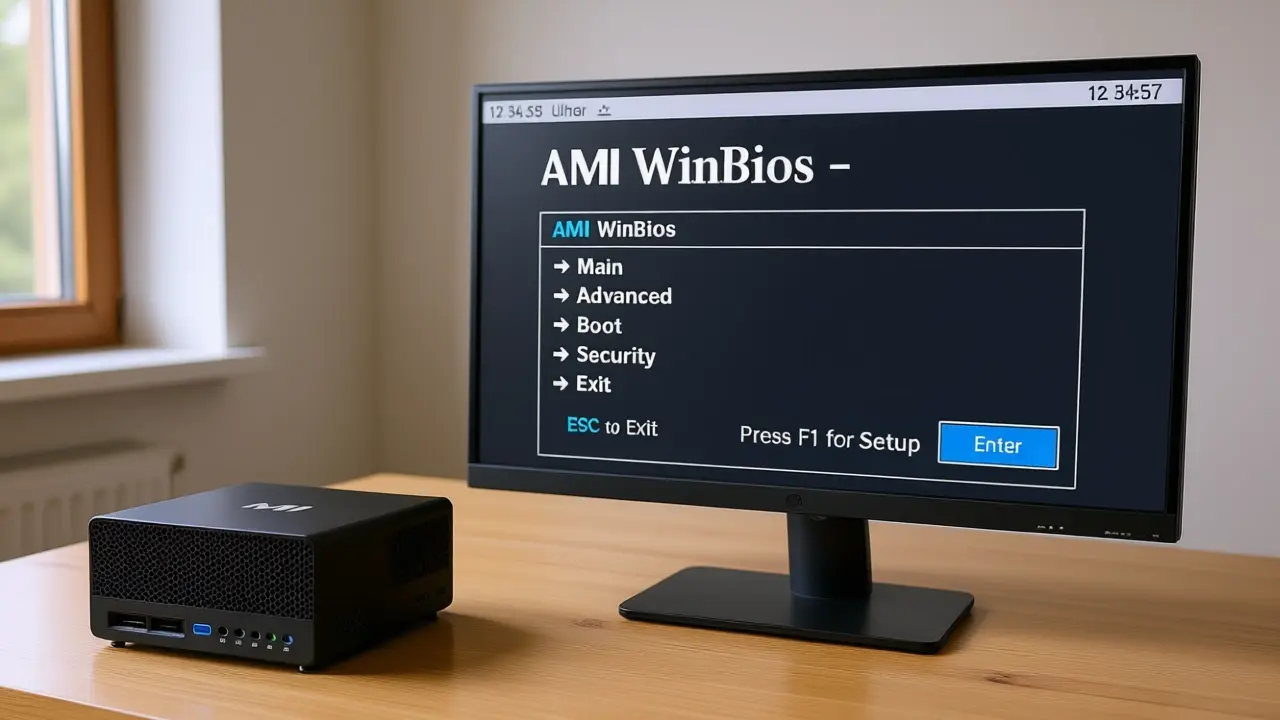
If you're building your first computer and have reached the point of tweaking the BIOS, it's normal to feel a bit lost. BIOS optimization for performance often sounds complicated, full of technical jargon, videos with conflicting advice, and menus that seem to be in another language. The good news is that, with some context and knowing what to change and what not to, you can squeeze out a few extra FPS and improve system smoothness without taking unnecessary risks.
In this article, we'll calmly break down, in plain Spanish, which BIOS settings truly impact performance (CPU, GPU, and RAM), which options are best enabled for more stable gameplay in titles like Cyberpunk 2077, Escape from Tarkov, and Elden Ring , and when it's best to leave everything as is and let the system run on automatic. You'll also see how the BIOS fits within the broader set of optimizations (drivers, Windows, games, etc.) so you don't overestimate or underestimate its importance.
What is the BIOS and why does it affect performance?
The BIOS (or UEFI on modern systems) is the basic system that allows the hardware and operating system to communicate with each other. It manages key parameters such as processor frequency, RAM speed, power limits, and some integrated GPU settings . While it's not magic, proper configuration can make a significant difference in stability and FPS.
On many modern desktop computers, especially gaming motherboards, the BIOS offers a fairly intuitive graphical environment, with an "easy" mode and an "advanced" mode. In easy mode, you can view temperatures, fan profiles, and boot order; in advanced mode, you'll find the fine-tuning options for CPU, memory, power, and security that are truly relevant for optimizing performance.
It's important to understand that manufacturers set limits for a reason. Many motherboards come with certain features partially disabled to prevent users from exceeding the design limits of the CPU, RAM, or power supply . Pushing these components too far can lead to instability, random crashes, restarts, and even long-term damage if high voltages are combined with poor cooling.
Therefore, before you rush to change every parameter you see online, it's important to be clear about which settings are safe and recommended for your use (for example, playing at 1080p at a stable 60 FPS) and which are already the territory of aggressive overclocking intended for users who are willing to dedicate a lot of time to stress tests and diagnostics.
Typical advanced sections of the BIOS and their purpose
In a modern BIOS, much of what influences performance is found within the advanced settings section. There you'll find menus such as CPU Configuration, Trusted Computing, Power Configuration, and Hardware Monitor , among others. Each has a specific purpose, and not all of them affect FPS, but it's helpful to understand what each one does.
You will usually find something similar to the following (the names may change slightly depending on the motherboard brand, but the idea is the same):
- Trusted Computing / fTPMSecurity options, encryption, and TPM module. Relevant for things like BitLocker or Windows 11 requirements, but doesn't directly improve gaming performance.
- Power ConfigurationSystem power and power settings: behavior after a power outage, Wake on LAN, power profiles, etc.
- CPU ConfigurationProcessor-related parameters: frequencies, power states, power-saving technologies, SMT/Hyper-Threading… This is where a significant part of the optimization is concentrated.
- Hardware MonitorFan control, speed curves, temperature and voltage monitoring. It doesn't directly increase FPS, but good thermal management allows the CPU and GPU to maintain their turbo frequencies for longer.
- Option ROM / PCI Subsystems: Compatibility and behavior settings for PCIe devices, graphics cards, and other expansion peripherals.
- Driver HealthStatus and management of certain integrated controllers (network, audio, etc.), more focused on diagnostics than pure performance.
In some mini PCs or OEM systems, performance options are quite limited, and only some of them can be unlocked using specific software from the manufacturer (AMD, Intel, or the assembler) . In a tower PC with a standard motherboard from ASUS, Gigabyte, MSI, etc., it's normal to have many more controls, although always within the limits set by the platform.
Specific settings on AMD systems: AMD CBS and company
On current AMD platforms (Ryzen, APUs, etc.), it's very common to find a menu block called AMD CBS (Common BIOS Settings) or something similar. This section groups almost all the platform's advanced parameters: CPU, memory, integrated GPU, PCIe, power, and more.
Within AMD CBS there are usually subcategories with names that, at first glance, seem a bit intimidating, but which have a clear logic:
- CPU: Controls directly related to the processor: base frequencies, boost frequencies, P-state management, etc.
- DF (Data Fabric)Advanced configuration of the system's internal interconnection and memory. It only makes sense to touch this if you know exactly what you're doing.
- UMC: This is where the effective RAM speed, timings, and certain memory parametersThis is the key area for fine-tuning DDR memory.
- NBIOPCIe interface settings, GPU and audio options, linking with high-bandwidth external devices.
- CHFChipset controller, USB ports, SATA and other input/output peripherals.
- SMUSystem management unit: power, thermal limits, ventilation policies, and boost behavior of the APU or CPU.
- SOC: Security and platform parameters, often related to the logic that links the CPU, integrated graphics, and other blocks.
For a user who simply wants to improve gaming performance without going overboard , the most relevant settings within AMD CBS are usually UMC (for RAM), the integrated GPU settings if you're using one, and some power options within SMU. The rest is generally left on automatic unless you're following a very specific guide for your processor model.
How to adjust the integrated GPU from the BIOS
If you're using integrated graphics, especially on an AMD APU or in compact systems, one of the most noticeable adjustments is the amount of system RAM allocated to the integrated GPU . This memory is reserved as a framebuffer and isn't available to other applications, but it can prevent bottlenecks in light gaming.
In many BIOSes, this setting appears as something like “iGPU Configuration” or “Integrated Graphics” and an option called “UMA Frame Buffer Size” or similar. The typical workflow would be:
- Enter the section iGPU or UMA configuration.
- Check that the integrated graphics are enabled (never select "Disabled" if it is your only video output or you will have no image).
- Adjust UMA Frame Buffer Size to a value appropriate to your total RAM; for example, 4 GB if you have plenty of memory (16 GB or more).
It's important to understand that the integrated GPU draws its resources from the same RAM as the system, so the faster this memory is (frequency and timings), the better the integrated graphics will perform . Allocating a huge framebuffer is pointless if the RAM is then running at a snail's pace.
If your gaming PC relies on a dedicated GPU (for example, an NVIDIA GeForce RTX 3060, as in many modern systems), the integrated GPU (iGPU) has no impact on performance for gaming, and in many cases, you can even leave it in automatic or disabled mode if your motherboard allows it and use only the dedicated GPU. The key in that case is to ensure the graphics card is in the primary PCIe slot with the correct mode and that the BIOS isn't forcing unnecessary compatibility modes.
CPU optimization in BIOS and moderate overclocking
One of the key components in the BIOS is the processor. From there, you can modify the base frequency, turbo mode behavior, power states, and, on some platforms, custom Pstates . Any change to these parameters can have a direct effect on FPS and overall system responsiveness.
On unlocked processors or in advanced BIOS versions, there's usually a menu like "Advanced > CPU Configuration." Some AMD configurations, for example, allow you to define a "Custom Pstate0" to set the CPU's target frequency in its base state. However, increasing this frequency beyond the factory turbo boost will result in higher power consumption, more heat, and potential instability if not accompanied by a good heatsink and appropriate voltages.
If your priority is to have a stable 60 FPS at 1080p without complications, the recommendation is usually more conservative:
- Activate, if available, an auto-optimization mode such as “AI Overclocking”, “AI Optimized” or similar offered by some motherboards, which adjusts the CPU within a reasonable range.
- Do not manually adjust voltages or Pstates if you lack experience and testing tools (Cinebench, Prime95, OCCT…).
- Always keep an eye on the temperatures under loadIf they get too close to the processor's limit, it's best to lower the settings or leave the frequencies on automatic.
Many ASUS motherboards, for example, include an "AI Overclocking" option in the BIOS that analyzes your hardware and applies a small, fairly conservative automatic overclock. To activate it, you enter the BIOS during startup (usually with the Delete key), go to the relevant section, select "AI Overclocking," and save with F10. It's a relatively safe way to squeeze out some performance without going crazy with individual settings.
In any case, if you experience crashes, blue screens, random restarts, or strange behavior in games after modifying the BIOS, it's a sign you've gone too far. The best course of action is to revert the changes or use the " load factory defaults/optimized settings" function , which all modern BIOSes include.
Configuring RAM to unlock its full potential
RAM is another area where the BIOS plays a significant role. A well-configured 3200 MHz or 3600 MHz RAM kit can make a noticeable difference in gaming, especially on CPUs that benefit greatly from bandwidth. The key is for the BIOS to recognize and apply the correct memory profiles (XMP, DOCP, EXPO, etc.).
On many AMD systems, the RAM settings are found under “Advanced > AMD CBS > UMC > DDR Timing” or similar. This is where the advanced memory settings are enabled.
- Enable something like “Active Memory Timing Settings” in “Enabled” so that the BIOS allows modifying timings.
- Select “Memory Speed” in “Auto” or at the effective speed supported by your modules and processor.
- Then check in the operating system that the RAM operates at the frequency you have configured it to., using for example CPU-Z or the Windows task manager itself.
In practice, the easiest and safest approach is to look in the BIOS for an option to load the XMP/DOCP/EXPO profile for the memory kit . This automatically adjusts the frequency and timings to the values for which the RAM was designed. If you experience crashes or instability after enabling it, it's best to lower the frequency by one step or leave it on auto.
Your specific case, with two 16GB DDR4 modules at 3200MHz (32GB total), fits perfectly with this idea: ideally, you should ensure the BIOS is using that 3200MHz speed and not leaving it at the default 2133/2400MHz, which is what often happens if nothing has been changed. That simple adjustment can already offer a noticeable improvement in some games and tasks.
Power management and startup: performance versus consumption
Another important section of the BIOS relates to power and the computer's behavior when it's turned on and off. This includes not only how much power the machine consumes, but also whether the BIOS allows the CPU and GPU to reach their maximum power limits or keeps them in check to keep everything cooler and quieter.
On AMD platforms, much of this is controlled from the SMU submenu within AMD CBS. According to the manufacturer, this is where you can find parameters such as power limits, boost behavior, target temperatures, and predefined power modes (ECO, Performance, etc.). These options have a direct impact on temperatures, noise, and stability.
Additionally, outside of SMU there is usually a general "Power Configuration" menu, where things like the following are managed:
- AC Failure / Auto Power ON: PC behavior when power is restored after an outage. Useful for home servers or equipment powered by smart plugs.
- Resume / Wake on LAN (WOL): Allows you to turn on your PC remotely from the network, which is useful for office equipment or home servers.
- Wake up RTC: Automatic ignition programming according to the system's internal clock.
- Power mode: General power profiles (Performance, Power Saving, etc.), similar to those you see later in the operating system but managed from the motherboard itself.
For a typical gaming PC, a maximum performance profile is usually desirable when gaming (even though it means higher power consumption and noise), and perhaps a quieter one for light tasks. Many BIOSes already include a "Performance" mode that slightly raises power limits while maintaining acceptable temperatures.
However, it's wise to be cautious in the SMU menu: adjusting power limits without understanding the function of each parameter can cause temperatures to spike and shorten the lifespan of your hardware. If your goal is to enjoy gaming without overcomplicating things, it's best to use the manufacturer's predefined profiles and avoid aggressive manual adjustments unless you're following a very specific guide for your CPU and motherboard.
BIOS optimization using automatic functions: AI Overclocking and similar
Many motherboard manufacturers have realized that most users don't want to wrestle with voltages, multipliers, and timings, so they've created automatic optimization systems within the BIOS . ASUS, for example, offers "AI Overclocking" on several of its motherboards, and other manufacturers have equivalent solutions.
In the case of AI Overclocking, the process is usually as simple as:
- Enter the BIOS at startup (usually with the Delete or F2 key).
- Go to the section related to AI Overclocking.
- Select the “AI Optimized” mode or similar.
- Save the changes and restart with F10.
The motherboard then estimates the potential of your CPU and cooling system and applies a slight, relatively conservative overclock. This can give you a few extra FPS in CPU-dependent titles and a smoother overall experience without requiring complex manual adjustments.
Even with these automatic systems, it's still a good idea to check that temperatures under load (for example, while playing Cyberpunk or running a benchmark) remain within reasonable ranges. If you notice the processor constantly exceeding its thermal limits, you can always return to the BIOS and switch it to standard or power-saving mode.
Complementing the BIOS: drivers, GPU software, and Windows settings
The BIOS is just one piece of the puzzle. Even if you optimize it to the max, without updated drivers, a good graphics configuration, and a clean Windows installation , you'll be sacrificing performance. To improve FPS and stability, you need a holistic approach.
The first step outside of the BIOS is to ensure your graphics card drivers are up to date . NVIDIA and AMD release updates frequently, and many of these include performance improvements specifically for popular games. For ASUS cards, it's recommended to visit their download center, select your model, and download the latest driver compatible with your operating system.
Furthermore, tools like ASUS GPU Tweak III allow you to adjust graphics card parameters from Windows: small overclocks, fan control, power profiles… For many users, simply activating the program's predefined Overclocking mode is enough , which raises frequencies slightly in a controlled manner according to the load without needing to tweak individual values.
In parallel, Windows 10 and Windows 11 include their own "Game Mode," designed to prioritize game performance over background tasks. Activating it is as simple as going to system settings, entering the gaming section, and enabling Game Mode . It's not miraculous, but it helps stabilize FPS in some situations.
Finally, it's worth reviewing the applications that start automatically with Windows. Disabling programs you don't need (especially resource-intensive ones) frees up CPU and memory for your games. All of this, combined with a properly configured BIOS, will create a much more balanced system.
Optimize settings within the games themselves
Although this article focuses on the BIOS, you can't talk about performance without mentioning in-game graphics settings . Often, a small decrease in visual quality translates into a much more noticeable FPS increase than any micro-adjustment in the BIOS.
Today, many games support technologies like NVIDIA DLSS (Deep Learning Super Sampling) or AMD FSR (FidelityFX Super Resolution). Both techniques render the game at a lower internal resolution and then upscale it using advanced algorithms to maintain good image quality.
- DLSS and FSR typically offer "Performance," "Balanced," and "Quality" modes. Generally, the "Performance" mode Balanced It's a good compromise between quality and FPS in most games.
- The option is usually found in the game's graphics menu, next to the resolution and the rest of the visual parameters.
If the game doesn't support these technologies or still doesn't run smoothly, you'll need to adjust the graphics settings manually. Reducing details like shadows, draw distance, reflections, ray tracing, or special effects can significantly reduce the load on the GPU without ruining the visual experience.
Another key factor is resolution. Playing in 4K or 1440p is much more demanding on the GPU than playing in 1080p. For someone who feels more comfortable in 1080p due to eye strain, as you mentioned, it's perfect: sticking to Full HD reduces the workload on the graphics card, making it easier to achieve and maintain a stable 60 FPS even in demanding titles.
If after applying all these optimizations you are still not satisfied with the FPS, it is worth checking that the hardware meets the recommended requirements of the game and, if necessary, consider upgrading components (especially GPU or CPU) before further forcing the BIOS.
Security, stability, and risks when accessing the BIOS
One aspect that shouldn't be overlooked is that the BIOS not only influences performance, but also the overall security and stability of the system . Changing certain parameters without knowing what you're doing can leave your PC unable to boot or with problems that are difficult to diagnose if you don't remember what you changed.
Furthermore, the BIOS isn't the only area where your computer can be compromised. Installing unofficial drivers or pirated software is also a quick way to undo all the optimization you've done. A malicious executable can infect your system, degrade performance, cause games to crash unexpectedly, or even corrupt important data.
Therefore, although it is tempting to download "miracle" programs that promise to optimize the PC or supposedly special drivers, it is always best to go to the official sources of the manufacturer (NVIDIA, AMD, ASUS, Gigabyte, MSI…) or, if you need professional help, go to specialized services that know what they are doing with both BIOS and software.
If you're considering a complete PC overhaul that involves reinstalling the operating system, updating drivers, upgrading hardware (more RAM, an additional SSD, etc.), and extensively adjusting the BIOS, it's crucial to ensure that all these components fit together and that the process is carried out carefully and with safety precautions . A misstep, especially installing software from dubious sources, can cause more problems than it solves.
On work computers, or PCs used for study, design, or critical tasks, it makes even more sense to be conservative when modifying the BIOS and focus efforts on keeping the system clean, with adequate cooling and up-to-date components. In many cases, stability is worth more than a few extra FPS.
In short, the BIOS is the starting point for any hardware optimization: it's where you decide how the CPU, RAM, and GPU behave, what power limits are respected, and how the core components are coordinated. Making good use of these options, enabling the appropriate memory profiles, using auto-optimization features when available, and complementing everything with updated drivers and consistent settings in Windows and the games themselves will allow you to achieve a very solid balance between performance, temperature, and stability —ideal for enjoying your favorite titles at a stable 60 frames per second without needing to be an overclocking expert or risk damaging your new PC.
