- Verification of application compatibility and correct configuration of the launcher menu on the mobile device.
- Managing critical permissions, power-saving restrictions, and updating Google Play services.
- Enabling developer mode to enable the loading of applications from unknown sources.
- Review of hardware, connection cables, and specific wireless connectivity settings.

There's nothing more frustrating than getting in your car, starting the engine, and realizing that some apps have disappeared from the Android Auto menu. Whether it's Spotify missing for your favorite music or Google Maps deciding not to show up, it's a frustrating situation that can happen to anyone, even if everything was working perfectly the day before.
Fortunately, most of these issues don't mean your phone is broken; they're usually minor configuration errors , pending updates, or limitations of the Android system itself. In this article, we'll thoroughly analyze all the possible causes and give you the keys to regaining full control of your infotainment system.
Check the launcher settings and visibility
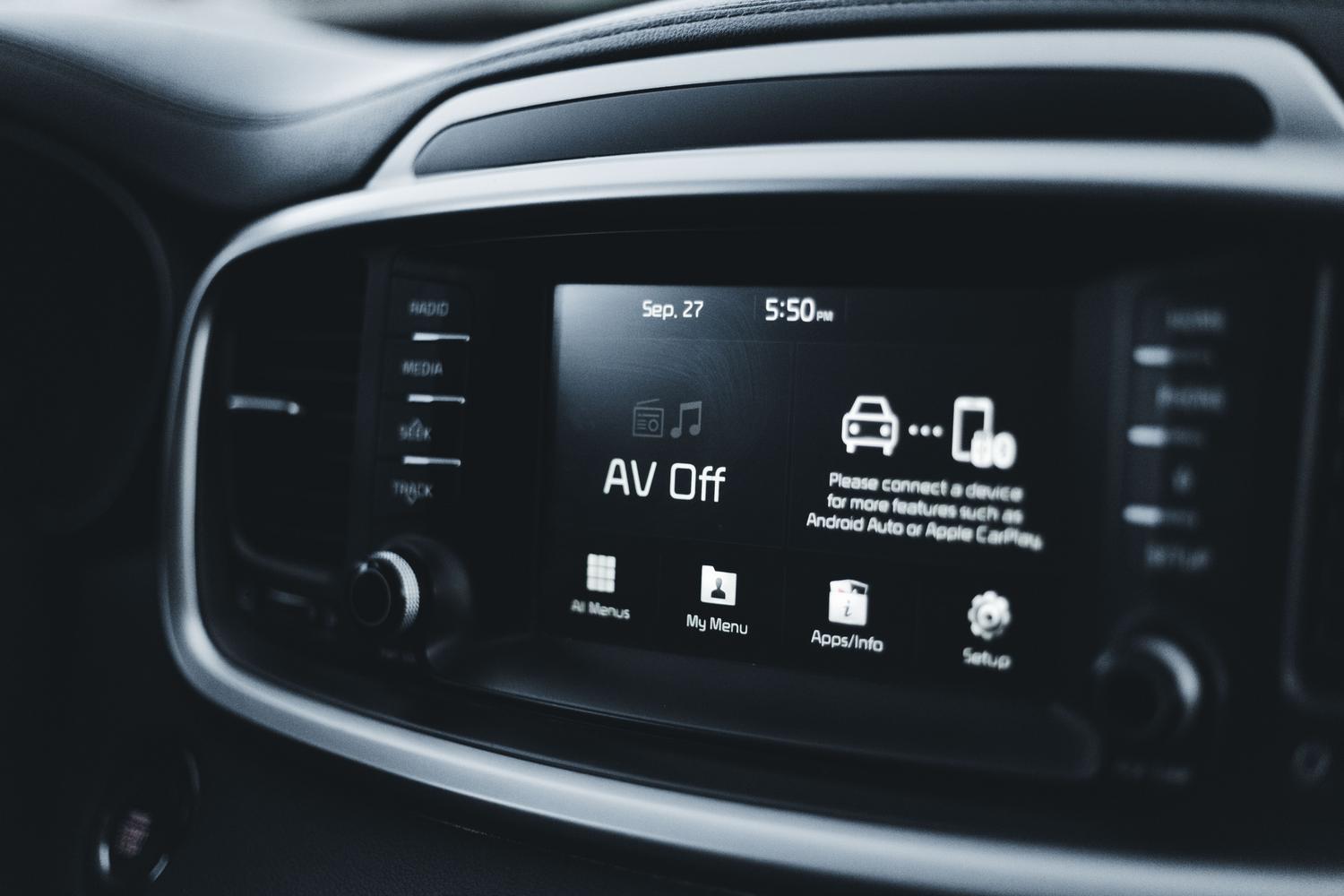
Sometimes the problem is the simplest of all: the app is installed but has been removed from the display list. To fix this, go to your device settings, find the Connected Devices section, and then select Android Auto . Once there, look for the option to customize the app menu. You'll see a list where you can select or deselect which apps you want to appear on your car's screen; make sure the app's box is checked.

System updates and services
Keeping your software up to date is essential to avoid erratic behavior. It's not enough to simply update the Android Auto app; it's vital to ensure that Google Play Services and the Google app itself are updated to their latest versions from the Play Store. If you notice that the system is slow or that some functions are malfunctioning after an update, an effective solution is to clear the cache and data of the Google app to completely reset it and resolve the slowness and lag of Android Auto.
Permission management and battery saving
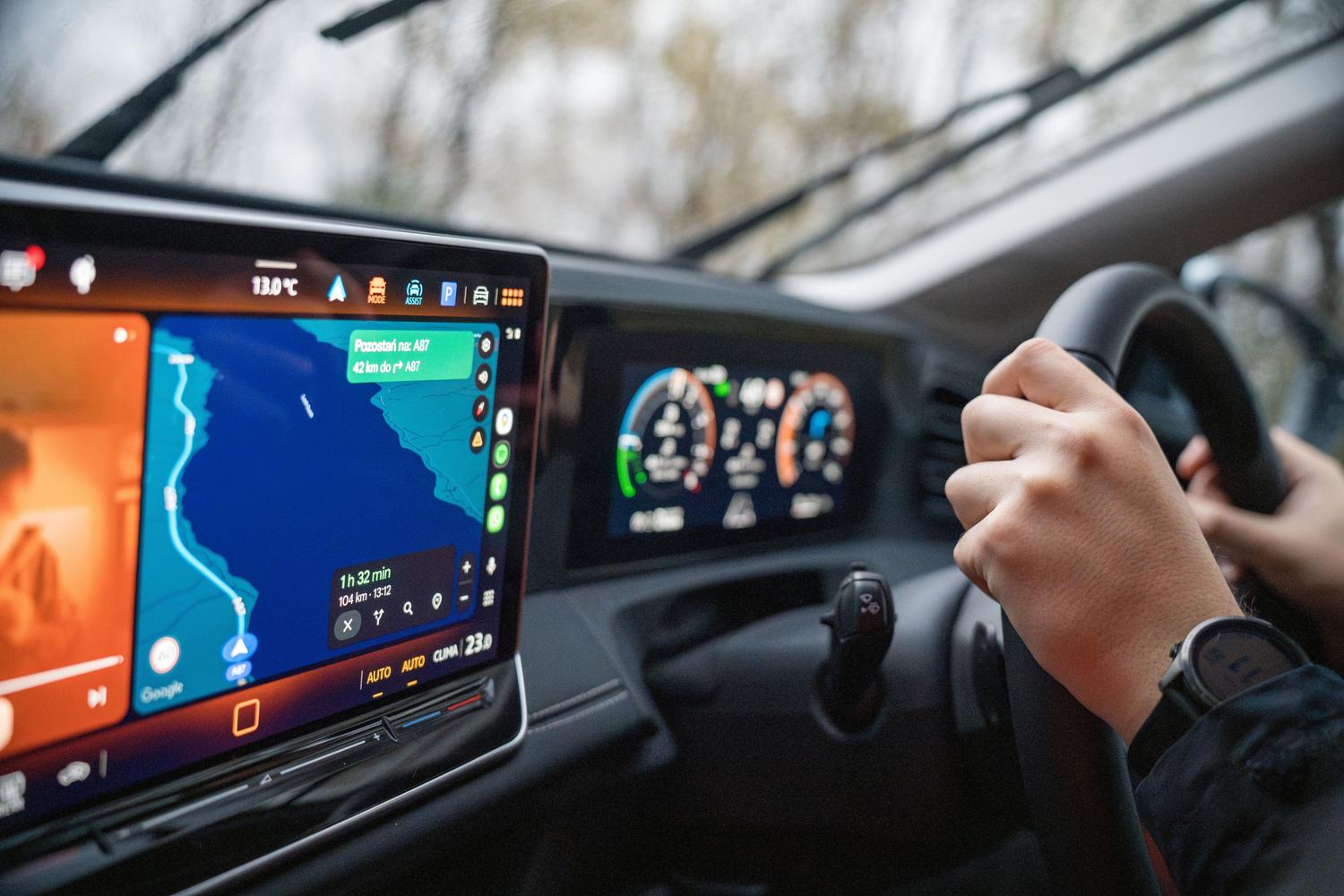
Android is very aggressive with power management, and this can work against you. If you have an optimized battery restriction enabled for a specific app, it's very likely that the system will close it in the background and prevent it from appearing in your car. You should go to Settings > Apps, select the affected app, and check that it has permission to run in the background without restrictions, applying some tools and tricks to optimize battery life on Android.
On the other hand, check that the app has the necessary hardware permissions . If a messaging app doesn't have microphone access or a navigation app doesn't have location access, Android Auto might decide not to load it for security reasons or due to lack of functionality. Pay particular attention to notification and media file permissions.

Enabling apps from unknown sources
If you're someone who installs apps from sources other than the official app store, such as Carstream or open-source tools, Android Auto will block them by default. To fix this, you need to enable developer mode: go to Android Auto settings, scroll down to the "About" section, and tap the version number 10 times . Then, tap the three-dot menu at the top, access Developer options, and enable Unknown sources . Restart your phone, and the apps should reappear, perhaps allowing you to explore better alternatives to the Google Play Store for Android.
Connectivity and hardware problems
If the problem isn't with a specific app but the entire system crashes or disconnects, the first suspect is always the cable. It's recommended to use certified cables shorter than one meter and avoid hubs or extension cables that degrade the signal. If you're using a wireless connection (common in BMWs and MINIs), remember that this system relies on both Bluetooth and Wi-Fi; any interference from other nearby devices can cause annoying interruptions.
In cases where the screen appears disproportionate or too large, you can adjust the screen resolution in Android Auto's developer options to precisely match your vehicle's monitor's aspect ratio. If the voice assistant isn't responding, check that the language is set to Spanish in the Google app and that the car's microphone isn't obstructed.

Specific cases: Spotify and WhatsApp
Spotify is often the app that causes the most problems. If it closes unexpectedly or doesn't display album art, try clearing the app's cache or reinstalling it. It's also important to increase the audio quality in the app's settings to prevent the car from automatically lowering the volume. As for WhatsApp, if notifications aren't arriving or aren't being read aloud, you need to enable message reading in the Google Assistant settings specific to your car.
To troubleshoot any issues, it's best to start with the basics: restart your phone and vehicle, check for pending updates, and if nothing works, uninstall and reinstall the problematic app. Most problems can be resolved by following these steps in order and ensuring the hardware is in perfect working order.
