- A quality power supply should offer sufficient power, comprehensive protections, and certified efficiency to ensure stability and safety.
- The most common symptoms of an insufficient or faulty power supply are shutdowns under load, unexpected restarts, and the need to unplug it to turn it back on.
- Calculating the actual power consumption of the equipment, adding a margin of 20-30% and choosing a reliable brand with a good warranty is key to getting the PSU right.
- It's not worth repairing or pushing old or generic power supplies to their limits: replacing them with modern, efficient models is safer and more cost-effective in the long run.
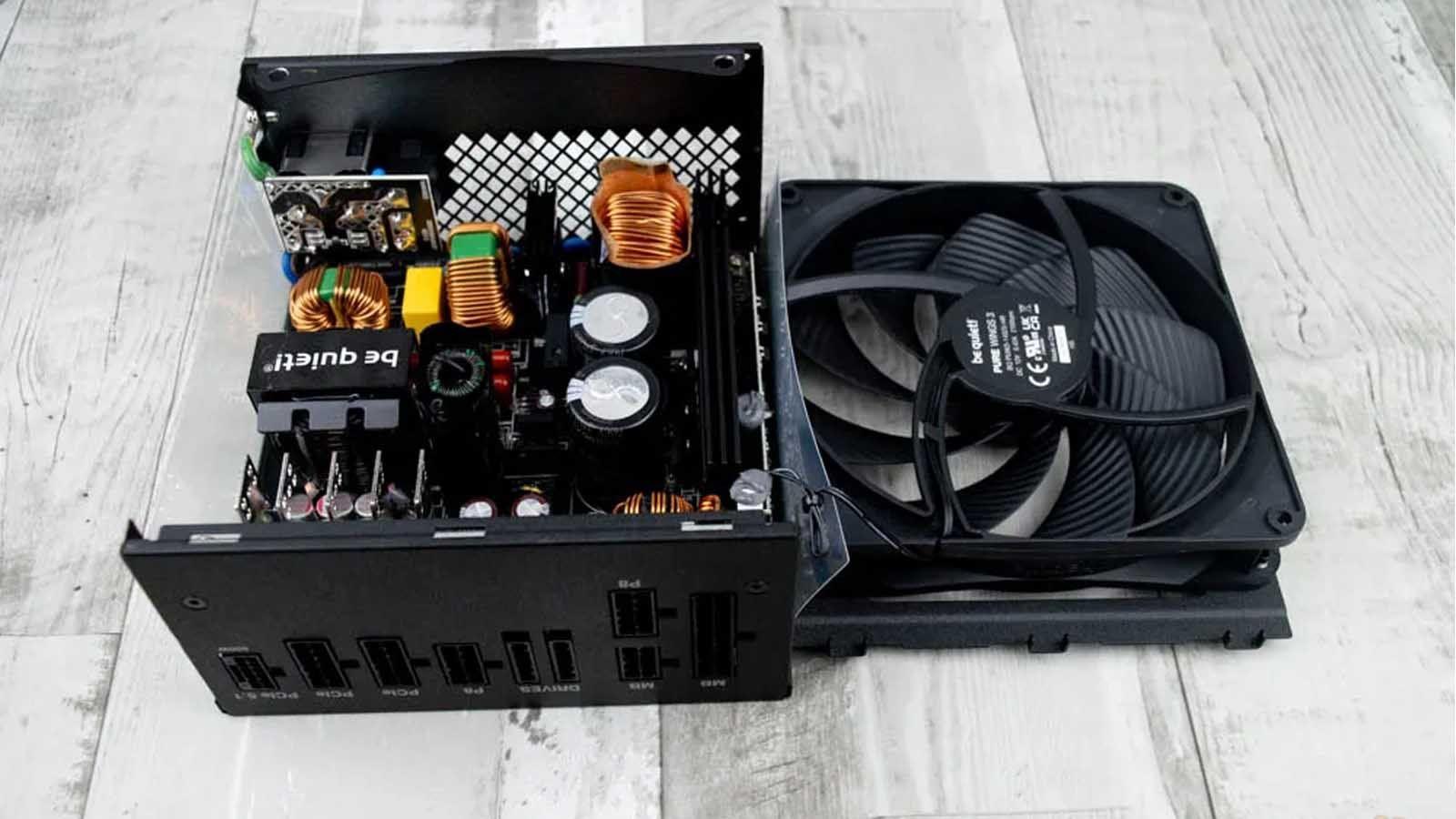
If you've ever wondered how to tell if your power supply is good or sufficient for your PC, you're not alone. It's very common to build a computer years ago, forget which PSU you installed, and start to have doubts as soon as you think about changing your graphics card or doing a major upgrade.
It's also very common for a PC to start shutting down on its own, restarting, or simply not turning on at all, and you might not know if the problem lies with the power supply, the motherboard, or another component. This is where a clear, practical guide with some technical jargon comes in handy, so anyone can quickly get an idea of whether their power supply is up to par.
Why does it matter so much that the source is good?
The power supply is, quite literally, the electrical heart of your computer . It's responsible for transforming the current from your wall outlet into stable and safe voltages for the motherboard, CPU, GPU, hard drives, and all other components. If it fails, it can cause anything from minor crashes to serious damage.
A substandard or undersized power supply unit (PSU) can cause instability, crashes, random restarts, and shutdowns while gaming . It also tends to run hotter, makes more noise, and can shorten the lifespan of the entire system. A quality power supply, on the other hand, provides stability, protects against electrical problems, and allows for future upgrades.
In recent years things have become more complicated: new standards like ATX 3.0/3.1 and PCIe 5.0/5.1, higher peak power consumption, and connectors like 12VHPWR (typical of modern graphics cards) have significantly changed the landscape. It's no longer just about "how many watts it has," but also about the technology and protections it includes.
Therefore, when determining if a power supply is good, you should consider both its internal quality and certifications , as well as whether it truly meets the actual needs of your PC: graphics card type, processor, case, ventilation, etc.
How to tell if the power supply is sufficient for your PC
Before discussing "battle" tests and methods, the most sensible thing to do is to check if, on paper, the power and characteristics of your power supply fit your current setup (and what you want to build in the short term, such as a more powerful GPU).
The quickest way is to calculate your system's approximate power consumption using online power calculators . Manufacturers like be quiet!, Cooler Master, and others offer tools where you select your CPU, GPU, number of hard drives, fans, etc., and they provide the estimated power consumption plus a margin for peak loads.
Imagine your calculator tells you your system can reach a peak of 670-700 W. That doesn't mean you have to go right to the limit; it's advisable to install a power supply slightly higher (for example, 850 W or even 1000 W if you want to have plenty of power and it will run smoothly for many years).
For mid-range systems (for example, a Ryzen 5 or i5 with an RTX 3060 or similar), actual power consumption is usually around 400-450W . In these cases, a good 550-650W power supply, with decent certification and comprehensive protections, is usually perfect and leaves room for moderate upgrades.
Typical scenarios: when to suspect the source
Doubts about whether a power supply is good usually arise in three situations: the PC won't turn on, the PC shuts down or restarts under load, or there are random failures without a clear pattern . Each case is handled differently, and it's important to clearly distinguish the symptoms to avoid driving yourself crazy replacing parts indiscriminately.
When the PC won't turn on at all
If you press the power button and absolutely nothing happens (no fans, no lights, not even a small attempt to start), it's logical to think of the power supply, but be careful: many times the problem is something as simple as the front panel of the case being poorly connected.
If the computer is new or you've just serviced it, check your motherboard manual to see where the power button connector (PWRBTN / PWR_SW) is located and make sure it's correctly plugged into the front panel header. You can even try briefly touching the two "Power" pins with a metal screwdriver; if it powers on, the problem was either the cable or the power button itself.
If the PC was working perfectly and suddenly stopped turning on without you touching anything, then it makes sense to focus suspicion on the power supply and move on to more direct tests.
"Clip" method: manually turning on the power supply
The most classic method for checking if a power supply can start on its own is the famous "ATX connector jumper" using a paperclip . Basically, you simulate the signal sent by the motherboard to power it on, but without it being connected to the rest of the PC.
The first step is to cut off all power: turn off the power supply's rear switch and unplug it from the wall outlet . Next, it's advisable to disconnect all cables going to the motherboard, graphics card, and other components (you don't need to remove the entire cable assembly, just disconnect them from the components). However, it is essential to remove the 24-pin ATX power connector from the motherboard.
With the 24-pin ATX connector in hand, you'll need a piece of wire or a metal clip with the ends stripped . The goal is to connect the power pin (usually a green wire) to any of the ground pins (black wires). On modern power supplies with all-black wires, you'll need to refer to the connector diagram, paying close attention to the position of the tab.
Insert one end of the paperclip into the hole for the green wire and the other end into the hole for a black wire, making sure you don't touch any neighboring pins . Once you're sure the connection is secure, plug the power cord back in and turn on the power supply's rear switch.
If the power supply is working properly, you should see the fan start spinning or hear some subtle electrical noise . This indicates that it's at least capable of starting up. If you don't see any movement, the clip might not be making good contact, you might have connected the wrong pins, or the power supply might actually be dead.
What if the power supply is semi-passive and the fan doesn't move?
Many modern mid-range/high-end power supplies have a semi-passive mode , meaning the fan doesn't turn on at low loads to reduce noise. In these cases, when you bridge the power supply, it might activate but the fan will remain off.
In this scenario, pay attention to details like a small internal click when turning it on/off , or if you notice any vibration or a slight buzzing sound. If you have the exact model, you can check the manufacturer's website to see if it's semi-passive; if it is, the fact that the fan doesn't spin when you jump it doesn't necessarily mean it's broken.
In any case, the paperclip test only tells you if the power supply can be powered on in a basic way , not if its voltages are stable or if it will withstand a real load. For that, further investigation is needed.
The PC turns on, but shuts down or restarts while playing.
Another very clear symptom of a possible PSU problem is that the PC seems to work fine on the desktop, but shuts down or restarts when you play games, render, or perform other demanding tasks . In these cases, it makes sense to stress the system in a controlled manner.
Programs like OCCT allow you to run a "Power" test that simultaneously loads the CPU and GPU, generating a near-maximum power consumption for your system. The idea is to let this test run for about 20-30 minutes (or however long it usually takes for your system to crash while gaming) while monitoring the temperatures of the CPU, GPU, and, if possible, the power supply itself.
If the computer shuts down completely during the test, the possibilities include overheating or a power supply that can't handle the load , either because it's faulty or because it doesn't have enough power. If it restarts, the power supply's protection circuits may not have functioned correctly, indicating a problem with another component, although the PSU is still a likely suspect.
If the PC only malfunctions with certain games but not under a synthetic load like OCCT, then driver issues, GPU problems, or even RAM issues should also be considered . However, the power supply should never be completely ruled out until it has been tested with another unit.
Random shutdowns and errors without a pattern
When a PC shuts down while browsing, while idle, or shortly after turning on, finding the cause becomes quite complicated . Previously, it was common to check the Windows Event Viewer for errors like "KERNEL_POWER" to blame the power supply unit (PSU), but this code only indicates a loss of power, not the exact source.
In cases of such erratic shutdowns, the most practical approach is usually to test the system with another power supply that you know works correctly . If the problems disappear with the new PSU, you're halfway through the diagnosis. If they persist, you'll need to check the motherboard, memory, GPU, and even the power outlet or surge protector itself.
Advanced checks: multimeter and protections
If you want to go a step further to determine if your power supply is even minimally decent, you can measure its main outputs and understand how its internal protection systems work . It's not a professional lab test, but it's very helpful for home diagnostics.
How to tell if a shutdown is caused by power supply protections
Many power supply units (PSUs) have built-in protections that operate in a "lock-in" mode. This means that if they detect a serious event (short circuit, power surge, etc.), they will shut down and will not restart until you physically unplug them.
If your PC keeps shutting down and you can only restart it after unplugging and plugging it back in , it's very likely that an internal protection circuit in the power supply has tripped. This usually indicates short circuits, overcurrent, out-of-range voltages, or simply a PSU that isn't up to the task for your hardware.
Not all protection systems work this way; some allow the device to restart without being unplugged. But when you see that "it won't revive until I pull the cord" behavior, it's a pretty strong indication that the power supply is doing its job... or that it's being overloaded.
Measure the power supply voltages with a multimeter
To check if a power supply is delivering reasonable voltages, you can use a multimeter in DC voltage mode . The easiest way is to use a 4-pin Molex connector: black is ground, red is usually +5V, and yellow is +12V.
With the power supply on (ideally with the PC running and under some load), place the black probe of the multimeter on a ground pin and the red probe on the +12V pin . A value between 11,4V and 12,6V is within the expected range. Repeat this process with the +5V line, which should read between 4,5V and 5,5V.
Note: Voltages being within range doesn't guarantee a good power supply , but detecting voltages outside those ranges is a clear sign of a problem. More detailed analysis (ripple, transient response, etc.) requires professional equipment, which is impractical for home use.
What to do if the power supply is broken or malfunctioning
If after all the tests you're certain the PSU is the problem, you'll have to decide whether to try to claim under warranty or accept that it needs to be replaced . Repairing it yourself is almost never a good idea.
Is it worth repairing a power supply?
Internally, a modern power supply unit (PSU) is an extremely complex circuit, with high voltages, capacitors that store charge, and delicate components . Handling it without the necessary knowledge is dangerous even when disconnected, and locating the specific fault is not straightforward.
Therefore, unless you have training in electronics and specific experience with this type of device, opening or repairing the power supply is not recommended . The personal risk and the likelihood of damaging something else are far too high to outweigh any potential savings.
How to manage your power supply warranty
If you confirm that it's faulty, the first thing to do is check if it's still within the warranty period . In Europe, the store is required to offer a minimum of 2 years, so check your online orders, PDF invoices, or physical receipts.
If two years haven't passed, the quickest way is to contact the store where you bought it and open an RMA. They'll usually ask for your order number or a copy of the invoice and tell you where to send it. Typically, the customer pays for shipping to the store, and the manufacturer or store covers the return shipping.
Even if more than two years have passed, many mid-range and high-end power supplies come with manufacturer warranties of 3, 5, 7, 10, or even 12 years . In that case, you should go to the manufacturer's website, find your specific model, and check what coverage they offer. If the PSU is still under direct warranty, you can process a replacement through them.
When there's no warranty: it's time to choose a new PSU
If your power supply is out of warranty or is a generic unit from ages ago, the sensible thing to do is buy a new, high-quality one . It's not worth skimping on a few euros for this component because it could damage the rest of your system if something goes wrong.
This is the ideal time to correct past mistakes: choose the right power, good efficiency, sufficient connectors, and a modular design if keeping your case tidy is important to you. It's also worth considering modern standards (ATX 3.x, PCIe 5.x and 12V HPWR) if you plan to install current or next-generation graphics cards.
How to choose a good power supply
To decide if a power supply is good (or which one to buy as a replacement), you need to look at its actual wattage, internal quality, efficiency, protection features, form factor, and brand reputation . It's not just about looking at the wattage sticker.
Power: How many watts do you really need?
Power requirements are often overestimated or underestimated due to a lack of knowledge. Many people buy 1000W power supplies "just in case" for systems that never exceed 400W, while others push the limits with 500W units of dubious quality for graphics cards that clearly demand more.
Ideally, you should start by calculating your actual power consumption (using a reliable calculator) and add a 20-30% margin for peak loads, degradation over time, and future upgrades. If you have any doubts, consult our 750W power supply guide . This margin allows the power supply to operate within a good efficiency range without constantly being pushed to 90-100% of its capacity.
Energy efficiency and 80 Plus certifications / Cybenetics
Efficiency indicates what percentage of the energy entering through the power outlet is converted into usable power for the PC and how much is lost as heat . The more efficient the power supply unit (PSU), the less electricity it wastes and the less it heats up.
The most well-known certifications are 80 Plus (Bronze, Silver, Gold, Platinum, Titanium) and Cybenetics (with levels such as Gold, Platinum, Titanium, Diamond). The higher the certification, the more efficient the power supply typically is at different load levels.
In practice, an 80 Plus Gold or higher model already offers a very good balance between price, efficiency, and temperature for most users. Titanium and Cybenetics' most demanding certifications are reserved for top-of-the-line power supplies, ideal for very powerful systems or for those seeking the very best.
Formats, size and case compatibility
The most common format is ATX , but within this standard there are variations in length (some power supplies are considerably longer than others). Before buying anything, check your case specifications to find out the maximum power supply length it supports and whether there will be enough space for connectors and cabling.
In small cases, you might need an SFX or SFX-L power supply , which are more compact but can still offer high power and good efficiency. These are commonly used in mini-ITX systems and small form factor configurations.
Modular design and cable management
Power supplies can be non-modular, semi-modular, or fully modular . In non-modular power supplies, all cables are permanently attached to the PSU, making it difficult to hide the ones you don't need. In semi-modular power supplies, the basic cables (ATX and CPU) are usually fixed, while the rest are detachable. In fully modular power supplies, you only connect what you're going to use.
Beyond ease of assembly, clean cabling improves airflow within the case , reducing temperatures and noise. In high-performance systems with large graphics cards and liquid cooling radiators, well-managed cabling is not just about aesthetics.
Internal protection and quality systems
A truly good power supply doesn't just "deliver watts," it protects the entire system. The most important protections are OCP (overcurrent), OVP (overvoltage), UVP (undervoltage), OPP (overpower), SCP (short circuit), and OTP (thermal protection).
These features allow the power supply to shut down if something goes wrong (voltage spikes, short circuits, uncontrolled power consumption, excessive temperatures, etc.) before the motherboard, graphics card, or hard drives are damaged . In cheap or generic power supplies, many of these protections are either absent or poorly calibrated.
Noise, cooling and semi-passive mode
The power supply fan is one of the most overlooked sources of noise. A good internal thermal design and a quality fan allow for maintaining correct temperatures without needing to spin at high speeds.
Today, many power supplies incorporate a semi-passive mode : the fan remains off when the load is low and only activates when the internal temperature rises. This makes the PC much quieter during light tasks, and if the power supply is well-designed, you'll barely notice the increase in noise even when it kicks in.
Brand, guarantee and long-term reliability
The power supply is one of the few components that can last through several generations of hardware . That's why it's worth choosing manufacturers with a good reputation and long warranties, from 7 to 10 years for high-end models.
Reputable brands typically invest more in quality control, use higher-quality capacitors and internal components , and take safety features more seriously. Furthermore, good after-sales service can make all the difference if something goes wrong: quick RMAs, clear communication, and hassle-free replacements.
In the high-end range, power supplies from brands like Corsair, Seasonic, EVGA, be quiet!, and other specialized manufacturers are very popular, with Gold, Platinum, or Titanium models designed for very demanding PCs. For the mid-range, there are very decent lines from manufacturers like Cooler Master, Antec, Thermaltake , and similar brands, which offer good value for money if you choose their recommended series (not the most basic ones).
Common mistakes when choosing or evaluating a source
When evaluating whether a power supply unit (PSU) is good, it's easy to fall into several common mistakes. The first is underestimating the actual power required : falling short causes shutdowns under load and severely limits future upgrade options.
The opposite mistake is oversizing and spending money on watts you'll never use . A 1200W power supply for a system that consumes 350W under load is simply a waste, especially if that extra budget could be invested in a more efficient or higher-quality unit with lower wattage.
Another very common mistake is buying generic power supplies from unknown brands , attracted only by a strikingly low price and a large, inflated wattage figure on the box. These models usually lack proper certifications, use low-quality internal components, and don't include all the necessary protections.
Finally, it's important not to trust a power supply just because "it's been working for years." The fact that it still powers on doesn't mean it's still delivering voltages within range or that it's ready to handle the demands of modern hardware with high power consumption peaks.
Ultimately, a good power supply is a key component for the stability, quietness, and durability of your PC. Taking the time to review its power, certifications, protections, and performance under load, and not skimping when choosing the brand and model, is one of the best investments you can make if you want to avoid unpleasant surprises and enjoy a reliable system for many years.
