- The Stream Deck reduces friction by turning repetitive tasks into one-button actions, ideal in IT support and VDI environments.
- Its LCD buttons, profiles, plugins, and virtual version allow you to control apps, meetings, scripts, audio, home automation, and even AI workflows.
- There are physical models for all profiles, alternatives on the market and a strong ecosystem, including advanced uses in Linux.
- Its true value becomes apparent when you dedicate time to configuring it as a central panel for automation and daily organization.
If you've just landed a job in IT support or helpdesk and are wondering if a Stream Deck can help you get more work done in less time, you're not alone. More and more techies, developers, and consultants are using these light-up button panels that once seemed to be reserved only for Twitch streamers.
The key is that a Stream Deck eliminates friction from repetitive tasks : always opening the same tools, changing status in Teams, answering tickets, muting yourself in meetings, launching scripts, switching audio devices… All of that can be reduced to a single tap. In a VDI and in-house support environment, where you're constantly switching between windows, users, and remote sessions, this saving is much more significant than it might seem.
What exactly is a Stream Deck and why is it no longer “just for streamers”?
Although it originated as a tool for content creators, a Stream Deck is essentially a fully customizable LCD button panel . Each key is a small screen where you can place an icon and assign an action: keyboard shortcuts, launching applications, running scripts, sending text, audio control, home automation, and much more.
In the streaming world, it's used to change scenes in OBS, trigger sounds, or display memes with a single tap, as if you had a compact production setup next to your keyboard. But that same concept has been moving to the desktops of developers, sysadmins, support technicians, and digital creatives who work with multiple tools simultaneously.
What's changed the game is that Stream Decks have gone from being a "geeky gadget" to a hybrid tool, somewhere between a productivity peripheral and a professional control panel , capable of integrating into almost any workflow in an office, studio, or technical environment. From a VDI helpdesk to a post-production studio, the principle is the same: fewer clicks, fewer menus, and fewer things to remember.
A very important detail is the visual approach. We're not just talking about a generic macro keyboard, but a graphical panel where each button has its own icon , and folders and pages are organized by context, making the adoption curve much smoother for those who aren't particularly fond of keyboard shortcuts.
Why a Stream Deck helps productivity (especially in support and VDI)
The greatest value of a Stream Deck is that it reduces friction in actions you repeat hundreds of times a day. In an IT support role, that translates to less time wasted switching between windows, remote sessions, and ticket management tools.
Think about your daily routine: you open the VDI client, the ticketing console, your email, a VPN, various internal tools, perhaps the PBX or a softphone, and of course, Teams, Zoom, or Slack. A typical use case involves creating a "page" of buttons representing your entire work environment : one button opens the VPN, another launches the VDI client, another the ticketing tool, another the browser with the internal websites, and so on. With a single tap, you can launch the entire stack at the start of your shift.
Another key aspect is meeting control. With a Stream Deck, you can mute and unmute your microphone, turn off your camera, share your screen, or end the call without fumbling for your mouse or navigating the Teams or Zoom interface, which changes depending on the version or screen resolution. For someone who's constantly jumping from one call to another, this consistency is invaluable.
Furthermore, the Stream Deck encourages you to think about automation. It forces you to ask yourself, “What tasks do I repeat every day that I could turn into a button?” From user response templates to diagnostic scripts on remote machines, everything can become a touch shortcut. Gradually, your workflow becomes a kind of personal FinOps for your time: less waste, less friction, and more focus.
In IT environments, you also see configurations designed to monitor the system and the work environment : buttons that display CPU or RAM usage, VPN connection indicators, or shortcuts to internal dashboards. It's not just "office" productivity; it's a small control console right next to the keyboard.
When a Stream Deck isn't worth it (and when it really is)
Not everyone will get the same benefit from it. A Stream Deck might be unnecessary if your work is very linear and uses few tools : for example, if you only use a couple of applications and hardly multitask, it might end up stored in a drawer after a week.
It also requires a little willingness to tinker. Its true potential emerges after the initial setup phase , not right out of the box. You have to spend some time defining profiles, icons, folders, and shortcuts, and that might deter those who want something 100% plug and play.
However, it is especially useful for those who work in complex digital environments with many layers of tools . For example, support technicians who manage multiple internal applications, remote consoles, IP telephony, and collaboration platforms, all at the same time.
In these scenarios, the Stream Deck ceases to be a "toy" and becomes a process accelerator : it reduces downtime searching for windows, lowers the number of clicks for repetitive actions and, above all, frees up mental capacity by having the key functions visible and always in the same place.
In fact, in many companies it is already almost a standard in profiles such as project managers, consultants, designers, video editors or developers who need to constantly change context, manage long meetings and handle several tools simultaneously.
Specific use cases in IT support, VDI and corporate environment
In a helpdesk or internal support role, a Stream Deck becomes especially useful when you align it with your repetitive daily tasks . Here are some very practical ideas based on what companies that have already integrated it into their operations are doing.
A logical first group of features includes actions related to Microsoft Teams, Zoom, or Slack . You can assign buttons to change your status (available, away, busy), launch a quick meeting, search for a specific channel, or send a predefined message such as "I'm currently on a remote meeting with another user; I'll get back to you in 5 minutes." For technicians who jump between tickets, this helps keep the team informed without losing track of the issue.
Another key element is automating the start of your workday . You can create a macro that, with a single tap, opens your VDI, launches the VPN, opens your browser with all its internal tabs, opens the ticketing console, your email client, and the telephony tool. In other words, a "start shift" button that gets everything ready without having to click through each window individually.
For remote diagnostics and support, you can leverage this to run diagnostic scripts (for example, PowerShell or Bash scripts that check services, connectivity, and software versions) simply by pressing a button when you enter a remote session. You can even have buttons that copy and paste commands or paths you frequently use, preventing typos.
Finally, some people use it to organize shortcuts to internal documentation : one button opens a system manual, another the knowledge base, and another the incident escalation instructions. Instead of searching for everything in browser bookmarks, it's all categorized in folders within Stream Deck itself.
Advanced usage: two instances of the same app, plugins, and automation
A common question is whether a Stream Deck can be used to control two windows or instances of the same application , such as two Google Meet sessions or two VDI desktops open simultaneously. By default, the device doesn't distinguish which window should receive the command; it simply sends shortcuts or actions to the operating system.
The good news is that, with the help of plugins or external automation tools , you can achieve finer control. On Windows, many people combine Stream Deck with AutoHotkey to direct each macro to a specific window, while on macOS, tools like Hammerspoon are popular. In both cases, you first define a script that locates the appropriate window and then call it from the Stream Deck button.
It's not entirely "plug and play," but that's precisely where the device's appeal lies: it becomes a physical frontend for your automations . The same applies if you want to launch Docker containers, run deployment scripts, open log panels, or switch between different virtual desktops.
The plugin ecosystem is also one of its greatest strengths. There are plugins for controlling Discord, OBS, Zoom, Teams, creative applications, audio, home automation, system statistics , and much more. The community maintains a huge number of small, ready-to-use plugins, which significantly reduces initial setup time.
For those who work with many different monitoring or collaboration applications, this combination of profiles, pages, and dedicated plugins helps keep everything organized: one profile for support, another for meetings, another for gaming, another for video editing, and so on. You change context, and the Stream Deck changes with your workflow.
Virtual Stream Deck: on-screen panel without physical hardware
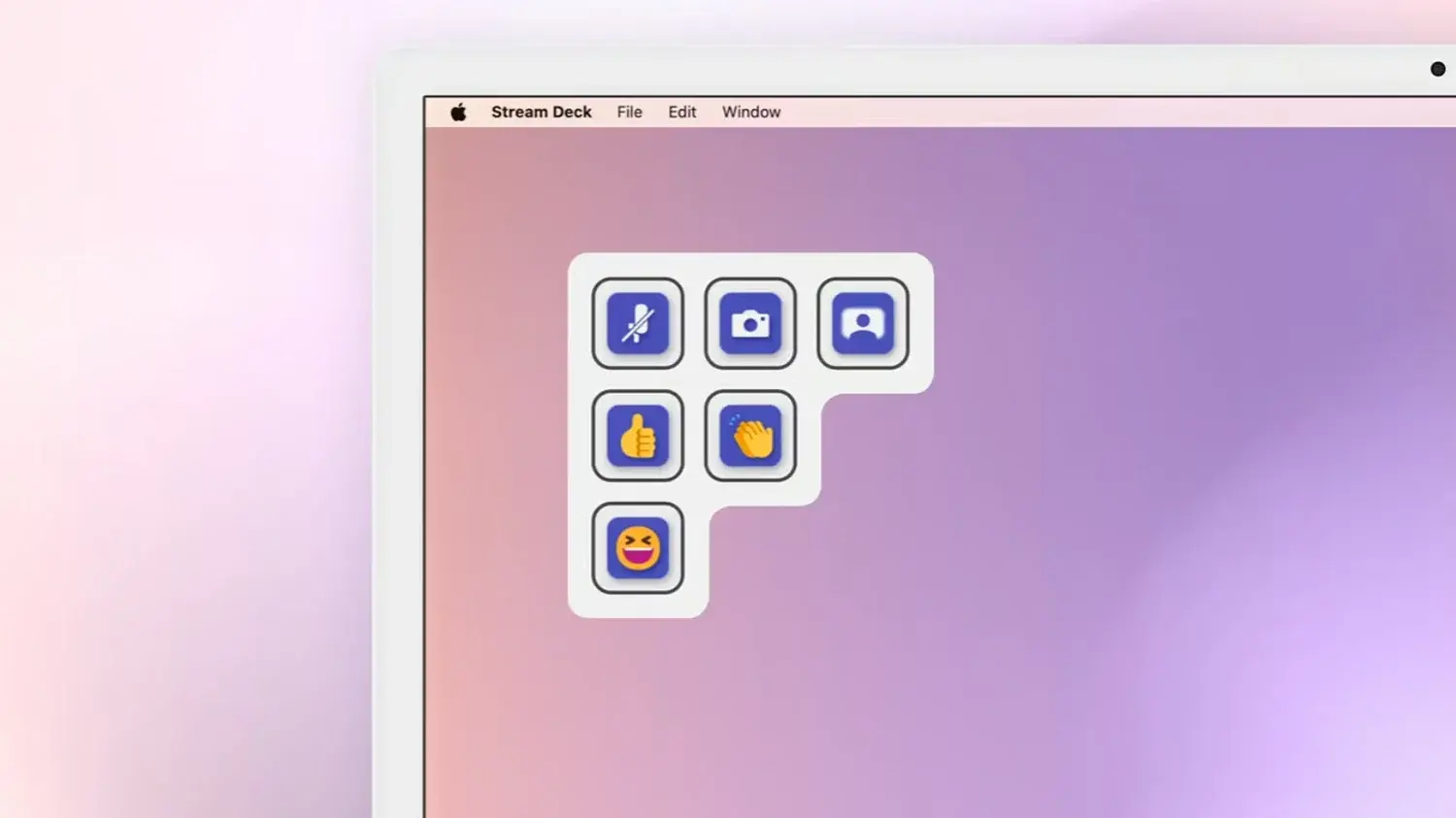
In addition to physical devices, there's the option of using a Virtual Stream Deck directly on your screen , which acts as a digital version of a button panel, accessible with a mouse or trackpad. Each virtual key functions just like a physical one: launching applications, executing actions, controlling tools, or displaying real-time information.
Virtual Stream Deck can be configured to create, for example, a permanent productivity dashboard on the side of your monitor. There you can place shortcuts to project folders, critical files, web dashboards, world clocks to see which colleagues are active in other time zones, and anything else you frequently check.
It's also very useful in the creative field. Thanks to specific plugins, you can place buttons on the screen for frequent actions in Photoshop, DaVinci Resolve, or Adobe Premiere : switching tools, applying effects, manipulating layers, or launching editing macros. All of this with custom icons that make the workflow more visual.
Another common use for this virtual panel is centralized control of meetings in Zoom, Teams, or Slack . Instead of chasing after the mute or screen-sharing button in each program's interface, you define your own fixed buttons for those functions, so that no matter what changes in the software, your panel always stays the same.
However, full access to Virtual Stream Deck requires unlocking it via compatible hardware or a subscription . It's activated when you connect a physical Stream Deck device or certain CORSAIR hardware, and also when you use Stream Deck Mobile Pro on iOS or Android. Once unlocked, you can mix physical and virtual use as you wish.
Integration with Discord, games and entertainment without losing productive focus
While this article focuses on productivity, it's important to remember that Stream Deck also originated in the world of gaming and streaming , and that aspect remains very much alive. For many users, it's a hybrid: a serious tool during work, and a gaming dashboard at the end of the day.
A typical use is controlling Discord while you play . Instead of switching windows to mute yourself, unmute your audio, turn on your camera, or play sounds, you can assign a few keys on the Stream Deck to these actions. With the right plugin, you can even see who's in a voice channel before joining, without leaving the game.
In more complex games like MMOs, flight simulators, or space-themed titles, the Virtual Stream Deck or the physical panel can act as temporary radial menus for abilities and shortcuts . You place the panel near your mouse, press the desired ability, and close it, which is great for long rotations or complex control combinations.
There are also specific plugins for particular games, allowing for pre-configured hotkey profiles or even small information panels. While this may seem purely for entertainment, it has a side effect: it gets users used to working with the Stream Deck and then transferring that dynamic to their work.
In any case, the device isn't limited to entertainment. Some people use the same panel, with a different profile, to quickly switch audio devices , change from headphones to speakers, adjust the master volume, or switch between microphones, all with a single touch thanks to plugins like Audio Switcher.
Stream Deck models and variants for different profiles
Within the Elgato ecosystem, there are several models designed for different types of users and desktop space , and they are considered essential PC peripherals . The main family is based on variants of different sizes, all with programmable LCD keys.
In the classic range, you have the Mini model with 6 keys , suitable if you only need a few key actions; the standard model with 15 keys, perhaps the most balanced for combining productivity and leisure; and the XL model with 32 keys, designed for advanced users who handle many profiles and simultaneous actions. These models usually offer standard or scissor switches depending on tactile preference.
The 15-key version offers a variety of aesthetic options : several base colors and gaming-themed designs, as well as interchangeable faceplates in a wide range of styles. It's a minor detail in terms of functionality, but it helps to visually integrate it into your setup.
A particularly interesting model for more compact desktops is the Stream Deck Neo , which offers eight main buttons along with an Infobar and two Touch Points at the bottom for navigating between different configurations. It's only available with standard keys and in white or black, but it's very versatile, acting as a kind of "window" to multiple pages of actions despite having fewer physical buttons.
On a slightly different level is the Stream Deck+ , which adds four physical dials and a touch strip to the buttons. This format is well-suited for studio use, audio mixing, real-time parameter control, or even color grading. The dials can be customized with different colored threads, offering both visual and organizational flexibility.
For professional studio and broadcast environments, there's the Stream Deck Studio , a rack-mounted unit designed for integration into business settings, especially when combined with software like Bitfocus. It offers capabilities such as crosspoint routing, SNMP monitoring, and NMOS IP streaming, making it more of a professional production tool than a simple desktop peripheral.
Don't forget the Stream Deck Pedal , a foot controller that completes the ecosystem. It allows you to assign functions to physical pedals, which is very useful for those who want to free their hands (for example, podcasters, musicians, streamers, or even technicians who need to trigger actions while typing or using a mouse).
Finally, Elgato offers modular variants geared toward OEMs who want to integrate 6, 15, or 32-button matrices into their own products. This opens the door for other brands to incorporate Stream Deck's logic and ecosystem into custom solutions, not limited to Elgato's original hardware.
Alternatives, DIY macropads and similar solutions
The concept of a programmable panel is not exclusive to Elgato. There are alternatives on the market with somewhat different philosophies, as well as DIY tech options based on macropads and open firmware.
A popular example is Loupedeck, which is geared towards photographers and video editors . It typically includes sliders, physical knobs, and buttons, with deep integration with Adobe suites. It's ideal if your workflow revolves around programs like Lightroom, Photoshop, or Premiere and you value analog parameter control.
Another alternative is the Razer Stream Controller , developed in collaboration with Loupedeck. It offers a similar experience to a classic Stream Deck, but with a focus on gamers. It combines buttons, wheels, and touch controls to cover both streaming and basic productivity.
There are also purely software solutions that transform your mobile phone or tablet into a programmable panel . These can serve as an affordable entry point to the concept, although they typically lack the same ecosystem depth and tactile feel of a dedicated device.
For the more hands-on among us, DIY macropads based on QMK firmware or boards like Arduino/ESP32 allow you to create custom keyboards without LCD screens but with a fully customizable configuration. They don't offer the same visual experience as the buttons on a Stream Deck, but they are very flexible, especially for those who enjoy open-source hardware.
Even so, the strength of the most popular Stream Decks remains the critical mass of their community and their plugin ecosystem . The sheer number of ready-made profiles, tutorials, icons, integrations, and support is not usually so easy to replicate in other solutions, which may be very good but have less support.
Linux, community and the "nerdiest" side of Stream Deck
In the Linux world, the situation is somewhat different. There is no official, universal software equivalent to that of Windows or macOS, so support depends largely on the community of developers and advanced users who have adopted the device.
Among the best-known projects is streamdeck-ui, a graphical interface written in Python that allows you to configure buttons, folders, and actions without having to deal with the terminal. It's a very convenient way to define profiles in distributions like Ubuntu and other popular variants.
For those who want to go further, libraries like python-elgato-streamdeck allow interaction with the hardware through custom scripts. Each button on the deck can trigger shell commands, automation scripts, Kubernetes-related tasks, or complete DevOps pipelines, turning the device into a kind of technical operations launch center.
In this environment, Stream Deck becomes almost a pure automation lab . You lose some of the immediacy of commercial programs, but you gain enormous freedom to adapt it to your needs, especially in sysadmin and DevOps roles, where it has carved out a solid niche.
Something similar happens with other peripherals, such as advanced mice that some users reconfigure to act as a "half Stream Deck" at no extra cost. The limitation almost always comes from drivers and Linux support, but the community continues to explore tricks and solutions to get the most out of them in that ecosystem.
AI and Stream Deck: competitors or allies?
With the expansion of generative artificial intelligence, it might seem that a physical device with buttons is doomed : if you can talk to an assistant or type a prompt, why do you need a shortcut panel?
The reality is quite the opposite: many recent integrations use Stream Deck as a touch interface to AI models . You can configure buttons that open your favorite chat with the AI already prepared, or that send predefined prompts without you having to type them every time. This speeds up workflows for writing, scheduling, planning, or reviewing content.
Some plugins even allow you to use buttons as physical prompts that encapsulate complex instructions : for example, generating a technical summary from selected text, rewriting an email with a more formal tone, or suggesting code solutions from a snippet. Each button represents a reusable template with pre-configured parameters.
In combination with Virtual Stream Deck, you can build AI command libraries organized by pages : one for writing, one for programming, one for developing marketing campaigns, and one for creating technical documentation. You press a button, paste content, and let the model do the rest.
Far from becoming obsolete, the Stream Deck is finding a role as a physical layer that brings order and immediacy to an increasingly complex environment of tools, cloud services, and artificial intelligence. It's a way to anchor abstract processes and automations to something tangible, always within easy reach.
Ultimately, the Stream Deck—physical or virtual—acts as a small external brain for your workflow. If your daily routine involves dealing with numerous tools, endless meetings, and repetitive processes, having a visual panel where each button eliminates friction and consolidates various actions can make a bigger difference than it initially seems.
