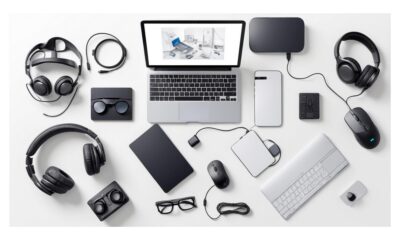
- Essential PC peripherals encompass input, output, storage, communication, and ergonomics, and their selection affects comfort and productivity.
- Keyboard, mouse, monitor, audio, external storage and a good connection hub form the minimum base for any modern computer.
- Accessories such as monitor arms, mouse bungees, light bars, stands, and advanced mouse pads improve posture, organization, and user experience.
- Peripherals specifically designed for gaming, content creation, and remote work allow you to fine-tune your setup according to your needs: from immersive headphones to Stream Decks and Full HD webcams.
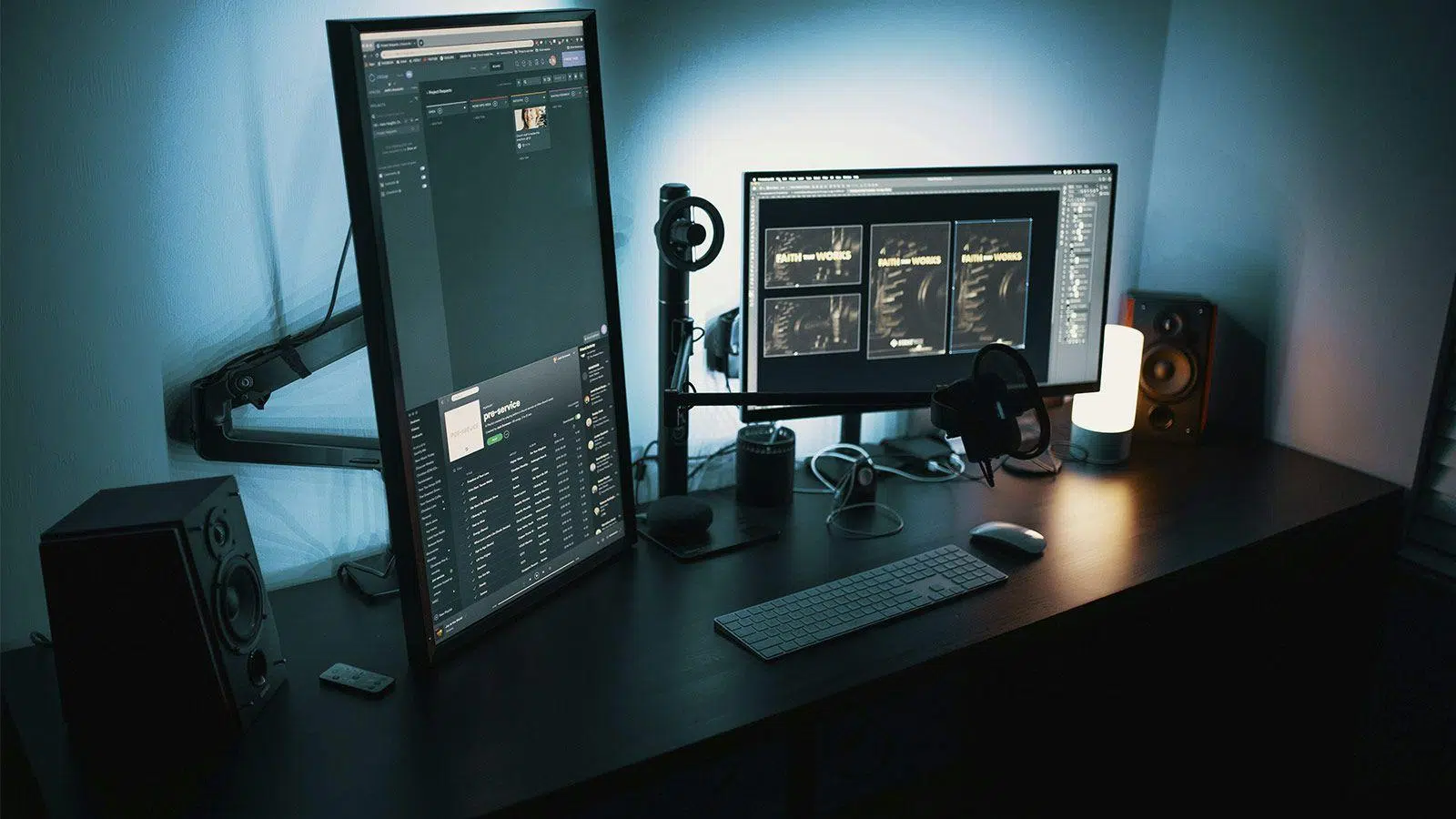
If you spend many hours in front of a computer, sooner or later you discover that a powerful tower or a new laptop isn't enough. The real difference in comfort, productivity, and enjoyment lies in the peripherals and accessories you choose : from the keyboard and mouse to the monitor stand, mousepad, or even a simple light bar.
Although often seen as dispensable extras, good essential PC peripherals can completely transform your user experience , whether you work, study, play games, or create content. In this article, we'll take a comprehensive look at what peripherals are, the different types available, which ones are truly essential, and what other accessories deserve a place on your desk if you want a well-rounded setup.
What is a PC peripheral and how do you connect it?
In computing, a peripheral is any device that connects to a computer to add extra functionality . It can be external (a USB keyboard, a webcam) or internal (a network card or a sound card), but in all cases it is considered an auxiliary component, not part of the core system that performs the calculations.
These devices are responsible for input, output, storage, and communication operations between the PC and the outside world. They connect via different types of ports : from the ubiquitous USB (A or C) to older parallel or serial ports, including VGA or HDMI for video, audio jack connectors, PCIe slots for internal cards, and Ethernet ports for networking.
Although they don't participate in central processing like the CPU or RAM, without many peripherals, a computer would be practically unusable on a daily basis . Imagine trying to use a computer without a screen, keyboard, or any kind of pointing device: technically, the system would boot up, but you wouldn't be able to do much.
Types of essential PC peripherals
When we talk about essential PC peripherals, it is important to distinguish between several categories, because not all of them perform the same function or have the same priority when assembling or improving a computer.
Peripherals are typically classified into the following main categories: input devices, output devices, input/output devices, storage devices, and communication devices. Let's examine these in detail with clear examples.
Input devices are those that allow information to be entered into the computer from the outside. The classic example is the keyboard, but others include the mouse, a scanner, a microphone, a light pen, or a fingerprint reader.
Output devices are responsible for sending information from the computer to the outside world in visual, auditory, or printed form. This group includes monitors, printers, speakers, headphones, and even some dedicated graphics cards.
In addition, there are mixed input/output (I/O) peripherals , which can both receive and send data. A touchscreen, a multifunction printer (which prints and scans), a virtual reality headset, or a modem are good examples of this type of multipurpose device.
We mustn't forget storage peripherals, which are used to store data in the short or long term . This includes hard disk drives (HDDs), solid-state drives (SSDs), USB flash drives, memory cards, optical discs such as CDs or DVDs, external hard drives, and even magnetic tapes in professional environments.
Finally, we have communication peripherals, which allow devices to be interconnected with each other or with networks . These include wired or wireless network cards, USB hubs, network switches, fax modems, and specific adapters that expand a computer's connectivity options.
In their daily use, most users focus primarily on a few essential components: keyboard, mouse, monitor, audio, external storage, and connectivity . From this foundation, they then add accessories that improve ergonomics, comfort, or productivity.
Essential peripherals for any PC
Whether you use a desktop or a laptop, there's a small group of essential PC peripherals that virtually everyone needs to work or play comfortably.
First, there are the basic input devices, such as the keyboard and mouse . Keyboards can be membrane, mechanical, or hybrid: mechanical keyboards are known for their precision and durability, with popular switches like Cherry MX or their gaming equivalents; membrane keyboards are cheaper and quieter, but less responsive.
Regarding the mouse, ideally you should choose an ergonomic model adapted to your hand and your primary use . For office tasks, a simple mouse is sufficient, even a wireless one to reduce cables. If you play shooters, you'll want a lightweight and very precise mouse; for MMOs, you might prefer one with many programmable side buttons.
In terms of output, the monitor is another essential peripheral, as it determines how you see everything you do on your PC . They range from 21-24 inch Full HD monitors for office work, to 27 or 32 inch models with 1440p or 4K resolution, high refresh rates (144 Hz or more) for gaming, IPS panels for better color or VA panels for greater contrast, and even ultrawide screens for advanced productivity.
Sound is equally important: good speakers or headphones make all the difference when watching content, playing games, or making video calls . You can opt for desktop speakers if you don't want to wear anything on your head, or for headsets with a microphone to combine audio and chat in a single device.
Finally, although many take it for granted, you need some kind of external or removable storage . A USB flash drive or portable hard drive will be a lifesaver for making quick backups, moving large files between computers, or keeping cold copies of important documents without relying solely on your computer's internal drive.
Laptop peripherals: when they become essential
A laptop comes "ready to use" with a screen, keyboard, trackpad, speakers, and webcam. However, once you spend many hours working or studying on it, the lack of ergonomics and ports becomes noticeable , and that's where laptop peripherals come in.
The first thing people usually add is an external keyboard and a comfortable mouse, which allow you to position the laptop at eye level using a stand, while typing and typing in a much more natural posture for your neck and wrists. This simple combination transforms the laptop into a kind of "lightweight desktop PC."
It's also very common to connect a larger, higher-quality external monitor . Upgrading from the typical 13-15 inch laptop screen to a 24 or 27 inch display significantly improves productivity, facilitates working with multiple windows, and reduces eye strain. Furthermore, you can take advantage of higher resolutions or refresh rates for graphics-intensive tasks or gaming.
Another recurring issue with laptops is connectivity: many modern models sacrifice ports to gain thinness. In these cases, it's almost essential to use a USB-C hub or dock that adds HDMI, more USB ports, a card reader, or even Ethernet . This solves the lack of connections at once, allowing you to leave the laptop connected with a single cable that powers and links the entire desktop.
Regarding storage, it's always a good idea to use external hard drives or USB flash drives to free up space on your laptop's internal SSD, which often falls short in mid-range or entry-level models. Having a portable hard drive for backups and large projects is a lifesaver.
In any case, when buying laptop peripherals, it's advisable to check the type and number of ports (USB-A, USB-C, HDMI, DisplayPort, audio jack, etc.) to avoid incompatibilities . Most modern accessories are plug and play, so simply connect them and they'll work without any problems.
Gaming peripherals: keyboard, mouse, audio, and monitor
If you enjoy video games, this is probably where the difference between basic peripherals and those designed for gaming is most noticeable. The keyboard, mouse, headphones, and monitor combo is critical for a smooth and competitive experience.
Starting with the keyboard, most serious gamers opt for mechanical models with fast and precise switches (real hardware reviews ). They typically offer anti-ghosting, N-key rollover, and programmable macro keys, as well as configurable RGB lighting. TKL keyboards, or those without a numeric keypad, are gaining popularity because they free up more space for the mouse.
When it comes to gaming mice, the ideal model is one with a good sensor, adjustable DPI range, low latency, and a shape that suits your grip (claw, palm, fingertip). Lightweight mice are preferred for competitive shooters, while MMOs and MOBAs value additional side buttons for quick skills.
Audio is also vital: gaming headphones with surround sound and a decent microphone help you locate enemies and communicate with your team . Consider the comfort of the earcups for long sessions, the microphone quality (to avoid constant background noise), and whether you prefer a wired or wireless connection.
The monitor completes the experience thanks to high refresh rates (120/144 Hz or even higher) and low response times . For competitive gaming, fast 1080p or 1440p panels are usually recommended, while for more cinematic titles, a larger monitor with better color, or even an ultrawide one, might be preferable.
Beyond these four pillars, the gaming ecosystem is often complemented by specialized chairs with lumbar support, large mouse pads, headphone stands, and all sorts of synchronized RGB lighting . These aren't essential for gaming, but they do contribute to comfort and enhance the aesthetic appeal of the setup.
Ergonomic and organizational accessories that make a difference
Beyond the classic peripherals, there are a number of accessories that are often overlooked but can significantly improve ergonomics, desktop cleanliness, and cable management . They're small details that, once you try them, become hard to live without.
One of the most highly recommended options is a monitor arm or mount compatible with VESA mounts . This type of mount is usually attached to the edge of the desk and allows for much greater freedom in adjusting the height, distance, tilt, and rotation of the screen than the monitor's original stand.
Thanks to this, you can position the top of the screen at eye level, free up desk space, and even mount multiple monitors vertically or horizontally . Some models include cable management channels, which helps maintain a much cleaner and more attractive workspace.
Another curious but surprisingly useful accessory is the mouse bungee, a small support that raises and secures the cable . Its purpose is to prevent the cable from rubbing against the edge of the desk, getting tangled with other cables, or getting trapped behind the monitor or tower—a common problem in setups with limited space.
If you use a wired mouse and make a lot of quick movements, a bungee cord lets you "disappear" from the cable and allows it to move smoothly . It doesn't add any technical performance to the mouse, but it does provide a feeling of freedom similar to a wireless model, while maintaining the low latency of a wired connection.
Headphone and beverage stands also play an important role . Headphone stands allow you to store your headphones without leaving them lying on the table, and some models even include wireless charging for compatible headphones or extra USB ports. Drink stands help keep your coffee or soda safe, preventing an accidental spill from ending up on your keyboard.
For those who spend many hours in front of a screen, light bars that attach to the monitor are a highly recommended lighting accessory . They illuminate the work area (keyboard, notebooks, desk) without creating annoying reflections on the screen, and reduce eye strain in dark environments.
Hubs, docks and communication peripherals
In a world where many laptops and some desktops reduce their ports to a minimum, hubs and docking stations have become essential PC peripherals for expanding connections without having to open the computer or change machines.
A typical hub, connected via USB-A or USB-C, can add several additional USB ports, HDMI or DisplayPort video outputs, an SD card reader, an Ethernet jack, and other input/output options . They are usually plug and play and work with desktops, laptops, tablets, and even mobile phones, depending on the model.
Modern laptops commonly use USB-C or Thunderbolt docks that, with a single cable, provide video to one or two monitors, wired network connectivity, multiple USB ports, an audio jack, and battery charging . This allows you to get to your desk, connect a single cable, and have your entire desktop instantly ready.
When it comes to desktop computers, especially if they are far from the table or have rear ports that are difficult to access, it can be practical to buy hubs with their own power supply to avoid overloading the front ports and facilitate the quick connection of external drives, USB flash drives, and other gadgets.
The communication category also includes internal Wi-Fi cards or USB adapters for those who need wireless connectivity on desktops that only come with Ethernet, as well as network switches or signal extenders in environments with several wired devices.
In short, this entire connectivity ecosystem allows you to adapt your PC to your actual needs for ports, video, and networking, without relying solely on the motherboard's stock features . It's a flexible way to "upgrade" your computer's capabilities without modifying the internal hardware.
Advanced productivity peripherals and accessories
In addition to basic peripherals, there are certain types of accessories designed for users who work with multiple applications, stream, edit video, or simply want to automate repetitive tasks. The concept of a programmable control panel, such as a Stream Deck , is particularly noteworthy in this area.
A device of this type consists of a panel of buttons, usually with small screens on each key, which you can configure to launch applications, run macros, control volume, or change scenes in streaming programs . Although it was originally designed for content creators, today many people use it for pure productivity.
For example, you can dedicate one group of buttons to frequent actions in your video or photo editor, another to office shortcuts, and another to controlling music playback or the microphone . All this without having to memorize key combinations or constantly navigate through menus.
Related to productivity and remote work, the external webcam is also very important for desktop computers . While laptops already include one, desktop towers do not, and using a mobile phone as a camera, although possible, is not always comfortable or practical.
When choosing a webcam, look for at least Full HD (1080p) resolution at 30 fps, and ideally 60 fps for smoother image quality . A built-in microphone and a physical lens cover are also pluses, saving you money on additional peripherals and providing privacy when not in use.
On the other hand, a good mouse pad might seem like a minor detail, but it greatly influences the feeling of control . It not only protects the table surface but also provides a uniform texture for the mouse sensor, facilitating more precise and smoother movements, especially in games or design tasks.
There are even mousepads that integrate wireless charging for compatible mice or RGB lighting . In the first case, the mouse recharges while you use it without the need for additional cables; in the second, it simply adds an aesthetic touch and visual coherence to your setup if you already have other RGB elements.
General characteristics of peripheral devices
Looking at all these devices together, several common characteristics emerge that help explain their versatility. The first is their "external" nature to the system core : although some are mounted inside the case, they are considered peripherals because they are not part of the CPU-RAM-motherboard block.
Another important feature is that they can be located either inside or outside the computer, depending on the type of device and connection format . A hard drive can be internal or external; a network card can be installed in a PCIe slot or integrated into the motherboard; a fingerprint reader can be USB or integrated into the chassis.
Furthermore, these devices are replaceable and expandable: you can swap them out, add new ones, or remove some depending on your needs at any given time . The computer will continue to function without issue even if you disconnect headphones or remove an external hard drive; it will simply have less available storage capacity.
It's also worth noting that most connect via widely used standards such as USB, HDMI, DisplayPort, audio jacks, network ports, or VESA mounting connectors . This greatly simplifies compatibility between brands and models, allowing the same peripheral to work with different devices.
Finally, the fact that many are plug and play makes the barrier to entry very low: simply plug them in and the operating system will load the necessary drivers , either automatically or with a small program included by the manufacturer.
Given this overview, it's clear that talking about essential PC peripherals isn't just about keyboards, mice, and monitors, but about designing a complete ecosystem tailored to your needs . From accessories that improve ergonomics and eye health to hubs that expand connections, advanced productivity tools, and gadgets that organize cables and support devices, every piece contributes to making your daily computer experience much more comfortable, efficient, and, why not, even more enjoyable.