- Recognizing early symptoms of infection in Windows helps prevent serious damage and data loss.
- The combination of Windows Defender, MSRT and external tools allows you to detect and remove most viruses.
- Keeping your system updated, using reliable antivirus software, and limiting suspicious downloads drastically reduces the risk of malware.
- The new AI features in Windows 11 open up opportunities, but they also introduce additional security risks.
Having a virus on Windows is one of those problems that always seems to strike at the worst possible time: your computer stumbles, strange windows pop up, or files disappear without explanation. Even though Windows 10 and Windows 11 include increasingly robust defenses, malware continues to infiltrate the system through countless channels, from dubious downloads to phishing emails.
In this article, you'll find a comprehensive and practical guide to understanding what malware is on Windows, how it gets onto your PC, what signs indicate a possible infection, how to use tools like Windows Defender or MSRT to scan your system, and what steps to take to clean and protect your computer. The goal is for you to finish reading feeling confident and knowing exactly what to do if you suspect something is wrong.
How to tell if your Windows PC has a virus
Detecting something wrong early is key to preventing further damage. You won't always see a clear "you have a virus" message, so you need to pay attention to your computer's overall behavior. When you notice something unusual, the wisest course of action is to run a thorough scan with your antivirus software (Windows Defender or any other reliable solution you have installed).
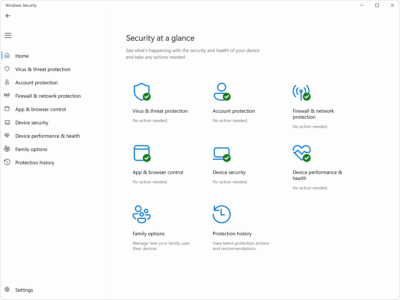
Windows Defender lets you run scans directly from Windows Defender . If you suspect your PC is compromised, if you've recently had an infection and want to ensure everything is clean, or if you simply want a routine check, you can start a manual scan from within Windows Security. Once finished, the system will tell you if it found any threats and what action it took against each one.
Some signs that your computer might be infected include it running much slower than usual , the battery (on laptops) lasting significantly less time than normal, or you noticing unusually high network data usage even when you're not downloading anything important. All of these can point to unknown processes running in the background and consuming resources without your permission.
Other common symptoms include unexpected shutdowns or restarts , constant errors, strange changes in your browser, or programs appearing without your knowledge. The more of these signs you see at once, the more advisable it is to run a full scan with your antivirus software and thoroughly check your system.
Main signs that your computer has malware
The malware ecosystem continues to grow : there are over a billion malicious programs circulating worldwide, and hundreds of thousands of new variants appear every day. Fortunately, although the situation is serious, there are recurring patterns that allow us to suspect an infection before it worsens.
A classic sign is slow and erratic performance . Programs that take forever to open, applications that constantly crash, or processes that suddenly overload the processor or disk can be related to viruses that run silently and consume a lot of resources.
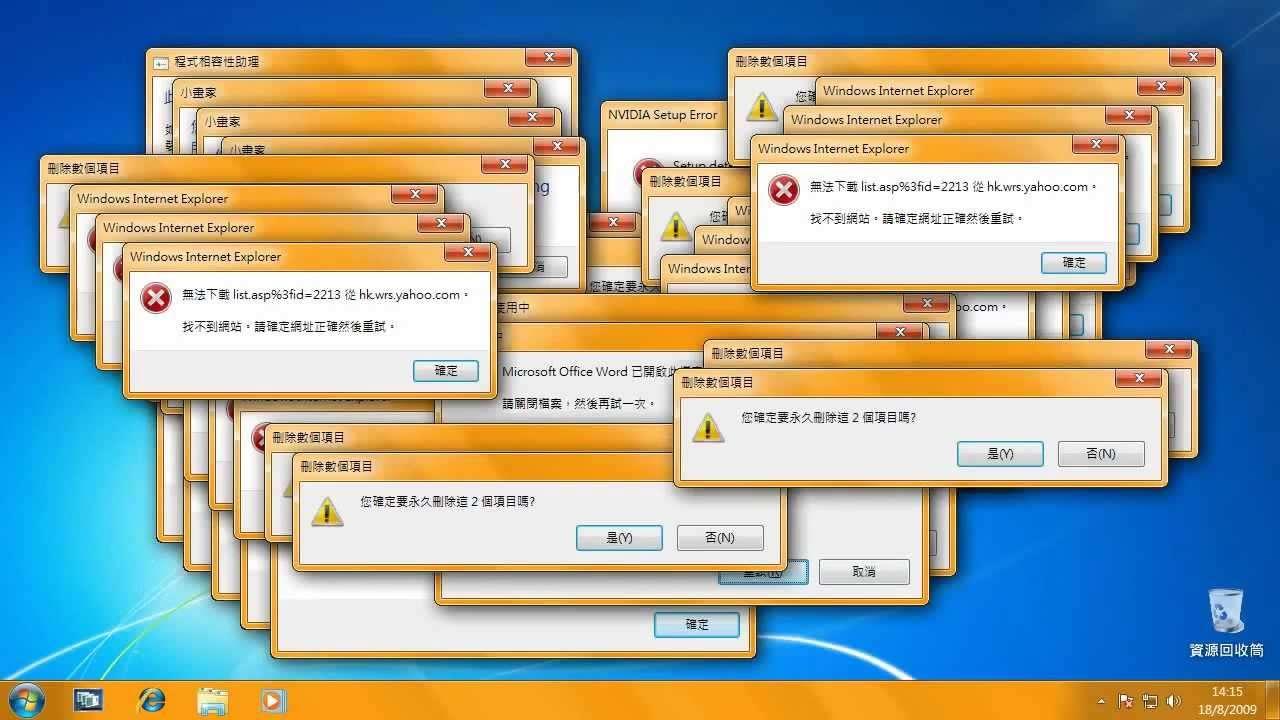
Frequent crashes or restarts without your input are also highly suspicious . If, in addition, your screen is filled with pop-up ads, redirects to strange websites, or alerts you've never seen before, it's likely that adware or some kind of browser hijacker is running rampant.
Repeated error messages , the random disappearance or corruption of files, or your antivirus software ceasing to function, closing unexpectedly, or appearing uninstalled are all red flags. Many viruses attempt to bypass security defenses to remain undetected and continue their malicious activities.
Another very common symptom is the presence of unknown programs , strange toolbars in the browser, desktop icons you never installed, and suspicious extensions. These items often come bundled with "free" downloads or opaque installers that sneak in additional software without your explicit consent.
Email and the internet also communicate. If you suddenly receive tons of spam with strange attachments or links, or your contacts tell you they're receiving unusual messages from your account, malware might be using your email to spread. Similarly, unusual network usage or unknown processes sending and receiving data in the background point to Trojans or bots operating covertly.
In terms of hardware, you'll notice things like overheating and rapidly draining battery for no apparent reason, or a hard drive that keeps working even when you're not doing anything demanding. In Windows, you can quickly check this in the Task Manager, where you'll see background processes continuously consuming CPU, memory, or disk resources.
How to get a Windows PC infected: most common entry points
A computer virus works similarly to a cold : it enters your "body" (the system), spreads, and starts causing problems. Windows has its own "immune system" (protected files, memory, antivirus, firewall, etc.), but malware looks for vulnerabilities and human errors to sneak in.
Once it gains entry, malicious code can multiply rapidly and cause significant damage . Some viruses focus on stealing private data such as passwords, banking credentials, or personal information; others hijack parts of the system to send spam, mine cryptocurrency, launch attacks on third parties, or demand a ransom for your files (ransomware).
In most cases, the problem isn't with Windows itself, but with an action we take without realizing it : downloading something infected, opening a malicious attachment, or clicking on a poisoned link. From there, malware can install itself and run rampant without adequate protection.
One of the most common methods is through websites of dubious reputation . Pages filled with intrusive ads, constant pop-ups, or automatic downloads can try to install software on your computer even without you consciously clicking on anything. Sometimes, simply visiting the website with an outdated browser is enough to expose you to certain exploits.
Another classic source is suspicious emails . Unexpected messages with attachments (documents, supposed invoices, photos, etc.) or links that take you to sites trying to trick you into downloading something or entering your credentials are a constant attack vector. If they also appear to come from legitimate entities but have odd details in the language or address, it smells like a phishing attempt with malware included.
Downloading free software or content from unreliable sources is also dangerous: pirated games, miracle plugins, movies in impossible quality, or cracked "premium" tools often hide viruses, Trojans, or potentially unwanted programs (PUPs) that spy on you, fill your system with ads, or slow it down.
Installing unverified or unsigned third-party applications from outside official app stores further increases the risk. Many installers bundle toolbars, miners, spyware, or adware that are added to your system almost invisibly if you keep clicking "Next, Next" without reviewing the advanced options.
Even Google search results can be compromised . Through aggressive SEO techniques, some attackers manage to place infected websites at the top of the search results; if you click on them trusting that "if it's on Google it must be safe," you could end up downloading malware without realizing it.
Types of computer viruses that can affect Windows
Not all viruses behave the same way or cause the same damage . Some are noisy and visible, others extremely discreet. It's helpful to know some common categories to better understand what might be happening on your PC.
So-called overwriting viruses directly attack executable files (e.g., .exe) and replace the legitimate content with their own malicious code. As a result, the affected programs stop functioning properly or become completely corrupted, potentially leading to irretrievable data loss. These types of threats often arrive as email attachments or through downloads of games, movies, or software from unsafe websites.
Then there are network viruses , which specialize in spreading rapidly through local or internet connections, sometimes with little or no user intervention beyond simply having the computer connected. They replicate across multiple systems, can destroy temporary files, and can also steal confidential information by exploiting security vulnerabilities in network services, file sharing, or outdated protocols.
Another very troublesome group is browser hijackers , also known as redirect viruses. These modify key browser settings (homepage, default search engine, permissions, proxies, etc.) to force you to visit websites with aggressive advertising or even outright dangerous ones. The goal is usually to collect, sell, or misuse your personal data, in addition to forcing you to click on ads.
Hijackers often sneak in disguised as seemingly innocent downloads , fake browser extensions, or malicious links sent via email and social media. Once inside, restoring the browser to normal can be quite difficult without a thorough system cleanup.
Polymorphic viruses deserve special mention . These are among the most difficult to detect and eradicate because they constantly change parts of their own code. This ability to mutate helps them evade traditional antivirus signatures, allowing a single virus to present multiple distinct "faces" to security tools.
This type of malware typically spreads through massive spam campaigns, compromised websites, and infected files that users download and install believing them to be safe. In addition, there are more modern threats such as ransomware and malware attacks that leverage artificial intelligence techniques to better adapt to the environment and evade defenses.
How to scan and remove viruses in Windows step by step
Finding a virus on your PC is alarming, but it's not the end of the world . Many threats can be removed by following a few logical steps and using the right tools. The important thing is to remain calm, avoid using your computer for sensitive tasks (online banking, shopping, etc.) while you suspect an infection, and take some time to thoroughly check everything.
The first step is to have a reliable antivirus installed. Windows Defender comes built-in and offers an acceptable level of protection for many users, but you can also opt for paid or free third-party solutions, provided they are from reputable developers. A good antivirus should offer on-demand scanning, real-time protection, automatic signature updates, and blocking of suspicious activity.
If you suspect malware is at work, it's wise to disconnect your PC from the Internet (unplug the network cable, turn off Wi-Fi) to cut off any potential communication between the virus and external servers and prevent it from spreading across your local network to other computers.
Afterwards, it's advisable to restart your computer in safe mode . Both Windows and macOS offer this limited mode in which the system starts with only the bare minimum components, blocking the loading of many third-party programs, including many malware programs. Working in this environment makes detection and removal easier, as fewer things are running and there's less chance of the virus hiding or reactivating.
In Windows 10 and Windows 11, you can enter Safe Mode by clicking the Start button, then the power icon, holding down the Shift key while selecting "Restart," and, after the blue screen of options appears, going to Troubleshoot > Advanced options > Startup Settings and clicking "Restart." Then, in the boot menu, select the option for Safe Mode (usually by pressing the 4 key).
Once inside, it's a good idea to manually review your files and programs for items you don't recognize or don't remember installing. In Windows, you can use tools like Disk Cleanup to remove unnecessary temporary files, caches, and other leftover data that sometimes hides traces of malware.
Next, open your antivirus software and run a full system scan . This type of scan thoroughly checks drives, folders, startup items, memory, and other critical areas. Depending on the size of your disks and the amount of data, this can take anywhere from a few minutes to over an hour. When finished, the antivirus should display a summary of detected threats and the actions taken (quarantining, removing, etc.).
If you use antivirus software with real-time protection and the option to schedule regular scans , activate these features so that automatic checks are performed from now on without you having to worry. It's a convenient way to ensure you don't forget the most basic security checks.
Once you've finished scanning and cleaning, restart your computer normally to exit safe mode and return to the regular startup process . If the antivirus has done its job correctly, the system should run more smoothly and many of the symptoms that made you suspicious will disappear.
As an extra layer of protection after an infection, it's highly recommended to change all your important passwords (email, social media, online banking, cloud services, etc.). Many viruses are specifically designed to capture credentials, and even if you've already removed them, they may have stolen sensitive information beforehand. Changing your passwords helps prevent unauthorized access with stolen data.
If after following these steps you continue to see strange behavior, serious errors, or believe the damage may be extensive (for example, file encryption by ransomware), it may be worth consulting a technical support professional or considering directly copying your important data and reinstalling Windows from scratch to ensure a clean environment.
Using MSRT: Microsoft's Malicious Software Removal Tool
In addition to Windows Defender, Microsoft includes another, lesser-known utility called the Microsoft Software Removal Tool (MSRT). It has been present since very early versions of Windows and, although somewhat hidden today, it can still be useful for checking for certain types of malware on the system.
Unlike a traditional antivirus, MSRT doesn't monitor in real time or run automatically at regular intervals. It's an on-demand scanning tool that you have to launch manually whenever you want to scan your computer. Its interface is simple and focused on performing one or more scans on demand.
To open it, simply press the Windows key + R simultaneously to display the "Run" window and type mrt (just those three letters, without quotes) before clicking OK. Windows will ask you to confirm that the application can make changes to your computer; select "Yes" to continue.
The Malicious Software Removal Tool window will then open . On the first screen, you'll see a brief explanation of what the program does. From there, click "Next" to choose the type of scan you want to perform on your system.
MSRT offers several modes: a quick scan , which checks the most common areas where malware tends to hide; a full scan , which scans the system more thoroughly; and a custom option , where you can specify particular folders to scan. Depending on the option chosen and how full your disk is, the process can take anywhere from a few minutes to well over an hour.
When it finishes, the tool displays a report indicating whether it has found any malware . If it doesn't detect anything, you can simply exit the application. If it discovers any threats, it will offer you the option to remove them. It's important to understand that MSRT doesn't replace a full-fledged antivirus program, but it can be useful as extra support or for users looking for a very straightforward and uncomplicated tool.
Disinfection with Malwarebytes and cleaning of Defender history
In some complex scenarios, combining tools or using a rescue antivirus might be helpful . If your PC continues to show signs of infection despite having antivirus software, many technicians recommend running an additional solution like Malwarebytes, which can detect and clean a wide variety of malware and potentially unwanted programs (PUPs).
A sensible approach would be to first ensure your system is fully updated and that Windows has applied all pending security patches. To do this, go to Settings > Update & Security > Windows Update and click "Check for updates," installing anything listed as important or recommended.
If you have any third-party security software installed that might be causing conflicts , it's a good idea to temporarily uninstall it to prevent it from interfering with the scans. Then, download the free version of Malwarebytes from its official website, install it, and run a thorough scan for viruses, Trojans, adware, and similar malware.
If Malwarebytes detects nothing, or if old warnings continue to appear in the Windows Defender protection history after cleaning , you can choose to clear that registry. To do this safely, it's best to start your system in Safe Mode (following the procedure described earlier) and, once inside, navigate to the following path:
C:\ProgramData\Microsoft\Windows Defender\Scans\History\Service
Inside that folder, you'll find files related to the detection history. By deleting them and restarting your computer, Windows Defender will rebuild the history from scratch using the new scans. However, always be careful when deleting system files, making sure you only touch those that actually correspond to Defender's logs.
AI in Windows 11 and new security risks
Artificial intelligence is becoming increasingly integrated into Windows 11 , with features that promise to automate tasks, configure the system for you, and even make decisions to optimize your experience. However, this added convenience comes hand in hand with new security concerns that cannot be ignored.
Microsoft has proposed introducing AI agents with their own accounts within the system , capable of accessing parts of your user profile and, if granted permission, reading and writing to folders such as Documents, Downloads, or the Desktop. In theory, all their actions should be approved by the user and logged, but the company itself acknowledges that significant risks remain.
AI models can suffer from limitations and unexpected behavior , such as the well-known "hallucinations" (incorrect but confidently presented responses). In the context of automated agents interacting with the operating system, these errors could lead to inappropriate decisions that affect security or privacy.
One of the dangers highlighted by Microsoft is cross-instruction injection (XPIA). In this type of attack, malicious content embedded in graphical interface elements, documents, or web pages can alter or override the AI agent's original instructions, forcing it to perform actions the user does not actually want.
These potentially dangerous actions include leaking sensitive data, sending information to third parties, or even installing malware without the user's full awareness. For this reason, Microsoft itself has recommended, at least for now, caution and not enabling these AI agents in future versions of Windows 11 until the technology and mitigations are more mature.
The clear message is that, while AI has a very appealing role in automation and convenience , it can also open new doors to malware if robust controls aren't implemented. As users, it's wise to stay informed about new developments, carefully review which AI features are activated, and what permissions are granted to them.
How to protect Windows against future viruses and malware
Once you've cleaned your computer, it's time to minimize the chances of it happening again. No system is invulnerable, but you can significantly reduce the risk by adopting a few good practices and using the right tools.
The most important thing is to have a reliable antivirus program that's always running . Windows Defender may be sufficient for many users, but there are commercial solutions that offer additional features such as enhanced web protection, spam filters, password management, or integrated VPN. Essentially, the antivirus should keep its signatures up to date, monitor in real time, and block suspicious downloads and behavior before they can be executed.
Equally crucial is keeping all your software up to date : Windows itself, your browser, your most frequently used programs, plugins, and extensions. Microsoft frequently releases security updates that fix vulnerabilities exploited by malware; on Windows, it's recommended to leave Windows Update in automatic mode to ensure you receive critical patches without having to manually install them.
Mac users, although this article focuses on Windows, should also periodically check System Settings > General > Software Update to install the latest macOS versions, as malware also exists in that environment, albeit with a lower statistical incidence.
Another element that greatly helps reduce risks is the use of pop-up and ad blockers . Many malware campaigns are distributed through pop-ups that try to trick you into clicking on supposed virus alerts, essential downloads, or fake prizes. By blocking these windows, you not only improve your browsing experience but also add an extra layer of security against dangerous links and downloads.
Furthermore, it's vital to be selective with your downloads . Try to download software, multimedia content, plugins, and extensions only from official or highly reputable websites. Be especially wary of anything promising "cracked" versions of paid programs, newly released audiovisual content, or miracle tools. Cybercriminals often disguise their malware behind enticing names, and if you're not careful, it's very easy to fall for it.
Finally, don't forget the importance of making regular backups to external drives or cloud services. In particularly damaging attacks, such as ransomware, having a recent backup can mean the difference between recovering your digital life or being forced to pay (something that is never recommended) or losing your data.
Protecting your Windows computer from viruses and malware requires a combination of the right tools, regular updates, and a bit of common sense when browsing, downloading, and opening emails. If you get into the habit of taking these precautions, checking for suspicious symptoms, and using Windows Defender, MSRT, or solutions like Malwarebytes when necessary, you'll be able to use your computer with much greater peace of mind and avoid most of the nasty surprises that are circulating online these days.