- Identifying critical symptoms such as system freezes, read errors, and blue screens of death (BSOD).
- Use of diagnostic tools built into Windows, PowerShell commands, and specialized software.
- Relationship between operating system updates and storage unit instability.
- Data prevention and backup strategies using the 3-2-1 rule to avoid permanent losses.
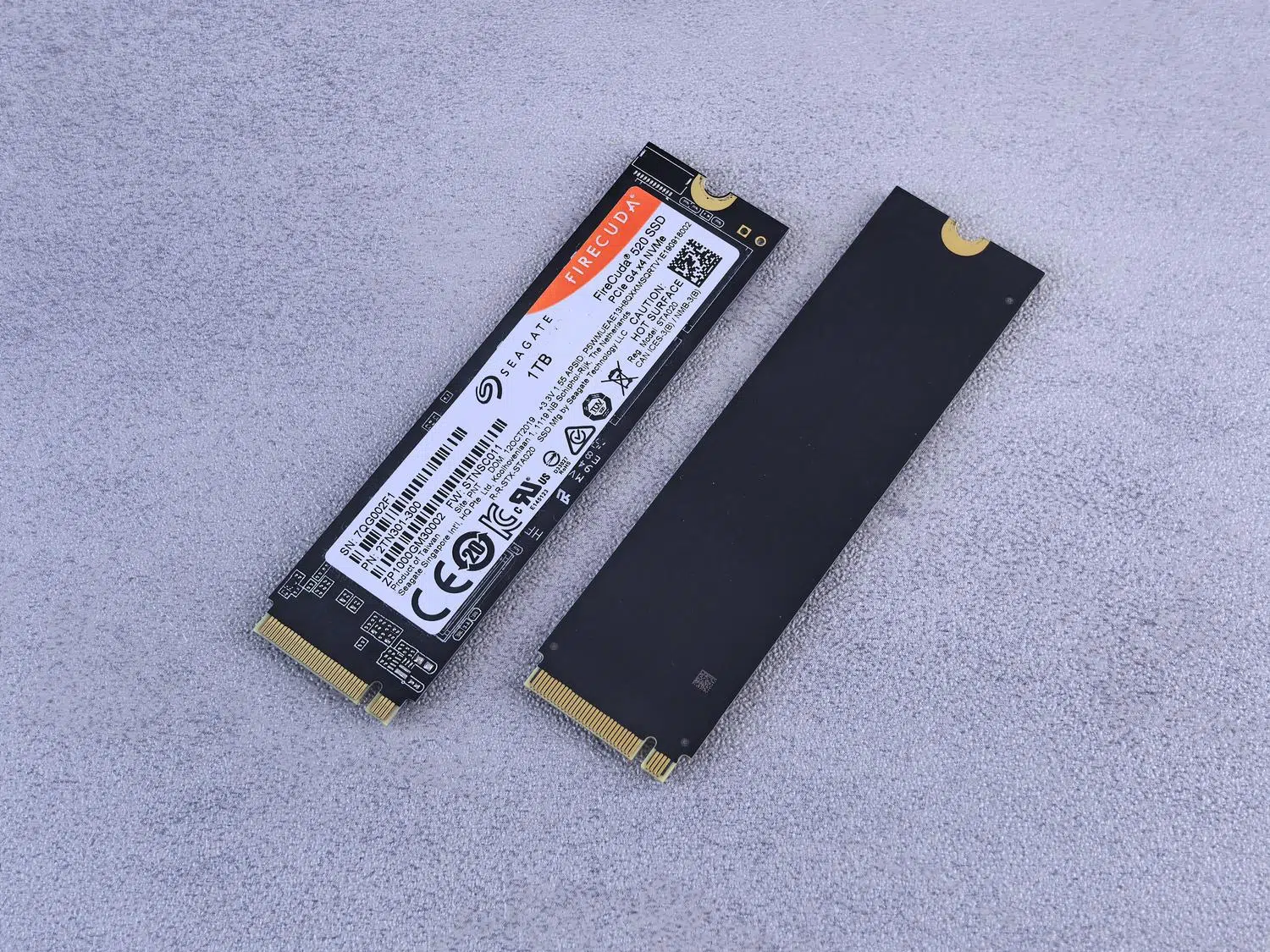
Having a slow computer is annoying, but noticing that the system freezes or that some applications close unexpectedly is a real warning sign. Although many of us blame the RAM when the PC is unresponsive , the reality is that SSD failures are often the true culprits behind those critical errors and the dreaded Blue Screen of Death.
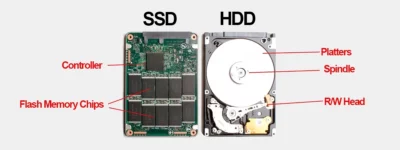
Unlike older mechanical hard drives, which warned of problems with strange noises or metallic clicks, SSDs are silent, and their failures are more insidious. Therefore, it's crucial to regularly monitor the drive's health to avoid waking up one day to find it completely unusable and losing important files due to a lack of timely action.
Why does an SSD start to fail?
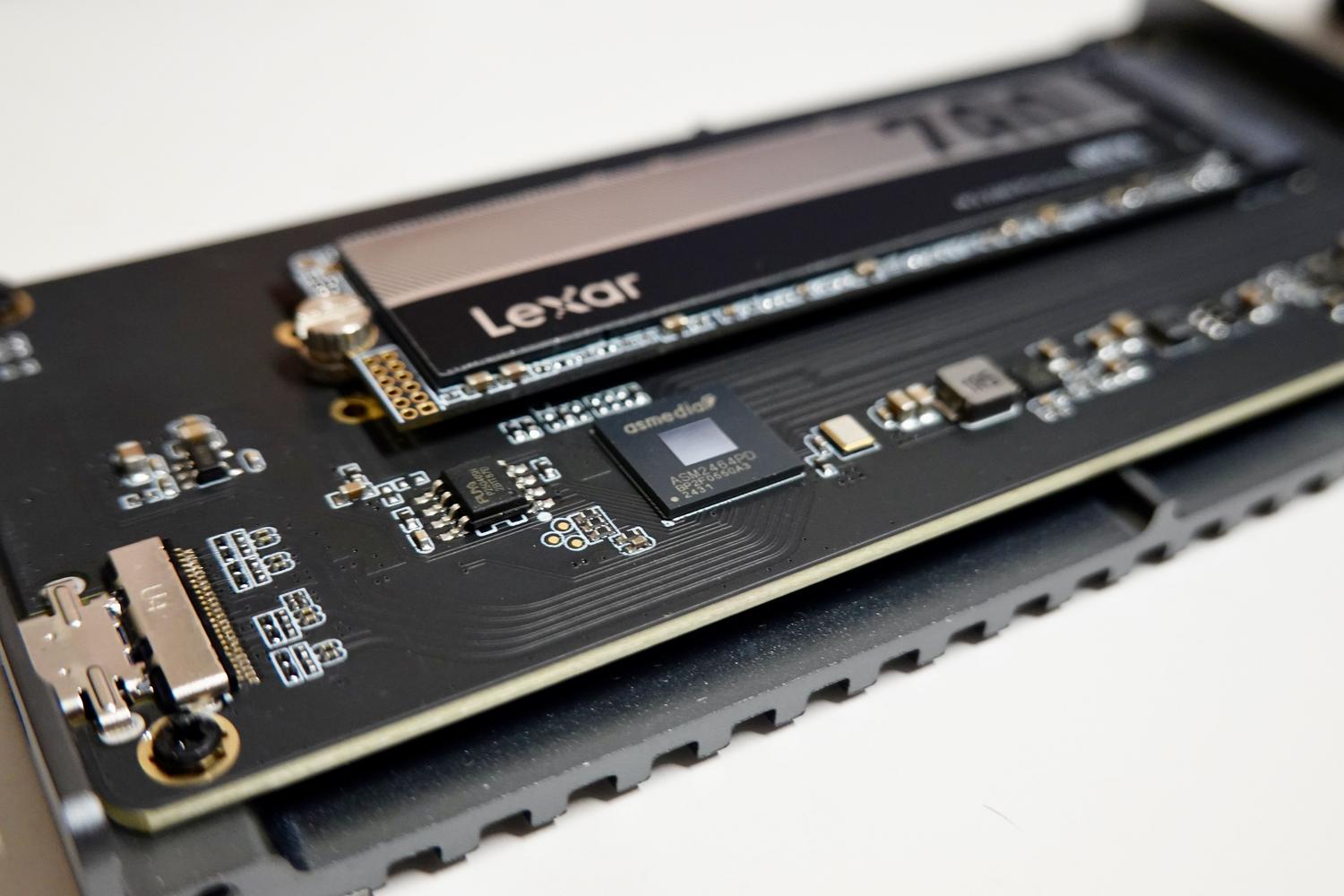
Although solid-state drives are famous for their speed and durability, they aren't eternal. Wear and tear occurs primarily due to write cycles on the memory cells; basically, every time you save or delete a file, the drive degrades a little. If you add power surges or excessive heat to this , the degradation process accelerates dramatically, causing the cells to burn out prematurely.
A very common symptom when a hard drive reaches the end of its lifespan is that it enters read-only mode . In this state, you can see your files, but it's impossible to install new programs or save changes, which is a clear sign that the component needs to be replaced urgently.
Warning signs and problems with Windows 11

It's not all about physical wear and tear; sometimes software plays tricks on us. Certain Windows 11 updates (such as some versions of 24H2 or specific patches) have been found to cause SSDs from various brands to disappear from the system or cause graphical glitches and corrupted textures in games. In some cases, the drive is no longer detected even in the BIOS, suggesting that a software bug may have rendered the drive unusable or in an unstable state.
The most common symptoms include freezing when opening folders , bit errors that corrupt files, and extreme slowness on the Windows 11 SSD that causes File Explorer to become completely unresponsive.

Methods to check the health of your hard drive
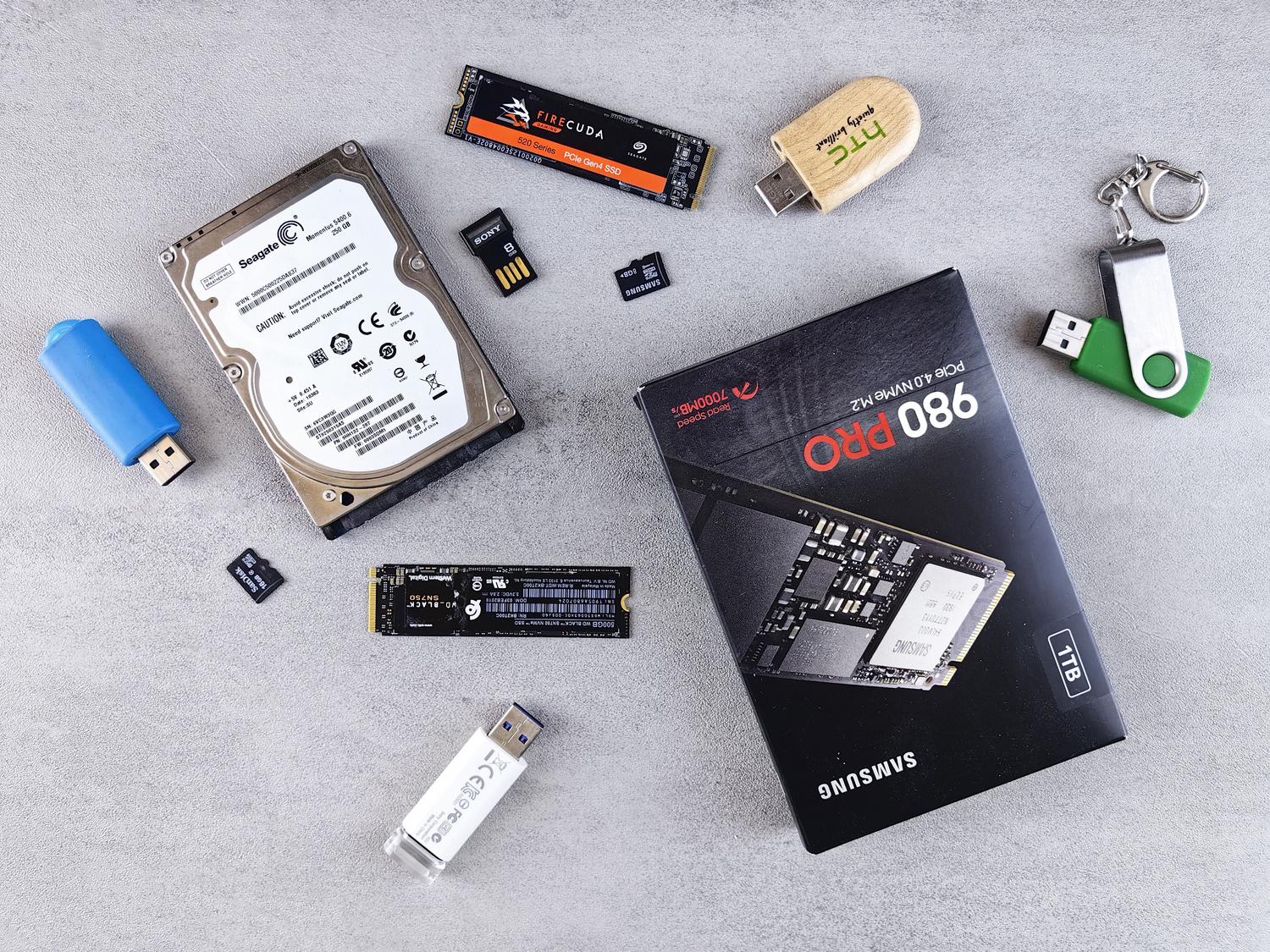
If you suspect something is wrong, there are several ways to read the health of an SSD and check the actual state of your hardware:
- PowerShell Commands: By running the console as administrator, you can use the command
Get-WmiObject -namespace root\wmi -class MSStorageDriver_FailurePredictStatus | Select-Object InstanceName,PredictFailure, Reasonto determine if the system predicts an imminent failure. It is also usefulGet-PhysicalDiskto obtain detailed reliability counters. - External Tools: For those who prefer something more visual and less technical, CrystalDiskInfo is the ideal choice, as it offers an intuitive interface with the disk's health status and temperature.
- Manufacturer Utilities: On ASUS computers, for example, the application MyASUS allows you to perform a diagnosis Customized SSD to detect specific hardware errors.
- Disk Utility (macOS): If you use a Mac, simply check that the SMART status appears as "Verified".

Troubleshooting and Optimization Guide
If the disk is still recognized but malfunctioning, you can try the following steps to try and stabilize it:
BIOS and System Settings
First, enter the BIOS and make sure the disk is configured correctly as Solid State Drives (SSD) and not as an HDD. Furthermore, it's vital to verify that the function TRIM is enabledThis prevents performance from declining over time. You can verify this in the command prompt with fsutil behavior query DisableDeleteNotifyIf the result is 0, everything is correct. If it is 1, activate it using fsutil behavior set DisableDeleteNotify 0.
Actions in Windows 11
If your SSD disappears or is running slowly, try these technical solutions:
- Device administrator: Try enabling the drive if it appears disabled or uninstall the disk driver and restart your PC so that Windows can automatically reinstall it.
- Disk Management: Check if the drive appears there even if it is not visible in Explorer.
- Windows Tools: Right-click on the drive, go to Properties, and use the Tools tab to analyze and repair disk errors or run the unit optimization.
- Updates: Always keep your BIOS, drivers, and Windows packages up to date, as many times a new patch fixes disk detection bugs.

How to avoid total data loss
When a hard drive starts to fail, backups are the top priority. The safest strategy is the 3-2-1 rule : keep three copies of your files, store two on different media (like an external SSD and a USB drive), and keep one copy in the cloud (OneDrive, Google Drive). This ensures that even if your primary drive fails completely, your data remains safe.
To keep your drive in good condition, prevent your PC from overheating. You can monitor your SSD's temperature in Windows to avoid thermal stress. If you notice that your drive usage is consistently at 100%, check advanced settings such as the Storahci.sys driver to improve system efficiency.
Maintaining the health of your storage involves a combination of constant monitoring with diagnostic software, proper driver updates, and a rigorous backup policy. Whether the problem stems from natural wear and tear of memory cells or a conflict with the latest Windows updates, acting quickly at the first sign of freezing is the only way to prevent a drive from becoming completely unusable.